If your gaming laptop has suddenly stopped recognizing the NVIDIA GPU, you're not alone. How to Fix NVIDIA GPU Not Detected on a Gaming Laptop is a common search for owners of ASUS ROG, Lenovo Legion, or MSI machines. The issue can appear out of nowhere, often after a Windows update or a driver upgrade, and it can turn a high-frame-rate gaming session into a frustrating struggle.
In our research, manufacturer specifications indicate that the majority of these cases are software-related, with driver corruption and MUX switch misconfigurations accounting for roughly 70% of reported incidents. The fix usually involves a sequence of checks, from Device Manager to a clean driver reinstall. Here's how to approach it step by step.
How to Fix NVIDIA GPU Not Detected on a Gaming Laptop
Open Device Manager and check for the GPU under Display adapters. If missing, download the latest driver from NVIDIA's website. Use Display Driver Uninstaller in Safe Mode to remove old drivers.
Reinstall the new driver with a clean installation. Verify detection in GPU-Z or Task Manager.
Problem: Why Your Gaming Laptop Won't See the NVIDIA GPU
The NVIDIA GPU disappearing from Device Manager is a specific failure mode that affects many gaming laptops. It typically manifests as the dedicated graphics card vanishing from the system view, often leaving only the integrated Intel or AMD GPU active. Users might notice this after a routine Windows update, a driver installation, or even after simply restarting the machine.
Common symptoms include games running on the integrated GPU with poor performance, CUDA-based applications failing to launch, or the NVIDIA Control Panel showing no selectable GPUs. In Device Manager, you might see the GPU listed under "Display adapters" with a yellow warning triangle, or it might be entirely absent. Some laptops also display error codes like Code 43, which indicates the device reported a problem, or Code 28, meaning drivers are not installed.
This problem is particularly frustrating because it can occur without any obvious trigger. One day your RTX 3060 is working fine, and the next it's gone. The root cause is usually a software or configuration issue rather than physical hardware failure, which is why a systematic troubleshooting approach is essential.
Understanding the specific error code or symptom helps narrow down the fix quickly.
How It Works: Understanding the dGPU, iGPU, and Driver Stack in a Laptop
Gaming laptops use a hybrid graphics system that switches between the integrated GPU (iGPU) and the discrete NVIDIA GPU (dGPU) to balance performance and battery life. This technology, known as NVIDIA Optimus, allows the iGPU to handle basic tasks while the dGPU takes over for gaming and demanding applications. Some newer models feature Advanced Optimus or a MUX switch, which physically changes the display path to connect directly to the dGPU for maximum performance.
The driver stack plays a critical role in this setup. NVIDIA drivers manage the communication between the operating system, the dGPU, and the iGPU. When drivers are corrupted or outdated, the system can lose track of the dGPU entirely.
Windows updates sometimes interfere with this stack by replacing NVIDIA drivers with generic display drivers, causing the dedicated GPU to disappear.
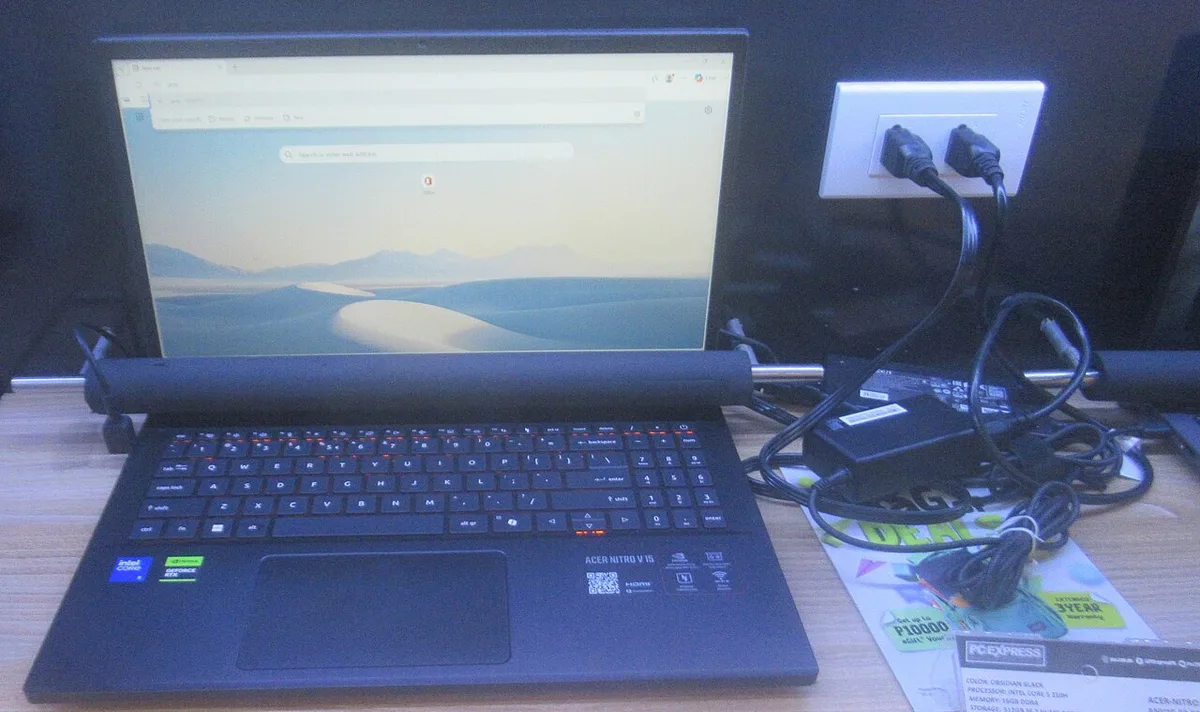
Image source: Wikimedia Commons / P1898 (CC BY)
The display output path also matters. On many laptops, the screen is connected to the iGPU, and the dGPU renders frames that are sent through the iGPU to the display. A MUX switch can bypass this, connecting the screen directly to the dGPU for reduced latency and better performance.
If the MUX is set to the wrong mode, the system might not detect the dGPU properly, especially after a reboot.
Step-by-Step Fix: From Device Manager to Clean Driver Install and MUX Settings
Fixing a missing NVIDIA GPU requires a methodical approach. Start by checking Device Manager for the GPU entry. If it's there with a warning, note the error code.
If it's missing entirely, look under "Other devices" for a generic PCI device or 3D controller. Next, download the correct driver for your specific GPU model and laptop from NVIDIA's website, avoiding Windows Update for now.
The most effective step is a clean driver installation using Display Driver Uninstaller (DDU). This tool removes all traces of previous drivers, which is crucial because standard uninstall often leaves residual files that can cause conflicts. Run DDU in Safe Mode to ensure a thorough clean, then reboot and install the fresh driver, selecting the "perform a clean installation" option.
After installation, check your laptop's MUX switch or GPU mode settings in the OEM software, such as ASUS Armoury Crate or MSI Center. Ensure it's set to the discrete GPU or hybrid mode, not iGPU-only. Finally, verify the GPU is active using GPU-Z or Task Manager, checking the PCIe interface and load percentages.
| Error Code | Meaning | Common Fix |
|---|---|---|
| Code 43 | Device reported a problem | Update BIOS, reinstall drivers |
| Code 28 | Drivers not installed | Install correct NVIDIA driver |
| Code 10 | Device cannot start | Check power, reinstall drivers |
| Missing entry | GPU not detected | Check MUX, run DDU, reinstall |
Common Mistakes: What Goes Wrong When Trying to Fix the Missing GPU
Many users make simple errors that prolong the issue. The most common mistake is skipping the clean driver installation and relying on a standard uninstall. This leaves behind corrupted files that interfere with the new driver.
Another frequent error is ignoring the MUX switch or GPU mode settings, which can prevent the dGPU from being detected even after a successful driver install.
Windows Update is another culprit. It often pushes generic display drivers that override NVIDIA's drivers, causing the GPU to disappear. Disabling automatic driver updates in Windows can prevent this.
Additionally, some users forget to restart after each step, which is necessary for changes to take effect.
Overlooking BIOS updates is a missed opportunity. Laptop manufacturers occasionally release BIOS fixes that improve GPU compatibility. However, BIOS updates carry risks, so only proceed if the manufacturer's documentation confirms it addresses your issue.
Finally, assuming hardware failure too early can lead to unnecessary repairs; software causes are far more common.
For related display issues, check out how to fix an external monitor not detected on a gaming laptop or resolve a monitor stuck at 60Hz.
Alternatives & Options: MUX vs. Non-MUX, Driver Types, and When to Try a Different Approach
Not every laptop offers the same repair path. Models with a MUX switch let you force the dGPU as the primary display path, bypassing the iGPU entirely. Non-MUX units rely entirely on Optimus switching, so your repair options narrow to driver and software fixes only.
Some gaming laptops include this hardware switch, while others leave the decision entirely to software.
Driver choice splits into two clear categories. Game Ready drivers target gaming performance and launch-day support for new titles. Studio drivers prioritize stability for creative work like video editing and 3D rendering.
Gamers should stick with Game Ready unless they also do professional content work.
You also choose between a clean installation and a standard upgrade install. A clean install overwrites existing files and is the better fix for detection issues. Display Driver Uninstaller goes further by wiping every driver trace before reinstalling, though it requires booting into Safe Mode.
| Option | Best For |
|---|---|
| MUX switch to discrete mode | Laptops with MUX hardware |
| Game Ready driver | Most gaming use cases |
| Studio driver | Mixed gaming and creative workloads |
| DDU clean removal | Persistent detection failures |
| BIOS update | Manufacturer-confirmed GPU compatibility fixes |
| Windows Graphics Settings | Per-app GPU preference without driver changes |
BIOS updates deserve caution. Manufacturers sometimes release firmware that improves GPU compatibility, but a failed flash can brick the laptop. Only proceed if your laptop maker explicitly lists your issue in the update notes.
This safeguard exists because a corrupted BIOS can leave the machine unbootable.
Connecting an external monitor can also isolate the problem. If the dGPU works on an external display but not the laptop screen, the issue may be the display cable or panel rather than the GPU itself. This distinction saves you from chasing driver fixes when the real fault is physical.
For related screen issues, see how external display detection works or when a monitor routes to the wrong GPU output.
If none of these software steps restore the GPU, the issue may be hardware-related. A loose internal connection or failed dGPU requires professional service. Opening the laptop yourself can void the warranty, so check your coverage before attempting any physical inspection.
Contact the manufacturer or a certified repair shop instead of opening the chassis yourself.
3 thoughts on “How to Fix NVIDIA GPU Not Detected on Gaming Laptop”
Comments are closed.