Getting a 'No GPU Found' message from the NVIDIA App on a gaming laptop can be frustrating, especially when you're ready to game. The error usually means the software can't detect your discrete graphics card, which could stem from driver issues, BIOS settings, or hardware connections. In this guide we'll walk through the most common causes and how to fix them.
As of 2026, the NVIDIA App replaces the older GeForce Experience, and it expects a compatible driver version such as the 560.xx series. When the app fails to see your GPU, it often points to a mismatch between the installed driver and the hardware configuration. We'll start with a quick checklist to narrow down the problem before diving into detailed fixes.
How to Fix NVIDIA App No GPU Found on Gaming Laptop
How to Fix NVIDIA App Says No GPU Found on a Gaming Laptop
NVIDIA App shows 'No GPU Found' when it cannot detect your graphics card. This often results from outdated drivers or BIOS misconfiguration. Check Device Manager to see if the GPU is listed.
Update or reinstall the NVIDIA driver. If the error remains, verify BIOS hybrid graphics settings.
Quick Diagnostic Checklist Before You Start
Before you open any menus, run these quick checks. They help you isolate the issue without unnecessary steps.
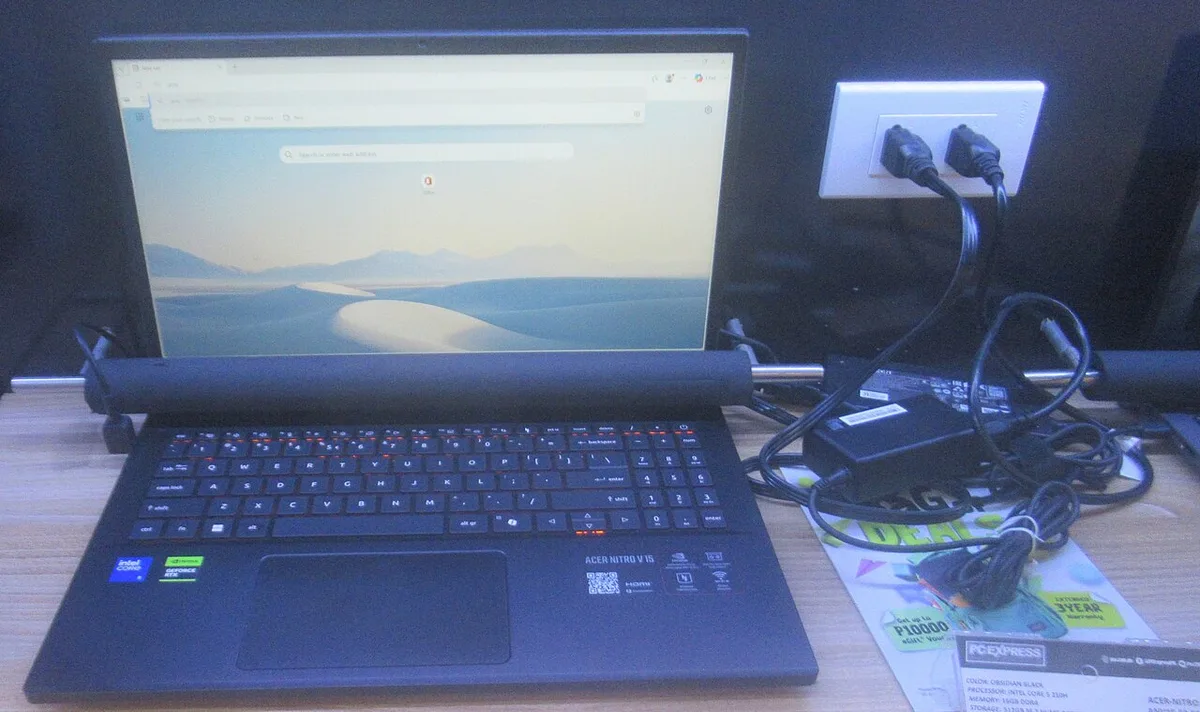
- Confirm the laptop is plugged in and the power light is on.
- Open Device Manager and look for the GPU under Display adapters.
- Verify the NVIDIA App is up to date from the official site.
- Check that the correct driver version is installed.
- Note any warning symbols next to the GPU entry.
If the GPU appears in Device Manager, the problem is likely software related. If it is missing, the hardware may be disabled or not detected. Move on to the step‑by‑step fixes for the most common causes.
Step-by-Step Fixes by Root Cause
Each root cause has a specific set of symptoms and a targeted fix. The table below matches them.
| Root Cause | Typical Symptoms | Fix |
|---|---|---|
| Outdated driver | App crashes, no GPU listed | Reinstall latest driver from NVIDIA |
| BIOS hybrid settings | GPU not detected in Windows | Enable discrete GPU in BIOS |
| Loose connection | System boots but no display | Reseat PCIe or check cables |
| Corrupted app files | Error message persists | Reset NVIDIA App or reinstall |

Start with the driver. Download the latest GeForce driver for your GPU model from the NVIDIA Driver Download page. Run the installer and choose a clean install if offered.
Restart the laptop and open the NVIDIA App again.
If the app still cannot see the GPU, enter the BIOS. Locate the hybrid graphics or switchable graphics option. Set it to use the discrete GPU only or enable the dedicated GPU.
Save changes and reboot.
For a loose connection, power off the laptop and disconnect the battery. Reseat the PCIe cable or the GPU module if your model allows it. Reconnect everything and power on.
If none of the above works, reset the NVIDIA App. Open the app settings and choose the reset option. Alternatively, uninstall the app and download it fresh from the official site.
When Standard Fixes Fail: Advanced Troubleshooting
If the basic steps do not restore GPU detection, try these advanced methods. They carry more risk, so follow each step carefully.
Use Display Driver Uninstaller (DDU) to remove all traces of the current driver. Boot into safe mode, run DDU, and select GPU. After cleanup, reinstall the driver.
Check the Windows Device Manager for any unknown devices. If you see a device with a yellow exclamation mark, right‑click and update the driver. Choose the NVIDIA driver from the list.
Update the BIOS to the latest version provided by the laptop manufacturer. BIOS updates can fix compatibility issues with newer drivers. Follow the manufacturer's instructions exactly; a failed update can brick the laptop.
If the GPU still does not appear, test with an external monitor. Connect a display to the laptop and see if the GPU is detected there. If it works, the internal display or cable may be faulty.
For more on external monitor problems, see our guide on external monitor not detected.
As a last resort, contact the laptop manufacturer's support. Provide them with the error message, driver version, and BIOS version. They can check for known hardware issues.
Common Mistakes That Make the Problem Worse
Avoid these common errors that can extend the troubleshooting time or cause further issues.
- Installing a driver that does not match your GPU model. Always select the correct product series on the NVIDIA site.
- Skipping the BIOS update when the manufacturer recommends it. Newer drivers sometimes require a newer BIOS.
- Using a generic driver from Windows Update instead of the official NVIDIA driver.
- Forgetting to restart after each change. Many fixes require a reboot to take effect.
- Ignoring warning signs in Device Manager. A yellow exclamation mark indicates a problem that needs attention.
By steering clear of these mistakes, you keep the troubleshooting process clean and reduce the chance of creating new errors. If you need more help with GPU detection issues, check our article on GPU not detected. For those building new systems, our list of latest RTX models can guide your hardware choices.
Keeping Your GPU Visible Long-Term
Most 'No GPU Found' cases come back after a Windows feature update or a driver landing at the wrong moment. A few habits keep the app and the card talking.
Clean Install After Every Major Windows Update
Windows feature updates reset display driver components more often than people expect. If a big update just landed, run a clean driver install instead of an in-place upgrade. Then confirm the GPU appears in the NVIDIA App before installing anything else.
Skip Third-Party Driver Boosters
Those "driver updater" utilities grab whatever build they find first. Sometimes that's a beta, sometimes a desktop package for a mobile chip. Laptop GPUs need mobile-specific drivers, and per NVIDIA's official app documentation, the app matches the driver branch to your exact GPU model on its own.
Keep a Known-Good Installer on Your Drive
Download the current driver and store the file locally. If a new release breaks detection, you roll back in minutes instead of hunting for an old build.
Recheck MUX and Firmware Settings
Laptops with a MUX switch or Advanced Optimus can move display output between the integrated and discrete GPU. A BIOS update sometimes resets that routing. Recheck it after any firmware flash.
Problems like output routed to the wrong GPU usually trace back to this.
Do a Quick Monthly Check
- Confirm the NVIDIA App updated cleanly.
- Scan Device Manager for warning icons.
- Clear dust from the intake vents so the GPU doesn't throttle.
- Wake the laptop from sleep and verify the card still shows up.
Frequently Asked Questions
Why does the NVIDIA App say no GPU found after a Windows update?
Windows feature updates can leave the display driver half-registered. Run a clean install of the latest NVIDIA driver and pick the custom install option. Restart, then reopen the app.
If the card is still missing, check Device Manager for a warning icon before you touch the BIOS.
Does the NVIDIA App support older laptop GPUs?
Anything older than a GTX 10-series mobile chip falls outside the app's support. Those machines need GeForce drivers installed manually from NVIDIA's site. The driver still works fine, you just manage updates yourself.
Check the driver download page for the legacy branch that matches your card.
Can a dying GPU cause this error?
Yes. If the card has failed or its solder joints have cracked, Windows drops it from the PCIe bus entirely. Watch for Code 43 in Device Manager, black screens under load, and frequent crashes.
Also check whether the problem shows up as a screen that dies once Windows loads, or as flickering on a second screen, since those point to different faults. If a clean driver install and a BIOS reset change nothing, treat it as hardware and contact support.
Should I disable the integrated GPU to force the app to see the RTX card?
No, and this one causes real damage. The integrated GPU drives your internal panel, MUX routing, and Quick Sync encoding. Disable it and you may lose display output completely.
Use Windows Graphics settings to assign each app to a GPU instead.
Is updating the BIOS a safe fix?
Only when the file comes from your laptop maker's support page. A BIOS built for a different model can brick the board, and an interrupted flash is just as bad. Stay plugged in and don't cut power during the process.
If your model has no newer BIOS, wait instead of forcing anything.