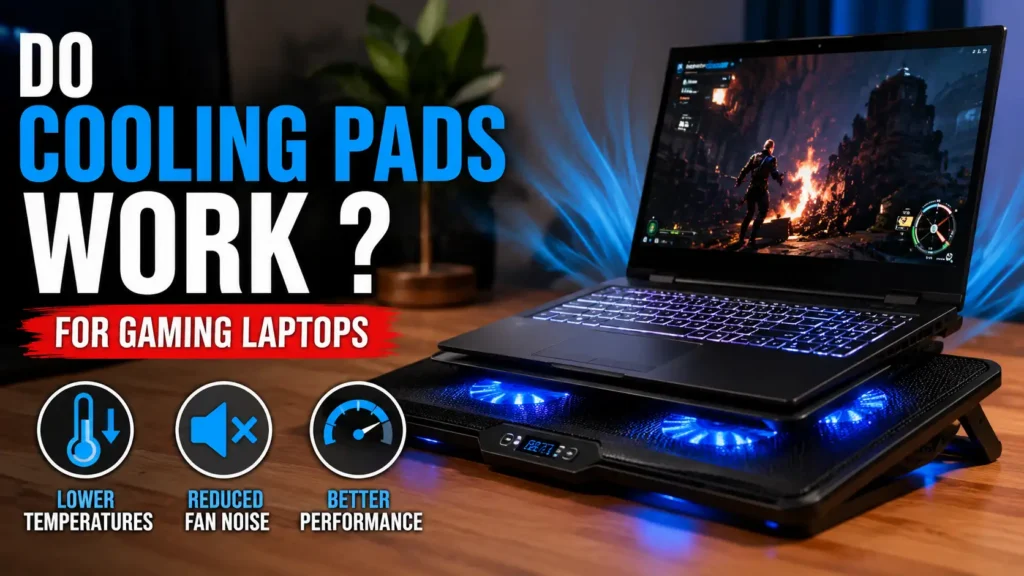
Gaming laptops are designed to handle demanding workloads, but all that processing power creates heat. After a long gaming session, you may notice louder fans, a hot keyboard, lower frame rates, or sudden stuttering. That naturally leads to one question: do cooling pads work for gaming laptops?
Yes, cooling pads can work, particularly when a gaming laptop pulls fresh air through vents on its underside. A suitable cooling pad can improve airflow, lower or stabilize temperatures, and sometimes reduce thermal throttling. However, it will not deliver the same result for every laptop, and it cannot repair blocked heatsinks, failing fans, or other internal cooling problems.
The real benefit depends on your laptop’s vent layout, the cooling pad’s design, fan alignment, room temperature, and how heavily the CPU and GPU are being used.
Do Gaming Laptop Cooling Pads Actually Work?
A laptop cooling pad places one or more external fans underneath your computer. These fans push additional air toward the laptop’s intake vents while the raised platform creates more clearance between the laptop and the desk.
This combination can improve cooling in two ways:
- It gives the laptop’s internal fans easier access to fresh air.
- It helps move heat away from the bottom panel.
Cooling pads tend to work best with gaming laptops that have large, open intake vents underneath. They may provide less benefit to laptops with mostly sealed bottom panels or cooling systems that take in air from another location.
Dell advises that using a laptop on a hard, flat surface improves airflow and notes that a cooling pad can reduce heat by supplementing the computer’s internal fans.
However, a cooling pad does not automatically make a gaming laptop faster. It only improves performance when heat was previously forcing the CPU or GPU to slow down.
What Results Should You Realistically Expect?
The result can range from almost no measurable change to a meaningful reduction in temperature. There is no single temperature drop that applies to every gaming laptop.
You may notice:
- Lower average CPU or GPU temperatures
- More stable temperatures during long sessions
- Less heat around the keyboard or bottom panel
- More consistent CPU and GPU clock speeds
- Fewer heat-related frame drops
- Improved comfort during extended use
- Additional fan noise from the cooling pad
The difference may be small if your laptop already has an effective internal cooling system. It may be much more noticeable if the laptop has restricted desk clearance, large bottom vents, or a tendency to thermal throttle.
The most useful question is not simply, “Did the temperature fall?” It is:
Did the cooling pad help the laptop maintain stable performance without creating an unacceptable amount of noise?
Do You Actually Need a Cooling Pad?
Not every warm gaming laptop is overheating. Modern processors can operate at high temperatures under demanding workloads, and gaming laptops often prioritize performance within a compact chassis.
A laptop may feel hot while still operating as designed.
What Is a Normal Gaming Laptop Temperature?
There is no universal “normal” CPU or GPU temperature for every gaming laptop. Temperatures vary based on:
- Processor and graphics chip model
- Laptop thickness
- Cooling-system design
- Manufacturer power limits
- Fan profile
- Game or application
- Graphics settings
- Room temperature
Intel specifically states that typical operating temperature ranges depend heavily on the system design and workload. It recommends checking the specifications for the exact processor rather than relying on one generic temperature range.
Therefore, comparing your laptop to an unrelated model is not always helpful. A thin gaming laptop and a thick desktop-replacement model may behave very differently, even if they use similar processors.
How Hot Is Too Hot for a Gaming Laptop?
Temperature becomes more concerning when it is accompanied by clear symptoms, such as:
- Clock speeds falling during sustained gaming
- Repeated frame-rate drops or stuttering
- Unexpected shutdowns or restarts
- Games crashing after the laptop becomes hot
- Fans running unusually loudly during light use
- Performance becoming worse over time
- The laptop reporting thermal warnings
- Exhaust airflow becoming weak despite high fan speed
Intel processors use internal thermal controls to reduce frequency and power near their configured thermal limit. The exact limit depends on the processor and laptop manufacturer.
High Temperature Does Not Always Mean Overheating
A high peak temperature is not automatically proof of a cooling problem. A processor may briefly boost to a high frequency, reach a high temperature, and then settle into a stable operating level.
Look at the full picture:
- Average temperature
- Sustained clock speed
- Power consumption
- Frame-rate stability
- Fan behavior
- Whether the laptop shuts down or throttles
A laptop maintaining its expected performance at a high but manufacturer-approved temperature may not need a cooling pad. A laptop losing performance because of heat is a stronger candidate.
How Does a Laptop Cooling Pad Work?
A cooling pad cannot directly cool the CPU or GPU die. Those components transfer heat through thermal material, heat pipes or a vapor chamber, heatsinks, and internal fans.
The cooling pad supports that system from outside.
It Improves Airflow Under the Laptop
Many gaming laptops draw cool air through openings underneath the chassis. When the laptop sits close to a desk, the gap available for airflow may be limited.
A cooling pad raises the laptop and pushes more air toward these vents.
It Gives the Internal Fans Easier Access to Fresh Air
Internal fans perform better when they are not struggling to pull air through a narrow gap. External airflow can reduce the resistance around the intake area.
This is why simply raising the back of a laptop sometimes improves temperatures even without active fans.
It Helps Reduce Surface Heat
Even when internal CPU and GPU temperatures do not change dramatically, additional airflow can cool the bottom panel. This may make the keyboard and surrounding surfaces more comfortable during long gaming sessions.
Types of Gaming Laptop Cooling Pads
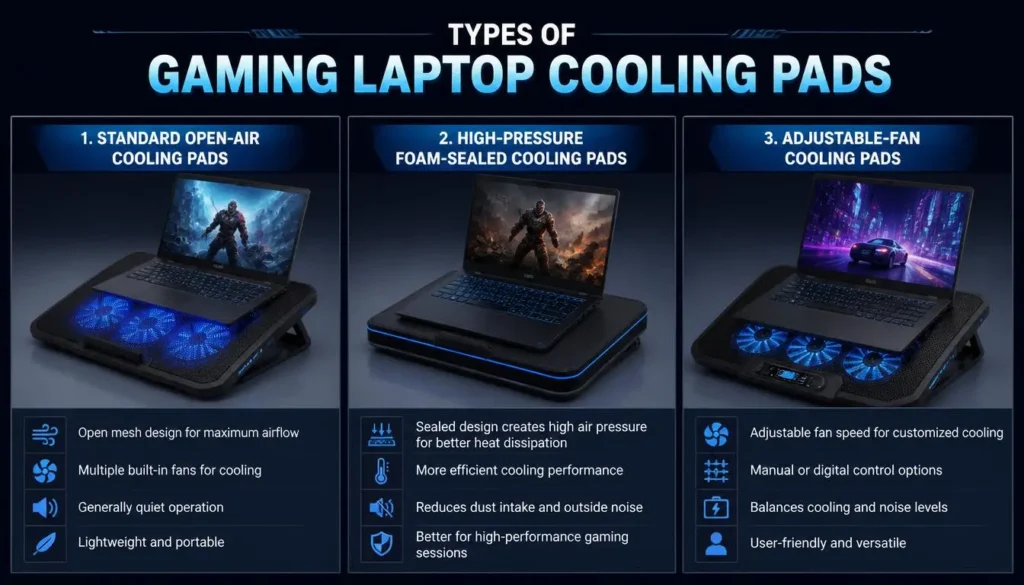
Cooling pads come in several designs. Choosing the right type matters more than choosing the model with the most RGB lighting or the largest number of fans.
Standard Open-Air Cooling Pads
These are the most common and affordable models. They usually contain one large fan or several smaller fans beneath a metal or plastic mesh surface.
They provide broad airflow but do not create a tight seal around the laptop. Results depend heavily on whether the fans align with the intake vents.
A standard pad may be enough when your main goal is to:
- Raise the laptop
- Improve general airflow
- Reduce surface heat
- Add a more comfortable viewing angle
High-Pressure Foam-Sealed Cooling Pads
These models use a high-speed fan and a foam or rubber seal around the laptop’s underside. The seal helps direct pressurized air into the intake vents instead of allowing it to escape around the edges.
They may offer stronger cooling for compatible gaming laptops, but they also tend to be:
- More expensive
- Larger
- Louder
- Less portable
- More likely to require external power
HP’s cooling-pad guidance highlights sealed airflow chambers, vent alignment, fan speed control, and focused airflow as important performance factors.
A sealed model is only effective when the laptop fits properly and the seal does not block important vents.
Adjustable-Fan Cooling Pads
Some pads allow you to change which fans are running or adjust their speed. This can help you align airflow more accurately with your laptop’s intake layout.
Lower speeds may be suitable for everyday use, while higher speeds can be reserved for demanding games.
Passive Laptop Stands
A passive stand has no fans. It cools the laptop by raising it off the desk and increasing the open space under the chassis.
For some laptops, elevation provides most of the available improvement. A stand may be the better option when you want:
- Silent operation
- Better portability
- Improved ergonomics
- No additional power use
- Less dust movement
Vacuum Coolers
A vacuum cooler attaches near an exhaust vent and attempts to pull hot air out of the laptop.
It is not the same as a conventional cooling pad. Compatibility can be limited because exhaust vents differ in shape, size, and position. A poorly fitted unit may provide little benefit or interfere with normal exhaust flow.
For most gaming laptops, a correctly matched bottom cooling pad or elevated stand is the simpler place to start.
Which Way Should a Laptop Cooling Pad Fan Blow?
In most conventional designs, cooling-pad fans blow upward toward the bottom of the laptop.
That is useful when the laptop draws air through bottom intake vents and releases hot air through the rear or sides.
Before buying a cooling pad, inspect your laptop carefully.
Identify the Intake and Exhaust Vents
You can check:
- The laptop’s user manual
- Diagrams on the manufacturer’s support page
- The direction of airflow while a game is running
- Visible fan openings on the bottom panel
Rear and side vents that release warm air are normally exhaust vents. Large mesh areas underneath are commonly used as intakes, although the exact layout varies.
Avoid Blocking the Exhaust
A cooling pad should never cover or obstruct the laptop’s rear or side exhaust vents. Hot air must be able to leave the chassis freely.
Can the Cooling Pad Fight the Internal Fans?
Incorrectly directed airflow or poor positioning may create turbulence and reduce efficiency. This does not mean a cooling pad will automatically damage the internal fans, but it may make the pad ineffective.
Fan alignment matters more than fan count. A five-fan pad aimed at solid plastic may perform worse than a one-fan model positioned directly below the intake.
How Much Can a Cooling Pad Lower Gaming Laptop Temperatures?
There is no honest universal answer.
The temperature change depends on:
- Intake size and location
- Cooling-pad airflow
- Air pressure
- Fan alignment
- Laptop power limits
- Game workload
- Internal fan speed
- Dust buildup
- Room temperature
- Laptop elevation
- Test duration
A compatible cooling pad may produce a small but measurable improvement. A well-matched sealed model may provide a larger reduction. An incompatible pad may make almost no difference.
Avoid treating advertised claims such as “up to 20 degrees cooler” as a guaranteed result. These figures may come from ideal test conditions that do not match your laptop or gaming environment.
CPU and GPU Results May Be Different
Gaming laptops often use shared heat pipes or a shared vapor chamber. As a result, CPU and GPU temperatures can influence one another.
A cooling pad might:
- Lower the CPU temperature more than the GPU
- Lower the GPU temperature more than the CPU
- Reduce surface temperature without changing internal peaks
- Keep the same temperature while allowing higher clock speeds
That final result is important. A laptop may use the extra thermal headroom to run faster rather than significantly cooler.
Ambient Temperature Matters
A cooling pad uses air from the surrounding room. It cannot make that air colder.
A pad may be less effective in a very warm room because it is pushing warm air into the laptop. Improving room ventilation or reducing direct sunlight can sometimes matter as much as changing the cooling pad.
Dell lists a hot environment, demanding applications, blocked vents, dust, and poor ventilation among the common causes of excessive laptop heat.
Can a Cooling Pad Improve Gaming Performance?
A cooling pad does not directly create more processing power. It can only help the laptop maintain the performance it is already capable of delivering.
Does a Cooling Pad Increase FPS?
It may increase or stabilize FPS if the laptop was thermal throttling before the pad was added.
For example, suppose a GPU starts a game at a high clock speed but gradually slows down as temperatures rise. Better airflow may allow it to sustain a higher clock speed, which can improve:
- Average FPS
- 1% low FPS
- Frame-time consistency
- Performance during long sessions
However, you may see no meaningful FPS improvement when:
- The laptop is not thermal throttling
- The game is limited by another component
- The frame rate is capped
- The cooling pad does not align with the intake
- The internal cooling system already has enough capacity
Can It Reduce Thermal Throttling?
Thermal throttling occurs when a processor reduces its frequency or power to stay within its thermal limits.
Intel describes throttling as a protective mechanism that reduces processor clock speed after a temperature threshold is reached.
By improving airflow, a cooling pad may delay or reduce throttling. It cannot guarantee that throttling will disappear, especially if the laptop’s internal cooling system is dirty, damaged, or undersized for its configured power level.
Can It Reduce Stuttering?
Heat-related stuttering can occur when CPU or GPU clock speeds repeatedly rise and fall. A cooling pad may help when temperature is the cause.
Stuttering can also come from:
- Insufficient RAM
- Shader compilation
- Storage limitations
- Background programs
- Network latency
- Driver issues
- Inconsistent game optimization
Therefore, lower temperatures do not guarantee smoother gameplay unless heat was the original problem.
When Does a Cooling Pad Work Best?
A cooling pad is most likely to help when several of these conditions apply.
The Laptop Has Large Bottom Intake Vents
Open mesh sections allow external airflow to reach the internal fans more easily.
You Play for Long Periods
A short gaming session may end before the laptop reaches a stable thermal state. Cooling becomes more important during long sessions when heat has time to build up.
You Play Demanding Games
High-resolution gaming, ray tracing, ultra settings, high refresh rates, streaming, recording, and running background apps can keep the CPU and GPU under sustained load.
The Laptop Is Close to Thermal Throttling
You are more likely to see a performance benefit when the laptop is already losing clock speed because of temperature.
You Game in a Warm Room
Extra airflow can help during warm weather, although it cannot compensate fully for very high ambient temperatures.
The Laptop Sits Close to the Desk
Some gaming laptops have low rubber feet that leave little room beneath the intake. Elevation alone may improve airflow.
When Might a Cooling Pad Not Help?
A cooling pad may offer little value in the following situations.
The Laptop Has No Useful Bottom Intake
If the pad blows against a mostly closed panel, very little air may enter the cooling system.
The Fans Do Not Align With the Vents
Misaligned fans may cool the chassis rather than the components.
The Laptop Already Has Strong Cooling
If temperatures and clock speeds are already stable, there may be little performance left to recover.
The Internal Heatsink Is Blocked
A cooling pad cannot push air effectively through a heatsink packed with dust.
An Internal Fan Is Failing
Weak airflow, grinding noises, or a fan that does not spin may indicate a hardware problem that needs repair.
The Thermal Interface Material Has Deteriorated
External airflow cannot fix poor contact between the processor and its cooling assembly.
The Laptop Is Used Only for Light Tasks
Browsing, writing, and video streaming normally place much less sustained load on the CPU and GPU than gaming.
Cooling Pad vs Laptop Stand: Which Is Better?
| Feature | Cooling Pad | Laptop Stand |
|---|---|---|
| Active airflow | Yes | No |
| Raises the laptop | Yes | Yes |
| Noise | Can be noticeable | Silent |
| Power required | Usually | No |
| Portability | Moderate to poor | Usually better |
| Dust movement | Potentially higher | Minimal |
| Cooling potential | Higher when compatible | Depends on elevation |
| Best for | Hot gaming laptops | Laptops needing clearance |
Choose a Cooling Pad When:
- The laptop has large bottom vents
- Elevation alone is not enough
- Temperatures rise during long sessions
- You are experiencing thermal throttling
- Additional fan noise is acceptable
Choose a Laptop Stand When:
- The laptop already performs consistently
- You mainly need more clearance
- You want a quiet setup
- You frequently travel
- You do not want to use a USB port
- A cooling pad produces little additional improvement
The best approach is to test the laptop flat on a desk, elevated on a stand, and on an active cooling pad. This reveals how much of the improvement comes from elevation rather than the fans.
Benefits of Using a Cooling Pad for Gaming
More Stable Temperatures
A pad may reduce temperature spikes or slow the rate at which heat builds up.
More Consistent Clock Speeds
If temperature was limiting performance, improved airflow may help the CPU and GPU maintain their intended frequencies for longer.
A Cooler Keyboard and Chassis
External fans can reduce heat around the bottom panel, keyboard, and palm-rest area, even when internal temperature changes are limited.
Better Ergonomics
Many pads provide adjustable height settings. Raising the screen can improve posture when you use an external keyboard and mouse.
A More Organized Gaming Setup
Some models include cable management, fan controls, and additional USB ports. These features do not improve cooling directly, but they may make the desk easier to manage.
Drawbacks and Limitations
Additional Noise
High fan speed usually produces more airflow and more noise. A powerful cooling pad can become louder than the laptop itself.
Increased Dust Exposure
Moving more air can also move more dust. Models with filters may reduce the amount entering the laptop, but the filter must be cleaned regularly.
Reduced Portability
Large sealed cooling systems can be inconvenient to carry and may require a separate power adapter.
Extra Desk Space
Cooling pads increase the overall footprint of the laptop.
USB Power Use
USB-powered models draw energy from the laptop. This matters more when running on battery than when gaming while connected to the charger.
Inconsistent Results
A more expensive cooling pad is not automatically better. Compatibility, alignment, pressure, and noise-to-airflow balance matter more than price alone.
Does a Cooling Pad Drain the Laptop Battery?
A USB-powered cooling pad consumes power, so it can reduce battery runtime.
The effect depends on:
- Number and size of fans
- Fan speed
- RGB lighting
- Additional connected accessories
- Battery capacity
- Laptop workload
HP notes that USB-powered pads draw power from the laptop, while externally powered models avoid using the laptop battery for their fans.
Most gaming laptops deliver reduced gaming performance on battery anyway, so demanding games are usually played while connected to the charger. In that situation, the battery-runtime impact is less important.
An externally powered cooling pad may be preferable when it uses a high-speed fan or when you need to preserve the laptop’s USB power for other devices.
Do Cooling Pads Push More Dust Into a Laptop?
They can.
Increasing airflow increases the amount of air passing near or through the laptop. That air may contain dust, pet hair, smoke residue, and other particles.
A dust filter can help, but it creates resistance and becomes less effective when clogged.
To reduce dust buildup:
- Keep the desk clean
- Avoid placing the pad on carpet or fabric
- Clean removable filters regularly
- Check the laptop vents for buildup
- Keep pets away from the intake area when possible
- Do not smoke near the laptop
- Follow the manufacturer’s cleaning instructions
Dell and HP both identify dust buildup around vents and fans as a common cause of restricted airflow and excessive heat.
Can a Cooling Pad Damage a Gaming Laptop?
A properly used, good-quality cooling pad is unlikely to damage a gaming laptop.
Problems are more likely to come from incorrect use or a poorly made accessory.
Potential Issues to Avoid
- Blocking intake or exhaust vents
- Using a pad that is too small or unstable
- Pulling excessive power through a damaged USB connection
- Allowing dust filters to become completely clogged
- Placing the pad on fabric that blocks its own intake
- Using damaged cables
- Forcing a tight foam seal over unsuitable vents
- Allowing condensation or liquid near the laptop
There is little practical reason to worry that normal cooling-pad airflow will “overspin” the internal fans. Airflow mismatch and blocked vents are more realistic concerns.
If the laptop begins making unusual fan noises after being placed on a cooling pad, stop the test and check the pad’s position before continuing.
Cheap vs Expensive Cooling Pads
Price alone does not determine cooling performance.
A basic model may work well if its fan aligns perfectly with the intake. A premium model may disappoint if its seal, shape, or airflow does not suit the laptop.
Features That Actually Matter
Vent Compatibility
The pad must send air toward the correct part of the laptop.
Air Pressure
Higher pressure can be useful for pushing air through restrictive bottom vents, especially in sealed designs.
Fan-Speed Control
Adjustable speed lets you balance temperature and noise.
Noise Level
A small temperature improvement may not be worth a dramatic increase in noise.
Laptop Support
The pad should hold the laptop securely without covering vents.
Dust Filter
A removable, washable filter can make maintenance easier.
Power Source
Powerful models may perform better with an external adapter rather than relying on a single USB port.
Build Quality
A stable frame matters more than decorative lighting.
Does Fan Count Matter?
Not as much as many product listings suggest.
Several small fans may spread air across a wide area, while one large fan may move more air quietly. A single high-pressure fan may outperform both when paired with a proper seal.
Look at the airflow design rather than buying based only on the number printed on the box.
How to Test Whether a Cooling Pad Is Working
You do not need laboratory equipment to perform a useful comparison. You do need consistency.
Step 1: Choose a Repeatable Workload
Use the same game, benchmark, or demanding application for every test.
A built-in game benchmark is ideal because it produces a repeatable workload.
Step 2: Keep the Settings Identical
Do not change:
- Resolution
- Graphics preset
- Frame-rate cap
- Laptop performance mode
- Internal fan profile
- Charger
- Background applications
Step 3: Record the Room Temperature
Cooling results can change when the room temperature changes. Run all tests in the same environment whenever possible.
Step 4: Test Three Configurations
- Laptop flat on the desk
- Laptop elevated without active fans
- Laptop on the cooling pad
This shows whether the fan adds a real benefit beyond elevation.
Step 5: Run Each Test for the Same Duration
A 20- to 30-minute gaming session is usually more useful than a very short test because the laptop needs time to reach a stable temperature.
Allow it to cool between runs.
Step 6: Record the Important Data
Measure:
- Average CPU temperature
- Peak CPU temperature
- Average GPU temperature
- GPU hotspot temperature, when available
- CPU clock speed
- GPU clock speed
- Average FPS
- 1% low FPS
- Laptop fan behavior
- Cooling-pad noise
Step 7: Repeat the Test
One test can be affected by background tasks or normal variation. Repeating each configuration and comparing averages produces a more reliable result.
Cooling Pad Test Results Table
| Measurement | Flat on Desk | Elevated Stand | Cooling Pad |
|---|---|---|---|
| Average CPU temperature | Record result | Record result | Record result |
| Peak CPU temperature | Record result | Record result | Record result |
| Average GPU temperature | Record result | Record result | Record result |
| GPU hotspot temperature | Record result | Record result | Record result |
| Average FPS | Record result | Record result | Record result |
| 1% low FPS | Record result | Record result | Record result |
| Clock-speed stability | Record result | Record result | Record result |
| Noise level | Record result | Record result | Record result |
How to Interpret the Results
A cooling pad is providing useful value when it delivers one or more of the following:
- Lower average temperatures
- More stable clock speeds
- Better 1% low FPS
- Fewer temperature-related drops
- A cooler and more comfortable chassis
- Acceptable noise at the required fan speed
A lower peak temperature by itself is not always enough to justify the cost.
How to Choose a Cooling Pad for a Gaming Laptop
Match the Laptop Size
Make sure the surface safely supports your 14-, 15.6-, 16-, 17-, or 18-inch laptop.
A pad that technically supports a laptop’s screen size may still be a poor fit if the feet, vents, or chassis shape do not align correctly.
Check the Intake Layout
Turn the laptop over and identify where air enters. Choose fan placement based on those openings.
Consider Open-Air vs Sealed Designs
Open-air pads are usually cheaper and quieter. Sealed models can deliver stronger focused airflow but may be louder and less portable.
Look for Adjustable Fan Speed
You do not always need maximum fan speed. Adjustable controls let you use a quieter setting for lighter games.
Check the Noise
Pay attention to noise reviews and measurements when available. High RPM does not automatically mean a better experience.
Look for a Removable Dust Filter
Filters are particularly valuable in dusty rooms or homes with pets.
Check the Power Requirement
Confirm whether the pad uses:
- One USB connection
- Two USB connections
- A wall adapter
- A proprietary external power supply
Prioritize Stability
The laptop should not slide when you type or adjust the screen.
Do Not Pay Extra Only for RGB
RGB lighting has no direct effect on temperature. Buy it only when you genuinely want the visual feature.
How to Use a Cooling Pad Correctly
To get the best possible result:
- Place the pad on a hard, flat surface.
- Position the laptop securely.
- Align the pad’s fans with the intake vents.
- Keep rear and side exhausts unobstructed.
- Start with a moderate fan speed.
- Increase speed only when the extra cooling is useful.
- Clean the cooling pad and filters regularly.
- Monitor temperatures during the first few sessions.
- Avoid using the setup on a bed, blanket, or carpet.
- Stop using the pad if it creates unusual vibrations or unstable positioning.
Soft surfaces can block both the laptop’s vents and the cooling pad’s own air intake. Dell specifically recommends hard, flat surfaces to maintain airflow.
Can a Cooling Pad Extend a Gaming Laptop’s Lifespan?
Possibly, but it should not be treated as a guarantee.
Reducing sustained heat exposure may create a better operating environment for internal components. A cooling pad may also reduce how often the laptop reaches its thermal limits.
However, laptop lifespan also depends on:
- Battery cycles
- Dust accumulation
- Fan quality
- Component quality
- Thermal paste condition
- Charging habits
- Accidental damage
- Manufacturing defects
- Workload and maintenance
A cooling pad cannot prevent every hardware failure, and a small temperature reduction does not prove that a laptop will last a specific number of additional years.
The most accurate conclusion is that better thermal conditions may support long-term reliability, but lifespan cannot be predicted from cooling-pad use alone.
Alternatives to a Cooling Pad
Before buying a cooling pad, try these basic steps:
- Raise the rear of the laptop slightly
- Use a hard, flat desk
- Clean visible vents
- Remove unnecessary background programs
- Use the manufacturer’s balanced or optimized performance mode
- Cap the frame rate
- Lower demanding graphics settings
- Improve room ventilation
- Update the BIOS and system drivers
- Have failing fans inspected
A cooling pad should complement a functioning internal cooling system, not replace one.
If the laptop shuts down, shows thermal warnings, produces grinding noises, or has little exhaust airflow, professional inspection may be more appropriate than buying another accessory.
Is a Cooling Pad Worth It for a Gaming Laptop?
A cooling pad is worth considering when:
- Your gaming laptop has open bottom vents
- It becomes less consistent during long sessions
- You have confirmed thermal throttling
- The keyboard becomes uncomfortably hot
- You game in a warm environment
- Raising the laptop already improves temperatures
- You also want a more ergonomic screen position
It may not be worth buying when:
- Temperatures and performance are already stable
- The laptop has no meaningful bottom intake
- You require a silent setup
- A passive stand provides the same result
- The laptop has an unresolved hardware fault
- Portability is more important than maximum cooling
| Your Situation | Best Next Step |
|---|---|
| Laptop throttles during long games | Test a compatible cooling pad |
| Laptop only needs more clearance | Try a passive stand first |
| Temperatures are high but performance is stable | Compare results before buying |
| Internal fan is failing | Repair the laptop |
| Vents are blocked with dust | Clean or service the laptop |
| Cooling pad adds noise but no performance | Return to a stand or lower fan speed |
| Laptop has no bottom intake | Consider elevation rather than active cooling |
Frequently Asked Questions About Do Cooling Pads Work for Gaming Laptops
How Many Degrees Can a Cooling Pad Reduce?
There is no guaranteed number. The difference depends on the laptop, pad design, vent layout, workload, fan speed, and room temperature. Measure your own before-and-after results instead of relying only on advertised claims.
Do Cooling Pads Increase FPS?
They can improve or stabilize FPS when heat is causing thermal throttling. They will not significantly increase performance when the laptop is already maintaining stable clock speeds.
Are Cooling Pads Good for Gaming Laptops?
They can be useful for gaming laptops with bottom intake vents, sustained high workloads, and limited desk clearance. Compatibility is essential.
Is a Laptop Stand Better Than a Cooling Pad?
A stand is better when elevation provides enough airflow and you want silent, portable cooling. An active pad is better when the additional fans produce a measurable thermal or performance improvement.
Can a Cooling Pad Damage Laptop Fans?
Normal cooling-pad airflow is unlikely to damage internal fans. Poor positioning, blocked vents, unstable support, damaged cables, and low-quality electrical components are more realistic concerns.
Do Cooling Pads Increase Dust?
They may increase the amount of air and dust moving toward the laptop. A removable filter and regular cleaning can reduce buildup.
Should Cooling Pad Fans Blow Up or Down?
For most bottom-intake gaming laptops, the pad should blow upward toward the intake vents. Always confirm your laptop’s airflow layout first.
Can I Use a Cooling Pad on a Bed?
The safer option is to place the cooling pad on a hard, flat surface. Fabric can block the pad’s intake and reduce airflow.
Do Cooling Pads Help With Thermal Throttling?
They can help when improved external airflow lowers internal temperatures enough to prevent or delay clock-speed reductions.
Are Expensive Cooling Pads Better?
Not automatically. A less expensive pad with suitable fan placement may outperform an expensive model that does not match the laptop’s vents.
Do RGB Cooling Pads Cool Better?
No. RGB lighting is decorative and does not improve thermal performance.
Should I Leave the Cooling Pad Running All the Time?
You can use it whenever additional cooling is helpful, but there is usually no need to run it at maximum speed during light tasks. Lower fan speed can reduce noise and dust movement.
Does a Cooling Pad Drain the Battery?
A USB-powered pad uses some battery power. The effect depends on its fans, lighting, and power requirements. It matters more during battery use than while the laptop is connected to its charger.
Do Cooling Pads Work for 17-Inch Gaming Laptops?
Yes, provided the pad is large enough to support the laptop securely and its airflow aligns with the laptop’s intake vents.
Final Verdict
So, do cooling pads work for gaming laptops? Yes, they can—but the result depends heavily on compatibility.
A good cooling pad can improve airflow, stabilize temperatures, reduce surface heat, and help prevent thermal throttling in a laptop that is struggling under sustained gaming loads. It works best with gaming laptops that have large intake vents underneath.
It may not improve FPS or temperatures when the laptop already has strong cooling, the fans are misaligned, or the internal cooling system has a mechanical or maintenance problem.
Before buying, test your laptop flat on the desk and then slightly elevated. If elevation already makes a difference, a compatible active cooling pad may provide an additional benefit. After buying, compare temperatures, clock speeds, average FPS, and 1% low FPS under identical conditions.
The best cooling pad is not necessarily the model with the most fans, the highest price, or the brightest RGB. It is the one that fits your laptop, directs air toward the correct vents, provides measurable improvement, and remains quiet enough for you to enjoy your games.