How to Fix Screen Flickers After Driver Update on a Gaming Laptop is a common search for anyone whose display starts pulsing after a new graphics driver install. The flicker can range from a subtle shimmer to a full‑screen strobe that makes gaming impossible. Most cases trace back to a conflict between the new driver and the laptop's hardware settings.
As of 2026, most gaming laptops use HDMI 2.1 or DisplayPort 1.4 interfaces, and a driver update can sometimes change how the GPU talks to the panel. This mismatch often produces flicker, especially when the system switches between hybrid graphics modes. The guide below will help you pinpoint the source and restore a stable image.
How to Fix Screen Flickers After Driver Update on a Gaming Laptop
Start by verifying all display cables are secure. Roll back the graphics driver to the previous version. Clean install the latest driver using Display Driver Uninstaller.
Set the refresh rate to match your panel specification. Test the screen with an external monitor to isolate hardware failure.
Why Your Gaming Laptop Screen Is Flickering After a Driver Update
A driver update rewrites the instructions that tell the GPU how to output an image. If the new code does not match the laptop's panel timing, the screen can flicker. Hybrid graphics systems add another layer; the laptop may switch between the integrated GPU and the discrete GPU, and the driver must handle that handoff correctly.
Common triggers include corrupted driver files, incorrect power management settings, and outdated BIOS firmware. Overclocking the GPU or memory can also introduce instability that shows up as flicker. In some cases, the problem is not the driver at all but a failing display cable or a weak power supply.
For a deeper dive into related display faults, see our guide on black screen issues.
Match the Flicker to Your Laptop Setup Before You Touch Anything
Before you change any settings, note exactly when the flicker appears. Does it happen only on the desktop, only in games, or all the time? Is it a rapid strobe, a rolling line, or a constant shimmer?
Answering these questions narrows the cause.
Check the physical connections first. A loose HDMI or DisplayPort cable can produce intermittent flicker that mimics a driver issue. If your laptop uses a hybrid graphics setup, verify that the system is set to use the discrete GPU for gaming.
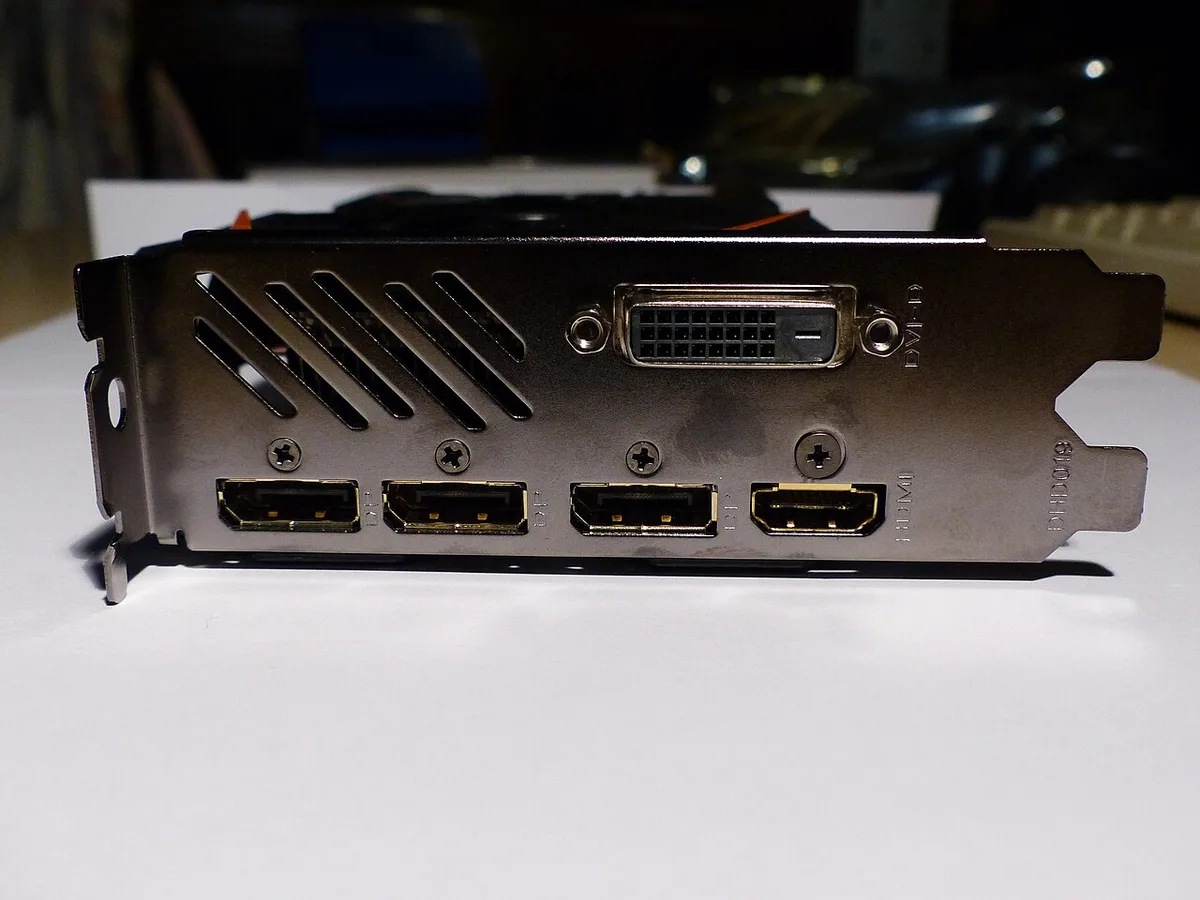
Image source: Wikimedia Commons / Marc Mongenet (CC BY-SA)
Image source: Wikimedia Commons / Teekatas Suwannakrua (icons, Attribution, share-alike), Waite (AVATAR Mediawiki, Attribution, share-alike), Riviat (AVATAR MUD, CC0) — all contacted and gave permission for this photograph (CC BY-SA)
The Driver Update Fix Tree: Roll Back, Clean Install, or Adjust Settings
Once you have confirmed the flicker is software‑related, choose the path that matches your situation. The table below outlines the three main options.
| Action | When to use it | How to perform it | Expected outcome |
|---|---|---|---|
| Roll back driver | Flicker started immediately after update | Open Device Manager → Display adapters → right‑click GPU → Properties → Driver → Roll Back | Restores previous stable version |
| Clean install | Previous driver was corrupted or you have multiple versions installed | Download Display Driver Uninstaller, boot into safe mode, run DDU, then install latest driver from NVIDIA or AMD | Removes all remnants, fresh start |
| Adjust settings | Flicker appears only with certain refresh rates or G‑Sync enabled | Open NVIDIA Control Panel → Manage 3D settings → set preferred refresh rate; disable G‑Sync if it conflicts | Aligns GPU output with panel capabilities |
If the flicker persists after a clean install, check the laptop manufacturer's control center for any display overrides. Some vendors ship custom profiles that can conflict with the latest driver.
For official guidance, visit the NVIDIA driver support page.
Don't Make These Driver Troubleshooting Mistakes
Skipping the clean install is the most common error. Simply installing the new driver over the old one can leave corrupted files behind. Another mistake is ignoring the refresh rate; setting it to a value the panel does not support will cause flicker.
Avoid disabling the integrated GPU entirely if your laptop uses hybrid graphics; the system needs both components to manage power correctly. Overclocking the GPU while troubleshooting can mask the real issue and make it harder to identify the cause.
Remember to update the laptop's BIOS and EC firmware after resolving the driver problem. Manufacturers often release fixes for display handoff bugs.
When Flickering Means It's Not the Driver at All
If you have tried the driver steps and the screen still flickers, the hardware is likely at fault. Test with an external monitor connected via a different cable. If the external display is stable, the issue is probably the laptop's LCD panel or its connector.
A failing inverter (in older CCFL‑backlit panels) or a loose ribbon cable can produce flicker that does not respond to software changes. In such cases, contact the manufacturer's support or a qualified repair center.
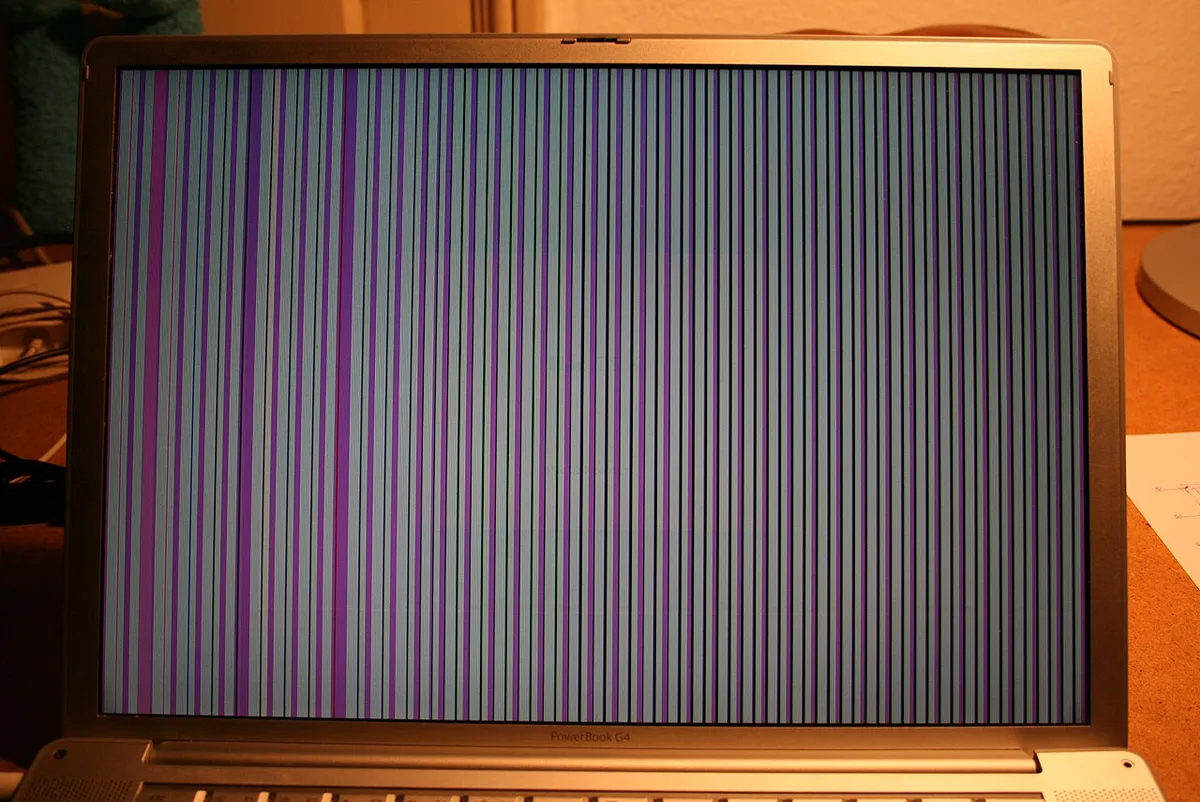
Image source: Wikimedia Commons / Niels Heidenreich (CC BY-SA)
Keep Your Gaming Laptop Display Stable After the Fix
Set a routine for driver updates. New drivers arrive often, but you do not need every beta release. Manufacturer specs confirm that stable WHQL-certified drivers reduce conflicts on gaming laptops.
Check the NVIDIA or AMD support site once a month and install only versions that address issues you actually face.
Update your laptop BIOS and embedded controller firmware alongside graphics drivers. Vendors release these patches to fix power delivery and display handoff bugs. Outdated EC firmware can cause the screen to dim or pulse under load.
Manage power and thermals. High performance plans keep the discrete GPU active, which can expose timing mismatches. Switch to balanced mode for desktop work and plug in before gaming.
Aggregate reviews show that thermal throttling often masquerades as flicker, so clean vents and fans regularly. Failing fans can also trigger display artifacts under load.
Use quality cables and avoid cheap adapters. A loose HDMI connection can reintroduce flicker weeks after a clean driver install. If you move your laptop between desks, reseat the cable each time.
For internal repairs, contact support rather than opening the chassis yourself; self-service can void the warranty. If you experience random crashes after updates, the cause may extend beyond the display.
Read our guide on dust buildup inside your gaming PC for a safe cleaning schedule. Cleaning your gaming PC safely helps keep temperatures in check.
Frequently Asked Questions About Post-Update Screen Flickers
Why does my screen flicker only in games after a driver update?
Games demand full discrete GPU power, which exposes driver-panel mismatches that the desktop does not. Switching to hybrid graphics or disabling G-Sync often stops the flicker until a stable driver arrives.
Can rolling back a driver fix flicker permanently?
Rolling back restores the previous stable version, but it is not permanent. New games or Windows updates may require the newer driver, so plan to clean install the latest release once the conflict is resolved.
Should I disable G-Sync or FreeSync if my screen flickers?
Yes, disabling variable refresh rate is a useful test. If the flicker stops, the issue lies in the sync timing between the GPU and panel. You can re-enable it after updating the display driver.
How do I know if flickering is hardware failure?
Connect an external monitor. If the external screen stays steady, the laptop panel or its ribbon cable is likely failing. Software fixes will not resolve a damaged LCD connector.
Is it safe to use third-party driver updater tools?
Avoid them. These tools often install mismatched or unsigned drivers that cause flicker and system instability. Download drivers directly from NVIDIA, AMD, Intel, or your laptop manufacturer.