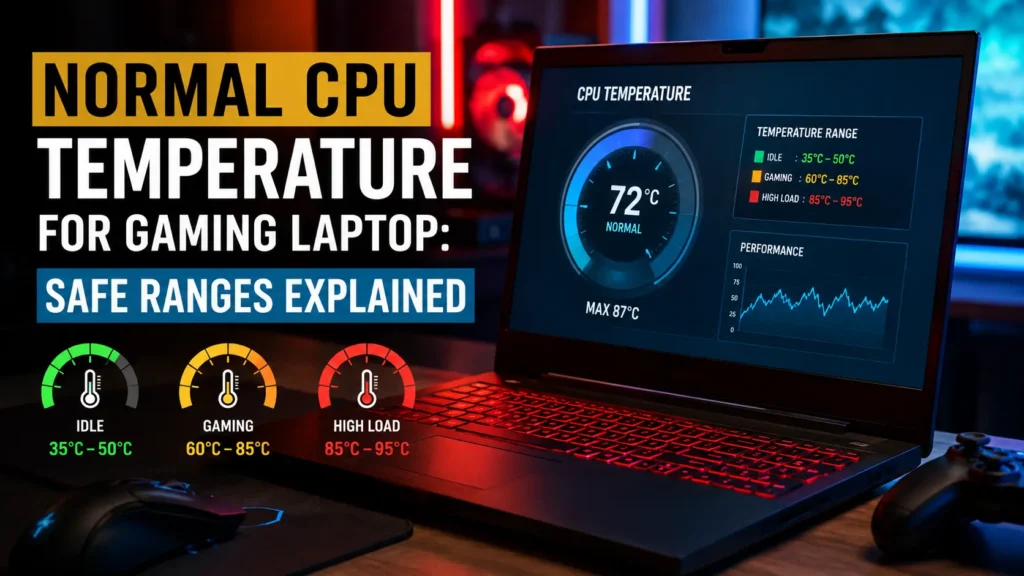
Gaming laptops are designed to handle more heat than ordinary notebooks. They pack a powerful processor, dedicated graphics hardware, and a high-performance cooling system into a relatively compact body. As a result, seeing higher CPU temperatures while gaming is not automatically a sign that something is wrong.
For most gaming laptops, a CPU temperature between 70°C and 90°C, or 158°F and 194°F, during demanding games is commonly observed. Temperatures may briefly rise above 90°C during loading screens, shader compilation, or other short bursts of heavy CPU activity.
However, there is no single temperature that is normal for every gaming laptop. The safe range depends on the processor model, cooling design, power mode, room temperature, game, and manufacturer settings. Intel also explains that temperature alone may not reveal whether a system has a problem because modern processors dynamically manage power, clock speed, and heat.
This guide explains normal CPU temperatures at idle, during gaming, while streaming, and under full load. It also covers 80°C, 85°C, 90°C, 95°C, and 100°C readings, along with practical steps for reducing excessive heat.
What Is the Normal CPU Temperature for a Gaming Laptop?
A normal CPU temperature for a gaming laptop is usually around 40°C to 60°C while idle and approximately 70°C to 90°C while playing demanding games.
These are practical reference ranges rather than universal safety limits. A thick 17-inch gaming laptop with a large cooling system may run cooler than a thin 14-inch model using a similarly powerful processor. Two laptops with the same CPU can also produce different readings because manufacturers configure power limits, fan curves, and thermal targets differently.
Use the following table as a general guide:
| Laptop Activity | Typical CPU Temperature | General Assessment |
|---|---|---|
| Powered on with minimal activity | 40–60°C / 104–140°F | Usually normal |
| Web browsing and office work | 45–70°C / 113–158°F | Usually normal |
| Video streaming and multitasking | 50–75°C / 122–167°F | Usually normal |
| Lightweight or esports gaming | 60–80°C / 140–176°F | Normal for many laptops |
| Demanding AAA gaming | 70–90°C / 158–194°F | Common |
| Short spikes during heavy activity | 90–95°C / 194–203°F | Monitor, but not automatically dangerous |
| Sustained temperature above 95°C | Above 203°F | Check for throttling and cooling issues |
| At or near the processor’s TjMax | Model-specific | Investigate performance and cooling |
Do not judge the laptop by one maximum reading. Look at the average temperature, how long the CPU remains hot, whether the clock speed drops, and whether the game continues to run smoothly.
Normal, Safe, Ideal, and Maximum CPU Temperatures
The terms normal, safe, ideal, and maximum are often used interchangeably, but they do not mean exactly the same thing.
Normal CPU Temperature
A normal temperature is a reading commonly seen during a particular workload.
For example, 80°C may be normal during an intensive game but unusually high when the laptop has been sitting idle for 20 minutes.
Safe CPU Temperature
A safe temperature is within the processor and laptop manufacturer’s designed operating limits.
Modern CPUs contain thermal sensors and protection mechanisms. If the processor approaches its thermal limit, it may reduce clock speed and power to prevent further temperature increases.
Ideal CPU Temperature
An ideal temperature provides a comfortable balance between performance, fan noise, and thermal headroom.
A gaming laptop running at 75°C during a demanding game generally has more thermal headroom than the same laptop running continuously at 95°C. However, the lower reading does not automatically mean the laptop is faster. It may simply be using a lower power mode.
Maximum CPU Temperature
The maximum operating temperature is commonly listed as Tjunction, TjMax, or maximum operating temperature.
This value is processor-specific. It should not be treated as the ideal everyday target. Instead, it represents the point near which the processor begins using thermal controls to limit temperature.
Intel recommends checking the exact processor specification for its Tjunction or Tcase value and consulting the laptop manufacturer for system-specific thermal information.
Normal CPU Temperature by Workload
The same gaming laptop can move from 45°C to more than 90°C within seconds. That is why temperature must always be considered alongside the workload.
Normal CPU Temperature While Idle
A gaming laptop may sit between 40°C and 60°C while idle. Some models may run slightly cooler, while thin laptops or systems using quiet fan profiles may remain in the low-to-mid 60s.
Idle does not always mean that the CPU is doing nothing. Windows updates, antivirus scans, game launchers, cloud synchronization, RGB software, browser processes, and manufacturer utilities may continue running in the background.
A high idle temperature deserves attention when:
- The CPU remains above approximately 70°C for an extended period.
- Fans run loudly despite no demanding application being open.
- CPU usage remains unexpectedly high.
- The temperature recently increased without an obvious reason.
- The laptop feels much hotter than it did previously under the same conditions.
Before assuming there is a cooling fault, restart the laptop and allow it to sit for 10 to 15 minutes. Then check background activity and temperature again.
Normal CPU Temperature During Everyday Use
During browsing, document editing, video playback, and light multitasking, many gaming laptops operate between 45°C and 75°C.
Short spikes may occur when opening programs, extracting files, installing software, or loading complex web pages. The processor temporarily increases its clock speed to finish the task quickly, which can cause an immediate rise in temperature.
The reading should normally fall again after the workload ends.
Normal CPU Temperature While Gaming
During gaming, a CPU temperature of 70°C to 90°C is common for modern gaming laptops.
Lightweight esports titles may keep the CPU closer to 60–80°C. Large open-world games, strategy games, simulation titles, and games targeting very high frame rates may push the processor into the 80–90°C range.
The CPU may become hotter when you:
- Play at very high frame rates.
- Use a performance or turbo profile.
- Run CPU-intensive simulation settings.
- Increase crowd density, physics, or view distance.
- Record or stream gameplay.
- Keep voice chat and browser tabs open.
- Connect an external high-refresh-rate monitor.
- Play while updates or downloads run in the background.
A temperature in the upper 80s is not automatically overheating. What matters is whether performance remains stable and the processor stays below its model-specific thermal limit.
CPU Temperature While Gaming and Streaming
Streaming adds extra work to an already demanding gaming session.
The CPU may need to handle game logic, background applications, voice chat, streaming software, alerts, browser sources, and video encoding. Even when the GPU performs the main video encoding, the streaming application can still add CPU load.
During gaming and streaming, temperatures may be several degrees higher than during gaming alone. A laptop that normally runs at 82°C may move closer to 87–92°C during a combined workload.
Reduce unnecessary browser sources, close unused applications, and use hardware encoding when appropriate to lower CPU demand.
CPU Temperature During Video Editing and Rendering
Video export, 3D rendering, code compilation, and similar workloads may produce higher sustained CPU use than gaming.
Many games heavily load only a few processor cores, while rendering can keep most or all cores busy for an extended period. As a result, the temperature may remain consistently high instead of rising and falling quickly.
A temperature in the upper 80s or low 90s may occur during an intensive export. Check whether the processor maintains a reasonable clock speed and whether the system reports thermal throttling.
CPU Temperature During Stress Tests
Synthetic stress tests are designed to push hardware harder than most everyday programs. Therefore, stress-test temperature should not be treated as your normal gaming temperature.
A laptop may reach its thermal limit during a heavy stress test even if it stays cooler during real games. Test results should be interpreted carefully because different tools create different types of CPU load.
For everyday troubleshooting, a 20-to-30-minute session in a game you regularly play is often more useful than an extreme synthetic test.
Is Your Gaming Laptop CPU Temperature Safe?
Individual temperature numbers are among the most common sources of confusion. Here is how to interpret the readings users frequently see.
Is 70°C Good for a Gaming Laptop CPU?
Yes. A CPU temperature of 70°C while gaming is generally a good result for a gaming laptop.
It leaves a comfortable amount of thermal headroom for most modern mobile processors. There is usually no reason to make aggressive cooling changes when the laptop performs normally at this temperature.
However, 70°C would be more unusual if the laptop were completely idle.
Is 80°C Normal for a Gaming Laptop CPU?
Yes. 80°C is normal for many gaming laptops during gameplay.
Modern mobile processors are designed to operate at relatively high temperatures, especially inside compact systems. If the game runs smoothly, clock speeds remain stable, and the laptop is not shutting down, an 80°C reading is generally not a concern.
Is 85°C Safe for a Gaming Laptop CPU?
For many gaming laptops, 85°C during a demanding game is within an expected operating range.
Thin gaming laptops, high-power HX processors, warm rooms, and turbo performance modes may produce readings around this level.
Monitor the average temperature rather than reacting to a single maximum value. A short rise to 85°C is different from remaining there during very light use.
Is 90°C Too Hot for a Gaming Laptop CPU?
A brief rise to 90°C is not automatically too hot for a gaming laptop. Intel notes that rapid temperature changes and high readings during gaming workloads are not necessarily evidence of overheating.
However, a sustained 90°C reading deserves closer attention. Check:
- The processor’s exact TjMax.
- Whether thermal throttling is active.
- Whether CPU clock speed drops significantly.
- Whether frame rates become unstable.
- Whether the vents are blocked.
- Whether the fans are operating correctly.
- Whether the laptop is using Turbo mode.
- Whether the room temperature is unusually high.
A powerful thin laptop may regularly operate around 90°C by design. A larger laptop that previously stayed at 75°C but suddenly reaches 90°C may have a developing cooling problem.
Is 95°C Too Hot for a Gaming Laptop CPU?
A sustained temperature of 95°C is very warm and should be investigated, even though some processors are designed to operate close to this level.
At 95°C, the CPU may be near its thermal target or maximum operating temperature. It may begin reducing power or clock speed to prevent additional heat.
Check the manufacturer’s specification before deciding whether the reading is technically outside the safe range. AMD and Intel processors do not all share the same TjMax.
You should take action when 95°C is accompanied by:
- Severe frame-rate drops.
- Constant thermal throttling.
- Game crashes.
- Unexpected restarts.
- Automatic shutdowns.
- Abnormally loud or non-functioning fans.
- A sudden increase from previous temperatures.
Is 100°C Dangerous for a Gaming Laptop?
A CPU temperature of 100°C is at or near the thermal limit of many processors, although the exact limit varies by model.
Modern processors contain protection mechanisms. When a CPU reaches its defined thermal threshold, it can reduce power and clock speed. If temperature control is unsuccessful, the system may shut down to protect the hardware.
This protection does not mean that 100°C should be treated as an ideal gaming temperature.
If your laptop repeatedly reaches 100°C during normal gaming, check its cooling system, performance profile, firmware, fan operation, and manufacturer recommendations. A professional inspection may be appropriate when the problem continues.
How Long Can a Gaming Laptop CPU Run at 90°C?
There is no universal time limit stating that 90°C is safe for 10 minutes but dangerous after two hours.
The answer depends on:
- The CPU’s maximum operating temperature.
- The laptop manufacturer’s thermal design.
- Whether the processor is throttling.
- CPU package power.
- Fan speed.
- Ambient temperature.
- Whether the reading is stable or increasing.
- Whether the laptop maintains normal performance.
A laptop designed to target 90°C under maximum load may run at that temperature during a long gaming session without shutting down. Another laptop may reach 90°C because its cooling vents are blocked or its fans are failing.
Instead of watching only the temperature, monitor the CPU clock speed and thermal-throttling status. Frequent performance drops, crashes, or shutdowns are stronger warning signs than a stable temperature reading by itself.
Understanding TjMax and Thermal Throttling
Temperature numbers make more sense when you understand how a processor protects itself.
What Is TjMax?
TjMax stands for the processor’s maximum thermal junction temperature.
As the CPU approaches this limit, its internal thermal controls may reduce power and performance to stop the temperature from climbing further. The exact value depends on the processor model.
TjMax is not a recommended daily operating temperature. It is a thermal control limit.
AMD also notes that temperature, power, and performance are directly related. When the processor reaches its specified maximum operating temperature, its power and performance may also be limited.
What Is Thermal Throttling?
Thermal throttling occurs when the processor reduces its operating speed or power because it has reached a thermal limit.
This is a protective feature, not necessarily a hardware failure. A short throttling event during an extreme workload may occur without causing noticeable problems.
Constant throttling during ordinary gaming is less desirable because it can reduce performance and create stuttering.
Intel explains that throttling behavior in laptops depends heavily on the original equipment manufacturer’s system design and thermal configuration.
Signs of Thermal Throttling
Possible signs include:
- Frame rates falling after several minutes of gaming.
- CPU clock speed dropping while usage remains high.
- Sudden stuttering during demanding scenes.
- Performance recovering after the laptop cools.
- Monitoring software reporting a thermal-limit flag.
- Fans running at maximum speed without controlling the temperature.
Do not assume every FPS drop is caused by heat. GPU limits, insufficient RAM, game updates, storage activity, drivers, and background programs can create similar symptoms.
Intel vs AMD Gaming Laptop CPU Temperatures
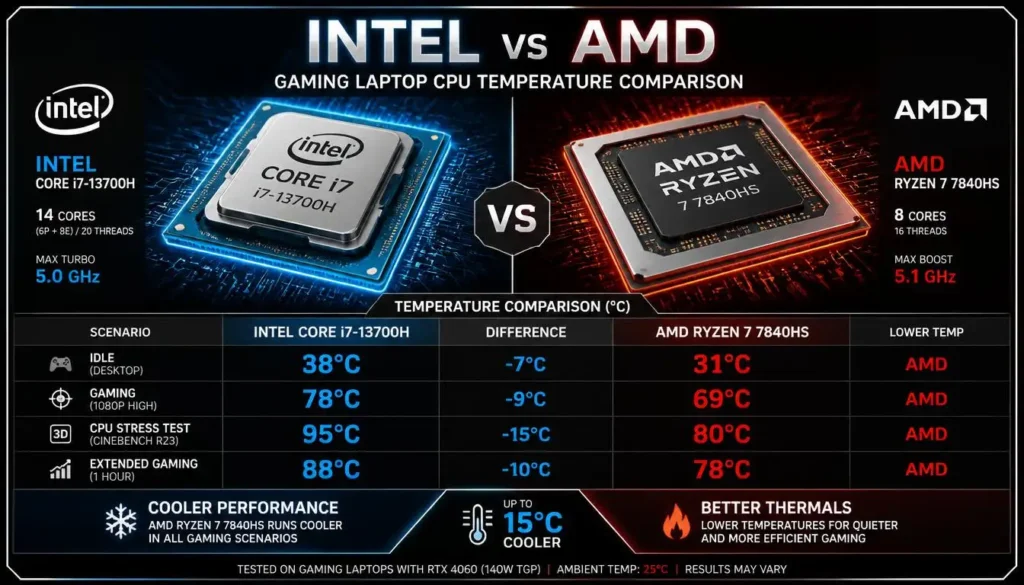
Both Intel and AMD mobile processors can operate at high temperatures in gaming laptops.
It is not accurate to say that every Intel CPU runs hotter than every AMD CPU, or the reverse. Temperature depends on the processor generation, power limit, chassis, cooling system, firmware, and workload.
Intel Gaming Laptop CPUs
Intel gaming laptops may use Core i5, Core i7, Core i9, Core Ultra, H-series, or HX-series processors.
High-performance models can temporarily use substantial power to maintain high boost clocks. Laptop manufacturers determine how much power the CPU receives and how aggressively the fans respond.
Check the exact processor model on Intel’s specification page to find its Tjunction value.
AMD Gaming Laptop CPUs
AMD gaming laptops may use Ryzen 5, Ryzen 7, Ryzen 9, Ryzen AI, H, HS, or HX processors.
AMD lists the operating temperature or TjMax on model-specific product and support pages. That limit is not identical across every Ryzen laptop processor, so avoid relying on a generic Ryzen temperature limit.
The laptop manufacturer may also configure different power and thermal behavior for the same processor.
CPU Package Temperature vs Core Temperature
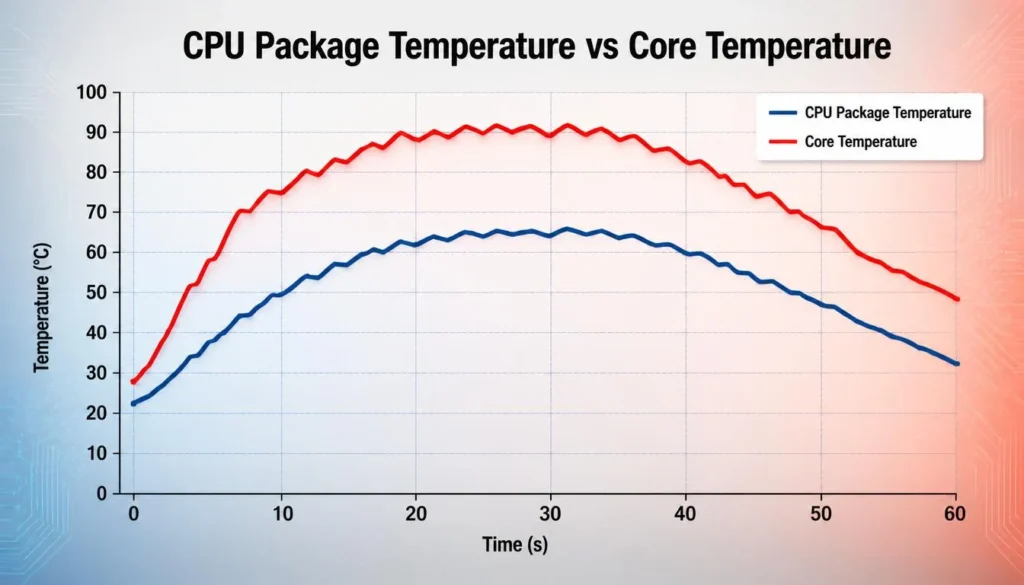
Monitoring programs may show several CPU temperature readings.
Core Temperature
Core temperature is measured for each individual processor core.
One core may be hotter because it is handling more work or boosting to a higher frequency. Small differences between cores are normal.
CPU Package Temperature
CPU package temperature represents a package-level reading. Intel describes package temperature as a weighted value based on individual core temperature readings reported by monitoring applications.
For general gaming-laptop monitoring, CPU package temperature is often the easiest single value to follow. However, checking the hottest core can also help identify brief peaks.
Current, Average, and Maximum Temperature
The current reading shows what is happening at that moment.
The maximum reading records the highest value reached, even if it lasted less than a second.
The average reading provides better context for a longer gaming session.
A maximum of 94°C with an average of 79°C is usually less concerning than an average of 94°C maintained for an hour.
Why Is the CPU Hot When Usage Is Low?
CPU usage is not a complete measurement of heat output.
Task Manager may show 20% total CPU usage even when a few cores are working heavily. Modern processors also increase their clock speed and voltage for short tasks, which can create temperature spikes.
Other possible causes include:
- Background antivirus scanning.
- Windows updates.
- Game launchers downloading files.
- Cloud synchronization.
- RGB and peripheral software.
- Browser tabs playing media.
- High CPU package power.
- A quiet fan profile.
- GPU heat entering a shared cooling system.
- Blocked vents or accumulated dust.
Check CPU clock speed, package power, and per-core activity alongside total utilization.
Why Is a Gaming Laptop Hotter When Plugged In?
Gaming laptops usually deliver their highest performance when connected to the charger.
Battery mode commonly limits CPU and GPU power to preserve battery life. When plugged in, the system may activate higher boost clocks, increased power limits, and a more aggressive performance profile.
This can produce:
- Higher frame rates.
- Increased CPU and GPU power.
- Faster fans.
- Higher internal temperature.
- More heat around the keyboard and exhaust vents.
A higher plugged-in temperature is not automatically a charging fault.
Gaming while connected to power is normal for a gaming laptop. In fact, battery power alone may not provide enough sustained energy for full gaming performance.
However, stop using the laptop and seek professional help if you notice battery swelling, an unusual chemical smell, visible deformation, or extreme heat around the battery area.
Normal CPU Temperature in Silent, Balanced, and Turbo Modes
Performance mode can change temperature significantly.
Silent or Eco Mode
Silent mode usually limits CPU power and reduces fan noise.
The laptop may run cooler during moderate tasks, but some systems allow temperature to rise temporarily because the fans remain slower. Gaming performance may also decrease.
Balanced Mode
Balanced mode attempts to provide a practical compromise between performance, fan noise, and power consumption.
For many users, this is the best starting point for everyday gaming.
Performance or Turbo Mode
Performance and Turbo modes allow the CPU and GPU to use more power.
The fans normally run faster, but the components may still become hotter because the laptop is producing more performance. A higher temperature in Turbo mode does not necessarily mean that the cooling system is failing.
Compare modes using the same game, settings, room temperature, and test duration.
Why Do Thin Gaming Laptops Run Hotter?
Thin gaming laptops have less physical space for heatsinks, fans, heat pipes, and airflow.
They may also use powerful processors that would previously have appeared only in much larger systems. Manufacturers often balance temperature, performance, weight, and fan noise differently.
A thin laptop reaching the upper 80s does not automatically have worse cooling than a thick laptop running at 80°C. The thin model may be delivering more performance from a smaller chassis.
Always compare the laptop with reviews or results from the same model, not a completely different machine.
Why Is the CPU Hotter in Some Games?
Games do not use the CPU in the same way.
A visually demanding game may load the GPU heavily while placing moderate pressure on the CPU. A strategy, simulation, competitive shooter, or open-world game may place more work on the processor.
CPU temperature can increase because of:
- Very high frame rates.
- Complex physics calculations.
- Large numbers of characters.
- Artificial-intelligence calculations.
- World simulation.
- Shader compilation.
- Background anti-cheat software.
- Poor game optimization.
Lowering resolution does not always reduce CPU temperature. In some games, it allows the GPU to produce more frames, which gives the CPU more work.
Limiting the frame rate can often reduce unnecessary CPU load.
How to Check CPU Temperature on a Gaming Laptop
Use monitoring software while the laptop is under a realistic workload.
Use the Manufacturer’s Software
Many gaming laptops include a control application, such as:
- ASUS Armoury Crate
- Acer NitroSense
- Lenovo Vantage
- MSI Center
- HP OMEN Gaming Hub
- Alienware Command Center
The exact application depends on the laptop model.
Manufacturer software may also show fan mode, CPU usage, GPU temperature, and performance profiles.
Use Hardware Monitoring Software
Popular hardware-monitoring tools include:
Use trusted official download sources and avoid installing multiple monitoring applications unnecessarily.
Test Temperature During a Real Game
Follow this process:
- Restart the laptop.
- Close unnecessary background programs.
- Open the monitoring software.
- Reset the minimum, maximum, and average values.
- Launch a game you regularly play.
- Play for 20 to 30 minutes.
- Review CPU package temperature.
- Check the average and maximum readings.
- Review CPU clock speed and thermal-throttling indicators.
- Repeat the test in Balanced and Performance modes when necessary.
Keep the room temperature and game settings consistent when comparing results.
Signs Your Gaming Laptop CPU Is Actually Overheating
A hot reading does not always mean overheating. Look for a combination of temperature and performance symptoms.
Warning signs include:
- Frequent thermal throttling.
- Severe performance loss after a few minutes.
- Random shutdowns or restarts.
- Game crashes during heavy load.
- Fans that stop spinning.
- A grinding or rattling fan noise.
- High temperature during light use.
- Temperature rising over time in the same game.
- Hot air no longer coming from an exhaust vent.
- A burning smell.
- Battery swelling.
A working cooling system should move warm air out of the laptop. If the CPU is extremely hot but little or no air exits the vents, a fan or airflow problem may be present.
How to Lower Gaming Laptop CPU Temperature
Start with simple, low-risk fixes before considering hardware service.
Place the Laptop on a Hard Surface
Do not game with the laptop resting on a bed, blanket, carpet, or sofa.
Soft materials can block the bottom air intakes. Use a desk, table, or other flat surface that leaves the vents open.
Raise the Back of the Laptop
Slightly lifting the rear can improve airflow beneath the chassis.
Use a stable laptop stand or riser. Make sure it does not cover the intake vents.
Clean the External Vents
Dust around the intake and exhaust vents can restrict airflow.
Turn the laptop off and disconnect the charger before cleaning. Use a soft brush or controlled compressed air according to the manufacturer’s instructions.
Avoid forcing fans to spin at extreme speed with compressed air.
Close Unnecessary Background Programs
Open Task Manager and look for applications using CPU resources.
Close unused browsers, launchers, recording tools, update services, and other programs before gaming. Do not end unfamiliar Windows processes without checking what they do.
Use Balanced Mode
Turbo mode is not necessary for every game.
Balanced mode may reduce temperature and noise with only a small performance difference. Test the actual frame rate rather than assuming the highest-performance profile is always best.
Limit the Frame Rate
An uncapped frame rate can make the CPU produce more frames than the display can meaningfully show.
Try setting a frame-rate limit that matches the display and the performance you need. For example, limiting a game from 200 FPS to 120 FPS may reduce CPU load without making the game feel slow.
Reduce CPU-Intensive Settings
Settings that may affect CPU load include:
- Crowd density.
- View distance.
- Simulation quality.
- Physics quality.
- Traffic density.
- Number of background characters.
- Ray tracing in some titles.
Graphics options such as texture quality often affect GPU memory more than CPU temperature, so reduce settings selectively.
Adjust the Fan Profile
Use the laptop manufacturer’s software to select an appropriate fan mode.
A more aggressive fan curve can improve temperature, but it also increases noise. Avoid unsupported fan-control programs that conflict with the laptop’s firmware.
Use a Cooling Pad
A cooling pad can help when the laptop has intake vents on the bottom.
Results vary according to vent placement, fan alignment, and chassis design. A stand that improves airflow may sometimes provide a similar benefit.
A cooling pad should be viewed as an airflow aid, not a repair for a failed internal fan or clogged heatsink.
Reduce CPU Power When Supported
Some gaming-laptop utilities allow users to select lower power limits or temperature targets.
Reducing CPU power can lower heat with a manageable performance trade-off, especially in games limited primarily by the GPU.
Use manufacturer-supported settings whenever possible.
Undervolt Only When Supported
Undervolting reduces the voltage supplied to the processor and may lower power consumption and temperature.
However, many modern laptops lock this feature. Incorrect settings may cause crashes, instability, data loss, or boot problems.
Undervolting is not the first solution beginners should try.
Replace Thermal Paste Professionally
Thermal paste transfers heat from the processor to the cooling assembly. It may degrade or become less effective over time.
Replacing it can help an older laptop, but opening the device may affect the warranty. Some gaming laptops also use liquid metal, which requires careful handling.
Use an experienced technician when you are not confident working inside the laptop.
Service the Cooling System
Professional service may be needed when:
- The fans are damaged.
- Internal heatsink fins are clogged.
- Thermal material needs replacement.
- The laptop repeatedly shuts down.
- Temperatures remain excessive after basic troubleshooting.
How Room Temperature Affects CPU Temperature
A gaming laptop cannot cool its components below the temperature of the air entering the system.
The same laptop may run noticeably warmer during a hot summer day than in an air-conditioned room. This is especially relevant in warmer regions of the United States, Australia, and parts of Canada and the United Kingdom during summer heat.
To improve cooling:
- Keep the room ventilated.
- Avoid direct sunlight.
- Do not place the laptop near a heater.
- Leave space around exhaust vents.
- Clean dusty room surfaces regularly.
- Use air conditioning or a room fan when appropriate.
When comparing temperature results, consider the room temperature during each test.
Does High CPU Temperature Reduce Laptop Lifespan?
Heat is one factor that can influence the long-term condition of a laptop, but a single high reading does not mean that the processor has been damaged.
Modern CPUs are designed to manage temperature through power control, clock adjustment, throttling, and protective shutdowns.
Long-term concerns are more likely when excessive heat is persistent and affects surrounding components, fans, battery condition, or system stability.
Good habits include:
- Keeping vents clear.
- Cleaning dust periodically.
- Avoiding soft surfaces.
- Using an appropriate power mode.
- Watching for changes in temperature over time.
- Servicing failing fans promptly.
- Keeping the battery away from excessive heat.
A laptop that has always reached 88°C in a particular game may be operating normally. A laptop that previously reached 78°C but now reaches 98°C in the same conditions needs investigation.
CPU Temperature vs GPU Temperature
The CPU and GPU do not always run at the same temperature.
| Component | Typical Behaviour | Main Concern |
|---|---|---|
| CPU | Rapid spikes and changing clock speeds | TjMax and thermal throttling |
| GPU | More stable temperature during gaming | GPU thermal limit and performance |
| SSD | Lower than CPU and GPU | Storage throttling |
| Battery | Should remain comparatively cooler | Swelling and heat-related degradation |
Many gaming laptops use shared heat pipes or closely connected cooling systems. A heavily loaded GPU can therefore affect CPU temperature, even when CPU usage appears moderate.
When Should You Contact the Manufacturer or a Technician?
Contact the laptop manufacturer or a qualified technician when:
- A new laptop shuts down during gaming.
- The CPU reaches its thermal limit during light workloads.
- The cooling fan does not spin.
- The laptop repeatedly crashes from heat.
- Temperature suddenly becomes much higher than before.
- Cleaning the external vents makes no difference.
- The laptop displays a thermal warning.
- You smell burning or hear electrical noises.
- The battery appears swollen.
- The laptop uses liquid metal and needs internal service.
- The device is still under warranty.
Do not open a laptop under warranty before checking the manufacturer’s service policy.
Gaming Laptop CPU Temperature Checklist
Use this checklist before deciding that your laptop is overheating:
- Identify the exact processor model.
- Look up its official TjMax.
- Check the laptop manufacturer’s thermal guidance.
- Monitor CPU package temperature.
- Record average and maximum readings.
- Test during a real gaming session.
- Check CPU clock speed.
- Look for thermal-throttling flags.
- Compare Balanced and Turbo modes.
- Check background CPU usage.
- Inspect intake and exhaust vents.
- Test on a hard, flat surface.
- Consider the room temperature.
- Compare current results with previous results.
- Seek service if shutdowns or severe throttling continue.
Frequently Asked Questions About Normal CPU Temperature for Gaming Laptop
What is a good CPU temperature for a gaming laptop?
A temperature between approximately 70°C and 85°C during gaming is a good result for many gaming laptops. Higher temperatures may still be normal depending on the processor, chassis, power mode, and workload.
What is a normal gaming laptop CPU temperature while idle?
Many gaming laptops idle between 40°C and 60°C. Quiet fan modes, background programs, charging, and warm room conditions can push the temperature slightly higher.
Is 70°C safe for a laptop CPU?
Yes. A temperature of 70°C is generally safe during gaming or another demanding workload. It would be more unusual during prolonged idle activity.
Is 80°C normal while gaming on a laptop?
Yes. An 80°C CPU temperature is common in gaming laptops and is normally not a concern when performance is stable.
Is 85°C safe for a gaming laptop?
For many gaming laptops, 85°C is within the expected range during demanding gameplay. Check the processor’s specific thermal limit rather than relying on a universal number.
Is 90°C safe for several hours of gaming?
It may be within the designed operating range of some laptops, but there is no universal answer. Check the CPU’s TjMax, thermal-throttling status, clock speed, and overall system stability.
Is 95°C too hot for a gaming laptop CPU?
It is very warm and may be close to the thermal limit. A brief spike is less concerning than a sustained reading accompanied by throttling, crashes, or shutdowns.
Can a gaming laptop CPU reach 100°C?
Some processors may reach or approach 100°C before thermal controls reduce performance. Repeatedly reaching this temperature during ordinary gaming should be investigated.
Why does my CPU temperature spike suddenly?
Modern processors rapidly increase clock speed and power when work appears. Loading games, opening programs, shader compilation, and background tasks can create short temperature spikes.
Why is my gaming laptop hotter when plugged in?
The laptop may allow higher CPU and GPU power when connected to the charger. This improves gaming performance but also produces more heat.
Why is my CPU hot when usage is low?
Total CPU usage is an average across the processor. A few heavily loaded cores, high boost clocks, background services, GPU heat, or a quiet fan profile can raise temperature even when overall usage appears low.
Does Turbo mode increase CPU temperature?
It often does. Turbo or Performance mode allows the CPU to use more power and maintain higher clock speeds, which can increase heat despite faster fan operation.
Does limiting FPS lower CPU temperature?
It can. Limiting the frame rate reduces the number of frames the processor must prepare, particularly in CPU-bound games.
Does a cooling pad lower CPU temperature?
A cooling pad may improve temperature when its fans align with the laptop’s bottom intake vents. The result varies by laptop design.
Can high CPU temperature cause FPS drops?
Yes. When the CPU reaches a thermal limit, it may reduce power and clock speed. This can cause lower frame rates or stuttering.
How can I tell if my CPU is thermal throttling?
Use monitoring software to check CPU clock speed and thermal-limit indicators. Throttling may also cause performance to decline after the laptop has been gaming for several minutes.
Should I replace the thermal paste?
Consider thermal-paste replacement when an older laptop runs significantly hotter than before and internal cleaning does not solve the problem. Warranty coverage and liquid-metal cooling should be considered before opening the device.
Are Intel laptop CPUs hotter than AMD laptop CPUs?
Not universally. Temperature depends on the exact processor, power limit, laptop design, cooling system, and workload—not only the brand.
Does an external monitor increase laptop temperature?
It can in some setups. An external high-refresh-rate or high-resolution display may keep the dedicated GPU active and increase the overall heat inside a shared cooling system.
Final Verdict
The normal CPU temperature for a gaming laptop is usually around 40–60°C while idle and 70–90°C during demanding gameplay. Short spikes above 90°C can occur and do not automatically indicate a cooling failure.
Do not judge your laptop using a single temperature reading. Check the processor’s official TjMax, average temperature, clock speed, thermal-throttling status, fan operation, room temperature, and gaming performance.
An 80°C or 85°C CPU is generally normal during gaming. Sustained readings around 95°C or repeated peaks near 100°C deserve closer inspection, especially when accompanied by stuttering, crashes, or shutdowns.
Keep the vents clear, use the laptop on a hard surface, close unnecessary programs, test Balanced mode, and limit excessive frame rates. When severe overheating continues, contact the manufacturer or a qualified technician.