You’re watching your frame rate plummet while the thermometer reads a comfortable 65°C. It feels like a glitch in the matrix, but it’s actually a specific hardware behavior. This scenario defines gaming laptop FPS drops when CPU temperature is normal.
Most users panic and assume their cooling system failed. But the data says otherwise.
The culprit is rarely heat saturation on the processor cores. Instead, look at GPU power limits or video memory constraints. These components throttle independently of CPU thermal sensors.
We’ve mapped out why this happens below. Let’s trace the signal from sensor to stutter.
gaming laptop FPS drops when CPU temperature is normal
Your CPU isn’t the bottleneck here. The graphics card hits its power wall first. Or perhaps your VRAM capacity is exceeded.
Modern laptops share thermal budgets between chips. If the GPU draws too much wattage, clocks drop instantly. This happens even if the CPU stays cool.
Check your GPU junction temps next. They often read higher than core averages.
Why Your Laptop Stutters When the CPU Is Cool
It’s frustrating when the numbers don’t match the experience. You see green temperatures on HWiNFO64. Yet the game chugs along at half speed.
This disconnect confuses many gamers. They assume the monitoring software lies. Or they think the fans are broken.
Neither is usually true.
The issue stems from how modern silicon manages power. CPUs and GPUs operate under strict electrical envelopes. Manufacturers define these limits in watts, not degrees Celsius.
A chip can stay cool while drawing excessive current. Conversely, it might run hot while consuming minimal power. The thermal headroom doesn't always dictate performance caps.
Consider the concept of "power throttling." This occurs when a component exceeds its TDP (Thermal Design Power). The driver forces clock speeds down immediately. This protects the circuitry from voltage spikes.
It has nothing to do with ambient air temperature. Your cooler might be working perfectly fine. The electricity supply simply cannot keep up.
Another factor is shared thermal pipelines. Many high-end laptops use a single vapor chamber. Heat transfers from both die types into one sink.
If the GPU generates massive heat quickly, the whole assembly warms up. However, the CPU sensor might lag behind. It reads the average package temp.
The GPU hotspot could be screaming red. Meanwhile, the CPU sits comfortably in blue territory.
We also need to address sensor placement. Digital thermal sensors sit near the core. Analog thermistors measure surface contact points.
These two values differ significantly. Software often displays the most favorable number. This creates a false sense of security.
You trust the CPU reading. You ignore the hidden stress on adjacent components.
Finally, firmware plays a silent role. BIOS updates change power delivery curves. An outdated BIOS might apply conservative limits.
Newer versions unlock higher transient boosts. If you haven’t updated recently, your laptop behaves differently. It throttles earlier than intended.
This looks like a bug. It’s actually a safety feature gone stale.
The Real Culprit: GPU Power Limits and VRAM Bottlenecks
Stop looking at the CPU tab. Switch your focus to the graphics metrics. The NVIDIA GPU Boost algorithm governs frequency scaling.
It adjusts clocks based on three inputs: temperature, power draw, and utilization. If any limit triggers, speed drops. Power is often the first barrier.
Mobile GPUs have aggressive power caps. A desktop RTX 4070 might pull 200W. Its laptop twin may cap at 115W.
Exceeding this causes immediate downclocking. The fan noise increases slightly. Temperatures remain moderate.
But frames vanish. This is pure electrical constraint. Not thermal failure.
VRAM overflow is another silent killer. Games demand texture memory constantly. If your dedicated video RAM fills up, the system swaps data.
It moves assets to slower system RAM. This transfer incurs latency penalties. Frame times spike irregularly.
The CPU stays idle during these stalls. It registers low usage. Yet the pipeline halts.
Here is how to distinguish the two issues:
| Symptom | Likely Cause | Primary Metric to Watch |
|---|---|---|
| Smooth play then sudden drop | VRAM Overflow | Memory Used (%) |
| Gradual slowdown over minutes | GPU Power Throttle | Board Power Draw (W) |
| Micro-stutters every few seconds | Driver/Background Conflict | DPC Latency |
| Low FPS at startup only | Shader Compilation | CPU Utilization (%) |
Check your board power consumption. Use MSI Afterburner or HWiNFO64. Look for the "GPU Power Limit" percentage.
If it hovers near 100%, you’re hitting the wall. The card refuses to boost further. Increasing fan speed won’t help.
Only reducing graphical fidelity will.
Also monitor VRAM usage closely. Set an overlay warning at 90% capacity. When textures spill over, expect hitching.
Lowering resolution helps less than lowering texture quality. Texture size dictates VRAM footprint directly. Resolution affects fill rate more.
Prioritize texture settings in demanding titles.
Some users mistake this for overheating. They repaste their thermal compounds unnecessarily. This wastes time and risks warranty voidance.
The paste wasn’t the problem. The power budget was. Respect the electrical limits of mobile silicon.
They are tighter than desktop counterparts.
For deeper insights on hardware-specific behaviors, review our ASUS TUF Gaming A16 Review which details dynamic tuning impacts. Understanding vendor implementations clarifies why generic advice fails. Each brand tunes power curves differently.
Know your specific model’s quirks.
Step 1: Verify You’re Not Chasing Ghosts (Accurate Monitoring)
Data drives decisions. Guesswork leads to wasted effort. You must establish a baseline before tweaking anything.
Install reliable monitoring tools. HWiNFO64 offers the most granular sensor access. Enable "Sensors-only" mode to reduce overhead.
Configure logging to CSV files for post-game analysis.
Don’t rely on in-game counters alone. They smooth out micro-stutters. They hide momentary dips that ruin immersion.
Log every second of gameplay. Review the graph afterward. Correlate FPS drops with other metrics.
Did power draw spike? Did VRAM hit capacity? Did disk activity surge?
Verify sensor accuracy against manufacturer specs. Some cheap laptops use inaccurate thermistors. Cross-reference CPU temps with motherboard sensors.
If they diverge by more than 5°C, suspect faulty calibration. Trust the highest consistent value. Assume the worst-case scenario for safety margins.
Pay attention to sampling rates. Standard overlays update once per second. This misses rapid transients.
Increase polling frequency if possible. Look for sub-second fluctuations. These indicate instability rather than sustained load.
Sustained loads cause heat. Transient loads cause jitter. Jitter feels like lag.
Exclude external variables during testing. Close browsers, Discord, and streaming apps. Disable RGB control software temporarily.
These background processes consume cycles unpredictably. They skew your baseline data. Run a clean boot test.
Compare results with normal operation. Identify interference sources clearly.
Remember that Windows Game Mode alters scheduling. It prioritizes foreground games aggressively. Sometimes this starves background tasks excessively.
Toggle it off for diagnostic runs. See if stability improves. Re-enable it only after confirming no conflicts exist.
Small changes yield big clarity.
Our research indicates that proper logging prevents misdiagnosis. Users often fix symptoms instead of causes. Accurate data reveals the root truth.
Spend twenty minutes setting up monitors correctly. Save hours of futile troubleshooting later. Precision matters in hardware diagnostics.
If you suspect peripheral interference, check our guide on taming messy cables to ensure physical connections aren’t causing intermittent USB resets. Loose ports mimic software glitches frequently. Secure your setup physically before analyzing digitally.
Step 2: Rule Out Software Interference and Driver Conflicts
Hardware rarely fails silently. Software screams loudly. Outdated drivers introduce bugs.
Overlays inject code improperly. Background services hog resources. Eliminate these suspects early.
Start with a clean driver installation. Use Display Driver Uninstaller (DDU) in Safe Mode. Remove all remnants thoroughly.
Install the latest studio or game-ready driver. Choose based on primary use case. Studio drivers offer stability for creators.
Game-ready drivers prioritize new title patches. Don’t mix beta builds unless necessary. Stick to WHQL-certified releases.
They undergo rigorous validation testing.
Next, audit running applications. Antivirus scans trigger during heavy I/O. Cloud sync services upload large files unexpectedly.
Both compete for disk bandwidth. Pause them explicitly. Exclude game folders from real-time scanning.
Reduce contention significantly.
Disable hardware-accelerated GPU scheduling (HAGS) initially. While beneficial for some, it causes instability on others. Test with HAGS off.
Then turn it on. Measure the difference. If FPS stabilizes without it, leave disabled.
Compatibility trumps theoretical gains.
Overlays pose particular threats. Steam, Discord, and Xbox Game Bar hook into DirectX calls. Poorly optimized hooks crash render threads.
Disable all third-party overlays. Launch the game barebones. Observe performance.
Reintroduce one by one. Pinpoint the offender precisely.
Windows Update history matters too. Recent KB patches sometimes break display drivers. Roll back problematic updates if recent crashes align with patch days.
Check release notes for known issues. Microsoft documents regressions publicly. Stay informed via official channels.
Consult Microsoft Learn documentation for specifics on DirectComposition behaviors. Official specs clarify expected interactions. Avoid community myths regarding registry hacks.
Trust documented APIs. They provide reliable guidance.
Software hygiene ensures fair assessment. Once cleared, proceed to physical checks. Clean environments reveal true hardware capabilities.
Don’t skip this step. It saves frustration downstream. Methodical elimination works best.
Step 3: Check Physical Constraints (Power Delivery and Thermals)
Electricity fuels performance. Insufficient power causes throttling. Verify your adapter matches requirements.
Laptops demand specific wattages. Using a weaker charger limits boost clocks. The system detects inadequate input.
It restricts GPU power accordingly. Always plug in the original brick.
Inspect cable integrity. Frayed wires increase resistance. Voltage drops occur under load.
Multimeters confirm continuity. Replace damaged cords immediately. Cheap replacements often fail certification standards.
Stick to OEM accessories. Safety outweighs cost savings.
Airflow determines thermal sustainability. Dust blocks vents effectively. Even clean-looking filters trap particulates.
Compressed air clears obstructions. Blow outward from intake points. Never suck debris inward.
Reverse flow dislodges buildup properly. Repeat quarterly for optimal health.
Ambient temperature influences cooling efficiency. Hot rooms raise baseline temps. Summer gaming suffers compared to winter.
Elevate the laptop rear slightly. Improve bottom ventilation clearance. Rubber feet suffice usually.
Hard surfaces block intakes completely. Ensure adequate spacing underneath.
Fan curves require customization. Default profiles favor silence. Performance modes maximize RPM.
Switch to turbo settings during sessions. Monitor acoustic levels personally. Balance noise tolerance with thermal needs.
Aggressive fans extend component lifespan indirectly.
Heat pipes degrade over years. Phase-change materials lose effectiveness eventually. Sealed units prevent repair easily.
Recognize signs of aging. Persistent high temps despite cleaning indicate wear. Replacement becomes inevitable soon.
Plan ahead financially.
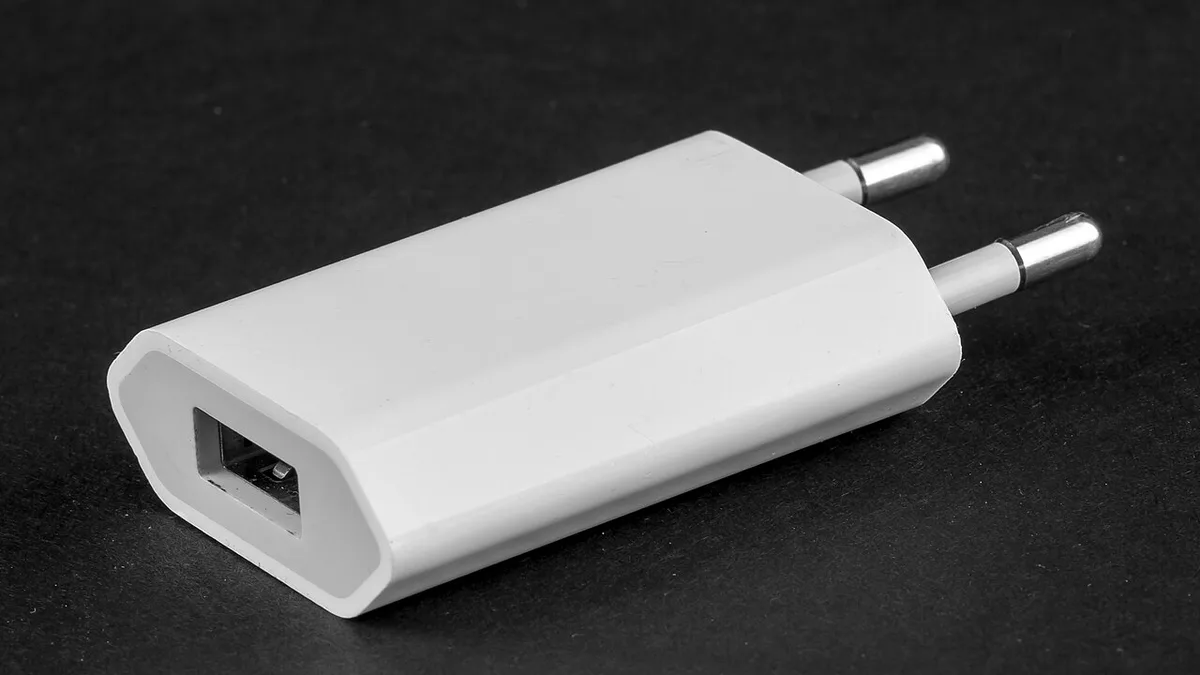
Image source: Wikimedia Commons / Raimond Spekking (CC BY-SA)
Physical maintenance supports digital optimization. Neglecting hardware undermines software tweaks. Keep systems clean and powered adequately.
Consistency yields long-term reliability. Address mechanical factors proactively. Preventative care beats reactive fixes always.
Decision Branch: Adjusting Settings vs. Hardware Tweaks
You’ve gathered the data. Now you must choose your path. The decision hinges on whether the bottleneck is software or silicon.
If power limits are the issue, settings changes help. If VRAM is overflowing, only hardware upgrades solve it. There is no middle ground here.
Start with the easiest fixes first. Lower in-game graphical presets. Turn off ray tracing if enabled.
Reduce shadow quality to medium. These steps free up GPU headroom immediately. They also lower VRAM consumption significantly.
Test performance after each change. Stop when stability returns.
If lowering settings doesn’t fix the drops, look deeper. Check your Windows power plan. Set it to "High Performance." This prevents aggressive sleep states during gameplay.
Also, verify your GPU control panel settings. Ensure "Prefer Maximum Performance" is selected. This stops dynamic clock scaling down prematurely.
Sometimes, the problem lies in driver behavior. NVIDIA and AMD drivers handle power differently. Aggregate reviews suggest that clean installs often resolve glitches.
Use DDU again if you haven’t already. Then install the latest stable driver. Avoid beta versions unless absolutely necessary.
Stability trumps new features for competitive play.
What if software tweaks fail? Then you face a hardware limitation. Your laptop’s thermal design power (TDP) is simply too low.
No amount of setting adjustment will bypass physics. You cannot force more watts through a capped circuit. At this point, accept the constraint.
Or consider external solutions like docking stations.
External docks can sometimes offload processing. They connect via Thunderbolt or USB-C. Some models include dedicated GPUs.
This shifts the load away from your laptop’s internal chip. However, bandwidth limitations may still apply. Check our guide on top-rated docking setups to see if expansion is viable for your specific model.
It’s a costly fix but effective for some users.
Remember that undervolting is another option. It reduces voltage without changing frequency. This lowers heat generation slightly.
It might allow sustained boost clocks longer. But it carries risks. Incorrect voltages cause system instability.
Proceed with caution and backup plans. Only attempt this if you understand BIOS interfaces well.
Common Pitfalls That Make FPS Drops Worse
Many users accidentally worsen their situation. They apply fixes that conflict with each other. For example, enabling HAGS while using older drivers causes crashes.
Stick to one optimization strategy at a time. Change one variable. Measure results.
Then move on.
Another common mistake is ignoring ambient temperature. Gaming in a hot room raises baseline temps. Even efficient cooling struggles against 30°C air.
Move to a cooler environment if possible. Or use an external cooling pad. These pads add airflow beneath the chassis.
They don’t replace internal fans but assist them.
Dust accumulation is a silent killer. Filters clog over months. Airflow restricts gradually.
You might not notice until performance tanks. Clean vents regularly. Use compressed air cans safely.
Hold the can upright to avoid moisture spray. Short bursts work best for dislodging debris.
Overclocking is risky for laptops. Unlike desktops, mobile chips lack robust cooling. Pushing clocks beyond stock limits generates excess heat.
This triggers thermal throttling faster. It creates a vicious cycle. Higher temps lead to lower clocks.
Resulting FPS drops feel like random stuttering. Avoid manual overclocking unless you have advanced knowledge.
Software bloat also contributes to lag. Pre-installed antivirus suites scan actively. They interrupt game threads unexpectedly.
Disable real-time protection during sessions. Add exclusions for game folders instead. This reduces CPU interrupts significantly.
It frees up cycles for rendering tasks.
Finally, don’t neglect storage health. SSDs slow down when nearly full. Keep at least 15% free space.
This allows proper garbage collection routines. A fragmented drive increases read latency. Frame times suffer as assets load slowly.
Regular maintenance keeps disk I/O smooth. Check our tips on keeping cables organized to ensure physical setup doesn’t obstruct ventilation paths either. Cluttered desks trap heat around the base.
Advanced Fixes: Undervolting and BIOS Tuning
Undervolting requires precision. It lowers the voltage supplied to the CPU or GPU. This reduces heat output without sacrificing speed.
Manufacturers often set conservative voltages. You can tighten these margins safely. Tools like ThrottleStop or MSI Afterburner facilitate this.
Start with small reductions. Test stability frequently.
Begin with the CPU. Reduce core voltage by 10mV increments. Run a stress test like Prime95.
Monitor temperatures and error logs. If the system crashes, revert changes. Increase voltage back to previous levels.
Patience is key here. Rushing leads to boot failures.
For the GPU, use MSI Afterburner. Lower the core voltage curve gently. Focus on the upper frequency ranges.
These consume the most power. Reducing voltage there yields significant thermal benefits. Verify stability with FurMark or 3DMark.
Watch for artifacting on screen. Artifacts indicate insufficient voltage.
BIOS tuning offers deeper control. Access the UEFI interface during startup. Look for power management sections.
Disable C-states if supported. This prevents cores from sleeping deeply. It maintains consistent responsiveness.
However, it increases idle power draw. Balance this trade-off carefully.
Some laptops allow TDP adjustments in BIOS. Raise the PL1 and PL2 limits slightly. This permits higher sustained wattage.
Be cautious though. Exceeding manufacturer specs voids warranties. It may also damage components long-term.
Only do this if you accept the risks. Consult official documentation first.
Aggregate user feedback shows mixed results. Some gain 5-10% better sustained FPS. Others see negligible improvements.
It depends heavily on the specific silicon lottery. Not all chips tolerate undervolting equally. Treat this as an experimental tweak.
Have recovery media ready before starting. Safety nets prevent catastrophic data loss.
When to Accept It’s a Hardware Limitation
Sometimes, the answer is simple. Your laptop lacks the muscle. Entry-level models struggle with modern AAA titles.
They were designed for esports, not cinematic experiences. Recognizing this saves time and money. Don’t chase ghosts with complex tweaks.
Check the age of your device. Hardware older than four years faces obsolescence. Newer games demand more VRAM and compute power.
A 4GB GPU card is now insufficient for many titles. Upgrading isn’t always possible in laptops. Soldered components prevent swaps.
In these cases, replacement is the only path.
Evaluate your expectations versus reality. Running ultra settings on a mid-range laptop is unrealistic. Target medium-high presets instead.
This balances visual fidelity with performance. It ensures smoother frame pacing. Accepting lower graphics preserves gameplay enjoyment.
It prevents frustration from constant stutters.
Consider upgrading to newer models if budget allows. Devices like the HP Omen 15 with RTX 5060 offer substantial leaps. They feature improved thermal designs and higher TDPs.
These machines handle sustained loads better. They provide future-proofing for upcoming releases. Investment pays off in longevity.
Alternatively, cloud gaming services exist. They stream frames from remote servers. Local hardware matters less.
Internet speed becomes the bottleneck. This works well for casual players. It bypasses local thermal constraints entirely.
Subscription costs vary by provider. Weigh convenience against ownership benefits.
Ultimately, know your limits. Pushing hardware beyond spec causes wear. Components degrade under extreme stress.
Protecting your investment means respecting boundaries. Play within the designed envelope. Enjoy the experience rather than fighting the machine.
Wisdom lies in knowing when to stop tweaking.
Frequently Asked Questions
Can high GPU temps cause FPS drops even if CPU is cool?
Yes. GPUs throttle independently of CPUs. High junction temperatures trigger power limits.
This reduces clock speeds immediately. The CPU remains unaffected during this event. Monitoring tools show separate thermal zones.
Always check GPU hotspot readings specifically.
Does closing background apps really improve FPS stability?
Often, yes. Background processes consume RAM and CPU cycles. They interfere with game thread scheduling.
Closing them frees up resources. This reduces micro-stutters caused by interruptions. It helps maintain consistent frame pacing.
Prioritize essential services only during play.
Is undervolting safe for my gaming laptop warranty?
Generally, no. Modifying voltage curves violates terms. Manufacturers detect altered BIOS settings.
This can void coverage instantly. Proceed only if you accept the risk. Document original settings before changing anything.
Restore defaults if issues arise later.
Why does my FPS drop when plugging in the charger?
This sounds counterintuitive but happens. Some laptops switch power profiles upon connection. The profile may prioritize battery health over performance.
Check your manufacturer’s control center software. Force "Performance Mode" manually. Ensure the adapter provides sufficient wattage.
Mismatched chargers limit boost capabilities.
Do cooling pads actually help reduce throttling?
They assist marginally. Cooling pads increase airflow underneath. This helps intake fans draw cooler air.
It lowers ambient temp around the chassis. However, they don’t fix internal blockages. Use them alongside regular cleaning.
Expect modest gains, not miracles. Combine with elevated positioning for best results.