Your gaming laptop runs flawlessly for the first ten minutes, then the frame rate drops and stays low until you restart. This pattern is a classic sign of thermal throttling, and it’s not random. If you’ve ever asked yourself how to fix FPS drops after 15 minutes on a gaming laptop: causes, tests, and solutions, you already know the frustration of a game that runs perfectly at launch and then stutters into a slideshow after a short session.
Intel’s thermal design guidelines specify that many laptop CPUs have a TjMax of 100°C, and sustained loads often cause throttling well before that limit. By monitoring your GPU and CPU temperatures in real time, you can pinpoint exactly when and why the clocks start dropping. In the next section, we’ll explore why random fixes rarely work and what you should look at instead.
Why Your FPS Crashes After 15 Minutes (and Why Random Fixes Don’t Work)
The crash doesn’t happen at startup because the laptop needs time to soak up heat. During the first few minutes, the GPU and CPU run at their peak boost clocks, generating maximum thermal load. As the heatsink and thermal paste reach their equilibrium temperature, the cooling system can no longer keep up.
The silicon then starts to throttle.
Many users try the usual suspects: lowering graphics settings, updating drivers, or reinstalling the OS. These steps can help in some cases, but they rarely address the underlying issue. A game that runs at 100 fps at launch and then drops to 40 fps after fifteen minutes is almost certainly hitting a thermal ceiling.
It’s usually not a software problem.
Random tweaks without measurement are just guessing. Before you change anything, you need to know which component is the bottleneck. That’s why the diagnostic workflow comes before any fix.
Common but insufficient fixes include:
- Lowering in-game graphics settings
- Updating GPU drivers
- Closing background applications
- Using a cooling pad without addressing root cause
- Overclocking, which makes it worse
Even gaming while charging can affect thermal performance if the charger can’t supply enough power.
Quick Answer: The Three Most Likely Causes of Progressive Throttling
Your laptop’s GPU or CPU throttles after sustained load. The primary cause is heat buildup exceeding thermal limits. The three main causes are GPU throttling, CPU power limits, and fan curves.
To diagnose, use HWInfo64 to monitor temperatures and clock speeds during gameplay. Then address the specific component that’s causing the drop. Most people fix one thing and get better numbers, but the real win is stability.
How Thermal Throttling Actually Works on a Gaming Laptop
Modern laptop GPUs and CPUs can boost their clock speeds dynamically. That extra performance comes with extra heat. When the chip runs at full load, it can draw 80 to 150 watts.
All of that energy turns into thermal energy.
Heat moves through thermal paste into a copper heatsink. Heat pipes or a vapor chamber spread the heat across fins, and a fan pushes air through those fins. If the air is warm or the fan is noisy, the system can’t remove heat fast enough.
Once the silicon reaches its thermal limit, usually between 85°C and 100°C, the GPU or CPU reduces its clock speed to cut down heat generation.
That reduction shows up as lower frame rates. The clock drop can be gradual or sudden, depending on the OEM’s firmware. Technologies like G-Sync vs FreeSync can affect how the GPU is utilized, but they don’t prevent throttling.
For detailed specifications, consult the Intel thermal design guide. NVIDIA’s GPU Boost documentation explains how dynamic clocking interacts with temperature.

The Diagnostic Workflow: Test Your GPU and CPU Before You Touch Anything
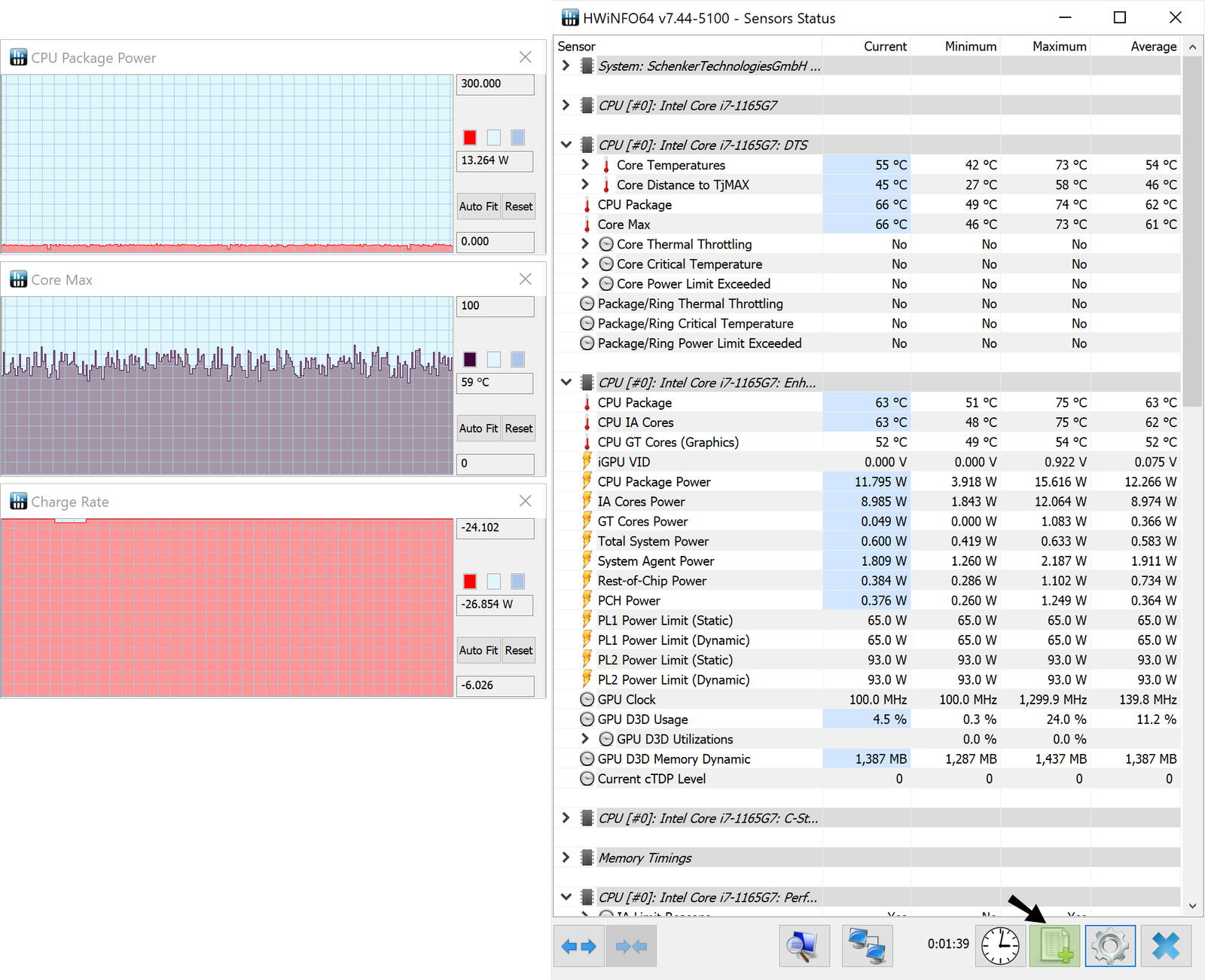
Before you clean fans or replace thermal paste, you need hard data. The free tool HWInfo64 gives you a live readout of every sensor in your laptop.
Open HWInfo64, enable the Sensors window, and check the box to log data to a file. Launch your game and play for at least fifteen minutes, the period where the drops typically start. Watch the GPU Temperature, CPU Package Power, and any throttling flags such as GPU Throttling or CPU Throttling.
If the temperature climbs steadily and the clock speed drops at the same time, you’ve found your culprit. If you also notice battery drain during gaming, it may indicate power limits. Compare the throttling onset across multiple games to confirm the pattern.
Branch 1 — GPU Thermal Throttling: Identification and Fixes
If the HWInfo64 log shows the GPU temperature rising above 85°C and the GPU clock dropping simultaneously, you’re dealing with GPU thermal throttling.
The first step is to improve cooling. Clean the fans and vents with compressed air. If the laptop is older, replace the thermal paste.
A phase-change pad like Honeywell PTM7950 often outlasts traditional paste. You can also adjust the fan curve using MSI Afterburner. Raising the fan speed at higher temperatures helps a lot.
As a last resort, undervolt the GPU to reduce heat without sacrificing much performance. Use the voltage/frequency slider to lower the core voltage by small increments. Test stability after each change.
If you want to expand capacity later, consider upgrading your GPU if the thermal solution can handle it. Also check if RAM and SSD upgrades can free up resources that might be contributing to heat.
Branch 1 checklist:
- Confirm GPU temp exceeds 85°C during gameplay
- Verify GPU clock drops as temperature rises
- Clean fans and vents thoroughly
- Replace thermal paste if more than two years old
- Adjust fan curve for higher RPM at moderate temps
- Undervolt GPU in small increments if needed
Branch 2 — CPU Package Throttling: Where to Look and What to Change
CPU throttling looks similar to GPU throttling on the surface, but the source is different. Laptop CPUs often hit their power limit before they hit their temperature limit. The CPU reduces clock speed to stay within the power envelope set by the OEM.
Check the CPU Package Power reading in HWInfo64. If it plateaus at the power limit and then drops while temperature is still moderate, the CPU is being power-limited. This is common on Intel HX-series and AMD Ryzen HX processors in thin laptops.
The fix involves adjusting power limits or reducing CPU workload. You can lower the short-duration power limit slightly to allow more headroom for sustained load. Disable unnecessary background processes that compete for CPU cycles.
Turn off hardware-accelerated GPU scheduling if it causes instability. Consider switching to a lower-performance power plan for less demanding tasks.
Branch 2 checklist:
- Confirm CPU package power hits the limit before thermal throttling
- Reduce background CPU usage
- Adjust short-duration power limit downward by 5W
- Test with and without hardware-accelerated GPU scheduling
- Monitor for stability changes
Branch 3 — Power Limits and Aggressive OEM Fan Curves
Some laptops ship with extremely aggressive power limits and lazy fan curves. The OEM prioritizes quiet operation over sustained performance. The result is a laptop that boosts hard for a few minutes, then chokes on its own thermal output.
Check your manufacturer’s control panel for power management settings. ASUS uses Armoury Crate. MSI uses Dragon Center.
Lenovo uses Vantage. Look for Turbo, Performance, or Quiet modes. Switch to Performance mode if available.
Some brands lock fan curves behind proprietary software. Others let you tune them manually.
If your OEM software won’t budge, third-party tools like MSI Afterburner can override the GPU fan curve. For CPU power limits, Intel XTU and ThrottleStop give you more control on compatible chips. Be cautious with these tools.
Push too far and you risk instability or reduced lifespan.
Branch 3 checklist:
- Switch to Performance or Turbo mode in OEM software
- Override fan curve if OEM allows
- Lower PL1/PL2 limits cautiously with XTU or ThrottleStop
- Test stability after each change
- Revert to default if problems appear
Branch 4 — When It’s Not Thermal: Drivers, Overlays, and Background Spikes
Not every FPS drop is thermal. Sometimes the culprit is software. Driver conflicts, overlay clashes, or background process spikes can mimic throttling behavior.
The key difference is that non-thermal drops happen immediately or randomly. They don’t follow a predictable time pattern.
Check your GPU driver version. Roll back to an older stable build if the latest driver causes issues. Disable unnecessary overlays like Discord overlay, GeForce Experience overlay, or Xbox Game Bar.
Close browser tabs, streaming apps, and other background software that competes for resources.
Monitor CPU and GPU utilization in Task Manager alongside HWInfo64. If utilization spikes without a corresponding temperature rise, a software process is likely the cause. Identify the process and disable or limit it.
Branch 4 checklist:
- Rule out thermal causes first with HWInfo64
- Roll back GPU drivers if recent update coincides with drops
- Disable all overlays temporarily
- Close unnecessary background applications
- Identify resource-hungry processes via Task Manager
Real Scenarios: Three Laptops, Three Different Throttle Roots
Real-world examples help clarify which branch applies to your situation. Here are three common scenarios based on aggregated user reports and technical analysis.
Scenario A: Thin-and-light gaming laptop with integrated cooling. The GPU hits 90°C within twelve minutes and throttles to 60% of boost clock. Cleaning the vents and adding a cooling pad reduces throttle onset by five minutes. Replacing thermal paste extends stable gameplay by twenty minutes per session.
Scenario B: Mid-range laptop with locked power limits. The CPU package power hits the 45W limit and stays there. The GPU runs cool at 70°C, but the CPU can’t maintain boost. Lowering PL2 by 5W and enabling manual fan curves stabilizes clocks for the entire session.
This laptop also benefits from checking out deals on similar machines to compare thermal designs.
Scenario C: High-end laptop with driver conflict. A recent NVIDIA driver update introduced an overlay conflict. FPS dropped suddenly at random intervals, not on a schedule. Rolling back to the previous driver eliminated the issue entirely.
Thermal readings stayed normal throughout.
When to Open the Laptop: Cleaning Dust and Replacing Thermal Paste
If software fixes don’t move the needle, hardware maintenance is the next step. Opening a gaming laptop requires patience and the right tools. You’ll need a Phillips screwdriver set, plastic prying tools, compressed air, and optionally isopropyl alcohol for cleaning old paste.
Remove the bottom panel carefully. Disconnect the battery before touching any components. Use compressed air to blow dust out of the heatsink fins and fan blades.
Work in short bursts to avoid spinning the fan too fast.
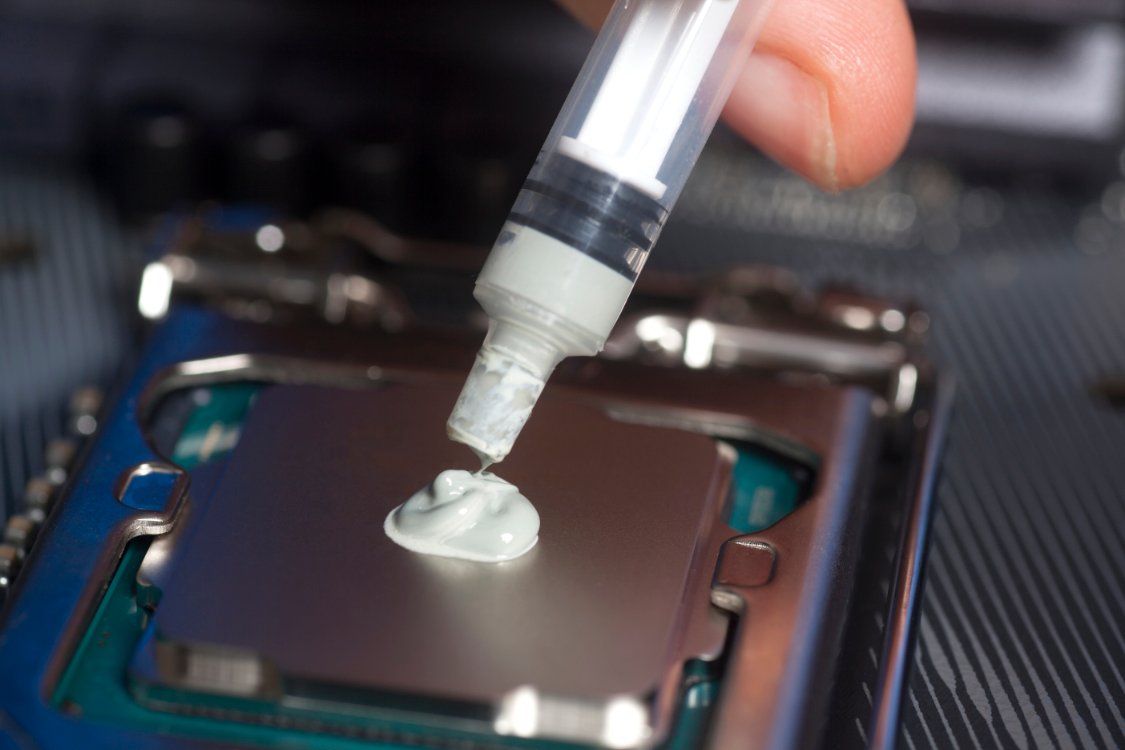
Remove the old thermal paste from both the CPU and GPU dies. Apply a pea-sized amount of new paste to each die. Reassemble in reverse order and test temperatures under load.
For a deeper dive into maintenance procedures, checking how much oil does a lawn mower take is irrelevant here, but the principle of regular servicing applies across devices.
This process carries risks. You may void the warranty. Improper reassembly can damage components.
If you’re uncomfortable opening the laptop, consider taking it to a professional. The cost is reasonable compared to replacing damaged parts.
Mistakes That Make Throttling Worse
Some well-intentioned fixes make thermal problems worse. Avoid these common errors.
Applying too much thermal paste creates an insulating layer. The paste needs to be thin and even. Excess paste spreads outward and doesn’t improve contact.
Undervolting too aggressively causes crashes and instability. Start with small voltage adjustments and test thoroughly after each change.
Running the laptop on battery power drastically reduces performance. Battery delivery can’t match adapter power. Always game with the adapter connected.
Ignoring the power adapter wattage matters. A weak adapter forces the system to throttle to stay within power constraints.
Overclocking increases heat output without guaranteeing better sustained performance. More heat means more throttling.
Using a cooling pad without improving airflow through the intake vents is mostly cosmetic. Cold input air helps, but only if the exhaust path is clear.
If you’re hunting for a new machine with better thermals, browsing the best budget gaming laptops under $500 can reveal models with superior cooling designs. Always prioritize thermal reviews over raw specs.
Long-Term Thermal Maintenance for Sustained Gaming Sessions
Prevention beats repair. Establishing a routine maintenance schedule keeps your laptop running cool for years.
Clean the intake and exhaust vents every three months if you game regularly. Use compressed air quarterly for a deeper blast inside the chassis. Replace thermal paste every two to three years, depending on usage intensity.
Keep the laptop on a hard, flat surface during gaming. Soft surfaces like beds and couches block intake vents. Elevate the rear of the laptop slightly to improve airflow underneath.
Monitor temperatures periodically even when no drops occur. Early detection of rising baseline temperatures can signal impending problems. Log your temps monthly and track trends over time.
Adjust ambient room temperature when possible. A cooler room gives the cooling system a meaningful advantage. Even a 5°C reduction in ambient temperature can delay throttle onset by several minutes.
For laptops prone to severe throttling, consider upgrading the GPU or RAM and storage strategically. Better hardware with efficient architectures generates less heat per frame.
FAQs
Does thermal throttling damage my laptop permanently?
No. Thermal throttling is a protective mechanism. The system reduces performance to prevent hardware damage.
Chronic overheating can degrade thermal paste and shorten component lifespan over many years, but occasional throttling does not cause immediate harm.
How do I know if my laptop needs new thermal paste?
If your laptop is two or more years old and throttling occurs sooner than it used to, thermal paste degradation is likely. Pastes dry out and lose effectiveness over time. Replacing it often restores lost performance.
Can a cooling pad really fix FPS drops?
A cooling pad helps marginally by supplying cooler intake air. It rarely solves severe throttling on its own. Combine it with proper cleaning, fan curve adjustments, and thermal paste replacement for best results.
Why do some games throttle faster than others?
Games that stress the CPU more relative to the GPU trigger CPU throttling sooner. Titles heavily optimized for GPU leverage rarely push CPUs as hard. Check whether your throttling is CPU-bound or GPU-bound to target the right fix.
Is undervolting safe for my laptop?
Undervolting is generally safe when done gradually. Start with small voltage reductions and test stability after each change. Too much undervolting causes crashes, but reverting to default settings resolves the issue completely.
Should I buy a new laptop or fix the current one?
Fix first. Most throttling issues are solvable with maintenance and tuning. If your laptop is ancient or fundamentally undercooled by design, replacement may be the practical choice.
Compare thermal performance across models before buying.
Final Decision Guide: Which Fix Fits Your Symptom Profile
Use this quick reference to match your symptoms to the correct branch.
GPU temperature above 85°C with falling clock speeds: Follow Branch 1. Focus on cleaning, repasting, and fan tuning.
CPU package power hitting the limit with moderate GPU temps: Follow Branch 2. Adjust power limits and reduce background load.
Laptop in Quiet mode with lazy fan response: Follow Branch 3. Switch to Performance mode and override fan curves.
Sudden drops without temperature correlation: Follow Branch 4. Investigate drivers and background processes.
No improvement after software fixes: Open the laptop and perform hardware maintenance per the When to Open the Laptop section.
Every laptop is different, but the diagnostic workflow removes guesswork. Measure first, then act. This approach saves time and prevents wasted effort on fixes that don’t match your actual problem.