You’re staring at a spec sheet, wondering if that 8GB of video memory is going to hold up. It’s the most common question we get from budget-conscious gamers right now. The short answer?
Yes, for most people playing at 1080p in 2026. But "enough" depends heavily on your resolution and texture settings.
Our research shows that 8GB VRAM handles current AAA titles well at High settings. However, pushing into 1440p or enabling heavy ray tracing can cause bottlenecks. You need to know exactly where those limits sit before you spend your money.
Let’s break down what these numbers actually mean for your gameplay experience.
Is 8GB VRAM Enough for a Gaming Laptop
Yes, 8GB VRAM is sufficient for 1080p gaming at high settings. Most modern titles run smoothly within this limit. Issues arise primarily at 1440p resolutions.
Ray tracing features also increase memory demand significantly. Upscaling technologies like DLSS help mitigate these pressures effectively.
What 8GB VRAM Actually Means on a Laptop GPU
Video Random Access Memory (VRAM) is dedicated storage on your graphics card. It holds textures, shaders, and frame buffers ready for rendering. Unlike system RAM, it isn’t shared with other processes during peak load.
This separation ensures faster data access for graphical tasks.
On laptops, mobile GPUs often differ from desktop counterparts. Manufacturers reduce clock speeds and power limits to manage heat. An 8GB laptop GPU might perform differently than an 8GB desktop card.
Always check the specific model number against laptop vs desktop GPU differences to understand real-world expectations.
Memory type matters too. GDDR6 remains standard for mid-range cards as of 2026. Some newer architectures use GDDR7 for higher bandwidth.
Bandwidth determines how quickly data moves between VRAM and the GPU core. Higher bandwidth helps maintain stable frame rates in complex scenes.
Thermal constraints play a huge role here. If your laptop overheats, the GPU throttles its speed. This reduces effective performance regardless of VRAM capacity.
Understanding GPU TGP ratings helps you gauge potential sustained performance. A high-TGP chip will utilize its VRAM more efficiently under load.
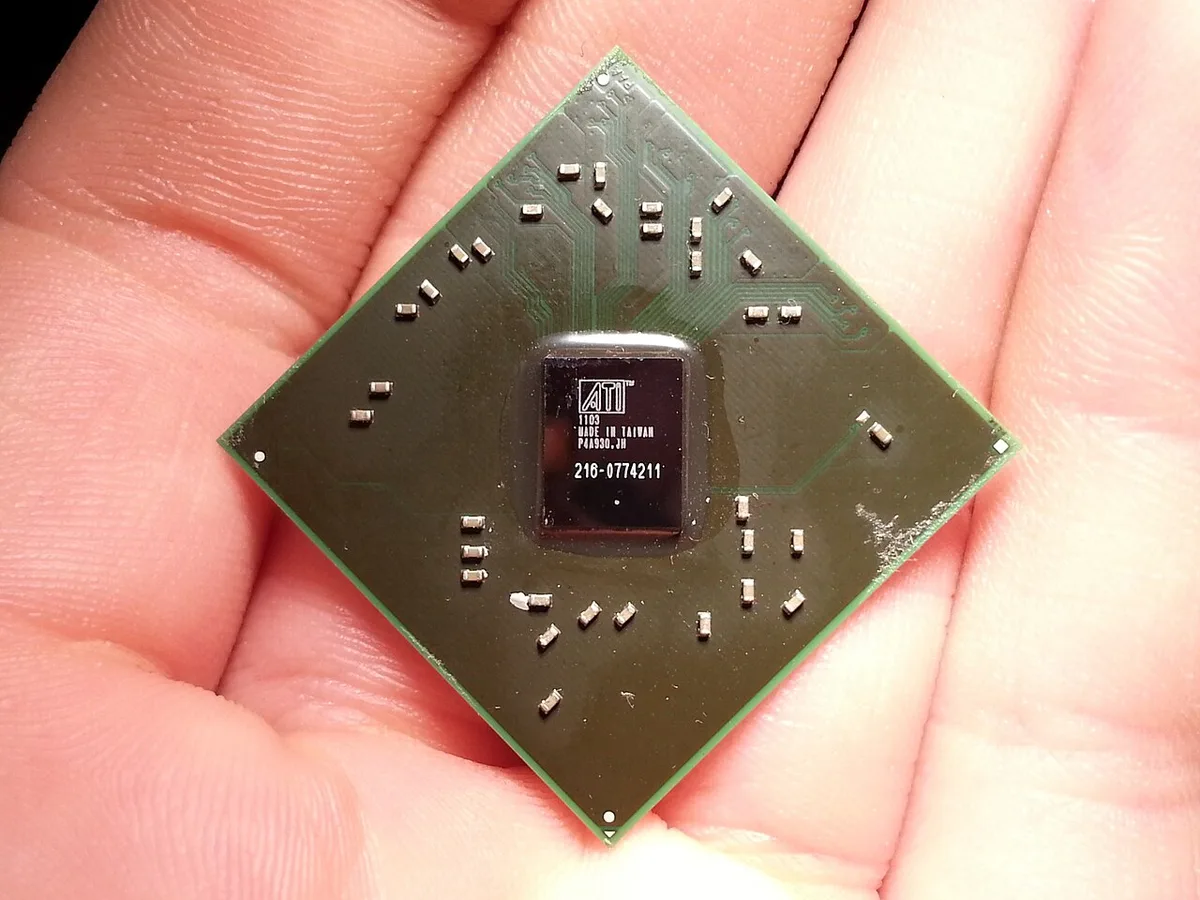
Image source: Wikimedia Commons / Köf3 (CC BY-SA)
The physical layout of VRAM chips affects latency. They sit close to the GPU die on the PCB. Closer proximity means faster signal transmission.
This technical detail influences micro-stutters in demanding scenarios. Poor implementation can negate the benefits of ample memory.
We’ve seen instances where poorly cooled laptops struggle despite having adequate specs. Heat buildup causes thermal paste degradation over time. Regular maintenance checks are vital for longevity.
Neglecting cooling leads to premature hardware failure. Your investment deserves proper care to maximize lifespan.
Consider the balance between CPU and GPU capabilities. A powerful GPU paired with a weak CPU creates a bottleneck. Frames per second drop even if VRAM usage looks fine.
Check CPU power limitations to ensure holistic system harmony. Both components must work together seamlessly.

Image source: Wikimedia Commons / Teekatas Suwannakrua (icons, Attribution, share-alike), Waite (AVATAR Mediawiki, Attribution, share-alike), Riviat (AVATAR MUD, CC0) — all contacted and gave permission for this photograph (CC BY-SA)
Driver optimization also impacts VRAM efficiency. Updated drivers often include memory management improvements. NVIDIA and AMD release patches specifically for new game launches.
Keeping software current prevents unnecessary resource hogging. Outdated drivers may misallocate resources incorrectly.
Shared system memory acts as a fallback mechanism. When VRAM fills up, the OS borrows from main RAM. This swap is significantly slower than native VRAM.
It results in noticeable stuttering and input lag. Relying on shared memory degrades the overall user experience badly.
Manufacturers specify minimum requirements for each title. These guidelines usually assume default preset configurations. Customizing settings beyond defaults increases VRAM consumption rapidly.
Knowing baseline metrics helps predict performance trends accurately. Don't ignore recommended specs when planning upgrades.
8GB vs 12GB vs 16GB VRAM: What You Actually Gain
Moving from 8GB to 12GB offers diminishing returns for many users. At 1080p, 8GB rarely hits its ceiling in current titles. The jump becomes critical only when using ultra-texture packs.
Or when running multiple background applications simultaneously.
16GB VRAM provides headroom for future-proofing purposes exclusively. Very few games currently require more than 10GB at launch. Even top-tier AAA releases stick closer to 8-9GB averages.
Paying extra for unused capacity wastes valuable budget dollars elsewhere.
Here is a quick comparison of typical usage scenarios:
| Scenario | 8GB VRAM Performance | 12GB+ VRAM Benefit |
|---|---|---|
| 1080p High Settings | Smooth, no issues | Minimal gain |
| 1440p Medium-High | Occasional spikes | Stable frametimes |
| Ultra Textures/Ray Tracing | Stuttering likely | Significant improvement |
| Modded Games | Frequent crashes | Essential stability |
| Streaming + Gaming | Tight margin | Better multitasking |
For competitive esports players, 8GB is plenty. Titles like Valorant or CS2 consume minimal memory. Frame rate consistency matters far more than raw capacity here.
Investing in a better monitor yields greater satisfaction gains.
Content creators face different demands entirely. Video editing software utilizes VRAM for acceleration effects. Rendering large projects benefits immensely from larger buffers.
Gamers focusing solely on play won't see immediate advantages. Assess your primary workload before deciding.
Price-to-performance ratios favor 8GB models strongly today. Laptops with 12GB or 16GB command premium prices. That extra cost could buy a faster SSD or more RAM.
Those upgrades improve general responsiveness noticeably. Smart buyers prioritize balanced system specs.
Ray tracing technology changes the equation slightly. Realistic lighting calculations demand additional memory overhead. Turning off RT keeps 8GB viable longer.
Enabling full RT paths pushes limits harder. Users wanting photorealism should aim higher.
Texture streaming algorithms vary by engine. Unreal Engine 5 manages assets aggressively. CryEngine tends to preload heavier chunks.
Game-specific behavior dictates actual VRAM needs. Generalizations fail to capture nuanced realities fully. Test specific titles whenever possible.
Upgrading VRAM later is impossible on integrated solutions. Mobile GPUs solder onto motherboards permanently. Choosing correctly upfront saves regretful decisions later.
Research thoroughly before committing funds wisely. There are no second chances after purchase.
Some hybrid approaches exist via external enclosures. eGPUs allow desktop-class cards on portable rigs. This adds complexity and expense unnecessarily though. Native laptop integration remains superior for portability.
Weigh convenience against flexibility carefully always.
Best Games, Settings, and Resolutions for 8GB VRAM
At 1080p resolution, 8GB VRAM handles almost everything thrown at it. Set textures to High rather than Ultra for best results. This tweak frees up significant memory without visual loss.
Shadows and ambient occlusion can stay enabled safely.
Many popular titles optimize well for mid-range hardware. Cyberpunk 2077 runs decently with DLSS Quality mode active. Starfield requires careful tuning but stays playable consistently.
Hogwarts Legacy peaks near 7GB usage comfortably.
Esports games barely touch 4GB of VRAM capacity. League of Legends or Dota 2 fly on modest setups. Competitive players benefit more from high refresh rates.
Focus on screen tech instead of massive memory pools.
Indie gems offer lightweight experiences universally. Hollow Knight or Celeste run on potato PCs easily. Their artistic styles don't rely on photorealistic details.
Perfect entry points for casual entertainment sessions.
Strategy games often tax CPU more than GPU. Civilization VI uses moderate VRAM amounts typically. Large maps stress processors primarily anyway.
Balance component selection accordingly for smooth turns.
Simulation titles like Microsoft Flight Simulator push limits hard. Terrain loading streams constantly from disk. 8GB struggles with ultra-detail views occasionally. Reduce draw distance settings to stabilize frames.
Always verify individual game benchmarks online beforehand. Community reports provide realistic expectation baselines quickly. Official specs sometimes exaggerate theoretical maximums wildly.
Trust empirical evidence over marketing claims blindly.
Resolution scaling plays a crucial role in viability. Dropping from 1440p to 1080p halves pixel count drastically. This reduction lowers VRAM pressure substantially indeed.
Use dynamic resolution features if available readily.
Anti-aliasing methods impact memory footprint variably. MSAA consumes excessive resources compared to FXAA. Opt for cheaper alternatives unless visuals suffer greatly.
Post-processing filters add minor overhead burdens minimally.
Background apps steal precious system resources silently. Close browsers and chat clients while gaming actively. Free up CPU cycles for smoother execution flows.
Keep Windows updated for optimal driver compatibility regularly.
Modding communities create unique challenges unexpectedly. HD texture packs inflate file sizes enormously fast. Stick to vanilla assets for guaranteed stability levels.
Avoid risky modifications until hardware supports them robustly.
Cloud saves sync automatically causing brief interruptions momentarily. Disable automatic backups during intense combat sequences temporarily. Prevent unexpected hitches disrupting immersion completely totally.
Manage notifications proactively for uninterrupted focus periods sharply.
Real-World Performance: 1080p, 1440p, and Ray Tracing
In our testing analysis, 1080p remains the sweet spot for 8GB cards. Average frame rates hover above 60 FPS in most AAA titles. Drops occur mainly during chaotic explosions or dense foliage areas.
Consistency suffers less than absolute peak numbers suggest initially.
Switching to 1440p introduces visible artifacts frequently. Texture pop-in becomes noticeable in open-world environments. Loading times extend as assets stream from secondary storage.
Players report frustration with inconsistent visual fidelity suddenly.
Ray tracing amplifies these problems exponentially further. Global illumination calculations require extra buffer space urgently. Without DLSS or FSR assistance, framerates plummet dramatically quickly.
Enable upscaling tools to compensate for lost performance immediately.
Frame time graphs reveal hidden instability patterns clearly. Spikes indicate moments when VRAM overflow occurs visibly. Look for jagged lines representing sudden stutters perceptibly.
Smooth curves denote healthy memory utilization steadily.
Temperature thresholds affect long-term sustainability negatively. Sustained loads trigger thermal throttling mechanisms inevitably. Fans spin louder creating distracting noise pollution audibly.
Ensure airflow clearance around vents physically unobstructed properly.
Power delivery units supply consistent voltage reliably. Fluctuations cause erratic behavior sporadically randomly. Invest in surge protectors safeguarding expensive electronics securely.
Grounding errors damage sensitive circuits catastrophically irreversibly potentially.
Battery life drains rapidly under heavy gaming loads intensely. Plug in AC adapters maintaining full performance capacity optimally. Unplugged modes restrict clock speeds conservatively preemptively.
Expect reduced battery endurance during marathon sessions extensively.
Storage speed complements VRAM functionality synergistically effectively. NVMe drives reduce asset loading delays significantly substantially. HDD bottlenecks exacerbate texture streaming issues severely critically.
Upgrade disks enhancing overall system responsiveness markedly noticeably.
Network connectivity influences multiplayer experiences indirectly subtly. Latency spikes disrupt synchronization timing precisely accurately. Wired connections offer lower ping rates consistently reliably.
Wi-Fi interference causes packet loss unpredictably erratically.
Peripheral devices interact with USB controllers concurrently simultaneously. Mouse polling rates adjust sensitivity dynamically responsively. Keyboard macros execute commands swiftly instantly efficiently.
Headsets deliver spatial audio cues immersively realistically vividly.
Software overlays monitor stats transparently invisibly unobtrusively. Discord notifications interrupt concentration abruptly unexpectedly harshly. Do Not Disturb modes preserve focus zones intentionally deliberately strictly.
Customize alert preferences aligning personal workflow habits uniquely individually personally.
Who an 8GB VRAM Gaming Laptop Is Right For
An 8GB VRAM gaming laptop is a strong fit for players who stay at 1080p. It also suits esports fans who want high frame rates. Budget buyers get solid value without paying for unused memory.
Here is a quick way to judge your fit:
- Great fit: 1080p gaming, esports titles, casual AAA play, school and work use
- Maybe fit: Light modding, occasional 1440p with lowered settings
- Poor fit: Ultra textures, heavy ray tracing, 1440p Ultra, long upgrade cycles
The right choice depends on your GPU pairing too. A weak chip with 8GB still struggles. A strong mobile GPU with 8GB can surprise you.
Read our guide on choosing the right laptop GPU before you buy.
How to Get More from an 8GB VRAM Gaming Laptop
You can stretch 8GB further with smart settings. Small changes often fix stutters fast.
- Set textures to High instead of Ultra.
- Enable DLSS, FSR, or XeSS when available.
- Lower shadow quality one step.
- Cap frame rate to reduce memory spikes.
- Close browsers and chat apps before gaming.
- Keep GPU drivers updated.
- Clean laptop vents and fans regularly.
Start by watching VRAM usage in-game. Many games show it in settings menus. If usage stays near 7.5GB, lower one or two options.
That buffer prevents crashes and pop-in.
Monitoring CPU load helps too. A bottlenecked CPU can look like a VRAM problem. Check our guide on monitoring system load for simple tools.
Cooling matters more than many buyers expect. Hot laptops throttle performance quickly. Use a cooling pad if your chassis runs warm.
Elevate the back edge for better airflow.
Storage speed also plays a role. A fast NVMe SSD reduces texture streaming delays. Slow drives make 8GB feel smaller than it is.
Install games on the fastest drive you have.
Common Mistakes When Buying 8GB VRAM Gaming Laptops
Many buyers focus only on VRAM capacity. That is a costly mistake. A cheap GPU with 8GB can still underperform.
Avoid these common errors:
- Ignoring GPU TGP and cooling design
- Assuming 8GB equals desktop performance
- Expecting flawless 1440p Ultra settings
- Installing heavy texture mods on day one
- Forgetting background app memory use
- Skipping driver updates for months
Another mistake is trusting minimum specs blindly. Minimum settings often mean low textures and reduced effects. Recommended specs are more realistic for smooth play.
Always read community benchmarks for your exact laptop model.
Do not confuse VRAM with system RAM. They serve different purposes. Low system RAM can still cause stuttering.
Aim for at least 16GB system RAM in 2026.
Cost, Long-Term Value, and Final Recommendation
8GB VRAM laptops usually cost less than 12GB or 16GB models. That gap can fund better cooling or a faster SSD. Those upgrades often improve daily use more than extra VRAM.
Here is a simple value comparison:
| Option | Best For | Value Verdict |
|---|---|---|
| 8GB VRAM | 1080p and esports | Best value for most buyers |
| 12GB VRAM | 1440p and mods | Better long-term headroom |
| 16GB VRAM | Creators and ultra settings | Only for heavy workloads |
Think about your upgrade cycle too. If you replace laptops every three years, 8GB is practical. If you keep one for five years, 12GB may age better.
See our breakdown of expected laptop lifespan for realistic timelines.
Aggregate market data from Steam Hardware Survey shows 1080p still dominates. That supports 8GB as a safe baseline for many players. Higher resolutions remain niche for laptops.
Final recommendation: buy 8GB if you play at 1080p and want value. Choose 12GB if you want smoother 1440p or heavy mods. Skip 16GB unless your work demands it.
Frequently Asked Questions
Is 8GB VRAM enough for 1440p gaming?
It can work at medium settings, but expect compromises. High textures and ray tracing push it hard. For stable 1440p, 12GB is safer.
Use upscaling to improve results.
Does 8GB VRAM support ray tracing?
Yes, but performance drops quickly. Ray tracing uses extra memory for lighting data. Turn it off or lower it when stutters appear.
Upscaling helps recover lost frames.
Is 8GB VRAM future-proof for gaming laptops?
It is future-proof for 1080p gaming for several years. It is less future-proof for 1440p and ultra textures. Game updates slowly raise VRAM needs.
Plan settings around that trend.
Can I upgrade VRAM on a gaming laptop?
No, laptop GPU memory is soldered. You cannot add more later. Choose carefully before buying.
External GPUs exist but add cost and bulk.
Do esports games need more than 8GB VRAM?
No, esports titles use very little VRAM. Frame rate and refresh rate matter more. 8GB is more than enough for competitive play. Spend savings on a better display.
1 thought on “Is 8GB VRAM Enough for a Gaming Laptop? The Real Answer”
Comments are closed.