Matching a gaming laptop to a game is not a simple checkbox task. Many buyers see minimum specs and assume smooth play. In reality, thermals, power limits, and settings change the result.
This guide shows how to compare gaming laptop specs with game requirements in a practical way.
Manufacturer specifications and independent benchmarks often tell different stories. A laptop with the same GPU name can run much slower due to lower wattage. As of 2026, upscaling and frame generation also change what "enough power" means.
Let's break the process into clear steps.
how to compare gaming laptop specs with game requirements
Match the game's stated requirements to the laptop's CPU, GPU, RAM, and storage. Then check the laptop's sustained power, cooling, and target resolution. Use benchmarks for the same GPU wattage, not only the name.
Adjust for upscaling and settings. This prevents buying too little or too much power.
Why Matching Gaming Laptop Specs to Game Requirements Is Harder Than It Looks
Spec sheets look simple. A game lists a CPU, GPU, RAM, and storage. A laptop lists the same parts.
The match seems obvious. It is not.
Laptop parts do not behave like desktop parts. A GPU with the same name can ship at different power limits. Cooling size changes sustained speed.
RAM may be soldered. Storage speed affects loading and open-world streaming.
Game requirements also use vague language. "Minimum" often means playable, not pleasant. "Recommended" may assume 1080p, medium settings, and 60 frames per second.
Some stores update requirements after patches. Others do not.
The real question is not "Does it meet the list?" It is "Will it hold the frame rate you want, at your resolution, for long sessions?" That is why we compare specs, settings, power, and heat together.
If you are setting up a new machine after purchase, early setup mistakes can undo good hardware choices. Fix those first before blaming the laptop.
Common mismatches include:
- Same GPU name, different TGP.
- CPU boost drops under heat.
- RAM capacity is too low for multitasking.
- Storage is slow or nearly full.
- Game updates increase demands.
What "Minimum," "Recommended," and "Ultra" Actually Mean
Minimum means the game may launch and run. It does not promise smooth play. Many minimum lists target 720p or 1080p low settings at 30 fps.
Recommended means a better experience. It often targets 1080p, medium or high settings, and 60 fps. It may assume an SSD and a certain amount of VRAM.
Ultra means high settings at a stated resolution. It may need more VRAM, faster CPU cores, and stronger cooling. Some games use "ultra" loosely.
Treat these labels as starting points. Then check the game's notes for resolution, frame rate, and storage type. If no notes exist, use conservative targets: 1080p, 60 fps, high settings.
Also remember patches. A game can need more CPU or VRAM months later. Plan a small buffer, not just the exact number.
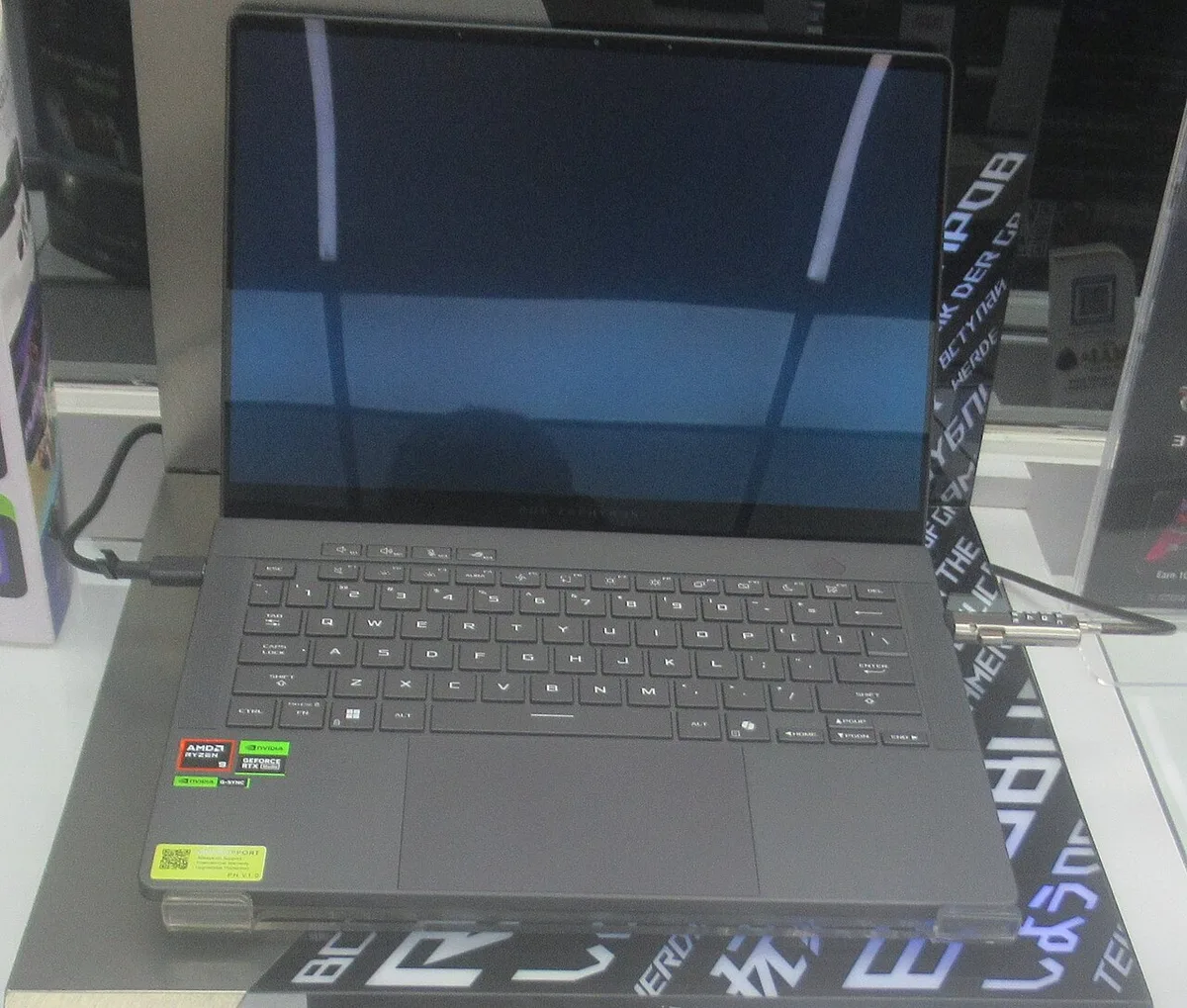
Image source: Wikimedia Commons / P1898 (CC BY)
If you connect a larger screen later, monitor connection steps matter because higher resolutions raise GPU demand.
The Specs That Actually Decide Performance (CPU, GPU, RAM, Storage)
CPU: core count, boost clock, cache, and power limit. For modern games, 6 cores is a safe floor. 8 cores helps streaming and background apps. High clock speed helps older or esports titles.
GPU: the main driver for frame rate. Check VRAM, architecture, and TGP. For 1080p, 8GB VRAM is common.
For 1440p and ray tracing, 12GB or more is safer.
RAM: 16GB is the practical floor for gaming. 32GB helps creators and heavy multitasking. Speed matters, but capacity matters first.
Storage: NVMe SSDs reduce load times and texture streaming issues. A slow drive can cause stutter in open-world games. Keep at least 20% free space.
Use the official NVIDIA GeForce laptop GPU documentation when checking mobile GPU variants. It helps separate same-name models with different power limits.
A simple spec check looks like this:
| Part | Good Starting Point | Better For Demanding Games |
|---|---|---|
| CPU | 6 cores | 8 cores |
| GPU VRAM | 8GB | 12GB or more |
| RAM | 16GB | 32GB |
| Storage | 512GB NVMe | 1TB NVMe |
Laptop GPUs vs Desktop GPUs: The Hidden Trap
Same name, different power. A mobile RTX 4060 may run at 75W or 115W. The higher-wattage version can be much faster.
Desktop cards have more room and cooling.
Check TGP in watts. Check boost behavior under sustained load. A short benchmark is not enough.
Look for 10 to 20 minute gaming tests.
Also check MUX switch or Advanced Optimus. Direct GPU mode can improve frame rates and reduce latency. Hybrid mode saves battery but may add overhead.
Do not compare a laptop GPU to a desktop GPU by name alone. Compare benchmark results at the same resolution and settings. This is where many buyers get misled.
The official Intel ARK processor database is useful for checking laptop CPU base clocks, boost clocks, and TDP. It keeps spec comparisons grounded.
External monitor performance gains can also reveal GPU limits. If frame rates drop at higher resolution, the GPU is the bottleneck.
How Resolution and Graphics Settings Shift the Target
1080p is forgiving. 1440p needs more GPU power. 4K needs a high-end GPU and lots of VRAM. Refresh rate also matters. A 144Hz screen needs higher frame rates to feel smooth.
Settings change demand. Shadows, ray tracing, and high-resolution textures stress the GPU. CPU-heavy games stress cores and cache.
Lower one setting at a time when testing.
Upscaling helps. DLSS, FSR, and XeSS can raise frame rates. Frame generation adds smoothness but can add latency.
Use native rendering for competitive play when possible.
Pick one target: resolution, preset, and frame rate. Then compare specs against that target, not against marketing names.

Image source: Wikimedia Commons / Teekatas Suwannakrua (icons, Attribution, share-alike), Waite (AVATAR Mediawiki, Attribution, share-alike), Riviat (AVATAR MUD, CC0) — all contacted and gave permission for this photograph (CC BY-SA)
Cooling pad choice matters here too. Better cooling can help a laptop hold boost clocks longer at higher settings.
Upscaling and Frame Generation: The Wildcard
Upscaling changes the math. DLSS, FSR, and XeSS render at a lower resolution, then rebuild the image. That can turn a borderline laptop into a smooth machine.
It also changes how you compare specs.
Frame generation adds extra frames between real frames. It can make motion look smoother. It can also add latency, so it is not ideal for competitive shooters.
Treat upscaling as a bonus, not a fix. A laptop that needs heavy upscaling at 1080p may struggle later. A laptop that runs native high settings has more headroom.
Use upscaling when you want better visuals or longer laptop life. Avoid relying on it for your minimum acceptable frame rate. Check whether the game supports your GPU brand and whether the mode looks sharp enough.
| Feature | Best Use | Watch Out For |
|---|---|---|
| DLSS | NVIDIA RTX laptops | Quality varies by version |
| FSR | Broad GPU support | Sharper edges may shimmer |
| XeSS | Intel and some others | Game support is uneven |
| Frame generation | Single-player games | Added latency |
Common Mistakes When Comparing Specs to Requirements
Many buyers trust the GPU name alone. That is the biggest mistake. A mobile GPU can run at very different wattages.
Always check TGP and sustained benchmarks.
Another mistake is ignoring VRAM. 8GB can be enough at 1080p, but 1440p with high textures may need more. Texture streaming can stutter when VRAM fills up.
People also forget CPU limits. Some games need strong single-core speed. Others need more cores for streaming or background tasks.
A weak CPU can bottleneck even a strong GPU.
Storage is another blind spot. A full or slow drive can cause hitching. Keep free space and use NVMe when possible.
Other common errors include:
- Comparing laptop GPUs to desktop GPUs by name
- Trusting short benchmark clips
- Ignoring fan noise and surface heat
- Buying too little RAM for multitasking
- Forgetting return policies and warranty terms
If your new laptop feels slow out of the box, check first setup steps before assuming the hardware is wrong.
Best Laptop Tiers for Different Gamer Types
Not every gamer needs the same machine. Match the tier to your games, resolution, and budget. Overspending wastes money.
Underspending causes frustration.
Esports players need high frame rates at 1080p. A mid-range GPU with strong cooling works well. Competitive players should favor refresh rate and low latency over ray tracing.
AAA single-player fans need more GPU power and VRAM. 1440p with high settings is a good target for many. Ray tracing and upscaling become useful here.
Creators and streamers need more CPU cores and RAM. A balanced machine matters more than raw GPU power. Fast storage helps with large files.
Budget buyers should target 1080p medium settings. Look for good cooling and upgradeable RAM. Avoid models with locked storage or tiny batteries.
| Gamer Type | Good Target | Better Target |
|---|---|---|
| Esports | 1080p, 120+ fps | 1080p, 240 fps |
| AAA casual | 1080p high | 1440p high |
| Ray tracing fan | 1080p with DLSS | 1440p with DLSS |
| Streamer | 8 cores, 16GB RAM | 8+ cores, 32GB RAM |
A Repeatable Method for Matching Specs to Any Game
Use one process every time. It keeps comparisons fair and reduces guesswork.
- Find the game's official requirements.
- Choose your target resolution and frame rate.
- Pick a graphics preset you will actually use.
- Match CPU, GPU, RAM, and storage to that target.
- Check the laptop GPU's TGP and sustained benchmarks.
- Add headroom for updates and background apps.
- Decide whether upscaling is part of your plan.
- Compare cooling, noise, and battery tradeoffs.
- Check warranty, return policy, and upgrade options.
This method works for new releases and older games. It also helps when comparing two laptops with similar names. Focus on sustained performance, not peak numbers.
When you shop, keep a short checklist. Note resolution, TGP, VRAM, RAM, storage speed, and cooling design. If a store listing hides one of these, look up the manufacturer page before buying.
If you are choosing accessories later, cooling pad selection can extend sustained performance in hot rooms.
Frequently Asked Questions
Is "recommended" the same as 60 fps on high settings?
No. Recommended often means a solid experience, but the exact target varies by game. Some use 1080p medium settings.
Others assume an SSD and 60 fps. Check the store page notes for resolution and frame rate before buying.
Why does my laptop GPU perform worse than the desktop version?
Mobile GPUs have lower power limits and tighter cooling. A desktop card can sustain higher clocks for longer. The name may match, but the wattage and thermal design differ.
Compare laptop-specific benchmarks instead.
How much VRAM do I need for gaming laptops?
8GB is a practical floor for 1080p. 12GB or more is safer for 1440p, high textures, and ray tracing. If you plan to keep the laptop for years, extra VRAM adds headroom as games grow.
Does more RAM always improve gaming performance?
No. 16GB is enough for many games. More RAM helps when multitasking, streaming, or running heavy background apps. Speed matters, but capacity matters first.
Do not pay extra unless your use case needs it.
Should I rely on upscaling to meet game requirements?
Use it as help, not a requirement. It can raise frame rates and improve image quality. But a laptop should still run the game acceptably without heavy upscaling.
That protects you when a game lacks good support.
What is the safest way to compare two similar laptops?
Compare sustained benchmarks at the same resolution and settings. Check TGP, cooling, VRAM, RAM, and storage. Then compare price, warranty, and upgrade options.
The better value is the one that holds your target frame rate reliably.