You just bought a new game and you're staring at the system requirements page wondering if your gaming laptop can actually run it. Figuring out how to check if a gaming laptop can run a game is harder than matching two numbers on a screen. Specs tell part of the story, but thermals, drivers, and real-world settings decide whether you'll enjoy playing.
Manufacturer specifications indicate that most modern gaming laptops ship with dedicated GPUs ranging from entry-level RTX 4050 to high-end RTX 4090 mobile chips, but raw specs alone don't guarantee smooth gameplay. Per NVIDIA's published laptop GPU documentation, mobile graphics processors often run at lower wattage than their desktop counterparts, which directly affects frame rates. Let's walk through exactly what to check before you hit install.
how to check if a gaming laptop can run a game
Check your CPU, GPU, RAM, and storage against the game's official requirements. Update graphics drivers first. Run a benchmark or test the game directly.
Watch FPS, temperatures, and VRAM usage. Lower settings or enable upscaling if performance lags. A dedicated GPU is usually required.
Why "Can It Run?" Is Harder Than Reading a Spec Sheet
Reading a spec sheet feels like a simple pass or fail test. You compare your CPU and GPU to the game's minimum requirements and hope for the best. But gaming laptops add layers that desktops don't have.
Mobile GPUs are cut-down versions of desktop chips. They run at lower power limits to fit inside thin chassis. A laptop RTX 4060 is not the same as a desktop RTX 4060.
It's slower, sometimes significantly so.
Thermals matter more in laptops too. Sustained gaming heats up the chassis. When temps climb too high, the system throttles performance to protect itself.
That means your FPS can drop after ten minutes of play even if the first minute looked great.
Then there's the marketing problem. Some laptops ship with integrated graphics only, even if the model name sounds gaming focused. Others have a dedicated GPU but default to integrated mode to save battery.
You might think you have a gaming GPU when you actually don't.
Drivers and OS versions add another layer. A game might need Windows 11 and a recent DirectX version. Anti-cheat software can reject certain driver versions.
Storage speed matters too. An HDD can cause stuttering even when your GPU is fine.
So the real question isn't "do my specs match?" It's "will my laptop sustain good performance under real conditions?" That requires checking more than a spec sheet. If you've just unboxed a new machine, our guide on what to do first with a new gaming laptop walks through initial setup steps that affect performance.
The Short Answer: What Actually Decides Playability
Playability comes down to five factors. If any one fails, the game won't run well.
First, the GPU. It's the single biggest factor for gaming. If your GPU is below the game's minimum, the game likely won't launch or will be unplayable.
If it meets the recommended tier, you can expect medium to high settings at 1080p.
Second, the CPU. It handles game logic, physics, and AI. A weak CPU causes stuttering even with a strong GPU.
This is especially true in strategy games and open-world titles.
Third, RAM. Most modern games need at least 16GB. 8GB causes hitching and crashes. 32GB helps with multitasking and future-proofing.
Fourth, storage. An SSD is practically required now. HDDs cause long load times and texture pop-in.
NVMe SSDs are fastest but SATA SSDs work fine.
Fifth, thermals and power. A laptop plugged into its charger performs better than on battery. Cooling affects sustained performance.
Here's the decision logic:
- GPU below minimum → won't run well, skip or upgrade
- GPU meets minimum but not recommended → runs at low settings, 1080p, 30 to 60 FPS
- GPU meets recommended → runs at medium-high settings, 1080p, 60+ FPS
- GPU exceeds recommended → can push 1440p or ultra settings
Also check if upscaling tech like DLSS or FSR is supported. That can boost FPS on weaker hardware. If you're weighing whether to upgrade hardware or buy a new machine, our comparison of whether it's cheaper to build a PC or buy a gaming laptop breaks down the costs.
How Gaming Laptop Hardware Translates to In-Game Performance
Each component affects a different part of the experience. Understanding which part helps you diagnose problems.
The GPU renders frames. Higher VRAM means better texture quality. More GPU cores mean higher FPS.
Mobile GPUs have power limits, so two laptops with the same GPU chip can perform differently based on wattage.
The CPU handles game simulation. Open-world games and strategy titles stress the CPU more than shooters. A bottleneck happens when your CPU can't feed the GPU fast enough.
RAM affects how much data the game can hold in memory. Low RAM means the game swaps to storage, causing hitches. Dual-channel RAM (two sticks) performs better than single-channel.
Storage speed affects load times and texture streaming. NVMe SSDs load games fastest. SATA SSDs are slower but still fine.
HDDs cause visible stuttering in modern games.
Display matters too. A 1080p screen needs less GPU power than 1440p or 4K. High refresh rate displays need higher FPS to look smooth.
If your laptop has a 144Hz screen but your GPU only pushes 60 FPS, you're not using the display's full potential.
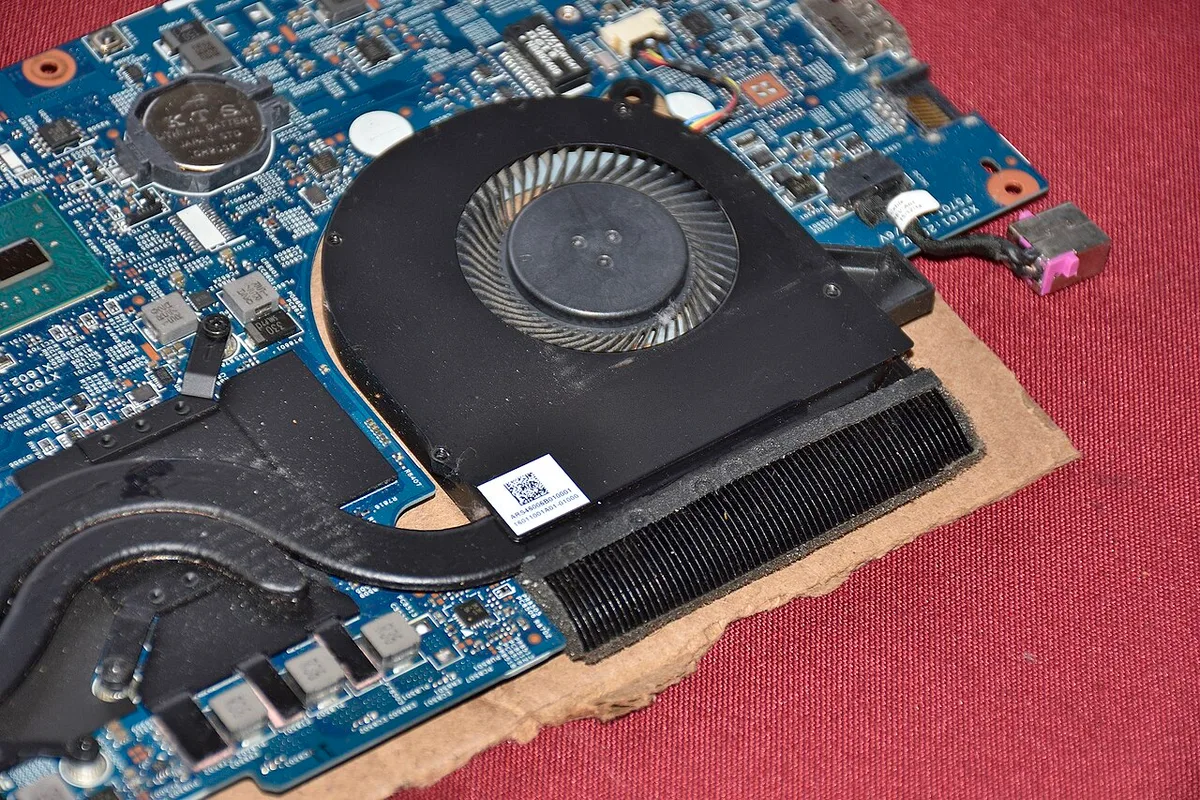
Per manufacturer documentation from NVIDIA and AMD, mobile GPU performance varies by laptop model even with identical chip names. Always check the specific laptop's GPU wattage rating. If you're running an external display, our guide on whether an external monitor boosts gaming laptop performance covers the performance implications.
Step-by-Step: Check If Your Gaming Laptop Can Run a Game
Follow these steps in order. Each one narrows down whether your laptop can handle the game.
- Find your exact laptop model. Check the sticker on the bottom or use System Information in Windows.
- Look up the spec sheet on the manufacturer's website. Note the CPU, GPU, RAM, and storage.
- Find the game's official system requirements. Check the publisher's site, not third-party lists.
- Compare your GPU to the minimum and recommended tiers. Use the GPU's actual model name, not just "NVIDIA" or "AMD."
- Check your CPU against the requirements. Match core count and generation.
- Verify RAM. Most games need 16GB now. Check if you have dual-channel.
- Check storage. You need free space plus an SSD. HDDs cause problems.
- Update Windows, DirectX, and graphics drivers. Do this before testing.
- Run a synthetic benchmark like 3DMark. Compare your score to online results for that game.
- Launch the game and play a demanding scene for 10 minutes. Watch FPS and temps.
- Monitor VRAM usage. If it maxes out, lower texture settings.
- Adjust settings and retest until you find the sweet spot.
If you're setting up a new machine, our step-by-step guide on setting up a new gaming laptop covers driver updates and initial configuration. For thermal management, check whether a cooling pad is worth it for your situation.
Minimum vs. Recommended Requirements: What Each Really Means
These two labels mean very different things. Mixing them up causes frustration.
| Requirement Type | What It Means | Expected Experience |
|---|---|---|
| Minimum | Lowest hardware that can launch the game | Low settings, 1080p, 30 FPS, occasional stutter |
| Recommended | Hardware for a smooth intended experience | Medium-high settings, 1080p, 60 FPS, stable |
| Ultra/High | Hardware for max visual fidelity | High-ultra settings, 1080p-1440p, 60+ FPS |
Minimum requirements are a floor, not a target. A game might run at 25 FPS on minimum specs. That's technically running but not enjoyable.
Recommended specs target 60 FPS at medium-high settings. That's the sweet spot for most players. If your laptop matches recommended, you should have a good experience.
Some games list "High" or "Ultra" tiers beyond recommended. These target higher resolutions and max settings. You need significantly more GPU power for these.
Here's the catch: minimum requirements often assume a desktop GPU. A laptop with the same chip name runs slower. So a laptop meeting minimum desktop specs might still struggle.
Also check the resolution assumption. Most requirements assume 1080p. If you play at 1440p, you need more GPU power than listed.
As of 2026, many new releases require 16GB RAM minimum and an SSD. Older games are more forgiving. Always check the specific game's page.
If you're weighing whether to upgrade hardware or buy a new machine, our comparison of whether it's cheaper to build a PC or buy a gaming laptop breaks down the costs.
Common Mistakes That Make a Laptop Look Weaker Than It Is
Many gamers underestimate their laptop because of simple oversights. These mistakes are easy to fix once you know what to look for.
The biggest mistake is checking specs while on battery power. Laptops throttle heavily on battery. Always plug in before testing performance.
You might see 30 FPS on battery but 60 FPS plugged in.
Another common error is running the game on integrated graphics. Many gaming laptops default to integrated mode to save power. Check your GPU settings in NVIDIA Control Panel or AMD Adrenalin.
Make sure the game uses your dedicated GPU.
Outdated drivers cause false negatives too. An old driver can cut performance by 20% or more. Update to the latest stable driver before judging your hardware.
Our guide on optimizing a new gaming laptop out of the box covers driver setup and initial configuration.
Thermal throttling is another hidden culprit. If your laptop is dusty or sitting on a bed, it runs hot. Hot laptops slow down.
Clean vents and use a hard surface. If you're unsure about cooling accessories, our breakdown of whether a gaming laptop needs a cooling pad explains when they help.
Some gamers also test with the wrong resolution. Running a game at 1440p on a laptop designed for 1080p will tank FPS. Match your test to your laptop's native resolution.
Finally, don't trust marketing labels like "gaming ready." Check the actual GPU model. A laptop with a GTX 1650 is not the same as one with an RTX 4060, even if both say "gaming."
FPS, Thermals, and VRAM: The Numbers That Matter Most
Three metrics tell you if your laptop is actually performing well. Watch these during gameplay, not just in menus.
FPS (frames per second) is the headline number. 30 FPS is playable but choppy. 60 FPS is smooth. 120 FPS or higher is ideal for competitive games. But average FPS alone isn't enough.
1% low FPS matters more for feel. This measures your worst frame drops. If average FPS is 60 but 1% low is 25, you'll feel stuttering.
A stable 55 FPS with a 45 FPS 1% low feels better than a spiky 65 average.
Frame time in milliseconds shows consistency. Lower is better. Spikes above 30ms cause visible hitching.
Monitoring tools like MSI Afterburner or the built-in Windows Game Bar can track this.
Thermals determine sustained performance. CPU temps above 95°C and GPU temps above 87°C typically trigger throttling. If your laptop hits these within minutes, you need better cooling or lower settings.
VRAM usage is critical for texture quality. If VRAM maxes out, textures load slowly and stuttering increases. Most 1080p games need 6-8GB VRAM. 1440p and 4K need more.
Check VRAM usage in your monitoring tool during gameplay.
GPU utilization shows if your graphics card is working hard enough. If GPU usage sits at 60% while CPU is at 100%, you have a CPU bottleneck. The GPU is waiting on the processor.
Storage speed affects load times and texture streaming. If textures pop in during gameplay, your SSD might be too slow or too full. Keep at least 20% free space on your drive.
Expert Settings Tweaks Before You Buy or Upgrade
Before spending money on new hardware, try these tweaks. They can squeeze extra performance from your existing laptop.
Lower shadow quality first. Shadows are GPU-intensive and barely noticeable at medium. Dropping from ultra to medium often adds 10-15 FPS with minimal visual loss.
Reduce resolution scale. Running at 90% render resolution with upscaling can boost FPS significantly. DLSS and FSR do this automatically with better results than manual scaling.
Turn off ray tracing if the game supports it. Ray tracing tanks FPS on mobile GPUs. Unless you have a high-end RTX 4080 or 4090 laptop, disable it.
Cap your frame rate to match your display. If you have a 60Hz screen, capping at 60 FPS reduces heat and fan noise. It also prevents wasted GPU effort.
Close background apps. Browsers, Discord, and Steam overlays eat RAM and CPU. Close everything non-essential before gaming.
Set Windows power plan to High Performance. This prevents CPU downclocking during gameplay. Find it in Control Panel under Power Options.
Update your BIOS and firmware. Manufacturers sometimes release updates that improve thermal management and performance. Check the support page for your laptop model.
If you're considering peripherals for better gameplay, our guide on choosing the right mouse for a gaming laptop covers what actually matters for performance.
Frequently Asked Questions
Can a gaming laptop with integrated graphics run modern games?
No. Integrated graphics like Intel UHD or AMD Radeon Vega cannot run modern AAA games well. They lack dedicated VRAM and processing power.
Some older or indie games run at low settings, but expect 15-25 FPS at best. You need a dedicated GPU for smooth modern gaming.
How much RAM do I need to check before buying a game?
16GB is the current standard for modern games. 8GB causes stuttering and crashes in newer titles. 32GB helps with multitasking but isn't required for gaming alone. Check if your laptop supports RAM upgrades before buying more memory.
Does plugging in my laptop really improve gaming performance?
Yes. Most gaming laptops limit CPU and GPU power on battery to extend runtime. Plugged in, they run at full TDP.
The difference can be 30-50% more FPS. Always game plugged in for best performance.
What FPS should I expect on minimum requirements?
Expect 25-35 FPS at low settings and 1080p. That's technically playable but not smooth. For 60 FPS, you usually need recommended specs or higher.
Competitive games feel better at 60+ FPS.
How do I check if my laptop GPU is powerful enough for a specific game?
Find your GPU's exact model name in Device Manager. Compare it to the game's recommended GPU on the publisher's site. Use online benchmark databases to see real FPS numbers for that GPU and game combination.
Match the resolution to your laptop's screen.
Can I run a game if my laptop only meets minimum requirements?
Technically yes, but the experience will be poor. Expect low settings, 30 FPS, and occasional stuttering. The game may also struggle during intense scenes.
Minimum specs are a floor, not a comfortable target. Consider lowering resolution or using upscaling.
Final Decision Guide: Play, Tweak, or Upgrade
Here's how to decide what to do after checking your specs.
If your GPU exceeds recommended specs, play at high settings and enjoy. No tweaks needed. Focus on keeping drivers updated and thermals in check.
If your GPU meets recommended specs, play at medium-high settings. Try a few tweaks to boost FPS. Enable DLSS or FSR if supported.
Cap frame rate to your display refresh rate.
If your GPU only meets minimum specs, play at low settings with upscaling. Expect 30-45 FPS. Lower resolution scale if needed.
This works for single-player games but may frustrate in competitive titles.
If your GPU is below minimum specs, don't buy the game. Save your money. Consider cloud gaming services as an alternative.
Or upgrade your laptop when budget allows.
Before upgrading, ask yourself three questions. Is the GPU the bottleneck? Can RAM or storage be upgraded cheaply?
Would a new laptop cost less than upgrading components?
Laptops are harder to upgrade than desktops. RAM and storage are usually swappable. CPUs and GPUs are soldered.
If the GPU is too weak, a new laptop is often the only real fix.
Check if you're running an external display too. A higher resolution monitor increases GPU load. Our guide on choosing the right external monitor for gaming laptops helps match your display to your hardware.
If you're weighing a full replacement, our comparison of whether a gaming laptop can replace a desktop computer covers the trade-offs.
Test before you commit. Run a demo or use a refund window. Real-world testing beats spec sheet comparisons every time.