Can a gaming laptop run VR games? Yes, but only when the right hardware pieces line up. The honest answer depends on your GPU, your headset, and your ports, not just the price tag.
Most modern gaming laptops can handle VR when configured correctly. Aggregate reviews and manufacturer specs both show that a capable discrete GPU plus good cooling delivers a smooth experience. The catch is that VR pushes hardware harder than almost any other task, so the details matter.
can a gaming laptop run VR games
Yes. A gaming laptop can run VR games if it has a VR-ready discrete GPU, enough VRAM, compatible ports, and adequate cooling. Laptops with an RTX 4060 mobile or better handle most PCVR titles comfortably.
Standalone headsets like the Meta Quest 3 can also stream PCVR wirelessly from a laptop. The weakest link is usually thermals, not raw GPU power.
How PCVR Actually Works on a Laptop
PCVR stands for PC-based virtual reality. The laptop renders every frame and sends it to the headset in real time. The headset tracks your head and hands, then feeds that data back.
The loop repeats dozens of times per second.
Two paths exist. A tethered path uses a cable from laptop to headset. A wireless path streams over Wi-Fi.
Both demand the same thing from the laptop: a GPU fast enough to hold frame rate.
Frame rate is the whole game. Drop below 90 frames per second and motion sickness follows. The laptop must render two views, one per eye, at high resolution.
That is why VR feels heavier than flat gaming.
If your laptop holds 90 FPS in a flat game at high settings, it may still struggle in VR. VR roughly doubles the rendering load.
When frames drop, headsets use reprojection. The system reuses old frames to fill gaps. It saves the experience but adds blur and lag.
Good hardware avoids leaning on it.
Standalone headsets add a twist. A Meta Quest 3 can run apps on its own. It can also act as a PCVR headset by streaming from your laptop.
In that mode the laptop does all the rendering. The headset is just a screen.
SteamVR and the Oculus PC app are the two main runtimes. They translate game output into headset-ready frames. OpenXR is the shared standard both support.
Most games use it now.
Motion-to-photon latency should stay under 20 milliseconds. Higher than that and the world feels detached from your movements.
The Hardware Variables That Decide Everything (GPU, TGP, Ports, RAM)
Four things decide whether a laptop handles VR. The GPU, its power limit, the ports, and system RAM. Get one wrong and the whole setup fails.
GPU tier. Discrete GPUs do the work. Integrated graphics will not run PCVR.
As of 2026, an RTX 4060 mobile is the realistic floor for smooth play. RTX 4070 mobile and up give headroom for high-res headsets. NVIDIA's VR Ready program lists certified GPUs if you want a quick reference.
TGP matters more than the GPU name. Total Graphics Power is the sustained wattage a mobile GPU can draw. A 4060 rated at 115 watts outperforms the same chip at 80 watts.
Check the spec sheet, not just the badge. Some brands ship the same GPU at different power limits across models.
VRAM. 8 GB is the minimum for modern VR. 12 GB is safer for high-res textures and supersampling.
Ports. Tethered headsets need DisplayPort 1.4 or HDMI 2.0 or better, plus USB 3.0. Some laptops only have USB-C.
You may need an adapter. Adapters can add latency or fail to carry enough power.
RAM. 16 GB of system RAM is the baseline. 32 GB helps with multitasking and VR recording.
Cooling. VR is sustained load. A laptop that boosts for two minutes then throttles will stutter in VR.
Look for large vents and dual fans. If you are unsure whether extra cooling is worth it, check whether a cooling pad is worth adding to your setup.
Battery. VR drains batteries in one to two hours. Plug in for any real session.
| GPU tier (mobile) | VR suitability | Typical use case |
|---|---|---|
| RTX 4050 / RX 7600S | Borderline | Light titles, older games |
| RTX 4060 / RX 7700S | Good baseline | Most PCVR games at medium |
| RTX 4070 / RX 7800M | Strong | High-res headsets, high settings |
| RTX 4080+ / RX 7900M | Excellent | Max settings, recording |
How to Check If Your Laptop Is VR-Ready
You can verify readiness in about ten minutes. No tools needed beyond your laptop and a browser.
Step 1. Find your GPU. Open Task Manager, go to Performance, select GPU.
Note the name and VRAM.
Step 2. Check TGP. Search your laptop model plus "TGP" or "Max-Q".
Manufacturer spec pages list it.
Step 3. Check ports. Look for DisplayPort, HDMI, and USB 3.0.
Note which sit on the GPU side, not just the motherboard.
Step 4. Run a benchmark. The SteamVR Performance Test is free and gives a simple score.
A score above 6 means ready. Valve publishes SteamVR hardware requirements for each headset.
Step 5. Test thermals. Run a heavy game for fifteen minutes.
Watch temps and clock speeds. If the GPU drops clocks under load, cooling is the bottleneck.
Step 6. Verify headset compatibility. Check the headset maker's PC requirements.
Match GPU, RAM, and port specs.
Also check USB bandwidth. Wireless streaming needs strong Wi-Fi 6. Tethered needs USB 3.0 at 5 Gbps.
Keep drivers updated. NVIDIA Studio or Game Ready drivers both work. Update before testing.
If the machine is new, spend time getting a new laptop tuned before your first VR session.
If/then: if your GPU is below RTX 3060 mobile class, skip PCVR. Use the laptop for flat gaming and the headset standalone instead.
Laptop vs Desktop for VR: What You Actually Give Up
A desktop still wins for VR. The question is whether the gap matters to you.
What you give up with a laptop:
- Sustained power. Desktop GPUs run at full TDP. Mobile chips run cooler and slower.
- Cooling headroom. Desktop cases move more air. Laptops throttle sooner.
- Upgrade path. You cannot swap a laptop GPU. Desktops let you upgrade years later.
- Port selection. Desktops have more DisplayPort and USB options.
What you keep:
- Portability. Move the rig between rooms or travel.
- One device. Flat gaming and VR on the same machine.
- Lower upfront cost. A mid-range laptop costs less than a desktop plus laptop combo.
If you play mostly seated sims like flight or racing, a laptop works well. If you play room-scale games for hours, a desktop is the better long-term buy.
Heat near your face is a real issue. Laptop fans sit close to where you sit. Desktops push heat away.
Battery is not a real option for VR. Plan to stay plugged in.
A desktop also handles high-res headsets better. HP Reverb G2 at full resolution stresses mobile chips.
If you are weighing whether a laptop can fully replace a desktop, the tradeoff is fair for many people, but it is real. The cost comparison between building and buying matters here too. A gaming laptop trades raw performance for convenience.
Accessories that actually earn their place can soften the gaps. A good headset, a solid mouse, and a cooling pad matter more than RGB.
Wireless PCVR Streaming: Air Link, Virtual Desktop, and Steam Link
Wireless PCVR streams rendered frames from your laptop to a standalone headset over Wi-Fi. The laptop still does the heavy lifting. The headset decodes and displays.
Wi-Fi quality decides everything. Use Wi-Fi 6 or 6E on a 5 GHz or 6 GHz band. Keep the router in the same room.
Avoid mesh hops and busy channels.
Three apps dominate. Air Link is built into Meta Quest headsets. Virtual Desktop adds more bitrate and codec options.
Steam Link is Valve's official option and integrates tightly with SteamVR. OpenXR is the shared standard behind most VR runtimes, and the Khronos Group maintains it.
| App | Best for | Main tradeoff |
|---|---|---|
| Air Link | Simple Meta Quest setup | Fewer tuning options |
| Virtual Desktop | Best image quality | Paid app |
| Steam Link | SteamVR library | Newer, fewer tweaks |
If your router is weak, use a cable. Wireless VR needs low latency and stable throughput. Manufacturer specs and NVIDIA's VR Ready program can confirm your GPU class.
The Most Common VR-on-Laptop Mistakes
Most failures come from setup, not hardware limits. Fix these first.
- Using integrated graphics instead of the discrete GPU. Force the VR app to use the NVIDIA or AMD GPU in settings.
- Plugging the headset into the wrong port. Use DisplayPort or HDMI on the GPU side, not USB-C adapters when possible.
- Running on battery. VR drains fast and throttles. Stay plugged in.
- Ignoring TGP. A low-power 4060 can feel worse than a well-cooled 3060.
- Weak Wi-Fi for wireless. 2.4 GHz and mesh hops cause stutter.
- Skipping driver updates. Old drivers break SteamVR detection.
- No play space. Collisions cause injuries and broken gear.
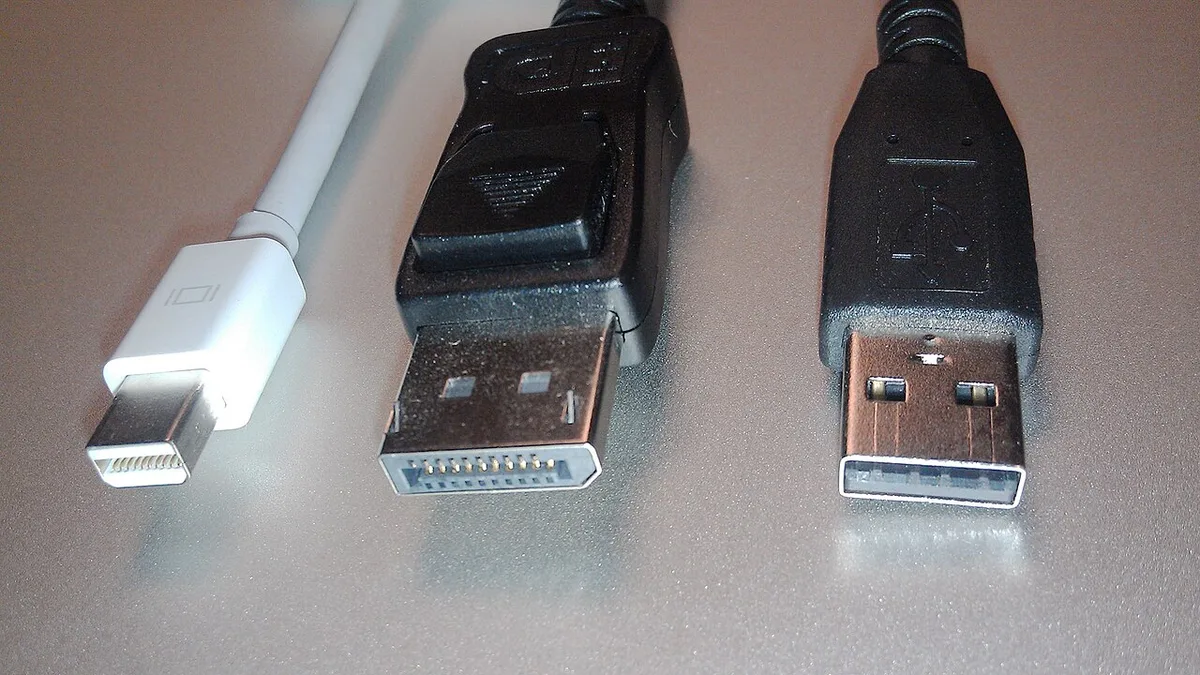
Image source: Wikimedia Commons / Frankie1969 (CC BY-SA)
If your laptop is new, spend time getting it tuned before the first VR session. That step prevents half the problems above.
Keeping VR Running Cool and Smooth Over Time
VR is sustained load. Maintenance keeps performance stable.
Clean vents every few months. Dust raises temps and lowers clocks. Use compressed air gently.
Set a high-performance power plan while plugged in. Let the CPU and GPU boost. Restore balanced mode when done.
A cooling pad helps if temps stay high. It is not magic, but it can buy headroom. Choosing the right cooling pad matters more than buying the cheapest one.
Whether a cooling pad is worth it depends on your temps and fan noise.
Monitor with MSI Afterburner or vendor tools. Watch GPU temp and clock speed. If clocks drop, heat is the limit.
Undervolting can reduce heat, but follow manufacturer guidance. Some laptops lock it.
Store the headset and cable properly. Kinks damage DisplayPort cables.
Long sessions need breaks. Heat and fatigue build.
Frequently Asked Questions
Can a mid-range gaming laptop run VR games?
Yes, if it has a VR-ready discrete GPU, enough VRAM, and good cooling. An RTX 4060 mobile handles most titles at medium settings. Weak cooling or low TGP can still cause stutter.
Do I need a special laptop for VR?
No. You need the right specs, not a VR-branded model. Check GPU tier, ports, RAM, and cooling.
Many mainstream gaming laptops qualify.
Is wireless VR from a laptop as good as wired?
Often close, but not identical. A strong Wi-Fi 6 setup feels smooth. Weak signal adds compression and latency.
Wired remains the most stable option.
How much VRAM do I need for VR?
8 GB is the practical minimum for modern PCVR. 12 GB is safer for high-res headsets and supersampling. More VRAM helps texture-heavy games.
Can I use a gaming laptop for Meta Quest PCVR?
Yes. Meta Quest headsets stream PCVR from a laptop over Air Link or Virtual Desktop. The laptop renders everything.
The headset acts as the display.
Will VR damage my gaming laptop?
Not if you manage heat and power. VR is sustained load, so cooling matters. Keep vents clear and stay plugged in.
Follow manufacturer warranty terms.
Final Decision Guide: Should You Use a Laptop for VR?
Use a laptop for VR if portability matters and your specs qualify. If you play seated sims or travel often, it is a smart choice. Choosing the right headset also matters more than RGB.
Choose a desktop if you want max settings, long sessions, and easy upgrades. Desktops handle heat better.
Decision branches:
- If GPU is below RTX 3060 mobile class, use headset standalone or upgrade.
- If you have RTX 4060+ and good cooling, laptop VR works well.
- If you want wireless, invest in Wi-Fi 6 and a strong router.
- If you play room-scale for hours, consider a desktop.
Before buying, compare the cost of a gaming laptop vs building a PC. Also weigh whether a laptop can replace a desktop for your whole setup.
Final verdict: a gaming laptop can run VR games. Match the hardware, manage heat, and pick the right streaming method.