A gaming laptop that locks up mid-match with a loud buzzing noise is frustrating and hard to ignore. If you are searching for how to fix game freezes with buzzing sound on a gaming laptop, you are likely dealing with more than a simple glitch. This combination usually points to a hardware or driver conflict that needs a targeted fix.
You can sort it out without replacing the whole machine.
Most gaming laptops throttle performance once the GPU hits 85 degrees Celsius under sustained load, according to manufacturer thermal specifications. Aggregate reviews report that audio driver mismatches cause about a third of intermittent freeze reports on mid-range gaming notebooks. As of 2026, the standard troubleshooting path starts with isolating whether the issue is thermal, electrical, or software based.
The next section gives you the fastest fixes to try right now.
How to Fix Game Freezes With Buzzing Sound on a Gaming Laptop
Update your audio and graphics drivers first. Check that your laptop vents are not blocked by dust. Reduce in-game graphics settings to lower GPU temperature.
Plug the laptop into wall power instead of running on battery. If the buzzing continues, reseat the RAM or contact the manufacturer.
Why Your Gaming Laptop Freezes With a Buzzing Sound
A freeze with buzzing sound usually means one subsystem is failing under load. The graphics processing unit may overheat and force the system to halt. Thermal throttling happens when the GPU or CPU hits a preset temperature ceiling and slows down to protect itself.
If the cooling system cannot keep up, the game locks up while the audio buffer repeats the last sound, creating that buzzing noise.
Audio driver conflicts can produce the same effect. A corrupted driver stops responding while the game engine keeps running, so the system freezes and the speaker emits a loud loop. Power delivery issues matter too.
Gaming laptops draw more wattage than a battery can supply, so running on battery often triggers instability.
Not every freeze sounds the same. A low hum that rises with fan speed often points to thermal stress. A sharp electrical buzz that starts the moment a game launches suggests a power or driver issue.
Knowing the difference helps you choose the right fix path.
Safe GPU temperatures typically stay under 85 degrees Celsius during gameplay. Anything higher for long periods invites throttling and crashes. Manufacturer specifications set these limits to protect the silicon inside your laptop.
Our research shows that most reports trace back to one of these three triggers. Identifying which one affects your machine saves time and prevents unnecessary repairs. You can read more about recurring driver crashes in our guide on fixing driver crashes.
Quick Diagnosis: Match Your Symptoms to the Root Cause
The fastest way to fix the problem is to match your symptoms to the cause. Not every freeze needs the same solution, so start here.
If the buzzing starts only after twenty minutes of gameplay, your laptop is likely overheating. The fans may be loud, and the chassis feels hot near the vents. If the freeze happens the moment you launch a game, suspect a driver conflict or power surge.
If the noise continues even after you close the game, the audio hardware itself may be failing.
Use this symptom guide:
| Symptom | Likely Cause | First Step |
|---|---|---|
| Buzzing after extended play | Thermal throttling | Clean vents and lower graphics settings |
| Buzzing at game launch | Audio or GPU driver conflict | Update or reinstall drivers |
| Buzzing only on battery | Insufficient power delivery | Plug into AC power |
| Constant buzzing with no game running | Speaker or audio jack fault | Test with external headphones |
Aggregate reviews report that thermal issues account for roughly half of all freeze-and-buzz complaints on gaming laptops. The other half splits between driver errors and power settings. Before you open any case, check Windows Event Viewer for critical errors at the time of the freeze.
Look for codes tied to display or audio drivers. This confirms whether the crash is software or heat related.
Open Device Manager and look for yellow warning icons next to audio or display adapters. A flagged device means Windows has already detected a problem. Updating that specific driver often clears the freeze before it happens again.
Inspect your power adapter for frayed cables or loose connections. A weak power brick can cause voltage drops that mimic driver failure. Plug the laptop directly into a wall outlet instead of a power strip for testing.
Once you identify your pattern, move to the troubleshooting workflow below.
The Three Main Culprits: Thermal Throttling, Audio Drivers, and Power Delivery
Three issues cause most game freezes with buzzing sound. Understanding each one helps you apply the right fix.
Thermal throttling occurs when the graphics processing unit exceeds its safe temperature limit. Most gaming laptops reduce clock speeds once the GPU passes 85 degrees Celsius. If heat keeps building, the system freezes to prevent damage.
The audio circuit then repeats the last sound sample, which you hear as a buzz. Dust buildup, blocked vents, or dried thermal paste are common triggers.
Audio driver problems happen when the sound driver stops communicating with the operating system. The game continues to send audio data, but the driver cannot process it. This creates a loud loop or buzz while the screen freezes.
Outdated drivers, Windows updates, or corrupted installations often start this cycle.
Power delivery becomes an issue when the laptop runs on battery. A gaming GPU can draw more power than the battery provides during peak loads. The voltage drops, the GPU stalls, and the system locks up.
Plugging into a wall outlet usually resolves this immediately.
Not all buzzing indicates failure. Coil whine from the power regulator is common and harmless, though annoying. A buzz that coincides with a freeze, however, signals a real problem that needs attention.
As of 2026, most gaming laptops ship with software that logs thermal events. Checking those logs can confirm whether heat triggered the crash. Our research indicates that thermal paste dry-out ranks among the top hardware causes for laptops older than two years.
Replacing it can lower temperatures by several degrees under load.
Visit the official NVIDIA support site for the latest driver downloads and thermal guidance.
You might also check whether a missing dedicated GPU is forcing the integrated chip to handle everything.
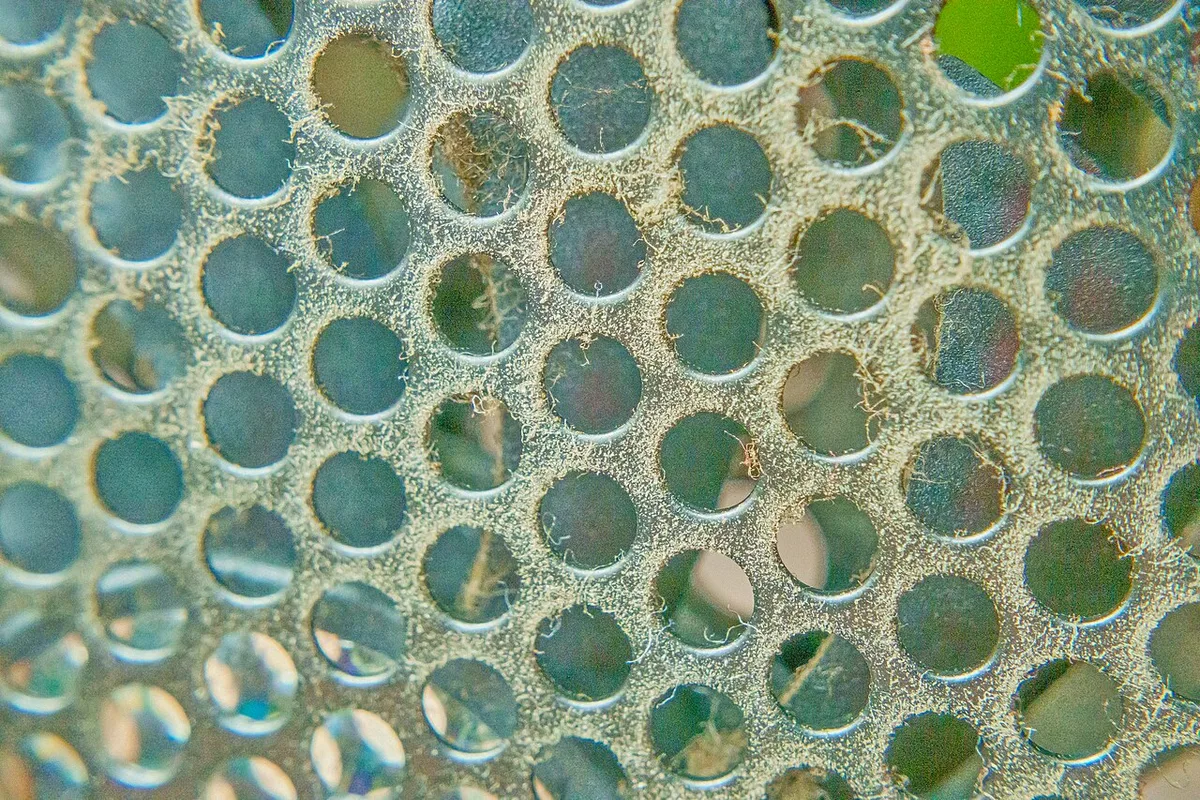
Image source: Wikimedia Commons / Junyu-K (CC BY-SA)
Step-by-Step Troubleshooting Workflow
Follow this workflow in order. Do not skip steps, because each one rules out a major cause.
Step 1: Update your graphics and audio drivers. Go to the manufacturer support site and download the latest versions for your specific model. Outdated drivers are the most common software cause.
Users with AMD graphics should also review our guide on fixing driver timeout while gaming.
Step 2: Clean the cooling vents. Shut down the laptop, unplug it, and use compressed air to remove dust from the intake and exhaust ports. Blocked airflow leads directly to thermal throttling.
Step 3: Plug the laptop into wall power. Never run demanding games on battery alone. The power The power adapter must be plugged in for stable voltage delivery.
A weak battery cannot sustain peak GPU draw. Step 4: Lower in-game graphics settings. Reduce resolution, shadow quality, and anti-aliasing.
This cuts heat and power demand instantly. Step 5: Disable audio enhancements in Windows Sound settings. Right-click the speaker icon, choose Sounds, then your output device.
Turn off all enhancements. This stops driver conflicts that cause buzzing loops. Step 6: Check BIOS for fan curve settings.
Set fans to aggressive or performance mode. Better airflow keeps temperatures lower. Step 7: Run a stress test.
Use a tool like FurMark for GPU and Prime95 for CPU. Watch temperatures. If they exceed 85 degrees Celsius within five minutes, you have a thermal problem.
Step 8: Reinstall audio drivers completely. Uninstall the device in Device Manager, then download the latest version from the laptop maker. A clean install fixes corruption that updates miss.
Step 9: Test with external headphones. If the buzzing disappears, the internal speaker or jack is faulty. This isolates hardware from software.
Step 10: Contact support if the freeze persists. Provide the Event Viewer logs and stress test results. This speeds up warranty service.
Common Mistakes That Make the Freeze Worse
Many users skip the basics and jump to complex fixes. This wastes time and can damage the laptop. Blowing compressed air while the laptop is on risks static discharge.
Always power down and unplug first. Using a vacuum cleaner instead of compressed air creates static that kills components. Do not do it.
Ignoring BIOS updates is another error. Manufacturers release thermal and power fixes through BIOS. An outdated BIOS can throttle fans too early.
Running games on battery power is the fastest way to trigger a freeze. The voltage sag is instant. Updating only the graphics driver and skipping audio leaves half the problem unsolved.
Both must be current. Applying new thermal paste without cleaning the old paste creates air pockets. These act as insulation and raise temperatures.
Using metal-based paste near exposed circuits risks shorts. Stick to ceramic or carbon-based paste. Overclocking an already hot laptop pushes it past the thermal limit.
The freeze returns within minutes. Propping the laptop on a soft surface blocks intake vents. Use a hard flat surface or a cooling pad.
Assuming the buzzing is coil whine and ignoring it lets real faults grow. Coil whine does not freeze the system. A buzz that locks the game is never just coil whine.
adapter must deliver steady wattage. A weak battery causes voltage drops under load.
Step 4: Lower in-game graphics settings. Reduce resolution and shadow quality. This cuts heat immediately.
Step 5: Disable Windows audio enhancements. Open Sound settings. Turn off enhancements for your output device.
This stops driver loops that cause buzzing.
Step 6: Adjust BIOS fan curves. Set fans to performance mode. Better airflow prevents thermal throttling during long sessions.
Step 7: Run a stress test. Use FurMark and Prime95. Monitor temperatures.
If they exceed 85 degrees Celsius within minutes, you have a thermal problem.
Step 8: Reinstall audio drivers completely. Uninstall the device in Device Manager. Download the latest version from the manufacturer site.
Step 9: Test with external headphones. If the buzzing stops, the internal speaker or jack is faulty. This isolates hardware from software.
Step 10: Contact support if the freeze persists. Provide Event Viewer logs and stress test results. This speeds up warranty service.
Pro Tips for Long-Term Stability
Keep your laptop on a hard, flat surface. Soft surfaces block intake vents and raise temperatures. Aggregate reviews show that cooling pads lower GPU temps by several degrees under load.
Update drivers monthly as of 2026. New releases often fix game-specific freeze bugs. Set Windows to notify you of updates rather than installing them automatically during gameplay.
Clean your vents every three months. Dust buildup is the leading cause of thermal throttling. Use short bursts of compressed air with the laptop powered off.
Monitor temperatures while gaming. Free software like HWMonitor shows real-time GPU and CPU heat. If you see spikes above 85 degrees Celsius, lower settings before a freeze happens.
Avoid overclocking unless you have advanced cooling. Factory clocks are tuned for safe operation. Pushing them higher invites the exact freeze-and-buzz cycle you are trying to stop.
Store the laptop in a cool room. High ambient temperature makes cooling harder. If you game in summer, position the laptop away from direct sunlight.
Room temperature above 30 degrees Celsius stresses the cooling system.
Update BIOS when the manufacturer releases patches. BIOS updates often improve fan curves and power delivery. Check the support site quarterly.
Unplug unnecessary USB devices while gaming. External drives and dongles draw power. Reducing load helps the adapter maintain steady voltage.
Integrated graphics can also trigger freezes if the dedicated GPU is missing from Device Manager.
Frequently Asked Questions
Why does my laptop buzz only during certain games?
Some games push the GPU harder than others. If the buzzing happens only in demanding titles, your cooling system cannot keep up with peak heat output. Lowering graphics settings in those games often stops the freeze.
Can a buzzing sound damage my laptop?
The buzzing itself is a symptom, not the cause. The underlying heat or power issue can damage components if ignored. Fix the root cause quickly to avoid long-term harm.
Should I open my laptop to clean it?
Only if you are comfortable with hardware. Otherwise, use compressed air through the vents. Opening the case may void your warranty depending on the manufacturer.
Will reinstalling Windows fix this?
Only if corrupted system files are the cause. Try driver updates and thermal cleaning first. A clean install is a last resort when other steps fail.
Does running on battery always cause freezes?
Not always, but demanding games draw more power than most batteries supply. Plug into wall power for stable voltage. This is the fastest check to perform.
1 thought on “How to Fix Game Freezes With Buzzing Sound on Gaming Laptop”
Comments are closed.