Your gaming laptop wakes from sleep, but the USB ports stay dead. That is exactly what How to Fix USB Ports Stop Working After Sleep on a Gaming Laptop addresses. A mouse, headset, or external drive that worked before closing the lid suddenly does not respond.
You need a clear path to get those ports working again.
Most gaming laptops use USB 3.2 Gen 1 at 5 Gbps or Thunderbolt 4 at up to 40 Gbps, and both rely on the xHCI host controller to manage power states. Manufacturer specifications indicate that USB selective suspend can cut power to ports during sleep to save battery. That setting often survives wake-up and leaves your devices stranded.
The sections below walk you through the most likely causes and fixes.
How to Fix USB Ports Stop Working After Sleep on a Gaming Laptop
Start with a hard reset and EC drain. Disable USB selective suspend in Windows power options. Reinstall USB controller drivers in Device Manager.
Update BIOS and embedded controller firmware. If the port still fails, test with another device or contact the manufacturer.
Why USB Ports Stop Working After Sleep on a Gaming Laptop
Sleep modes cut power to save battery, but they do not always restore it cleanly. Windows uses sleep states like S3 and Modern Standby to pause hardware while keeping memory active. If the embedded controller or USB xHCI host controller hangs during that pause, ports stay off after wake.
Your laptop brand matters here. An ASUS ROG, Lenovo Legion, or Dell Alienware may handle USB power differently than an MSI Raider or HP Omen. Manufacturer firmware controls how the EC talks to Windows during sleep and wake cycles.
Modern Standby keeps the system network-connected while asleep. That background activity can interfere with USB wake timers. Older S3 sleep is simpler but less common on newer gaming laptops as of 2026.
The difference matters because a port that works on S3 may fail on Modern Standby due to how the EC handles power rails.
| Symptom | Likely Cause |
|---|---|
| Ports charge nothing after sleep | USB selective suspend or power delivery failure |
| Device not detected after wake | xHCI driver or controller hang |
| Intermittent disconnects | Power budget or EC bug |
| Thunderbolt dock fails to reconnect | Firmware or alt mode issue |
These branching symptoms point to different fixes. That is why the next steps use a decision tree instead of a random list. Related detection problems also show up in webcams, so if you are seeing similar behavior with a camera, our guide on camera detection problems covers that pattern too.
What’s Going on Under the Hood: Sleep Modes, USB Controllers, and Power Delivery
The xHCI host controller manages every USB port on your laptop. It tells Windows when a port is active, asleep, or ready to wake. During sleep, the controller can enter a low-power state that Windows struggles to reverse.
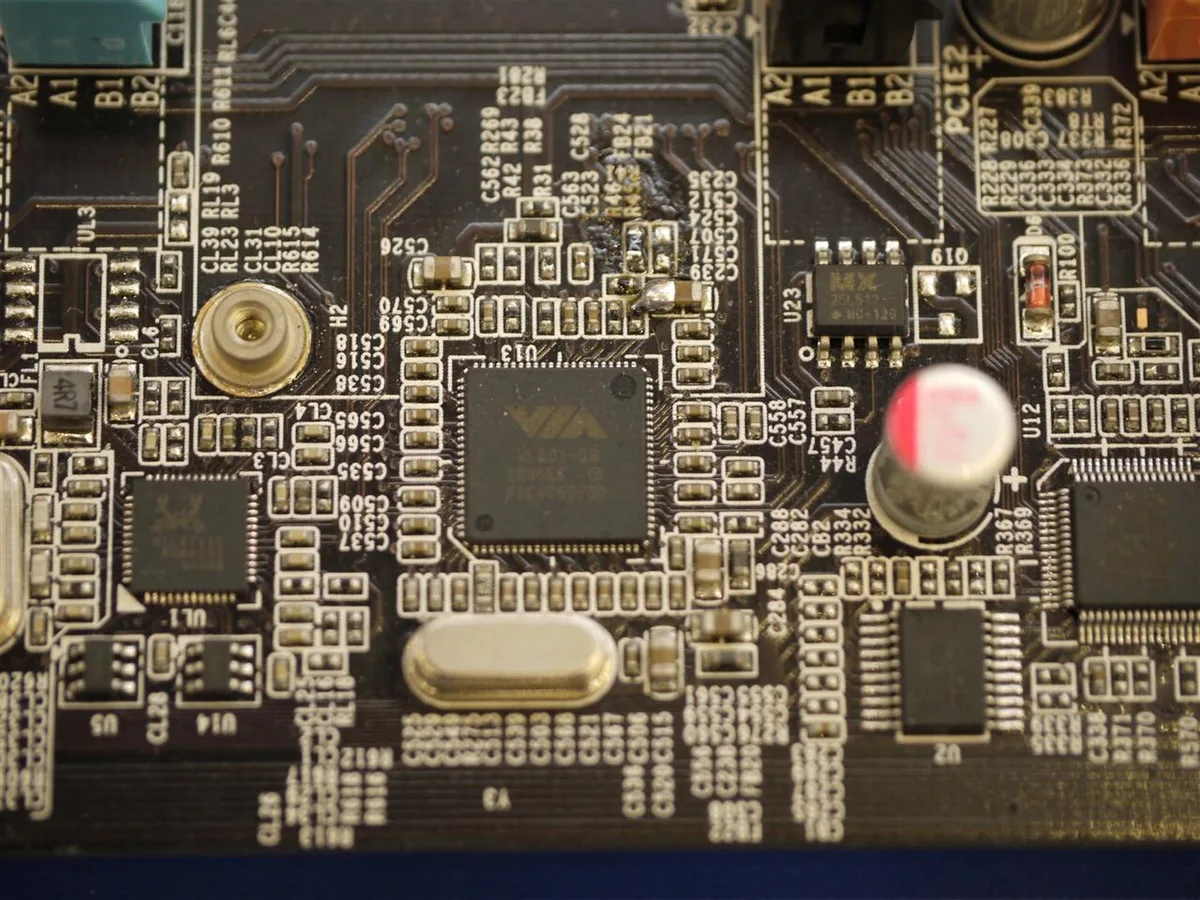
Image source: Wikimedia Commons / VIA Gallery from Hsintien, Taiwan (CC BY)
USB Power Delivery adds another layer. Ports that charge phones or run docks negotiate voltage through the embedded controller. If the EC does not re-initiate that handshake after wake, the port stays dark even though the hardware is fine.
Modern Standby complicates things further. Unlike older S3 sleep, Modern Standby keeps the system in a connected low-power state. That constant background activity can interfere with USB wake timers and cause ports to drop out.
USB 3.2 Gen 1 runs at 5 Gbps, while Thunderbolt 4 reaches 40 Gbps, but both depend on the same controller logic during sleep. Aggregate reviews and manufacturer specs confirm that these behaviors appear across ASUS, Lenovo, Dell, MSI, HP, and Acer gaming lines as of 2026. The USB Implementers Forum publishes the underlying specifications that govern how controllers should behave during power transitions.
Knowing which layer failed helps you pick the right fix.
Fast Triage: Check the Port, Cable, and Device First
Before changing settings, rule out hardware. Unplug the device, wait ten seconds, and plug it into a different USB port on the same laptop. If the second port works, the first port or cable is likely the problem.
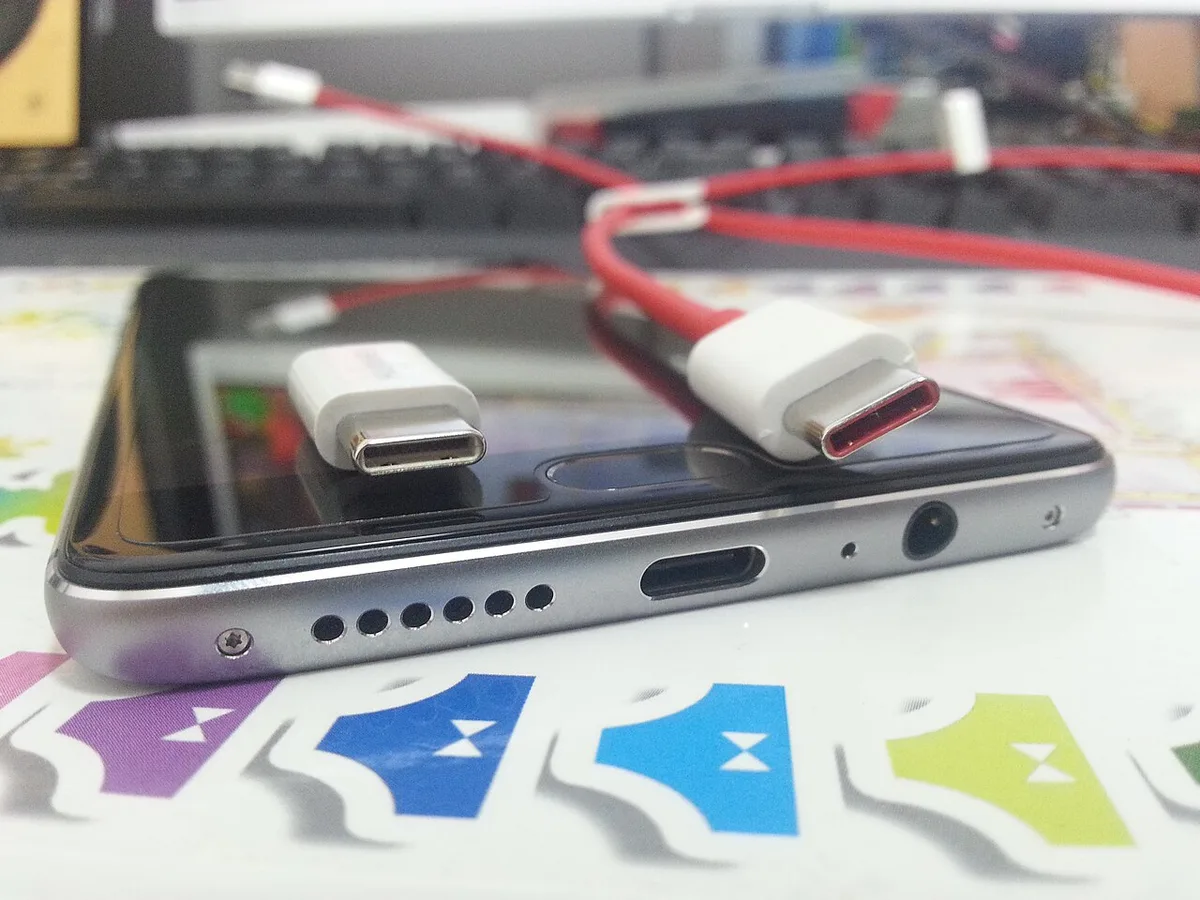
Image source: Wikimedia Commons / Porsche 911GT2 (CC BY-SA)
Test with another known-good cable and device. A frayed USB-C cable or a dead mouse can look like a port failure. Also inspect the port for dust, bent pins, or loose tension.
Gaming laptops see heavy plugging, so physical wear happens.
If the device works in another port but not the original one, you likely have a dead port rather than a system-wide sleep bug. That distinction saves you from reinstalling drivers unnecessarily. This hardware-first approach mirrors how we handle other laptop issues, such as headphone jack troubleshooting, where the port itself is often the culprit.
You can also open Device Manager to see if any USB controller shows a yellow warning triangle. That flag often means the driver loaded but the hardware did not respond after wake. Similar hardware-detection logic applies to touchpads, which is why our guide on touchpad detection issues in Device Manager follows the same first-step logic.
If nothing works in any port after sleep, move to the decision tree below.
Decision Tree: Pick the Fix That Matches Your Symptom
Not every USB sleep issue needs the same repair. Match your symptom to the branch below, then follow the linked steps.
| Symptom | First Step | Next Step |
|---|---|---|
| Ports charge nothing after sleep | Disable USB selective suspend | Check USB PD firmware |
| Device not detected after wake | Reinstall xHCI controller driver | Update BIOS |
| Devices disconnect during sleep | Run EC hard reset | Reset BIOS defaults |
| Thunderbolt dock fails to reconnect | Update Thunderbolt firmware | Re-seat dock cable |
If your port charges nothing after sleep, start with power settings. If Windows does not detect the device, go straight to drivers. Intermittent disconnects usually point to the embedded controller.
Thunderbolt or USB-C dock failures often need firmware updates before anything else.
This branching keeps you from trying fixes that do not apply to your situation. Power-management logic appears across laptop hardware, so if you have seen touchpads act up after a memory change, our guide on touchpad issues after RAM upgrade uses a similar isolation method. Microsoft documents the selective suspend setting in its power options reference.
Skipping the triage step often wastes time. Reinstalling drivers will not fix a dead port, and resetting BIOS will not restore a cable with a broken wire. Match the fix to the symptom, then work down the list.
This same isolation logic helped us diagnose camera problems that only appear after reboot, which our guide on webcam restart behavior documents in detail.
Step-by-Step Fixes: Drivers, Power Settings, BIOS, and EC Reset
Work through these in order. Start with the quickest fix, then escalate only if the port stays dead. Skipping ahead just wastes your time.
Disable USB Selective Suspend in Windows Power Options
This stops Windows from cutting power to idle ports.
- Open Control Panel, then Power Options.
- Click Change plan settings, then Change advanced power settings.
- Expand USB settings, then USB selective suspend setting.
- Set it to Disabled for both On battery and Plugged in.
That one change fixes most sleep-related port deaths. It tells the xHCI controller to keep ports powered through wake.
Reinstall or Roll Back USB Controller Drivers
A corrupt driver often survives sleep and blocks wake.
- Open Device Manager, then expand Universal Serial Bus controllers.
- Right-click each USB Root Hub and xHCI Host Controller, then pick Uninstall device.
- Restart the laptop so Windows rebuilds the drivers clean.
If a recent patch broke things, roll back instead. This is the same fix we use for hardware a Windows update broke.
Update BIOS and Embedded Controller Firmware
Firmware bugs are a leading cause of sleep USB failures.
- Find your exact model on the manufacturer's support page.
- Download the latest BIOS or EC firmware update.
- Follow the vendor's flashing steps exactly, and never cut power mid-flash.
Never skip this for a Thunderbolt or USB-C PD port. Firmware runs the power handshake those ports need after wake.
Reset BIOS to Defaults and Perform an EC Hard Reset
This clears stuck power states without reinstalling Windows.
- Enter BIOS setup, load defaults, then save and exit.
- Shut down, unplug the charger, and hold the power button 30 to 40 seconds.
- Plug back in, boot up, and test the port after a sleep cycle.
The EC hard reset drains leftover power from the controller. It revives ports a normal restart can't.
Mistakes That Make USB Sleep Issues Worse
A few habits turn a small bug into a bigger one. Steer clear of these.
- Reinstalling Windows too early. A clean install rarely fixes a firmware or hardware fault, and it wipes your setup for nothing.
- Flashing the wrong BIOS. Files are model-specific, and the wrong one can brick the board.
- Unplugging drives during sleep. Pulling a drive mid-write can corrupt data and leave the port stuck.
- Skipping the EC reset. Plenty of people restart over and over when a full power drain is what clears the controller.
- Buying a dock to mask it. A dock won't revive a dead port, it just hides the fault.
If the trouble traces back to a Windows update, try a rollback before anything drastic.
Frequently Asked Questions
Why do my USB ports only fail after sleep, not after a restart?
A restart fully reboots the embedded and USB controllers. Sleep leaves them in a low-power state that can hang. That's why the same port wakes dead but works fine after a reboot.
Can USB selective suspend really cause this?
Yes. When it's enabled, Windows cuts power to idle USB ports to save battery. If the controller doesn't restore power on wake, the port stays dead until you toggle the setting or restart.
Does a BIOS update erase my files?
No. A standard BIOS or EC firmware update only rewrites the firmware chip, not your drive. Still, back up important data first, since flashing carries a small risk if power drops.
Should I disable USB selective suspend for good?
You can, and plenty of gamers do. The battery cost on a gaming laptop is minor. Keeping ports always-on prevents most sleep failures and rarely dents runtime.
2 thoughts on “Fix USB Ports Not Working After Sleep on Gaming Laptop”
Comments are closed.