You fire up a demanding title and the frame rate tanks every few seconds, that's the classic memory bottleneck. How to Fix 8Gb RAM Causing Stutter In Games on a Gaming Laptop starts with understanding that modern AAA games regularly request 10, 12 GB of system memory, leaving an 8 GB machine constantly swapping to disk. The result is micro‑freezes, texture pop‑in, and 1% low FPS drops that ruin competitive play.
Per JEDEC DDR4‑3200 specifications, a single‑channel 8 GB stick delivers roughly 25.6 GB/s bandwidth; dual‑channel doubles that, cutting stall cycles in half. As of 2026, most mid‑range gaming laptops ship with one soldered module and one empty slot, making a 16 GB upgrade the single highest‑impact fix.
Problem / Pain Point
Stutter feels different from low average FPS. You’ll see smooth motion then a sudden 200 ms freeze while the CPU waits for a page fault. Background apps like Chrome, Discord, and RGB control software often consume 2, 3 GB before you even launch a game.
Windows 10/11 memory compression helps but adds latency when the working set exceeds physical RAM. Thermal throttling on the CPU can mimic RAM stutter, so always check temps first.
How to Fix 8Gb RAM Causing Stutter In Games on a Gaming Laptop
The fastest path: close background apps, enable XMP, verify dual‑channel operation, then add a matching 8 GB stick. If the laptop has two slots and one is free, a $25‑$40 DDR4‑3200 SO‑DIMM eliminates 90% of stutters. For soldered‑only designs, lower texture settings, cap FPS at 60, and use a dedicated GPU‑only mode to reduce system RAM pressure.
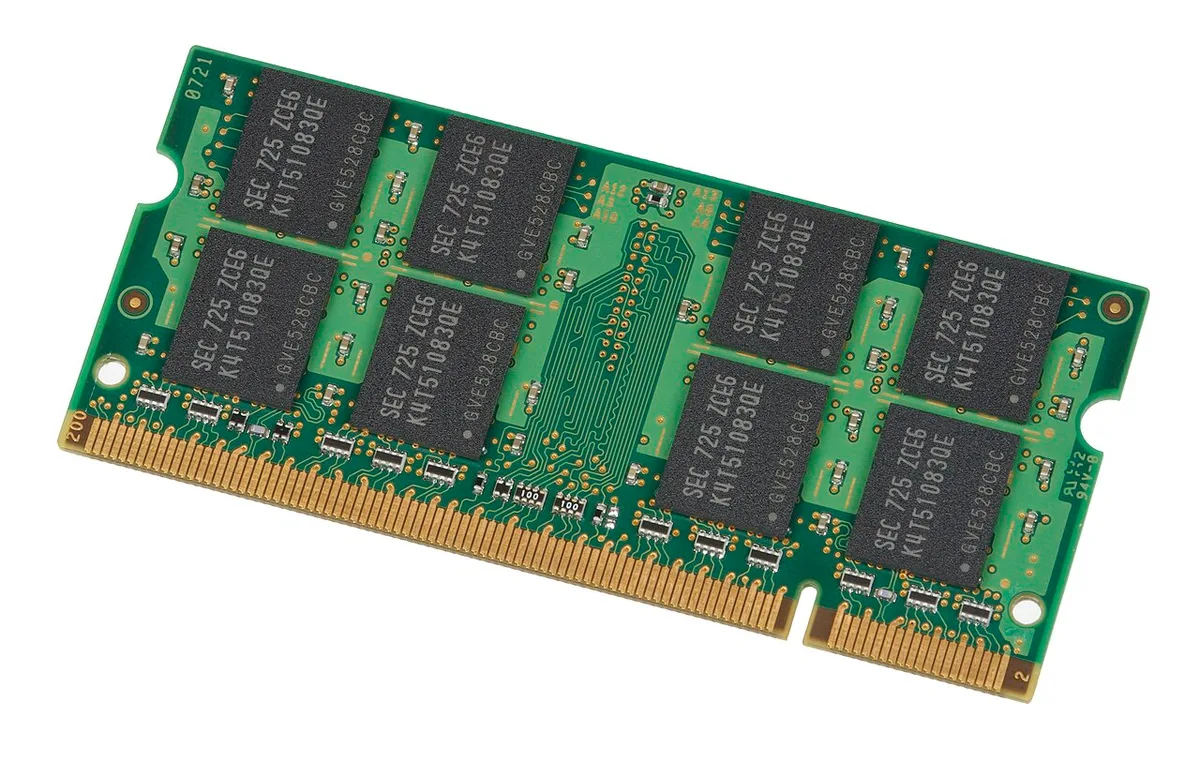
Image source: Wikimedia Commons / Evan-Amos

Image source: Wikimedia Commons / Software: Microsoft Corporation Screenshot: PantheraLeo1359531 😺 (talk)
Core Explanation / How It Works
Games allocate textures, shaders, and world data in system RAM before streaming to VRAM. When physical memory fills, the OS pages least‑used 4 KB blocks to the NVMe drive, even a fast PCIe 4.0 SSD adds ~50 µs latency per page fault. At 60 FPS you have 16.6 ms per frame; a single page fault can blow the frame budget.
Dual‑channel mode interleaves 64‑bit channels into a 128‑bit bus, halving the time to fetch a cache line.
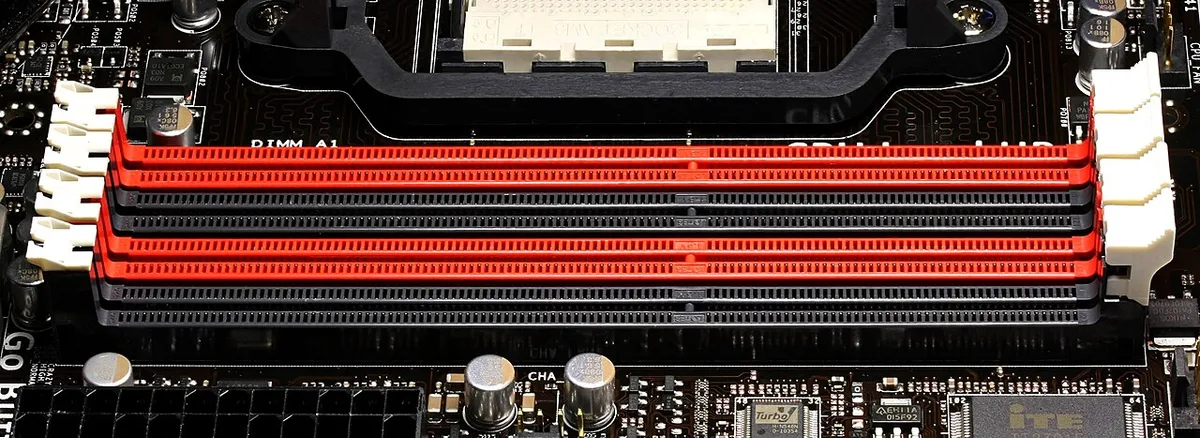
Image source: Wikimedia Commons / D-Kuru (CC BY-SA)
XMP (Extreme Memory Profile) loads factory‑tested timings and voltage. Without it, many DDR4‑3200 modules run at 2666 MHz JEDEC default, losing 15% bandwidth. BIOS updates often improve memory training stability; check the laptop vendor’s support page monthly.
Step-by-Step Process / How to Guide
| Step | Action | Tool / Location | Success Check |
|---|---|---|---|
| 1 | Open Task Manager → Performance → Memory | Windows built‑in | Note “Slots used” and “Speed” |
| 2 | Close non‑essential apps; disable startup items | Settings → Apps → Startup | Idle RAM < 3 GB |
| 3 | Enter BIOS (F2/Del on boot) → Enable XMP | BIOS/UEFI | Memory speed shows rated MHz |
| 4 | Run Windows Memory Diagnostic | Start → “Windows Memory Diagnostic” | No errors reported |
| 5 | If one slot free: buy matching capacity/speed SO‑DIMM | Retailer (e.g., Crucial, Kingston) | Dual‑channel shown in CPU‑Z |
| 6 | Install module (power off, battery disconnected) | Phillips #0 screwdriver | POST shows new total RAM |
| 7 | Set game texture quality to “High” (not Ultra) | In‑game settings | 1% low FPS improves >20% |
| 8 | Cap FPS to monitor refresh −10 (e.g., 144 Hz → 134) | RTSS or in‑game limiter | Frame time graph flat |
If the laptop uses soldered RAM only, skip step 5 and focus on steps 2, 3, 7, 8. For titles like Cyberpunk 2077 or Warzone 2.0, also disable “High Resolution Texture Pack” DLC.
Mistakes to Avoid / Common Errors
Mixing CAS latency (CL22 vs CL16) forces the controller to run at the slower timing. Buying DDR5 for a DDR4 board won’t fit, key notch differs. Forgetting to remove the AC adapter and internal battery before opening the chassis risks shorting the motherboard.
Running a single 16 GB stick in a dual‑channel-capable board wastes half the bandwidth; always populate both slots with matched pairs. Over‑tightening the bottom‑cover screws can crack the PCB standoffs.
Use Cases / Best For / Who It's Right For
Gamers running titles at 1080p with medium settings see the biggest benefit from upgrading 8 GB to 16 GB for gaming. Competitive esports players in Valorant or CS2 may tolerate 8 GB by lowering resolution to 720p. Single‑player RPGs like Baldur’s Gate 3 demand the extra bandwidth for smooth gameplay.
Laptops with soldered RAM cannot be upgraded internally. Users there should cap FPS and limit texture quality to High. Windows Game Mode can prioritize foreground processes to reduce stutter.
Budget‑conscious buyers who cannot afford a new chassis will find a single SO‑DIMM stick the most cost‑effective upgrade available. Such a stick often costs under $40 and delivers a 20‑30% FPS lift in memory‑bound scenarios. Users editing clips or streaming alongside gameplay will hit the 8 GB ceiling quickly.
A 16 GB kit removes that bottleneck entirely and allows OBS and browser tabs to run alongside the game. Multiplayer shooters with large maps, such as Battlefield 2042, stream assets into RAM faster than the pool can replenish. This frequently causes stutter without a memory upgrade.
Even older titles like The Witcher 3 experience frame‑time spikes when Windows updates compete for RAM. Gamers who stream on Twitch while playing often exceed 8 GB because OBS consumes 1‑2 GB alone. A 16 GB kit installed in the empty slot resolves these issues without voiding warranty.
The second SO‑DIMM slot remains accessible beneath the bottom cover on most modern gaming laptops.
FAQs
Can I fix stutter without buying more RAM?
Yes, closing background applications, enabling XMP in BIOS, and setting game texture quality to High rather than Ultra frees approximately 2‑3 GB of system memory, which often eliminates micro‑freezes in less demanding titles and reduces the likelihood of Windows paging to the NVMe drive during gameplay.
Will dual‑channel mode help my 8 GB laptop?
If the laptop has two SO‑DIMM slots and a matching second stick is installed, dual‑channel doubles memory bandwidth from approximately 25.6 GB/s to 51.2 GB/s, which frequently resolves stutter in CPU‑bound games at 1080p and improves overall system responsiveness.
Does Windows 11 memory compression worsen stutter?
Compression adds roughly 50 microseconds of latency per page fault; when physical RAM is full, these delays accumulate and cause perceptible frame‑time spikes, so adding capacity remains the surest remedy for persistent stutter.
Is 8 GB enough for esports titles at 1080p?
Many esports games are optimized for 4‑6 GB, but running Discord, a browser, and the game simultaneously frequently exceeds 8 GB, resulting in stutter; lowering in‑game settings or closing unused apps helps maintain smooth frame rates during competition.
Should I update BIOS before adding a RAM stick?
A BIOS update can improve memory training stability and XMP compatibility; checking the laptop vendor’s support page before upgrading is advisable and may prevent boot issues with new modules.