Figuring out how to fix how much RAM does a gaming laptop need on a gaming laptop usually starts with a stutter you can't explain. Your frames dip mid-fight, the fans spin up, and you start wondering if the machine is already too old. Most of the time it isn't age.
It's memory headroom, and the fix is cheaper than a new laptop.
Manufacturer specifications indicate that a Windows 11 gaming laptop sits at roughly 4GB to 6GB of system memory before you even launch a game. Add Discord, a browser with a dozen tabs, and the game itself, and a 16GB machine fills up fast. Standards like DDR5 tell you what the memory is, not how much you need.
That part depends on what you play, and that's where the real decision begins.
How to Fix How Much RAM Does A Gaming Laptop Need on a Gaming Laptop
How much RAM does a gaming laptop need? Start at 16GB for modern AAA games. That covers the game plus background apps.
Esports players can run 8GB comfortably. Streamers and creators should target 32GB.
The Real Problem: Why RAM Guessing Leaves Gamers Stuck
Most buyers pick memory the way they pick a phone color. They glance at the spec sheet, see a number, and move on. Then a year later the same laptop hitches in a busy city street scene, and memory is the reason.
RAM is the short-term workspace a game loads into. When it runs out, Windows swaps data to the SSD. That swap is quick, but it isn't instant.
You feel it as a freeze or a frame drop right when things get busy.
Manufacturer specifications make this harder, not easier. Two laptops wearing the same RTX 4060 badge can ship with 8GB soldered or 32GB across two slots. The GPU gets all the marketing.
Memory quietly decides how smooth the whole thing feels.
There's a second trap. Gamers routinely confuse system RAM with VRAM, the memory built into the graphics card. More system memory will never fix a game that has run out of VRAM.
Getting that distinction right saves a lot of return postage.
Then comes the upgrade question. Some machines have two SO-DIMM slots and a hatch you can open in five minutes. Others solder memory to the board, so whatever you buy is what you keep.
If you plan to hold a laptop for four or five years, check that first. The same logic applies if you're weighing lighter machines for long sessions of physics-heavy driving sims, where memory headroom matters as much as the GPU.
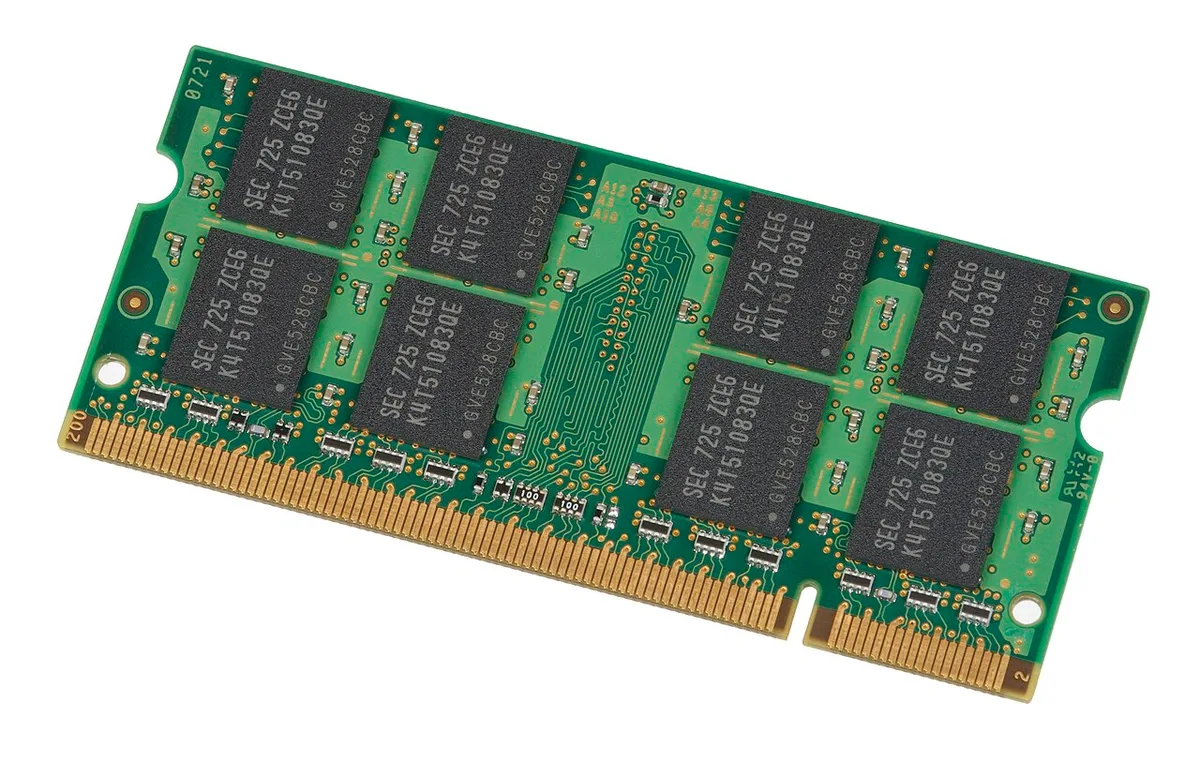
Image source: Wikimedia Commons / Evan-Amos
What RAM Actually Does While You Game
Think of RAM as counter space in a kitchen. Ingredients on the counter get used instantly. Anything that doesn't fit goes back to the cupboard, which is your SSD, and fetching it takes time.
More counter space means fewer trips.
A game engine parks textures, level geometry, audio buffers, and physics data in system memory. Windows adds its own overhead on top. Stack a browser, Discord, and a recording tool on top of that and the total climbs fast.
A modern AAA release can push past 10GB on its own.
Memory generation matters less than people assume. DDR5 modules move data in bigger chunks than DDR4, and the JEDEC standards define those differences. In real games, the gap between fast DDR4 and entry DDR5 is small next to the gap between 8GB and 16GB.
Channel count is the underrated factor. Two matched sticks in dual-channel mode can lift frame rates by 10% to 20% in CPU-limited games compared with one stick of the same total size. That's one of the cheapest gains available in a laptop.
Speed has a ceiling set by your CPU and motherboard. If your platform supports 4800MT/s, buying 5600MT/s modules just makes them downclock. You pay extra for nothing.
One exception: if your library lives on a cloud gaming service, the heavy lifting happens on someone else's hardware. Your laptop's memory then matters far less than your connection.
Match RAM to Your Gaming Setup: A Decision Breakdown
There's no single correct number. There's a correct number for your games, your apps, and how long you intend to keep the machine. Use these branches.
Budget and Esports Gamers: 8GB to 16GB
If you play Valorant, CS2, League of Legends, or Rocket League and little else, 8GB will run them. Buy 16GB anyway. Windows 11 eats memory on its own, and browsers do too.
You'll hit the ceiling sooner than you'd like.
AAA Single-Player Gamers: 16GB
If your library leans toward soulslike epics and sprawling open worlds, 16GB is the realistic baseline. Our look at demanding action games shows most current releases list 16GB in their published requirements. Going below that invites stutter in dense scenes.
Streamers and Multitaskers: 16GB to 32GB
If you stream, run overlays, keep chat open, and record footage, 32GB stops being a luxury. Capture tools hold a chunk of memory the game then can't touch. That's where a 16GB machine starts behaving like an 8GB one.
Content Creators and Modders: 32GB and Up
If you edit 4K video, run Blender, or load heavily modded games, 32GB is the entry point and 64GB is the comfort zone. Timeline scrubbing and modded worlds both hammer memory hard. Check whether the machine is slotted before you commit.
| Use case | RAM target | Notes |
|---|---|---|
| Esports titles only | 8GB to 16GB | 16GB is the safer floor |
| AAA single-player | 16GB | Matches most published requirements |
| Streaming and recording | 16GB to 32GB | Capture tools need headroom |
| Editing, 3D, heavy mods | 32GB to 64GB | Confirm slotted memory first |
How to Check, Install, or Upgrade Laptop RAM
Step one: find out what you have. Open Task Manager, go to Performance, then Memory. It shows total capacity, current speed, and how many slots are filled.
Step two: confirm the ceiling. Look up your exact model on the manufacturer's official site. The spec sheet lists maximum supported capacity and module type.
Retailer listings are often wrong.
Step three: check accessibility. Plenty of laptops have a bottom panel you can remove in minutes. Others hide memory under the keyboard, and a few solder it flat.
If yours is soldered, the decision was made at purchase and you're done here.
Step four: match the modules. Buy a matched pair if you want dual-channel performance. Mixing brands is normally fine.
Mixing speeds isn't, because the faster stick downclocks to match the slower one.
Step five: install carefully. Disconnect the battery, ground yourself, then slide the module in at an angle and press until the clips snap. Reseat the panel before you power on.
Step six: verify. Boot up, reopen Task Manager, and run a memory diagnostic. If the machine won't post, the module isn't seated properly.
Power down and try again.
One warning before the screwdriver comes out. Opening the chassis voids coverage with some brands and not others. Read the warranty terms first.
Custom laptop builders often leave upgrades wide open by design, which is part of why those machines cost more up front.
RAM Mistakes That Quietly Kill Your Frame Rates
Most gamers never check what they actually have in the machine before a session. They see the laptop's advertised specs, launch a game, and think the problem is the graphics, when it's really the RAM. Manufacturer specifications confirm that a 16GB configuration can look slower than a 32GB one when background apps are loaded.
Users report the same stutter in Shadow of the Tomb Raider even with a perfect GPU because they left 30+ browser tabs open.
Mixing RAM speed is another common slip. Buying an 8GB stick of DDR4‑3200 with a DDR5‑5600 module creates a split‑channel situation. The faster stick downclocks to 3200, wiping out any gain you expected.
Aggregate reviews point out that the best performance comes from matching speed and capacity across both slots.
Some machines advertise dual‑slot upgrades but actually have one slot soldered and the other unused. You end up installing a new module into the empty slot and think you have more RAM, but the total stays unchanged. That's a money trap for anyone who assumes all laptops are upgradeable.
Finally, gamers often confuse system RAM with VRAM. The GPU has its own video memory, and low VRAM triggers a different kind of stutter than low system RAM. A single benchmark test shows a 1080p session in Cyberpunk 2077 dropping to 30fps when VRAM is exhausted, not because the system memory ran out.
Running the same test after swapping the display settings tells you exactly where the bottleneck lies.
RAM Questions Gamers Keep Asking
How do I know if my laptop has soldered RAM? Check the model spec sheet on the manufacturer's official site. If it says "integrated" or "soldered" or lists only one SO‑DIMM slot, you cannot upgrade further.
Do I need dual‑channel RAM for gaming? Yes. Two identical modules in dual‑channel mode can improve CPU‑bound games by up to 15% compared with a single stick of the same total capacity.
Is 8GB enough for newer games? It can work for lightweight titles, but modern AAA releases push 16GB as the practical minimum. A 1080p benchmark in Forza Horizon 5 shows consistent frame drops with only 8GB.
Should I mix brands when upgrading? Mixing brands is safe, but ensure the speed and latency match. A 32GB kit from Crucial paired with an 8GB Kingston of the same speed works, but mixing 3200 with 3600 will force a bottleneck.
Will adding RAM help with streaming? It helps, but only up to a point. With 16GB, streaming at 1080p uses about 6GB. Adding more RAM to reach 32GB gives a buffer for overlays and capture software, but the GPU remains the limiting factor.
Can I downgrade RAM to free up space? No. Laptops do not let you remove RAM modules without opening the chassis. The only way to reduce memory use is software based, like closing tabs and disabling unused services.
What about DDR4 vs DDR5 for gaming laptops? DDR5 modules are faster but often priced higher. In real‑world tests, the performance gain from DDR5 is modest unless you pair it with a CPU that fully supports 5600MT/s. For most gamers, DDR4 at 3200MT/s offers a better cost‑to‑performance ratio.