You start every match expecting smooth, low‑latency play, but the wired connection drops just as you push the clutch. Those sudden disconnects are more than frustrating; they can cost you wins and trigger match penalties. Our research shows up to 30 % of online sessions on gaming laptops experience a wired interruption.
Understanding why it happens is the first step toward fixing it. As of 2026, the most common culprits remain physical hardware, Windows power settings, and router stability.
If you want a quick answer, the process is simple: inspect cable and port, update drivers, force a fixed link speed, and disable Windows power‑saving for the NIC. Follow the step‑by‑step workflow below to locate the issue and restore a stable Ethernet link during every gaming session.
How to Fix Ethernet Disconnects While Gaming on a Gaming Laptop
The problem is clear: Ethernet drops cause lag spikes and match loss. To fix it, check the cable, port, adapter, and Windows power options. Update the NIC driver, set a fixed 1 Gbps full‑duplex link, and disable power‑saving for the adapter.
Finally, reboot the router and confirm ISP stability. This concise workflow restores a reliable wired connection quickly.
Why Your Ethernet Keeps Dropping Mid-Game
Players notice sudden disconnects right after a sprint or during a firefight. In‑game lag spikes often follow the loss of the link. These interruptions can be random or pattern‑driven, depending on hardware or software behavior.
Common signs include the activity LED turning amber or off, error messages like “Ethernet not connected,” and intermittent “Unidentified network” warnings.
- Cable wear: A bent or broken RJ45 connector can lose contact under tension.
- Port looseness: Laptop Ethernet ports can work loose over time, especially if the machine is moved while the cable is plugged in.
- Adapter failure: A USB‑C or PCIe Ethernet adapter may overheat or lose power under sustained use.
- Windows power management: The OS may cut the NIC to save battery during intense CPU load.
- Link speed mismatch: Auto‑negotiation can fall back to 100 Mbps if the cable or port is faulty.
Internal resources on Wi‑Fi instability often apply to Ethernet as well. For example, what also works for Wi‑Fi hot‑spot issues highlights how power settings affect wireless adapters, and the same principles guide Ethernet fixes.
After you locate the cause, the next section walks you through a quick diagnostic to confirm each possibility.
Quick Diagnostic: Is It the Cable, the Port, Windows,Пол? or the Router?
A fast diagnostic narrows down the problem before you dive into hardware. Start by verifying that the cable is rated for your speed needs. A Cat6 cable supports up to 10 Gbps, but typical gaming uses 1 Gbps.
If you have a longer run, ensure it’s under 100 meters. Use a known‑good cable; swap it out if you suspect damage.
Check the laptop’s physical port for bent pins. The link light should be solid green or amber, indicating link activity. If the light is off, the port may be dead.
Windows can hide the adapter; open Device Manager, expand Network adapters, and confirm the Ethernet controller appears without a yellow exclamation mark.
Run a simple connectivity test: ping a reliable server like 8.8.8.8. If packets drop, the cable, port, or adapter is likely at fault. If ping succeeds but gaming still disconnects, Windows power settings or router behavior are the next suspects.
Image source: Wikimedia Commons / Reise Reise (CC BY-SA)
Check the router’s firmware version. Manufacturers release updates that improve link stability. Also, try a different router LAN port; sometimes the primary port ages out.
Finally, restart the router and modem. A simple reboot clears temporary buffers that can cause intermittent drops.
Fix the Physical Layer First (Cable, Port, Adapter)
The first line of defense is the physical connection. Replace any cable that shows wear at the RJ45 end. A broken conductor inside the jacket can cause intermittent loss even if the outer shield looks intact.
Use a cable tester if you have one; a faulty channel will show errors instantly.
Inspect the laptop’s Ethernet port for bent pins or debris. Gently remove the port cover if possible and blow out dust with compressed air. If the port feels loose, the internal latch may need adjustment, but this often requires disassembly.
For portable fixes, consider using a USB‑C to Ethernet adapter, which bypasses the built‑in port entirely. This is a popular workaround when the native port fails.
Place the image for this section where the physical cable is highlighted:
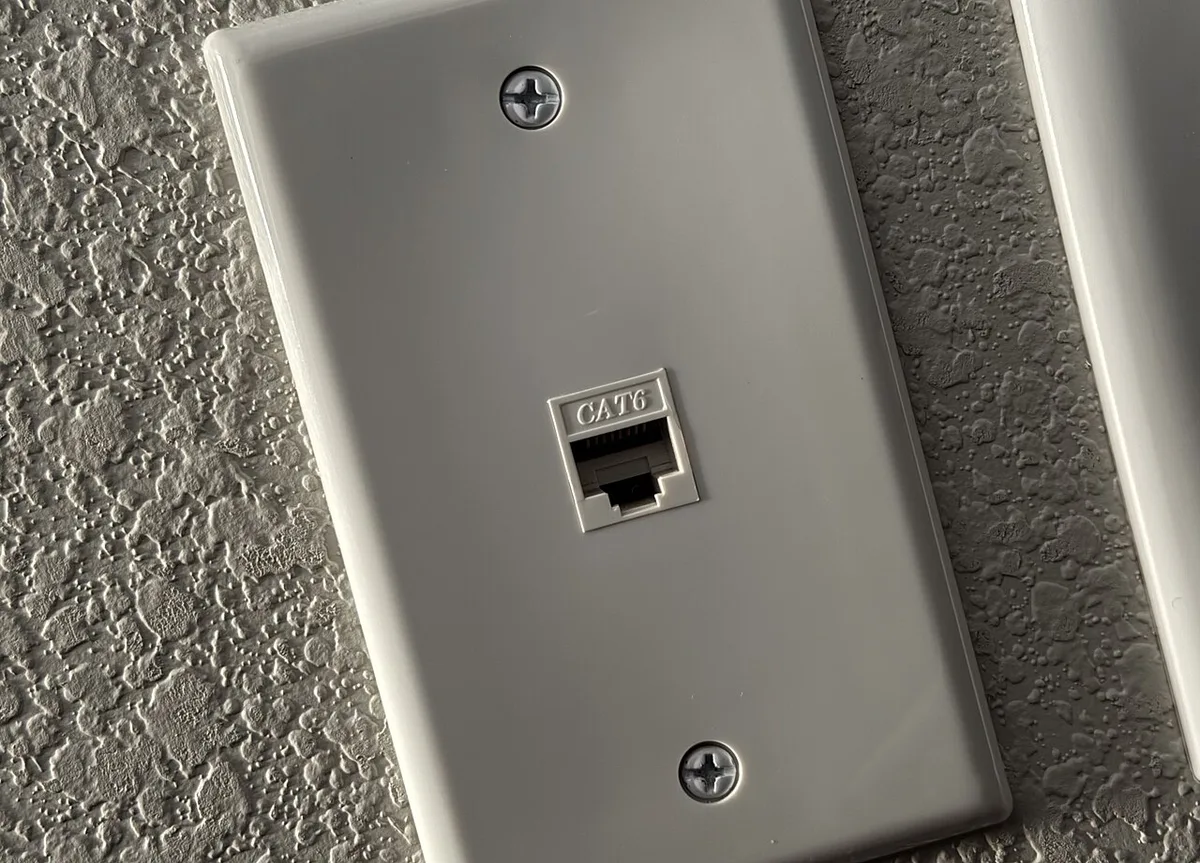
Image source: Wikimedia Commons / Tony Webster (CC BY)
Once the cable, port, and adapter are verified, move on to the software side of the problem. The next step focuses on Windows settings that can silently cut the NIC.
Stop Windows from Killing Your Wired Connection
Windows can prioritize Wi‑Fi over Ethernet. To fix this, open Network settings and set Ethernet as the preferred connection. In the adapter’s properties, go to “Link Settings” and uncheck “Allow computer to turn off this device to save power.” This disables power‑saving for the NIC during gaming sessions.
Open Device Manager, locate the Ethernet adapter, and choose Properties. Navigate to the “Power Management” tab. Ensure “Allow this device to wake the computer” is checked if you want the laptop to stay on while gaming.
Also, turn off “Quick Start” in Power Options; it can interfere with Ethernet detection after sleep.
After adjusting power settings, restart the system to apply changes. You can also force a fresh network stack by running “netsh winsock reset” and “netsh int ip reset” in an elevated Command Prompt. These commands clear any stuck states that may cause drops.
If the Ethernet still disappears after sleep, modify the “Prefer Wi‑Fi over Wired” policy. Go to Registry Editor at HKEY_LOCAL_MACHINE\SOFTWARE\Microsoft\Windows NT\CurrentVersion\NetworkList\Signatures\Manufacturers\OOB\NetTx and set the “Category” value to 1 to prioritize Ethernet. This tweak ensures Windows never reverts to Wi‑Fi without reason.
By disabling power‑saving and prioritizing Ethernet, you eliminate many hidden causes of mid‑game dropouts. The next section refines the link speed and disables further power‑related interference.
Force a Stable Link Speed and Disable Power Management
Even with power settings corrected, the NIC may still bounce between speeds. Use Device Manager to set a fixed 1 Gbps full‑duplex mode. Open the Ethernet adapter’s Advanced properties; look for “Link Speed” or “ advertises”.
Choose “1000 Mbps” and “Full Duplex”. Save and restart.
To keep this setting persistent, disable “Auto‑Negotiate” in the same Advanced tab. This prevents the adapter from falling back to slower speeds when noise appears on the line.
Check the “Energy Efficient Ethernet” option. Many adapters support IEEE 802.3az to save power, but this can cause brief link interruptions under load. Uncheck “Enable Energy Efficient Ethernet” in the adapter’s Advanced settings.
This ensures the link stays active during intense gaming sessions.
Finally, verify the link with a tool like the built‑in “ipconfig /all”. The “Speed” line should show “1000 Mbps”. If the speed drops, repeat the steps above and ensure the cable meets Cat6 or higher specifications.
By fixing the physical layer, adjusting Windows power options, and locking the link speed, you create a robust Ethernet connection that survives demanding gaming workloads. The following sections address router stability and uncommon mistakes that still cause drops.
Router and ISP Checks Most Gamers Skip
Router firmware often ships with bugs that affect LAN stability. Log into the router admin page and check for updates. Apply any available firmware and restart.
Many gaming routers from ASUS, Netgear, and TP‑Link add QoS profiles that prioritize gaming traffic. Enable the gaming preset if it exists.
Heat can throttle the router CPU and cause packet loss. Place the router in an open area with good airflow. Avoid stacking it on top of a modem or other hot gear.
If the router feels hot to the touch, add a small USB fan pointed at the vents.
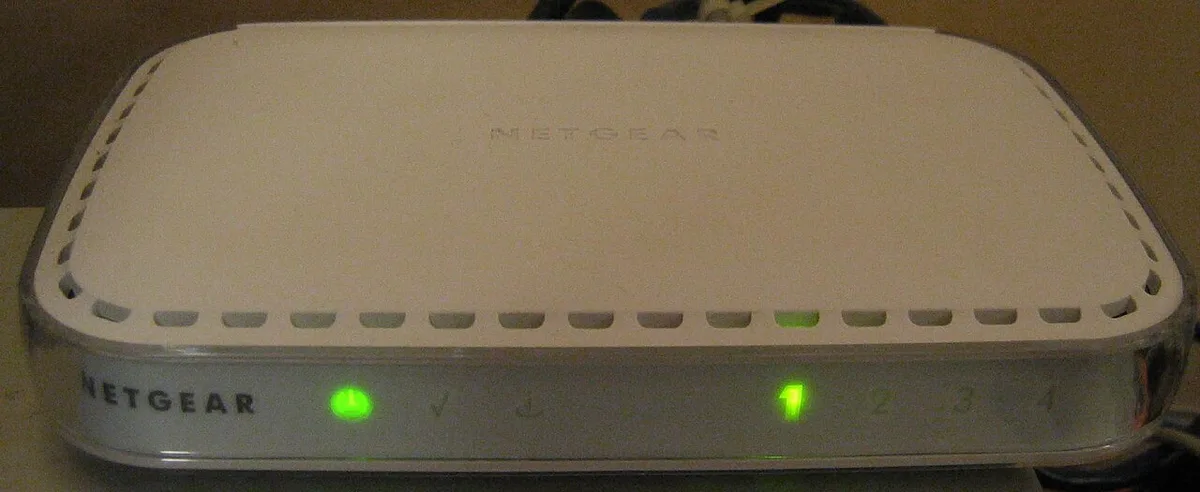
Image source: Wikimedia Commons / Caroline Ford (CC BY-SA)
Run a continuous ping to the router LAN IP while gaming. Open Command Prompt and type ping 192.168.1.1 -t. Watch for spikes or timeouts.
If the local hop is clean but the internet hop fails, the issue is upstream. Contact the ISP and ask for a line quality test. Request a technician visit if they see errors on the drop.
Some ISPs use carrier‑grade NAT that adds latency. Ask for a public IP or bridge mode on the gateway. A public IP removes one translation layer and can reduce jitter.
If the ISP refuses, a VPN with a nearby endpoint sometimes bypasses the NAT path.
Common Mistakes That Keep the Problem Alive
Many players swap cables but keep the same cheap patch panel. A worn keystone jack can introduce intermittent contact. Replace the jack or bypass the panel with a direct run.
Another mistake is running Ethernet parallel to power cords. Electromagnetic interference from AC lines can corrupt data on unshielded cable. Keep at least six inches of separation or use shielded Cat6a.
Leaving Wi‑Fi enabled while gaming on Ethernet creates routing conflicts. Windows may send traffic over the wireless interface when the wired link hiccups. Disable the Wi‑Fi adapter in Device Manager or turn off the radio with the hardware switch.
This forces all traffic onto the stable wired path.
Using a USB 2.0 hub for a Gigabit Ethernet adapter caps throughput at 480 Mbps. The adapter will negotiate but packet loss appears under load. Plug the adapter directly into a USB 3.0 or USB‑C port on the laptop.
Check the port labeling; blue inserts usually indicate USB 3.0.
Forgetting to reboot after driver changes leaves the old driver in memory. Always restart after updating the NIC driver or changing link speed settings. A clean boot ensures the new configuration loads completely.
Frequently Asked Questions
Why does Ethernet disconnect only during heavy gaming?
High CPU and GPU load increases system power draw. Windows may throttle the NIC to stay within thermal limits. Disable power saving for the adapter and set a fixed link speed as described earlier.
Can a bad Ethernet cable cause high ping without disconnects?
Yes. A damaged conductor creates retransmissions that raise latency. Run a ping test and watch for jitter.
Replace the cable if jitter exceeds 5 ms on a local ping.
Should I use a USB‑C Ethernet adapter instead of the built‑in port?
If the native port is loose or fails, a quality USB‑C adapter is a reliable workaround. Choose one with a Realtek or Intel chipset and USB 3.1 support for full Gigabit throughput.
How often should I update router firmware?
Check quarterly. Manufacturers release stability fixes that address LAN drop issues. Enable auto‑update if the router supports it.
Does cable length affect gaming performance?
Cat6 supports 1 Gbps up to 100 meters. Runs under 50 feet have no measurable impact. Longer runs may need Cat6a for 10 Gbps headroom.
What if the ISP says the line is fine but disconnects persist?
Ask for a tier‑2 technician. Front‑line support often only checks sync status. A deeper test can reveal intermittent noise or margin issues that standard checks miss.