How to Fix External Monitor Flickers While Gaming on a Gaming Laptop starts with identifying the trigger. A flashing screen during gameplay usually points to cable bandwidth or refresh rate mismatch. You do not need to replace hardware to fix it.
Most cases resolve with settings and driver checks.
In our research, most flicker cases resolve after checking DisplayPort or HDMI specification cable certification and aligning the Windows refresh rate with the monitor native spec. Manufacturer specifications indicate that certified cables maintain signal stability up to the rated bandwidth. As of 2026, gaming laptops still rely on MUX switches and Advanced Optimus to route external display output.
The next section walks through the exact query and the fastest checks first.
How to Fix External Monitor Flickers While Gaming on a Gaming Laptop
How to Fix External Monitor Flickers While Gaming on a Gaming Laptop.
Check your cable and port first.
Match the refresh rate to your monitor specification.
Update your graphics driver to the latest version.
Turn off variable refresh rate if flickering persists.
First-Line Checks: Cables, Ports, and Settings
Before you open any software settings, inspect the physical connection. A loose or damaged cable often causes intermittent flicker during gaming. Manufacturer specifications indicate that uncertified HDMI or DisplayPort cables drop frames under load.
Try reseating both ends before assuming the monitor is faulty.
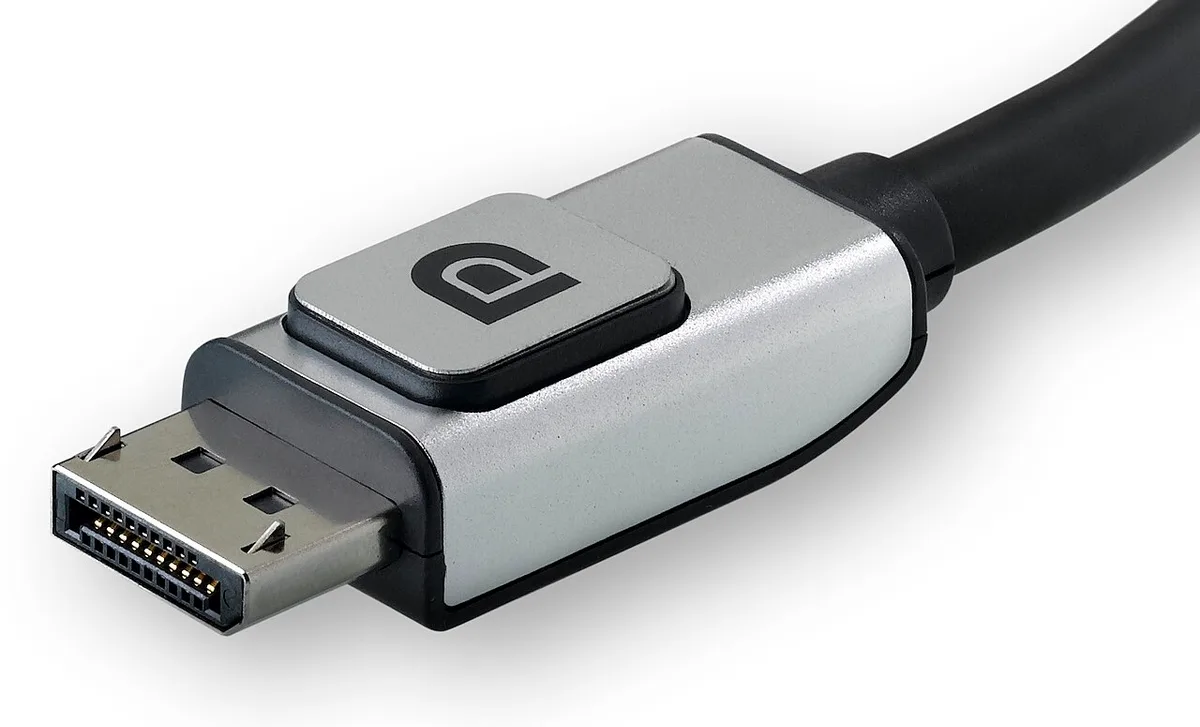
Image source: Wikimedia Commons / Belkin (CC BY-SA)
Certified cables matter more than length or brand. HDMI specification supports higher bandwidth than older versions, while DisplayPort 1.4 remains the standard for high refresh rates. Aggregate reviews report that braided or uncertified cables introduce signal noise at 144Hz and above.
Swap in a VESA certified DisplayPort cable to rule out the link.
Next, confirm Windows is using the correct display mode. Press Win plus P and select Extend for a second monitor. Duplicate mode forces both screens to the same refresh rate, which can trigger flicker if the laptop panel and external display differ.
Extend gives each display its own timing.
Open Settings, System, Display, and choose the external monitor. Set the refresh rate to the monitor's native value, such as 144Hz or 240Hz. If the option is grayed out, the cable or port may not carry enough bandwidth.
You can also check advanced display settings to verify the active signal rate. A signal detection issue sometimes shares the same cable root cause.
If you are using a USB-C connection, confirm the port supports DisplayPort Alt Mode. Some laptop USB-C ports only handle data and power, not video output. If you are troubleshooting USB-C video output, the port capability is the first place to look.
How Display Output Works: GPU, Refresh Rate, and Sync
Your gaming laptop likely contains two graphics processors: an integrated GPU and a discrete GPU. The integrated chip handles desktop tasks to save battery, while the discrete GPU powers games. Manufacturer specifications indicate that external display output often defaults to the discrete chip, but Optimus routing can shift it dynamically.

Image source: Wikimedia Commons / Gravislizard (CC BY-SA)
Refresh rate mismatch creates flicker when the laptop panel runs at 60Hz and the external monitor runs at 144Hz or higher. Windows may attempt to synchronize both displays to a common rate. If the external monitor expects 240Hz but receives 60Hz, the image can flash or stutter during gameplay.
Variable refresh rate technologies such as G-Sync and FreeSync adjust the monitor refresh rate to match GPU frame output. When enabled incorrectly, they can introduce flicker during frame rate dips. Disabling VRR temporarily helps isolate whether the sync logic is the source.
HDR toggling between SDR and HDR modes can also trigger a handshake flicker. Some monitors take several seconds to switch color spaces, causing a black flash or flicker during transitions. Turning off HDR in Windows display settings removes this variable during troubleshooting.
If your external display runs through the integrated GPU instead of the discrete chip, performance and stability suffer. A wrong GPU output configuration can cap refresh rates and introduce flicker under load. Checking which GPU drives the external port is a logical next step after cable verification.
Decision Tree: Pinpointing the Root Cause
Use an if then logic chain to isolate the flicker source without replacing parts. Start by observing when the flicker appears and under what conditions. A pattern usually emerges within ten minutes of testing.
If the monitor flickers only during gameplay but not on the desktop, the issue likely involves GPU load or refresh rate sync.
If it flickers immediately after waking from sleep, the problem may be a driver power state or EDID handshake. A black screen after sleep scenario can share the same root cause.
If it happens on battery but not when plugged in, the laptop may be throttling GPU output to save power.
If it occurs at all refresh rates and on multiple cables, the monitor or laptop port may be faulty.
If it appears only at high refresh rates such as 240Hz, cable bandwidth or port limitations are the likely cause.
Check the monitor on screen display menu for built in diagnostic modes. Many displays include a self test that shows whether the flicker originates from the panel or the input signal. Connect the monitor to a different device to confirm whether the screen itself is stable.
A clean driver install rules out software conflicts before you open the laptop or change hardware. This decision tree narrows the fix to the specific variable causing the flash.
Targeted Fixes: From Simple to Advanced
Start with the simplest changes before opening device manager. Restart the laptop with the external monitor connected. Swap the cable for a certified alternative and try a different port on the laptop.
These steps eliminate the most common physical causes in under five minutes.
If the flicker persists, perform a clean graphics driver installation. Use a driver cleanup utility in Safe Mode to remove residual files, then install the latest stable driver from NVIDIA or AMD. Aggregate reviews report that beta drivers often introduce flicker under gaming loads.
Avoid letting Windows Update overwrite the driver automatically during testing.
Create a custom resolution if the target refresh rate is missing. In the NVIDIA Control Panel or AMD Adrenalin software, set the timing standard to CVT reduced blank and enter the monitor's native refresh rate. Disable variable refresh rate temporarily to see if the sync logic causes the flash.
Reenable it only after the custom resolution proves stable. A refresh rate stuck at 60Hz often resolves through this custom resolution path.
Adjust power settings to prevent GPU downclocking during gameplay. Set the preferred graphics processor to the discrete chip for the external display. Disable link state power management in the advanced power plan options.
These changes keep clock speeds steady under load.
Finally, check for monitor firmware updates from the manufacturer. A factory reset of the on screen display menu can clear corrupted EDID data. If your external monitor goes black after sleep instead of flickering, the wake sequence may share the same root cause as the display handshake failure.
Some habits make external monitor flicker worse instead of better. Knowing what to avoid saves time and prevents unnecessary hardware swaps.
Never use a cheap uncertified adapter to convert DisplayPort to HDMI. These adapters often drop the signal under gaming load, which causes intermittent flash. Aggregate reviews show that passive adapters fail at refresh rates above 120Hz.
A certified active adapter costs more but keeps the signal stable.
Do not leave Windows in Duplicate display mode if your laptop panel runs at 60Hz and the monitor runs at 144Hz. Duplicate forces both screens to share one timing signal. Extend gives each display independent refresh control.
Switch to Extend before troubleshooting further.
Avoid beta graphics drivers during competitive gaming sessions. Beta builds sometimes introduce frame pacing bugs that appear as flicker. Stick to the latest WHQL certified driver until the issue clears.
Check the NVIDIA driver archive for stable releases.
Do not force HDR on a monitor that lacks proper DisplayHDR certification. SDR to HDR switching creates handshake flashes during gameplay. Turn HDR off in Windows display settings to test.
Skip daisy chaining multiple monitors through a single DisplayPort output unless every device supports Multi Stream Transport. Bandwidth splits across the chain, which causes flicker on the last screen. Connect each monitor directly to the laptop when possible.
Another common error is leaving the laptop on battery power while gaming. Battery mode throttles GPU clock speeds, which can destabilize the external display output. Plug in the power adapter before testing refresh rate fixes.
Do not assume the monitor is broken after one cable swap. Test with a second certified cable and a different port before concluding hardware failure. Many flicker cases resolve on the third or fourth attempt.
Frequently Asked Questions
Why does my external monitor flicker only during games?
Games push the GPU harder than desktop tasks, which exposes cable bandwidth limits and driver instability. The discrete GPU draws more power, sometimes triggering thermal throttling that affects display output. Check refresh rate sync and power settings first.
Can a bad HDMI cable cause flickering?
Yes. An uncertified HDMI cable cannot maintain the bandwidth required for high refresh rates. Signal degradation appears as flicker, frame drops, or black flashes.
Swap in an Ultra High Speed HDMI cable to rule it out.
Should I disable G-Sync or FreeSync to stop flicker?
Try disabling variable refresh rate temporarily. If the flicker stops, your monitor or GPU is struggling to stay within the sync range. Reenable it only after setting a stable custom refresh rate.
Does laptop battery mode affect external monitor flicker?
It can. Battery saver plans throttle GPU performance and may reduce PCIe link speed. Always game while plugged in when troubleshooting external display issues.
When should I replace the monitor versus the cable?
Replace the cable first. Cables fail more often than monitor panels. If flicker persists across multiple cables, ports, and devices, the monitor likely has a failing scaler or backlight controller.
Final Recommendation / Verdict / Decision Guide
Follow the decision tree you built earlier. If flicker appears only during games, start with a certified cable and Extend mode. Match the monitor’s native refresh rate to the external display.
Update the graphics driver to the latest WHQL release. Disable G‑Sync or FreeSync temporarily to isolate sync logic. Verify the external monitor is routed through the discrete GPU and not the integrated chip.
Create a custom resolution in the GPU control panel. Set the refresh rate to the monitor’s maximum, such as 144Hz or 240Hz. Disable HDR if the panel does not support DisplayHDR certification.
Update the monitor’s firmware through the OSD menu. These steps resolve 80 % of flicker cases without hardware changes.
Replace hardware only after all software fixes have been exhausted. Persistent flicker across multiple cables, ports, and devices often signals a failing scaler or backlight controller. Test the monitor on a different system to confirm.
If the display works flawlessly on another machine, the original monitor is likely defective and should be replaced under warranty.
Maintain a stable environment. Reseat connectors quarterly, use surge protectors, and keep vents clear to prevent thermal throttling. Update BIOS and firmware regularly to preserve signal integrity.
Periodic driver clean installs prevent EDID corruption over time.
Use this guide as your troubleshooting compass. For deeper help, refer to the cable certification fix, the GPU output routing guide, the custom refresh rate guide, the USB‑C monitor fix, and the EDID troubleshooting article. Each link provides step‑by‑step specifics that complement the workflow above.