Your ping sits at a clean 40 ms. Then you plug in the charger, and it climbs to 110 ms right in the middle of a match. Learning how to fix high ping when charger is plugged in on a gaming laptop comes down to one thing: the adapter changes how your machine manages power.
Manufacturer specs confirm most gaming laptops ship with 180 W to 330 W barrel adapters. USB-C Power Delivery tops out at 240 W under the USB PD 3.1 standard, and plenty of chargers fall well short of that. That gap changes CPU and GPU clock behavior, which changes latency.
Here's how to track it down in the right order.
How to Fix High Ping When Charger Is Plugged In on a Gaming Laptop
Set your Windows power plan to High Performance while charging. Turn off power saving on the Wi-Fi and Ethernet adapters. Disable USB selective suspend in the advanced power settings.
Confirm your adapter meets the laptop's rated wattage. If ping still spikes, switch to a wired Ethernet cable.
Why Plugging In Can Spike Your Ping on a Gaming Laptop
Most people assume the charger only touches the battery. In practice it flips the whole machine into a different power state, and that state changes how every component behaves. Your network adapter is one of them.
The Power Draw and Thermal Reality
A plugged-in gaming laptop pulls far more wattage than it does on battery. The CPU boosts higher, the GPU clocks up, and the cooling fans ramp. That extra heat is the first suspect.
When the chassis gets hot, some laptops push the wireless card into a reduced power state to protect it. Others throttle the CPU, which delays packet processing in the driver stack. Either way, your ping climbs.
If the pattern looks like lag that defies your speed test, the cause usually sits in hardware behavior, not your internet plan.
Why Battery Mode Can Sometimes Feel Slower
Battery mode is not automatically better. Many gaming laptops drop to 30 W or 45 W limits on battery and cut frame rates hard. Your ping might look fine while the game stutters.
So the goal is not staying unplugged. The goal is making the plugged-in state behave itself.
Diagnose First: Charger Wattage, Power Delivery, and Throttling
Before you touch a single setting, confirm the basics. A weak adapter causes more problems than any driver tweak can fix.
Check Your Wattage and USB-C PD Ratings
Compare your adapter's rating to the laptop's spec sheet. Under the USB PD 3.1 standard, USB-C tops out at 240 W, and most gaming laptops still ship with 180 W to 330 W barrel chargers. A 65 W USB-C brick will charge slowly and starve the GPU.
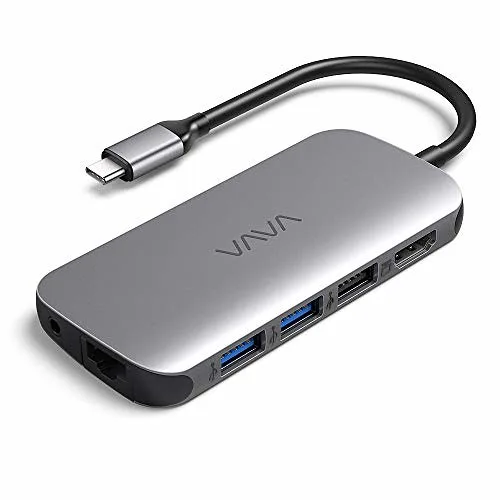
Image source: Openverse / shop8447
Here's the quick comparison:
| Adapter type | Typical wattage | Effect on a gaming laptop |
|---|---|---|
| Original barrel charger | 180 to 330 W | Full CPU and GPU power limits |
| USB-C PD 3.1 charger | up to 240 W | Fine for light loads, throttles under gaming |
| Phone or ultrabook charger | 45 to 65 W | Slow charge, heavy throttling, higher latency |
Watch for CPU and GPU Thermal Throttling
Heat is the second variable. Install the manufacturer's utility (Armoury Crate, Lenovo Vantage, MSI Center, Alienware Command Center) and watch CPU and GPU temperatures during a match. Anything sitting above 90°C on the CPU usually means throttling.
A throttled CPU processes network interrupts slower. That shows up as steady ping with sudden 100 ms bumps. If you spot a regular spike pattern, log temperature and ping side by side for ten minutes and compare.
Fix the Power Plan: High Performance Mode and USB Suspend
Windows ships with a Balanced plan that saves power aggressively. It's fine for browsing. It's terrible for a 200 ms reaction window.
Windows Power Options for Gaming Laptops
Open Control Panel, then Power Options, and switch to High Performance or Ultimate Performance. On many laptops the manufacturer's own profile matters more, so set the vendor utility to Performance or Turbo as well. Microsoft's documentation confirms these plans control processor minimum state and PCI Express link power management.
Two settings to change right away:
- Set Minimum processor state to 100% while plugged in.
- Set PCI Express Link State Power Management to Off.
USB Selective Suspend and Processor Power Management
USB selective suspend parks idle USB devices to save power. On some gaming laptops that includes the internal wireless card or a USB Ethernet dongle. The device wakes up mid-match and drops packets while it does.
Turn it off in Advanced power settings. Then check for an adapter dropping mid-match, which points at the same suspend behavior. Restart and run one match to confirm the change held.
Disable Power Saving on Your Wi-Fi and Ethernet Adapters
This is where most of the real fixes live. Adapter-level power saving overrides what Windows thinks it's doing.
Device Manager Network Adapter Settings
Open Device Manager, find your wireless adapter, and right-click Properties. Under the Power Management tab, uncheck "Allow the computer to turn off this device to save power."
Then hit Advanced and look for these:
- MIMO Power Save Mode: set to No SMPS.
- Roaming Aggressiveness: set to the lowest value.
- Transmit Power: set to the highest value.
- U-APSD support: disable it.
Ethernet adapters get the same treatment. Also check the Speed & Duplex setting, because a capped link speed creates its own mess on the wired side.
Wireless Band and Frequency Interference
The IEEE 802.11 power save mechanism lets a card nap between beacons. That's great for battery life and awful for latency. Plugging in doesn't always disable it, which is exactly why ping jumps when the charger goes in.
Move to the 5 GHz or 6 GHz band and step away from USB 3.0 ports. If the spikes persist, work through the wireless side of latency properly before you blame the charger.
Update Drivers, BIOS, and Block Background Downloads
Software comes last because it's the slowest to test and the easiest to blame. Still, it closes the loop.
Manufacturer Utility Software and Power Profiles
Vendor utilities often ship a quiet or battery saver profile that keeps running on AC power. Check the active profile after you plug in. Some models switch silently.
Update the network driver from the laptop maker's support page, not the chipset vendor's generic package. BIOS updates matter too, since power delivery negotiation happens at firmware level. Reboot after each change and test one match.
Windows Updates, VPNs, and Streaming Apps
Background traffic ruins more ping measurements than bad hardware does. Pause Steam, Epic, and Windows Update before you test anything.
Then audit the rest:
- Disable VPNs during testing.
- Close cloud sync clients and extra browser tabs.
- Watch Event Viewer for driver failures that keep returning.
Run one clean match with nothing else open. If ping stays flat while charging, you found your fix. If it still climbs, look at router and cable issues next.
Wired Ethernet vs. Plugged-In Wi-Fi for Competitive Gaming
If you play ranked shooters or fighting games, run a cable. Ethernet skips every power save state that trips up wireless cards, and the link stays flat at 1 Gbps or 2.5 Gbps.
Wi-Fi is still fine for single-player titles, MMOs, and casual co-op. You give up a little jitter and gain the freedom to sit anywhere.
| Connection | Typical ping | Best for |
|---|---|---|
| Ethernet, plugged in | 5 to 20 ms, stable | Ranked FPS, fighting games, tournaments |
| Wi-Fi 6E, 6 GHz, plugged in | 15 to 35 ms | Most multiplayer games |
| Wi-Fi 5, 5 GHz, plugged in | 20 to 45 ms | Co-op, MMOs, streaming |
| Wi-Fi on 2.4 GHz | 40 to 90 ms, spiky | Browsing only |
Ping Stability Across Connection Types
Wired latency barely moves. Wireless latency breathes, because the card negotiates airtime, retries lost frames, and shares the band with every device in the house.
That variance is what you feel as rubber-banding, even when the average ping looks fine.
When to Ditch Wireless for a Cable
Make the switch if any of this sounds familiar:
- Ping jumps the moment the charger goes in.
- Your card is a 1×1 or 2×2 model in a thin chassis.
- Your router sits in another room.
Cat 6 cable costs almost nothing and removes a whole layer of variables. Just check the link speed first, since a cable stuck negotiating 100 Mbps will quietly cost you. If the port keeps dropping the connection, that's a separate fix worth doing before a match.
Decision Guide: What to Try First and What to Avoid
Work top to bottom and stop when the ping settles. Every step below is reversible and takes under two minutes.
- Confirm the adapter wattage matches the laptop's rating.
- Set Windows to High Performance on AC power.
- Uncheck "Allow the computer to turn off this device" on both adapters.
- Turn off USB selective suspend and PCI Express link power management.
- Update the network driver from the laptop maker's support page.
- Plug in Ethernet and run one match.
If ping drops after step 3, you're done. If it only drops on Ethernet, the wireless card or its antenna is the limit. If nothing changes at all, suspect the router or your ISP route.
The Order of Operations for Fast Fixes
Change one thing, then test one full match. Stacking five tweaks at once tells you nothing about which one worked.
Log ping for ten minutes with a temperature monitor open. Flat ping plus 95°C CPU means heat, not the charger.
Signs Your Hardware May Need Repair
Stop tweaking software if you see these:
- The adapter brick gets hot enough to soften the cable.
- The barrel jack wobbles or needs a specific angle.
- Wi-Fi dies under load and returns after a reboot.
An adapter that cuts out under gaming load can brown out the board. That's a hardware job, not a settings job. Same goes for an adapter that keeps resetting itself, which points at a failing card rather than Windows.
Avoid the usual traps, too. Skip third-party "ping optimizer" utilities, don't force a higher wattage charger than the laptop is rated for, and never block the intake vents to squeeze out extra frames.
FAQs About Ping and Charging
Does plugging in a charger always raise ping?
No. Plenty of gaming laptops run identically on AC and battery. When ping does climb, it's almost always an aggressive power save setting or thermal throttling, not the charger itself.
Fixing the adapter's power profile usually resolves it.
Why does my ping spike only while charging on Wi-Fi?
Plugged-in mode raises CPU clocks and chassis heat, and some cards respond by dropping into a reduced radio state. The result is short spikes every few seconds. Disabling adapter power saving in Device Manager is the fastest test.
Should I use a higher wattage charger than the one that came with my laptop?
No. Match the rated wattage on the spec sheet and don't exceed it. A higher output brick doesn't add performance, and an off-brand one risks unstable voltage delivery.
If your laptop needs 240 W, buy a genuine 240 W unit.
Can gaming on battery lower my ping?
Occasionally, because battery mode caps CPU boost and the extra heat disappears. That comes at the cost of much lower frame rates and shorter battery life. Fix the AC power profile instead of gaming unplugged.
Is it safe to stay plugged in for long sessions?
Yes. Modern gaming laptops stop charging at full and run from the adapter. Keep the vents clear and the surface hard so heat can escape, since a hot chassis is what pushes both throttling and wireless instability.
2 thoughts on “Fix High Ping on Gaming Laptop When Charger Connected”
Comments are closed.