How to Fix Wi-Fi Connected But No Internet on a Gaming Laptop is a common search for players who see full bars but can't load a game. The issue usually stems from a mismatch between the wireless link and the actual data path. You might be connected to the router yet blocked by a setting on the laptop or the network.
Modern gaming laptops often ship with Wi‑Fi 6 (802.11ax) adapters that support up to 9.6 Gbit/s, but even those can fail to obtain an IP address. As of 2026, most ISPs provide gigabit service, so a stable connection should deliver low latency. If the laptop shows a connected status yet no internet, the problem is likely local.
How to Fix Wi-Fi Connected But No Internet on a Gaming Laptop
Verify that your router is online and has internet access. Power cycle the modem and router, then check for ISP outages. Update the network adapter driver and disable any gaming software that may block traffic.
Forget the Wi‑Fi network and reconnect.
Start Here: Check the Router, Modem, and ISP First
Before diving into laptop settings, confirm the problem isn't on the network side. Look at the router lights; a solid internet indicator usually means the WAN link is up. If the light is off or amber, the modem may have lost its signal.
Power cycle both devices. Unplug the modem, wait 30 seconds, then plug it back in. Allow the router to boot fully, then check if the internet returns.
This simple step resolves many “connected but no internet” cases.
Contact your ISP if the lights stay abnormal. Some providers offer a status page that shows regional outages. You can also run a speed test from a phone tethered to the same modem; if the phone works, the issue is on the laptop.
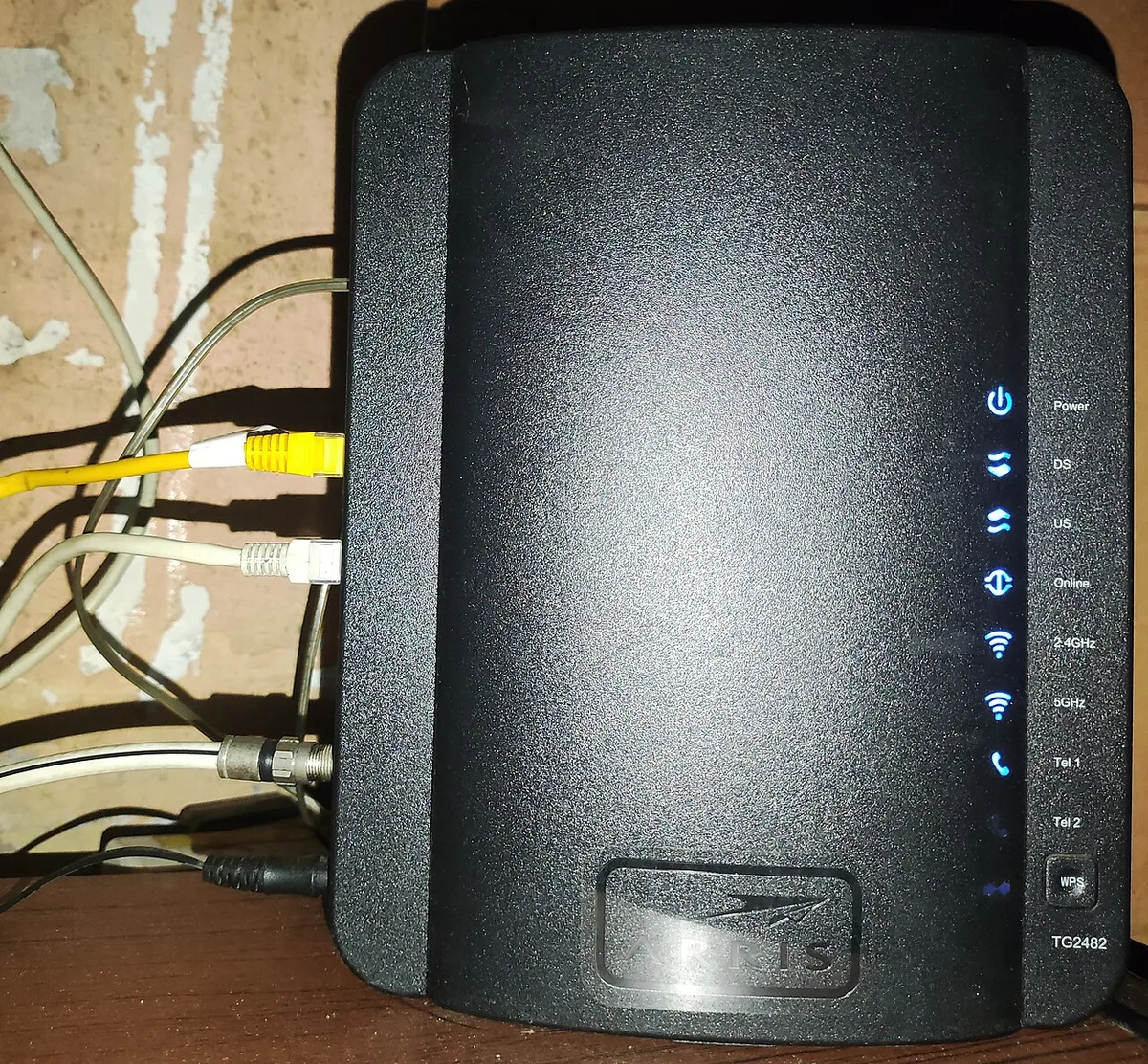
Image source: Wikimedia Commons / Pancho507 (CC BY)
If the router is fine, move to the laptop. Sometimes a faulty network driver or a misconfigured adapter is the culprit. For related driver problems, see our guide on NVIDIA driver compatibility.
Fix It on the Laptop: A Step-by-Step Decision Tree for No-Internet Wi-Fi
Once the network side checks out, focus on the laptop. Follow these branches in order; stop when the connection returns.
Check airplane mode and adapter status
Open the action center and ensure airplane mode is off. In Device Manager, verify the wireless adapter is enabled and not disabled by power management.Update, roll back, or reinstall the network driver
Right‑click the adapter, choose “Update driver,” and let Windows search. If the issue started after a recent update, select “Roll back driver.” If both fail, uninstall and restart; Windows will reinstall a generic driver.
Image source: Wikimedia Commons / Nikitarama (CC BY-SA)
Flush DNS and renew IP
Open a command prompt as administrator and runipconfig /flushdnsfollowed byipconfig /releaseandipconfig /renew. This clears stale entries and requests a fresh address.Disable gaming software and VPNs
Applications like Armoury Crate or Nahimic can override network settings. Close them and test the connection. VPNs sometimes block DNS; disconnect temporarily to see if that fixes it.Forget and reconnect to the Wi‑Fi network
In Wi‑Fi settings, select the network, choose “Forget,” then reconnect and re‑enter the password. This forces a clean handshake.Set a static IP or change DNS
If DHCP fails, assign a static IP that matches the router’s subnet (e.g., 192.168.1.50). Alternatively, switch DNS to Cloudflare (1.1.1.1) or Google (8.8.8.8).
| Step | Action | When to use |
|---|---|---|
| 1 | Verify airplane mode | Always first |
| 2 | Update driver | After recent update |
| 3 | Flush DNS | Intermittent connectivity |
| 4 | Disable gaming software | After installing new suite |
| 5 | Forget network | Persistent connection issues |
| 6 | Static IP / DNS | DHCP fails |
If none of these restore internet, the adapter may be faulty. For further driver issues, see our article on GPU driver crashing.
Mistakes That Make the Problem Worse
Skipping the router check is the most common error. Many users spend hours on the laptop while the modem is offline. Another mistake is updating the driver without first rolling back; a newer driver can introduce new bugs.
Leaving power‑saving settings enabled can cause the adapter to sleep. In Device Manager, disable “Allow the computer to turn off this device to save power.” Also, forgetting to reboot after each change prevents many fixes from taking effect.
Running multiple network utilities at once can conflict. Close all third‑party network tools before troubleshooting. Finally, ignoring ISP maintenance windows can lead to unnecessary laptop work; always verify service status first.
Final Decision: Repair, Replace Hardware, or Escalate to Your ISP
If the steps above fail, decide whether to repair or replace. A software fix is cheap and quick; a hardware failure may need a new Wi‑Fi card or a USB adapter. Check the laptop’s warranty before opening it.
Escalate to your ISP if the router lights are abnormal or if other devices also lose internet. Provide them with the results of your tests; they can run diagnostics from their end.
For persistent issues, consider a wired Ethernet connection as a temporary workaround. It eliminates Wi‑Fi variables and is often more stable for competitive gaming. If you need help with related problems, explore our guide on fixing game crashes to desktop.
Frequently Asked Questions
Why does my laptop say connected but show no internet only sometimes?
Intermittent drops usually trace back to power management or band steering. Windows can park the adapter between matches, and a router that shifts you between 2.4 GHz and 5 GHz may hand you a stale lease. Untick the power-saving box in Device Manager, then pin the laptop to one band.
If the drop lines up with heavy load or wake-from-sleep, our guide on random shutdowns under load covers the power side of the same problem.
Can a VPN or gaming suite really block internet access?
Yes. A crashed VPN client can leave a virtual adapter holding your default route, so traffic goes nowhere. Suites like Armoury Crate, Nahimic, and Killer Control Center also rewrite network priority.
Close them fully, then check Task Manager for leftover background processes before you reboot.
Is a USB Wi-Fi adapter worth trying before I blame the router?
It's the fastest way to isolate a dying internal card. Plug the adapter in, join the same network, and test. If the internet comes back, the built-in module or its antenna leads are at fault, not your router or ISP.
Should I test on 2.4 GHz or 5 GHz?
Start on 5 GHz when you're close to the router, since it carries far more throughput for gaming. Drop to 2.4 GHz when you're testing range, because it pushes through walls better. Running both tells you whether congestion or distance is behind the dropout.
When should I stop troubleshooting and call my ISP?
Call once two separate devices fail on the same network. Check the modem's status lights first and note the pattern. If the internet light is red or dark, the fault sits upstream and no laptop change will fix it.
4 thoughts on “Quick Fix: Wi-Fi Connected But No Internet on Gaming Laptop”
Comments are closed.