A new SSD should make your gaming laptop faster, not stop it from starting. How to Fix New SSD Causes Boot Failure on a Gaming Laptop starts with checking whether the drive even appears in BIOS. Most users can resolve it without professional help.
The fix usually comes down to settings or connections.
Manufacturer specifications indicate that many gaming laptops ship with M.2 slots limited to specific SSD types, such as NVMe drives in a 2280 form factor. As of 2026, an incorrect SATA mode or missing TPM setting can block Windows from loading entirely. The next section breaks down exactly what is happening when your laptop refuses to boot after an SSD upgrade.
Problem / Pain Point
A no bootable device error means the system cannot find an operating system on the drive. A boot loop means Windows starts loading but crashes before reaching the desktop. If the drive does not appear in BIOS at all, the issue is likely physical or compatibility related.
These three symptoms point to different fixes.
If the SSD shows up in BIOS, you likely have a configuration problem. If it does not show up, check the connection or slot first. These branches determine whether you change a setting or reseat the hardware.
Common scenarios include installing an NVMe drive in a SATA-only slot, leaving RAID mode enabled, or forgetting to enable TPM 2.0. Each produces a slightly different failure screen. Recognizing the symptom saves you from reinstalling Windows unnecessarily.
Gaming laptops often share M.2 bandwidth with other components. Some models disable an M.2 slot when a SATA drive is installed. Others limit NVMe support to the primary slot only.
Knowing your specific model matters before you buy or install anything.
If your new component does not appear at all, the diagnostic path matches what you would follow for new hardware not showing up after an upgrade.
How to Fix New SSD Causes Boot Failure on a Gaming Laptop
Check the BIOS first. Confirm the SSD appears in the storage list. Switch SATA mode from RAID to AHCI.
Reinstall Windows using UEFI mode. Update the laptop firmware if needed.
Step-by-Step Process / How to Guide
Start by restarting the laptop and pressing F2 or Del to enter BIOS. Look for the SSD under storage or boot options. If it is listed, proceed to settings.
If not, power down and reseat the drive.
Check the M.2 slot compatibility. Some gaming laptops share bandwidth between the SSD slot and the GPU or Wi-Fi card. Try a different M.2 slot if your model has more than one.
Adjust the BIOS settings. Switch SATA mode from RAID to AHCI. Enable NVMe support if available.
Turn on TPM 2.0. Set the SSD as the first boot device.
Save and exit. If Windows still will not load, boot from a USB installer. Wipe the drive and install Windows in UEFI mode using GPT partitioning.
Then check for BIOS and firmware updates from the laptop manufacturer.

Image source: Wikimedia Commons / R. Henrik Nilsson (CC BY)
| Setting | Recommended Value | Why It Matters |
|---|---|---|
| SATA Mode | AHCI | Allows the OS to communicate with the SSD |
| Boot Mode | UEFI | Required for modern GPT drives |
| TPM | Enabled | Needed for Windows 11 and secure boot |
| Boot Order | SSD first | Ensures the laptop starts from the new drive |
If you have dealt with memory-related boot loops after an upgrade, the same careful BIOS review applies. The process resembles memory configuration checks after any internal change.
Mistakes to Avoid / Common Errors
Installing an NVMe SSD into a SATA-only M.2 slot is a frequent mistake. The physical connector looks similar, but the interface will not initialize. Check your laptop manual before buying.
Skipping a data backup before reinstalling Windows risks permanent loss. Even if the drive appears empty, assume nothing is safe until you copy important files elsewhere.
Installing Windows in legacy BIOS mode instead of UEFI can prevent the drive from booting. Modern gaming laptops use UEFI and GPT by default. Mixing modes creates a boot failure loop.
Using MBR partitioning instead of GPT on a UEFI system will also block booting. The installer needs the correct partition table for the firmware mode.
Touching the SSD contacts without static protection can damage the drive. Ground yourself before handling internal components.
Assuming the SSD is dead too soon leads to unnecessary returns. Most boot failures come from settings, not defective hardware. If you are verifying drive detection issues after an upgrade, the same isolation method applies.
Core Explanation / How It Works
NVMe and SATA SSDs use different protocols to communicate with the motherboard. NVMe offers faster speeds but requires a compatible M.2 slot and enabled support in BIOS. SATA drives work on older interfaces but cap out at lower transfer rates.
UEFI has replaced legacy BIOS on most gaming laptops. It requires GPT partitioning for drives larger than 2 terabytes and supports secure boot features. Installing Windows in the wrong mode prevents the system from recognizing the boot partition.
TPM 2.0 and Secure Boot add security layers that modern Windows versions expect. If these settings are disabled or unsupported, the installer may refuse to proceed. Manufacturer documentation confirms these requirements for current gaming models.
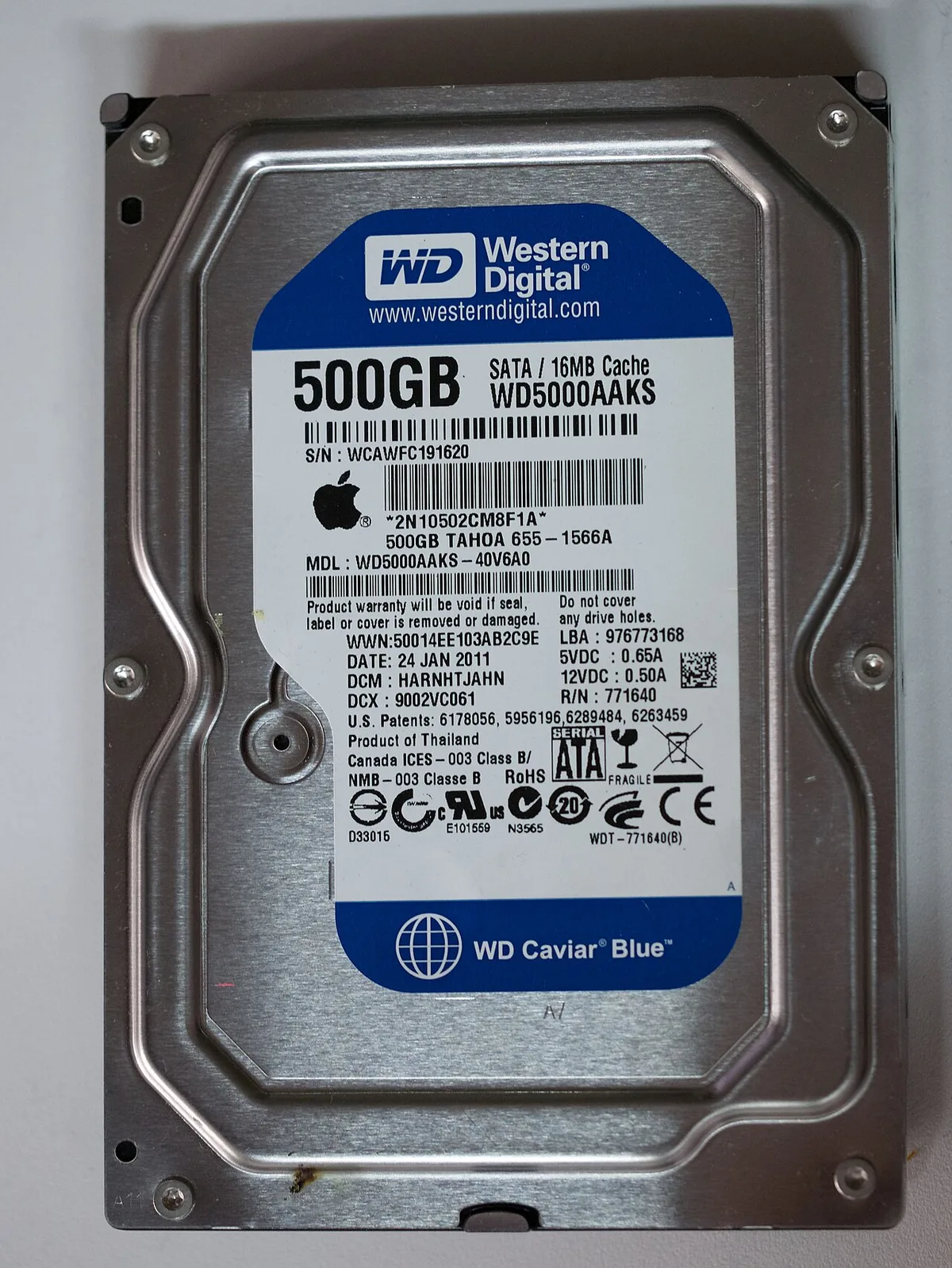
Image source: Wikimedia Commons / Adryan R. Villanueva (CC BY-SA)
Treat SSD troubleshooting as routine upkeep rather than a sign of major failure. Microsoft provides official guidance on UEFI and GPT requirements for Windows installations.
Use Cases / Best For / Who It's Right For
Image source: Wikimedia Commons / Falcon Northwest (CC BY-SA)
This troubleshooting flow fits a few common situations, and knowing yours narrows the fix fast.
Gamers adding a second drive hit slot issues most often. Many gaming laptops ship with one fast NVMe plus an empty slot meant for extra storage. If you drop a SATA drive there, that slot may stay dormant.
People cloning an old drive run into partition problems. Cloning copies the source layout exactly. If the old drive used MBR, the clone will not boot on a UEFI system.
A clean install fixes it.
First-time upgraders struggle with BIOS settings more than hardware. The physical install is easy. It's the AHCI, UEFI, and boot order toggles that trip people up.
Dual-slot owners should check bandwidth sharing. On some models, populating the second M.2 slot disables the first or throttles it. If a new module fails to register after a memory swap, the same isolation logic applies.
Whatever your situation, always back up first. Our research shows most "dead drive" scares turn out to be a settings or connection issue, not a warranty claim.
Final Recommendation / Verdict / Decision Guide
Follow the symptom, not your gut. Each failure mode has one clear path.
If the SSD shows in BIOS: fix the settings first. Set SATA mode to AHCI. Switch boot mode to UEFI.
Put the SSD at the top of the boot order. Enable TPM 2.0 if Windows 11 is the target.
If the SSD does not show in BIOS: treat it as physical. Power down, reseat the drive, and try the other M.2 slot. Confirm your drive matches the slot type before anything else.
If a cloned drive won't boot: the partition style is the culprit. Reinstall Windows clean in UEFI mode with a GPT disk. That resolves most clone-based boot loops.
If none of that works: test the SSD in another computer. If it stays invisible there too, the drive is likely dead. RMA it under warranty.
For official requirements, the UEFI specifications from the UEFI Forum explain firmware behavior, and Microsoft's documentation covers Windows install prerequisites.
Frequently Asked Questions
Why does my laptop show no bootable device after installing a new SSD?
The firmware cannot find a valid boot partition. Usually the drive is blank and needs Windows installed, or the boot order ignores it. Check BIOS to confirm the SSD is detected.
Then install or repair Windows using UEFI mode with GPT.
Can a new SSD actually cause a boot loop?
Yes, but the drive rarely causes it directly. A boot loop usually means the wrong SATA mode, a bad clone, or an MBR partition on a UEFI system. Switching to AHCI and reinstalling cleanly typically stops it.
Should SATA mode be AHCI or RAID for an SSD?
Set it to AHCI for a single SSD. RAID is meant for multi-drive arrays and can hide a single drive from the installer. If you enable RAID after Windows is installed, the system may refuse to boot until you switch back.
How do I tell if my SSD is NVMe or SATA?
Check the drive label or the box. NVMe drives are usually faster and list PCIe speeds, while SATA drives cap near 560 MB/s. You can also confirm the type in your laptop's manual, since some slots only accept one interface.
Do I need to reinstall Windows on a brand new SSD?
Yes, a new SSD has no operating system on it. A clone only works if you copied an existing drive. For a fresh install, boot from a USB installer and load Windows in UEFI mode using GPT partitioning.
Why won't my laptop detect the new SSD at all?
The connection, slot compatibility, or the drive itself is the problem. Reseat the M.2 drive firmly, try another slot, and confirm NVMe versus SATA matches your system. If it stays hidden everywhere, the drive may be dead on arrival.