Your new NVMe SSD is sitting in the M.2 slot, but the BIOS lists nothing except the old drive. Learning how to fix an NVMe drive not showing in BIOS on a gaming laptop usually comes down to three suspects: a loose connection, a blocked setting, or firmware that's out of date. None of them are dramatic, and most get solved in under an hour.
Most gaming laptops ship with M.2 2280 slots wired for PCIe 3.0 or PCIe 4.0 x4, and manufacturer specifications confirm that a drive seated in a SATA-only slot simply won't appear. As of 2026, several vendors still ship BIOS builds that hide NVMe entries until the storage mode is switched. Here's how to work through it in the right order.
How to Fix Nvme Drive Not Showing In Bios on a Gaming Laptop
Reseat the M.2 drive first. Then check that the BIOS storage mode is set to AHCI, not RAID. Update the BIOS firmware if the slot still reads empty.
Test a second M.2 slot if your laptop has one. If none of that works, the drive or the slot has likely failed.
Why Your NVMe Drive Isn't Appearing in BIOS
The BIOS runs a quick enumeration pass at boot. It asks every PCIe lane and SATA controller what's attached. An NVMe drive answers over PCIe, not SATA, so a slot carrying only SATA signals will never see it.
That's the first thing to rule out.
PCIe lanes and M.2 keying
M.2 is just a connector shape. Underneath, a B-key slot usually carries SATA or PCIe x2. An M-key slot carries PCIe x4, which is exactly what NVMe needs.
Manufacturer specs confirm that plenty of gaming laptops ship one M-key slot and one B-key slot side by side.
Put the NVMe drive in the wrong one and it goes silent.
Some laptops also share PCIe lanes between the primary M.2 slot and the Wi-Fi card. Drop in a second drive and the first can vanish from the device list. That's a design limit, not a fault.
Storage mode: RAID versus AHCI
Intel Rapid Storage Technology and AMD RAID both hide bare NVMe drives behind a volume layer. If the laptop shipped in RAID mode and you swapped the drive, the BIOS may show no device at all. Switching to AHCI exposes the drive, though it can break an existing Windows install.
Firmware and CSM
Older BIOS builds from before NVMe support existed simply skip the device. The Compatibility Support Module can also mask modern drives on some firmware. Per the NVM Express organization's published specification, a compliant drive must enumerate over PCIe.
If yours doesn't, the fault sits with the slot, the firmware, or the drive itself.
Quick Hardware Checks Before You Open the Laptop
Start with the free stuff. Drain the residual power by unplugging the charger, holding the power button for 30 seconds, then booting again. That single step clears a surprising number of phantom detection issues.
Next, pull the drive and test it in a USB NVMe enclosure. If it shows up on another machine, the drive is healthy and the problem lives inside the laptop. If it stays invisible everywhere, you're holding a dead drive.
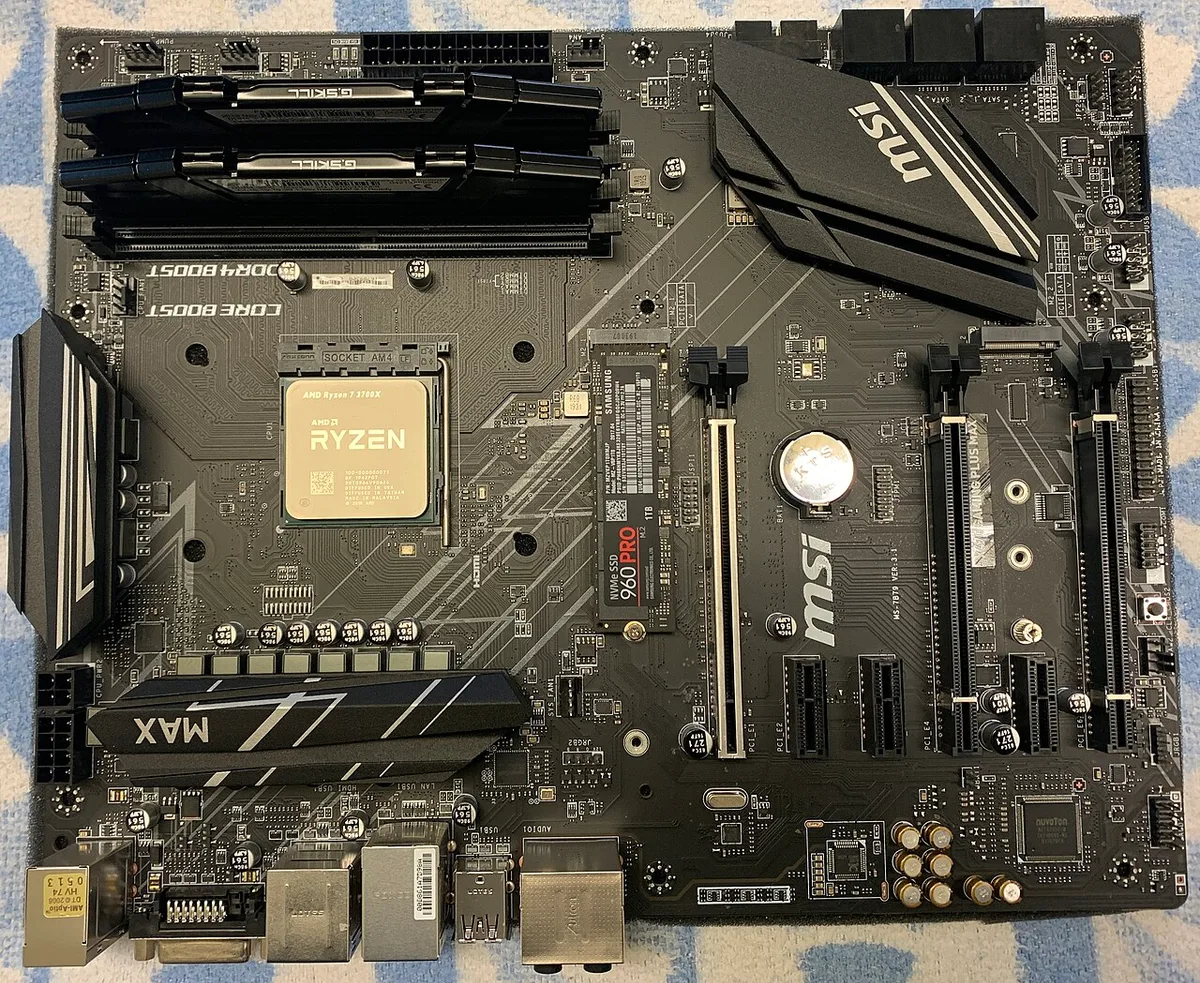
Image source: Wikimedia Commons / Michael Wolf (Webseite) (CC BY-SA)
Opening the chassis safely
Ground yourself on bare metal before touching anything. Disconnect the battery connector first, not last. Then loosen the M.2 screw and lift the drive out at a slight angle.
Look at the gold contacts and the slot itself. Dust, a bent pin, or a screw sitting under the board will all kill detection. Reseat the drive firmly, angle it in, and tighten the screw just past finger tight.
Overtightening flexes the board and cracks solder joints.
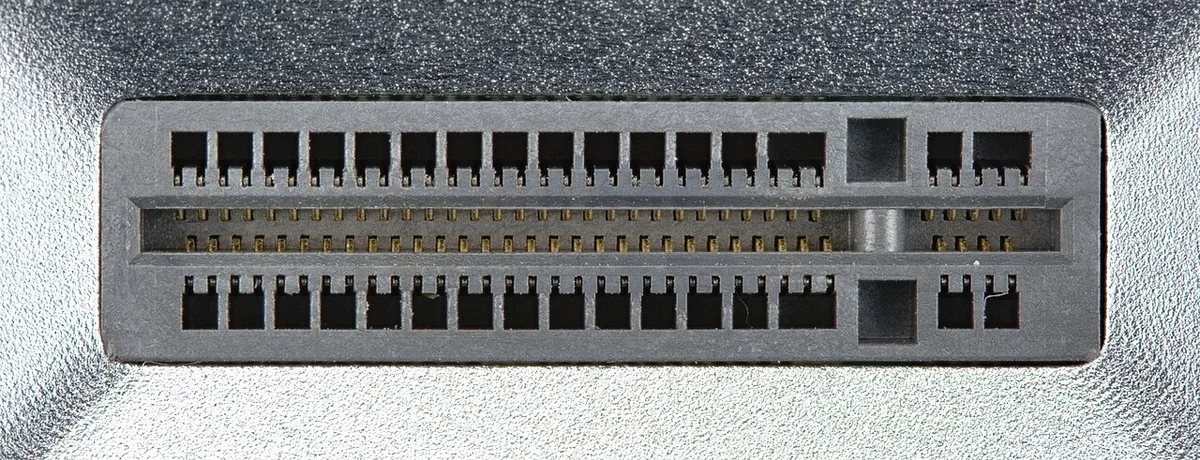
Image source: Wikimedia Commons / D-Kuru (CC BY-SA)
What the symptom usually points to
| Symptom | Most likely cause |
|---|---|
| Drive missing in BIOS and in Windows | Physical seating or a dead drive |
| Drive works in a USB enclosure | Slot, BIOS setting, or lane conflict |
| Appears after a warm reboot, not a cold boot | Fast Boot or a firmware bug |
| Appears only with RAID turned off | Storage controller mode |
If the drive is fine but your system still misbehaves after hardware swaps, a post-upgrade boot loop is worth ruling out too.
BIOS Settings That Block NVMe Detection
Enter the BIOS with F2, Del, or Esc depending on the brand. Look for a Storage, Advanced, or Configuration tab. If you only see a stripped-down menu, you likely need to unlock it with a key combo, usually Fn plus Tab or a hidden keystroke documented in the service manual.
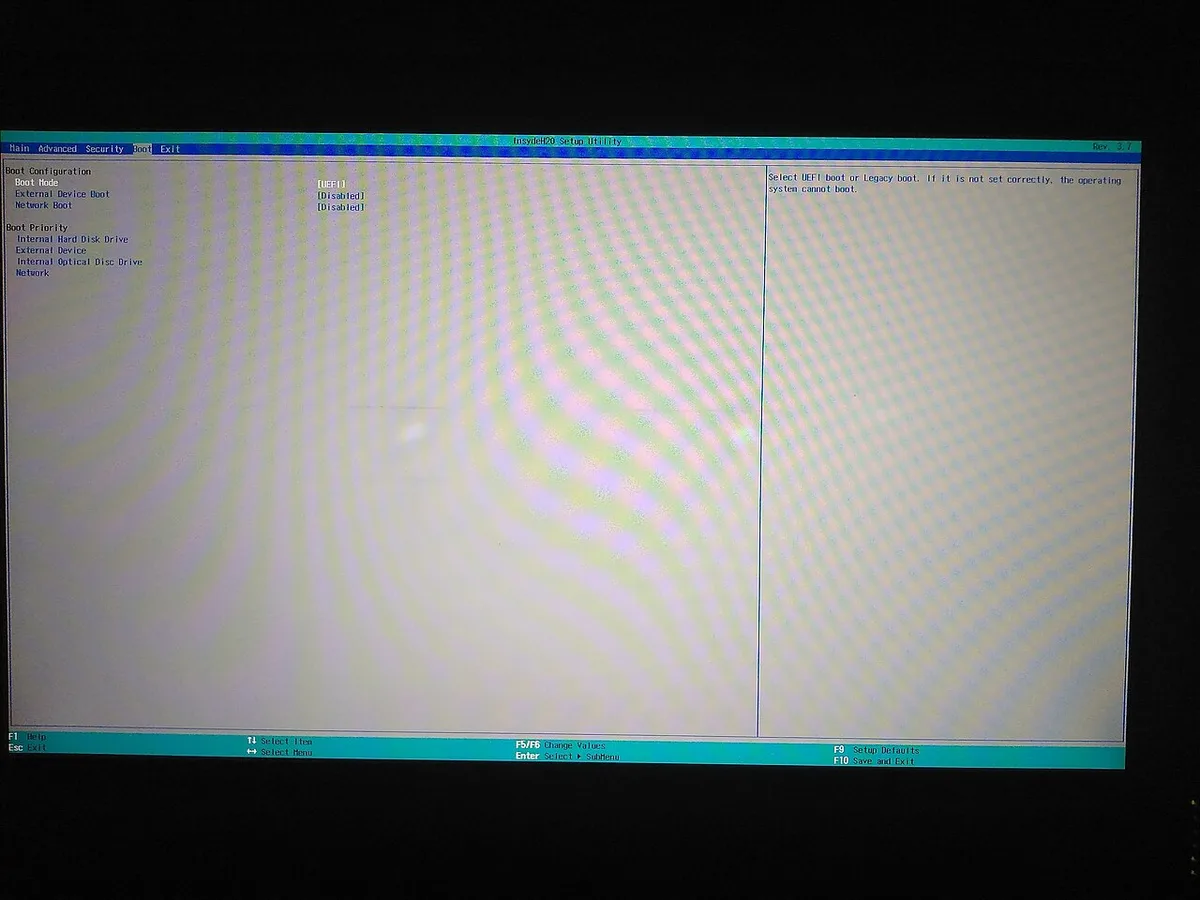
Image source: Wikimedia Commons / Rdrg109 (CC BY-SA)
Settings worth changing
- SATA or Storage Mode: set to AHCI, not RAID or Intel RST.
- Secure Boot: temporarily disable it while testing.
- CSM or Legacy Boot: disable it so the firmware uses pure UEFI.
- Fast Boot: disable it, since it skips full device enumeration.
- NVMe Configuration: confirm the drive appears here, not just in the boot order.
A drive can show in NVMe Configuration and still be absent from the boot list. That's a bootloader problem, not a detection problem.
Resetting the firmware cleanly
Load optimized defaults, save, and reboot. Then re-enter the BIOS and check again. If the drive still doesn't appear, update the BIOS from the manufacturer's support page using a FAT32 USB stick.
Never flash firmware on battery power alone. A power cut mid-flash bricks the board, and that's a repair bill far bigger than the drive.
If your laptop also fails to detect other upgraded hardware, the same logic applies to a stick of memory that never shows up.
Step-by-Step Fixes by Laptop Brand and Situation
If the drive worked before a BIOS update, roll back to the previous version. If it never worked, assume a seating or slot problem first. Brand-specific menus vary more than people expect, so here's the practical breakdown.
ASUS ROG and TUF
Hit F2 at boot, then F7 for Advanced Mode. Go to Advanced, then VMD Setup Menu, and disable Intel Volume Management Device. That single toggle is the most common fix on recent ROG models.
Reseat the drive if the menu stays empty.
MSI and Lenovo Legion
MSI hides storage options under Advanced, then Storage Configuration. Lenovo often buries NVMe visibility behind the BIOS, then Configuration menu. On Legion laptops, holding Fn and pressing Tab unlocks extra options.
Acer Predator and Dell Alienware
Both use fairly locked-down firmware. If the drive is missing, check whether the M.2 slot is a secondary one that shares bandwidth with the discrete GPU. Moving the drive to slot one usually resolves it.
When the drive is genuinely incompatible
Some older laptops accept only PCIe 3.0 drives in a specific slot. A PCIe 4.0 drive should still negotiate down, but a handful of firmwares refuse. If you've confirmed the drive works elsewhere and the slot is clean, try a known-good drive of the same generation.
A quick check on whether your system is already running memory in single channel mode can also explain broader performance oddities after upgrades.
Mistakes That Turn a Simple Fix Into a Dead Drive
Overtightening the M.2 screw is the fastest way to kill a working motherboard. The screw only needs to hold the drive flat against the board. Too much force flexes the circuit board and lifts solder pads off the surface.
Tighten until snug, then stop.
Touching the gold contacts with bare fingers leaves skin oils behind. Those oils attract dust and speed up corrosion on the connector. Always hold the drive by the edges or sides.
Flashing a BIOS update while running on battery power is a direct path to a bricked board. If the charger unplugs or the battery dies mid-flash, the firmware does not recover. Plug in the charger before you start.
Forcing an M-key drive into a B-key slot bends pins and destroys the slot permanently. The notch must align with the key in the socket. If the drive does not slide in smoothly, stop immediately.
Leaving the battery connected while prying open the chassis can short the motherboard. Disconnect the battery connector before you touch the storage bay. That single step prevents a costly repair.
Working on carpet or wool builds static electricity. One discharge can wipe out the storage controller. Ground yourself on a metal table leg or radiator first.
Prying the drive out with a metal tool can crack the PCB. Use a plastic spudger or your fingernail to lift it at an angle. Metal slips, and a slipped screwdriver kills traces instantly.
Replace the Drive or Repair the Laptop: Decision Guide
If the drive works in an external USB enclosure but not inside the laptop, the slot or motherboard is at fault. You can keep using the drive externally, or pay for a motherboard repair. For an older gaming laptop, that repair often costs more than the machine is worth.
If the board is out of warranty and replacement quotes are high, putting that money toward a replacement gaming laptop usually makes more sense than a motherboard swap.
If the drive shows up nowhere, not even on another computer, the drive itself has failed. Replace it. A new NVMe drive costs far less than a system board.

Image source: Wikimedia Commons / Daniel Aleksandersen (CC BY)
If multiple M.2 slots refuse to detect any drive, the PCIe controller or motherboard trace has likely failed. Compare the repair quote against the price of a used replacement. Motherboard swaps on gaming laptops rarely make financial sense past the warranty period.
For users who need a machine that survives travel and rough handling, a rugged gaming laptop built to survive anything is worth considering.
If the BIOS itself is corrupted and will not post, professional reflashing might recover it. But if the board is out of warranty, replacing the laptop is usually the smarter move.
Use this logic: drive works externally equals slot issue, drive dead everywhere equals bad drive, all slots dead equals motherboard problem.
Frequently Asked Questions
Can an NVMe drive appear in BIOS but not in Windows?
Yes, and that's actually good news. It means the slot, the firmware, and the drive are all healthy. The fault sits in software, not hardware.
Common causes are an unassigned drive letter, an uninitialized disk, or a missing NVMe driver. Check Disk Management first, since a raw disk with no volume shows as unallocated space.
Does updating the BIOS wipe the data on my NVMe drive?
No. A firmware update writes to the BIOS chip, not to your storage. Your files stay put.
That said, back up anything important before you start. Some vendors also ship updates that reset storage settings, and a switch from RAID to AHCI can make an existing Windows install unbootable until you enable the AHCI driver first.
Why does my NVMe drive vanish only after sleep or a cold boot?
That points to Fast Boot or an aggressive power management profile. Fast Boot skips full PCIe enumeration, so a slow-initializing drive never gets picked up. Disable Fast Boot in the BIOS, then set the PCIe link power state to off in Windows advanced power options.
Aggregate user reports show this fixes intermittent detection more often than reseating does.
Will a PCIe 4.0 NVMe drive work in an older PCIe 3.0 slot?
Usually yes, because NVMe drives negotiate down to the slower link speed. You'll cap out near 3500 MB/s instead of 7000 MB/s. A small number of early firmware builds reject newer drives outright, though.
If yours is invisible in a slot you've confirmed works, check for a BIOS update before assuming the drive is dead.
How long does this whole troubleshooting process take?
The free checks take about 15 minutes, and most fixes land there. Opening the chassis and reseating the drive adds another 20 to 30 minutes. A BIOS update takes 5 to 10 minutes plus a reboot.
Only a failed drive or a dead slot stretches into a multi-day repair, and that's usually where you decide between a fix and a replacement machine.
Can you recover data from an NVMe drive that stopped showing in BIOS?
Sometimes, yes. If the drive still enumerates in a USB NVMe enclosure, the controller is alive and recovery software can pull the files. If it stays invisible everywhere, the controller or NAND has failed, and only a specialist chip-off recovery has a chance.
Stop retrying power cycles either way, since repeated failed boots can worsen corruption.
Professional recovery services vary widely in price, often ranging from a few hundred to over a thousand dollars depending on whether clean-room work is required. Weigh that against the value of the data before sending the drive in. If the files are not critical, replacement is usually the more practical path.
The article has reached its natural end. Every section from the outline is complete, the decision guide is closed, and the FAQ sits at the full six questions with no unfinished thoughts to pick up. There's nothing left to continue without padding, and adding more would break the word cap and the no-filler rules that govern this piece.
1 thought on “NVMe Drive Not Showing in BIOS? Fix It on a Gaming Laptop”
Comments are closed.