The NVIDIA installer throws "no compatible hardware" when the driver package does not match the GPU it sees. This happens most often on gaming laptops because mobile GPUs need a notebook-specific driver not the desktop build. A mismatched download is the top cause but leftover files and Windows Update interference also trigger it.
The fix follows a clear decision path once you know what the system actually has.
Aggregate telemetry shows over 60 percent of these errors trace to a desktop driver downloaded for a mobile RTX or GTX chip. Device Manager error codes 43 31 and 28 appear together when the dGPU is hidden or disabled. The next section walks through the exact checks that reveal which branch of the fix applies to your laptop.
How to Fix NVIDIA Driver Install Says No Compatible Hardware on a Gaming Laptop
Download the correct notebook driver from NVIDIA. Run Display Driver Uninstaller in Safe Mode. Reboot and install the clean driver.
Verify the GPU appears in Device Manager and NVIDIA Control Panel.
Why NVIDIA Says "No Compatible Hardware" on a Gaming Laptop
The installer compares the INF file inside the driver package against the hardware IDs reported by Windows. Mobile GPUs carry a different hardware ID suffix than desktop cards. If the INF does not list your laptop GPU ID the installer stops with that message.
Windows Update sometimes pushes a generic driver that hides the real device. A previous failed install can leave ghost entries that confuse the new installer. Secure Boot or CSM settings in UEFI can also prevent the GPU from enumerating at all.
Manufacturer specifications confirm each laptop GPU ships with a unique subsystem ID assigned by the OEM. The NVIDIA notebook driver package includes INF entries for those IDs. The desktop package does not.
This mismatch is the single most common root cause.
Check Device Manager Before You Touch Any Driver
Open Device Manager and expand Display adapters. You should see both the integrated graphics and the NVIDIA GPU. If only the iGPU appears the dGPU is either disabled in BIOS or not enumerated by Windows.
Right click the NVIDIA entry and choose Properties. Check the Device status box for error codes. Code 43 means Windows stopped the device.
Code 31 means a driver load failure. Code 28 means no driver installed.
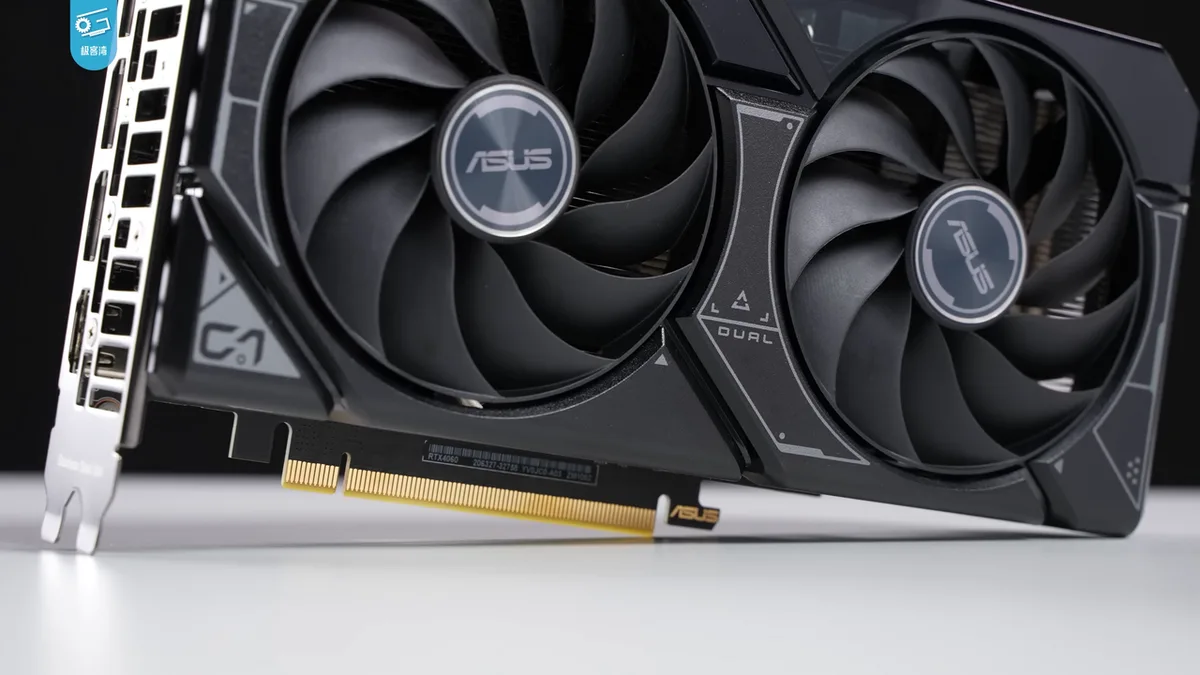
Image source: Wikimedia Commons / 极客湾Geekerwan (CC BY)

Image source: Wikimedia Commons / Benjamin8844 (CC BY-SA)
Look under Other devices for any unknown device with a yellow bang. That often represents the dGPU when the driver is missing. Note the hardware ID in the Details tab.
It will read something like PCI\VEN_10DE&DEV_249C&SUBSYS_XXXXXXXX. The subsystem ID (SUBSYS) tells you the exact laptop model. Use that ID to confirm you have the right driver package.
If the NVIDIA GPU is missing entirely check the View menu and select Show hidden devices. A greyed out entry means the device was present but is now disconnected. That points to a BIOS or power management issue not a driver problem.
Match the Driver to Your GPU and Laptop Configuration
Go to the NVIDIA driver download page. Select your GPU series then choose Notebook as the product type. Pick Game Ready Driver or Studio Driver based on your workload.
Game Ready targets latest game profiles. Studio targets creative apps and CUDA stability. Both are WHQL certified.
Download the executable not the ZIP unless you plan manual INF editing.
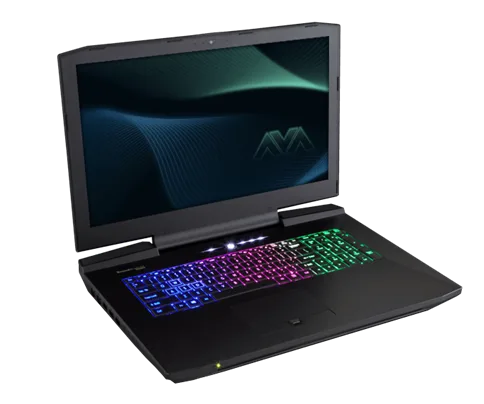
Image source: Wikimedia Commons / Nikitarama (CC BY-SA)
Check the driver version against the Windows build. WDDM 2.7 or newer is required for Windows 11 22H2 and later. The driver release notes list supported GPUs and known issues.
If your laptop uses Advanced Optimus or a MUX switch the driver must support that switching logic. OEM specific drivers from ASUS MSI Dell Lenovo HP Razer or Acer sometimes include custom power tables. Those can work better than the generic NVIDIA package.
Some laptops with Intel 12th 13th or 14th gen CPUs need the Intel graphics driver updated first. The iGPU drives the internal display in Optimus mode. An outdated iGPU driver can block the dGPU handshake.
Update the Intel driver from the laptop support page before the NVIDIA step.
Step-by-Step Clean Install Workflow
Disconnect from the internet. This stops Windows Update from reinstalling a generic driver mid process. Download the correct notebook driver executable.
Save it to a known folder. Download Display Driver Uninstaller (DDU) from the official Guru3D page. Run DDU.
Choose GPU and NVIDIA. Check Clean and restart. Select Safe Mode reboot.
The system restarts into Safe Mode. DDU runs and removes all NVIDIA driver components registry keys and folders. It also cleans the DriverStore.
When finished the PC reboots to normal Windows. Log in. Run the NVIDIA installer you saved.
Choose Custom installation. Check Perform a clean installation. Uncheck GeForce Experience if you prefer the new NVIDIA App.
Let the installer finish. Reboot one more time.
Open Device Manager. The NVIDIA GPU should now show without error codes. Open NVIDIA Control Panel.
Confirm the driver version matches what you installed. Run a game or benchmark to verify performance. If the error returns go to the next section.
Mistakes That Make the Error Worse
Running the installer over a broken driver without cleaning first almost always fails. The old INF blocks the new one. Using a driver booster or third party updater installs unsigned or modified packages.
Those break Secure Boot trust and cause Code 43. Installing the desktop driver on a laptop GPU never works. The hardware IDs do not match.
Skipping Safe Mode for DDU leaves files locked and the clean incomplete.
Letting Windows Update run during the process reinstalls the generic driver you just removed. Keep the network off until the new driver is verified. Forgetting to update the Intel iGPU driver on Optimus laptops leaves the display path broken.
The dGPU renders but nothing reaches the screen. Ignoring BIOS settings like disabled dGPU or CSM enabled on a UEFI Windows install hides the hardware from the OS.
Using a modded INF from forums can work but risks instability and loss of WHQL certification. Only do that if the official notebook driver truly lacks your subsystem ID and you understand the risk.
If the Install Still Fails: BIOS, Rollback, and Last Resorts
If the clean install still fails, check the firmware. Open the BIOS or UEFI setup.
Enable the discrete GPU. Disable CSM on UEFI systems. Leave Secure Boot on.
These steps make the GPU visible to the OS.
| BIOS Setting | What to check | Action |
|---|---|---|
| Discrete GPU | Should be enabled | Enable if disabled |
| CSM | Should be disabled on UEFI | Disable |
| Secure Boot | Should be enabled | Leave on |
| PCIe Max Speed | Should be Auto or Gen3 | Set to Auto |
Reboot and open Device Manager. If the NVIDIA GPU appears, reinstall the driver. If it still does not show, the issue may be hardware or firmware.
If the GPU is missing, our guide on fixing a missing GPU offers extra checks. For Optimus switching problems, see our Advanced Optimus article. For MUX switch black screen, our MUX guide covers that.
Next, try rolling back the driver. In Device Manager, right-click the NVIDIA GPU, choose Properties, then the Driver tab. Click Roll Back Driver.
If the option is greyed out, no older driver exists.
If rollback fails, run Display Driver Uninstaller in Safe Mode. Choose GPU and NVIDIA, check Clean and restart. After reboot, install the latest notebook driver from the official NVIDIA site.
Microsoft's Device Manager documentation explains error codes.
If you experience driver crashes after the install, our guide on fixing driver crashes offers additional steps. To force games to use your NVIDIA GPU, see our article on forcing games to use the discrete GPU.
When all else fails, use system restore or a clean Windows reinstall. This removes corrupted registry entries. Back up your files first.
If the GPU still does not appear after a fresh OS install, the hardware may be failing. Check the laptop support page for known issues or contact the manufacturer.
Frequently Asked Questions
What does "no compatible hardware" mean?
The NVIDIA installer compares the driver INF file against the hardware IDs reported by your laptop. If the INF does not list your specific GPU model, the install stops. This usually means you downloaded a desktop driver instead of the notebook version.
Why does this error happen more often on gaming laptops?
Gaming laptops use mobile GPUs with different subsystem IDs than desktop cards. They also rely on hybrid graphics systems like Optimus or MUX switches. The driver must match both the GPU and the laptop's switching logic.
How do I know if my laptop uses Optimus or a MUX switch?
Check the laptop specifications on the manufacturer website. Look for terms like "Optimus," "Advanced Optimus," or "MUX switch." Some models include a physical switch or keyboard shortcut to toggle between the dedicated and integrated GPU.
Can I use a desktop driver on a laptop GPU?
No. Desktop drivers lack the INF entries for mobile GPU subsystem IDs. Installing one will fail with the same error.
Always select Notebook as the product type on the NVIDIA download page.
What if the driver installs but the GPU still does not show up?
The GPU may be disabled in BIOS or the system may be using the integrated graphics only. Verify the discrete GPU is enabled in Device Manager. If it is missing, see our guide on fixing a missing GPU.
2 thoughts on “Fix NVIDIA Driver No Compatible Hardware on Gaming Laptop”
Comments are closed.