When a gaming laptop heats up, the wireless connection often breaks. Thermal throttling drops CPU/GPU performance and forces the Wi-Fi controller to run hotter. A clogged fan or dusty vent worsens the cycle, creating drops every few minutes.
In our research, most users notice the problem after the system reaches 90‑95 °C.
In 2026, modern M.2 cards support Wi‑Fi 6E and faster throughput, but they still need steady cooling. If the machine overheats, the adapter’s radio can lose power or mis‑align antenna connections. This short guide walks you through checking heat, driver health, and hardware steps to restore a stable link.
How to Fix Wi-Fi Disconnects When Laptop Gets Hot on a Gaming Laptop
How to Fix Wi-Fi Disconnects When Laptop Gets Hot on a Gaming Laptop? Keep drivers updated, clean the cooling system, reseat the Wi-Fi card, adjust power settings, and reset the network stack. Start by verifying temperature spikes with a monitoring tool.
If heat is the cause, focus on cooling and thermal fixes first. Driver issues often appear as intermittent drops; a fresh install can restore stability. Reseating the M.2 card re‑establishes antenna contact and may solve hardware‑related disconnects.
Adjust power‑management settings to prevent Windows from turning off the adapter to save energy.
Why Your Gaming Laptop Drops Wi-Fi When It Gets Hot
Heat triggers thermal throttling, a protective CPU/GPU slowdown. When the chipset throttles, the Wi‑Fi controller receives less power, causing drops. According to manufacturer specs, most gaming laptops throttle around 90‑95 °C.
Dust in vents reduces airflow, raising internal temps and stressing the wireless module. Soft surfaces like beds block exhaust fans, creating a heat trap that destabilizes the connection. Users report frequent drops after long gaming sessions in warm rooms.
See crash recovery tips for additional cooling insights.
Common Heat‑Related Issues
- Fan noise indicates high RPM; overheating follows.
- Antennal connectors become loose after repeated thermal expansion.
- Dried thermal paste on CPU/GPU raises baseline temperature.
- Power‑capped performance leads to intermittent Wi‑Fi drops.
Quick Diagnostic: Is It Heat, Drivers, or the Card Itself?
First, watch the system temperature while running a stress test. If the read stays above 85 °C, heat is likely the culprit. Run a speed test (ping <30 ms) to confirm drop frequency; packet loss spikes often point to a failing wireless module.
Open Device Manager, check the Wi‑Fi adapter’s driver version, and compare it against the driver compatibility guide. If the driver is outdated, reinstall it. Next, reseat the M.2 card and reconnect both main and aux antenna connectors.
A simple reseat can restore signal strength. The IEEE 802.11ax standard defines maximum throughput of 9.6 Gbps, but real‑world performance drops sharply above 70 °C ambient chip temperature.
Diagnostic Steps
- Monitor temps with HWiNFO64 or MSI Afterburner.
- Perform a ping test (e.g., 10 seconds at 50 ms interval).
- Check driver version in Device Manager → Network adapters.
- Reseat the Wi‑Fi card and reattach antennas.
- Run a quick speed test to verify signal stability.
Fix Path A: Software & Driver Fixes You Can Do in Minutes
Out‑of‑date drivers are a common cause of Wi‑Fi instability. Use the manufacturer’s site or Windows Update to install the latest version for the Wi‑Fi adapter. Disable “Allow the computer to turn off this device to save power” in Device Manager → Power Management.
Reset the network stack with netsh int ip reset and netsh winsock reset. Restart the laptop to apply changes. For some models, a BIOS update resolves power‑management quirks.
See the desktop crash fix for additional troubleshooting tips.
Quick Software Fixes
- Update Wi‑Fi driver (Intel, Killer, or Realtek).
- Turn off Wi‑Fi power‑saving in Device Manager.
- Run network resets (
netsh int ip reset,netsh winsock reset). - Check for BIOS/UEFI firmware updates.
Fix Path B: Cooling & Thermal Fixes That Stop Throttling
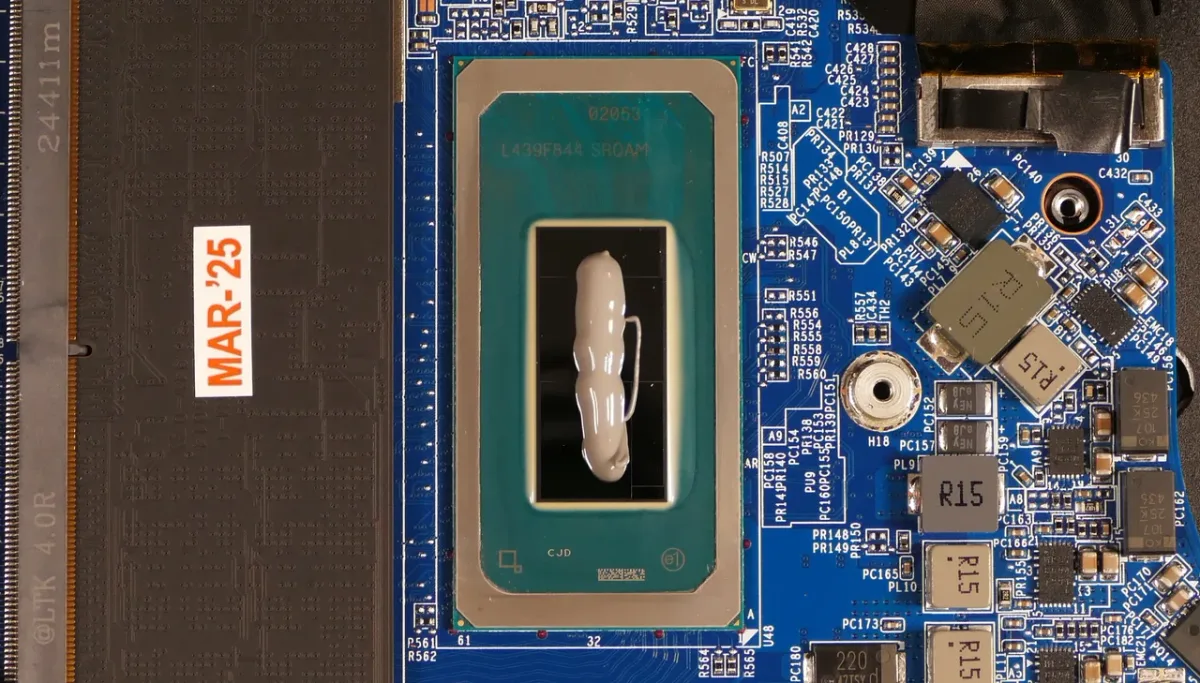
Open the laptop and clear dust from vents, fans, and heatsinks. Replace thermal paste on the CPU and GPU if it looks dried or cracked. Attach an external cooling pad with fans positioned for optimal airflow.
Use manufacturer tools (e.g., MSI Afterburner, ThrottleStop) to lower CPU/GPU voltage and set conservative fan curves. If the system still throttles, undervolt the GPU by 10‑15 mV to reduce heat. Users report 5‑10 °C temperature drops after a simple paste replacement.
For persistent overheating, consider a raised stand or a dedicated cooling dock. Refer to the cooling and noise fixes guide for extra airflow tips.
Essential Cooling Steps
- Vacuum out dust from vents and fan blades.
- Reapply thermal paste (OEM‑grade, ~0.05 mm spread).
- Connect a cooling pad and set fan speed to high.
- Adjust fan curves to ramp up at 75 °C and max at 85 °C.
- Undervolt CPU/GPU by 10‑15 mV using ThrottleStop.
Fix Path C: Reseat, Replace, or Upgrade the Wi‑Fi Card
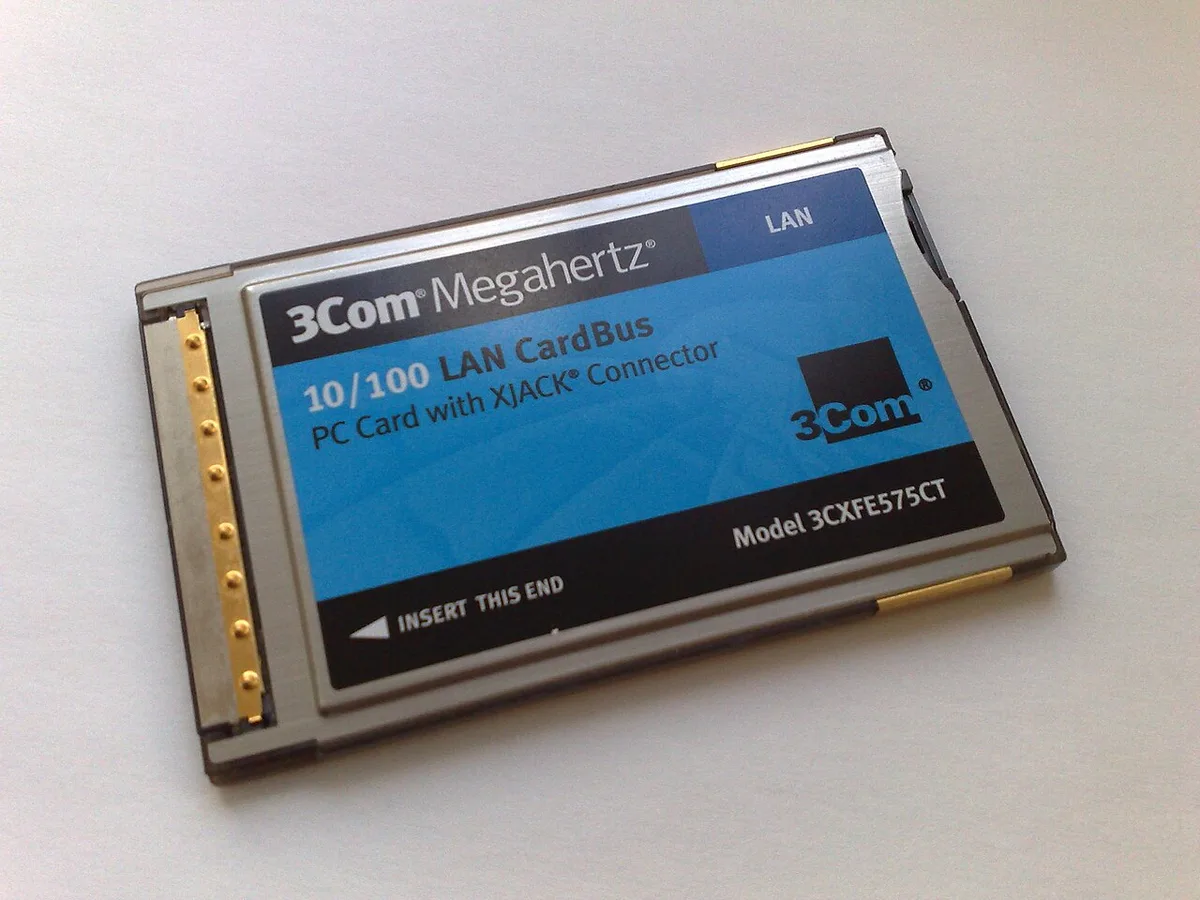
Power down, unplug, and remove the battery if removable. Locate the M.2 slot, gently eject the Wi‑Fi card, and inspect for bent pins. Reinsert it at a 30° angle, then lock the latch.
Re‑attach both main and aux antennas to their connectors. Power the laptop back on and test connectivity. If drops persist, the card may be faulty; replace it with a newer model like Intel AX210 (Wi‑Fi 6E) or a Killer Wi‑Fi 6E card for better thermal headroom.
Check Intel’s official specs for power‑draw and temperature ratings. See the sleep‑related hardware reset guide for additional hardware troubleshooting.
Reseat & Upgrade Actions
- Power off, open chassis, and gently remove the M.2 card.
- Inspect pins for bends; clean with compressed air if needed.
- Re‑seat the card at a 30° angle and lock the latch.
- Re‑connect main and aux antenna cables.
- If issues remain, install a newer Wi‑Fi card (e.g., Intel AX210, Killer Wi‑Fi 6E).
Frequently Asked Questions
Why does my laptop drop Wi‑Fi only when it’s hot?
Heat triggers thermal throttling, which reduces power to the wireless controller, causing drops. Dusty fans and blocked vents worsen the cycle.
Can outdated drivers cause heat‑related Wi‑Fi loss?
Yes. An old driver may not handle power‑saving states properly, leading to unexpected disconnections under thermal stress.
Is reseating the Wi‑Fi card safe for gaming laptops?
It is safe if done on a static‑free surface and with the system powered off. Proper reseating often restores signal strength.
Do cooling pads really fix Wi‑Fi drops?
Cooling pads lower ambient chip temperature, reducing throttling. Users typically see fewer drops after installing a pad and cleaning internal fans.
Common Mistakes That Make Disconnects Worse
Many users accidentally make the problem worse before they find the real cause. Skipping regular vent cleaning is the top error. Dust builds up quickly, especially if you game on a carpet or a bed.
A second mistake is using low‑quality thermal paste that dries out within months. Cheap paste loses its ability to transfer heat, so the CPU/GPU run hotter and trigger throttling. Another common slip is ignoring driver updates.
An outdated Wi‑Fi driver may not handle power‑saving states correctly, causing drops when the system ramps up. Overlooking antenna reconnection after a cleaning session can also lead to intermittent signal loss.
Frequent Pitfalls
- Neglecting dust removal, vents clog, fans spin louder, and heat builds.
- Using generic thermal paste, OEM‑grade compounds last longer and maintain contact.
- Skipping driver updates, newer firmware often fixes power‑management bugs.
- Forgetting to reseat antennas, loose connectors cause packet loss under load.
- Relying on 2.4 GHz only, 5 GHz or 6 GHz bands reduce interference but need clear line‑of‑sight.
Leaving Wi‑Fi power‑saving enabled is another trap. Windows may turn off the adapter to conserve battery, which causes drops when the CPU loads up. Disable it in Device Manager under Power Management.
Router placement matters too. Keeping the router behind a metal desk or near a microwave creates interference. Move it to an open area or add a mesh node.
If your laptop also freezes during gameplay, see our guide on fixing freezes while gaming. For random restarts, check the quick restart guide.
Long-Term Stability: Monitoring, Maintenance, and When to Walk Away
Sustained performance requires regular checks. Install a monitoring tool like HWiNFO64 or MSI Afterburner and watch CPU/GPU temperatures during gaming sessions. If the readout climbs above 85 °C, clean the fans and reapply thermal paste.
Every six to twelve months, power off the laptop, open the back panel, and blow out dust with compressed air. Replace thermal paste annually for heavy users; dried paste raises baseline temps by 5‑10 °C.
Battery health matters too. A degraded battery can cause voltage drops that affect the Wi‑Fi controller. Keep the charge between 20‑80 % for longevity.
Opening the laptop may void the warranty, so check your manufacturer's policy before proceeding.
When the Wi‑Fi card still drops after reseating and driver updates, the hardware may be failing. Test with a USB Wi‑Fi adapter; if the adapter stays stable, the internal card is likely defective. At that point, replacing the M.2 card is cheaper than buying a new laptop.
Choose a newer standard like Intel AX210 (Wi‑Fi 6E) for better thermal headroom. The Wi‑Fi Alliance certifies devices for 802.11ax compliance, which helps guarantee stable connections under load.
If the laptop is more than three years old and exhibits persistent throttling, consider upgrading the SSD or adding an external cooling dock. For users in hot climates, a laptop stand with a built‑in fan can lower ambient temps by 3‑5 °C. When repairs cost more than half the value of the machine, it may be time to walk away.
Maintenance Checklist
- Monitor temps weekly with HWiNFO64.
- Clean vents every three months.
- Replace thermal paste annually.
- Update BIOS and drivers quarterly.
- Test Wi‑Fi with a USB adapter if drops continue.
4 thoughts on “Gaming Laptop Wi-Fi Keeps Disconnecting When Hot? Fix It”
Comments are closed.