A gaming laptop setup collects cables fast. You start with the power brick, then add a mouse, keyboard, headset, monitor, and maybe a dock. Within a week, the desk looks like a bowl of spaghetti.
The fix isn't buying more gadgets. It's routing what you already have in the right order. As of 2026, USB-C power delivery chargers can replace many bulky laptop bricks, which cuts one of the biggest cables from the pile.
how to reduce cable clutter in a gaming laptop setup
Audit your cables first. Group them by zone. Hide the power brick under the desk.
Route cables along desk edges. Cut wireless gear where it makes sense. Test airflow before you finish.
Why Gaming Laptop Setups Turn Into Cable Jungles
Gaming laptops create more cable chaos than desktops. The laptop sits on the desk, so every cable starts in the center. A desktop tower hides cables behind it.
A laptop can't.
The power brick is the main offender. It's heavy, hot, and rarely fits where you want it. Then come the peripherals.
A wired mouse, wired keyboard, and wired headset add three more lines. Add an external monitor and you've got HDMI, power, and maybe USB.
Small desks make it worse. Cables have nowhere to go. They drape over the front edge and catch your chair.
Aggregate user reviews report that cable clutter is one of the top complaints after buying a gaming laptop.
Heat adds another layer. Gaming laptops pull serious power. Cables routed too close to vents block airflow.
That raises temperatures and throttles performance.
If you use a dock, the mess shifts but doesn't shrink. One thick cable to the laptop, plus several cables into the dock. The dock itself needs power and space.
Routing still matters.
The Real Culprit: Your Laptop's Power and Port Layout
The power brick defines your whole cable plan. It's the heaviest item and the hardest to hide. Its cable is also usually the longest, which creates slack you must manage.
Port placement matters just as much. Most gaming laptops put ports on the left and right sides. Some put them on the back.
Side ports create cables that cross your mouse hand. Back ports are cleaner but harder to reach.
Count your ports before buying anything. A laptop with one USB-C and two USB-A fills up fast. A dock changes the math, but adds its own cable.
Manufacturer specs confirm that USB-C power delivery now reaches 240 watts on supported models. That's enough for many gaming laptops.
Cable gauge also plays a role. Thicker power cables bend poorly. They fight tight corners and cheap clips.
Braided jackets look nice but add stiffness. Rubber jackets flex easier around desk edges.
Port speed matters for monitor cables. A 144Hz or 240Hz display may need DisplayPort or a quality HDMI cable. Cheap cables can limit refresh rate.
Check the spec before routing a long run.
Start With a Quick Setup Audit
Don't buy organizers yet. Audit first. Lay every cable on the desk.
Unplug everything. You need to see what you actually own.
Sort cables into three piles. Power, display, and peripherals. Count each pile.
Note lengths in feet or meters. This tells you if you need extensions or shorter replacements.
Check your desk next. Measure depth, width, and the gap between the back edge and the wall. Measure desk thickness if you plan to clamp a tray.
A tray rated for 1-inch desks won't fit a 1.5-inch desk.
Map your outlets. Count how many are reachable. Note spacing.
Bulky adapters hog space and block neighbors. A surge protector with widely spaced outlets fixes this.
Sketch a rough layout. Put the laptop where you'll use it. Place the monitor behind or beside it.
Mark where the power brick will live. This 10-minute sketch saves hours of rework.
Test wireless gear before committing. A wireless mouse with 1ms latency works fine for most gamers. Some competitive players still prefer wired.
Try wireless for a week. If latency bugs you, keep the wire.
Decision Branches: Pick Your Cable Plan by Setup Type
Your plan depends on your setup. Use these branches to pick the right path.
If you have a small desk and one monitor, keep it simple. Use adhesive clips along the desk back edge. Mount the power brick under the desk with a tray.
Go wireless on mouse and keyboard. Keep the headset wire short and clipped to the desk leg.
If you have a dual-monitor setup, add a dock. One cable runs to the laptop. The dock handles monitors, USB, and sometimes power.
Route dock cables through a raceway. Label both ends of every cable.
If you stream, separate audio and camera cables from power. Run power along the floor or wall. Keep USB and audio cables on the desk surface in a sleeve.
This prevents interference noise and accidental pulls.
If you game on a standing desk, leave service slack. Cables must move with the desk. Use a flexible cable chain or a long sleeve with extra length.
Never pull cables taut at full height.
If you LAN party or travel often, skip permanent mounts. Use Velcro ties and a cable sleeve. Pack a small organizer pouch.
You can set up and tear down in minutes.
If you have pets or kids, raise cables off the floor. Use wall channels or desk-mounted raceways. Keep power strips above floor level.
Trip hazards become chew hazards at ground level.
Step-by-Step Cable Reduction Workflow
Follow this order. Skipping steps creates rework.
- Unplug everything. Clear the desk surface.
- Place the laptop and monitor in final positions.
- Mount the power brick under the desk. Use a tray or adhesive mount rated for its weight.
- Route the laptop power cable along the desk back edge. Clip it every 6 to 8 inches.
- Connect the monitor. Route its power and video cables together in a sleeve.
- Add the dock if you use one. Place it near the laptop. Route its cables to the brick side.
- Connect peripherals. Use a USB hub to reduce direct laptop cables.
- Group remaining cables by zone. Use Velcro ties, not zip ties, for adjustability.
- Hide the bundle in a raceway or under-desk tray.
- Plug in. Power on. Test every device.
- Check laptop vents. Move any cable within 2 inches of an intake or exhaust.
- Adjust slack. Leave a small loop near each connector for strain relief.
Test airflow with a temperature check. Run a game for 15 minutes. Compare CPU and GPU temps to your baseline.
If temps rose more than 5 degrees Celsius, reopen the routing and improve clearance.
Label cables before hiding them. Use small tags or colored tape. Future you will thank present you during upgrades.
If you need to extend a run, use a single quality extension rather than daisy-chaining. Daisy chains add failure points and resistance. A good surge protector with a long cord beats three short extensions.
For monitor cables, match length to need. A 10-foot HDMI cable works but coils create bulk. Buy the shortest cable that reaches with a small service loop.
This keeps bundles tight.
Review your setup after a week. Cables settle and shift. Retighten clips and recheck mounts.
Adhesive needs 24 hours to cure, so recheck those first.
If you plan to add a cooling pad later, route cables with that in mind. A cooling pad adds a USB power cable and changes laptop height. Leave clearance under the laptop.
You can read more about whether a gaming laptop needs a cooling pad before deciding. For peripheral choices, a guide on choosing the right mouse for a gaming laptop helps you pick wired or wireless with confidence. And if you're still setting up the machine itself, how to set up a new gaming laptop step by step covers the basics before you tidy cables.
For monitor users, connecting an external monitor to your gaming laptop and configuring dual monitors with a gaming laptop are worth reading before you route display cables. Getting the monitor plan right first saves a lot of rework.
External links: OSHA workplace safety guidance is a useful reference for trip-hazard and cable-routing best practices in shared spaces. Manufacturer specs for USB-C power delivery are published by the USB Implementers Forum.
Wired vs. Wireless: Where to Cut Cables and Where Not To
Cutting cables means choosing where wireless actually helps. Not every peripheral benefits from going cordless.
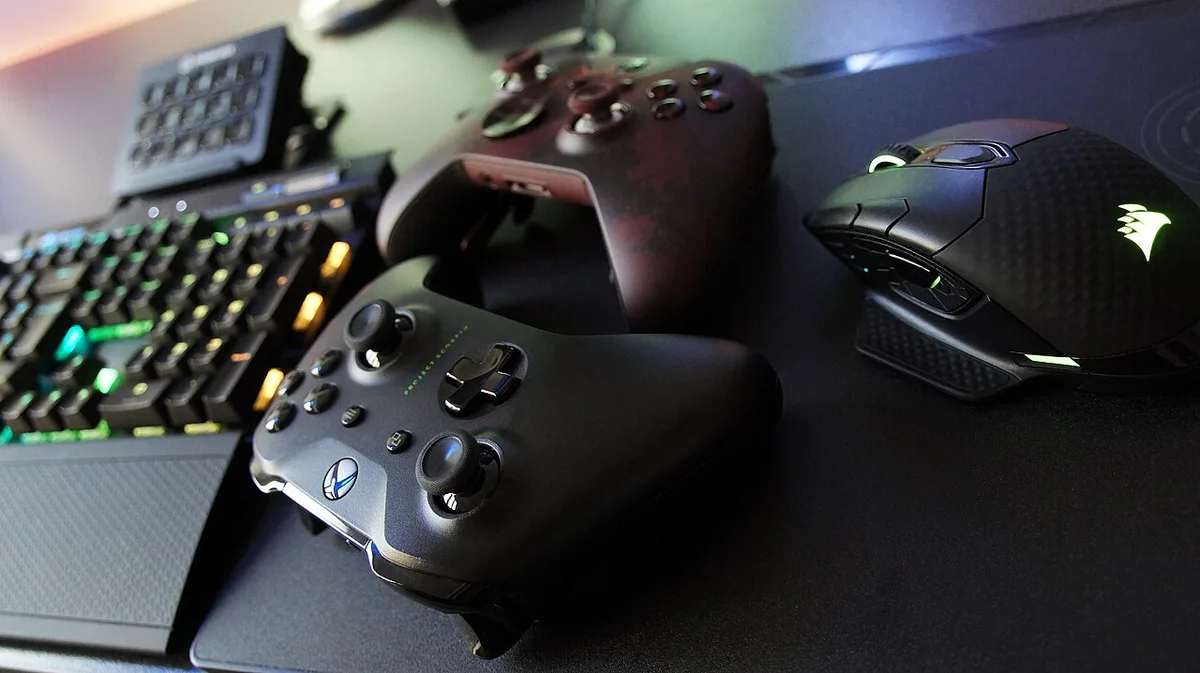
Image source: Wikimedia Commons / Jean-Marc Trappler (CC BY-SA)
Start with the mouse. A wireless mouse removes the cable that drags across your mousepad. Modern 2.4GHz receivers hit 1ms polling rates.
That matches wired performance for most players. Competitive esports players sometimes still prefer wired for absolute consistency.
Keyboards are next. Wireless mechanical keyboards now offer long battery life and low latency. The cable under your desk disappears.
The tradeoff is charging. You'll plug in every few weeks or keep a charging cable handy.
Headsets are trickier. Wireless headsets free you from cable tangles during intense moments. But battery life varies.
Some models last 20 hours. Others die mid-session. Wired headsets never need charging.
They also avoid wireless interference from routers and other devices.
Where should you keep wires? The power cable stays wired. No wireless power solution exists for gaming laptops at practical wattages.
Monitor cables stay wired too. Wireless display adapters add latency and compression. Ethernet stays wired for lowest ping.
A dock's uplink cable stays wired.
The sweet spot for most setups is wireless mouse and keyboard with wired headset and monitor. This cuts three to four cables from the desk surface. If you're weighing whether a gaming laptop needs a gaming mouse, wireless options now make the decision easier.
For headset selection, choosing the right headset for a gaming laptop covers latency and battery tradeoffs in depth.
Don't go fully wireless just to chase minimalism. Dead batteries mid-match frustrate more than cables do. Keep one charging cable accessible.
Label it. Store it in a drawer nearby.
Mistakes That Make Cable Clutter Worse
Buying organizers before auditing is the biggest mistake. You end up with clips and trays that don't fit your actual cable count. Audit first.
Buy second.
Over-tightening zip ties is another common error. Zip ties cinch hard and pinch cable jackets. Over time, this damages insulation.
Use Velcro ties instead. They hold firm but release easily.
Hiding the power brick in a closed box without ventilation is dangerous. Power bricks generate heat. Enclosed spaces trap it.
Heat degrades the brick and can become a fire risk. Use a ventilated tray or leave the box lid off.
Routing cables across walk paths creates trip hazards. This matters in shared spaces and dorm rooms. Run cables along walls or under desks.
Never leave them across open floor.
Ignoring service slack causes strain. Cables pulled taut at connectors crack solder joints. Leave a small loop near each plug.
This absorbs movement and extends cable life.
Mounting adhesive clips on dirty or textured surfaces leads to failure. Clean the surface with isopropyl alcohol first. Press firmly for 30 seconds.
Wait 24 hours before loading the clip.
Daisy-chaining power strips overloads circuits. One strip into another is a fire code violation in many jurisdictions. Plug everything into a single quality surge protector.
Check the joule rating. Higher is better.
Forgetting future expansion leaves no room for new gear. Leave two or three spare ports on your hub. Route an extra cable sleeve.
Plan for the headset or camera you might add next year.
Costs, Specs, and What Actually Matters
You don't need to spend much to fix cable clutter. A basic kit costs under $30. The table below breaks down typical prices.
| Item | Typical Price (USD) | Notes |
|---|---|---|
| Velcro cable ties (50 pack) | $6-$10 | Reusable, adjustable |
| Adhesive cable clips (20 pack) | $8-$12 | Check surface compatibility |
| Under-desk cable tray | $15-$40 | Match desk thickness |
| Cable raceway kit | $12-$25 | Paintable to match walls |
| Cable sleeve (6 ft) | $8-$15 | Braided or neoprene |
| USB hub (4-port) | $15-$30 | Match port speed needs |
| Surge protector (8-outlet) | $20-$40 | Look for 1000+ joules |
| USB-C PD charger (100W) | $35-$60 | Verify laptop compatibility |
Specs matter more than brand names. Check these before buying.
Tray capacity should exceed your cable bundle weight by 30 percent. A tray rated for 5 pounds fails with 6 pounds of cables and a power brick.
Adhesive strength varies by surface. Most clips hold 1 to 2 pounds on smooth wood or metal. Textured or porous surfaces reduce grip.
Test one clip before committing to a full pack.
Cable length should match your route. Measure the path. Add 12 inches for service loops.
A cable that's too short strains connectors. A cable that's too long creates coils.
Dock power output must match laptop draw. A 65-watt dock won't charge a 180-watt gaming laptop under load. Check your laptop's adapter wattage.
Buy a dock that exceeds it.
Surge protection rating affects equipment safety. Look for UL-listed units with at least 1000 joules. Higher ratings absorb larger spikes.
Replace surge protectors after a major surge event.
Frequently Asked Questions
How many cables does a typical gaming laptop setup have?
Most setups have 6 to 10 cables. That includes power, monitor, mouse, keyboard, headset, and sometimes ethernet and USB hub lines. Cutting to wireless mouse and keyboard drops the count by 2 to 3.
Can I use a USB-C charger instead of the power brick?
Many gaming laptops support USB-C power delivery at 100 watts or higher. Check your laptop's specs first. Not all gaming laptops accept USB-C charging.
Some need the full brick wattage to perform under load.
Should I mount the power brick under the desk or in a box?
Under-desk mounting with a ventilated tray is safer. Boxes trap heat. Trays allow airflow.
Ensure the tray supports the brick's weight and leaves 1 inch of clearance on all sides.
Are cable raceways better than sleeves?
Raceways hide cables along walls or desk edges. Sleeves bundle cables together. Use raceways for permanent setups.
Use sleeves for portable or frequently changed setups. Many setups use both.
How often should I re-check cable mounts?
Re-check adhesive mounts after 24 hours and again after one week. Retighten Velcro ties monthly. Inspect cables for wear every three months.
Replace any cable showing jacket damage.
Is it worth going fully wireless?
For most gamers, wireless mouse and keyboard is enough. Fully wireless including headset adds charging management. Weigh the battery hassle against the cable reduction.
Competitive players often keep headsets wired for reliability.
Final Decision Guide: Your Next Move
Pick one action today. Don't overhaul everything at once.
If your desk has cables draped everywhere, start with the power brick. Mount it under the desk. Route its cable along the back edge.
This single change cuts visual clutter by half.
If your setup is already tidy but has three or more wired peripherals, go wireless on mouse and keyboard. Test for a week. Keep the wires as backup.
If you use dual monitors, invest in a dock first. One cable to the laptop beats three. Route the dock's cables through a raceway.
If you're setting up a new machine, read about optimizing a new gaming laptop out of the box before you cable-manage. Getting software and power settings right first prevents rework. For accessory decisions, must-have gaming laptop accessories you actually need helps you avoid buying gear you won't use.
Measure twice. Buy once. Cable management rewards patience more than spending.