You're in a ranked match and your character freezes for a split second. That stutter costs you the round and it usually traces back to network lag. Learning how to reduce network lag on a gaming pc starts with knowing which bottleneck you actually face.
This guide walks you through a clear decision tree so you can fix the right problem without wasting time or money.
Aggregate data from competitive players shows that wired connections consistently hold ping under 30 milliseconds while wireless often spikes above 80. Per IEEE 802.3 standards a Cat6 cable supports 10 gigabit speeds at 55 meters which is more than enough for any home run. Let's start by identifying what lag looks like in your games.
How to Reduce Network Lag on a Gaming Pc
Switch to a wired Ethernet connection using at least Cat5e cable. Update your network adapter driver and router firmware. Enable Quality of Service on your router and prioritize gaming traffic.
Close background apps that consume bandwidth. Set a static IP and use a fast DNS like 1.1.1.1 or 8.8.8.8. Test ping and jitter after each change.
Spotting the Signs of Network Lag
Lag shows up in a few distinct ways and each points to a different cause. High ping means your packets take too long to reach the game server. Jitter means that travel time jumps around unpredictably.
Packet loss means data never arrives at all. Rubberbanding snaps your character back to a previous position. Freezes or stutters that last a second or more usually mean a bandwidth choke.
If you see a red connection icon or a ping readout above 100 milliseconds in game you have a network problem not a hardware problem.
What Actually Causes Lag on a Gaming PC
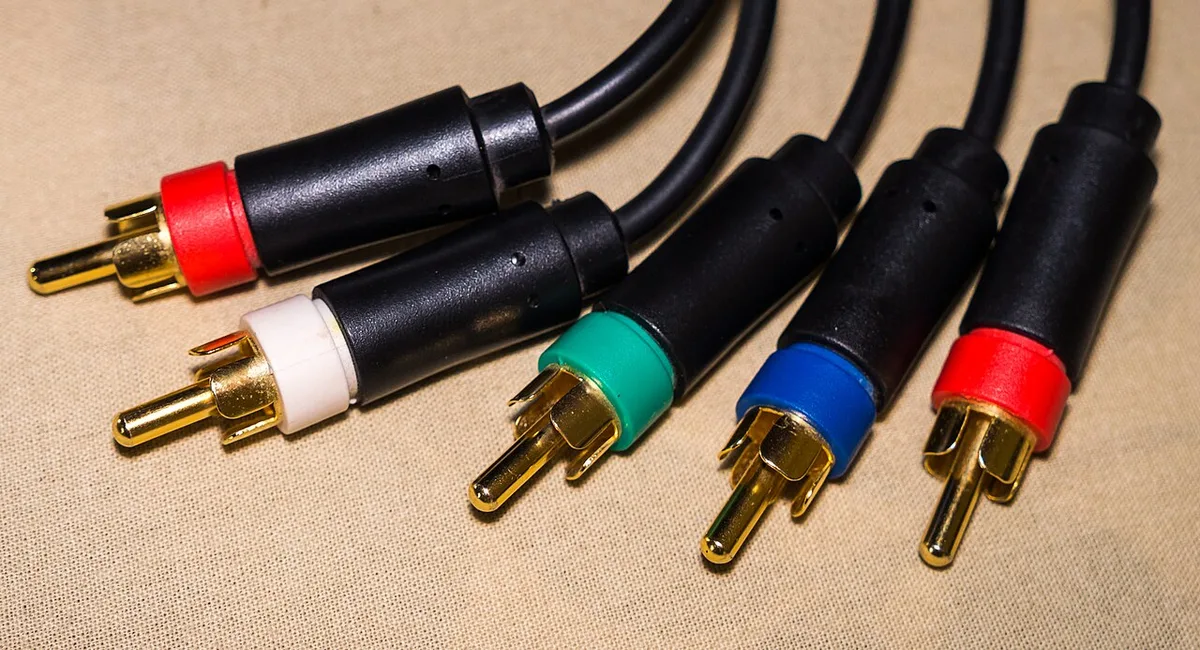
The root cause splits into three lanes: your local PC, your home network, and the path to the game server. On the PC side outdated NIC drivers or a CPU pinned at 100 percent can delay packet processing. Background downloads from Steam Windows Update or cloud sync eat upload bandwidth.
On the home network side Wi-Fi interference from neighbors microwaves or Bluetooth devices adds jitter. An old router with outdated firmware cannot handle modern traffic loads. QoS disabled means your game traffic waits behind a 4K stream.
The ISP lane brings congestion during peak hours routing inefficiencies or deliberate throttling. A VPN adds extra hops and encryption overhead. Each lane needs a different fix so identifying the right one saves hours of trial and error.
| Source Layer | Common Culprit | Typical Symptom |
|---|---|---|
| Local PC | Old NIC driver, CPU bottleneck, background apps | Ping spikes when loading assets |
| Home Network | Wi-Fi interference, weak signal, no QoS | Jitter, random disconnects |
| ISP / Route | Peak congestion, bad peering, throttling | Consistent high ping to specific regions |
Diagnosing Your Connection in Minutes
Run a quick baseline before you change anything. Open a command prompt and ping your router IP (usually 192.168.1.1). You want sub one millisecond results.
Next ping a reliable public target like 1.1.1.1 or 8.8.8.8. Note the average and the jitter. Run a traceroute to the game server IP if you know it or to the game's login domain.
Look for hops where latency jumps or packets drop. If the first hop to your router is clean but the second hop to your ISP gateway spikes the problem is outside your house. If the router hop itself spikes check Wi-Fi signal or cable integrity.
Free tools like PingPlotter or the in game net graph give you a visual timeline. Write down your numbers so you can compare after each fix.
Quick Wins: Immediate Fixes

Plug in an Ethernet cable if you are on Wi-Fi. This single step eliminates most jitter and packet loss caused by interference. Use at least Cat5e cable; Cat6 is cheap and future proofs the run.
Close every background app you do not need. Steam Epic Games launcher Discord voice chat browser tabs with video all fight for upload bandwidth. Open Task Manager sort by Network and end tasks you recognize as non essential.
Update your NIC driver from the motherboard or laptop vendor site not from Windows Update. Log into your router and check for a firmware update. Apply it and reboot the router.
Enable QoS if your router supports it and set your gaming PC as the highest priority device. Flush your DNS cache with ipconfig /flushdns then set your DNS to Cloudflare 1.1.1.1 or Google 8.8.8.8. Retest your ping.
You will often see a 20 to 40 millisecond drop right there.
Step-by-Step Optimization Guide
Now that you have diagnosed the problem, follow this ordered sequence. Each step builds on the last one. Skipping a step often hides the real cause.
Step 1: Physical connection. Plug your PC directly into the router with a Cat5e or better Ethernet cable. Skip powerline and MoCA adapters for now. They add latency even when they work well.
Step 2: Router placement and reboot. Move your router off the floor and away from the microwave. Unplug it for thirty seconds. Plug it back in and let it fully boot before you test again.
Step 3: Firmware and drivers. Check the router manufacturer site for the latest firmware. Update your NIC driver from the motherboard vendor. Outdated firmware causes buffer bloat and missed QoS rules.
Step 4: QoS and static IP. Enable QoS in your router settings. Set your gaming PC as the priority device. Assign a static IP so the rule sticks.
Reserve the same IP in the DHCP table.
Step 5: DNS and MTU. Set your DNS to Cloudflare or Google. Leave MTU at the default 1500 unless your ISP tells you otherwise. Changing MTU without data to back it up often makes things worse.
Step 6: Background traffic. Open Task Manager. Sort by Network. End anything that is not essential.
Pause cloud backups and game launchers before you queue for a match. If your PC freezes during intense gameplay, [why your gaming pc freezes during intense gameplay] might help separate network issues from hardware limits.
Step 7: Retest. Run the same ping and traceroute tests you used in the diagnosis section. Compare the numbers. If ping dropped by twenty milliseconds or more, you are done.
If not, move to advanced settings like VPN testing and port forwarding.
If your ping stays high after all seven steps, the bottleneck is likely your ISP or the game server itself. At that point a wired connection is your only remaining lever.
Comparing Wired vs. Wireless Options
Choosing between wired and wireless is not a close call for competitive play, but it depends on your setup and your tolerance for compromise.
| Option | Typical Ping Range | Stability | Interference Risk | Setup Cost |
|---|---|---|---|---|
| Wired Ethernet (Cat6) | 1-5 ms | Excellent | None | $10-20 for cable |
| Wi-Fi 6 (802.11ax) | 10-30 ms | Good | Low | $0 if built in |
| Wi-Fi 5 (802.11ac) | 15-50 ms | Fair | Medium | $0 if built in |
| Old Wi-Fi 4 (802.11n) | 30-100 ms | Poor | High | $0 if built in |
Wired Ethernet gives you the lowest possible latency and zero interference. It is the default choice for esports athletes and anyone who plays ranked matches. The only downside is the cable running across your room.
If you are planning a PC upgrade path, [how to plan a gaming pc upgrade path without wasting money] covers how to budget for a new NIC and cable runs.
Wi-Fi 6 is the only wireless option worth considering for serious gaming. It handles multiple devices better and has lower latency than older standards. If your router supports it and your PC has a Wi-Fi 6 card, the gap is small enough that you can game online without issue.
When choosing components, [which gaming pc components go outdated first] explains why a Wi-Fi 6 card is a smart long-term investment.
Older Wi-Fi standards belong in the trash bin for gaming. The 2.4 GHz band is crowded and slow. The 5 GHz band on Wi-Fi 5 is acceptable for casual play but you will feel the difference in fast-paced games.
If you must use wireless, sit close to the router and use the 5 GHz band. Set the channel to 1, 6, or 11 manually. Avoid auto channel selection.
It often picks the worst option.
Common Mistakes to Avoid
Even experienced gamers make these errors. Each one costs you frames and rounds.
Mistake 1: Updating everything at once. If you change your driver, firmware, DNS, and QoS in the same afternoon, you cannot tell which fix worked. Change one thing at a time. Test after each change.
Mistake 2: Ignoring upload speed. Download speed gets all the attention. Upload speed is just as important for online gaming. Your game sends small packets constantly.
If your upload is throttled, your character rubberbands.
Mistake 3: Using a VPN without testing. A VPN adds encryption and extra hops. Some providers add twenty milliseconds or more. If you need a VPN for privacy or geo-spoofling, test with and without it.
Keep it off during matches.
Mistake 4: Leaving Wi-Fi on auto. Auto channel selection and auto band steering sound helpful. They often choose the most congested channel. Log into your router and set everything manually.
Mistake 5: Blaming the PC when the network is the problem. If your frame rate is smooth but your ping spikes, the issue is not your GPU. Check the network first. Many gamers waste hours tweaking graphics settings when the fix is a cable.
If you still suspect hardware, [fix random gaming pc crashes step by step troubleshooting] covers how to separate network issues from system crashes.
Mistake 6: Running too many background apps. Cloud sync, Discord, and game launchers all compete for upload. Close them before you queue. Your game needs that bandwidth.
For broader system care, [easy steps to maintain your gaming pc] shows how to keep background processes under control.