If your gaming laptop battery seems to drop from 100% to 50% surprisingly fast, you are not alone. Gaming laptops are built for performance, and that performance comes with a much higher power demand than you would see from a typical office or student laptop.
A powerful processor, dedicated graphics card, high-refresh-rate display, RGB lighting, background gaming software, and aggressive performance settings can all drain the battery quickly. In some cases, short battery life is completely normal. In others, unusually fast battery drain may point to a bad setting, excessive background activity, an aging battery, or a charging problem.
The important thing is figuring out whether your battery drain is normal for your hardware or whether something is actually wrong.
This guide explains why gaming laptop batteries drain so fast, how to find exactly what is consuming the power, and what you can do to improve battery life without making your laptop frustrating to use.
Why Does My Gaming Laptop Battery Drain So Fast?
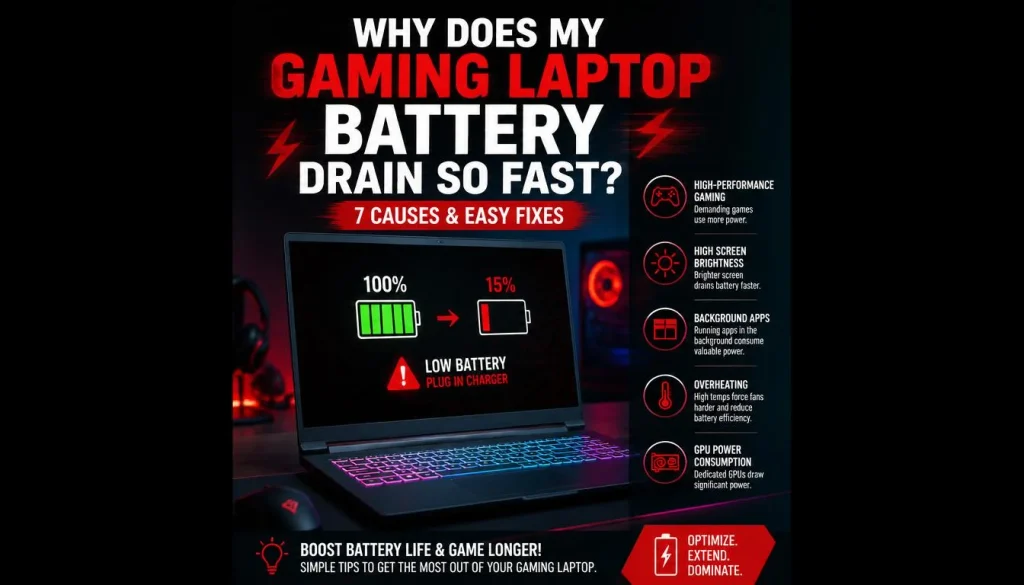
A gaming laptop battery drains quickly because gaming hardware requires a lot of power.
Unlike a basic laptop that may rely mostly on low-power integrated graphics, a gaming laptop often contains a high-performance CPU and a dedicated NVIDIA or AMD GPU. When those components are active, especially during gaming, video editing, 3D rendering, or other demanding tasks, power consumption can rise dramatically.
Your display can also be a major contributor. A bright 144Hz, 165Hz, 240Hz, or higher refresh-rate panel normally uses more power than a lower-brightness 60Hz display.
Fast battery drain can become even worse when the laptop is running in Performance or Turbo mode, the dedicated GPU remains active unnecessarily, RGB lighting is enabled, and multiple launchers or background programs are running at the same time.
So, if your gaming laptop lasts much less time on battery than a lightweight productivity laptop, that does not automatically mean the battery is defective.
Is Fast Battery Drain Normal on a Gaming Laptop?
Yes, to a certain extent.
Gaming laptops prioritize performance over maximum battery endurance. Even models with large batteries can drain quickly when their high-performance hardware is being used.
The key is to look at what you are doing when the battery drains.
Battery Drain While Gaming
Fast battery drain during gaming is usually normal.
Games can heavily load the CPU and GPU at the same time. Your fans may also run faster, the display may remain at maximum refresh rate, and other gaming-related software may stay active in the background.
A laptop that lasts several hours while browsing may last only a small fraction of that time during demanding gaming.
You may also notice lower gaming performance while unplugged because many gaming laptops deliberately limit CPU and GPU power on battery.
Battery Drain During Light Use
Fast battery drain is more concerning if it happens while you are only:
- Browsing the web
- Reading documents
- Writing emails
- Watching basic videos
- Leaving the laptop idle
If the battery disappears unusually quickly during light use, you should investigate background applications, GPU activity, display settings, power modes, and battery health.
Signs the Drain May Not Be Normal
Pay closer attention if:
- The battery percentage drops rapidly while the laptop is idle
- The laptop shuts down even though Windows still shows 20% or 30% remaining
- Battery percentage suddenly jumps from one value to another
- The battery drains heavily overnight
- Battery life has suddenly become much worse than before
- The laptop loses battery even while connected to its charger
- The battery is swollen or physically distorted
These symptoms may indicate more than normal gaming power consumption.
How Long Should a Gaming Laptop Battery Normally Last?
There is no single battery-life number that applies to every gaming laptop.
Battery runtime depends on several factors, including:
- Battery capacity
- CPU model
- GPU model
- Screen size
- Screen resolution
- Refresh rate
- Brightness
- Battery health
- Power mode
- Background applications
- Wireless activity
- Whether the dedicated GPU is active
A gaming laptop with a large battery can still have poor battery life if its components consume a lot of power.
Likewise, a less powerful model with good hybrid graphics management may last longer even with a smaller battery.
Battery Capacity Matters
Gaming laptop batteries are commonly rated in watt-hours, or Wh.
For example, one laptop may have a 56Wh battery while another has an 80Wh or 90Wh battery.
A higher Wh rating means the battery can store more energy, but it does not guarantee longer runtime.
A laptop with a 90Wh battery and a very power-hungry GPU may still drain faster than a more efficient laptop with a smaller battery.
12 Reasons Your Gaming Laptop Battery Drains So Fast
Several factors can cause excessive battery drain. Sometimes more than one is responsible at the same time.
1. Your Dedicated GPU Is Using Too Much Power
The dedicated GPU is one of the biggest power consumers in a gaming laptop.
NVIDIA GeForce and AMD Radeon GPUs are designed to provide high gaming performance, but they require significantly more power than integrated graphics.
The problem is that the dedicated GPU may sometimes stay active even when you are not gaming.
Programs that can trigger GPU activity may include:
- Web browsers
- Discord
- Video editing software
- Game launchers
- Wallpaper applications
- Screen recording tools
- Hardware monitoring utilities
If the dedicated GPU remains active during simple tasks, your battery life can drop noticeably.
2. Your CPU Is Running in High-Performance Mode
Gaming laptop processors can consume a large amount of power when allowed to run at aggressive boost speeds.
Performance and Turbo modes may increase CPU power limits to improve frame rates and responsiveness.
That is useful while plugged in, but often unnecessary for browsing, streaming, or office work.
Switching to Balanced or Best Power Efficiency mode can make a meaningful difference.
3. Your Screen Refresh Rate Is Too High
A high-refresh-rate display is great for gaming, but you probably do not need 144Hz, 165Hz, 240Hz, or 360Hz while checking email.
Running the screen at a high refresh rate may increase power consumption.
When using the laptop on battery, switching to 60Hz can help extend runtime.
Some laptops and Windows configurations also support dynamic refresh rate, allowing the system to increase or reduce refresh rate automatically depending on what you are doing.
4. Your Screen Brightness Is Too High
The display is often one of the biggest battery drains in any laptop.
Keeping brightness at 100% can significantly reduce battery life, especially on large, high-resolution displays.
Try lowering brightness to a comfortable level rather than keeping it at maximum.
HDR can also increase power usage on supported displays.
5. Too Many Background Apps Are Running
Gaming laptops often come with a long list of programs that launch automatically.
Common examples include:
- Steam
- Epic Games Launcher
- Xbox app
- Discord
- OneDrive
- RGB control software
- Hardware monitoring tools
- Antivirus scans
- Game recording software
- Cloud backup applications
Each program may consume only a small amount of power individually, but together they can add up.
Open Task Manager and check which applications are using the CPU, GPU, disk, and network when you are not actively doing anything.
6. RGB Lighting and USB Devices Are Consuming Power
RGB lighting looks great, but it still requires electricity.
Battery drain can increase when you use:
- RGB keyboard lighting
- RGB mouse
- USB headset
- External SSD
- USB cooling pad
- Controller
- Webcam
- External hard drive
These accessories usually are not the biggest battery drain individually, but they matter when you are trying to maximize runtime.
7. Your Power Mode Is Too Aggressive
Windows power settings can significantly affect how quickly your gaming laptop drains.
If the laptop is set to Best Performance, the system may allow the CPU and other hardware to remain more active than necessary.
For normal battery use, Balanced or Best Power Efficiency is usually more appropriate.
Save high-performance modes for situations where you actually need the extra speed.
8. Your Battery Has Degraded
Lithium-ion batteries lose capacity as they age.
After enough charge cycles and heat exposure, a battery may no longer store as much energy as it did when new.
For example, a battery designed to hold 80Wh may eventually be able to hold significantly less.
At that point, even perfectly optimized settings will not restore the original battery life.
9. Heat Is Reducing Battery Efficiency
Gaming laptops regularly operate at high temperatures.
Heat affects both performance and long-term battery health.
Common causes of excessive heat include:
- Dust-filled fans
- Blocked air vents
- Poor airflow
- Old thermal paste
- Gaming on a bed or soft surface
- Very high room temperature
Keep the laptop on a hard, flat surface when gaming and make sure the cooling system is working properly.
10. Drivers, BIOS, or Software Are Causing High Power Use
Sometimes battery drain appears after:
- A Windows update
- GPU driver update
- BIOS update
- Manufacturer utility update
A driver problem may prevent hardware from entering a lower-power state.
If battery life suddenly became much worse after an update, check your recent software changes.
11. Wi-Fi, Bluetooth, and Downloads Are Active
Wireless activity also uses battery power.
A gaming laptop may be doing more in the background than you realize.
Steam could be downloading a large game. Windows might be installing updates. OneDrive could be syncing files.
Bluetooth headphones, controllers, and other wireless accessories also add to overall power consumption.
12. Your Manufacturer Performance Mode Is Enabled
Gaming laptops often include their own performance-control software.
Depending on the brand, you may see software such as:
- ASUS Armoury Crate
- Lenovo Vantage
- MSI Center
- Acer NitroSense
- HP OMEN Gaming Hub
- Alienware Command Center
These applications may offer modes such as:
- Turbo
- Performance
- Balanced
- Silent
- Eco
Turbo mode may be useful for gaming while connected to power, but it is rarely the best choice when trying to save battery.
Can a MUX Switch or GPU Mode Cause Fast Battery Drain?
Yes.
Modern gaming laptops may use a MUX switch or hybrid graphics system that controls how the integrated and dedicated graphics processors are used.
Discrete GPU Mode
In dedicated-GPU-only mode, the laptop may route the display directly through the powerful NVIDIA or AMD GPU.
This can improve gaming performance and reduce certain graphics bottlenecks.
However, battery consumption can increase because the dedicated GPU remains active.
Hybrid Mode
Hybrid mode allows the laptop to use integrated graphics for lightweight tasks and activate the dedicated GPU only when necessary.
This is usually a better choice for battery life.
Eco or Integrated GPU Mode
Some gaming laptops offer an Eco or iGPU-only mode.
This can disable the dedicated GPU when you are on battery.
If you mainly browse, write documents, or watch videos while unplugged, this mode can significantly improve battery life.
What About NVIDIA Optimus?
NVIDIA Optimus is designed to switch between integrated and dedicated graphics automatically.
Advanced Optimus provides more flexible GPU switching on supported laptops.
If your laptop has these features, make sure you are not unnecessarily forcing the dedicated GPU to remain active.
How to Find Exactly What Is Draining Your Gaming Laptop Battery
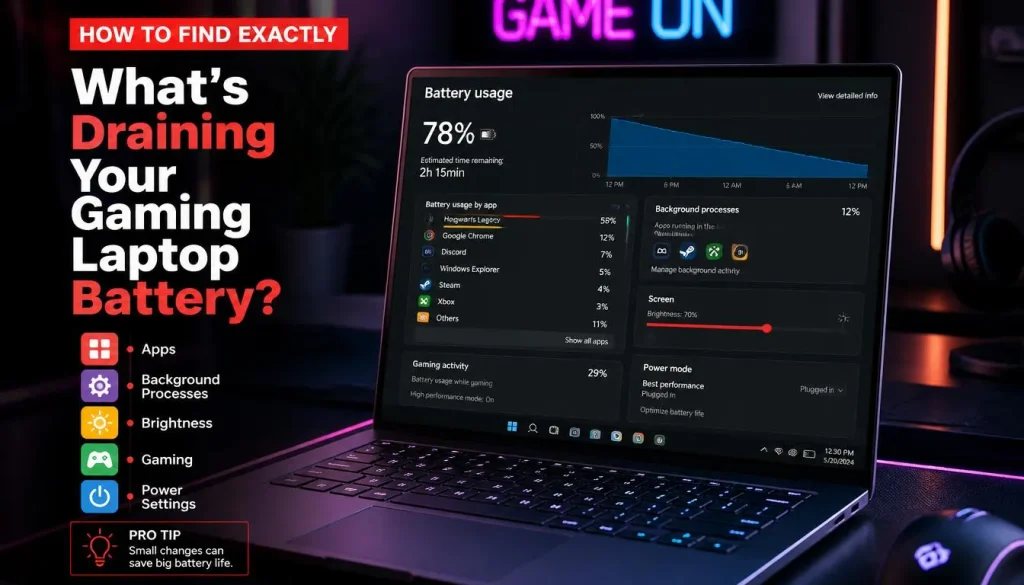
Guessing is less useful than checking what your laptop is actually doing.
Windows includes several tools that can help.
Check Battery Usage in Windows
Open:
Settings > System > Power & battery > Battery usage
Look for applications that are consuming the most battery.
You may discover that a browser, game launcher, video application, or background utility is using much more power than expected.
Check Task Manager
Press:
Ctrl + Shift + Esc
Then check CPU, GPU, memory, and disk activity.
If the laptop appears idle but CPU or GPU usage remains high, investigate the process responsible.
Check Whether the Dedicated GPU Is Staying Active
Use Task Manager or your GPU manufacturer’s software to see whether the dedicated graphics card is being used during light tasks.
If it remains active all the time, switching to hybrid graphics may improve battery life.
Generate a Windows Battery Report
Open Command Prompt or Terminal and run:
powercfg /batteryreport
Windows will create a battery report that contains useful information about your battery.
Pay attention to:
- Design Capacity
- Full Charge Capacity
- Recent Usage
- Battery Capacity History
- Estimated Battery Life
Compare Design Capacity and Full Charge Capacity
Suppose your battery’s Design Capacity is 80,000 mWh but its Full Charge Capacity is only 55,000 mWh.
That means the battery can no longer store nearly as much energy as it could when new.
A noticeable gap is normal as a battery ages, but a large difference may explain poor battery life.
Run an Energy Report
You can also use:
powercfg /energy
This can help identify certain power-management issues and devices that may be preventing efficient operation.
For more useful results, run it while the laptop is relatively idle.
Check Sleep Battery Drain
If your laptop loses battery while sleeping, you can investigate sleep activity with:
powercfg /sleepstudy
This is particularly useful on systems that use Modern Standby.
How to Tell If Your Gaming Laptop Is Draining Battery Too Fast
Instead of judging the battery only while gaming, test it under different workloads.
Start with a full charge and compare battery behavior while:
- Sitting idle
- Browsing the web
- Watching video
- Doing light office work
- Gaming
If battery drain is extreme only during gaming, the hardware’s high power consumption is probably the main explanation.
If it is also extreme while doing almost nothing, investigate software, GPU activity, battery health, and power settings.
How to Stop a Gaming Laptop Battery From Draining So Fast
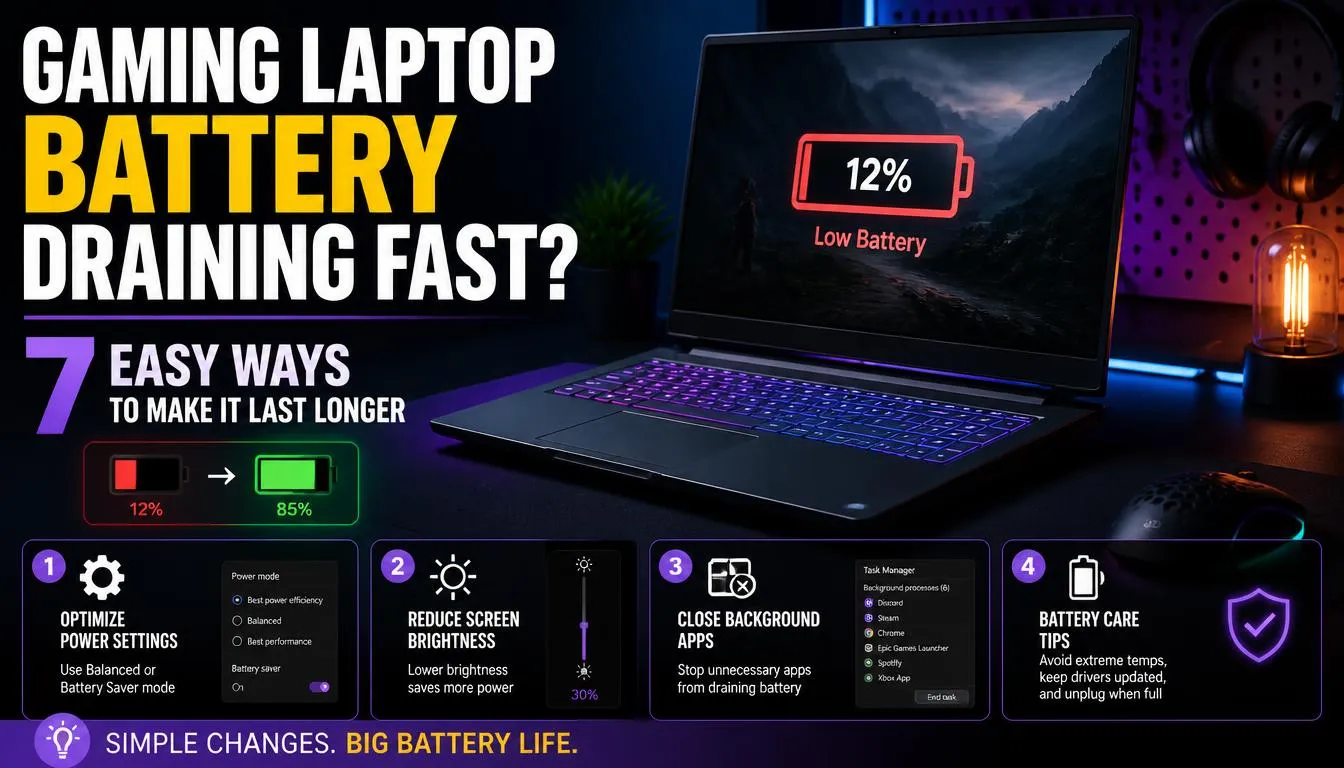
You do not need to disable every feature on your laptop. Start with the changes that provide the biggest benefit.
1. Use Balanced or Best Power Efficiency Mode
Open Windows power settings and select a more efficient mode when unplugged.
You can return to Performance mode when connected to the charger.
2. Use Integrated Graphics for Everyday Apps
Avoid using the dedicated GPU for simple programs that do not need it.
Hybrid graphics is usually a good compromise between battery life and convenience.
3. Lower the Refresh Rate
If your display normally runs at 144Hz, 165Hz, 240Hz, or higher, try 60Hz while on battery.
Switch back to the higher refresh rate when gaming while plugged in.
4. Reduce Screen Brightness
Lower the brightness until the display is still comfortable to use.
This is one of the simplest battery-saving changes.
5. Close Unnecessary Background Programs
Do you really need Steam, Epic Games, Discord, RGB software, and several browser windows running while writing a document?
Close what you are not using.
6. Turn Down RGB Lighting
Lower the keyboard brightness or disable RGB effects while on battery.
7. Disable Bluetooth When You Do Not Need It
If you are not using a wireless mouse, controller, or headset, Bluetooth can be turned off.
8. Disconnect Unnecessary USB Devices
External drives, cooling pads, and other USB accessories draw power from your laptop.
Disconnect them when battery life matters.
9. Limit FPS While Gaming on Battery
Running a game at the highest possible frame rate makes the GPU work harder.
If you absolutely must game while unplugged, limiting FPS can reduce power consumption.
For example, you may prefer a stable 30 or 60 FPS instead of allowing the system to push 100+ FPS unnecessarily.
10. Use GPU Battery-Saving Features
Some gaming laptops and GPU software include battery-focused options that reduce graphics power consumption.
Use them when gaming away from an outlet.
11. Keep the Laptop Cool
Clean the vents and fans when necessary.
Avoid placing the laptop on:
- Beds
- Blankets
- Sofas
- Cushions
These surfaces can restrict airflow.
12. Update Drivers and BIOS
Keep Windows, graphics drivers, chipset drivers, and BIOS reasonably up to date.
If battery problems began immediately after an update, however, investigate whether that specific update introduced the issue.
Best Windows Settings for Gaming Laptop Battery Life
A simple configuration can make battery use more efficient.
| Setting | Recommended on Battery | Recommended While Plugged In |
|---|---|---|
| Power Mode | Balanced or Best Power Efficiency | Balanced or Performance |
| Refresh Rate | 60Hz or Dynamic | Native high refresh rate |
| Screen Brightness | Moderate | As needed |
| Dedicated GPU | Only when required | Available for games |
| RGB Lighting | Low or Off | Optional |
| Energy Saver | Use when needed | Usually unnecessary |
| Background Apps | Limited | As needed |
These are general recommendations. The best settings depend on your laptop and how much performance you need.
Best GPU Settings for Battery Life
Your graphics configuration can have a major effect on runtime.
For everyday battery use:
- Prefer Hybrid or Optimus mode
- Avoid dedicated-GPU-only mode unless necessary
- Use integrated graphics for browsers and office applications
- Limit FPS when gaming on battery
- Avoid unnecessary GPU overlays and recording tools
- Use Eco graphics mode if your laptop provides one
For maximum gaming performance, switch back to the higher-performance GPU mode when connected to the charger.
Check Your Gaming Laptop’s Control Software
Do not rely only on Windows settings.
Open your laptop manufacturer’s control software and check which performance profile is active.
If you see Turbo or Performance mode, switch to Balanced, Silent, or Eco mode while running on battery.
Also check whether the software lets you control:
- GPU mode
- Fan profile
- CPU power
- Display refresh rate
- Keyboard lighting
- Battery charging limits
These settings can make a surprisingly large difference.
Why Does My Gaming Laptop Battery Drain Even When I’m Not Gaming?
If the battery drains quickly during light use, the dedicated GPU may still be running.
Other possible causes include:
- High refresh rate
- Maximum brightness
- Turbo mode
- Background downloads
- Browser tabs
- Cloud syncing
- Windows updates
- RGB software
- Game launchers
- Hardware monitoring tools
Open Task Manager and check what is running before assuming the battery itself is bad.
Why Does My Gaming Laptop Battery Drain While Sleeping?
Sleep does not always mean the laptop is completely inactive.
Some modern Windows laptops use Modern Standby, which can allow certain background activity while the system appears asleep.
Possible causes of sleep drain include:
- Network activity
- Windows updates
- Connected devices
- Software waking the system
- Modern Standby behavior
If your laptop regularly loses a large amount of battery overnight, consider using Hibernate instead of Sleep when you will not use it for several hours.
You can also investigate the issue using:
powercfg /sleepstudy
Why Does My Gaming Laptop Battery Drain Overnight?
Overnight battery drain can happen because the laptop never entered a deep enough sleep state.
First, test whether shutting the laptop down completely stops the drain.
If shutdown solves the problem, your battery may be fine and the issue may be related to sleep or standby behavior.
Also check whether:
- USB devices are connected
- Network connectivity remains active
- Windows is installing updates
- The laptop wakes inside your bag
- Sleep settings are configured correctly
Hibernate is often a better choice than Sleep if you want to preserve battery for a long period.
Why Does My Gaming Laptop Battery Drain While Plugged In?
This is less common, but it can happen.
Possible causes include:
- Using a charger with insufficient wattage
- Using the wrong USB-C charger
- A damaged charging cable
- A faulty adapter
- Heavy CPU and GPU load
- Charging-port problems
- Battery or motherboard issues
Check Your Charger Wattage
Gaming laptops can require powerful adapters.
Depending on the model, the original charger may be rated for 180W, 230W, 280W, or more.
If you replace it with a lower-powered USB-C charger or third-party adapter, the charger may provide enough power for basic use but not enough for heavy gaming.
Always check the power requirements of your specific laptop.
Why Is My New Gaming Laptop Battery Draining So Fast?
A brand-new gaming laptop can still have poor battery life.
During the first few days, Windows may be performing additional background work such as:
- Installing updates
- Indexing files
- Downloading drivers
- Syncing cloud storage
- Updating Microsoft Store apps
- Updating gaming software
Your laptop may also arrive with:
- Performance mode enabled
- High refresh rate enabled
- Dedicated GPU mode enabled
- Maximum brightness
- Multiple startup applications
Before assuming a new battery is faulty, optimize these settings and retest the laptop during light use.
Why Did My Gaming Laptop Battery Suddenly Start Draining Faster?
Sudden battery drain usually means something changed.
Think about what happened before the problem began.
Did you recently:
- Install a Windows update?
- Update your GPU driver?
- Change BIOS settings?
- Enable a different GPU mode?
- Install a new game launcher?
- Change your power plan?
- Connect new hardware?
Check Task Manager and Windows Battery Usage to identify any new process consuming excessive power.
If no software explanation appears, check the battery report to see whether Full Charge Capacity has declined.
Should You Play Games on a Gaming Laptop While on Battery?
You can, but it usually is not the best way to use a gaming laptop.
While running on battery:
- Performance may be lower
- FPS may decrease
- CPU power may be limited
- GPU power may be limited
- Battery drains quickly
Gaming laptops generally provide their best performance while connected to the original charger.
If you need to game on battery, consider lowering graphics settings and limiting FPS.
Is It Better to Keep a Gaming Laptop Plugged In While Gaming?
In most cases, yes.
Gaming while connected to the correct charger gives the CPU and GPU access to the power they need for full performance.
Modern gaming laptops also have charging-control systems designed to manage the battery.
If your laptop provides a battery charge-limit feature, you can use it when the laptop spends most of its time connected to power.
For example, some manufacturers allow you to limit charging to around 60%, 80%, or another level to reduce the amount of time the battery stays at maximum charge.
Does Gaming While Charging Damage the Battery?
Gaming while plugged in does not automatically damage the battery.
Gaming laptops are designed to operate from external power during demanding workloads.
The bigger long-term concern is heat.
If the battery regularly remains very hot while also staying near full charge, battery aging may happen faster.
Good cooling and manufacturer battery-health features can help.
How to Check Your Gaming Laptop Battery Health
The easiest Windows method is the battery report.
Run:
powercfg /batteryreport
Then compare:
Design Capacity
with:
Full Charge Capacity
Design Capacity represents approximately what the battery was designed to hold when new.
Full Charge Capacity represents how much it can currently hold.
If Full Charge Capacity is significantly lower, the battery has experienced wear.
Battery capacity naturally decreases over time, so some reduction is normal.
How to Tell If Your Gaming Laptop Battery Needs Replacing
Consider replacement when poor battery life is clearly caused by battery wear rather than settings.
Common signs include:
- Very short runtime during light use
- Full Charge Capacity far below Design Capacity
- Laptop unexpectedly shutting down
- Battery percentage jumping unpredictably
- Battery refusing to charge properly
- Physical swelling
A swollen battery should be treated seriously. Stop using the affected battery and have it professionally inspected or replaced.
Do not continue pressing down a swollen laptop case or puncture the battery.
Software Problem or Bad Battery?
This quick comparison can help.
| Symptom | More Likely Cause |
|---|---|
| Fast drain only during gaming | High CPU/GPU power usage |
| Fast drain while idle | Background apps or settings |
| Poor battery after years of use | Battery degradation |
| Large Design vs Full Charge Capacity gap | Battery wear |
| Drain mainly during sleep | Standby or wake activity |
| Drain while plugged in | Charger or power-delivery issue |
| Sudden problem after update | Driver or software issue |
| Battery swelling | Physical battery failure |
How to Make Your Gaming Laptop Battery Last Longer
Long-term battery care matters just as much as changing Windows settings.
Avoid Excessive Heat
Heat is one of the biggest enemies of lithium-ion batteries.
Keep vents clean and maintain good airflow.
Avoid Unnecessary Deep Discharges
You do not need to intentionally drain the battery to 0% every day.
Modern lithium-ion batteries do not require that type of routine.
Use a Charge Limit If Available
If you mainly use your laptop plugged in, check whether your manufacturer provides a battery conservation or charge-limit mode.
Use the Correct Charger
Use the original charger or a properly rated replacement.
An underpowered charger may create charging and performance problems.
Store the Laptop Properly
If the laptop will not be used for an extended period, avoid storing it completely empty in a very hot environment.
Quick Troubleshooting Checklist
If your gaming laptop battery is draining too fast, try these steps:
- Switch Windows to Balanced or Best Power Efficiency.
- Lower the screen refresh rate to 60Hz while unplugged.
- Reduce display brightness.
- Close unnecessary launchers and background apps.
- Check whether the dedicated GPU is active.
- Enable Hybrid, Optimus, or Eco GPU mode if available.
- Disable unnecessary RGB lighting.
- Disconnect USB accessories.
- Check Task Manager for high CPU or GPU usage.
- Review Windows Battery Usage.
- Run
powercfg /batteryreport. - Compare Design Capacity and Full Charge Capacity.
- Run
powercfg /energyif needed. - Use
powercfg /sleepstudyfor sleep drain. - Check manufacturer performance settings.
- Update appropriate drivers and BIOS.
- Verify that you are using the correct charger.
Frequently Asked Questions
Why does my gaming laptop battery only last 1–2 hours?
If you are gaming or using the dedicated GPU heavily, short battery runtime can be normal. Powerful CPUs, dedicated graphics, high-refresh displays, and cooling fans consume a lot of power. If you only get 1–2 hours during very light use, however, check your power settings and battery health.
Why is my gaming laptop battery draining when I’m not using it?
The laptop may still have active background processes, a dedicated GPU, network activity, Windows updates, or Modern Standby activity. Check Windows Battery Usage and Task Manager.
Why does my gaming laptop battery drain overnight?
Sleep mode can allow background activity on some Windows laptops. Try Hibernate or a full shutdown and compare the results. If Hibernate solves the problem, sleep behavior is probably contributing to the drain.
Does 144Hz drain laptop battery faster?
A high refresh rate can consume more power than 60Hz. Switching to 60Hz while on battery can help improve runtime, especially on gaming laptops.
Does a dedicated GPU drain the battery faster?
Yes. Dedicated gaming GPUs generally consume significantly more power than integrated graphics. Hybrid graphics or integrated-GPU mode can improve battery life during light tasks.
Does RGB lighting affect gaming laptop battery life?
Yes, although the effect is usually smaller than the CPU, GPU, or display. Turning off RGB can still help when you are trying to maximize battery runtime.
Is two hours of battery life normal for a gaming laptop?
It can be normal during demanding gaming. During light browsing or office work, many gaming laptops should last longer, although actual runtime varies widely by hardware, battery size, display, and settings.
Should I use 60Hz while running on battery?
If maximum battery life is your priority, using 60Hz is usually a good idea. You can return to the panel’s full refresh rate when plugged in.
How do I check my gaming laptop battery health?
On Windows, run powercfg /batteryreport and compare Full Charge Capacity with Design Capacity. A much lower Full Charge Capacity indicates battery wear.
When should I replace my gaming laptop battery?
Replacement may be appropriate when the battery provides very little runtime, has lost a large amount of capacity, causes unexpected shutdowns, or shows physical swelling.
Why does my gaming laptop lose battery while plugged in?
The charger may not provide enough power for the laptop’s current workload. Make sure you are using the correct charger and wattage. A faulty adapter, cable, charging port, or battery can also cause this problem.
Can a MUX switch improve battery life?
A MUX switch itself does not automatically improve battery life. What matters is the GPU mode you select. Dedicated-GPU-only modes generally use more power, while Hybrid, Optimus, Eco, or integrated graphics modes are usually better for battery life.
Final Verdict
Gaming laptops drain batteries quickly because they contain hardware designed for performance rather than maximum efficiency. A powerful CPU, dedicated GPU, high-refresh-rate display, performance mode, and background gaming software can consume a large amount of energy.
If the battery drains quickly only while gaming, that is often normal.
If it drains extremely fast while browsing, sitting idle, sleeping, or performing basic tasks, investigate the issue instead of immediately replacing the battery.
Start by checking Windows Battery Usage and Task Manager. Make sure the dedicated GPU is not staying active unnecessarily, switch to a more efficient power profile, lower the display refresh rate, and generate a Windows battery report.
If the Full Charge Capacity is dramatically lower than the Design Capacity, the battery itself may simply be worn out.
The best approach is to separate normal gaming power consumption from abnormal battery drain. Once you know which one you are dealing with, fixing the problem becomes much easier.