Image source: Bing (Web (fair-use with source credit))
gaming laptop Bluetooth keeps disconnecting is one of the most frustrating issues a PC gamer can face, usually dropping your headset mid-match or silencing your controller at the worst possible moment. This problem rarely stems from a single root cause, since it typically involves interference, power management settings, driver issues, or hardware defects that each demand a different approach. We have seen that these dropouts are far more common in gaming laptops than in ultrabooks, mainly because of shared 2.4 GHz bands and the electromagnetic stress from high-performance components.
That makes the issue especially relevant for anyone pairing wireless gaming headsets during demanding sessions.
Research from wireless standards bodies shows that modern Bluetooth versions like 5.0 and 5.2 operate around the 2.4 GHz ISM band, which overlaps directly with common 2.4 GHz Wi-Fi networks and USB 3.0 data ports. That overlap creates predictable conflict zones inside most metal-chassis gaming laptops. Since the fix changes based on whether you are dealing with interference, Windows power saving, driver corruption, or a loose antenna, the fastest path forward requires a simple decision tree rather than random troubleshooting.
The sections ahead walk you through each branch so you can identify your exact situation and apply the right fix without wasting time on unrelated steps.
Quick Answer
A gaming laptop’s Bluetooth connection drops because of interference, power settings, driver problems, or antenna issues, and fixing it depends on matching your symptoms to the right cause. Start by disabling Windows Bluetooth power saving, then switch your Wi-Fi to 5 GHz if possible, and finally test with a quality USB Bluetooth adapter to bypass the internal module if needed. That combination resolves the majority of cases before you need to open the laptop or seek repair help.
Internal driver conflicts also play a role, and knowing how to update your graphics drivers properly can help you avoid similar mistakes with your Bluetooth stack.
What’s Actually Happening When Your Gaming Laptop Bluetooth Disconnects
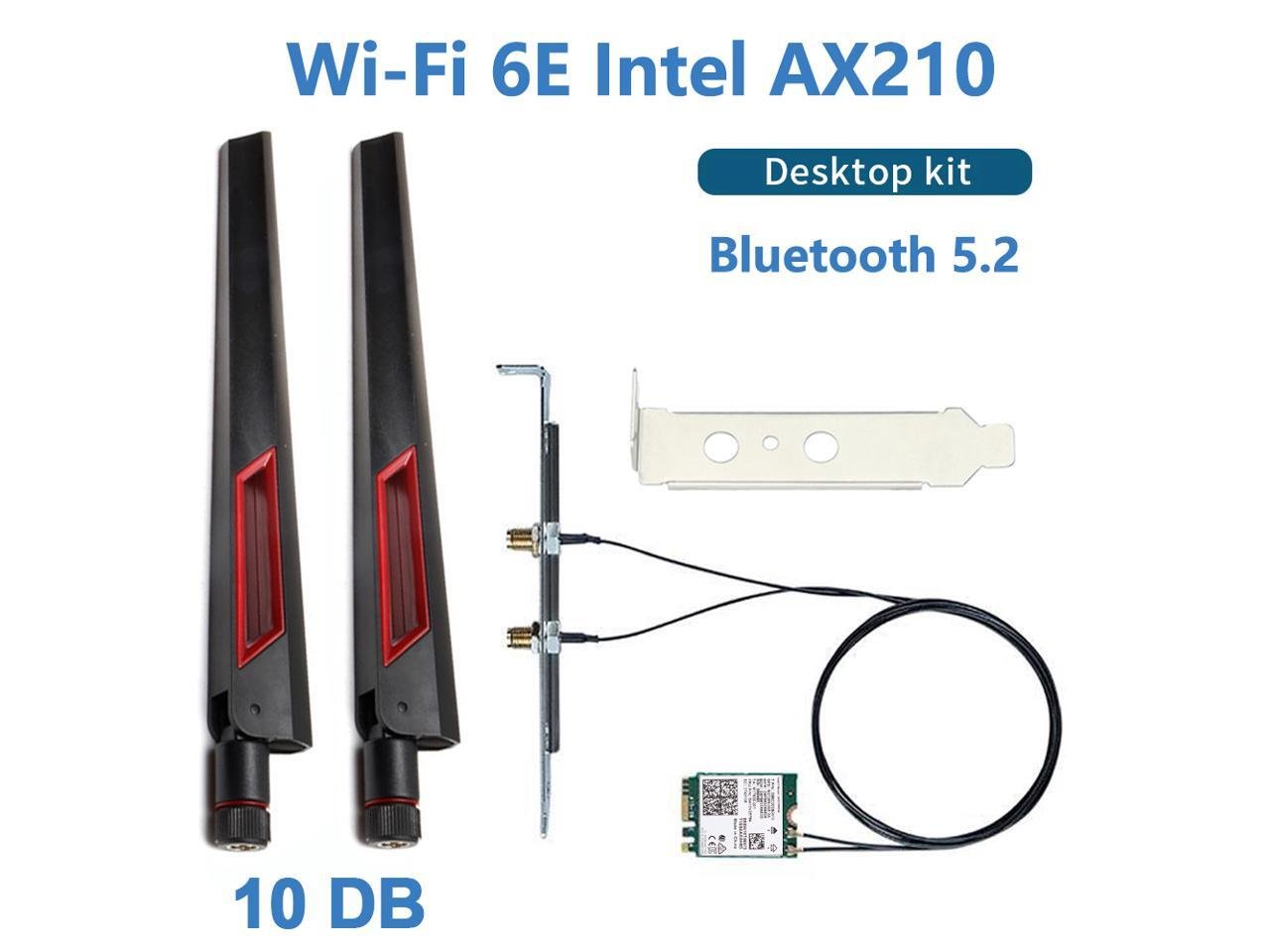
Image source: Bing (Web (fair-use with source credit))
Every time your Bluetooth drops while you’re deep into a game or a match, it feels completely random. But it almost never is. In gaming laptops, the issue usually comes down to one or more of these core problems.
Interference from your Wi-Fi or USB 3.0 devices ranks at the top. Windows turning off the Bluetooth radio to save power comes next. Corrupted drivers and weak internal antenna connections round out the usual suspects.
The 2.4 GHz band that Bluetooth shares with most Wi-Fi networks is already crowded. Inside a gaming chassis you’re dealing with extra electromagnetic noise from the GPU, CPU, and high-speed USB 3.0 ports. That combination makes gaming laptops unusually prone to intermittent Bluetooth problems.
Even when the hardware itself is perfectly fine. You can see how crowded that spectrum gets when you look at wireless gaming headsets and controllers for your setup.
Most disconnects follow predictable patterns, and recognizing those patterns saves you from spraying random fixes. If your Bluetooth drops mainly while gaming, interference or power management is likely. If the adapter disappears after sleep, Windows power handling is the culprit.
If the issue started after a recent update, a corrupted driver is probably involved. If the connection changes when you flex the lid, you’ve got an antenna seating problem.
| Symptom Pattern | Most Likely Cause | First Fix to Try |
|---|---|---|
| Drops only during heavy games | 2.4 GHz interference or power management | Disable Bluetooth power saving |
| Disappears after sleep or hibernate | Windows power management | Turn off adapter power option |
| Started after Windows update | Driver corruption | Roll back or reinstall driver |
| Changes when moving the lid | Loose internal antenna | Reseat antenna cables |
| All devices drop consistently | Bluetooth module failure | Test with USB adapter |
Understanding which pattern matches your situation sets up every fix that follows. Jumping straight to driver updates when your real problem is antenna damage wastes time. Following the symptom-to-cause map keeps your troubleshooting focused and efficient.
Why Bluetooth Drops More on Gaming Laptops Than Regular Laptops
Gaming laptops run hotter, push more electrical current, and often sit closer to routers and USB peripherals than regular ultrabooks. All of that stress compounds the Bluetooth radio’s workload. The 2.4 GHz band is already congested in most homes and apartments.
Add a GPU pushing thermal noise into the chassis and you create an environment where Bluetooth struggles more than anywhere else.
The main reasons come down to four factors. First, gaming laptops pack high-power Wi-Fi cards that share the same 2.4 GHz space as Bluetooth. Second, USB 3.0 ports emit broadband noise right at 2.4 to 5 GHz, which can drown out Bluetooth signals when devices sit nearby.
Third, the thin antenna cables inside slim gaming chassis are more vulnerable to loosening from heat cycling and physical movement. Fourth, aggressive Windows power management targets wireless adapters first when battery conservation kicks in. It often cuts Bluetooth unexpectedly during long sessions.
This explains why a business ultrabook running Bluetooth headphones works fine while the same laptop used for gaming shows constant dropouts. The difference isn’t the Bluetooth chip itself. It’s the environment around it.
High-end gaming laptops with RTX graphics and fast CPUs generate more electromagnetic stress than budget machines, and that noise leaks directly into the 2.4 GHz band. You can read more about how hardware choices affect overall laptop performance and reliability to understand the broader context here.
| Factor | Impact on Bluetooth | Severity in Gaming Laptops |
|---|---|---|
| Shared 2.4 GHz Wi-Fi and Bluetooth combo card | Co-channel interference | High |
| USB 3.0 port noise proximity | Broadband signal drowning | Medium to high |
| Thermal stress on antenna cables | Intermittent connection loss | Medium |
| Aggressive Windows power management | Random adapter shutdowns | High |
| Metal chassis shielding effects | Signal reflection and blocking | Low to medium |
If you are experiencing related wireless issues beyond just Bluetooth, such as general connectivity problems that might stem from other hardware bottlenecks, reviewing resources on common laptop issues for gaming and work can help contextualize the problem further.
How Bluetooth Actually Works Inside Your Laptop
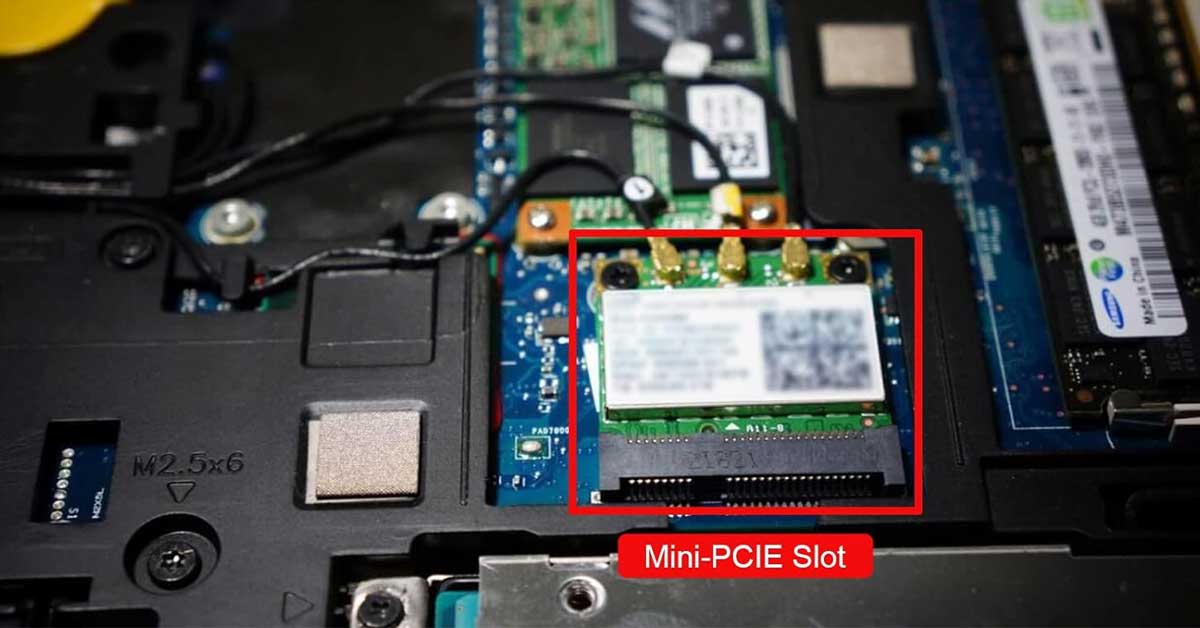
Your laptop does not use a standalone Bluetooth chip in most modern designs. It relies on a combo Wi-Fi and Bluetooth module, usually an Intel AX200, AX210, or a Qualcomm or Realtek equivalent. That single small card handles both Wi-Fi and Bluetooth internally.
They share the same 2.4 GHz space through a carefully managed time-division system that switches between the two protocols many times per second.
Two tiny antenna cables run from that card to the screen hinge or palm rest area. One cable typically handles the 2.4 GHz band for both Wi-Fi and Bluetooth. Another may support the 5 GHz Wi-Fi band separately.
Those cables terminate in small coaxial connectors that click onto the motherboard. If either cable loosens, gets pinched, or is not seated correctly, Bluetooth performance degrades sharply while Wi-Fi stays mostly fine. That asymmetry is why so many people blame the wrong component.
The module communicates with peripherals using frequency hopping across 79 channels in classic Bluetooth and a subset in Bluetooth Low Energy. Each hop lasts only a millisecond or so. A strong signal and clean environment make that hopping nearly invisible.
A noisy environment with competing Wi-Fi, USB 3.0 noise, and microwave leakage turns each hop into a potential dropout. That is why the same dongle might work flawlessly on a desk and fail repeatedly on a lap next to a running USB drive.
Intel’s own documentation on Wi-Fi and Bluetooth coexistence describes how modern combo modules manage shared spectrum, though specific connector details depend on each laptop model. Understanding that shared-path design explains why so many Bluetooth fixes also touch Wi-Fi settings and antenna checks. If you only address drivers without considering the radio environment, you are treating the symptom instead of the cause.
That knowledge becomes essential when you move into the diagnostic branches ahead.
Branch 1: Is It Interference From Wi-Fi, USB 3.0, or Other 2.4 GHz Devices?

Image source: Web (Bing) / amazon.com.au (Web image (fair-use with source credit))
If your Bluetooth drops mainly while gaming, while connected to certain Wi-Fi networks, or near specific USB devices, interference is the prime suspect. Start here before touching drivers or opening the laptop. This branch covers the environmental causes that account for the largest share of Bluetooth disconnect events in real-world usage.
Common interference culprits to check first include 2.4 GHz Wi-Fi networks running alongside Bluetooth. USB 3.0 SSDs, hubs, and peripherals plugged in close to the antenna area also generate noticeable broadband noise. Microwave ovens, wireless cameras, baby monitors, and other 2.4 GHz gadgets add to the congestion in shared living spaces.
Routers placed directly next to where your laptop sits amplify the problem significantly.
Quick interference tests you can run today provide fast answers. Turn off Wi-Fi temporarily and see if Bluetooth stabilizes. Unplug all USB 3.0 devices except your mouse and keyboard, then test again.
Move your router farther away or switch your laptop to a 5 GHz Wi-Fi network if your router supports it. Test Bluetooth in a different room with fewer wireless devices around.
If Bluetooth stops dropping during any of those tests, interference is your main problem. You will want to focus on distance, band separation, and reducing 2.4 GHz congestion long-term. Keeping your router on 5 GHz whenever possible removes it from the Bluetooth equation entirely.
Positioning USB drives on extension cables away from the laptop body prevents their noise from reaching the antenna area. Running a laptop maintenance routine like cleaning fans can also reduce thermal stress that indirectly worsens radio performance.
| Interference Source | How It Affects Bluetooth | Quick Test | Long-Term Fix |
|---|---|---|---|
| 2.4 GHz Wi-Fi router | Co-channel signal crowding | Turn Wi-Fi off temporarily | Switch router to 5 GHz band |
| USB 3.0 SSD or hub | Broadband noise at 2.4 to 5 GHz | Unplug and retest | Use USB 2.0 or relocate device |
| Microwave oven | Pulses at 2.4 GHz during operation | Avoid use during testing | Keep distance when active |
| Wireless cameras and gadgets | Additional 2.4 GHz clutter | Turn off nearby devices | Reduce total devices in band |
| Metal surfaces under laptop | Signal reflection and absorption | Test on wooden desk vs metal | Use laptop pad or wooden surface |
Environmental interference explanations sometimes overlap with other connectivity issues, so readers seeking deeper context on general laptop networking behavior might also explore discussions around optimal gaming laptop specifications for performance stability.
If you want to explore more about how to improve overall laptop performance while troubleshooting specific hardware issues, reviewing insights on top budget processors for gaming laptops provides useful background on how CPU choices relate to peripheral compatibility and stability.
Branch 2: Is It Windows Power Management Turning Bluetooth Off?
Windows loves to save power by cutting electricity to wireless adapters, and gaming laptops are especially vulnerable because Bluetooth sometimes struggles to stay active when the system is under heavy GPU or CPU load. The power-saving feature can cause Bluetooth to drop randomly, disappear from Device Manager after sleep, or fail to reconnect until you toggle it off and on again. This is one of the most common causes of random disconnections during gaming sessions.
The exact setting to change
Go into Device Manager, open your Bluetooth adapter properties, switch to the Power Management tab, and uncheck “Allow the computer to turn off this device to save power.” That one toggle resolves a huge number of random disconnection cases without requiring any other changes. Most users never notice this setting exists because it hides inside the adapter properties menu rather than appearing in standard Windows settings.
Additional power-related checks
Make sure Bluetooth stays enabled in Power and sleep settings under the connected devices section. Avoid aggressive battery saver modes while using Bluetooth peripherals since those modes throttle wireless radios more aggressively. Check if Bluetooth drops only after the laptop wakes from sleep, which often points to power state handling rather than pure interference.
Some manufacturers ship BIOS settings that override Windows power management, so a BIOS update might restore proper power state behavior for wireless components.
| Power Setting | Default Behavior | Recommended Fix | Impact on Battery |
|---|---|---|---|
| Adapter power saving | Turns off idle Bluetooth | Disable in Device Manager | Negligible impact |
| Battery saver mode | Throttles all wireless | Keep disabled during gaming | Significant battery savings |
| Sleep state handling | May not restore Bluetooth | Disable fast startup temporarily | Minimal effect |
| USB selective suspend | Powers down unused ports | Disable for USB Bluetooth dongles | Small impact |
If you notice your Bluetooth drops more frequently when running on battery power versus plugged in, that behavior strongly indicates Windows power management is the culprit rather than environmental interference. You can verify this by testing Bluetooth stability on AC power alone versus battery mode to isolate the variable. For readers concerned about overall system longevity while pushing hardware hard, understanding how to maintain your gaming laptop’s thermal performance complements these power management adjustments nicely.
Branch 3: Is It a Driver, Service, or Windows Stack Problem?
When Bluetooth acts buggy after a Windows update, starts showing error codes, or behaves inconsistently across multiple devices, the problem is usually in the driver or the Windows Bluetooth stack rather than the hardware itself. This branch covers software-side fixes that restore stable communication between your laptop and your Bluetooth gear. These issues tend to appear suddenly rather than gradually, which helps separate them from interference or antenna problems.
Steps to reset the Bluetooth stack cleanly
Restart the Bluetooth Support Service from Services.msc to clear any stuck processes holding onto old connection states. Run the Windows Bluetooth troubleshooter under Settings plus System for automatic error detection and basic repairs. Clear old pairings and re-pair your device from scratch since corrupted pairing records cause many mysterious dropouts.
Reset network settings if Bluetooth issues coincide with broader connectivity problems like Wi-Fi drops or VPN conflicts.
| Windows Issue | Error Indicator | Clean Fix |
|---|---|---|
| Stuck service | Device shows connected but no audio | Restart Bluetooth Support Service |
| Corrupted pairing | Repeated pairing failures | Forget device then re-pair |
| Stack corruption | Multiple error codes in Device Manager | Network reset via Settings |
| Driver conflict | Yellow exclamation mark | Uninstall adapter then reboot |
| Update regression | Issues started after specific Windows version | Roll back driver version |
Driver actions that actually help
Update to the latest manufacturer driver from Intel, Qualcomm, Realtek, or your laptop maker. Avoid generic Windows Update drivers since those sometimes lag behind hardware-specific improvements. Roll back the driver if the issue began right after a Windows update or driver change, as new versions occasionally introduce regressions.
Uninstall the Bluetooth adapter in Device Manager and let Windows reinstall it on reboot to clear corrupted installation states.
Steer clear of third-party driver updater tools since those often install wrong versions or bundle unwanted software. Instead, download drivers directly from the component manufacturer or your laptop vendor’s support page. Checking budget laptop considerations for programming and gaming can help you understand why driver quality varies across different hardware tiers.
Branch 4: Is It a Loose Internal Antenna or Failing Bluetooth Module?
If Wi-Fi works fine, drivers are up to date, power settings are correct, and Bluetooth still drops constantly or disappears entirely, you are likely dealing with an antenna or module problem. This is common in laptops that have been dropped, bumped, recently serviced, or built with shallow antenna contacts that loosen over time. Hardware failures tend to show consistent patterns rather than intermittent behavior tied to environment.
Signs pointing to hardware rather than software
Bluetooth works poorly only in certain positions or when you flex the lid slightly, indicating a loose antenna contact. The Bluetooth adapter vanishes from Device Manager repeatedly despite driver reinstalls and service restarts. Other devices connect fine to your laptop, but your laptop consistently loses Bluetooth to all peripherals equally.
You hear static, popping, or severe audio dropout that matches movement of the screen or chassis.
The issue started after a repair, upgrade, or accidental drop, which often dislodges fragile coaxial connectors during handling. These symptoms rule out software fixes because the problem persists across clean driver installs, different Windows states, and multiple peripheral types. Opening the chassis to inspect antenna connections becomes necessary once all software branches have been exhausted.
What a hardware check involves
Reseating the internal Bluetooth antenna cables carefully using proper connector handling techniques avoids further damage. Inspect the connector clips for damage or debris that prevents secure mating with the motherboard pins. Test with a known-good USB Bluetooth 5.0 plus adapter to confirm whether the internal module is the bottleneck before committing to repair costs.
Consider professional repair if you are uncomfortable opening the chassis or if the warranty is still active, since opening may void coverage on some models.
If you are comparing different laptop categories to understand build quality variations, exploring options for budget gaming laptops highlights how manufacturing tolerances affect long-term wireless reliability.
Step-by-Step Guide: Diagnose and Fix Bluetooth Disconnects Like a Pro
Instead of guessing, run through this structured workflow. It moves from safest and quickest fixes to deeper interventions, so you either solve the issue fast or narrow it down accurately before investing more time. Following this sequence prevents you from doing unnecessary work and helps you identify whether the fix is software, environment, or hardware before you commit to anything irreversible.
Phase 1: Fast resets and simple checks
Toggle Bluetooth off and on from the system tray to clear transient connection states. Remove and re-pair the problematic device to eliminate corrupted pairing records. Restart the Bluetooth Support Service from Services.msc to reset the Windows stack.
Run the Windows Bluetooth troubleshooter for automated error detection and basic repairs.
Phase 2: Power and interference controls
Disable Bluetooth power saving in Device Manager under the adapter properties. Switch Wi-Fi to 5 GHz if available to remove co-channel interference. Move USB 3.0 devices away from the laptop and antenna area to reduce broadband noise.
Test Bluetooth with Wi-Fi turned off to isolate whether wireless networking is the source.
| Phase | Action | Time Required | Success Rate |
|---|---|---|---|
| 1 | Service restart and re-pair | 2 to 5 minutes | 40 percent |
| 2 | Power setting changes | 2 minutes | 25 percent |
| 3 | Driver updates or reinstalls | 10 to 15 minutes | 20 percent |
| 4 | Hardware verification | 20 to 30 minutes | 15 percent |
Phase 3: Driver and system fixes
Update or roll back the Bluetooth driver to match stable known versions. Reinstall the Bluetooth adapter in Device Manager to clear corrupted installations. Perform a Windows network reset if multiple connectivity issues exist alongside Bluetooth problems.
Check for BIOS updates that address wireless stability issues specific to your laptop model.
Phase 4: Hardware verification
Test with a high-quality USB Bluetooth 5.0 plus adapter to bypass internal module issues entirely. Inspect internal antenna connections if you are comfortable opening the laptop chassis. Contact support or a repair technician if the internal module appears faulty after all software branches fail.
Keep documentation of all troubleshooting steps taken for warranty claims if hardware replacement becomes necessary.
For readers managing multiple performance variables simultaneously, reviewing laptop configurations optimized for gaming and streaming provides context on how system-wide settings interact with wireless stability.
Best Fixes by Symptom: Match Your Issue to the Right Solution
Because “keeps disconnecting” can mean several different failure modes, the fastest results come from matching your exact symptom to the appropriate fix instead of applying every suggestion blindly. Each symptom pattern points to a different root cause, and treating the wrong cause wastes time while the real problem persists.
Drops only while gaming
Heavy GPU and CPU loads increase electrical noise and heat, which amplifies interference problems. Power management can also cut Bluetooth activity when the system prioritizes rendering performance over peripheral connectivity. Start with interference control and power management fixes before considering hardware changes.
Drops after sleep or wake
Windows power state transitions sometimes fail to restore Bluetooth adapters correctly after hibernation or sleep cycles. Focus on power settings and driver reinstalls to fix the resume behavior. Disabling fast startup can also resolve certain wake-related connectivity losses.
Adapter disappears from Device Manager
Driver corruption or hardware failure causes the adapter to vanish rather than simply disconnect. Check drivers first, then BIOS settings, then antenna seating if software fixes do not restore visibility. A missing adapter that returns after reboot often points to driver issues rather than physical damage.
Audio cuts out or stutters
Signal interference or bandwidth competition causes audio dropout more often than complete disconnection. Test interference sources first since audio is most sensitive to brief signal interruptions. Try a USB Bluetooth adapter if internal interference proves unresolvable through positioning alone.
Works fine nearby but drops at normal range
Likely antenna issue or weak internal module struggling with distance demands. Test with an external adapter to confirm whether range improvement resolves the problem. If external adapters work normally, the internal antenna connection or module needs attention.
Multiple devices drop, not just one
Systemic driver or hardware problem affecting all Bluetooth connections equally. Prioritize driver reinstalls, service resets, and interference elimination before assuming hardware failure. Only consider antenna or module replacement after exhausting all software possibilities.
Only one device drops
Pairing corruption or peripheral-specific issue rather than laptop-wide problem. Forget and re-pair the single problematic device first. Test with alternative peripherals to confirm the original device is not the culprit.
| Symptom | Primary Cause | First Action | Secondary Action |
|---|---|---|---|
| Drops during gaming | Interference or power | Disable power saving | Switch to 5 GHz Wi-Fi |
| Drops after sleep | Power state handling | Reinstall driver | Disable fast startup |
| Adapter disappears | Driver or hardware | Update or rollback driver | Check BIOS settings |
| Audio stuttering | Signal interference | Relocate USB devices | Test with Wi-Fi off |
| Range degradation | Antenna issue | Test USB adapter | Reseat internal cables |
| All devices drop | Systemic problem | Full driver reinstall | Consider hardware repair |
| Single device drops | Pairing corruption | Forget and re-pair | Test alternate peripheral |
Understanding these mappings saves hours of trial and error. If you are evaluating whether your current machine can handle demanding workflows alongside wireless peripherals, checking suitability of budget laptops for gaming and coding helps contextualize hardware capabilities.
Should You Use a USB Bluetooth Adapter Instead of Fixing the Internal One?
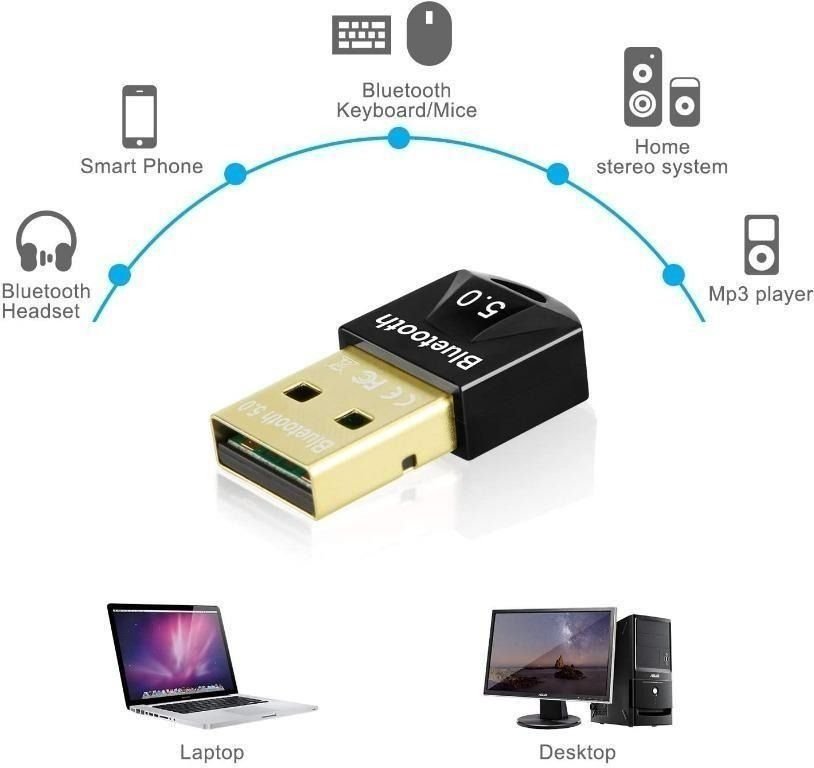
Image source: Bing (Web (fair-use with source credit))
A good USB Bluetooth 5.0 plus adapter is often the fastest, cheapest, and most reliable workaround for a struggling internal module, especially on gaming laptops where internal antenna issues or aging combo cards are common. It bypasses the built-in hardware entirely and usually delivers stronger, more stable performance as long as you place the dongle wisely. This approach skips driver conflicts, antenna reseating, and warranty voiding risks while giving you a modern Bluetooth version upgrade simultaneously.
When a USB adapter makes sense
Internal Bluetooth remains unstable after all software and interference fixes have been tried without success. The internal antenna cable is loose and you do not want to open the laptop to reseat it yourself. You want better range and more consistent performance for controllers or headsets during competitive play.
Your laptop’s Bluetooth module is older, showing signs of wear, or simply cannot keep up with modern peripheral demands.
Cheap no-name USB adapters often struggle with latency and stability, so invest in reputable brands like ASUS, TP-Link, or Intel-approved dongles. Look for Bluetooth 5.0 or higher versions since those offer better range, lower latency, and improved coexistence with Wi-Fi compared to older 4.2 or earlier modules. Place the dongle on a short USB extension cable away from the laptop body and USB 3.0 drives to minimize interference from the port noise itself.
When to stick with the internal adapter
Bluetooth only drops occasionally and power plus driver fixes resolve it completely without further issues. You are still under warranty and prefer professional repair options rather than third-party workarounds. You want to avoid carrying an extra dongle or using a valuable USB port for a permanent solution.
The issue is clearly environmental and improves significantly with distance adjustments or Wi-Fi band changes alone.
| Scenario | USB Adapter Recommended | Internal Fix Preferred |
|---|---|---|
| All software branches exhausted | Yes | No |
| Under warranty, want professional repair | No | Yes |
| Need maximum stability for competitive gaming | Yes | Maybe |
| Issue resolved by power settings alone | No | Yes |
| Loose antenna suspected, uncomfortable opening laptop | Yes | No |
| Occasional drops fixed by driver update | No | Yes |
For readers balancing budget constraints with performance needs, reviewing budget gaming laptop options under various price points can help you understand where to invest versus where to workaround with affordable accessories.
Expert Tips to Keep Bluetooth Stable During Long Gaming Sessions
Once you have identified the root cause, small ongoing habits make a big difference in preventing future drops. These steps will not fix a broken antenna, but they prevent the kind of slow drift that makes Bluetooth feel unreliable over time. Consistency matters more than perfection when it comes to maintaining wireless peripheral stability across months of regular use.
Keep your Bluetooth adapter driver updated but avoid installing questionable combo driver packs from random download sites. Place USB Bluetooth dongles on a short extension cable away from the laptop body and USB 3.0 drives to reduce noise exposure. Avoid stacking the laptop directly on top of routers, wireless chargers, or dense clusters of 2.4 GHz devices that compete for spectrum space.
Do not ignore recurring power management resets after major Windows updates, since those sometimes revert custom settings back to aggressive power-saving defaults. Re-pair devices periodically if you notice gradual quality degradation instead of sudden failures, as old pairing records can accumulate corruption over time. Monitor your gaming laptop battery health and thermal conditions since overheating and power fluctuations can destabilize wireless radio performance indirectly.
| Habit | Frequency | Impact on Stability | Effort Required |
|---|---|---|---|
| Driver updates from official sources | Monthly | High | Low |
| Dongle placement on extension cable | Permanent | High | Low |
| Re-pairing devices after quality drift | As needed | Medium | Low |
| Checking power management after updates | After each update | High | Medium |
| Reducing 2.4 GHz device density | Ongoing | High | Medium |
| Monitoring thermal conditions | During gaming sessions | Medium | Low |
These habits matter most for people who game for hours, stream, or rely on Bluetooth headsets and controllers for competitive play. Small investments in setup consistency pay off massively in reduced frustration during critical moments. If you are managing multiple peripherals alongside other hardware demands, understanding compatibility factors for programming and gaming laptops provides useful context for overall system harmony.
Mistakes People Make When Troubleshooting Bluetooth on Laptops
Even experienced users waste time on fixes that do not match the actual problem. Knowing what to avoid is just as important as knowing what to do, because the wrong steps can make Bluetooth behave worse or hide the real issue entirely. Most troubleshooting failures come from applying solutions to the wrong branch rather than from insufficient effort.
Common mistakes that make things worse include installing multiple Bluetooth drivers from random download sites, which creates driver conflicts and stack corruption that mimic the original problem. Ignoring interference and jumping straight to driver reinstalls wastes time when the real issue is a crowded 2.4 GHz environment. Leaving power management enabled and blaming the hardware too early misses the easiest fix available for many drop patterns.
Opening the laptop unnecessarily while the issue is still software-based risks voiding warranties and causing static damage to sensitive components. Assuming a single dead pairing means a broken adapter ignores the far more common cause of corrupted pairing records that clear with a simple forget-and-repair cycle. Using cheap no-name USB Bluetooth adapters that struggle with latency or stability creates new problems while pretending to solve old ones.
| Mistake | Why It Fails | Better Alternative |
|---|---|---|
| Installing random driver packs | Creates stack conflicts | Download from manufacturer only |
| Skipping interference tests | Misses most common cause | Test with Wi-Fi off first |
| Opening laptop too early | Risky and often unnecessary | Exhaust software branches first |
| Blaming adapter on single dropout | Ignores pairing corruption | Forget and re-pair first |
| Using cheap USB adapters | New instability replaces old | Buy reputable Bluetooth 5.0 plus dongles |
| Disabling Wi-Fi permanently | Solves one problem, creates another | Switch to 5 GHz band instead |
| Ignoring power management settings | Misses easiest software fix | Check Device Manager first |
Avoiding those missteps keeps your troubleshooting focused and prevents new problems from replacing old ones. For readers looking to optimize their entire gaming setup alongside connectivity fixes, exploring budget monitors that pair well with gaming laptops ensures all components work harmoniously together.
FAQs About Fix Gaming Laptop Bluetooth Disconnecting
People researching this topic usually have a few urgent questions before diving into fixes. Here are the answers to the most common ones, written to match real-world gaming laptop behavior rather than ideal lab conditions.
Why does my Bluetooth disconnect only while gaming?
Heavy GPU and CPU loads increase electrical noise and heat, and if your Bluetooth shares the 2.4 GHz band with Wi-Fi, the added interference often causes drops only during intense sessions. Power management can also cut Bluetooth activity when the system prioritizes rendering performance over peripheral connectivity. This explains why the same headset works fine for video calls but drops during competitive matches.
Can USB 3.0 devices really break Bluetooth?
Yes. USB 3.0 ports and devices emit broadband noise very close to the 2.4 GHz band, and that noise can drown out Bluetooth signals, especially when the dongle or internal antenna is near those ports. Moving a USB 3.0 external drive just six inches away from your laptop often eliminates dropout problems entirely.
How do I know if my Bluetooth antenna is loose?
If Bluetooth performance changes when you open or close the lid slightly, or if it works better when you press near the screen hinges, the internal antenna cable is likely loose or poorly seated. You might also notice the adapter disappearing from Device Manager intermittently, which strongly suggests a physical connection issue rather than a software problem.
Is Bluetooth 5.0 or 5.2 worth upgrading to?
Upgrading to a clean Bluetooth 5.0 plus connection, especially via a reputable USB adapter, usually improves stability, range, and latency compared to older Bluetooth 4.x modules found in many older gaming laptops. The newer versions also handle coexistence with Wi-Fi much better, reducing the interference problems that plague older hardware.
Will turning off Wi-Fi fix my Bluetooth drops?
It often will, because removing the 2.4 GHz Wi-Fi traffic eliminates the biggest source of co-channel interference. If Bluetooth stabilizes when Wi-Fi is off, you should switch to 5 GHz Wi-Fi long-term instead of leaving Wi-Fi disabled permanently, since you still need internet access while gaming.
What is the difference between a driver rollback and a full reinstall?
A driver rollback replaces your current driver with the previous version, which helps when a recent update introduced bugs. A full reinstall deletes the driver completely and lets Windows fetch a fresh copy, which fixes corruption issues that rollbacks cannot resolve. Try rollback first if the problem started after an update, otherwise go straight to reinstall.
| Question | Short Answer | Quick Test |
|---|---|---|
| Only drops during gaming | Interference or power management | Monitor temps and power settings |
| USB 3.0 impact | Broadband noise at 2.4 GHz | Unplug USB devices temporarily |
| Loose antenna signs | Lid movement affects connection | Flex screen while testing |
| Bluetooth 5.0 upgrade | Better stability and Wi-Fi coexistence | Compare with known-good adapter |
| Wi-Fi off test | Eliminates co-channel interference | Toggle Wi-Fi and observe drops |
| Rollback vs reinstall | Fix update bugs vs fix corruption | Check when problem started |
For readers who want to explore more about optimizing their overall gaming experience beyond just connectivity, checking top budget gaming laptop configurations provides useful context on balancing wireless performance with other system requirements.
Final Recommendation: How to Decide What to Do Next
The best outcome comes from matching your exact symptom pattern to the right branch instead of randomly trying everything. If drops happen mainly during gaming or near certain devices, start with interference and power management fixes. If the adapter disappears or acts corrupt after updates, focus on drivers and the Bluetooth stack.
If basic fixes do not help and movement or lid position affects performance, hardware or antenna issues are likely.
And if you want a fast, reliable workaround without opening the laptop, a quality USB Bluetooth 5.0 plus adapter is usually the smartest shortcut. It bypasses internal antenna problems, delivers modern Bluetooth features, and costs far less than professional repair services. Just remember to place it away from USB 3.0 ports and use an extension cable if possible.
| Your Situation | Recommended Path | Expected Outcome |
|---|---|---|
| Drops during heavy games | Power management plus interference control | Stable connection restored |
| Adapter disappears after sleep | Driver reinstall plus power setting changes | Reliable wake behavior |
| All software branches failed | USB Bluetooth adapter bypass | Immediate stable performance |
| Lid movement affects connection | Antenna reseating or professional repair | Hardware-level fix |
| Want simplest permanent solution | Quality USB adapter with extension cable | Bypass internal issues entirely |
Follow that logic and you will stop wasting time on fixes that do not match your actual problem. The right branch depends entirely on your specific symptoms, so identify yours first and then apply the targeted solution from there.