The article starts with the exact problem you’re facing. When a DirectX game crashes but other titles run smoothly on the same laptop, the issue is usually a software or hardware mismatch. As of 2026, most gaming laptops have at least 8GB of GDDR5 or 12GB of VRAM, and a direct cause often hides in the driver stack or power profile.
The quick‑answer block answers your query in plain terms. Here’s the fix: reinstall GPU drivers, repair DirectX runtime, and force the discrete GPU. Verify game files, clear the shader cache, and disable overlays.
These steps usually stabilize the crashing title without touching other games.
Quick Checks Before Touching Drivers
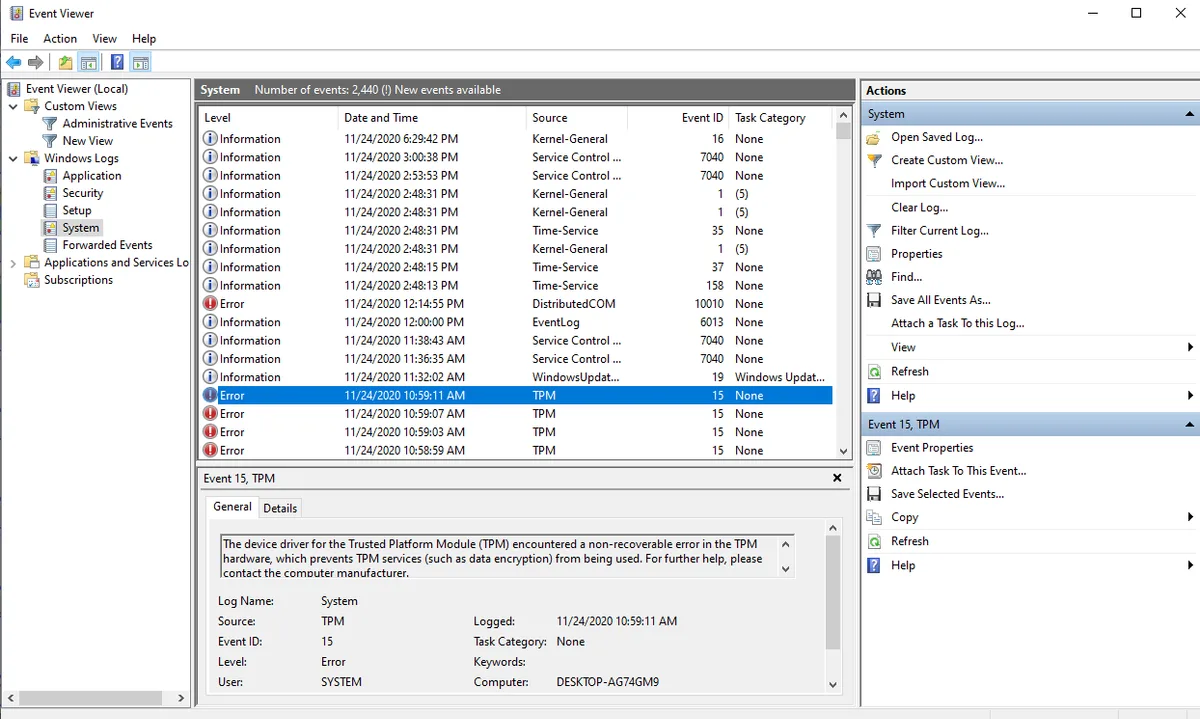
If a DirectX game crashes while other games run fine, start with the simplest tests. Check the Event Viewer for “DXGKrnl Error” or “TDR timeout”. Open dxdiag and confirm DirectX 12 is listed as the default.
Verify the laptop is set to the high‑performance power plan and that Optimus or Switchable Graphics is not forcing the integrated GPU. Finally, run a fresh GPU driver install from NVIDIA, AMD, or Intel’s site.
DirectX 11 vs DirectX 12 vs Vulkan: Which Rendering Path Breaks
DirectX 11, 12, and Vulkan handle shaders and command buffers differently. DirectX 12 offers lower‑level access, reducing CPU overhead, but older games sometimes rely on 11 for compatibility. Vulkan bypasses Microsoft altogether and can cause driver mismatches on laptops with Optimus.
Test each API by launching the game with a command‑line flag (e.g., -force-d3d11, -force-d3d12, -force-vulkan). The rendering path that crashes is the problematic one, so the correct API is the safe choice.
Fix DirectX Game Crashes Step by Step
Step 1, Diagnose the error.
Open Event Viewer and look for dxgkrnl, DXGI, or D3D11 error codes. Capture the timestamp and error message for documentation.
Step 2, Refresh the GPU driver.
Download the driver from NVIDIA’s Game Ready page (or AMD’s Adrenalin). Uninstall the current driver first, then run the clean‑install wizard. After reinstall, reboot and run dxdiag again to confirm the driver version.
Step 3, Repair DirectX runtime.
Run the built‑in DirectX runtime repair tool or use DISM / SFC to restore system files. Execute dism /online /cleanup-image /restorehealth and sfc /scannow. Restart the laptop after the scan.
Step 4, Validate game files and clear shader cache.
Inside the game’s launcher, select “Verify Game Files” (Steam) or “Repair” (Epic). For non‑store titles, delete the %APPDATA%\*GameName* folder and rerun the launcher's cache clean option.
Step 5, Force discrete GPU and disable overlays.
Open NVIDIA control panel → Set graphics preferences → choose “High‑performance NVIDIA processor”. Disable any third‑party overlays (RGB, MSI Afterburner, etc.) that might intercept DirectX calls.
Mistakes That Make DirectX Crashes Worse
Many users make the problem worse by skipping driver clean‑installs. Re‑installing over an existing driver often leaves stray DLLs that conflict with DirectX 12. Ignoring power‑plan settings can force the laptop onto integrated graphics, causing TDR timeouts.
Leaving overlays active can intercept rendering calls, especially for games that use DX12’s low‑level API. Finally, not clearing the shader cache means corrupted shaders keep reloading, leading to repeated crashes.
How to Fix Directx Games Crash But Other Games Work on a Gaming Laptop: Causes, Tests & Solutions
If a DirectX game crashes while other titles run fine, start with a clean GPU driver install and DirectX runtime repair. Verify the game’s rendering API (DX11, DX12, Vulkan) matches the driver’s feature level. Force the discrete GPU in the control panel and disable any overlay software.
Clear the shader cache and re‑run the game with admin privileges. Document any error codes from Event Viewer to guide further troubleshooting.
Frequently Asked Questions
What error codes signal DirectX crashes?
DXGKrnl, DXGI_ERROR_DEVICE_REMOVED, and D3D11 create TDR logs that pinpoint driver or GPU issues.
Do I need to reinstall Windows after a DirectX crash?
Usually not. Reinstall GPU drivers, repair DirectX runtime, and clear game caches are enough.
Which power plan works best for DirectX games?
High‑performance (or custom) power plan prevents throttling and keeps the discrete GPU active.
Why does Vulkan sometimes crash on laptops?
Vulkan bypasses Windows layers; if the laptop’s Optimus or MUX switch isn’t configured correctly, the game may default to integrated graphics and crash.
Can an outdated BIOS cause DirectX crashes?
Rare, but firmware updates sometimes fix GPU driver communication. Check the OEM’s support site for bios/firmware releases.
What is the quickest way to clear shader cache?
Delete the %APPDATA%\*GameName* folder, restart the game, and let it rebuild the cache.
When should I seek professional help?
If Event Viewer shows repeated dxgkrnl errors, driver logs indicate a hardware conflict, or the laptop’s GPU is mis‑detected, consult the OEM’s support team.
Next Steps: After these steps, you’ll have a stable DirectX environment. If issues persist, review the decision guide and logs, then contact support for deeper diagnostics.
Decision Guide: Match Your Crash to the Right Fix
If your crash logs show dxgkrnl or TDR timeout errors, suspect the GPU driver first. Roll back to a stable Game Ready or Adrenalin release and run a clean install. Per Microsoft DirectX documentation, TDR events occur when the display driver stops responding to the OS.
If the crash only appears in DirectX 12 titles, the rendering path is likely mismatched with your laptop’s feature level. If the game runs fine on AC power but crashes on battery, Windows is probably throttling the discrete GPU. Switch to high-performance mode and plug in before launching.
If Event Viewer shows repeated DXGI_ERROR_DEVICE_REMOVED, the driver reset mid-frame and a shader cache clear is the next step. If your laptop defaults to integrated graphics, force the discrete GPU in NVIDIA control panel or AMD Radeon Software. A graphics driver failure often starts with small stutters before a full crash.
A blue screen while gaming suggests a deeper hardware or driver conflict that needs a rollback. For DirectX 12 crashes only, try disabling hardware-accelerated GPU scheduling in Windows settings. This feature can conflict with older laptop GPUs that lack full WDDM 2.7 support.
Still stuck? Check whether Advanced Optimus is toggled correctly in your OEM control panel. When it misfires, the system routes frames through the wrong GPU and DirectX fails to initialize.
If Vulkan launches but DirectX 11 does not, the issue is isolated to Microsoft’s runtime rather than the GPU itself. Repair DirectX through DISM and SFC, then relaunch. For integrated graphics instead of dedicated GPU problems, set the game executable to high-performance in Windows graphics settings.
Maintenance / Long-Term Optimization
Keep GPU drivers on the latest stable branch, not beta builds, unless a specific fix notes your game. Avoid downloading standalone DLL files from unofficial sites; they often carry mismatched versions that break DirectX initialization. Use only drivers from NVIDIA, AMD, or Intel directly.
Monitor thermals with GPU-Z or Afterburner. Sustained temperatures above 90C on the GPU die can trigger throttling and TDR events. Reapplying thermal paste or using a cooling pad helps older laptops maintain stable clock speeds.
Run dxdiag once a month to confirm DirectX 12 is active and the display driver date matches your installed version. If you reseat RAM or storage, rerun the driver install afterward to clear residual conflicts. A dGPU disappears after sleep issue usually points to power management rather than hardware death.
Keep your laptop plugged in during extended sessions to avoid battery-induced throttling. Windows often downclocks the discrete GPU on battery power, which can trigger TDR crashes in demanding DirectX titles. A cooling pad adds airflow without voiding your warranty.
For ongoing stability, visit NVIDIA driver downloads or AMD’s support site quarterly. New game-ready drivers often include DirectX fixes for recently released titles. Pair that with monthly Event Viewer checks to catch dxgkrnl errors before they cause a crash.