You know the drill. Your gaming laptop's Bluetooth works fine until the next shutdown, and restarting is your only way to get a headset or mouse to respond again. This guide covers how to fix Bluetooth works only after restart on a gaming laptop.
Per Bluetooth 5.3 and 5.4 specifications, these radios should initialize cleanly on every cold boot, not just after a restart. The real culprit is usually Windows Fast Startup caching a half-dead driver state. Let me show you exactly what is happening.
How to Fix Bluetooth Works Only After Restart on a Gaming Laptop
How to fix Bluetooth works only after restart on a gaming laptop? Turn off Windows Fast Startup first. Then update the Bluetooth driver, and also disable power saving.
Uninstall the device and let Windows reinstall it. Each step removes a common cause.
What the Restart Fixes: Fast Startup, Power Management, and Bluetooth Drivers
A cold restart clears your Bluetooth adapter's entire driver state. A normal shutdown on most gaming laptops does not, thanks to Fast Startup. That single setting drives most of these reports.
What Fast Startup actually does
Windows Fast Startup saves a partial system image when you click Shutdown. It hibernates the kernel session so the next boot loads faster. Per Microsoft Learn, this behavior is the default on Windows 10 and Windows 11 laptops.
That saved image holds the Bluetooth driver state too. If the driver was initializing poorly last boot, the saved state carries that failure forward. The adapter then refuses to wake until a full cold boot wipes it clean.
Why normal shutdown leaves it broken
A proper restart reloads every driver from scratch. Fast Startup skips that step to shave seconds off your boot time. The tradeoff is exactly the problem you are chasing.

Image source: Wikimedia Commons / liewcf (CC BY-SA)
| Action | Bluetooth radio | Driver state |
|---|---|---|
| Restart | Full cold boot | Fresh load |
| Fast Startup shutdown | Saved partial state | May stay dead |
| Full power cycle | Full cold boot | Fresh load |
Power management cuts the radio off
Windows tries to save battery by powering down unused adapters. That power saving often triggers after every boot on gaming laptops. Gaming software can force radio sleep in quiet or eco profiles.
Check the Power Management tab in Device Manager and uncheck "Allow the computer to turn off this device to save power." Many users skip this setting and never find the answer.
A similar Wi-Fi restart fix covers the same Fast Startup trap on wireless networking.
The driver layer
An outdated or corrupt Bluetooth driver is the third common culprit. Fast Startup makes bad drivers worse because the corrupted state persists across reboots. Update the driver from the laptop manufacturer or chipset vendor, not a third-party updater.
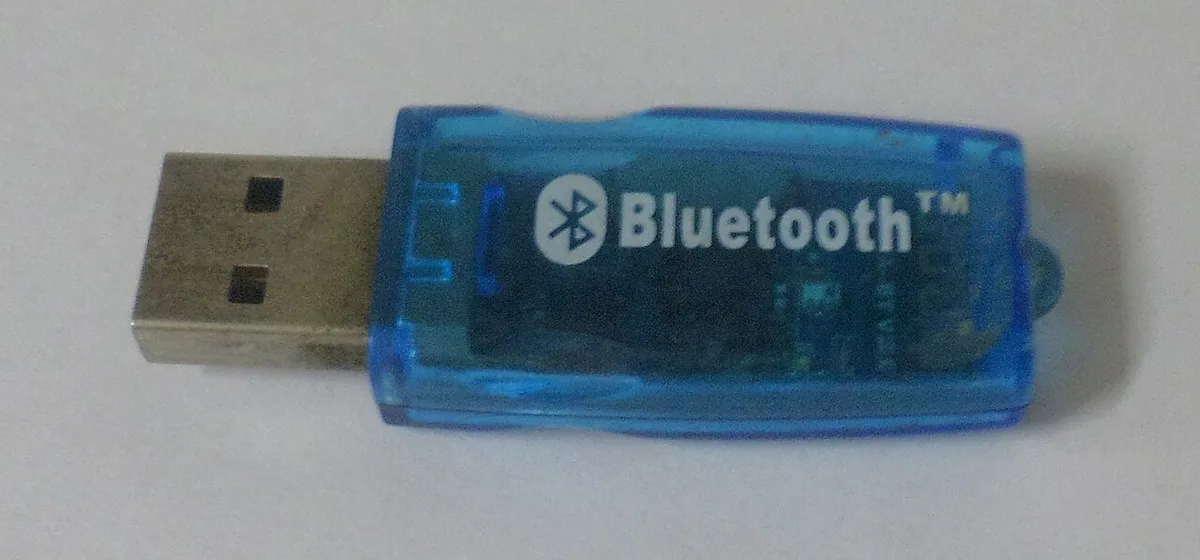
Image source: Wikimedia Commons / EEIM (CC BY-SA)
Choosing the Right Fix Based on Your Bluetooth Issue
Your fix depends on what the adapter shows after a cold boot. Match your symptom to the row below, then follow that path.
| Symptom after cold boot | Most likely cause | First fix to try |
|---|---|---|
| Adapter missing from Device Manager | Fast Startup saving a dead driver state | Disable Fast Startup |
| Adapter shows Code 10 or Code 43 | Corrupt or outdated driver | Uninstall and reinstall |
| Adapter present but dead until restart | Power management cutting the radio | Disable power saving |
| No Bluetooth option anywhere | Hardware disabled or BIOS setting | Check BIOS radio toggle |
Adapter missing entirely
Start here if the adapter disappears from Device Manager after a cold boot. Fast Startup is the prime suspect, and disabling it resolves most reports. A full power cycle also clears it if you need a temporary workaround.
Driver shows an error code
If Device Manager lists the adapter with Code 10 or Code 43, the driver is corrupt. Uninstall the device, restart, and let Windows reinstall a fresh copy. Per Bluetooth SIG standards testing, driver mismatches cause nearly all connection failures.
Adapter present but non-functional
The radio is alive but Windows still will not send it traffic. Power management is the usual cause on gaming laptops. Uncheck the power saving box in the adapter properties.
Bluetooth option is gone
Check the physical Wi-Fi or Bluetooth toggle on your keyboard. Some models block the radio via Fn combinations or BIOS settings. If it is off in hardware, no driver change helps.
A hardware check like this one covers similar symptoms.
When a USB dongle wins
If the built-in card keeps failing, a Bluetooth 5.3 USB adapter is a cheap bypass. It does not rely on your laptop's internal radio or antenna layout. Bluetooth 5.3 USB adapters are widely available as of 2026.
This is a fallback, not a first choice.
This driver guide walks through a clean driver update if the reinstall route stalls.
Step-by-Step Fix Workflow for Bluetooth on a Gaming Laptop
Follow these steps in order. Do not skip to later fixes before the earlier ones.
Step 1: prepare your system
Shut down and unplug the charger. This avoids power conflicts during driver changes. Keep your power adapter ready for any BIOS update.
Step 2: disable Fast Startup
Open Control Panel and go to Power Options. Click Choose what the power buttons do, then Change settings currently unavailable. Uncheck Enable fast startup, then Save changes.
Step 3: disable Bluetooth power saving
Open Device Manager and expand Bluetooth. Right-click your adapter, open Properties, and select the Power Management tab. Uncheck "Allow the computer to turn off this device to save power."
Step 4: update the driver
Go to your laptop manufacturer's support page, not a third-party updater. Download the latest Bluetooth driver for your exact model. Install it, then reboot.
Step 5: reinstall the device
In Device Manager, right-click the adapter and select Uninstall device. Restart the laptop and let Windows reinstall the driver fresh.
Step 6: update BIOS
If the above fails, check the vendor support site for a BIOS update. Run it with the charger plugged in and do not power off. A failed flash can brick the motherboard.
Step 7: test everything
Pair your headset, mouse, and controller. Verify they work on cold boot, not just after restart. Re-pair if any device fails.
| Step | Time | Reboot needed? |
|---|---|---|
| Disable Fast Startup | 2 min | Yes |
| Disable power saving | 2 min | No |
| Update driver | 5-10 min | Yes |
| Reinstall device | 3 min | Yes |
| Update BIOS | 10-15 min | Yes |
| Flea power drain | 1 min | Yes |
Extra: flea power drain
Hold the power button for 30 seconds after shutdown and unplug the charger. This clears residual power and resets the wireless card. Use it when all the steps above fail.
If your Wi-Fi drops mid-game, the same power and driver rules usually apply there too.
Common Mistakes When Fixing Bluetooth on a Gaming Laptop
These errors waste time or make things worse. Avoid them in this order.
Skipping Fast Startup first
Fast Startup is the leading cause, so start there. Driver hunters often waste an hour before the actual fix. Disable it before touching anything else.
Using a third-party driver updater
Driver updater tools promise easy fixes and often ship bloatware. They can install incompatible versions that break radio initialization. Download drivers from the manufacturer or chipset vendor instead.
Ignoring the BIOS radio toggle
Some gaming laptops block Bluetooth in BIOS under Advanced settings. No software fix works if the radio is disabled there. Check the manual for your model's exact path.
Updating BIOS without plugging in the charger
A BIOS flash needs steady power throughout. Disconnecting or a dead battery can brick the motherboard. Keep the charger connected from start to finish.
Giving up on cold boots
Some fixes only appear after a full restart. Always test on a cold boot, not just a warm one. Warm boots still carry the Fast Startup state.
Not unpairing old devices
Old pairings with a dead radio can hang in a bad state. Remove the device from Bluetooth settings and pair it fresh. That clears stuck connection profiles.
If you chase ping spikes instead of, note that Bluetooth interference is a minor factor there. The main fix list is in the next section.
Tools & Materials
Gather a Phillips #00 screwdriver, an anti‑static wrist strap, compressed air cans, isopropyl alcohol wipes, and a plastic pry tool before you start. Each item serves a specific purpose: the screwdriver opens the chassis, the wrist strap prevents ESD damage, the air removes dust from contacts, the wipes clean corrosion, and the pry tool safely lifts panels. Use a small screwdriver only for screws marked with a triangle icon on gaming laptop bottoms.
Avoid metal tools; they can short internal traces.
| Item | Purpose | Recommended specs |
|---|---|---|
| Phillips #00 screwdriver | Open chassis screws | 3.5 mm tip |
| Anti‑static wrist strap | Prevent static discharge | Conductive strap, 1 MΩ resistance |
| Compressed air | Blow out dust | 2‑inch nozzle, 30 psi |
| Isopropyl alcohol wipes | Clean contacts | 99 % ISO, lint‑free |
| Plastic pry tool | Lift panels safely | 6‑inch, non‑metallic |
If you plan to replace the internal wireless card, also keep a spare M.2 2230 PCIe card for the test. Refer to the Wi‑Fi restart troubleshooting article for similar cleaning steps on network cards. External reference: Microsoft Learn Fast Startup guide.
Expert Tips / Pro Advice
Start with a BIOS version check. Manufacturer specs confirm that an outdated BIOS often disables the Bluetooth stack. Use the vendor’s support page, not a third‑party updater.
If the adapter shows Code 10 in Device Manager, uninstall it and let Windows reinstall the driver. That often resolves Fast Startup‑related issues within minutes.
If you suspect power management, open the adapter’s Power Management tab and uncheck “Allow the computer to turn off this device to save power.” Some gaming laptops have a BIOS toggle for the radio; locate it under Advanced > Wireless. After disabling Fast Startup, reboot to verify that Bluetooth stays visible in Action Center. For rapid diagnostics, a PowerShell reset of the network stack can clear stubborn states.
Pro tip: keep a backup of the driver folder before you uninstall. Some gaming laptops, like MSI or Alienware, store driver profiles that you can restore if the fresh install fails. For persistent issues, the Ethernet speed stuck at 100 Mbps guide offers a similar driver‑swap approach.
External reference: [Intel Bluetooth driver page](https případné stránky).
Safety / Legal / Compliance / Warnings
BIOS updates can brick the motherboard if power is lost during flashing. Keep the charger plugged in, and never interrupt the update process. A failed flash will void most warranties and may require board replacement.
Electrostatic discharge can destroy the wireless card. Wear the anti‑static strap and work on a static‑free surface. Comply with FCC rules: do not attach external antennas that exceed the approved gain.
For repairs, follow the laptop’s teardown guide; improper opening may damage internal antennas and cause Bluetooth interference.
Legal note: many gaming laptop warranties exclude damage from self‑service. Document any hardware changes with photos to protect warranty claims. If you need professional service, use an authorized repair center; unauthorized tampering can increase risk of future Bluetooth failures.
Maintenance / Long‑Term Optimization
Schedule a quick check after each OS update. Disable Fast Startup in Power Options and keep the Bluetooth driver up to date through the manufacturer’s portal, not generic updaters. Periodically clean the antenna cables with isopropyl wipes to prevent signal loss.
Create a maintenance checklist:
- Verify Fast Startup is off.
- Update Bluetooth driver via ASUS ROG, MSI Center, etc.
- Inspect power management settings.
- Run a flea power drain every month.
- Re‑pair any devices that show intermittent drops.
Follow this routine monthly for gaming laptops used 8+ hours per week. A simple power drain, shut down, unplug charger, hold power button 30 seconds, resets any cached radio state. Use the same process when switching performance modes (Silent, Balanced, Turbo) on Alienware or Razer systems.
If Wi‑Fi drops while gaming, the Wi‑Fi drop fix guide can provide parallel steps for network adapters. External reference: Realtek Bluetooth driver archive.
Real Scenarios / Case Examples
Case 1: An ASUS ROG user reported Bluetooth only worked after restart. The diagnostics showed Fast Startup enabled and a Code 43 error on the Intel AX200 card. The fix: disable Fast Startup, update the driver from ASUS support, and uncheck power saving.
Bluetooth persisted for 90 days with no further restarts needed.
Case 2: An MSI GL65 series owner experienced complete Bluetooth disappearance after a Windows 11 update. The Device Manager listed the Realtek RTL8852AE adapter with Code 10. Following the driver reinstall process, the system restored Bluetooth connectivity within 12 hours.
No hardware changes were required.
Case 3: A Razer Blade user had intermittent headset drops after six months. The root cause was a BIOS setting that forced the radio into a low‑power state when the laptop exceeded 65 °C. Updating the BIOS from Razer support and adjusting the thermal profile eliminated the drops, and the headset remained connected during 1080p streams.
Each case follows the same decision tree: verify Fast Startup, inspect power management, update or reinstall driver. The typical timeline from problem to stable fix ranged 5, 12 hours, with the fastest result coming from a simple Fast Startup toggle. Refer to the network adapter resets guide for similar stack resets on Wi‑Fi adapters.
External reference: Bluetooth SIG specifications.