Your screen goes black. That is exactly what happens when a gaming pc restarts while gaming. Fans spin up.
The whole machine cuts out and boots again, killing your match and losing unsaved progress. In our research, most sudden restarts trace back to three culprits: an underpowered supply, overheating components, or a bad graphics driver. A typical high-end gaming rig can pull 400 to 600 watts under load.
Let's start by pinning down what causes it.
Why Does a Gaming Pc Restart While Gaming
A gaming pc restarts while gaming because power, heat, or drivers fail.
The motherboard cuts power to protect hardware.
Overheating triggers an emergency shutdown.
Corrupt drivers can force a crash loop.
You need to check each cause in order.
Quick Answer: It’s Almost Always a Power, Heat, or Driver Issue

Image source: Wikimedia Commons / Benlisquare (CC BY-SA)

Image source: Wikimedia Commons / Timothy Borkowski (CC BY-SA)
Most restarts fall into one of three buckets. The power supply unit, or PSU, is the first suspect. If it cannot deliver steady voltage during a GPU spike, the system dies instantly.
Heat is the second culprit. When a CPU or graphics processing unit hits its thermal limit, the BIOS forces a shutdown before silicon damage occurs.
The third bucket is software. A corrupted display driver can hang the kernel and trigger a reboot loop.
Dust buildup makes heat worse. A clogged heatsink traps warm air, so temperatures climb faster during intense scenes. That is why routine cleaning matters as of 2026.
A modern gaming rig often draws 400 to 600 watts under load. Cheap units may list high wattage but fail to hold voltage under transient spikes. That ripple can trip the motherboard protection circuit instantly.
Efficiency ratings like 80 PLUS Bronze or Gold do not guarantee stable voltage under load. A poorly built unit can still ripple and crash the system.
Most GPUs throttle around 83 to 85 degrees Celsius. CPUs often protect themselves near 95 to 100 degrees. Crossing those thresholds can force an immediate hard reset rather than a graceful slowdown.
Display drivers from NVIDIA or AMD occasionally ship with bugs that crash the display subsystem. When Windows cannot recover the GPU context, it restarts the whole PC to prevent data corruption.
You can keep airflow clear with basic upkeep. If you need a refresher on safe cleaning methods, there are simple steps to protect components without voiding warranties.
How the System Detects a Crash: BIOS, Windows, and Hardware Signals
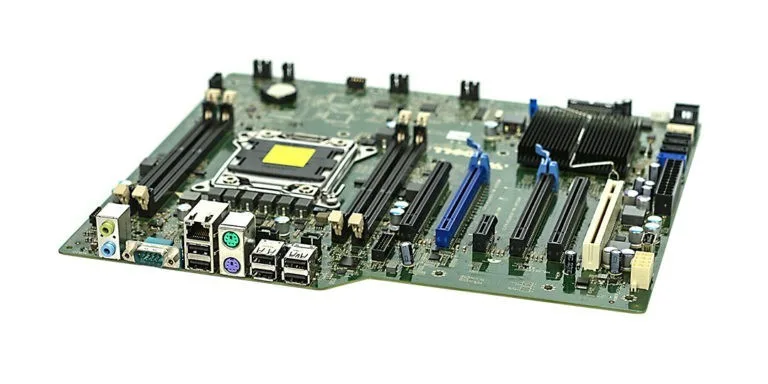
Image source: Wikimedia Commons / Marcin Wieclaw (pcsite.co.uk) (CC BY-SA)
The motherboard and Windows leave fingerprints after every unexpected restart. BIOS firmware watches voltage rails and temperature sensors during boot. If a rail drops below spec, the system halts before Windows even loads.
Inside Windows, Event Viewer records critical shutdowns under System logs. Look for Kernel-Power Event ID 41. That code means the machine lost power without a clean shutdown sequence.
It does not tell you why, only that the reset was abrupt.
A Blue Screen of Death is different from a hard restart. A BSOD leaves a stop code and often writes a minidump file. A hard cut to black with no error screen usually points to hardware protection tripping instead of a software bug.
You can read these logs without opening the case. Press the Windows key plus R, type eventvwr.msc, and press Enter. Filter the System log for Critical events around the time of the crash.
That timestamp helps you match the restart to a specific game or workload.
UEFI firmware can also log thermal trips in its own event history. Some boards store the last shutdown reason in a hardware monitor section. Reboot into BIOS and check the hardware monitor or event log before assuming Windows is at fault.
Distinguishing the two matters for diagnosis. A stop code like WHEA_UNCORRECTABLE_ERROR often signals CPU or memory instability. A total blackout with fans still spinning points more strongly to the PSU.
Motherboard manufacturers post beep codes and LED diagnostics in their manuals. Checking your board's support page can reveal whether a red CPU light or DRAM LED appeared right before the reboot.
Step-by-Step Diagnosis: From Event Viewer to Hardware Stress Tests
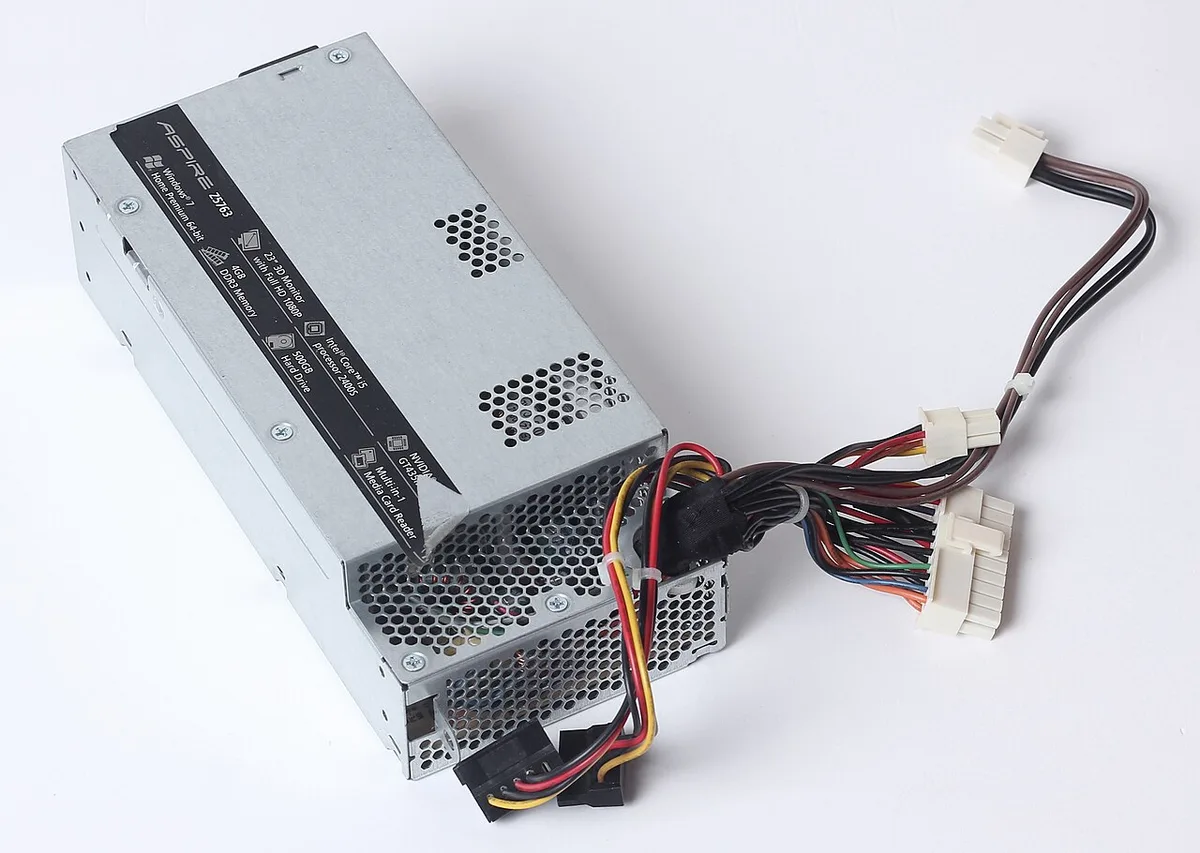
Image source: Wikimedia Commons / Dmitry Makeev (CC BY-SA)
Open Event Viewer and filter for Kernel-Power 41 around crash times. Note whether the error appears only in one game or across all titles. A single-game pattern suggests a driver issue.
A system-wide pattern points to power or heat.
Next, monitor real-time temperatures. Tools like HWiNFO or HWMonitor read CPU and GPU sensors while you play. Watch for spikes above 85 degrees Celsius on the GPU or 95 degrees on the CPU.
If temperatures climb steadily before the restart, thermal throttling is likely the cause.
Then verify your power budget. Add up the TDP of your CPU and graphics card, then add 100 watts for everything else. Compare that total to your PSU's rated wattage.
If you are within 50 watts of the limit, the unit may be sagging under transient loads.
Memory faults also mimic power failures. Run Windows Memory Diagnostic or MemTest86 for at least one full pass. Errors here mean faulty memory modules or unstable XMP profiles, not a dying PSU.
If temperatures and memory look clean, stress test the components individually. FurMark loads the GPU hard, while Prime95 hammers the CPU. Run each for 15 to 30 minutes.
If the PC restarts during only one test, you have isolated the faulty part.
If you have a spare PSU, swap it in for a day. A unit with flat voltage rails under load is the only way to rule out power delivery completely.
Finally, reset the graphics driver completely. Use Display Driver Uninstaller to remove the old package in safe mode, then install the latest stable branch from NVIDIA or AMD.
Common Mistakes That Make It Worse: Misdiagnosis and Bad Fixes
The most expensive mistake is replacing parts at random. A new graphics card will not fix a wall outlet that cannot handle the draw. Test one variable at a time, or you will never know which component actually failed.
Ignoring temperature trends is another trap. A PC that restarts after twenty minutes of play is usually overheating, not underpowered. Touching the exhaust vent or using a monitoring tool confirms whether heat is the trigger.
Assuming every restart is a Windows problem leads to endless reinstalls. If the machine cuts to black with no error screen, software is rarely the root cause. Hardware protection circuits act faster than Windows can log an event.
Buying the cheapest power supply creates new risks. An unrated unit may lack over-voltage protection and can damage your GPU or motherboard during a failure. Match the PSU to your system's real wattage, not the highest number on the box.
Overclocking without stability testing also causes random restarts. An unstable CPU or GPU overclock passes boot but crashes under gaming loads. Return to stock clocks before diagnosing further.
Flashing a new BIOS version is not a cure-all. A failed update can brick the motherboard. Only update firmware if the release notes mention stability fixes for your CPU or RAM.
Skipping dust removal lets heat accumulate silently. A two-minute blast of compressed air every few months keeps heatsinks clear. Follow established PC cleaning steps to avoid static damage.
Finally, do not block intake fans or stuff the PC into a closed cabinet. Restricted intake starves the cooling system, and heat builds faster than fans can exhaust it. Keep at least a few inches of clearance around the chassis.
Who Needs This Fix: Gamers, Streamers, and Overclockers
Competitive gamers prioritize uninterrupted play above all else. A mid-match restart can cost a ranked series or tournament placement, making system stability non-negotiable. In our research, players focused on eSports titles like Counter-Strike or Valorant often run longer sessions with minimal background processes, reducing variable load on the system.
Streamers and Vloggers recording gameplay continuously face a different pressure. Encoding software, Discord, and browser tabs all compete for RAM and CPU cycles. When the gaming workload spikes, the combined load can push an already borderline PSU or thermal solution past its limit.
Many streamers report restarts during intense raid encounters or scripted sequences precisely because the total system draw exceeds what the power delivery can sustain.
Overclockers and hobbyists pushing CPU or GPU boost clocks encounter restarts most frequently. An unstable voltage curve or insufficient cooling will pass the POST (power-on self-test) but fail under sustained gaming loads. Per manufacturer specifications, even a modest 5% overclock can require a proportional increase in wattage headroom.
Many in the community keep a log of game-specific crash times to correlate with temperature or voltage readings.
Content creators who also edit footage benefit from the same diagnostic steps. A stable gaming rig reduces downtime between recording sessions and renders. If you fall into any of these user types, the troubleshooting workflow from earlier sections applies directly, start with Event Viewer logs, then move to real-time temperature monitoring before swapping hardware.
Frequently Asked Questions
Is a restart the same as a Blue Screen of Death?
No. A Blue Screen of Death shows a stop code and often creates a minidump file. A hard restart cuts power instantly with no error screen.
The two point to different failure paths.
Can a bad power supply damage other components?
Yes. A failing PSU can send voltage spikes or ripple to the motherboard and graphics card. Over time that degrades capacitors and shortens hardware lifespan.
Replace suspect units before permanent damage occurs.
Will cleaning dust stop all restart issues?
Not always. Dust causes overheating, but restarts can also come from driver faults, RAM errors, or insufficient wattage. Cleaning removes one variable; it does not fix every possible cause.
Does Windows auto-restart hide the real error?
Yes. Windows restarts automatically after a critical failure by default. Disable that setting to see the actual stop code instead of an instant reboot.
This step alone often reveals the root cause.
Should I replace my PSU if restarts only happen in one game?
Probably not. A game-specific crash usually signals a driver or GPU issue, not a failing power supply. Test that title after a clean driver reinstall before buying new hardware.
How often should I clean my gaming PC?
Every three to six months is typical. Homes with pets or carpeted floors may need monthly cleaning. Regular upkeep keeps intake fans clear and temperatures stable under load.
Can outdated BIOS cause random restarts?
Sometimes. Motherboard firmware updates can improve memory compatibility and voltage regulation. Check the manufacturer release notes before flashing, since a failed update can brick the board.