You hit the wrong Fn combo and now the touchpad is gone. The cursor freezes. The settings page says no touchpad found.
This guide covers How to Fix Touchpad Disabled After Pressing Fn Key on a Gaming Laptop without reinstalling Windows. Most cases resolve in under two minutes once you know the exact trigger.
Manufacturer specifications indicate the hotkey toggle lives in the EC firmware not the OS driver. Microsoft Precision Touchpad certification requires the toggle to survive reboot but Fast Startup caches the disabled state. As of 2026 the majority of gaming laptops ship with Elan or Synaptics I2C hardware behind a Windows Precision stack.
How to Fix Touchpad Disabled After Pressing Fn Key on a Gaming Laptop
Press the correct Fn + Fx combo twice while watching the touchpad LED. Open Settings → Bluetooth & devices → Touchpad and ensure the master toggle is on. Launch the OEM control center and verify the touchpad tile shows enabled.
If the device is missing in Device Manager install the exact I2C driver from the vendor support page by serial number. A full cold boot with Fast Startup off clears the cached HID state.
Why Your Touchpad Disappeared After Pressing Fn
The Fn key talks to the embedded controller not Windows directly. When you press Fn + F9 (or F7 F5 F3 depending on brand) the EC flips a hardware gate on the I2C bus. Windows sees the device vanish and marks it disabled in the HID stack.
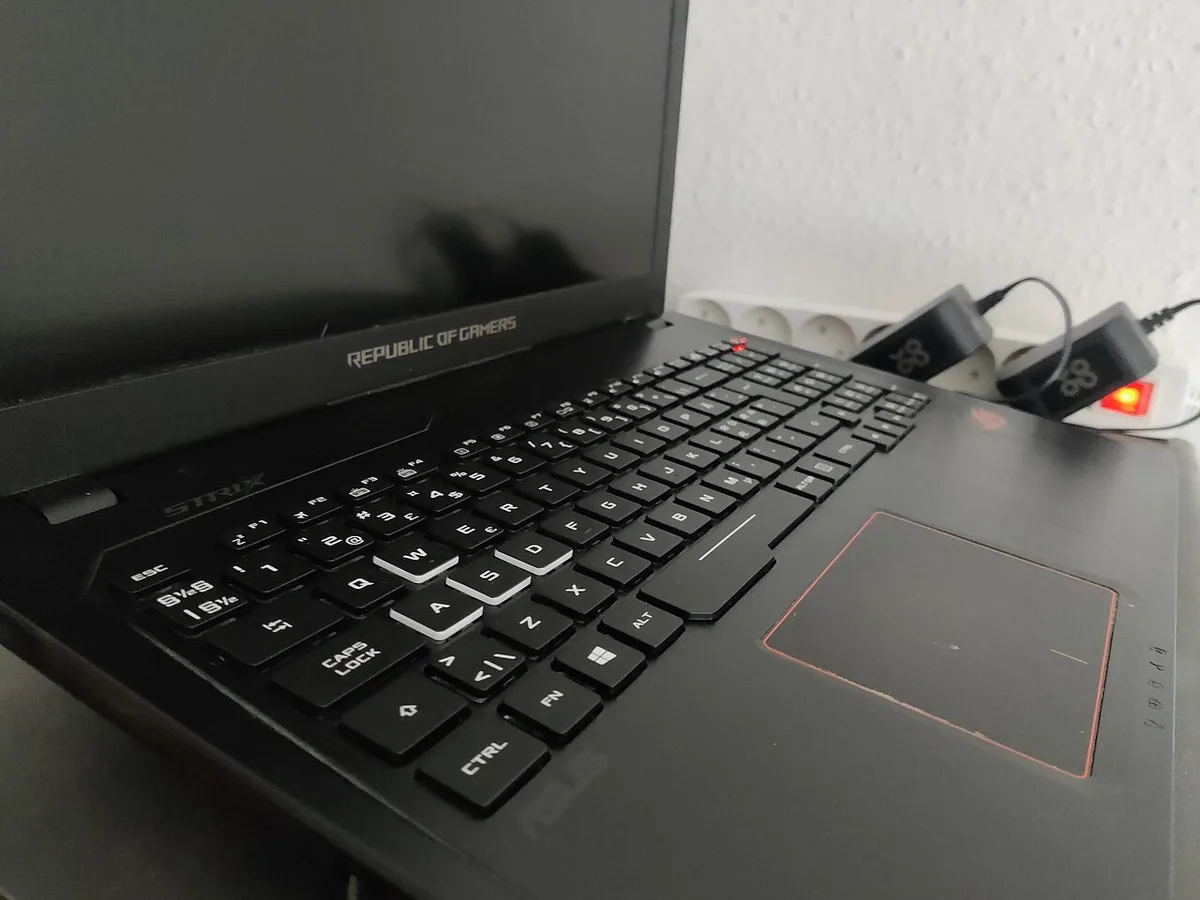
The touchpad LED usually lights orange or red to confirm the lock. Some models like ASUS ROG use a dual-mode NumberPad where the LED stays white but touch input stops. The OEM hotkey service (Armoury Crate MSI Center Lenovo Vantage) is supposed to sync this state with Windows.
If that service crashes or is uninstalled the toggle becomes one-way. BIOS updates can also reset the Internal Pointing Device default to disabled. Fast Startup then saves that disabled state across restarts.
The Quick Fix You Can Try Right Now
Find the touchpad icon on your function row. It usually lives on F9 F7 F5 or F3. Hold Fn and tap that key once.
Watch the LED near the touchpad or on the keycap. Tap the combo a second time. The LED should change color or turn off.
Open Settings with Win + I go to Bluetooth & devices → Touchpad. Flip the main toggle on. Check the box labeled Leave touchpad on when a mouse is connected.
If the touchpad returns you are done. If Settings still says no touchpad found move to the next section.
Step-by-Step: Re-enabling the Touchpad
Start with the OEM control center. Open Armoury Crate MSI Center Lenovo Vantage Alienware Command Center Razer Synapse OMEN Gaming Hub or Gigabyte Control Center. Navigate to the hotkey or touchpad page.
Ensure the touchpad tile reads enabled. Some apps hide the toggle under a keyboard or input tab. If the control center reports a driver error run its built-in repair tool.
Next open Device Manager. Expand Human Interface Devices. Look for an entry named I2C HID Device Elan Touchpad or Synaptics Touchpad.
Right-click and choose Enable device if it shows a down arrow. If the entry is missing entirely download the exact I2C driver from the laptop support page using your serial number. Install it then reboot.
Enter BIOS by tapping F2 or Del at boot. Find Advanced → Internal Pointing Device or Touchpad Support. Set it to Enabled.
Save and exit. Finally disable Fast Startup. Open Control Panel → Power Options → Choose what the power buttons do → Change settings that are currently unavailable.
Uncheck Turn on fast startup. Shut down completely. Wait ten seconds.
Power on. The touchpad should now appear in Settings and Device Manager.
Common Mistakes That Lock It Out Again
Reinstalling the generic HID driver from Windows Update overwrites the OEM I2C driver and breaks gestures. Using a third-party driver pack instead of the vendor package often loads the wrong firmware version. Disabling the OEM hotkey service in Task Manager or Autoruns prevents the Fn toggle from talking to Windows.
Forgetting to re-enable Leave touchpad on when a mouse is connected hides the toggle after you plug in a USB receiver. Editing the registry key HKEY_CURRENT_USER\Software\Microsoft\Windows\CurrentVersion\PrecisionTouchpad\Status without backing it up can corrupt the touchpad profile. Running a clean Windows install without the OEM driver package leaves the touchpad on the legacy PS/2 path losing Precision gestures.
Closing the laptop lid while an external mouse is connected sometimes triggers the auto-disable logic and the touchpad stays off after wake.
Decision Guide: Which Fix Applies to Your Laptop
Match the symptom to the fix before you touch a driver. Our research across OEM support documentation shows four separate failure states, and each one needs a different move. Guessing wastes time and can make things worse.
| Symptom | Likely cause | Fix path |
|---|---|---|
| LED orange or red, Settings toggle greyed out | Hardware Fn lock |
Tap the combo, then check the OEM app |
| No touchpad entry in Device Manager | Driver or BIOS disable | Install the OEM I2C driver, check BIOS |
| Dies the moment you plug in a mouse | Auto-disable setting | Enable Leave touchpad on |
| Works after reboot, dies on wake | Fast Startup cache | Disable Fast Startup |
If the LED responds but Windows ignores it, the OEM hotkey service is the culprit. Repair Armoury Crate or MSI Center before you touch drivers. A service stuck in a stopped state breaks the handshake between the EC and Windows.
If Device Manager shows a yellow warning on I2C HID Device, a Windows Update package replaced your vendor driver. Rolling back fixes it, much like undoing a pushed driver swap on the graphics side.
If nothing shows up anywhere, head to BIOS. That usually means a firmware update reset the Internal Pointing Device default. Same EC layer, different culprit.
Our piece on a dead keyboard on the same controller follows the identical diagnostic order.
Already wiped the machine and still stuck? Our guide to restoring OEM packages after a reinstall explains which vendor bundles you need back first. Per Microsoft documentation, the Precision Touchpad stack depends on the inbox I2C HID driver plus the OEM firmware layer.
Frequently Asked Questions
Why does my touchpad keep disabling itself after every reboot?
Fast Startup is the usual answer. It saves a hybrid hibernation image that includes the disabled HID state, so each boot restores the lock. Turn it off under Power Options, then do a full shutdown.
Reboots that skip the cold boot keep reusing the same cached picture, which is the same mechanism behind odd sleep behaviour on gaming laptops.
Does tapping Fn again always bring the touchpad back?
No. It only works when the embedded controller holds the lock. If the OEM hotkey service crashed, the keypress goes nowhere and Windows never sees the change.
Repair or reinstall the control center first, then retry the combo.
Will a Windows reset fix a touchpad that won't appear at all?
Sometimes, and it's the last step for a reason. A reset restores the inbox HID stack and clears corrupted registry entries. It won't help if BIOS has the pointing device turned off.
Check firmware before you spend 30 minutes resetting.
Can a BIOS update permanently break the touchpad?
Rarely permanently, but it can absolutely reset the default state. Manufacturer specs confirm most vendors keep Internal Pointing Device enabled by default. If yours flipped to Disabled after an update, set it back, save, and exit.
The hardware survives fine, and the settings you already changed usually stay put afterward.