You cleaned the fans on your gaming laptop and the temps barely moved. How to Fix Temperature Improvement After Fan Cleaning on a Gaming Laptop starts with understanding why dust removal alone often fails. The fin stack behind the fan is usually the real blockage.
Factory thermal paste dries out after eighteen to twenty four months. Power limits and fan curves reset after BIOS updates. This guide walks you through the decision tree that finds the actual bottleneck.
Manufacturer specifications indicate most mobile CPUs throttle at one hundred degrees Celsius junction temperature. GPU hotspot sensors often run ten to fifteen degrees hotter than the edge reading. A ten degree drop over ambient is a realistic target for a proper repaste.
Let's start with the quick checks that save hours of unnecessary work.
Why Your Gaming Laptop Still Runs Hot After Cleaning the Fans
Cleaning the blades and the exhaust grille removes surface dust. The fin stack behind the fan acts like a dense radiator. Compressed air from the outside pushes dust deeper into the fins.
You need to pull the heatsink to clear that channel. Fan RPM may look normal in software while the blade wobbles or the connector sits loose. A single missed screw on the heatsink creates a gap that no paste can bridge.
Dried factory paste behaves like ceramic. It cracks under thermal cycling and pumps out from the die center. Thermal pads on VRAM and VRM take a compression set.
They stop making contact after one disassembly. Ambient temperature shifts track one to one into core temps. A twenty degree room versus a thirty degree room changes your baseline by ten degrees.
Power limit throttling masquerades as thermal throttling in monitoring tools. The EC fan table may not ramp until the CPU hits ninety degrees. BIOS updates can reset custom fan curves to quiet defaults.
How to Fix Temperature Improvement After Fan Cleaning on a Gaming Laptop
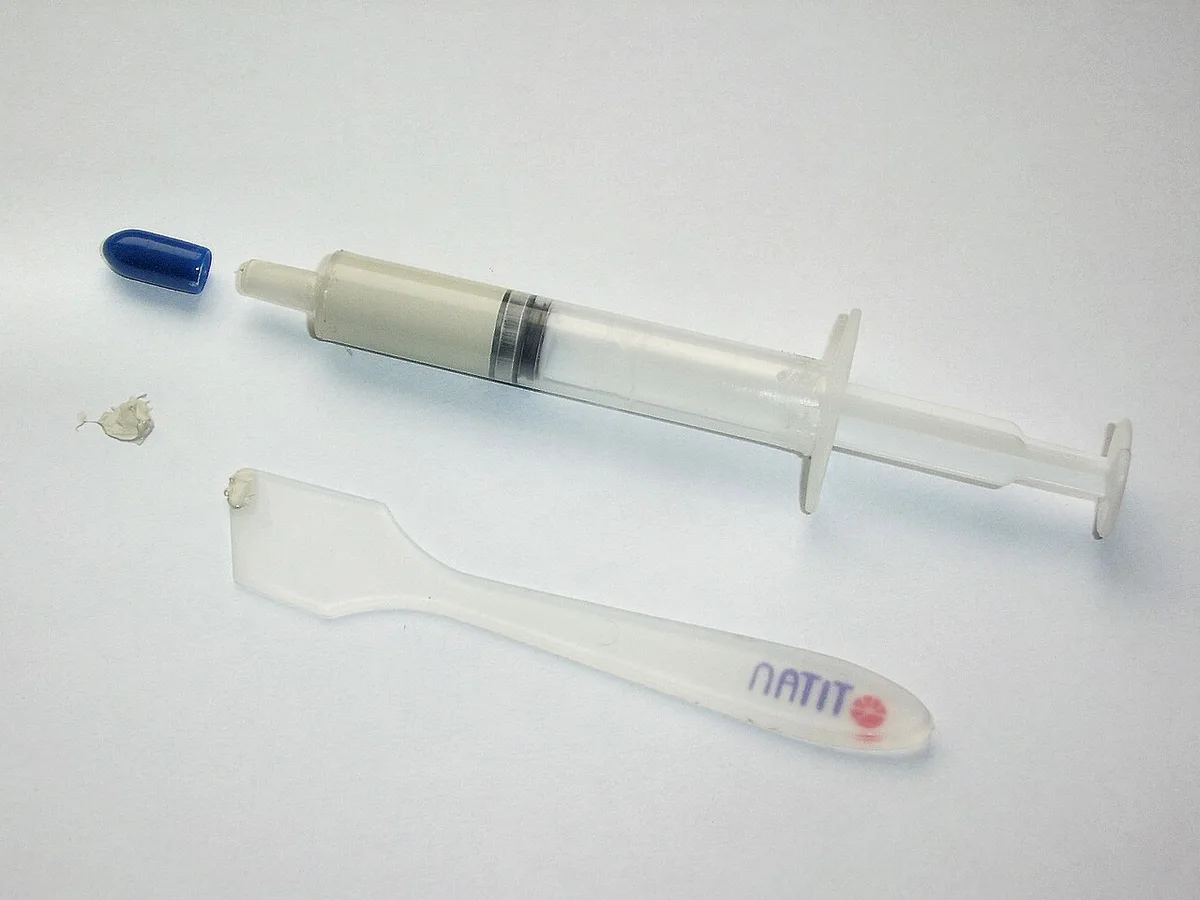
Check fan RPM under load before opening the case. Verify exhaust airflow with a piece of paper at the vent. Measure delta T over ambient not absolute temperature.
Repaste with non conductive paste if the die contact looks uneven. Replace thermal pads with the correct thickness for each component. Lower PL1 and PL2 if power limit throttling is the flag.
Update BIOS and EC firmware for revised fan tables.
How the Cooling System Works After a Deep Clean
The blower fan pulls air through the bottom intake. It pushes air across the fin stack and out the rear or side vent. Heat pipes or a vapor chamber move energy from the die to the fins.
Thermal paste fills microscopic gaps between the die and the cold plate. Thermal pads bridge larger gaps to VRAM VRM and SSD. The embedded controller reads thermal sensors and drives the fan curve.
BIOS thermal tables define RPM targets at each temperature step. Power limits PL1 PL2 cap sustained package power. Dynamic Boost shifts power between CPU and GPU in real time.
Undervolting reduces voltage at a given frequency. Curve Optimizer on Ryzen adjusts the voltage frequency curve per core. All of these layers interact.
A bottleneck at any layer limits the whole chain.
Decision Branches: Fan, Airflow, Thermal Paste, Pads, and Power Limits
Start with the fan. If RPM is zero or stuck low the problem is mechanical or electrical. Reseat the fan connector.
Check for cable interference. Perform a full power drain to clear EC latch. If RPM is normal but exhaust flow is weak the fin stack is clogged.
Remove the heatsink and clean the fins from the inside. If flow is strong but temps stay high the die interface is the suspect. Inspect paste condition.
Look for pump out rings dry cracks or uneven spread. Inspect pads for compression set tears or thickness mismatch. Verify all heatsink screws are present and snug in a cross pattern.
If repaste and pad swap yield no gain check throttling flags in HWiNFO. Power limit throttling means PL1 PL2 or current limit is the ceiling. Thermal throttling means the cooling cannot reject the heat.
Undervolt or lower power limits to trade clocks for temperature. Custom fan curves can buy a few degrees at higher noise. MUX switch to integrated GPU cuts dGPU heat at light load.
SSD heatsink solves drive throttling. Each branch has a clear test and a clear fix.
Step-by-Step Decision Guide: Cleaning Didn't Help, Now What
Phase zero. Record ambient temperature. Run a ten minute sustained load.
Cinebench AIDA64 Prime95 small FFT or your actual game. Log CPU package temp per core temp GPU edge GPU hotspot VRM SSD fan RPM package power clocks. Save the CSV.
Phase one. Confirm fan RPM at load matches spec. If not reseat connector check cable perform EC reset.
Phase two. Confirm exhaust airflow. If weak pull heatsink clean fin stack from inside.
Phase three. Inspect die interface. Repaste with non conductive paste MX-6 Kryonaut NT-H1.
Replace pads with measured thickness. Reassemble torque screws cross pattern hand tight. Phase four.
Retest same load same ambient. If delta T improved you are done. If not check HWiNFO throttling flags.
Power limit throttling lower PL1 PL2 or undervolt. Thermal throttling verify fan curve ramping update BIOS EC firmware. Phase five.
Environmental mitigation. Raise rear of laptop clear intake avoid soft surfaces. Schedule light clean every two to three months deep clean annually repaste every two to four years.
Accept design limits on thin and light chassis.
Mistakes That Can Keep Your Gaming Laptop Overheating After Cleaning
Most no-result cleanups trace back to the same handful of errors. Spot yours in the list below before you spend money on paste.
- Blasting air with the fan spinning. Overspinning can damage the bearing and the motor. Hold the blades still and use short bursts.
- Cleaning the blades but not the fin stack. Blade dust is cosmetic. The packed aluminum fins behind the fan are the actual restriction.
- Mixing up heatsink screw lengths. A long screw in a short mount can bottom out or pierce the board.
- Reusing old thermal pads. They take a compression set and stop bridging the gap after one teardown.
- Overtightening the cold plate. Threads in aluminum strip fast, and uneven torque warps die contact.
- Touching the die bare-handed before paste. Skin oils leave uneven hot spots.
- Comparing results at a different ambient. A winter baseline versus a summer retest is not a fair test.
- Reading only the GPU edge sensor. Hotspot temperature often sits 10 to 15 degrees higher and throttles first.
- Liquid metal over aluminum. Gallium corrodes aluminum heatsinks and will eventually destroy the block.
Symptom to cause cheat sheet
| What you see | What it usually means |
|---|---|
| Fan RPM at zero under load | Loose connector, cable in the blade path, or latched EC fault |
| RPM normal, weak exhaust | Fin stack still clogged |
| Strong airflow, temps unchanged | Die contact or dried paste |
| Temps fine, clocks still low | Power limit or current limit throttling |
| Idle temps unchanged | Fan curve hysteresis, not a hardware fault |
Safety carries its own failure modes. Disconnect the battery connector before you touch the heatsink, and never pry against a Li-ion pouch cell. Wear an ESD strap if you work anywhere near carpet.
Let 90 percent or better isopropyl alcohol fully evaporate before power on.
On warranty, federal warranty guidance from the FTC is clear that opening a device doesn't automatically void coverage, though damage you cause yourself isn't covered. If the chassis has a security seal and the machine is under a year old, weigh that against a $15 tube of paste.
Stop and use a service center if a screw spins freely, a fan blade is chipped, or a repaste produced zero change twice.
FAQs: How to Fix Temperature After Fan Cleaning on a Gaming Laptop
Why did my temps get worse after cleaning?
Something moved during reassembly. The heatsink screw isn't fully seated, a thermal pad shifted off the VRAM, or the fan cable is brushing a blade. Reopen it and check die contact first.
How long does thermal paste take to settle?
Most non-conductive paste is effective immediately. Phase-change pads like PTM7950 need heat cycling, typically 24 to 72 hours of normal use, before they reach full performance. Don't judge a phase-change pad on the first cold boot.
Should I repaste a two-year-old gaming laptop?
Yes, if it runs hot or loads regularly. Factory paste commonly dries and pumps out between 18 and 24 months. Check Intel's processor spec pages for your exact Tjmax before assuming anything is wrong.
My fan stopped spinning after reassembly. What now?
Reseat the fan connector first, then check that no cable sits in the blade path. Hold the power button 30 seconds with the charger unplugged to clear a latched EC fault. If it still won't spin, the fan or header is the issue.
Is a cooling pad worth buying?
It helps most in hot rooms or with blocked bottom intakes, usually 1 to 5 degrees. It won't fix dried paste or packed fins. Fix the bottleneck first, then consider a raised stand.
Can a BIOS update fix my fan curve?
Sometimes. Updates can ship revised thermal tables and better RPM ramping. They can also reset a custom curve to quiet defaults, so recheck your fan profile afterward.
Our guide on whether the BIOS update is worth it covers the tradeoffs.
Should I undervolt to gain more headroom?
Yes, it's free and reversible. Ryzen's Curve Optimizer or Intel's Core Voltage Offset can trim several degrees. Stress test for stability before you trust it, since crashes under sustained all-core load are the usual failure point.
1 thought on “How to Fix Temperature After Fan Cleaning on Gaming Laptop”
Comments are closed.