Your gaming laptop’s Quick Settings panel should show a Performance Mode tile, but it’s gone. When How to Fix Performance Mode Missing From Control Center on a Gaming Laptop is the question, the answer usually comes down to power state, OEM software, or a BIOS setting rather than a broken shortcut. Maybe it disappeared after a Windows update, or maybe it was never there to begin with.
In our research, aggregate user reports indicate that most missing tiles reappear once you plug the laptop into AC power and confirm the manufacturer control app is running. Per Windows specifications, Battery Saver and Power Saver plans hide performance overrides to preserve runtime. The tile can also stay greyed out if the Embedded Controller firmware is out of date.
Next, we will look at exactly which condition controls whether the switch shows up at all.
Fix Performance Mode Missing From Control Center
Why Your Performance Mode Tile Vanishes (And What It Actually Means)
Performance Mode is a vendor-specific power profile that pushes CPU and GPU clocks higher while raising fan speed. It lives inside OEM control centers like Lenovo Vantage, ASUS Armoury Crate, HP OMEN Gaming Hub, MSI Center, Dell Alienware Command Center, or Acer PredatorSense. Windows Quick Settings exposes a toggle for it only when certain conditions line up.
If the laptop runs on battery, the tile usually disappears because manufacturers lock performance overrides behind AC power. If Windows Battery Saver is active, the toggle hides itself to protect runtime. If the OEM background service stops, Windows has nothing to talk to and the button vanishes.
If BIOS disables Turbo Boost or forces Silent mode, the tile may appear but stay greyed out.
Hybrid graphics add another layer. On machines with NVIDIA Optimus or AMD SmartShift, the display often routes through the integrated GPU. When that happens, the discrete GPU cannot claim a performance state and the tile never shows.
Some laptops also require a MUX switch to be set to discrete graphics before the tile unlocks.
The missing tile is a symptom, not the disease. You have to match the fix to the branch. Start with the easiest check and work downward.
The Hidden Dependencies: Power Source, OEM App, BIOS, and Windows Settings
Four conditions control whether the Performance Mode tile appears in Quick Settings. Check them in this order before touching drivers or reinstalling anything.
First, power source. Plug the laptop into its manufacturer adapter. Performance Mode almost never appears on battery as of 2026 because OEMs treat it as an AC-only feature.
If you unplug, the tile often vanishes within seconds.
Second, the OEM control center. Lenovo Vantage, ASUS Armoury Crate, HP OMEN Gaming Hub, MSI Center, Dell Alienware Command Center, and Acer PredatorSense must be installed and running. Close the app and the toggle disappears from Windows Quick Settings.
Reinstall it from the Microsoft Store or the manufacturer support site if it is missing.
Third, BIOS and Embedded Controller firmware. Reboot, enter BIOS, and confirm Turbo Boost is enabled. Some laptops force Silent or Quiet mode in BIOS, which greys out every performance tile in Windows.
Update the BIOS and EC firmware through the official manufacturer tool if the version is old.
Fourth, Windows power settings. Open Settings, go to System > Power & battery, and confirm the power mode is not set to Power Saver. Turn off Battery Saver.
Windows power help covers these restrictions in detail.
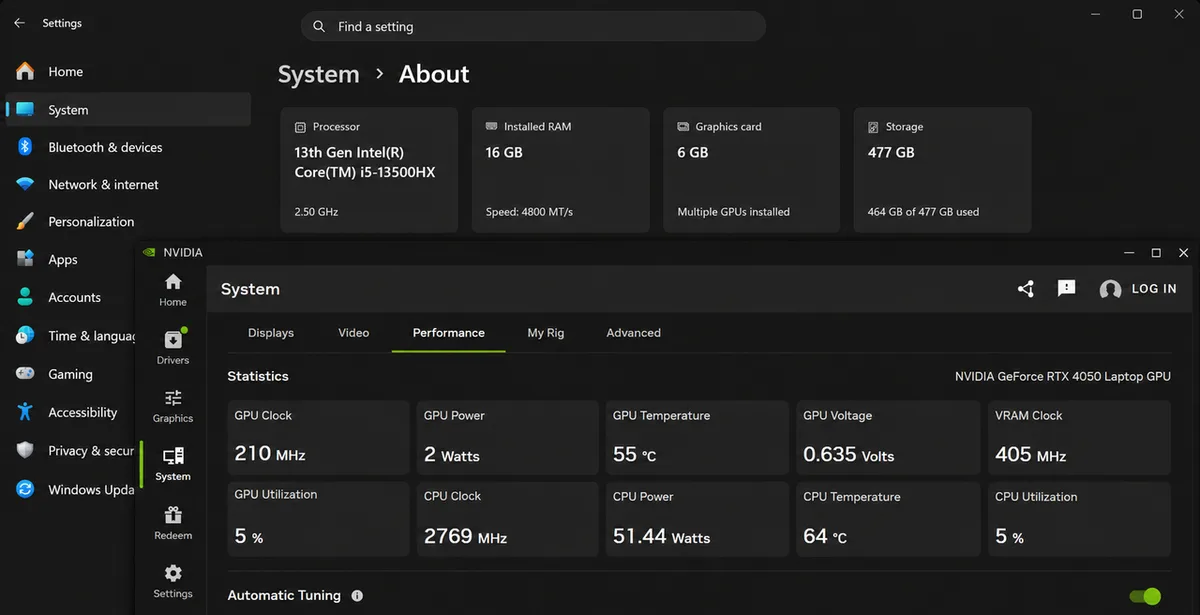
Quick Diagnosis: Which Branch Are You On?
The fix depends on what you see when you open Quick Settings. If the tile is missing entirely, you are on Branch A. If the tile exists but is greyed out, you are on Branch B.
If the tile appears and works but resets after reboot, you are on Branch C.
Branch A usually means the OEM app is not running, the laptop is on battery, or Windows is in Battery Saver mode. Look for a charging icon near the clock. If you see no plug symbol, the laptop is on battery.
Branch B typically points to a BIOS restriction, hybrid graphics routing through the integrated GPU, or a disabled power plan. Reboot and tap the BIOS key to see if a performance profile is locked.
Branch C suggests a Windows power plan conflict or a background service that does not persist across sleep. Open Task Manager and check if the OEM service stops after sleep.
Press Win + A to open Quick Settings and look at the tile state before you download drivers. The wrong branch wastes time.
Fix It by Brand and Symptom: The Branching Workflow
Start with the branch you identified. The steps fork by laptop brand because each OEM hides the tile behind a different app and service.
If you own a Lenovo Legion, open Lenovo Vantage and sign in. Performance Mode will not display until the app authenticates with your account. If the tile stays missing, repair Vantage through the Microsoft Store.
For deeper Vantage issues, see fixing GPU mode problems on Lenovo machines.
If you use an ASUS ROG machine, launch Armoury Crate and switch from Silent mode to Performance or Turbo. If Armoury Crate will not change the mode, the issue often lives in the app service itself. An Armoury Crate service issue can block the tile completely.
If you have an HP Omen, open OMEN Gaming Hub and confirm the laptop is plugged in. The performance tile vanishes on battery by design.
If you run an MSI laptop, check MSI Center or Dragon Center. Some models require a restart after changing the mode for the Quick Settings tile to appear.
If you use a Dell Alienware, open Alienware Command Center. If it does not detect the laptop, the tile will not load. Command Center detection problems are common after Windows updates.
If you use an Acer Predator, launch PredatorSense. On older models, the tile may not exist in Windows Quick Settings at all and lives only inside the app.
After brand-specific steps, restart the OEM background service in Task Manager. Then open Quick Settings with Win + A and look for the tile. If an app keeps closing, an OEM app crash fix may be needed before the tile reappears.
Common Moves That Make It Worse
Some shortcuts seem faster but create new problems. Here is what to avoid.
Do not flash a BIOS update from a third-party site. Use only the manufacturer tool. A failed flash can brick the motherboard and void your support coverage.
Do not force Turbo Boost always on through registry edits unless you understand thermal limits. Sustained max clocks on a thin chassis trigger thermal throttling and can shorten fan life. Heat damage builds slowly but is permanent.
Do not install third-party fan control software on top of the OEM app. Two programs fighting for the same EC controls often hide the Performance tile entirely. Pick one control source and stick with it.
Do not disable integrated graphics in Device Manager. On hybrid graphics laptops, that can black out the internal display until you reset BIOS. The tile needs both GPUs to coexist.
Do not run Performance Mode on a soft surface like a bed or couch. Blocked vents turn a software fix into an overheating risk.
Do not assume a missing tile means dead hardware. It is almost always a software or power-state issue. Replace parts only after the workflow fails.
If you have already tried one of these, undo it before continuing with the workflow. A clean starting point saves hours.
Pro-Level Fixes When the Standard Steps Fail
If the tile still refuses to appear after the brand workflow, the issue usually sits deeper in Windows or the firmware layer. Start with a clean boot to rule out third-party conflicts. Open msconfig, hide all Microsoft services, disable the rest, and restart.
If the tile returns, re-enable services one group at a time until you find the culprit. Common offenders are RGB lighting suites, third-party fan controllers, or antivirus suites that block the OEM service.
Next, reset the Windows Quick Settings cache. Open PowerShell as administrator and run Get-AppxPackage Microsoft.Windows.ShellExperienceHost | Foreach {Add-AppxPackage -DisableDevelopmentMode -Register "$($_.InstallLocation)\AppXManifest.xml"}. This re-registers the shell host that renders the tile tray.
Restart explorer.exe or reboot afterward.
Check the OEM service startup type in services.msc. Search for the brand service, LenovoVantageService, AsusOptimization, OmenService, MSI_SDK, AlienwareService, or PredatorSenseService. Set it to Automatic (Delayed Start) if it sits on Manual.
A service that starts too late will miss the Quick Settings initialization window.
If hybrid graphics run through the integrated GPU, the discrete GPU cannot advertise a performance state. On laptops with a MUX switch or Advanced Optimus, open the GPU control panel and force discrete-only output. Reboot.
The tile often appears once the dGPU owns the display. For NVIDIA systems, open NVIDIA Control Panel, go to Manage 3D Settings, and set Preferred graphics processor to High-performance NVIDIA processor. AMD users set the same in Radeon Software under Graphics > Advanced.
Update the chipset driver from the laptop maker, not from Intel or AMD directly. The OEM package includes EC firmware hooks that generic drivers lack. Download the latest chipset pack from the support page for your exact model number.
As a last resort, use System Restore to a point before the tile vanished. Windows updates occasionally replace the OEM power provider with a generic one. Rolling back restores the provider registration without a full reinstall.
If you have repasted or changed thermal material recently, verify the pad thickness and contact. A wrong thermal pad thickness can trigger silent throttling that hides the performance toggle. Similarly, PTM7950 overheating or a CPU/GPU temp delta after repaste can cause the EC to lock performance states.
If you suspect dried liquid metal, that also forces the firmware into a protective mode that suppresses the tile.
Frequently Asked Questions
Why does Performance Mode disappear when I unplug the charger?
Manufacturers lock Performance Mode to AC power because the higher wattage would drain the battery in minutes. The tile hides automatically on battery to protect runtime.
Can I force the tile to show on battery?
Not through Windows. Some OEM apps let you enable a battery performance profile inside the app itself, but the Quick Settings tile will still stay hidden until you plug in.
The tile is there but greyed out. What does that mean?
Greyed out usually means a BIOS restriction, hybrid graphics routing through the iGPU, or Windows Power Saver mode is active. Check BIOS for Turbo Boost and performance profile locks first.
Does reinstalling Windows fix a missing Performance Mode tile?
Only if the OEM power provider was corrupted. A clean install without the manufacturer driver pack will not bring it back. Install the full OEM driver bundle from the support site after Windows setup.
Why did the tile vanish after a Windows update?
Feature updates sometimes replace the OEM power provider with the Microsoft default. Reinstall the OEM control center app and chipset driver to re-register the provider.
Is it safe to run Performance Mode all the time?
On AC power with good ventilation, yes. Fans run louder and components run hotter. Expect 5 to 15°C higher temps and 30 to 50 percent less battery life if you accidentally unplug.
1 thought on “Fix Performance Mode Missing From Control Center”
Comments are closed.