You flipped the GPU Mode toggle in Lenovo Vantage, hit Apply, and your frame rate didn't budge. Or the toggle is greyed out, and no amount of restarting brings it back. If you're trying to fix Lenovo Vantage GPU Mode not working on a gaming laptop, understand one thing first.
Four different failures wear the same coat. Each one needs its own fix.
One spec decides more than any other. On Legion models with a MUX switch, Discrete Mode only holds while you're on AC power, and Lenovo's documentation confirms the switch lands after a full boot, not a wake from sleep. Miss that detail and you'll chase a ghost for an hour.
Let's find your branch.
How to Fix Lenovo Vantage GPU Mode Not Working on a Gaming Laptop
Fixing Lenovo Vantage GPU Mode not working starts in Services, not in the app. Confirm Lenovo Vantage Service is running and set to Automatic. If the toggle is greyed out, check BIOS for the discrete graphics setting.
Clear per-app overrides in Windows Graphics Settings before anything else. Plug in the charger, then do a full cold reboot.
Why Your Lenovo Vantage GPU Mode Toggle Is Broken (And What It Actually Means)
Vantage doesn't switch your GPU. Not directly. It's a front-end that pokes Lenovo's background services, which then signal the embedded controller on the motherboard.
Break that chain anywhere and the toggle looks dead. Nine times out of ten, the toggle itself is fine.
That's why reinstalling Vantage alone rarely helps. You're replacing the remote, not fixing the wiring.
Three states exist on most Legion laptops:
- Integrated: everything renders on the iGPU inside your CPU. Cool, quiet, long battery.
- Discrete: games render on the NVIDIA or AMD dGPU. Faster, louder, thirstier.
- Hybrid: the default. The dGPU does heavy lifting, the iGPU still drives the screen.
Discrete mode changes how the panel is wired at boot, which is why it demands a restart. If your frames tanking on battery feel tied to this switch, they are. It's the same decision made in hardware.
Windows has its own graphics preferences, and so does BIOS. Whichever layer changed last usually wins.
The 30-Second Diagnostic: Which Branch Are You On?
Answer one question before you touch anything. What is the toggle actually doing? That single detail points straight at the culprit.
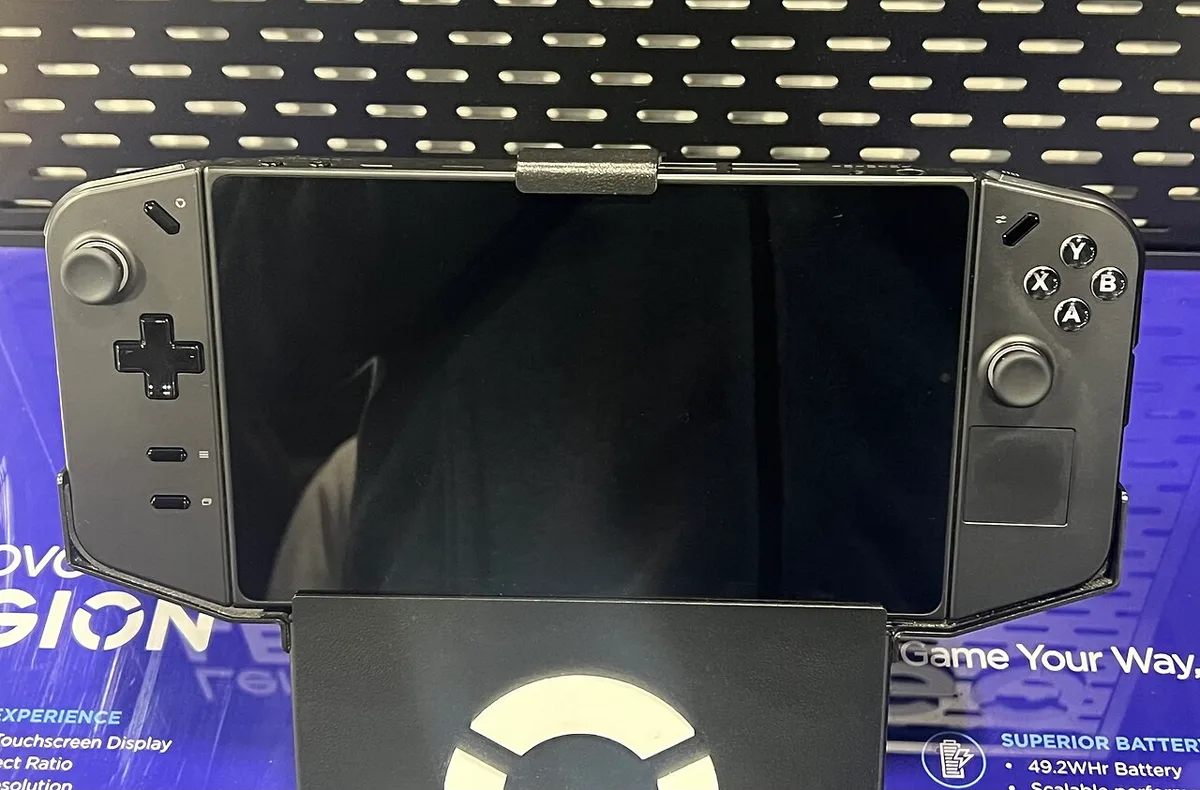
Image source: Wikimedia Commons / TaurusEmerald (CC BY-SA)
| What you see | Your branch | Start here |
|---|---|---|
| Toggle greyed out | Vantage lost its link to Lenovo's services | Services.msc, then app update |
| Toggle missing entirely | BIOS already set to discrete, or no MUX on the model | BIOS setup at boot |
| Toggle flips, nothing changes | Windows per-app override or stale driver binding | Windows Graphics Settings |
| Works, then resets after sleep | Power profile or a stopped service | Vantage profile settings |
Run services.msc, find Lenovo Vantage Service, and check its state. Stopped means the toggle has nothing to talk to. Disabled startup means it dies again tomorrow.
If the mode evaporates after every restart, it behaves just like refresh rates resetting the same way, and the fix pattern is nearly identical. Lenovo's official support site is the fastest way to confirm what your exact model number supports, since the hardware genuinely differs between Legion generations.
How Lenovo GPU Switching Actually Works Under the Hood
Skip this part and the fixes look random. Understand it and you'll predict the outcome.
On a normal laptop, your internal panel cables into the iGPU. The dGPU renders a frame, copies it across the bus, and the iGPU shows it. That's Optimus.
Every frame takes a detour.
A MUX switch changes the physical route. In Discrete mode the panel connects straight to the dGPU at boot. Frame rates jump, input lag drops, and the setting can't flip live.
Vantage's role is small but load-bearing. It calls Lenovo Vantage Service, that service signals the embedded controller, and the controller queues the change for next boot. Kill the service and the request never leaves the building.
Two failure modes hide in that chain:
- The request goes out, but firmware refuses it. Discrete graphics is already set in BIOS, so Vantage has nothing left to toggle and greys the control.
- The request succeeds, yet Windows still routes one stubborn game through the iGPU because of an old per-app preference.
As of 2026, Lenovo also shuffles the menu location between Vantage releases. A guide written for an older build will point at panels that moved. When sync options vanish right after a mode change, this plumbing is usually the reason.
Fix It: The Decision Tree Walkthrough
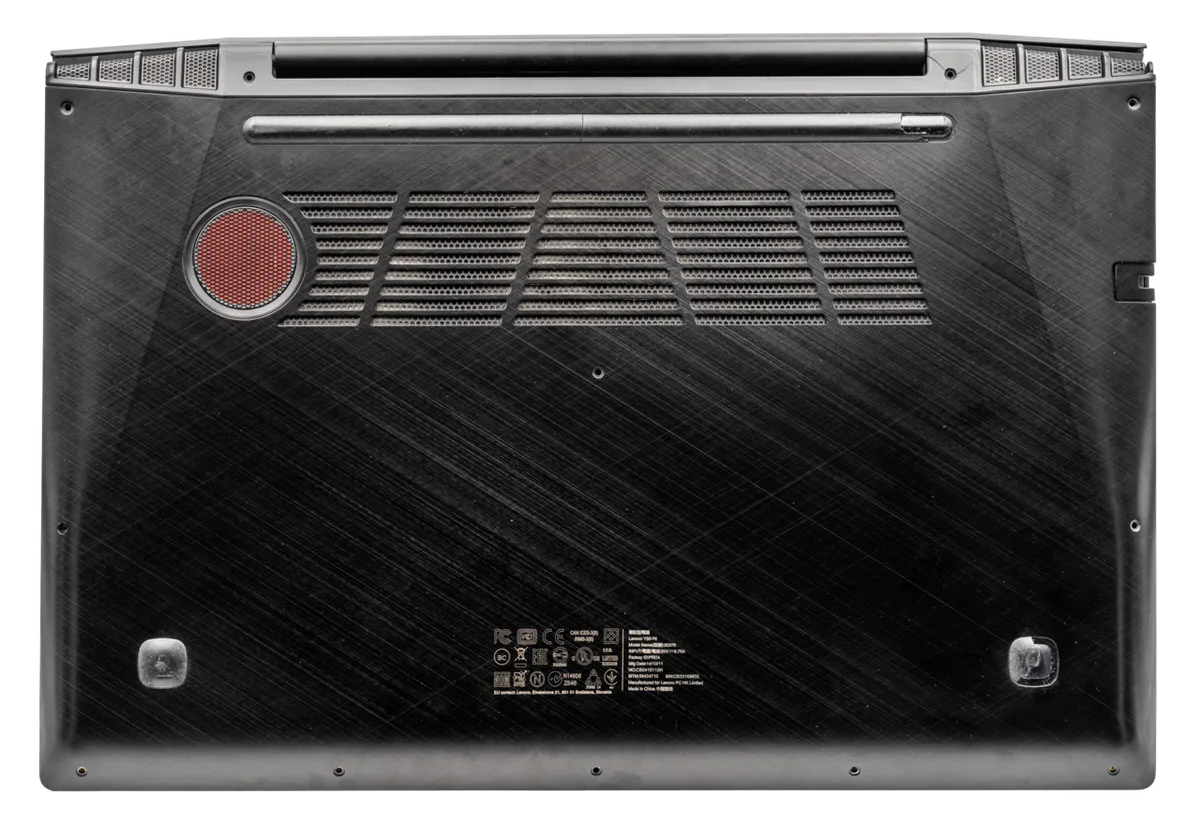
Image source: Wikimedia Commons / PantheraLeo1359531 (CC BY-SA)
Work top to bottom. Stop when the toggle behaves.
If the toggle is greyed out or missing:
- Reboot, tap F2 for BIOS setup, and look under Configuration or Display for a graphics device setting. If it reads Discrete, switch it back to Hybrid or Switchable. Vantage owns the control again.
- Open services.msc. Set Lenovo Vantage Service and Lenovo PC Support Service to Automatic, then start both.
- Update Vantage through the Microsoft Store. Store builds get fixes well before the OEM installer does.
If the toggle flips but nothing changes:
- Open Settings, then System, Display, Graphics. Delete the per-app entry for your game. Windows was overriding Vantage.
- Clean-install the GPU driver. Reinstalling over the top usually keeps the broken binding.
- Plug in the charger and shut down fully. Hibernate and fast startup can skip the mode change entirely.
Still stuck on one title? Run the game and watch the GPU Engine column in Task Manager. If it shows GPU 0, that title is on the iGPU and Windows owns the decision.
BIOS edits are reversible and low risk. Opening the chassis is another story, so read up on what voids your warranty before you pick up a screwdriver. Microsoft's Windows support pages walk through the graphics preference screens if your menus don't match.
Common Traps That Waste Hours (And How to Skip Them)
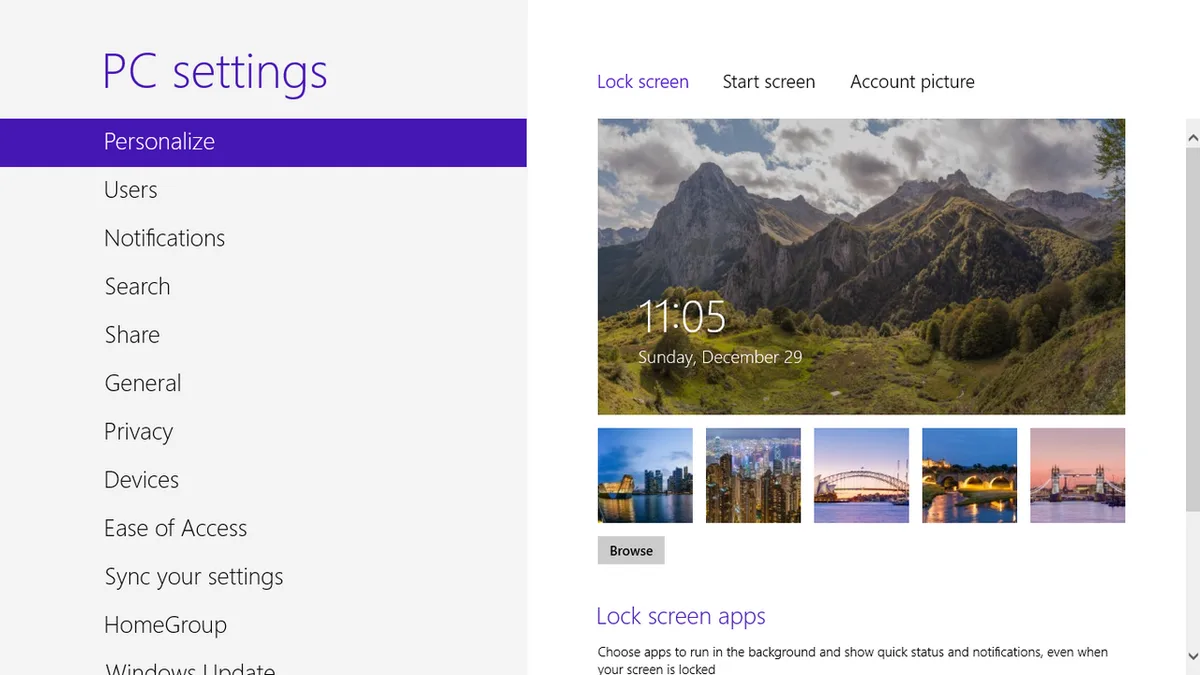
Image source: Wikimedia Commons / Lock screen background: Benh LIEU SONG This screenshot: 茅野ふたば (talk · contribs) (CC BY-SA)
Most people lose an afternoon to one of these:
- Running on battery. Plenty of Legion models refuse to engage the MUX away from AC power. Plug in before blaming software.
- Killing the wrong service. Disabling Lenovo's controller service to "speed things up" takes the toggle down with it.
- Trusting sleep. Close the lid after switching and the change may never apply. Shut down instead.
- Skipping the clean driver install. Old bindings survive a normal reinstall. Remove properly, then install fresh.
- Registry hacks. Hand-editing MUX values breaks signature checks and your support case. Not worth it.
- Chasing temperatures. Discrete mode runs hotter on purpose, much like when boost modes run hot. Fans spinning up after the switch is the feature working.
Rule of thumb: cheapest reversible fix first. Services check, app update, cold reboot. Drivers and BIOS come after.
If heat is the real worry, a fresh paste job tells you far more than another driver sweep ever will.
Pro Moves: When the Standard Fixes Don't Stick
Some laptops need more than a service restart. Work these in order, and stop the moment the toggle responds.
Check the Lenovo Vantage build number first. Per Lenovo's release notes, the graphics panel moved between major Vantage versions, so a 2024 tutorial will point at menu paths a 2026 build no longer uses. If your build is older than the current Store listing, a clean uninstall and reinstall often restores the toggle faster than any driver work.
Then look at the power source. Manufacturer specifications indicate several Legion 5 and Legion 7 generations keep the MUX locked to AC, and the toggle silently reverts on battery. Test with the charger connected, then test again unplugged.
Knowing both results tells you whether you have a hardware limitation or a genuine bug.
Clean driver installs cover the rest. Use a proper removal tool in safe mode, then install the current NVIDIA or AMD package from the vendor's own site rather than the Vantage push. Old bindings survive normal reinstalls, which is exactly why the same problem keeps returning.
One last lever: reset the embedded controller. Power off, unplug, then hold the power button for 15 seconds. That clears a stuck queued request that survives reboots.
If screen behaviour still looks off afterwards, the flicker patterns are another sign the display pipeline needs a clean reset.
Your Quick-Reference Decision Card
Keep this short. Match your symptom, run the fix, move on.
- Greyed-out toggle: start the Lenovo services, then update the app.
- Missing toggle: BIOS is already on Discrete, or the model has no MUX.
- Toggle flips, no change: clear Windows per-app graphics entries, then clean-install the driver.
- Resets after sleep: use full shutdown, keep the charger connected.
- Game still on the iGPU: check GPU Engine in Task Manager before touching anything else.
If two symptoms overlap, start with the services check. It's free, reversible, and takes under a minute. Only escalate to drivers or BIOS once you've confirmed the toggle is actually receiving your command.
Frequently Asked Questions
Why is the GPU Mode toggle greyed out in Lenovo Vantage?
The toggle greys out when Vantage can't reach Lenovo's background services or when BIOS is already set to discrete graphics. Start Lenovo Vantage Service and Lenovo PC Support Service from services.msc, then check BIOS for a discrete graphics setting. One of those two is almost always the cause.
Does Lenovo Vantage GPU Mode need a restart?
Yes, Discrete mode requires a full shutdown and boot. The panel is physically rewired at startup, so the change can't apply live. Sleep and hibernate frequently skip it.
Power off completely, then start again with the charger connected.
Why doesn't my game use the discrete GPU after switching?
Windows per-app graphics preferences override the Vantage toggle. Open Settings, then System, Display, Graphics, and remove the entry for that game. Then verify the GPU Engine column in Task Manager shows the dGPU while the title runs.
Can I fix this on a laptop without a MUX switch?
No, because there's nothing to switch. Non-MUX models always render through the iGPU and can't bypass it. Vantage may still offer power profiles, but a true discrete display mode needs the hardware.
Check your exact model on Lenovo's support site.
1 thought on “Fix Lenovo Vantage GPU Mode Not Working on Gaming Laptop”
Comments are closed.