Unplug your laptop and the whine stops. That's the detail that rules out half the usual suspects. If you're searching for how to fix coil whine only while charging on a gaming laptop, stop blaming the graphics card and look at the power path instead.
The noise is real, it's measurable, and it usually traces back to one of four or five specific things.
Coil whine is mechanical, not an electrical failure. Current switching through the inductors near the CPU and GPU makes those tiny coils flex thousands of times a second. Laptop VRMs switch somewhere between 100 kHz and 500 kHz, and the harmonics of that vibration land between 2 kHz and 20 kHz, which is exactly where human hearing is sharpest.
Your adapter runs the same trick, so step one is figuring out which component is singing.
The Plug-In Whine Problem, and Why It Gets Misdiagnosed
Owners describe it almost identically every time. A thin whistle that shifts pitch as the battery fills. A buzz from the power brick that gets coarser as the brick warms up.
A hard whine under GPU load that fades the moment you alt-tab to the desktop.
Notice what all of those have in common: they need the charger connected. Run the same game on battery and the laptop goes quiet. That silence is the strongest clue you'll get, and it points away from the GPU.
Things get muddled when something else is wrong at the same time. A fan profile that never ramps up after a reboot leaves the fans idle, so a faint charging whine suddenly has nothing masking it. Aggregate owner reports show that combination gets escalated as a dead board far more often than it deserves.
Is coil whine a defect or normal?
Most of the time it's normal, which is the least satisfying answer available. Manufacturer documentation for gaming laptops generally treats acoustic noise as a characteristic of the design rather than a fault, and service technicians routinely close these tickets as within specification.
That makes a warranty claim hard to win on noise alone. It gets much easier if the whine arrives with adapter overheating, thermal throttling, or any burning smell. Those are separate faults, and they're worth reporting immediately.
The upside of a charging-only whine is that it's the cheap kind to chase. You're looking at an adapter, a wall outlet, or a charge limit setting. None of that needs a screwdriver.
How to Fix Coil Whine Only While Charging on a Gaming Laptop
Coil whine during charging usually comes from the adapter or the charge circuit. Start by swapping in a known-good charger with matching voltage and wattage. Then move to a grounded three-prong outlet.
If the noise remains, cap charging at 80% and trim GPU power spikes. Board-level repair is the last resort.
Which symptom points to which fix?
The pitch, timing, and location of the noise tell you which branch to take.
| What you notice | Likely source | First move |
|---|---|---|
| Buzz from the brick, chassis silent | Adapter transformer and rectifier | Swap charger, same voltage, equal or higher watts |
| Whine near the rear vents, changes with load | GPU or CPU VRM inductors | Frame cap plus lower power limit |
| Pitch tracks battery percentage | Charge controller and embedded controller | Enable an 80% charge threshold |
| Hiss in headphones, worse on two-prong outlets | Floating chassis ground | Grounded outlet on a different circuit |
| Comes and goes at idle | GPU switching between iGPU and dGPU | Lock the discrete mode |
How It Works: Charge Current, Ground, and Switching Frequency
On battery, power arrives from the cells on a short, steady path. Plug in, and the embedded controller takes over. It decides how much current the battery accepts, and the charge circuit chops the adapter's 19.5 V or 20 V rail down to what the pack actually wants.
That chopping is the noise source. Duty cycle shifts as the pack fills, so the pitch at 20% differs from the pitch at 95%. Peak charge current typically sits around 3 to 4 A, then tapers to well under 1 A near full.
Why the adapter sings too
The brick usually runs hardest in the exact situation that produces the complaint. Gaming while charging can pull 250 W or more from a 280 W unit, and a switching supply at 95% load vibrates more than one loafing at 40%.
Higher-end GaN designs switch at higher frequencies, sometimes above 20 kHz. Their fundamentals fall out of hearing range, but sub-harmonics still show up on cheaper units. As of 2026, USB-C Power Delivery 3.1 with Extended Power Range supports up to 240 W, per the USB Implementers Forum specification, so your replacement options are far wider than they were in the barrel-jack-only era.
Grounding changes what you hear
A two-prong figure-8 adapter leaves the chassis without protective earth. The body of a metal laptop can then float at a low AC voltage, and that couples noise into headphones or a USB DAC. Moving to a grounded outlet often removes that layer even when the underlying coil noise stays put.
Idle behavior matters too. A dGPU stuck in hybrid output keeps switching between graphics engines, which makes the whine fade in and out in a way that feels random.
Step-by-Step: Isolating and Killing the Charging Whine
Work through these in order. Each one is cheap, reversible, and closes off a branch for good.
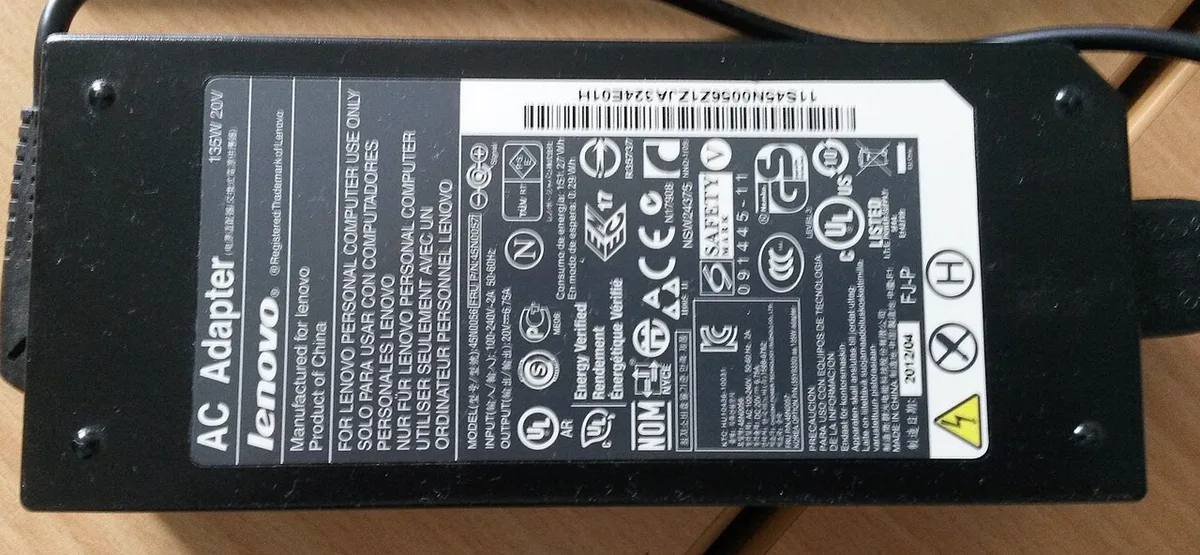
Image source: Wikimedia Commons / Neozoon
What you need: a known-good charger with matching voltage, access to a grounded outlet, and your OEM control app.
- Confirm it's charging-only. Play the same 30-minute session on battery at the same settings. If it's silent, keep going.
- Find the singer. Listen at the brick, then at the rear vents, then right at the DC-in jack. One location will be clearly louder.
- Swap the adapter. Match voltage exactly, then use equal or higher wattage. Insist on units carrying UL certification or your regional equivalent. No markings, no purchase.
- Change the outlet. Use a grounded three-prong socket, ideally on a different circuit, and skip the daisy-chained power strip.
- Cap the charge. Set an 80% threshold in the OEM app. Lower charge current means a different duty cycle and often a quieter VRM.
- Trim the transients. Cap your frame rate slightly and drop the GPU power limit a notch. If you're running two OEM utilities fighting each other, uninstall one, since they'll keep reapplying conflicting profiles behind your back.
- Escalate properly. Only open a warranty claim after steps 2 and 3 have failed. That gives support a documented result instead of a subjective noise complaint.
Mistakes That Make It Worse (or Cost You Your Warranty)
- Disabling CPU C-states in the BIOS. This is the most common bad advice on the internet. It raises idle power draw, makes VRM whine louder, and wrecks battery life.
- Aggressive undervolting. Tools like ThrottleStop can shift load onto the VRM and change the resonance. On most recent Intel and AMD mobile chips, undervolting is locked out anyway.
- Unbranded GaN bricks. Cheap units ship with weak output filtering and no real protection. You may trade a whistle for something worse.
- Cheater plugs and ground lifters. Never on a metal-chassis laptop. If the adapter fails, the chassis becomes live.
- Undersized USB-C chargers. A 100 W brick on a 240 W laptop runs flat out permanently. That means more buzz, more heat, and constant throttling.
- Opening the chassis first. Repasting won't touch magnetostriction, and it may cost you, depending on whether it kills your coverage. While you're in there, pads that are too thick create their own problems.
- Filing an RMA before the swap test. Without a documented charger swap, most depots will simply return the unit as within specification.
Safety / Legal / Compliance / Warnings
Replacement power bricks need visible safety marks. Look for UL, CE, or FCC logos before you buy. Unmarked generic adapters skip the insulation and touch-current limits defined by IEC 62368-1, which covers audio, video, and ICT equipment.
That standard exists so a cheap brick does not become a shock hazard.
Never use a cheater plug or ground lifter on a metal-chassis laptop. Removing the protective earth leaves the chassis floating. If the adapter fails internally, the metal body can carry live voltage.
Aggregate repair reports show this is the most avoidable way users get injured chasing coil noise.
Disabling CPU C-states in the BIOS is the most common bad advice online. It raises idle power draw and makes VRM whine louder. A fan profile that never ramps up after a reboot leaves the fans idle, so a faint charging whine suddenly has nothing masking it.
Running two OEM tuning suites at once keeps reapplying conflicting power profiles behind your back.
Opening the chassis to chase magnetostriction might void coverage. Check the repaste rules first.
Watch for true danger signs: burning smells, adapter overheating, or sudden thermal throttling. Those are separate faults. Stop using a brick that smells like ozone or hot plastic and contact support.
Travel changes the equation. Airline seat power often caps at 75 W on 110 V 60 Hz, so an adapter running at its limit can buzz louder than it does at home. Two-prong outlets in older buildings also leave the chassis ungrounded, which amplifies headphone hiss even when the coil itself is quiet.
A dGPU stuck in hybrid output keeps switching between graphics engines. That makes the whine fade in and out in a way that feels random.
Frequently Asked Questions
Does coil whine damage my laptop?
No. It is magnetostriction in inductors, not electrical failure. Your VRM and GPU keep working normally.
The noise does not shorten component life, though it can be annoying. If you smell burning or see throttling, that is a separate fault.
Is it the adapter or the laptop?
Listen at the brick first. If the buzz comes from the power brick, the issue is the adapter. If it comes from the rear vents and shifts with GPU load, it is the laptop VRM.
A charger swap test separates the two.
Can I RMA just for coil whine?
Usually no. Aggregate warranty data shows Dell, Lenovo, and Razer treat coil whine as within specification. You need a real fault such as overheating, burning smells, or throttling to win a noise claim.
Will an 80% charge limit stop the noise?
Often yes, but not always. Capping charge at 80% lowers charge current and changes the duty cycle on the VRM. Some units go quiet; others keep whining from the adapter.
Try it before opening the chassis.