How to Fix Buzzing Noise Stops When Game Closes on a Gaming Laptop starts with one fact. The sound only appears under load. Your laptop runs silent on the desktop, then buzzes the moment you launch a game.
When you close the game, the noise dies instantly.
Coil whine usually sits between 5 kHz and 20 kHz, a range many people hear as a high pitched electrical squeal. Manufacturer specifications often label this as normal operation, which makes warranty claims difficult. If your noise follows gaming load and disappears at idle, you are dealing with a load dependent electronic issue rather than a broken fan.
The next section helps you isolate the source.
Why Your Gaming Laptop Buzzes Only During Games (And Goes Silent When You Quit)
The buzz exists because gaming forces your GPU and CPU into high power states. When components draw more current, inductors and voltage regulator modules can vibrate at audible frequencies. That physical vibration creates the high pitched sound you hear through the chassis.
At idle, the load drops, current stabilizes, and the noise stops completely.
If your laptop only buzzes during games, the issue is load dependent. It is not a constant mechanical failure. You will not hear it while browsing the web or watching video.
The pattern points to electrical components under stress rather than a broken bearing or loose screw.
Manufacturer specifications often classify coil whine as normal operation. That classification makes warranty claims difficult, but it does not mean you have to live with the sound. Understanding the source matters because it shapes the fix.
You do not need to replace the whole laptop. You need to match the solution to the actual cause. It is a common trait across gaming laptops from many brands as of 2026.
A fan fix will not silence electrical whine, and an FPS cap will not fix a grinding bearing. This is why diagnosis comes before any repair. Opening the case without knowing the cause wastes time and can void your warranty.
The workflow below isolates the noise in five minutes.
Coil Whine, Fan Rattle, or Power Brick Hum: How to Tell Which One You’re Hearing
Coil whine sounds like a high pitched electrical squeal that changes with frame rate. A failing fan sounds like grinding, clicking, or rattling that stays constant. Power brick hum is a low drone coming from the charger, not the laptop.
Each source points to a different fix. It may get louder as GPU temperature rises.
Listen at four spots: the keyboard deck, the side vents, the bottom panel, and the power adapter. If the sound is loudest near the vents and changes with game load, it is likely coil whine or fan noise. Close the game first to compare idle and load states.
Use your phone to record the sound at each location for comparison.
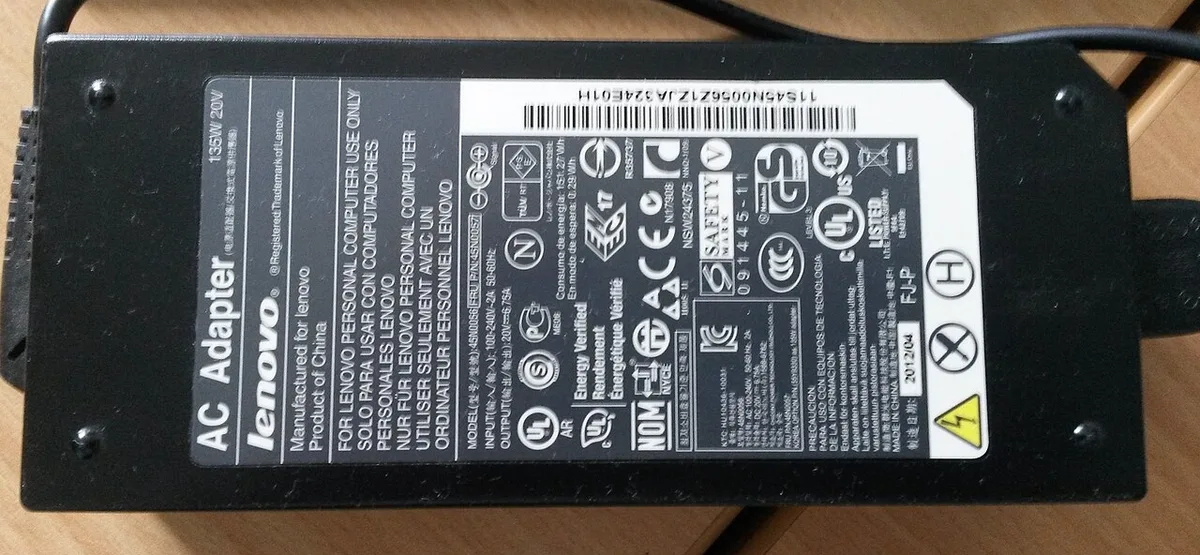
Image source: Wikimedia Commons / Neozoon
Coil whine often stops when you cap frame rates or enable V Sync. Fan noise does not change when you limit FPS. Capping frames at 60 FPS is a quick test.
The pitch often drops when the frame rate falls. If the buzz disappears the moment you quit the game but returns at the same point every time, you are dealing with load dependent electronics.
Image source: Wikimedia Commons / Делфина (CC BY-SA)
Electromagnetic interference from the power supply can bleed into speakers or headphones. That buzz usually stops when you unplug the charger and run on battery. Per electromagnetic interference standards, chargers should meet strict emission limits.
Knowing the difference saves you from replacing parts that are not broken.
The 5-Minute Diagnostic Workflow: Pinpoint the Source Before You Touch a Screw
Launch a demanding game and let it run for two minutes. Listen closely while the game loads. Close the game and listen again.
Use headphones to block out room noise if needed. Repeat the test three times to be sure. If the noise vanishes when the game closes, you have confirmed a load dependent issue.
Open Task Manager or hardware monitoring software while gaming. Watch GPU and CPU usage percentages. Coil whine usually tracks with GPU load above 70 percent.
Fan noise tracks with temperature, which rises more slowly. Note the exact game and scene where the noise starts. Write down what you hear and where.
Switch to silent mode or balanced power plan in Windows. If the noise drops, your laptop was running in a high performance state that stressed the VRMs. You can also cap frames in game to see if the pitch changes.
Aggregate reviews indicate that power plan changes affect coil whine on many gaming laptops. This step costs nothing and keeps your warranty intact.
Do not open the chassis yet. Many brands void coverage if you break tamper seals. If the diagnostic points to coil whine, skip to Branch A.
If it points to a fan, go to Branch B. If it points to the charger, go to Branch C.
Fix Branch A: If It’s Coil Whine from the GPU or VRMs
You cannot truly remove coil whine, but you can reduce it enough to stop noticing it. The noise comes from inductors vibrating under electrical load. Most coil whine sits between 5 kHz and 20 kHz.
It is harmless to the hardware itself. Capping frame rates lowers the load and often changes the pitch below your hearing threshold. Undervolting the GPU reduces current draw without losing meaningful performance.
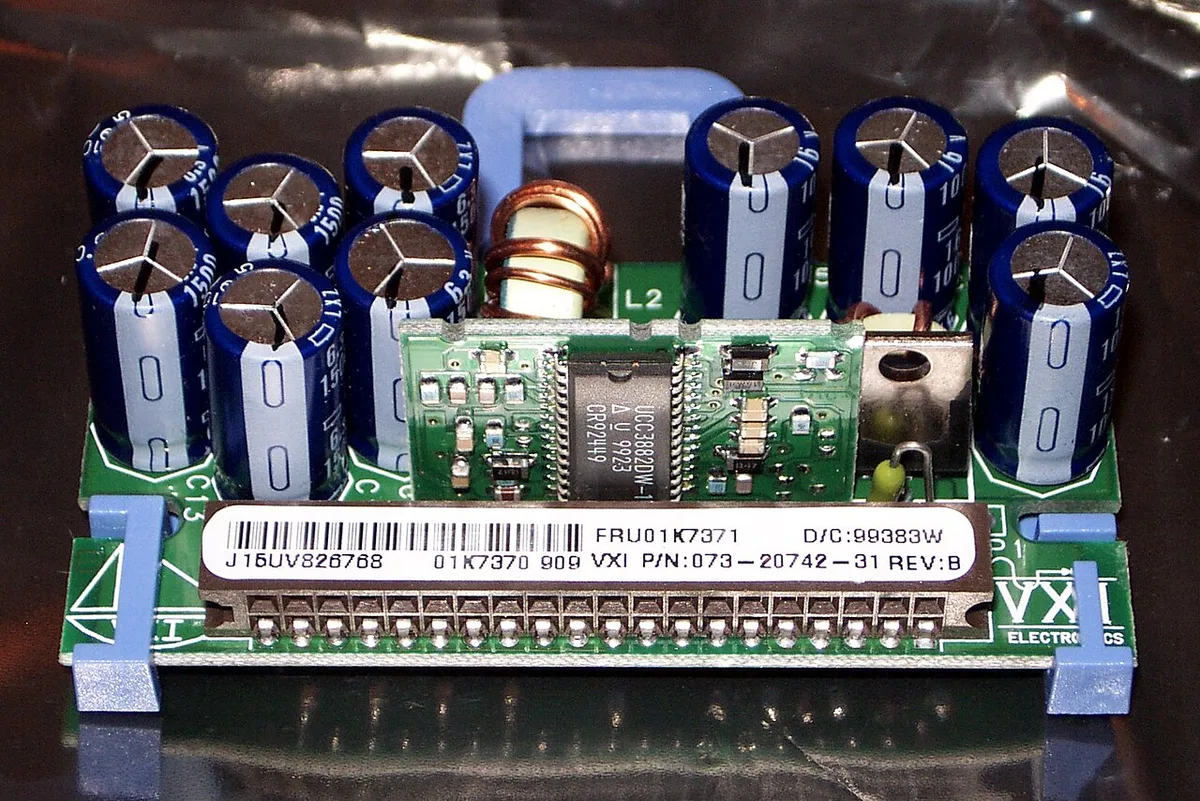
Image source: Wikimedia Commons / DivF at English Wikipedia (CC BY)
Use your GPU control panel to set an FPS cap matching your monitor refresh rate. For a 144 Hz screen, cap at 144 FPS. Leave a margin below your display maximum.
If the buzz stops, leave the cap enabled. Undervolting requires care; start with small adjustments and test stability after each change.
Switch to silent mode in your OEM control panel. This limits turbo boost and reduces VRM stress. If your GPU mode is stuck in hybrid, the discrete graphics may cycle under load and create noise.
Fixing that mode can help. Check the BIOS for advanced power options if available. Manufacturer specifications often list this behavior as within tolerance.
Avoid opening the laptop just to repaste for coil whine. Repasting lowers temperatures, but it does not stop inductor vibration. If the noise is loud enough to hear over headphones, contact support and ask about a replacement under warranty.
A replacement unit may have quieter components by chance.
Fix Branch B: If It’s a Fan Bearing or Airflow Vibration
A failing fan bearing needs cleaning, lubrication, or replacement. Dust buildup on blades creates imbalance and vibration. Airflow hitting a loose cable or panel can also rattle.
These sounds usually stay constant regardless of frame rate. You will often hear it right after launching a game. Bearing failure often sounds like a scratchy whir that changes pitch as the fan speeds up.
Shut down the laptop and unplug it. Use compressed air to blow dust from the intake and exhaust vents. Hold the fan blades still while cleaning so they do not spin freely.
Check that no loose wires touch the fan housing.
If the noise persists, adjust your fan curve in the OEM software. A more aggressive curve spins fans earlier but can mask bearing noise with airflow. Fan RPM on gaming laptops commonly ranges from 2,000 to 6,000 under load.
Some laptops let you create custom fan profiles per game. Lowering the curve may make a bad bearing more obvious, which confirms the part needs replacement.
Reapplying thermal pads can help temperatures but not bearing noise. Repasting the CPU and GPU can lower temperatures and reduce fan speed. However, repasting does not fix a worn bearing.
Check the mounting screws to ensure the fan is seated firmly. If the fan still grinds after cleaning, order a replacement fan matched to your laptop model.
Fix Branch C: If It’s the Charger, Ground Loop, or Speaker Interference
You hear the buzz through headphones but not the laptop speakers. That pattern points to electromagnetic interference from the power adapter. Per EMI standards, chargers can emit noise that couples into audio circuits when plugged in.
Unplug the charger and switch to battery power. If the buzz disappears, the charger is the culprit.
Some laptops have a ground loop issue between the chassis and the power brick. Try a different outlet or a surge protector with EMI filtering. Moving the charger a few inches away from the laptop can also reduce the coupling.
If you use a USB-C power delivery brick, verify it matches the laptop’s wattage requirements. Mismatched power supplies often produce audible coil noise at lower loads.
Do not assume the laptop has a hardware fault just because the charger hums. Many gaming adapters operate within specifications yet still emit sound. Document when the noise occurs, during menu screens, loading screens, or intense combat, and share that timeline with support.
If the sound is only audible at specific power states, it may be classified as normal by the manufacturer.
Common Mistakes That Waste Time or Void Your Warranty
One of the most common errors is opening the chassis before isolating the source. Many gaming laptops have warranty void stickers on the bottom panel. Breaking those seals can disqualify you from free repair, even if the issue is genuine.
Always complete the five-minute diagnostic workflow first. If you do open the case, document screw locations and avoid disconnecting ribbon cables unnecessarily.
Another frequent mistake is blaming coil whine for fan problems. A grinding bearing will not stop when you cap frame rates. Conversely, electrical whine will persist even with the fan at minimum speed.
Use the listen-and-test method described earlier before ordering replacement parts. Buying a new fan for a coil whine issue wastes money and introduces new variables.
Some users try undervolting beyond safe limits to eliminate noise. Aggressive undervolting can cause system instability, crashes, or permanent hardware damage. Start with small offsets, typically -50 mV to -100 mV, and test stability with a benchmark like FurMark or 3DMark.
If the system passes, decrease the offset gradually. Always monitor temperatures and error logs during the process.
Finally, ignoring the power plan can prolong the problem. Running in “Performance” or “Turbo” mode keeps VRMs and inductors under constant stress. Switching to “Balanced” or “Power Saver” reduces electrical load and often silences the buzz immediately.
This fix costs nothing and preserves warranty coverage. If the noise stops, you have confirmed a load-dependent electrical origin rather than a mechanical failure.
Frequently Asked Questions
How to Fix Buzzing Noise Stops When Game Closes on a Gaming Laptop — Is coil whine harmful?
No. Coil whine is a high-frequency electrical vibration that does not damage components. It is acoustically annoying but electrically harmless.
Many gaming laptops exhibit this behavior as of 2026, and manufacturers often list it as within normal operating parameters. If the laptop functions correctly and temperatures remain stable, the sound is cosmetic rather than a failure.
Can updating BIOS or GPU drivers eliminate the buzz?
Sometimes. BIOS updates may refine power delivery logic, and newer GPU drivers can adjust fan curves or voltage regulation behavior. However, coil whine is often a physical inductor characteristic that no software patch can fully remove.
Updates may reduce the intensity or change the pitch, but they rarely erase the sound entirely. Check the manufacturer’s release notes for any “noise reduction” mentions before installing.
Will capping frame rates permanently fix the issue?
Capping frame rates reduces the load on the GPU and VRMs, which often lowers or eliminates coil whine. The effectiveness depends on the specific laptop and game engine. Some titles trigger whine at specific frame targets, while others are unaffected.
Try capping at your monitor’s refresh rate first, then adjust up or down based on what you hear. If the buzz returns when you uncapped, the source is likely not load-dependent.
Is it safe to use headphones to avoid the noise?
Yes. Using headphones or an external DAC/amp isolates you from chassis-borne sound. This is a common workaround for users sensitive to high-pitched electronic noise.
It does not fix the underlying issue, but it provides immediate relief during gameplay. If you frequently game in quiet environments, a good pair of closed-back headphones can mask the buzz without voiding warranty or opening the laptop.
When should I contact support or pursue an RMA?
Contact support if the noise is loud enough to interfere with voice chat, if it changes pitch dramatically after a BIOS update, or if the laptop exhibits accompanying symptoms like overheating or throttling. Some manufacturers will replace the unit if the whine exceeds their internal threshold, though this is not guaranteed. Have your diagnostic notes ready, when it happens, where you heard it, and what you were doing, to speed up the case.