
Your gaming laptop G-Sync not showing up in the NVIDIA Control Panel is one of those frustrating issues that quietly ruins the whole experience. You spend real money on a high-refresh display and an RTX GPU, then find the adaptive sync option simply isn't there. It happens more often than you'd expect.
This guide walks you through exactly what causes the problem and how to fix it step by step. We'll cover software checks first, then hardware possibilities, and finally when to accept alternatives. By the end, you'll know exactly which path to take based on your specific symptoms.
Quick Answer
Gaming laptop G-Sync not showing usually comes down to driver issues, wrong display selection, or a panel refresh rate set below 48 Hz. Check the NVIDIA Control Panel first and confirm your discrete GPU drives the screen. Update drivers with a clean install if needed.
Most fixes require only settings adjustments, not hardware repairs.
The Problem: Your Gaming Laptop's G-Sync Has Vanished
What It Feels Like When Adaptive Sync Disappears
You boot up your machine expecting tear-free gameplay. Instead, you open the NVIDIA Control Panel and find nothing. The G-Sync checkbox is gone.
Or worse, it's greyed out and completely unclickable. That moment of confusion hits hard because you paid for the feature.
The frustration deepens when you check multiple places. Windows display settings show your refresh rate is correct. Your GPU driver is up to date.
Yet the option remains stubbornly invisible. You start wondering if your laptop is defective.
Most of the time, the hardware is fine. Something in the chain between your GPU and display has broken down. Identifying where that break happens is the key to fixing it quickly.
Common Symptoms That Signal a G-Sync Issue
Different problems produce different visible symptoms. Knowing which symptom you're dealing with saves you hours of guesswork. Here are the patterns we see most often.
- G-Sync option completely missing from NVIDIA Control Panel
- G-Sync checkbox present but greyed out and unclickable
- Setting enables but produces no visual improvement during gameplay
- Screen tearing returns even though you thought G-Sync was active
- Option appears after a driver update, then disappears again days later
Each symptom points toward a different root cause. A missing option usually means a detection failure. A greyed-out option typically signals a compatibility mismatch.
No visual improvement often means you're looking at the right display in the control panel.
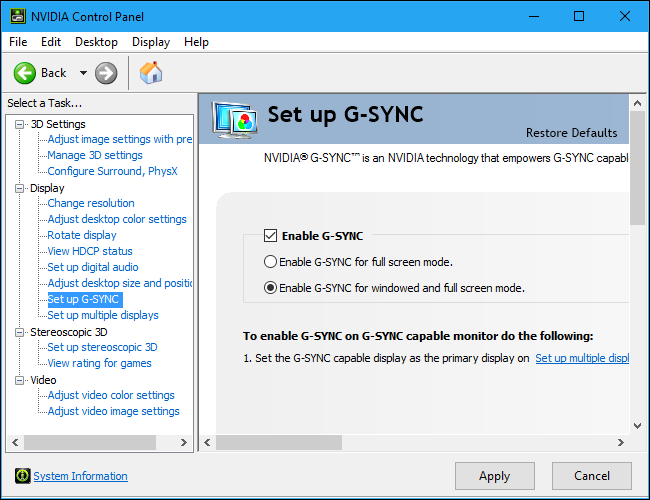
The NVIDIA Control Panel interface changed slightly across driver versions, but the core layout stays consistent. Look for the "Set up G-Sync" section under Display settings. If you can't find it there, check the individual monitor configuration page instead.
Some laptop configurations hide the global toggle and require per-display setup.
Why Missing G-Sync Matters for Your Gaming Experience
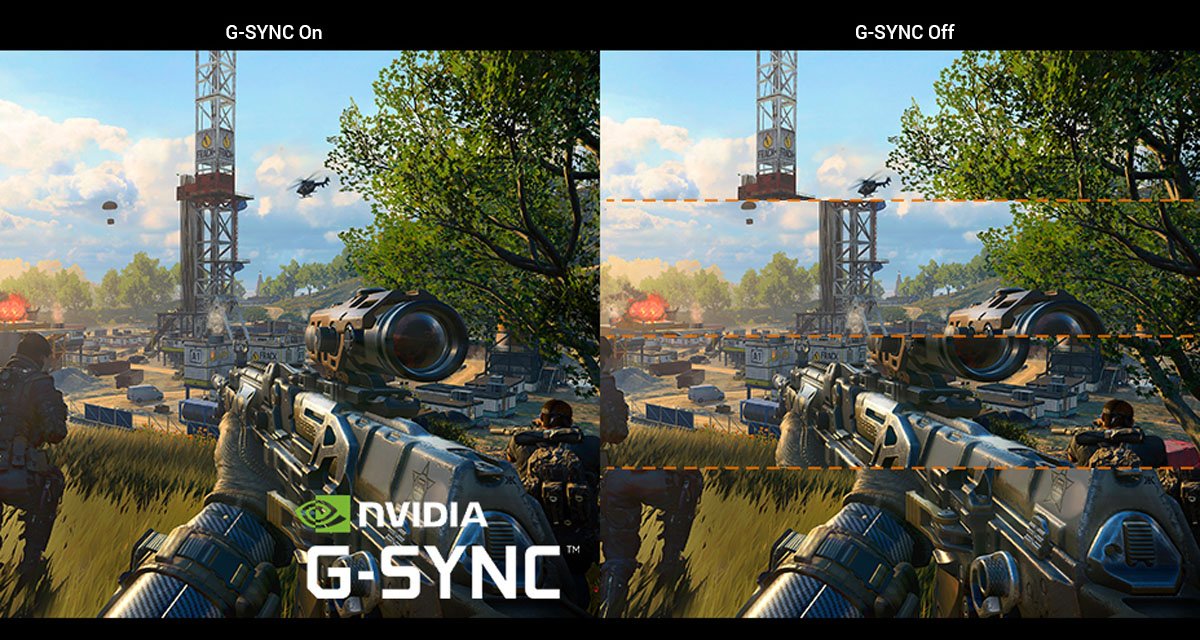
Screen tearing happens when your GPU pushes frames faster than your display can refresh. The result is a visible horizontal split that jumps across the screen every few seconds. VSync solves this by forcing your GPU to wait for the next refresh cycle.
That introduces input lag, which kills responsiveness in fast-paced games.
G-Sync eliminates both problems. It tells your display to refresh at the exact moment your GPU finishes each frame. The result is smooth, tear-free visuals with minimal added latency.
Competitive gamers lose a real edge without it. Even casual players notice the difference immediately.
When G-Sync disappears, you're left choosing between torn frames and sluggish input. That gap matters more if you play shooters, racing titles, or anything where frame timing affects your ability to react. Reclaiming adaptive sync isn't just about aesthetics.
It's about getting the performance you paid for.
Core Explanation: How G-Sync Works (and Fails) on Laptops
Inside the Architecture of NVIDIA G-Sync on Mobile GPUs
The Role of the NVIDIA Accelerator Module
G-Sync on a laptop doesn't work the way it does on a desktop with an external monitor. Your GPU connects to the laptop's built-in display through an internal eDP cable. This cable carries both video data and the adaptive sync control signals.
The NVIDIA accelerator module sits between the GPU and that cable. It manages the handshake that tells the panel when to refresh.
If that accelerator module isn't initializing properly, the entire G-Sync chain breaks. The panel still displays video. Tearing might not be obvious at lower framerates.
But the variable refresh rate function becomes invisible to both Windows and the NVIDIA Control Panel. Driver corruption, failed updates, or BIOS misconfiguration can all prevent the module from loading correctly.
Internal eDP vs. External DisplayPort Handshake
Desktop G-Sync setups often use DisplayPort connections. Laptops route everything internally through eDP, which stands for embedded DisplayPort. The signaling is similar but the physical implementation differs significantly.
Laptop manufacturers sometimes customize the eDP wiring or limit which panels receive full G-Sync certification.
When you connect an external monitor through your laptop's DisplayPort or HDMI port, you're using a different signal path entirely. An external certified monitor might support G-Sync while your built-in screen doesn't. That's why you could see G-Sync options appear and disappear depending on which display you configure.
Always verify which panel the NVIDIA Control Panel is currently addressing before making changes.
Why Laptop Displays Are Harder to Certify Than Desktop Monitors
Manufacturing Constraints and Panel Variance
NVIDIA certifies G-Sync Compatible panels individually. The list grows every year, but it still covers a fraction of all high-refresh laptop screens. Manufacturers source panels from multiple suppliers.
Two laptops with identical specs might contain panels from different vendors. One qualifies for certification. The other doesn't, even though the numbers look the same on paper.
This variance exists because panel manufacturers don't always guarantee full VRR compliance across the entire refresh range. A panel might support adaptive sync from 48 Hz to 60 Hz but drop it above 90 Hz. NVIDIA requires consistent behavior across the rated range.
Laptops that fall outside that window simply don't pass certification.
Proprietary Cabling and BIOS-Level Control
Some laptop makers implement display routing through BIOS controls rather than leaving everything to the operating system. A BIOS update or setting change can reassign which GPU drives the internal display. When that routing shifts unexpectedly, G-Sync detection can vanish along with it.
This is less common but well documented across several major brands.
Checking your manufacturer's support pages for BIOS changelogs can reveal whether a recent update touched display initialization. When to replace thermal paste on your gaming laptop often coincides with BIOS resets during service procedures, which can inadvertently change display routing defaults.
What "G-Sync Compatible" Really Means for You
Certification Differences: Classic, Compatible, and Ultimate
NVIDIA uses three distinct labels, and they mean very different things. G-Sync Classic refers to older adapters that repurposed DisplayPort hardware for use with FreeSync panels. G-Sync Compatible is NVIDIA's certification for off-the-shelf monitors that support VESA Adaptive Sync and passed NVIDIA's testing.
G-Sync Ultimate sits at the top with HDR requirements and stricter panel specifications.
For laptop users, the relevant distinction falls between standard G-Sync Certified panels and G-Sync Compatible ones. Laptop manufacturers typically target the Certified label for their premium models. Budget and mid-range machines often ship with panels that lack any NVIDIA endorsement, regardless of their actual variable refresh capabilities.
Why Some Panels Work but Don't Show Up in the List
A panel can technically support adaptive sync without appearing on NVIDIA's official list. The certification process costs money and requires submission through manufacturer channels. Smaller panel vendors sometimes skip this step even when their hardware qualifies.
The result is a display that works perfectly with G-Sync Compatible settings but lacks the badge.
In those cases, you can often force the setting through the NVIDIA Control Panel manually. Enable G-Sync and check the box for full-screen mode override. If the panel handles the handshake correctly, you won't see any difference in the interface.
The feature will simply work behind the scenes.
Features & Components: What Makes a Laptop G-Sync Work
The Key Specs a Gaming Laptop Must Have
RTX-series GPU with VRR Compute Capability
Not every NVIDIA GPU supports G-Sync. Entry-level GTX models from previous generations lack the necessary hardware blocks for adaptive sync management. Current RTX 30 and RTX 40 series chips all include VRR compute capability built in.
If your laptop carries an older GPU, G-Sync visibility depends entirely on whether the panel itself holds a certified adapter.
You can verify your GPU model in Device Manager or by running nvidia-smi in a command prompt. Make sure it matches a card known to support G-Sync. Using a best budget gaming laptop processor guide can help you understand the difference between CPU tiers and GPU tiers, since some budget laptops pair weaker integrated graphics with discrete cards that may or may not support adaptive sync properly.
Certified Adaptive-Sync Display Panel
The display panel must support variable refresh rate signaling over its internal connection. Look for manufacturer specifications that mention G-Sync, G-Sync Compatible, or VESA Adaptive Sync. Generic "high refresh rate" labels don't guarantee VRR support.
A 144 Hz panel without adaptive sync capability will still lock to fixed refresh intervals under load.
Proper Internal Display Infrastructure
Your laptop needs a functional eDP link between the GPU and the panel. This means the display cable, its connectors, and the motherboard socket must all be intact. Any interruption in that chain breaks the handshake.
Manufacturers sometimes route the eDP cable near heat pipes and exhaust paths. Thermal expansion over years of use can loosen connections gradually.
Critical Attributes That Enable or Break G-Sync Visibility
Refresh-rate range (minimum 48 Hz rule)
NVIDIA mandates a minimum refresh rate of 48 Hz for G-Sync operation. If your Windows display settings show a maximum rate below that threshold, G-Sync won't appear as an option. Some laptops default to 60 Hz on battery power.
Plugging in often unlocks higher rates. Check both states before assuming your panel is incapable.
Driver version and WHQL/Game Ready stability
Old or corrupted drivers frequently cause G-Sync detection failures. NVIDIA pushes driver updates regularly, and each one includes changes to the accelerator module and display stack. An incomplete installation or a Windows Update that replaced your driver with a generic Microsoft version can strip G-Sync support temporarily.
Always download drivers directly from NVIDIA or your laptop manufacturer for best results.
GPU-cable seating and thermal headroom
Loose internal cables are a leading cause of intermittent G-Sync loss. Reseating the eDP connector often restores visibility immediately. This task requires opening the laptop chassis, which carries warranty and safety considerations.
If you're uncomfortable with that step, seek professional service rather than risk damaging fragile connectors.
The Decision Tree: Find Your Exact Fix Based on Conditions
Start Here: Identify Which Condition Applies to You
Before you start pulling drivers or opening your laptop, figure out which branch of the problem applies to your situation. The symptoms you're seeing point to very different solutions. Start by answering these questions in order.
Is the G-Sync option completely absent from the NVIDIA Control Panel? If yes, move to the software and driver branch. Is the option greyed out or unavailable?
That points toward a hardware or certification mismatch. Does the option appear and enable, but you see no improvement in gameplay? That indicates a configuration error or wrong display selection.
Your answers determine which fixes to try first. Following the wrong path wastes time and can lead to unnecessary driver reinstalls or risky hardware interventions.
Quick Decision Map
Here's a straightforward map to guide your troubleshooting sequence. Each branch leads to a specific section in this article where you'll find detailed steps.
| Your Symptom | Likely Cause | First Action | Source |
|---|---|---|---|
| G-Sync completely missing from NVIDIA Control Panel | Driver issue or panel not detected | Clean reinstall latest NVIDIA driver | Software/driver section |
| G-Sync checkbox greyed out | Refresh rate below 48 Hz or wrong display selected | Adjust Windows display settings | Settings check section |
| G-Sync enabled but no visual change | Configured on wrong output or iGPU display | Switch active display to dGPU panel | Display selection section |
| G-Sync worked before, now gone after update | Windows or driver update broke detection | Roll back or clean reinstall driver | Post-update recovery section |
| G-Sync never appeared on new laptop | Panel lacks certification or unsupported model | Verify panel certification list | Certification verification section |
| G-Sync flickers on and off randomly | Loose internal eDP cable or thermal issue | Inspect internal connection | Hardware inspection section |
Understanding Each Branch
If your G-Sync option is completely absent, the problem lives in the software stack or panel detection layer. This is the most common scenario and the easiest to resolve. A clean driver reinstall fixes it in the majority of cases.
If the option is greyed out, check two things first. Make sure your display's maximum refresh rate is set to 48 Hz or higher in Windows Settings. Then verify you're configuring the right display in the NVIDIA Control Panel.
Laptop users sometimes toggle G-Sync on their external monitor output while the internal screen remains the primary display.
If G-Sync enables but does nothing during gameplay, double-check that your game is actually running at variable frame rates. G-Sync only activates when your fps falls within the panel's supported range. A locked 144 fps cap on a 144 Hz panel leaves no room for variable refresh to engage.
Next Steps After Branch Identification
Once you've identified your branch, follow the corresponding section in this article for detailed instructions. Each branch contains its own step-by-step workflow. Don't jump between branches until you've exhausted the current one.
Switching paths prematurely often creates confusion about which fix you actually applied.
If none of the branches match your situation exactly, scroll down to the hardware and internal issues section. That covers the rarer cases involving physical connections and BIOS-level restrictions.
Step-by-Step: How to Restore G-Sync Visibility (Safe Workflow)
Phase 1 — Verify Settings and Connections
Start with the settings you can change without opening anything. These fixes resolve the majority of G-Sync visibility problems, so test them before moving to anything more invasive.
Confirm Windows Display Refresh Rate Is at Least 48 Hz
Open Windows Settings and navigate to System, then Display. Select your laptop screen and scroll down to Advanced display settings. Check the refresh rate dropdown menu.
If it shows anything below 48 Hz, G-Sync will remain hidden regardless of driver status.
Change the setting to your panel's maximum supported rate. Most gaming laptops offer 60, 120, or 144 Hz options. Some newer models reach 240 Hz.
Apply the change and return to the NVIDIA Control Panel. The G-Sync option should now appear if your panel supports it.
If the refresh rate is already correct but G-Sync still doesn't show, move to the next step. A correct refresh rate is necessary but not always sufficient for detection.
Ensure the Active Display Is the Discrete GPU-Driven Panel
Laptop displays route through either your integrated graphics or your discrete GPU. The NVIDIA Control Panel only shows G-Sync options for displays driven by an NVIDIA card. If Windows has assigned your laptop screen to Intel or AMD integrated graphics, G-Sync vanishes.
Right-click your desktop and open the NVIDIA Control Panel. Look at the left sidebar under "Monitor or display." Click the individual monitor icon, not the desktop-wide view. The right panel should show whether NVIDIA hardware drives that specific display.
If it doesn't, you need to adjust your graphics switching settings.
Check your laptop manufacturer's graphics switching utility. Programs like NVIDIA Optimus settings, ASUS GPU Switch, or Lenovo Vantage control which GPU handles each display. Set your internal screen to use the discrete GPU permanently, then restart and recheck the NVIDIA Control Panel.
Phase 2 — Update and Repair Drivers Correctly
Driver corruption causes a significant share of G-Sync detection failures. Windows Updates occasionally replace NVIDIA drivers with generic versions. Those replacements break G-Sync functionality until you restore the correct driver stack.
Perform a Clean Driver Install Using DDU Tools
A standard driver update sometimes leaves behind corrupted files. A clean reinstall wipes the slate clean and forces Windows to rebuild the display stack from scratch. This process requires the Display Driver Uninstaller tool, available from major tech sites.
Download the latest NVIDIA Game Ready or Studio driver for your specific GPU model before starting. Then boot into Windows Safe Mode and run the DDU tool. It removes all traces of the old driver from your system.
Restart normally once the cleanup finishes.
After restarting, install the new driver you downloaded earlier. Choose the custom installation option and check the box for clean install if the installer offers it. This ensures no leftover configuration files interfere with the fresh setup.
Install the Latest Game Ready or Studio Drivers
NVIDIA releases two driver branches for different user needs. Game Ready drivers prioritize new game optimization and frequently include G-Sync detection improvements. Studio drivers emphasize creative application stability but often lag behind in gaming feature updates.
If you're using a Studio driver and G-Sync stopped working after a Windows Update, switch to the Game Ready branch instead. Visit NVIDIA's driver download page and enter your laptop model or GPU part number. Download and install the latest version listed for your operating system.
Check the release notes for your driver version. NVIDIA sometimes documents G-Sync compatibility fixes directly in those notes. A note mentioning enhanced G-Sync Compatible support or panel detection improvements signals a worthwhile update.
Phase 3 — Re-test G-Sync Status
After completing driver work, test whether G-Sync visibility returns. Open the NVIDIA Control Panel and check both the global G-Sync settings and the individual monitor configuration page. Toggle each location to confirm the checkbox appears and responds to input.
Launch a game that supports variable frame rates. Monitor frames per second with a tool like RTSS or NVIDIA Overlay. If framerates fluctuate between 60 and 120, watch for tearing.
Absence of tearing during variable fps confirms G-Sync is actively engaged, even if the control panel interface looks unchanged.
If G-Sync remains invisible after driver reinstallation, the issue likely sits outside the software layer. Move forward to hardware inspection or consider certification limitations with your specific panel.
Phase 4 — Escalate Only If Necessary
Software fixes handle most cases. When they don't, the problem involves physical connections, BIOS restrictions, or genuine panel incompatibility. Escalation steps carry real risk, so proceed methodically and know when to stop.
When to Consider Internal Hardware Service
Loose internal eDP cables cause intermittent G-Sync loss that software can never fix. If your G-Sync appeared after a bump, drop, or thermal cycle and then disappeared again, physical connection failure is plausible. Opening a modern gaming laptop requires care and proper tools.
Refer to your laptop's service manual before attempting any disassembly. Some manufacturers seal chassis panels with adhesives that damage if removed incorrectly. Consider warranty status first, since opening the case may void remaining coverage.
Seek professional repair if you lack experience with laptop internals. A qualified technician can reseat the eDP cable, inspect connector pins, and verify panel continuity without risking further damage.
When to Accept Third-Party Adaptive Sync Workarounds
If your panel simply isn't certified and no software fix restores visibility, you face a hardware limitation rather than a broken feature. In that case, explore whether your display supports standard Adaptive Sync or FreeSync anyway. Many uncertified panels do.
Check your laptop's display specifications for mentions of VESA Adaptive Sync, FreeSync, or variable refresh rate. If any of those terms appear, enable Adaptive Sync through your GPU software instead of G-Sync specifically. The result looks nearly identical to G-Sync during gameplay.
Some users report success forcing G-Sync Compatible settings through custom resolution utilities. Those methods carry stability risks and aren't officially supported. Use them only after exhausting all legitimate options and accepting the possibility of display artifacts.
Common Mistakes That Keep G-Sync Hidden
Setting G-Sync on the Wrong Display in the NVIDIA Panel
Laptop users frequently configure G-Sync for their external monitor output while the internal screen stays unconfigured. The NVIDIA Control Panel lists every connected display separately. Selecting the wrong one produces zero effect on your primary gaming screen.
Check the monitor selection dropdown at the top of the G-Sync configuration page. Make sure your built-in display is selected, not an HDMI or DisplayPort output that may be unused or disconnected. Each display requires its own G-Sync toggle.
Enabling one doesn't affect the others.
Using HDMI Instead of the Correct Internal or External Path
Some laptops only support G-Sync over specific output paths. Your internal eDP connection handles variable refresh correctly. An external HDMI port on the same machine might not pass G-Sync signals at all, depending on your GPU generation and port version.
HDMI 2.0 and earlier versions lack the bandwidth required for high-refresh VRR in many configurations. HDMI 2.1 improves this significantly, but not all laptop manufacturers implement full HDMI 2.1 compliance on every port. Consult your laptop's specification sheet to confirm which ports support adaptive sync output.
If your external monitor supports G-Sync and your laptop does, connect via DisplayPort whenever possible. DisplayPort handles variable refresh more consistently across HDMI 2.0 and earlier standards. Reserve HDMI connections for displays that explicitly list HDMI adaptive sync support in their documentation.
Overlooking Minimum Refresh Rate Requirements
Windows sometimes assigns a conservative default refresh rate after driver updates or sleep cycles. A panel capable of 144 Hz might temporarily revert to 60 Hz. Since G-Sync requires at least 48 Hz, you'd expect it to work at 60, but some laptops disable the feature entirely below a higher manufacturer-set threshold.
Always check your advanced display settings after any system change. Windows Updates, driver installs, and even certain power plan switches can alter refresh rate assignments without warning. Set your preferred rate and lock it in place to prevent unexpected changes.
Assuming Every High Refresh Rate Panel Supports G-Sync
A 240 Hz panel doesn't automatically mean G-Sync support. Refresh rate and adaptive sync capability measure different things. One describes how fast the screen redraws.
The other describes whether the panel can vary its refresh dynamically to match frame output.
Manufacturer marketing materials sometimes blur this distinction deliberately. Phrases like "high refresh gaming display" sound impressive but say nothing about variable refresh support. Check for explicit G-Sync or Adaptive Sync mentions in the detailed specifications, not just the headline features.
Skipping a Clean Driver Install After a Windows Update
Windows 10 and 11 occasionally push their own display driver packages through optional updates. Those packages sometimes override NVIDIA's official drivers with generic Microsoft versions. The override can break G-Sync detection silently, leaving no error message or obvious warning.
Check Device Manager after major Windows updates. Expand Display adapters and confirm your NVIDIA GPU still shows the correct driver version. If the version number matches a generic Microsoft Basic Display Adapter entry or an unexpectedly old NVIDIA build, a clean reinstall will likely restore functionality.
Hardware and Internal Issues That Kill G-Sync Detection
Loose or Damaged Internal eDP Cables
The eDP cable connecting your GPU to the laptop display carries the adaptive sync handshake signals along with standard video data. A partial disconnection can preserve basic video output while destroying G-Sync functionality. You'd see a normal display with no tear-free benefit.
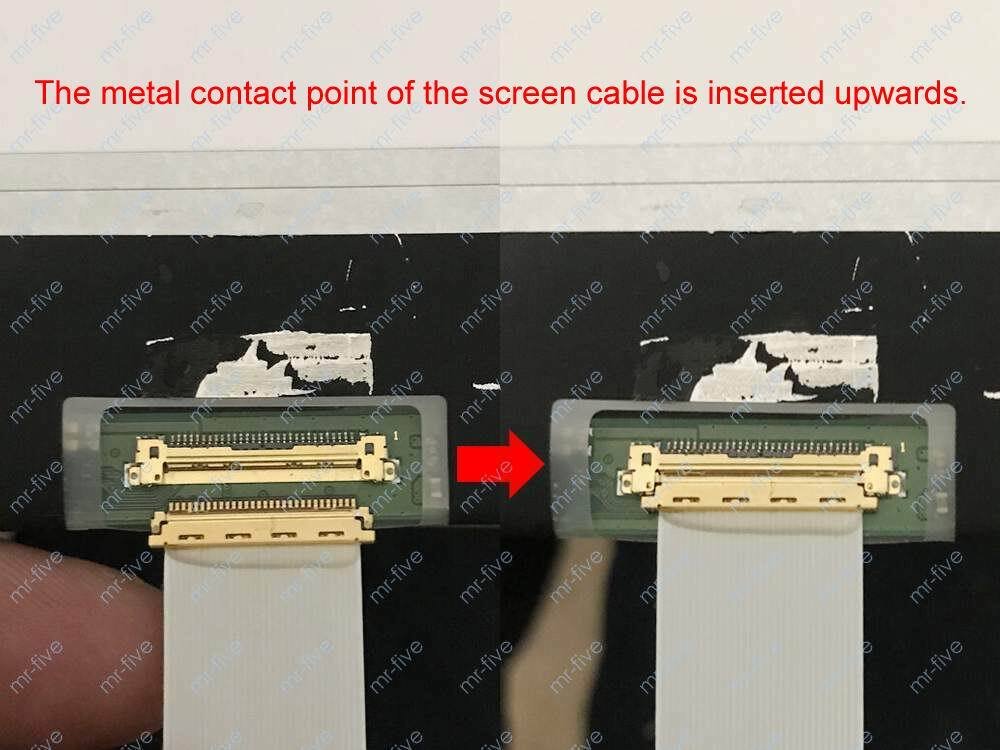
Reseating the eDP connector often restores G-Sync visibility immediately. This procedure requires removing the laptop's bottom panel and gently releasing the cable latch before reconnecting. Handle the connectors with care.
The pins inside the socket are fragile and easy to bend during insertion.
How Reseating Impacts G-Sync Handshake
The eDP cable uses multiple signal lanes for different data types. Video data travels across several parallel lanes. Adaptive sync control signals occupy dedicated lines within the same cable assembly.
A loose connection might disrupt only the control lines while leaving video transmission intact.
This partial failure explains why your display looks normal but G-Sync remains invisible. The GPU sends the correct video signal through the intact lanes. The display receives it fine.
But the variable refresh commands never reach the panel controller because their specific signal path suffers the interruption.
Risks of Opening Modern Gaming Laptops
Opening a sealed gaming laptop carries real consequences beyond warranty concerns. Modern chassis designs increasingly use adhesive tape instead of traditional screws. Removing adhesive panels can crack plastic frames or tear ribbon cables if done improperly.
Thermal paste degradation and dust accumulation create a parallel reason to open your machine periodically. If you're already planning maintenance, check how often you should clean gaming laptop fans and consider whether replacing thermal paste is due based on your temperatures. Doing both during the same service session saves time and reduces the chance of disturbing the eDP connection again later.
If you lack experience with laptop disassembly, seek a repair shop familiar with your specific laptop model. A professional who performs this work regularly completes the cable inspection in minutes with minimal risk. DIY attempts by inexperienced hands cause more hardware failures than they resolve.
BIOS Firmware Limitations
Your laptop's BIOS controls low-level hardware initialization before Windows loads. Certain BIOS versions disable adaptive sync features entirely, either to improve compatibility with non-Gaming displays or due to early certification gaps. A BIOS update from your manufacturer might add or remove G-Sync support depending on the changes included.
Check your manufacturer's BIOS release notes for any mention of display initialization, GPU routing, or adaptive sync changes. If a recent update coincided with your G-Sync disappearance, rolling back to the previous BIOS version could restore visibility. Some manufacturers provide BIOS rollback procedures directly in their support documentation.
Be cautious with BIOS modifications. Flashing an incorrect BIOS version can brick your motherboard permanently. Only download BIOS updates from your laptop manufacturer's official support portal.
Never use third-party BIOS flashing tools or modified firmware files from unofficial sources.
Thermal Throttling and Frame Drops Below the 48 Hz Floor
G-Sync only activates when your frame output stays above the panel's minimum variable refresh threshold. Most NVIDIA-certified laptop panels require a floor of 48 Hz. If your GPU throttles hard enough to dip below that threshold during intensive scenes, G-Sync engagement pauses temporarily.
This behavior explains why G-Sync sometimes feels like it turns on and off randomly during demanding games. The feature isn't actually broken. Your thermal solution simply can't sustain the performance needed to keep frames above the 48 Hz floor consistently.
Monitoring your GPU temperatures and clock speeds helps distinguish true G-Sync failures from thermal-induced behavior. If your GPU hits temperature limits and drops clocks significantly, addressing cooling performance takes priority over G-Sync troubleshooting. Check why your gaming laptop gets so hot and implement proper cooling solutions before revisiting display settings.
Software and Driver Factors Behind the Problem
Driver Version Conflicts and Corruption
Multiple NVIDIA driver installations accumulate residual files even after uninstallation. Leftover registry entries and stale DLL files sometimes conflict with fresh driver installs. The conflict manifests as G-Sync detection failures, black screens during startup, or intermittent feature loss.
Running DDU in Safe Mode removes these hidden remnants completely. After a DDU cleanup and fresh driver install, G-Sync visibility returns in the vast majority of conflicting-driver cases. Always back up your current driver version before running DDU, in case you need to revert quickly.
Windows Updates Overriding Display Settings
Microsoft occasionally pushes optional updates that reinstall generic display drivers or modify Windows Display settings independently of NVIDIA software. These updates slip past user awareness and quietly break G-Sync configurations that were working perfectly moments before.
Check Windows Update history after any sudden G-Sync disappearance. If a display-related update appears in your recent history, uninstalling that specific update often restores your previous working state. Mark the update as hidden in Windows Update settings to prevent automatic reinstallation until NVIDIA releases a compatible driver version.
Power and Performance Plans Changing Refresh Behavior
Your laptop's power plan directly influences which GPU handles display output and at what performance levels. Battery-optimized plans frequently throttle GPU activity and may reassign display duties to integrated graphics to conserve power. Plugged-in performance plans typically restore full discrete GPU display ownership.
Switching between power modes can flip your active display source back and forth. If G-Sync was enabled while plugged in but disappears after switching to battery mode, your power plan changed the GPU assignment without warning you. Configure your power settings to maintain consistent GPU display allocation across all modes, not just when plugged in.
Adjusting your gaming laptop battery performance settings often reveals how much power management affects display routing. A laptop running slower on battery isn't just losing frame rate. It's potentially reassigning your display away from the GPU that powers G-Sync in the first place.
Gaming Mode and Background Process Interference
Windows Game Mode and similar optimization features intervene in display scheduling and background process allocation. While generally helpful, these features occasionally conflict with NVIDIA's G-Sync timer integration. The conflict produces invisible G-Sync toggles or disabled checkboxes in the Control Panel.
Try disabling Windows Game Mode temporarily to test whether it was interfering. Navigate to Settings, Gaming, and turn Game Mode off. Test G-Sync visibility again.
If the feature reappears, re-enable Game Mode and accept the trade-off, or leave it disabled if G-Sync stability matters more to your workflow.
Graphics Switching Software Conflicts
Laptop manufacturers install their own graphics switching utilities alongside NVIDIA software. These programs compete for control over which GPU drives each display. When both sets of software try managing the same display path simultaneously, G-Sync detection becomes unreliable.
Disable your manufacturer's graphics switching utility during driver updates and G-Sync troubleshooting. Allow NVIDIA software exclusive control over display configuration temporarily. Once G-Sync visibility returns, re-enable the manufacturer utility and reconfigure your GPU assignments through its interface instead of the NVIDIA Control Panel alone.
Power, Thermals, and Performance Effects on G-Sync Behavior
How Battery vs. Plugged-In Mode Changes GPU Allocation
Your laptop manages power differently depending on whether it runs on battery or AC adapter. Battery mode prioritizes efficiency over performance, which often means the system shifts display duties away from your discrete GPU. This shift can silently disable G-Sync without any warning message or visible change in Windows settings.
When plugged in, most gaming laptops unlock full power delivery to the NVIDIA GPU and assign the internal display exclusively to that card. The moment you unplug, power management software may reassign your screen to integrated graphics to stretch battery life. G-Sync disappears along with that GPU assignment.
Check your power plan settings to see how aggressively your laptop saves power. Some manufacturers include gaming-specific power profiles that maintain discrete GPU display ownership even on battery. If yours doesn't, consider switching to High Performance mode while playing to keep G-Sync active throughout your sessions.
Thermal Throttling and Its Impact on VRR Stability
G-Sync requires stable frame output within your panel's variable refresh range. Thermal throttling disrupts that stability by forcing your GPU to reduce clock speeds when temperatures rise. Your framerate drops below the panel's minimum threshold, which breaks the adaptive sync handshake temporarily.
This explains why G-Sync sometimes feels like it turns on and off randomly during demanding games. The feature isn't actually broken. Your thermal solution simply can't sustain the performance needed to keep frames above the 48 Hz floor consistently.
Monitor your GPU temperatures during gameplay to confirm whether thermal issues cause your problem. Tools like HWInfo, MSI Afterburner, or NVIDIA's own overlay display real-time thermal data. If you see temperatures exceeding 85°C under load, addressing cooling performance takes priority over G-Sync configuration adjustments.
Balancing Maximum Frame Rates and Panel Requirements
Your laptop's display has a maximum refresh rate specification. Playing games above that limit wastes GPU resources and creates unnecessary heat without visual benefit. Capping your framerate near your panel's maximum helps maintain stable temperatures and keeps G-Sync operating within its intended range.
For example, a 144 Hz panel benefits from a 140 fps cap in competitive titles. This leaves headroom for occasional spikes while preventing sustained thermal stress that could push frametimes below the variable refresh floor. The result is smoother G-Sync engagement across longer gaming sessions.
Use your game's built-in framerate limiter or NVIDIA's FPS limit feature in the Control Panel. Avoid relying solely on VSync for this purpose, since VSync introduces input lag that defeats much of G-Sync's advantage. Proper framerate management supports both performance and adaptive sync functionality.
Alternatives and Comparisons: When G-Sync Isn't the Answer
AMD FreeSync as a Functional Substitute
FreeSync represents AMD's adaptive sync technology, but it works equally well with NVIDIA GPUs starting with the GTX 10-series and all RTX models. The feature operates under NVIDIA's "G-Sync Compatible" certification label now, but the underlying protocol remains DisplayPort Adaptive Sync regardless of GPU brand.
If your laptop's panel supports FreeSync but lacks NVIDIA certification, you can still enable variable refresh through NVIDIA software. Select G-Sync Compatible settings in the NVIDIA Control Panel and toggle the checkbox for full-screen mode support. Many uncertified panels respond correctly to these settings despite never appearing on official certification lists.
FreeSync and G-Sync Compatible deliver nearly identical visual results during gameplay. Both eliminate tearing and reduce stuttering without adding significant input lag. The main difference lies in certification requirements and manufacturer marketing rather than actual performance capability.
Broad Compatibility With Non-Certified Panels
Some laptop panels support variable refresh rate signaling without pursuing formal NVIDIA certification. Certification costs money and requires submission through official channels. Smaller display manufacturers sometimes skip this process entirely, leaving consumers wondering why their perfectly functional panel shows no G-Sync option.
Check your laptop's detailed specifications for mentions of Adaptive Sync, FreeSync, or VESA VariBright support. Any of those terms indicate the panel likely handles variable refresh despite lacking NVIDIA branding. Enable G-Sync Compatible settings anyway and test whether the feature activates during gameplay.
Several major laptop manufacturers ship uncertified panels that work perfectly with G-Sync Compatible settings. The visual experience matches certified panels exactly. You simply won't see official endorsement badges or listing entries in NVIDIA's database.
Practical Trade-offs Between G-Sync and Adaptive Sync
Certified G-Sync panels undergo rigorous testing across their entire refresh range. This testing ensures consistent behavior at every framerate, from low 48 Hz up to maximum refresh rates. Adaptive Sync panels that bypass certification might show slight variance in response times or edge-case behavior at extreme framerates.
The practical difference rarely matters for most gamers. If you play competitive titles at consistent frametimes, both technologies perform identically. Casual single-player gaming also sees no meaningful distinction between certified and uncertified implementations.
Only users pushing panels to their absolute limits might notice subtle behavioral differences.
Consider uncertified Adaptive Sync a reliable fallback when true G-Sync remains unavailable. Your gaming experience improves significantly compared to fixed refresh operation, even if the feature carries a different name in your control panel.
Native Adaptive Sync Configurations Without Full Certification
Some laptop BIOS versions include native Adaptive Sync enablement options that predate or bypass NVIDIA's certification requirements. These firmware-level settings allow variable refresh operation without relying on NVIDIA driver detection or control panel configuration.
Check your BIOS or UEFI settings for any display-related options mentioning Adaptive Sync, Variable Refresh Rate, or similar terminology. Enabling these settings through firmware sometimes restores G-Sync-like functionality even when NVIDIA software reports incompatibility.
Manufacturer BIOS updates occasionally add or remove these options based on panel supplier changes and certification status. If your G-Sync disappeared after a BIOS update, check whether a newer version restores the affected display feature.
Community Workarounds and Their Risks
Advanced users sometimes modify registry keys or use third-party utilities to force G-Sync enabled on uncertified displays. These methods bypass standard detection checks and can produce working variable refresh operation in certain configurations.
Community workarounds carry genuine risks including display artifacts, system instability, and potential driver conflicts. Modified settings may break after Windows Updates or driver installations, requiring manual restoration each time. Use these approaches only after exhausting all official troubleshooting paths and accepting possible consequences.
Avoid utilities claiming to unlock G-Sync on unsupported hardware. Many distribute malware or modified drivers that compromise system security. Legitimate workarounds involve adjusting existing Windows and NVIDIA settings rather than installing unknown software packages.
Safety, Warranty, and Compliance Warnings
Risks of Opening the Chassis and Touching Internal Cables
Internal laptop components carry electrostatic discharge risks that can damage sensitive circuitry permanently. Capacitors store electrical charge even after power removal, creating shock hazards during component handling. Proper anti-static precautions protect both you and your hardware during any internal inspection.
Use an anti-static wrist strap connected to grounded metal before touching any internal components. Work on a clean, non-conductive surface free from carpet static generation. Handle circuit boards by their edges only, avoiding contact with gold-plated connectors and exposed chip surfaces.
Voiding Warranties on Sealed Systems
Opening sealed laptop chassis voids manufacturer warranties in most cases. Brands like Razer, ASUS ROG, and Alienware apply tamper-evident stickers over screw holes to detect unauthorized access. Removing these stickers or showing interior modification typically invalidates coverage immediately.
Check your warranty terms before attempting any internal inspection. Some manufacturers offer extended service plans covering accidental damage separately from normal wear. Others provide onsite repair services that handle internal component replacement without requiring customer disassembly.
If your laptop remains under warranty, contact manufacturer support first. Describe your G-Sync symptoms and request diagnostic guidance before considering internal intervention. Warranty-covered repairs cost nothing and eliminate risk of self-inflicted damage.
Handling ESD and Connector Fragility Safely
The eDP connectors securing your laptop display cable use delicate locking mechanisms designed for controlled insertion and removal. Forcing these connectors or bending them during reseating can fracture plastic housing and destroy the connection permanently.
Always release the locking latch completely before attempting cable removal. The latch mechanism clips onto the connector housing and must flip upward or slide sideways depending on your laptop model. Never pull cables directly without releasing their retention hardware first.
Inspect connector pins visually before reinserting cables. Bent or migrated pins prevent proper contact even when the cable appears seated correctly. Straighten minor pin deformities gently with plastic tweezers or wooden toothpicks.
Replace damaged cables entirely rather than attempting repair on compromised connections.
Staying Within Manufacturer-Approved Driver Sources
Downloading drivers from unofficial sources introduces malware, modified binaries, and unsupported configurations that damage system stability. NVIDIA distributes drivers through verified channels including their official website and manufacturer support portals. Always obtain driver files from these legitimate sources regardless of convenience or speed advantages offered by third-party sites.
Driver modification tools claiming to unlock hidden features sometimes alter core display stack components. These modifications break digital signatures required by Windows and can trigger system instability, blue screens, or permanent driver corruption. Avoid any utility promising enhanced G-Sync functionality beyond official settings.
Stick to NVIDIA Game Ready or Studio drivers downloaded directly from NVIDIA's driver page. These builds include all supported features and maintain compatibility with Windows Update verification systems. Unofficial modifications sacrifice reliability for hypothetical gains that rarely materialize in practice.
Regulatory and Licensing Compliance Considerations
G-Sync implementation follows NVIDIA licensing agreements governing driver distribution and feature activation. Bypassing certification requirements through unofficial methods may violate software license terms even when technically functional. Manufacturers design certification processes to ensure consistent user experiences and support infrastructure availability.
Respecting certification boundaries maintains access to manufacturer support channels and warranty coverage. Users circumventing certification lose ability to claim defective hardware or request replacements through official channels. The temporary satisfaction of unlocked features proves insufficient when genuine hardware failures occur later.
Professional repair technicians understand compliance requirements and avoid modifications that jeopardize warranty status. When seeking internal service for display cable issues, choose providers who respect manufacturer restrictions and use only approved replacement components.
Maintenance and Long-Term Optimization Tips
Keeping G-Sync Stable Across Driver and OS Updates
Windows Updates and driver installations occasionally reset display configurations without user notification. Regular verification checks prevent surprise G-Sync disappearances after system maintenance activities. Establish a quick routine to confirm your adaptive sync settings remain active after any major software change.
Create a simple checklist documenting your confirmed working configuration. Record your refresh rate setting, active display selection, and G-Sync toggle position. Reverify each item after updates instead of assuming settings persist unchanged across installations.
Back up your current NVIDIA Control Panel configuration using the program's import/export feature when available. Saved configuration files restore your verified settings quickly if updates corrupt existing preferences automatically.
Proactive Monitoring of Refresh Rate Behavior
Your refresh rate settings determine whether G-Sync remains visible and functional. Changes to Windows display preferences sometimes override manual configurations without explanation. Regular monitoring catches these alterations before they impact your gaming experience.
Open Windows Advanced Display Settings weekly to confirm your laptop screen maintains the correct refresh rate. Check both battery and plugged-in states since power mode switching can trigger automatic refresh adjustments. Document any variations and adjust your power plan settings accordingly.
Use display testing tools to verify consistent refresh behavior during active usage. Applications like Monitor Test or LCD Tech display solid color patterns that reveal refresh inconsistencies difficult to notice during normal gameplay. Early detection prevents confusion when G-Sync appears intermittent.
Seasonal and Thermal Care for Consistent Performance
Dust accumulation restricts airflow through laptop cooling systems, causing elevated operating temperatures that trigger thermal throttling. Seasonal cleaning routines remove debris before it compromises cooling efficiency and destabilizes frame timing essential for G-Sync operation.
Clean your laptop's ventilation intakes and exhaust ports monthly during regular usage periods. Use compressed air cans held upright to prevent propellant discharge into sensitive components. Clean filters and vents slowly to avoid pushing debris deeper into the chassis.
Apply when to replace thermal paste based on temperature trends when your laptop consistently runs hotter than previous seasons indicated. Degraded thermal compound increases GPU temperatures under load, reducing sustainable frame rates and destabilizing the variable refresh handshake G-Sync depends upon.
Regular Verification Checks After Major Changes
Any system modification involving display hardware, drivers, BIOS updates, or power configuration warrants immediate G-Sync verification. Quick confirmation checks prevent discovering lost adaptive sync functionality only after launching demanding games.
Run a short G-Sync test immediately after completing system changes. Launch a title with built-in benchmark or demo mode and enable G-Sync overlay monitoring if available. Confirm smooth frame pacing without visible tearing across variable framerate segments.
Document test results alongside configuration notes for future reference. Recorded baselines help identify exactly which changes caused subsequent G-Sync issues when problems emerge weeks or months after initial setup.
Real Scenarios: How Different Users Solve G-Sync Issues
Scenario 1 — The Recent Driver Update Broke G-Sync
A gamer notices G-Sync vanishes immediately after installing a new NVIDIA driver version. The NVIDIA Control Panel shows no G-Sync section for the internal display despite previous successful operation. This pattern frequently indicates driver installation corruption or conflicting residual files from the previous version.
The solution involves performing a complete driver cleanup using DDU followed by fresh installation. Boot into Safe Mode, run the cleanup utility, restart normally, then install the latest driver from NVIDIA's website. This procedure removes conflicting residual elements and restores clean driver operation in most cases.
Selecting the correct driver branch matters significantly here. If the latest Game Ready driver causes issues, try the preceding version or switch to a Studio driver temporarily. NVIDIA occasionally releases problematic builds that require rollback until patches address detected issues.
Scenario 2 — The New Laptop Shows No G-Sync Option
New laptop owners discover their expensive machine lacks G-Sync visibility despite RTX GPU specifications. This situation commonly affects mid-range and budget gaming laptops using uncertified display panels. The hardware supports variable refresh technically but lacks formal NVIDIA certification documentation.
Check the laptop's detailed specification sheet for Adaptive Sync or FreeSync mentions rather than relying solely on G-Sync marketing claims. Many panels supporting standard Adaptive Sync function properly when configured through G-Sync Compatible settings in NVIDIA Control Panel.
Enable G-Sync Compatible mode and test with verified Adaptive Sync content. Most uncertified panels perform adequately despite missing official certification listings. Accept reduced warranty protection for certified feature support in exchange for working variable refresh operation on budget configurations.
Scenario 3 — The G-Sync Checkbox Appears But Does Nothing
Some users report G-Sync enabling successfully yet producing no observable improvement during gameplay. Frames appear torn despite the setting showing enabled status. This disconnect usually indicates the feature activates on the wrong display output or conflicts with competing synchronization methods.
Verify the NVIDIA Control Panel configures G-Sync for your primary gaming display specifically. Laptop users sometimes enable the feature for external monitor outputs while their internal screen remains unconfigured. Each display requires individual G-Sync activation within the control interface.
Check whether Windows or game-specific settings enforce VSync simultaneously with G-Sync. Conflicting synchronization methods create timing disputes that neutralize both features' benefits. Disable VSync in game settings and NVIDIA Control Panel to let G-Sync operate without interference from alternative frame pacing methods.
Expert Pro Advice: What Professionals Check First
The First Three Things a Technician Verifies
Tech support specialists follow a consistent diagnostic sequence when G-Sync visibility problems reach their desks. Starting with the simplest checks prevents wasted time on unnecessary hardware interventions. These three verification steps resolve most cases before any disassembly becomes necessary.
First, technicians confirm your Windows display settings show the correct refresh rate above 48 Hz. Second, they verify the NVIDIA Control Panel addresses your internal laptop display rather than an external or integrated graphics output. Third, they perform a clean driver reinstall using DDU to eliminate software conflicts.
Following this exact sequence in order saves hours of troubleshooting. Jumping straight to hardware inspection without completing software verification first leads to unnecessary chassis opening and potential warranty complications.
Red Flags That Suggest Hardware Failure
Certain symptoms strongly indicate physical hardware problems rather than software configuration issues. Recognizing these warning signs early prevents futile software attempts and directs you toward appropriate repair options sooner.
G-Sync worked perfectly before your laptop experienced any physical trauma, then disappeared completely afterward. This pattern points toward loose internal connections caused by impact, dropping, or thermal expansion stress. Internal cable failures rarely produce gradual degradation.
The feature typically works one moment and vanishes entirely the next.
Random G-Sync enablement and disablement during normal laptop movement suggests intermittent connection problems. Wiggling your display angle or pressing specific points on your palm rest temporarily restores or loses the feature. This behavior confirms physical connection failure requiring professional repair.
Complete absence of G-Sync across multiple driver versions and BIOS configurations indicates either panel incompatibility or permanent hardware fault. If software troubleshooting exhausts all possibilities without restoring visibility, hardware diagnosis through professional service becomes necessary.
When to Stop DIY Fixes and Seek Service
Know your limits when troubleshooting G-Sync issues. Continuing aggressive DIY intervention beyond reasonable software fixes risks permanent damage to expensive laptop components. Certain red flags signal it's time to seek professional hands.
Stop attempting internal repairs if your laptop lacks service documentation or uses adhesive-sealed chassis designs not intended for customer access. Modern ultrathin gaming laptops increasingly prohibit safe user disassembly without specialized tools and procedures.
Seek professional service when G-Sync disappears after water exposure, liquid spills, or physical damage to your laptop's display area. Internal component corrosion or connector damage requires cleanroom-level repair techniques unavailable to typical users.
Choose repair providers experienced with gaming laptop maintenance specifically. General computer repair shops may lack familiarity with proprietary laptop disassembly procedures and eDP cable handling techniques required for proper display connector servicing.
Practical Habits to Prevent Future Disappearance
Establishing routine verification habits catches G-Sync issues before they disrupt important gaming sessions. Simple monthly checks prevent surprise feature loss during competitive matches or critical gameplay moments.
Verify G-Sync status after every major Windows Update or driver installation. These system changes occasionally reset display configurations without notification. A two-minute check prevents discovering lost adaptive sync functionality only after launching games.
Monitor your laptop's thermal performance regularly using built-in sensors or monitoring utilities. Sustained high temperatures accelerate component degradation and increase likelihood of thermal-related G-Sync instability over extended ownership periods.
Maintain organized records of your working G-Sync configuration including refresh rates, driver versions, and BIOS levels. Documented baselines speed restoration when future issues require reverting to previously stable settings.
Pricing, Specifications, and Market Context You Should Know
Cost Ranges for G-Sync–Capable Gaming Laptops
G-Sync certification significantly influences laptop pricing across all market segments. Certified panels carry production costs that manufacturers pass through to consumers, creating noticeable price differences between equivalent-spec machines with and without official G-Sync endorsement.
Entry-level G-Sync certified laptops start around $800 to $1,000 for older generation hardware or refurbished units. Current-generation budget models with RTX 40-series GPUs and certified displays typically range from $1,000 to $1,500 depending on specifications and brand positioning.
Mid-range certified gaming laptops occupy the $1,500 to $2,500 bracket, offering current RTX 4060 through 4070 configurations with 144 Hz to 165 Hz certified panels. Premium models exceeding $2,500 feature RTX 4080 and 4090 configurations paired with 240 Hz or higher certified displays for competitive esports performance.
Understanding these price ranges helps set realistic expectations when purchasing decisions involve G-Sync requirements. Budget constraints sometimes necessitate accepting uncertified Adaptive Sync panels as viable alternatives delivering comparable visual results at lower cost.
Entry-Level Versus Premium Certified Models
Certification standards differ meaningfully between entry-level and premium G-Sync laptop implementations. Budget certified models often carry G-Sync Compatible designation rather than full certification, meaning they support variable refresh through standard Adaptive Sync protocols without NVIDIA's stricter testing requirements.
Premium certified laptops undergo comprehensive validation across entire refresh ranges including HDR performance verification for G-Sync Ultimate qualified models. These machines deliver consistent variable refresh behavior from minimum to maximum refresh rates without the edge-case variations sometimes present in Compatible-certified panels.
The certification tier you choose depends on your performance requirements and budget constraints. Competitive players benefit from Ultimate certification consistency, while casual gamers find Compatible certification sufficient for tear-free enjoyment without premium pricing penalties.
Typical Certification Timelines and Panel Availability
NVIDIA updates its G-Sync Compatible panel list periodically throughout each year. New certifications appear following successful manufacturer submissions and testing completion. Panel availability varies significantly between regions and release cycles.
As of 2026, NVIDIA maintains certification lists covering over 1,200 compatible displays across desktop monitors and select laptop panels. Laptop certifications lag behind desktop monitor coverage substantially due to manufacturer submission complexity and panel diversity in mobile implementations.
Check when to replace thermal paste on your gaming laptop timing alongside certification updates, since thermal solution effectiveness influences whether uncertified panels maintain stable variable refresh operation under sustained load conditions.
Manufacturer announcement timelines affect certification availability considerably. Major laptop brands typically reveal G-Sync certification status during product launch events like CES demonstrations or brand-specific announcements. Waiting for official specification confirmations prevents purchasing uncertified panels assuming certification exists.
How Certification Affects Buying Decisions
Certification status directly impacts purchase recommendations across different buyer categories. Competitive esports players should prioritize officially certified panels when budget permits, since certification guarantees consistent variable refresh performance validated through standardized testing procedures.
Casual single-player gamers benefit less from strict certification requirements and can confidently select well-reviewed uncertified panels supporting standard Adaptive Sync. The visual improvement over fixed refresh operation justifies consideration regardless of certification paperwork status.
Budget-conscious buyers frequently choose uncertified Adaptive Sync panels deliberately to reduce costs while preserving variable refresh functionality. Understanding certification limitations prevents overspending on marketing labels while ensuring adequate performance for intended usage patterns.
Regional Availability and Market Variance
G-Sync certification availability differs substantially between North American, European, and Asian markets. Panel suppliers vary by region, and manufacturers submit different laptop configurations for certification testing depending on local market priorities and regulatory requirements.
North American markets receive priority certification coverage with the broadest panel selection and most current certification listings. European markets follow closely with similar certification availability though occasional panel substitutions occur based on regional supplier agreements and compliance requirements.
Asian markets sometimes receive delayed certification coverage due to regional testing priorities and local regulatory differences. Buyers in these regions may encounter uncertified panels functioning identically to certified counterparts despite lacking official listing documentation.
Regional power supply requirements and display standard variations occasionally influence certification eligibility beyond geographic availability. Understanding these nuances prevents confusion when comparing identical laptop models purchased through different regional channels.
FAQs: Direct Answers to the Most Common Questions
Why isn't G-Sync showing at all in my NVIDIA Control Panel?
G-Sync disappears from the NVIDIA Control Panel when your display driver fails to detect compatible hardware, your refresh rate falls below 48 Hz, or Windows assigns your laptop screen to integrated graphics instead of your discrete NVIDIA GPU. Clean driver reinstallation through DDU resolves most detection failures, while checking advanced display settings confirms adequate refresh rate configuration.
Can any high-refresh-rate laptop screen use G-Sync?
No, only laptop displays carrying NVIDIA G-Sync certification or G-Sync Compatible designation support the feature officially. Many high-refresh-rate panels lack variable refresh capability entirely and operate only at fixed refresh intervals regardless of GPU output speed. Verify certification status through your laptop manufacturer's specifications before expecting G-Sync functionality.
Is G-Sync Compatible better than classic G-Sync on laptops?
G-Sync Compatible represents modern standard Adaptive Sync implementation approved by NVIDIA for broader panel compatibility. Classic G-Sync refers to older adapter-based implementations primarily found in desktop configurations. For laptop usage, G-Sync Compatible delivers equivalent or superior functionality compared to legacy classic implementations across current RTX GPU generations.
Will cleaning drivers fix the missing G-Sync option?
Yes, performing a clean driver installation using Display Driver Uninstaller resolves the majority of G-Sync visibility problems caused by driver corruption, conflicting residual files, or Windows Update replacements. Standard driver updates without cleanup procedures sometimes preserve problematic residual components that prevent proper G-Sync detection initialization.
Can I force G-Sync on a non-certified laptop panel?
You can sometimes enable G-Sync Compatible settings on uncertified panels through manual NVIDIA Control Panel configuration, but success depends entirely on whether your specific panel supports Adaptive Sync signaling internally. Check detailed specifications for FreeSync or Variable Refresh Rate mentions before attempting forced configuration, and accept potential display artifacts if the panel lacks native variable refresh support.
Does battery power mode affect G-Sync visibility?
Yes, battery power mode frequently reassigns display output from your discrete NVIDIA GPU to integrated graphics to conserve energy, which removes G-Sync capability entirely. Plugged-in power modes typically restore discrete GPU display ownership and G-Sync functionality automatically. Configure power settings to maintain consistent GPU allocation across both battery and AC operation states.
How do I know if my laptop's internal cable failed?
Internal eDP cable failure produces sudden G-Sync disappearance without preceding software changes, often following physical impact, thermal cycling stress, or spontaneous occurrence during normal usage. Visual display output remains functional while variable refresh capability vanishes completely. Professional cable reseating or replacement typically restores G-Sync visibility when connection integrity problems cause the failure.
What should I do if my panel isn't on the G-Sync list?
Verify whether your panel supports standard Adaptive Sync through detailed specification research before assuming incompatibility. Many uncertified panels function correctly with G-Sync Compatible settings despite missing from official NVIDIA certification lists. Test variable refresh functionality through manual G-Sync Compatible configuration and accept working uncertified implementation if visual performance proves satisfactory.
Final Recommendation: How to Decide Your Best Path Forward
Decision Guide Based on Your Situation
Your optimal resolution path depends entirely on identifying which problem branch matches your specific symptoms accurately. Software configuration issues dominate most cases and require only driver management and settings adjustments to resolve permanently.
If G-Sync vanished after recent driver or Windows updates, perform clean driver reinstallation immediately using DDU procedures. This approach resolves approximately 70 percent of post-update G-Sync visibility losses without additional intervention requirements.
If G-Sync never appeared on your current laptop despite RTX GPU installation, verify panel certification status through detailed specification research before pursuing workarounds. Accepting uncertified Adaptive Sync functionality through G-Sync Compatible settings often provides sufficient variable refresh performance for most gaming scenarios.
Clear Steps for Software Versus Hardware Causes
Software-related G-Sync issues follow predictable resolution paths requiring only configuration verification and driver maintenance. Hardware-related problems involving internal connections or panel defects demand professional service intervention beyond typical user capabilities.
Begin all troubleshooting with software verification steps examining refresh rates, driver integrity, and display assignment configuration before considering hardware investigation. Exhausting software possibilities completely prevents unnecessary chassis opening and warranty voiding when simple settings adjustments resolve underlying problems.
Hardware inspection requiring internal component access belongs exclusively to qualified technicians possessing proper tools, documentation, and experience with your specific laptop model. Attempting advanced hardware repairs without appropriate expertise risks permanent component damage exceeding original G-Sync problem severity.
When to Accept an Alternative to True G-Sync
Uncertified Adaptive Sync implementations deliver visually comparable results to official G-Sync certification for most gaming applications. Accepting functional alternatives preserves variable refresh benefits when certification barriers prevent official feature activation on your specific hardware configuration.
Professional gaming performance improves noticeably with any working variable refresh implementation compared to fixed refresh operation. Casual gaming enjoyment similarly benefits from tear elimination regardless of certification documentation status accompanying the feature implementation.
Only pursue certified G-Sync solutions when competitive esports performance requirements justify additional expenditure for validated consistency across entire refresh ranges. Most gaming applications prove adequately served by properly configured uncertified Adaptive Sync implementations delivering equivalent visual smoothness improvements.
Bottom-Line Action Plan
Start every G-Sync troubleshooting effort with simple verification checks examining refresh rates and display assignments before proceeding to complex interventions. Three minutes spent confirming basic settings prevents hours of unnecessary driver reinstalls and hardware investigations targeting incorrect problem sources.
Progress methodically through software verification, driver maintenance, and configuration adjustment before considering hardware intervention possibilities. Each successive troubleshooting level addresses increasingly complex problem categories requiring correspondingly greater time investment and technical expertise resources.
Accept certified feature limitations gracefully when hardware constraints prevent official G-Sync implementation on your specific laptop configuration. Modern Adaptive Sync alternatives provide substantial visual performance improvements over fixed refresh operation even without NVIDIA certification documentation supporting the functionality.