Low GPU usage shows up as a frustrating percentage number while your frame rates crawl. Your gaming laptop specs look solid on paper. The dedicated graphics card should be working hard.
Instead, it sits idle or barely taps out a few percent while the system stutters through games.
This guide walks you through the actual causes and fixes that matter. We will cover driver corruption, wrong power plans, integrated graphics taking over, thermal throttling, and background apps stealing resources. You will learn how to diagnose the exact problem and apply the right fix without wasting time or money on unnecessary hardware upgrades.
Why Your GPU Isn’t Working Hard (And Why That Matters)
Low GPU usage in Task Manager often signals a configuration problem rather than broken hardware. Gaming laptops ship with two graphics chips. An integrated chip handles basic display tasks.
A discrete GPU handles heavy gaming workloads. When the handoff between these chips glitches, your game runs on the weaker processor instead.
Manufacturer power profiles also play a major role. Many gaming laptops prioritize battery life over raw performance by default. Windows may set your power plan to Balanced or Power Saver automatically after updates.
These plans aggressively downclock the GPU to save energy. Unplug your charger and most systems throttle performance significantly.
Thermal constraints cause another common pattern. Thin gaming laptop chassis struggle to cool high-end GPUs effectively. When junction temperatures approach 87°C to 90°C, the GPU deliberately reduces clock speeds to prevent damage.
Lower clocks mean lower utilization percentages. The card is not malfunctioning. It is protecting itself from overheating.
Background software frequently hijacks GPU cycles too. Discord overlays, RGB lighting controllers, browser tabs playing video, and Windows indexing services all compete for graphical resources. These programs run silently and reduce the percentage of GPU power available for your game.
Closing them often restores normal utilization numbers immediately.
Understanding which scenario applies to your situation prevents wasted troubleshooting time. Some fixes require changing a single setting. Others need deeper maintenance like cleaning dust from cooling fans or repasting the GPU die.
We will walk through each possibility in order so you can identify your specific bottleneck quickly.

If you are shopping for a new machine, checking the latest Dell G15 deals or comparing ASUS TUF Gaming Laptop options helps ensure you buy hardware that matches your performance expectations from day one.
Quick Diagnostic: Is Your GPU Actually Bottlenecked?
Run this five-minute diagnostic before changing any settings. It tells you exactly where the performance problem originates.
Open Task Manager by pressing Ctrl + Shift + Esc. Click More details if you see the compact view. Navigate to the Performance tab.
You should see separate entries for GPU 0 and GPU 1. GPU 0 typically represents your integrated graphics. GPU 1 represents your dedicated NVIDIA or AMD card.
Note which GPU your game is actually using during gameplay.
Launch a demanding title. Cyberpunk 2077, Hogwarts Legacy, and Alan Wake 2 place heavy loads on modern GPUs. Keep Task Manager open in a corner while playing.
Watch both GPU utilization graphs simultaneously.
Healthy gaming shows the dedicated GPU hovering between 80 and 99 percent utilization. The integrated GPU should stay near zero percent or show minimal activity during active gaming sessions. If you see the opposite pattern, your game is running on the wrong graphics chip entirely.
| GPU Behavior | Likely Cause | Next Step |
|---|---|---|
| Dedicated GPU at 10–30%, CPU cores at 90–100% | CPU bottleneck or wrong GPU selected | Check graphics preferences and driver settings |
| Both GPUs active, utilization split unevenly | Hybrid graphics switching causing stutter | Enable MUX switch or disable hybrid mode |
| Dedicated GPU at 100%, FPS below expected | GPU is the bottleneck, settings too high | Lower resolution, shadows, or enable DLSS/FSR |
| GPU jumps erratically between 20% and 80% | Background apps or overlays stealing resources | Close unnecessary programs and disable overlays |
| Dedicated GPU idle at 0–10% throughout | Integrated graphics handling everything | Force game to use discrete GPU in Windows settings |
Monitor VRAM usage alongside utilization. Right-click the GPU entry in Task Manager and select Open Hardware Inspector. If your dedicated GPU shows near-full VRAM capacity, you are memory-constrained.
Adding system RAM will not solve VRAM shortages. Lower texture quality settings instead.
For competitive shooters like Valorant or CS2, low GPU usage may be completely normal. These games target extremely high frame rates and rely heavily on CPU single-core performance. Your GPU might sit at 40 percent while delivering 240+ FPS.
That behavior indicates a healthy CPU-bound system, not a problem requiring fixes.
Test stability by recording baseline metrics. Note your average GPU utilization, peak temperatures, and frame rates before making any changes. After applying fixes later in this guide, compare results against these numbers to confirm improvements.
If your laptop struggles with Bluetooth connectivity issues while gaming, wireless peripherals can sometimes cause intermittent audio dropouts that feel like performance problems but are unrelated to GPU utilization.
Step 1 — Confirm Your GPU Is Selected for Gaming
Your gaming laptop contains two graphics processors. Windows must explicitly tell each game which chip to use. Without that instruction, many titles default to the integrated GPU to save power.
Running a demanding game on integrated graphics produces terrible performance and explains low GPU usage percentages entirely.
Windows includes built-in graphics preferences that override game defaults. Press Win + I to open Settings. Search for Graphics settings and open the control panel.
Scroll to Custom options for apps and click Browse. Navigate to your game executable file and add it to the list.
Steam games typically live in steamapps\common\YourGameName\. Epic Games titles reside in FortniteGame\Binaries\Win64\. Microsoft Store games appear under the Microsoft Store Apps category instead of Browse.
Select your game from the dropdown menu after adding it. Click Options and choose High performance. This forces Windows to route the game to your dedicated GPU every time you launch it.
NVIDIA Control Panel offers similar controls with additional granularity. Right-click your desktop and open the NVIDIA Control Panel. Navigate to Manage 3D settings under the 3D Settings section.
Select Program Settings from the left sidebar. Choose your game from the dropdown or add it manually. Set Preferred graphics processor to High-performance NVIDIA processor.
Apply changes and restart the game to verify the setting took effect.
AMD Radeon Software provides equivalent functionality for AMD GPU owners. Open the Adrenalin software interface. Go to Gaming and select your game profile.
Switch Graphics Profile to High Performance. Save changes and relaunch the title to activate the new preference.
Laptop manufacturers embed their own control hubs that simplify GPU selection further. ASUS Armoury Crate, Lenovo Vantage, HP OMEN Hub, MSI Center, and Acer NitroSense all include dedicated GPU toggles. Look for settings labeled Game Mode, Performance Mode, or GPU Switch within these applications.
Enabling discrete GPU mode ensures your game never falls back to integrated graphics.
After configuring graphics preferences, verify the setting worked correctly. Launch your game and open Task Manager. Confirm the dedicated GPU shows elevated utilization during gameplay.
If the integrated GPU still handles rendering despite your changes, check whether your laptop supports a MUX switch and enable it instead.
Verify your current configuration against mini LED versus OLED display comparisons to understand how panel technology interacts with GPU output. Some displays benefit more from consistent high GPU utilization than others.
Step 2 — Make Sure You’re Plugged In and Running on the Right Power Plan
Laptops dramatically reduce GPU performance when running on battery power. Disconnecting the charger triggers power-saving protocols that throttle clock speeds, limit thermal headroom, and cap maximum frame rates. Gaming on battery essentially forces your dedicated GPU into a low-power state designed for web browsing, not AAA gaming.
Always plug your laptop into wall power before gaming. Use the original charger that came with your system whenever possible. Third-party chargers may deliver insufficient wattage, causing the system to draw extra power from the battery while gaming.
This creates a negative cycle where the battery drains while generating heat, further reducing performance stability.
Check your Windows power plan next. Press Win + X and select Battery and power options. Click Power mode and ensure it is set to Best performance.
Avoid Balanced mode during gaming sessions. Power saver mode severely restricts GPU and CPU boost capabilities.
For advanced power control, open Change plan settings next to your active power plan. Click Change advanced power settings to expand detailed options. Navigate to PCI Express > Link State Power Management.
Set both On battery and Plugged in to Maximum performance. This prevents Windows from cutting power to the GPU slot during brief idle moments inside games.
Expand Processor power management as well. Set Minimum processor state to 100 percent when plugged in. Set Maximum processor state to 100 percent too.
Modern games rely heavily on fast single-core CPU performance for draw calls and physics calculations. Restricting CPU speed indirectly starves the GPU of work to process.
Manufacturer control software often includes its own power management layers. ASUS Q-Control, Dell Alienware Command Center, MSI Afterburner profiles, and HP OMEN Hub all feature performance mode toggles. Select Ultimate Performance, Turbo, or Gaming mode within these interfaces.
These profiles unlock higher power limits and enable more aggressive fan curves.
Some laptops include physical performance switches or keyboard shortcuts. Look for an Fn key combination featuring a lightning bolt icon. Pressing that combination toggles between Silent, Balanced, and Performance modes directly without navigating menus.
Fan speed increases audibly when you switch to Performance mode.
Avoid keeping High Performance mode active around the clock. Continuous maximum power draw generates excess heat and degrades battery health over time. Switch to Balanced or Power saver mode for productivity tasks.
Reserve High Performance exclusively for gaming sessions.
Why does my gaming laptop battery drain so fast? covers the underlying factors behind rapid battery depletion when gaming on battery power or using aggressive power plans.
Step 3 — Update or Clean-Install Your GPU Drivers
Corrupted or outdated GPU drivers cause a wide range of performance issues. Windows Update occasionally installs generic drivers that lack manufacturer optimizations. Partial driver installations leave residual files that conflict with fresh updates.
These problems manifest as low GPU utilization, random frame drops, and unexpected driver crashes.
Start with a standard driver update from your laptop manufacturer. Visit the support page for your specific model on ASUS, Lenovo, HP, MSI, Acer, or Dell websites. Download the latest NVIDIA or AMD GPU driver provided by the manufacturer.
These custom builds often include thermal tuning and power delivery adjustments optimized specifically for your laptop’s cooling solution.
If standard updates do not resolve the issue, perform a clean installation using DDU. Display Driver Uninstaller removes every trace of previous GPU drivers before installing fresh copies. This eliminates corrupted registry entries, leftover files, and conflicting software components that cause persistent performance problems.
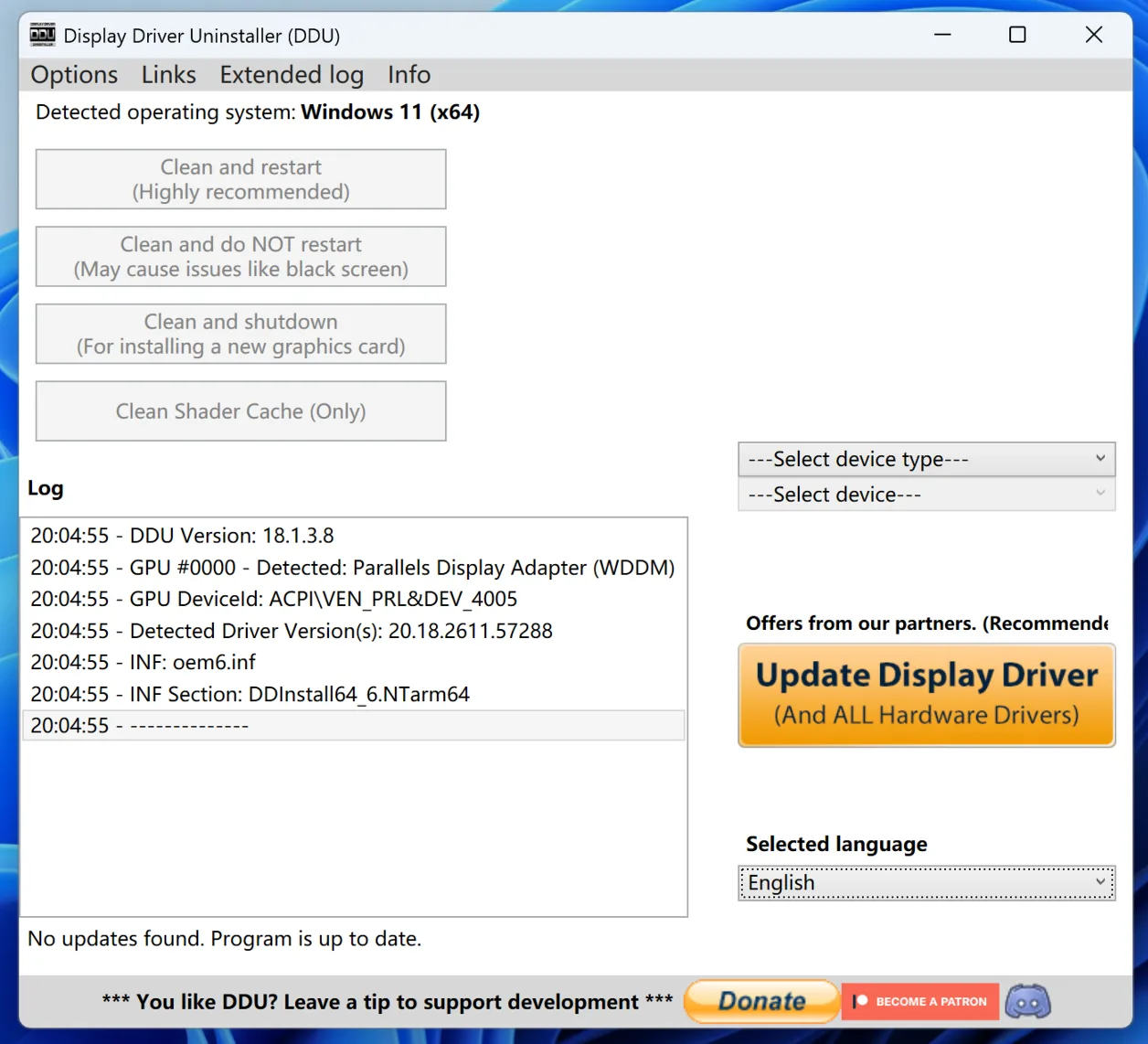
Download DDU from the official Guru3D website. Do not install it. Run the executable as administrator after disconnecting from the internet.
Boot into Safe Mode by holding Shift while clicking Restart from the Start menu. Navigate to Troubleshoot > Advanced options > Startup Settings > Restart. Press 4 or F4 to enter Safe Mode.
Launch DDU in Safe Mode and select GPU from the device type dropdown. Click Clean and restart. The tool uninstalls all NVIDIA, AMD, and Intel graphics drivers completely.
Your system restarts with basic Microsoft display drivers active.
Once Windows boots normally, install the fresh GPU driver you downloaded earlier. Choose the custom installation option when prompted and select Perform a clean installation if available. This ensures no legacy settings interfere with the new driver.
Reconnect to the internet only after the driver installation completes successfully.
Avoid third-party driver updater utilities entirely. Programs like Driver Booster or Driver Easy frequently install incorrect versions, bundle adware, or modify system files in ways that create new problems. Always download drivers from official manufacturer sources only.
For guidance on whether upgrading your laptop CPU is feasible, understanding how CPU and GPU drivers interact helps explain why updating one component sometimes affects overall system stability.
Step 4 — Enable the MUX Switch or Disable Hybrid Graphics
A MUX switch physically reroutes your laptop display directly to the dedicated GPU. This bypasses the integrated graphics chip entirely for display output. The result is lower latency, higher frame rates, and more consistent GPU utilization because the system no longer wastes time shuttling frames between two different processors.
Not every gaming laptop includes a MUX switch. Thin ultrabooks and budget models omit this component to save space, reduce cost, and improve battery efficiency. Premium gaming laptops from ASUS ROG, Lenovo Legion Pro, Razer Blade, and Alienware typically feature MUX switches as standard equipment.
Check your laptop specifications or manufacturer documentation to determine whether yours includes this feature. If it does, enabling it often resolves persistent low GPU usage problems immediately.
ASUS laptops:
- Open Armoury Crate software.
- Navigate to Customization > Display.
- Toggle MUX Switch to Discrete GPU mode.
- Restart the laptop when prompted.
Lenovo Legion laptops:
- Launch Lenovo Vantage application.
- Go to Device > Power > Hybrid Display.
- Disable Hybrid mode to enable discrete graphics.
- Reboot the system to apply changes.
HP OMEN laptops:
- Open OMEN Hub from the Start menu.
- Locate the GPU mode or performance settings.
- Select Discrete or Performance GPU mode.
- Apply the change and restart as instructed.
MSI laptops:
- Access MSI Center or Dragon Center software.
- Find GPU mode or performance presets.
- Switch to Exclusive GPU or Performance mode.
- Restart the laptop to finalize the change.
If your laptop lacks a MUX switch, use Windows Graphics Preferences or manufacturer control software to force discrete GPU usage instead. These software-based solutions approximate MUX switch behavior but cannot match the direct hardware routing that physical switches provide.
Hybrid graphics mode causes stutter because the system constantly switches workload between two processors. Frame delivery becomes inconsistent. One moment the integrated chip renders menus.
The next moment the discrete GPU takes over for intense combat sequences. These handoffs create micro-stutters that Task Manager utilization graphs do not always capture clearly.
Disabling hybrid graphics improves consistency significantly. GPU utilization numbers stabilize around higher percentages throughout gameplay. Frame pacing smoothens noticeably.
The trade-off involves reduced battery life during mobile use. Expect 20 to 40 percent shorter runtime when gaming on battery with discrete graphics enabled permanently.
Enable MUX switch mode only when playing demanding games. Return to hybrid mode for everyday tasks like web browsing, document editing, and video streaming. This balancing act preserves battery life while maximizing performance when you need it most.
If you experience G-Sync compatibility issues after enabling a MUX switch, the display refresh rate may have changed automatically. Verify adaptive sync settings in your NVIDIA Control Panel or GPU manufacturer software to restore proper functionality.
For users considering USB-C DisplayPort connectivity solutions, understanding how external displays interact with MUX switch configurations helps prevent confusion when connecting multiple monitors to gaming laptops.
Step 5 — Check for Thermal Throttling
Heat reduces GPU performance progressively. When junction temperatures approach design limits, the GPU deliberately lowers clock speeds to prevent permanent damage. This protective behavior is called thermal throttling.
Throttled GPUs show artificially low utilization percentages because they refuse additional work until temperatures decrease.
Gaming laptops compress powerful components into compact chassis designs. Cooling capacity hits physical ceilings quickly under sustained load. Dust accumulation, dried thermal paste, and restricted airflow all accelerate thermal throttling over time.
Laptops older than two years show particularly severe temperature-related performance degradation.
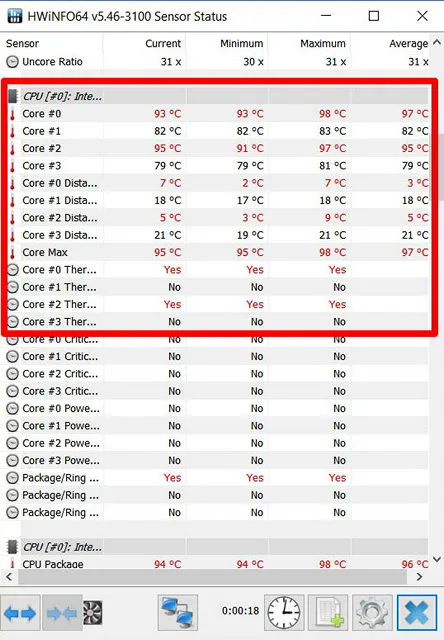
Download HWiNFO64 from the official website. Install it and run Sensors-only mode initially. Look for GPU core temperature, GPU hot spot temperature, and GPU throttling status indicators.
NVIDIA GPUs typically begin throttling around 87°C to 90°C junction temperature. AMD cards follow similar thermal thresholds.
Monitor temperatures while gaming for at least fifteen minutes. Record your baseline numbers during stable gameplay. If GPU temperatures consistently exceed 85°C and utilization remains suspiciously low, thermal throttling is likely suppressing performance.
Immediate airflow improvements:
- Elevate the rear of your laptop using a stand or folded book. This opens unused space beneath intake vents.
- Clear dust from all exhaust and intake vents using compressed air cans. Blow short bursts from multiple angles.
- Use an active cooling pad matching your laptop dimensions. Aim fans directly at hot zones near the GPU exhaust.
- Game in air-conditioned rooms during summer months. Cooler ambient air improves heat dissipation significantly.
- Avoid soft surfaces like beds, couches, or carpets. These materials block underside ventilation completely.
Deeper maintenance procedures:
- Open the laptop chassis following manufacturer disassembly guidelines. Clean internal fan blades and heatsink fins with compressed air.
- Replace dried thermal compound between the GPU die and cooler assembly. Arctic MX-4, Thermal Grizzly Kryonaut, and Honeywell PTM7950 phase-change pads deliver reliable results.
- Inspect thermal pads on VRAM modules surrounding the GPU. Replace any that appear cracked, compressed, or hardened.
- Reassemble carefully and monitor temperatures again after repasting.
Repasting a gaming laptop may void your warranty depending on the manufacturer. Check your specific warranty terms before opening the chassis. Some brands offer free thermal maintenance within warranty periods.
Others treat any chassis opening as immediate warranty voidance.
Do not apply excessive pressure to laptop lids hoping to improve thermal contact. This damages hinges, cracks plastic casings, and risks breaking internal ribbon cables. Proper disassembly and reapplication of thermal interface material addresses thermal problems safely and effectively.
For insights into battery longevity factors affecting gaming laptops, understanding how heat impacts both battery health and GPU performance helps explain why thermal management matters beyond just frame rates.
What Low GPU Usage Actually Means (And When It’s Normal)
Low GPU utilization does not always indicate a problem requiring intervention. Context determines whether low percentages signal trouble or reflect healthy system behavior.
CPU-bound scenarios produce low GPU usage legitimately. Open-world games with massive draw distances, complex physics simulations, and dense NPC populations often max out CPU cores before the GPU reaches capacity. Your dedicated GPU might sit at 60 percent while CPU cores hit 100 percent utilization.
This pattern indicates a CPU bottleneck, not a GPU malfunction.
Competitive multiplayer titles frequently exhibit low GPU usage intentionally. Games like Valorant, Counter-Strike 2, and Apex Legends target extremely high frame rates. They rely heavily on single-thread CPU performance for game logic and input processing.
A capable GPU might handle these titles at 30 to 50 percent utilization while delivering 240+ FPS consistently.
The key question is whether your frame rates match expectations for your hardware configuration. Compare actual performance against published benchmarks for your specific GPU model. If you receive expected frame rates despite low GPU percentages, your system operates normally.
If frame rates fall significantly below benchmarks, investigate further using the diagnostic steps outlined earlier.
| Game Type | Typical GPU Usage | Expected Behavior | Action Required |
|---|---|---|---|
| Competitive shooters (Valorant, CS2) | 30–60% | High FPS, CPU-limited | None, this is normal |
| Open-world AAA titles (Cyberpunk, RDR2) | 70–95% | Variable FPS, mixed bottlenecks | Monitor for CPU/GPU balance |
| Esports titles at ultra settings | 80–100% | Frame-pacing issues possible | Reduce resolution or disable V-Sync |
| Older or indie games | 20–50% | High FPS, minimal GPU demand | None, system handles workload easily |
| Ray-traced titles at high resolution | 90–100% | Lower FPS, GPU-limited | Enable DLSS/FSR or lower settings |
| Unexpected low usage across all games | 10–30% | Poor FPS, wrong GPU active | Follow diagnostic steps in this guide |
GPU utilization spikes randomly during gameplay often indicate background interference. Browser tabs rendering video, Discord overlay updates, RGB software syncing effects, and Windows search indexing all consume GPU resources unpredictably. These intermittent steals cause erratic utilization graphs even when game performance feels acceptable.
Close unnecessary applications before launching games. Disable hardware acceleration in web browsers during gaming sessions. Turn off gaming platform overlays like Steam Overlay, Discord Overlay, and Xbox Game Bar if they cause instability.
These changes stabilize GPU utilization percentages and often improve perceived smoothness.
Remember that 100 percent GPU utilization is not inherently desirable. It means your graphics card cannot keep up with the workload you assigned it. Lower resolution, reduce texture quality, disable ray tracing, or enable upscaling technologies like DLSS or FSR instead.
These adjustments reduce GPU strain while actually increasing frame rates.
If you are evaluating budget-friendly Ryzen gaming laptop options for an upgrade, understanding how CPU architecture affects GPU utilization patterns helps you make informed purchasing decisions based on actual performance characteristics rather than marketing claims alone.
Fixes to Avoid
Certain troubleshooting approaches sound logical but actually worsen low GPU usage problems or introduce new complications. Avoid these common mistakes entirely.
Do not install GPU booster or game optimizer software. These programs promise instant performance gains through aggressive registry modifications and forced clock overrides. Most deliver negligible benefits at best.
Some contain malware, adware, or bloatware that consumes system resources worse than the original problem. Windows and legitimate GPU drivers handle optimization far more effectively than questionable third-party utilities ever could.
Do not undervolt or overclock without thorough monitoring and understanding. Laptop GPUs operate within tight thermal and power envelopes. Pushing clock speeds higher than factory specifications risks system instability, application crashes, and potentially permanent hardware damage from excessive heat generation.
Undervolting appears safer but still requires careful voltage-frequency curve adjustments. One incorrect setting compromises system reliability entirely. Stick to manufacturer-provided performance profiles unless you fully understand modification consequences.
Do not disable Windows Defender or security software for gaming purposes. Antivirus programs rarely impact GPU utilization meaningfully. Removing protection exposes your system to threats that cause far more severe performance problems down the line.
If security software genuinely interferes with gaming, adjust its exclusion rules or enable game mode settings rather than disabling protection completely.
Do not replace hardware components before exhausting all software solutions. A GPU replacement costs hundreds of dollars and often requires professional installation. Driver issues, power configuration errors, and thermal management problems cost nothing to correct.
Try every software fix listed in this guide before assuming hardware failure. Many gamers replace perfectly functional components chasing symptoms caused by simple misconfigurations.
Do not press excessively hard on laptop lids to improve thermal contact. This damaging practice cracks chassis plastics, breaks hinge mechanisms, and risks disconnecting internal ribbon cables. Proper thermal paste application and cooler mounting procedures address thermal interface problems correctly without risking mechanical damage.
Do not ignore BIOS and firmware updates from your laptop manufacturer. Outdated BIOS versions occasionally contain bugs affecting GPU power scheduling, thermal management algorithms, or PCIe lane initialization. Check manufacturer support pages periodically for firmware updates.
Install updates only when release notes mention performance, stability, or hardware compatibility improvements relevant to your specific model.
Do not maintain High Performance power plans continuously. Permanent maximum power draw generates excess heat unnecessarily and accelerates battery degradation over time. Switch between Balanced and High Performance modes based on current activity.
Reserve maximum performance settings exclusively for gaming sessions and intensive creative workloads.
| Mistake | Consequence | Better Alternative |
|---|---|---|
| GPU booster software | Installs bloatware, steals resources | Clean driver installs, proper configuration |
| Blind overclocking | System instability, potential hardware damage | Factory boost clocks with adequate cooling |
| Disabling antivirus | Security vulnerabilities, malware exposure | Configure game mode exclusions properly |
| Replacing working GPU | Wasted money, possible installation errors | Exhaust all software troubleshooting first |
| Pressing lid forcefully | Broken hinges, cracked chassis, cable damage | Professional thermal repasting if needed |
| Constant High Performance mode | Battery degradation, excess heat | Match power plan to current activity |
| Ignoring BIOS updates | Missed hardware bug fixes | Update firmware when manufacturer recommends |
| Using third-party drivers | Compatibility issues, system instability | Official manufacturer or vendor drivers only |
Avoiding these common pitfalls saves time, money, and hardware lifespan. The correct fixes usually involve simple configuration adjustments rather than hardware replacements.
Expert Tips for Keeping GPU Usage Healthy Long-Term
Preventive maintenance habits keep GPU utilization stable and prevent sudden performance degradation over time.
Schedule monthly driver updates from official manufacturer sources. Check NVIDIA, AMD, and Intel driver download pages regularly. Review changelogs for performance improvements or bug fixes relevant to your specific GPU model.
Install updates during non-gaming periods so you can verify stability before returning to demanding titles.
Monitor GPU temperatures weekly using HWiNFO64 or similar monitoring software. Record baseline readings during typical gaming sessions. Track temperature trends over weeks and months.
Gradual temperature increases often signal deteriorating thermal paste or accumulating dust before performance becomes noticeably affected.
Clean laptop vents monthly using compressed air cans. Blow short bursts into intake and exhaust vents while the system powers off. Dust accumulation restricts airflow gradually.
Your GPU utilization remains normal until dust reaches critical levels, at which point performance collapses suddenly due to immediate thermal throttling.
Maintain consistent power plan selections tailored to your activities. Set High Performance mode permanently for gaming sessions. Use Balanced mode for productivity tasks and web browsing.
Avoid constantly toggling between profiles throughout the day. Consistent power management prevents Windows from caching incorrect power states that confuse GPU scheduling.
Audit and organize background applications quarterly. Review Task Manager startup items and disable unnecessary programs. Close resource-intensive applications before launching demanding games.
Discord overlays, RGB lighting software, browser tabs with video content, and cloud synchronization tools all consume GPU cycles silently in the background.
Track Windows major update releases carefully. Feature updates occasionally reset graphics preferences, reinstall default drivers, or modify power management policies. After significant Windows updates, verify your GPU selection settings remain correct and test game performance to detect any unintended configuration changes.
Adjust cleaning frequency based on seasonal conditions. Summer heat puts additional strain on laptop cooling systems. Increase vent cleaning frequency during hot months.
Winter cold actually improves thermal performance slightly but may cause condensation concerns when moving laptops between temperature extremes frequently. Allow acclimation time before powering on cold laptops.
Backup current stable driver versions before major updates or BIOS flashes. Download and store previous driver installers in an accessible location. If new updates introduce problems, having rollback capability avoids extended downtime while searching through download archives for older versions.
Create Windows system restore points before performing DDU clean installs, BIOS updates, or chassis opening for thermal maintenance. Restore points provide emergency recovery options if something goes wrong during sensitive system modifications.
Establish performance baselines for each game you own regularly. Record average GPU utilization, peak temperatures, and stable frame rates during typical gameplay sessions. Store these metrics in a simple spreadsheet or note file.
When performance degrades later, compare current measurements against historical baselines to quantify exactly how much things have changed rather than relying on subjective impressions.
Upgrading your laptop RAM and SSD storage also supports overall system responsiveness. Faster memory and storage reduce CPU stalling during asset loading, which indirectly helps maintain steady GPU utilization by preventing workload bottlenecks upstream.
These preventive habits require minimal time investment but prevent most common GPU utilization problems before they develop. Consistent maintenance matters far more than attempting emergency fixes after performance already declined significantly.
Frequently Asked Questions About Why Is My GPU at 1%
Does enabling the MUX switch reduce battery life significantly?
Yes, enabling discrete GPU mode through a MUX switch increases power consumption noticeably. The dedicated GPU remains active continuously instead of waking only when needed. Expect 20 to 40 percent shorter battery runtime during mobile use compared to hybrid graphics mode.
Switch back to hybrid mode for productivity tasks to preserve battery life when gaming is not required.
Can old or corrupted drivers cause low GPU usage even after updating?
Absolutely. Partial driver installations leave residual files that conflict with fresh updates. Corrupted registry entries persist after standard uninstall processes.
This leftover software causes Windows to route games incorrectly or triggers stability issues that force performance downgrades. DDU clean removal eliminates all traces before new drivers install, preventing these conflicts completely.
Why does my GPU utilization jump around unpredictably during games?
Background processes steal GPU resources intermittently. Browser tabs playing video content compete for graphical processing power. Gaming platform overlays activate randomly during play.
Windows search indexing or cloud backup services spike unpredictably. These interruptions create erratic utilization graphs even when game performance feels acceptable overall. Closing unnecessary applications stabilizes percentages significantly.
Should I repaste my gaming laptop every single year?
No, annual repasting is generally unnecessary and potentially harmful. Quality thermal compounds maintain effectiveness for two to three years under normal conditions. Repaste only when temperature monitoring shows consistent increases above your established baselines.
Unnecessary disassembly risks damaging components and voiding warranties without providing measurable benefits.
Can DLSS or FSR make my GPU appear underutilized intentionally?
Sometimes yes. These upscaling technologies render games at lower internal resolutions then reconstruct higher-resolution images using specialized hardware. This approach reduces traditional rasterization workload significantly while maintaining visual fidelity.
GPU utilization percentages drop legitimately because less conventional rendering work exists. Frame rates improve substantially despite lower percentage readings, proving the technology functions correctly.
Can using a weak or incorrect charger cause low GPU usage?
Yes absolutely. Laptop chargers deliver specific wattage ratings designed for each model. Using lower-wattage adapters forces the system to reduce power distribution across all components including the GPU.
Your laptop may charge slowly or not at all while gaming simultaneously. The GPU downclocks aggressively to stay within available power constraints imposed by inadequate charging infrastructure.
Why does my GPU utilization stay stubbornly low even when properly plugged in?
Multiple factors can combine to produce persistent low utilization. First verify your game runs on the dedicated GPU rather than integrated graphics. Confirm your power plan enables maximum performance settings.
Check whether background applications consume resources unexpectedly. Finally ensure temperatures do not trigger immediate thermal throttling upon game launch. Systematic diagnostic testing isolates the exact bottleneck efficiently.
Final Recommendation: Your Decision Guide
Low GPU usage on gaming laptops typically stems from configuration errors rather than defective hardware. Most problems resolve quickly through systematic troubleshooting following the sequence outlined throughout this guide.
Start troubleshooting here if your GPU shows 10 to 30 percent usage during games:
- Verify Task Manager shows your dedicated GPU active during gameplay, not integrated graphics reporting low utilization.
- Confirm your laptop remains plugged into wall power throughout gaming sessions.
- Set Windows power plan to High Performance and disable PCIe link state power management.
- Perform a clean driver installation using DDU in Safe Mode to eliminate corruption.
- Enable MUX switch mode or disable hybrid graphics if your laptop supports these features.
- Monitor junction temperatures actively and repaste cooling solution if sustained 87°C+ readings appear.
- Close all background applications and overlays before launching demanding titles.
Proceed to advanced troubleshooting if initial steps fail:
- Inspect manufacturer control software thoroughly for hidden GPU mode toggles within Armoury Crate, Vantage, or OMEN Hub interfaces.
- Update BIOS firmware to最新版本 versions addressing known GPU scheduling or power management bugs.
- Test with original manufacturer charger to rule out insufficient power delivery from third-party adapters.
- Consider clean Windows installation as last resort if driver corruption persists across multiple clean installs.
Your hardware likely performs closer to specifications than current configuration allows. Methodical troubleshooting identifies the actual bottleneck efficiently without unnecessary expense or component replacement.
Exploring budget gaming laptop options helps establish realistic performance expectations when evaluating whether current hardware meets your gaming requirements adequately.