Choosing a gaming laptop can feel more difficult than choosing a gaming desktop. Product pages are filled with processor names, graphics cards, refresh rates, power limits, memory configurations, and display specifications that are not always easy to compare.
Two laptops may even advertise the same graphics card while delivering noticeably different gaming performance. One may have better cooling, a higher GPU power limit, faster memory, or a MUX switch, while the other prioritizes portability and battery life.
So, how do you choose a gaming laptop without wasting money?
Start with the games you want to play, decide your preferred resolution and frame rate, choose the right graphics card, and then make sure the processor, memory, display, cooling system, and storage support that goal. This guide explains each step so you can confidently select a gaming laptop that fits your needs, budget, and lifestyle.
Quick Answer: How to Choose a Gaming Laptop
To choose the right gaming laptop:
- List the games you want to play.
- Decide whether you want 1080p, 1440p, or 4K gaming.
- Set a realistic total budget.
- Choose the graphics card before focusing on the processor.
- Check the GPU’s VRAM and power limit.
- Get at least 16GB of RAM for modern gaming.
- Choose enough SSD storage for your game library.
- Match the display resolution and refresh rate to the GPU.
- Read independent cooling and performance tests.
- Confirm the exact model number, warranty, and upgrade options.
The best gaming laptop is not necessarily the one with the most expensive processor or the brightest RGB lighting. It is the laptop that delivers the performance you need without forcing you to pay for features you will rarely use.
Is a Gaming Laptop Right for You?
Before comparing specifications, decide whether a gaming laptop is the right type of computer for your situation.
Gaming laptops offer portability and strong performance in a single device. However, they are usually heavier, louder, warmer, and less upgradeable than standard laptops.
Gaming Laptop vs Regular Laptop
A regular laptop is designed primarily for web browsing, office work, video calls, media consumption, and general productivity. It may use integrated graphics, a low-power processor, and a lightweight cooling system.
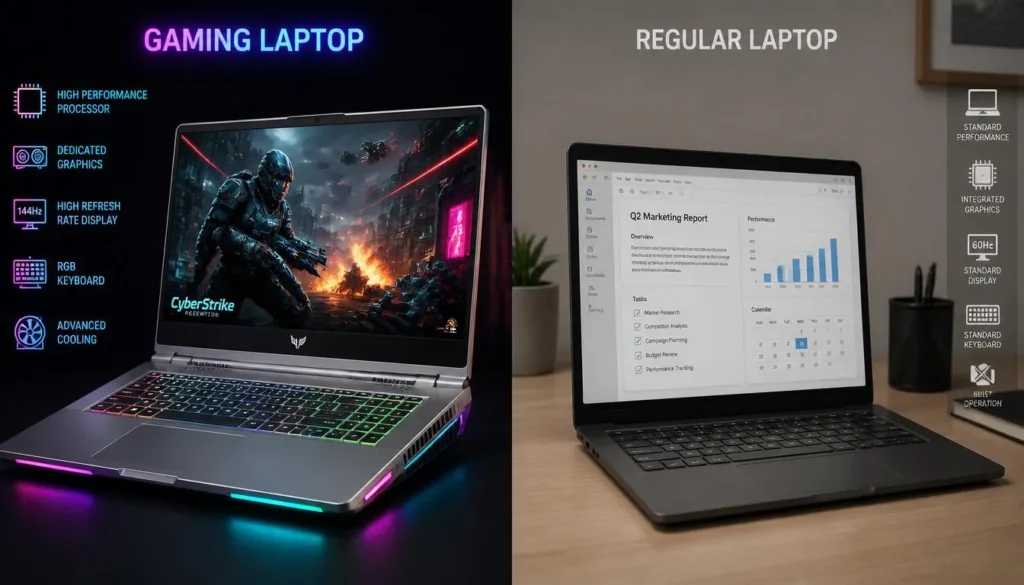
A gaming laptop normally includes:
- A dedicated graphics processor
- A higher-performance CPU
- More powerful cooling
- A high-refresh-rate display
- Faster memory and storage
- More performance controls
- A larger charger
A regular laptop may run casual, older, or less demanding games. However, a gaming laptop is usually the better option for modern AAA titles, competitive gaming, game streaming, virtual reality, and graphics-heavy creative work.
Gaming Laptop vs Gaming Desktop
A gaming laptop combines the display, keyboard, battery, speakers, processor, and graphics hardware in one portable system. A desktop generally offers better upgradeability, easier repairs, more cooling capacity, and stronger performance for the same budget.
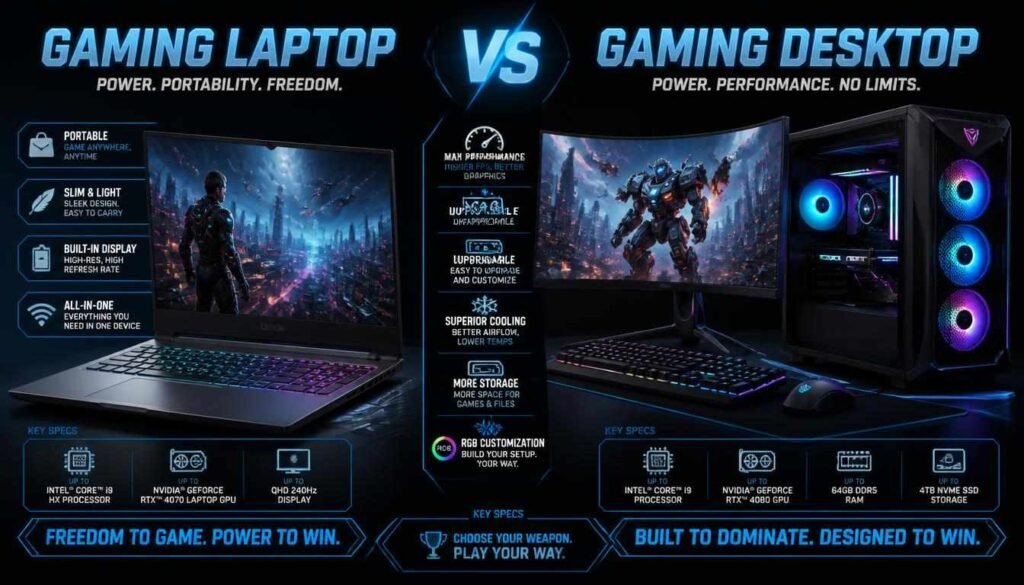
Desktop graphics cards and processors can often be replaced later. In most gaming laptops, the CPU and GPU remain fixed for the life of the machine. RAM and storage may be upgradeable, but this depends on the specific model. Intel also notes that laptops provide fewer customization options than desktop systems because most core hardware remains unchanged after purchase.
Choose a gaming laptop when:
- You need to carry your computer between locations.
- You have limited desk space.
- You want one device for gaming, studying, and work.
- You frequently travel.
- You cannot keep a permanent desktop setup.
Choose a desktop when:
- Maximum performance per dollar is your main priority.
- You want to upgrade the graphics card later.
- Portability does not matter.
- You prefer easier repairs and quieter cooling.
- You already own a monitor, keyboard, and other accessories.
Start With the Games You Want to Play
Do not begin by choosing a laptop brand. Begin with your games.
Different games place different demands on the CPU, GPU, memory, and display. A laptop built for competitive games may not need the same graphics power as a laptop intended for cinematic AAA titles at maximum settings.
Identify Your Main Game Types
Your game library will generally fit into one or more of these groups.
Competitive esports games
Games focused on competitive multiplayer usually benefit from high frame rates, low display response times, and reliable network performance. A powerful CPU and a 144Hz or faster display can be particularly valuable.
Modern AAA games
Large open-world, action, role-playing, and story-driven games usually depend heavily on the graphics card. These games may also require more VRAM and storage, especially when high-resolution textures are enabled.
Simulation and strategy games
Simulation, city-building, large-scale strategy, and heavily modified games may place greater pressure on the processor and system memory.
Casual and independent games
Many independent, browser-based, and casual games run well on affordable hardware. You may not need a high-end dedicated GPU unless you also plan to play demanding titles.
Virtual reality games
VR gaming requires a compatible graphics card, sufficient ports, and stable performance. Check the requirements of both the headset and the games you intend to play.
Gaming and streaming
Running a game while broadcasting, recording, using voice chat, and keeping browser tabs open increases CPU and memory demands.
Check Minimum and Recommended System Requirements
Visit the official page for each important game and compare its minimum and recommended hardware requirements.
Minimum requirements usually indicate that a game can run, but they do not guarantee high visual settings, smooth frame pacing, or your preferred resolution.
Recommended requirements are more useful, but they should still be treated as a starting point. Game developers may base them on desktop hardware, while laptop components can behave differently because of power and cooling limits.
Intel recommends comparing the processor and graphics hardware with the requirements of the specific games you plan to play.
After checking the official requirements, look for independent laptop benchmarks showing:
- The exact laptop GPU
- The game resolution
- Graphics settings
- Average frame rate
- 1% low frame rate
- Whether upscaling or frame generation was enabled
Decide Your Target Resolution
Resolution determines how many pixels the GPU must render.
1080p or 1200p
This is a practical choice for budget and mid-range gaming laptops. It offers a good balance between image quality and performance.
1440p or 1600p
This provides a sharper image and works well on 15-, 16-, and 18-inch displays. However, it requires more graphics power than 1080p.
4K or 2400p
A 4K-class display can look excellent for creative work and media, but gaming at native 4K is demanding. It may be unnecessary on a smaller laptop screen unless you also need high pixel density for professional work.
Choose a Realistic Frame-Rate Target
Your target frame rate should match the games you play.
- Around 60 FPS is suitable for many single-player games.
- Around 90–120 FPS can provide smoother general gaming.
- 144 FPS or higher is useful for competitive games.
- 240 FPS or higher mainly benefits serious esports players.
Do not pay for a 240Hz or 300Hz display unless the games and GPU can produce frame rates high enough to benefit from it.
Set a Realistic Gaming Laptop Budget
A gaming laptop budget should cover more than the laptop’s advertised price.
You may also need to pay for additional storage, more RAM, a gaming mouse, a headset, a backpack, an external monitor, a laptop stand, or an extended warranty.
Entry-Level Gaming Laptops
Entry-level models are suitable for:
- Esports games
- Casual gaming
- Older AAA titles
- Medium graphics settings
- First-time PC gamers
These laptops often involve compromises in display brightness, color accuracy, storage capacity, construction, battery life, or GPU power.
A cheaper laptop can still be a good purchase when its limitations match your expectations.
Mid-Range Gaming Laptops
Mid-range gaming laptops usually offer the best balance for most buyers.
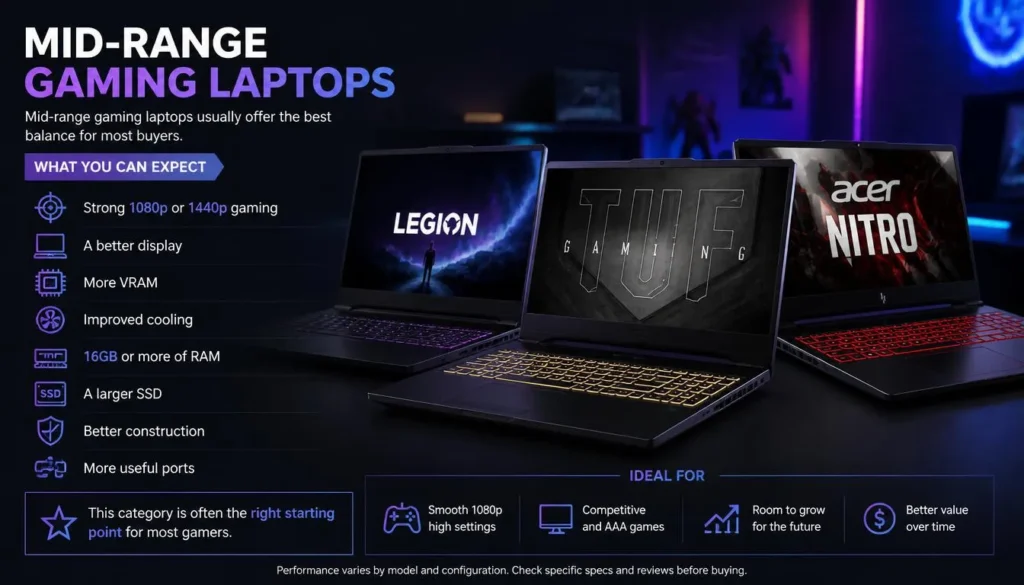
They may provide:
- Strong 1080p or 1440p gaming
- A better display
- More VRAM
- Improved cooling
- 16GB or more of RAM
- A larger SSD
- Better construction
- More useful ports
This category is often the right starting point for someone who wants to play modern games for several years without paying for flagship hardware.
High-End Gaming Laptops
High-end models are designed for demanding users who want:
- High-refresh 1440p or 1600p gaming
- Advanced ray tracing
- Content creation
- Game streaming
- High-resolution external monitors
- Premium displays
- Stronger cooling
- More memory and storage
High-end hardware can be worthwhile, but performance does not always rise in proportion to price. Paying significantly more may produce a relatively small improvement in frame rate.
Premium and Desktop-Replacement Laptops
Premium models may offer metal construction, OLED or Mini-LED displays, advanced cooling, mechanical keyboards, powerful speakers, and high-end processors.
Desktop-replacement gaming laptops can deliver excellent performance, but they are often large, heavy, and dependent on bulky chargers.
Buy one only when portability means moving between rooms, offices, or temporary locations rather than carrying the laptop throughout the day.
Calculate the Total Cost of Ownership
Before placing an order, include the cost of:
- A possible RAM upgrade
- A larger or second SSD
- A gaming mouse
- A headset
- A laptop stand or cooling pad
- An external monitor
- A protective bag
- An additional charger
- Extended warranty coverage
A laptop that appears cheaper may become more expensive after necessary upgrades.
Choose the Graphics Card First
The graphics processing unit, or GPU, usually has the greatest effect on gaming performance.
It renders the game world, textures, lighting, shadows, reflections, and visual effects. It also determines how comfortably the laptop can handle higher resolutions and graphics settings.
Dedicated GPU vs Integrated Graphics
Integrated graphics share system resources with the processor and are suitable for casual games, older titles, and some esports games at reduced settings.
A dedicated GPU has its own processing resources and video memory. It is the safer choice for modern AAA games, high-refresh gaming, ray tracing, virtual reality, game streaming, and graphics-heavy creative applications.
Integrated graphics continue to improve, but buyers should not assume that every laptop described as “gaming capable” offers the same experience as a laptop with dedicated graphics.
Choose a GPU Tier Based on Your Games
Rather than buying the highest model number you can afford, match the GPU class to your actual needs.
Basic gaming
Suitable for casual games, esports, older titles, and modest graphics settings.
Mainstream 1080p gaming
A practical target for players who want modern games at medium or high settings without spending on premium hardware.
High-refresh 1080p or 1440p gaming
Requires more GPU power and is suitable for demanding AAA games, competitive titles, and faster displays.
High-end gaming and content creation
Designed for advanced ray tracing, high-resolution gaming, professional creative work, and demanding external displays.
Always compare results from the games you play. A GPU can perform well in one title and less impressively in another.
How Much VRAM Do You Need?
VRAM is the graphics card’s dedicated memory. It stores textures, frame data, and other graphical information.
As a general guide:
- Lower VRAM capacities can be sufficient for esports and older games.
- Around 8GB is a more comfortable target for many modern games.
- Higher capacities can help with 1440p gaming, high-resolution textures, ray tracing, game modifications, and creative workloads.
VRAM alone does not determine performance. A slower GPU with more VRAM does not automatically outperform a faster GPU with less VRAM.
However, insufficient VRAM can cause texture issues, stuttering, reduced settings, or unstable performance in demanding games.
Why GPU TGP Matters
TGP refers to the amount of power available to the graphics processor.
Laptop manufacturers can configure the same GPU at different power levels. A thin laptop may use a lower power limit to reduce heat and noise, while a thicker laptop may allow the GPU to run at higher sustained power.
For example, current gaming-laptop specifications show that the same GPU family may appear in systems with notably different maximum TGP values.
A higher advertised TGP does not guarantee better performance by itself. The cooling system must be able to sustain that power. ASUS also notes that a laptop may not fully use its rated GPU power when cooling or system conditions limit sustained operation.
When comparing two laptops, check:
- Maximum GPU TGP
- Sustained gaming power
- GPU temperature
- Clock-speed stability
- Fan noise
- Performance mode used during testing
- Combined CPU and GPU power behavior
Laptop GPU vs Desktop GPU
A laptop GPU and desktop GPU with similar names should not be assumed to provide identical performance.
Laptop graphics hardware operates within tighter limits for power, temperature, and physical size. The cooling system must also manage heat from both the CPU and GPU inside a compact chassis.
Only compare a gaming laptop with benchmarks from the exact laptop GPU. Desktop graphics-card results can create unrealistic expectations.
NVIDIA vs AMD vs Intel Laptop Graphics
Each graphics platform has strengths, and the better choice depends on the specific model, price, games, and software you use.
Consider:
- Traditional gaming performance
- Ray-tracing performance
- VRAM capacity
- Driver support
- Upscaling quality
- Frame-generation support
- Streaming features
- Creative software compatibility
- Power efficiency
- Laptop price
NVIDIA offers DLSS and related AI-assisted graphics features. AMD offers FSR technologies across a wide range of hardware. Intel offers XeSS and Arc graphics options in selected systems.
Do not choose a laptop only because of the graphics brand. Compare the exact GPU model, power configuration, cooling, VRAM, and real gaming results.
What Are a MUX Switch and GPU Switching?
Many gaming laptops contain both integrated and dedicated graphics.
In a hybrid configuration, the dedicated GPU may render the game before sending the completed frames through the integrated graphics system to the display. This can improve battery efficiency but may reduce performance in some situations.
A MUX switch allows the internal display to connect more directly to the dedicated GPU. This can improve performance or latency in supported scenarios, although battery life may decrease.
Advanced automatic switching technologies can change between modes without requiring a full manual restart on compatible laptops.
This feature matters most when:
- You play competitive games.
- You want the highest possible frame rate.
- You frequently use the built-in display.
- You want control over battery and performance modes.
Ray Tracing, Upscaling, and Frame Generation
Ray tracing improves the realism of lighting, shadows, reflections, and other visual effects. It can also significantly increase GPU demand.
Upscaling technologies render a game at a lower internal resolution and reconstruct a higher-resolution image. This can improve frame rates while maintaining useful image quality.
Frame generation creates additional displayed frames between traditionally rendered frames. It can make movement appear smoother, but it is not a substitute for strong base performance and low input latency.
When reading benchmarks, check whether the reported results use:
- Native resolution
- Upscaling
- Frame generation
- Ray tracing
- Maximum or optimized settings
Two benchmark numbers are not comparable when they use different settings.
Choose the Right Processor
The CPU handles game logic, artificial intelligence, physics, background applications, operating-system tasks, and data preparation for the GPU.
A powerful graphics card can still be limited by a weak processor, especially in competitive games or CPU-heavy simulations.
How Much CPU Performance Do You Need?
For most gamers, a modern mid-range processor paired with a stronger GPU offers better value than a flagship processor paired with a weaker GPU.
A higher-end CPU becomes more useful when you:
- Play at very high frame rates.
- Run CPU-heavy simulation or strategy games.
- Stream or record gameplay.
- Edit video.
- Use development or 3D applications.
- Keep many applications open while gaming.
At higher resolutions, games often become more dependent on the GPU. At lower resolutions and very high frame rates, CPU performance can become more important.
How to Read Gaming Laptop CPU Names
Processor names usually contain:
- A product family
- A performance tier
- A series or generation indicator
- A specific model number
- A letter suffix
The letter suffix can provide useful information about the processor’s intended power and performance class.
Intel identifies H processors as high-performance mobile chips, while HX models target an even higher mobile-performance category.
AMD also uses suffixes such as H, HS, and HX across laptop processors. In general, HX models prioritize maximum performance, while HS models are commonly used in thinner performance laptops. However, naming rules can change between generations, so always read the official specification page for the exact processor.
Do not assume that every Core 7, Core Ultra 7, Ryzen 7, or Ryzen AI 7 processor performs similarly. Power limits, architecture, core configuration, laptop cooling, and generation all matter.
Balance the CPU and GPU
A balanced laptop avoids spending too much on one component while neglecting another.
For example:
- A flagship CPU with an entry-level GPU may be poor value for AAA gaming.
- A strong GPU with an underpowered CPU may struggle in high-frame-rate games.
- A premium CPU and GPU inside weak cooling may fail to maintain performance.
- An expensive gaming configuration with only 8GB of system RAM may require an immediate upgrade.
Focus on complete system performance rather than individual model names.
Do You Need an NPU or AI Processor for Gaming?
An NPU is a dedicated processor designed for certain artificial-intelligence workloads.
It may help with supported features such as background effects, noise reduction, local AI tools, and selected productivity applications. AMD defines Ryzen AI as a combination of processor cores, graphics, and a dedicated AI engine, while noting that feature support depends on the laptop manufacturer and software.
An NPU should not replace a good gaming GPU or CPU in your buying priorities.
For a gaming laptop, rank your needs in this order:
- GPU performance
- Cooling
- CPU suitability
- RAM and storage
- Display quality
- AI or NPU features
An NPU is a useful bonus when you also plan to use supported creative, communication, or productivity tools.
Decide How Much RAM You Need
RAM holds active game data, applications, browser tabs, voice-chat software, and operating-system processes.
Too little memory can cause stuttering, slow application switching, and unnecessary storage activity.
Is 16GB of RAM Enough for Gaming?
For most modern gaming laptops, 16GB is a practical starting point.
Intel recommends at least 16GB for modern gaming and notes that additional memory can be useful when multitasking.
Choose 32GB when you plan to:
- Stream or record regularly
- Edit high-resolution video
- Run virtual machines
- Use large game modifications
- Work with 3D applications
- Keep many demanding programs open
More than 32GB is normally unnecessary for gaming alone, but it can be valuable for professional workloads.
Single-Channel vs Dual-Channel Memory
A laptop with two memory modules may provide more memory bandwidth than a comparable single-module configuration.
For example, 16GB may be installed as:
- One 16GB module
- Two 8GB modules
- Soldered memory
- A mixture of soldered and replaceable memory
Do not rely only on the total capacity. Check the exact configuration and whether an empty slot is available.
DDR4 vs DDR5
DDR5 provides higher potential bandwidth and is standard in many newer systems. However, memory generation alone should not decide your purchase.
A well-priced DDR4 gaming laptop can still be a good choice when its GPU, cooling, display, and overall performance meet your needs.
Do not sacrifice a stronger GPU merely to obtain a newer memory label.
Check Whether the RAM Is Upgradeable
Before buying, confirm:
- Whether the memory is soldered
- How many memory slots are available
- How many slots are occupied
- Maximum supported capacity
- Whether replacing the memory affects the warranty
Thin laptops are more likely to use soldered memory. If the RAM cannot be upgraded, choose enough capacity at purchase.
Choose the Right Storage
Modern games can occupy a significant amount of space. The advertised SSD capacity also includes the operating system, recovery files, applications, and updates.
Is a 512GB SSD Enough?
A 512GB SSD can work when you play a limited selection of games and are willing to uninstall titles regularly.
However, the usable capacity will be lower than the advertised number, and a few large games can fill the drive quickly.
Choose 512GB when:
- Your budget is limited.
- The laptop has a second SSD slot.
- You mainly play esports or smaller games.
- You already use external or network storage for other files.
Is a 1TB SSD Better for Gaming?
A 1TB SSD is a more comfortable starting point for most buyers. It provides room for Windows, applications, updates, and several modern games.
Consider 2TB or more when you:
- Keep a large game library installed.
- Record gameplay.
- Edit video.
- Store large creative projects.
- Use extensive game modifications.
Check for a Second SSD Slot
A second M.2 slot can extend the useful life of a gaming laptop.
Check:
- The manufacturer’s specification page
- The service manual
- Independent teardown videos
- Written reviews
- Whether mounting hardware is included
- Supported drive sizes and generations
A product page that says “up to 2TB” does not necessarily mean the laptop has two slots. It may only describe the largest factory-installed option.
Do SSD Speeds Matter for Gaming?
An NVMe SSD improves system responsiveness, installations, file transfers, and loading compared with a mechanical hard drive.
The difference between two fast NVMe generations may be less noticeable in everyday gameplay than benchmark numbers suggest. Capacity and upgradeability are often more important for a typical gamer.
Microsoft states that DirectStorage can improve loading in supported games and that an NVMe SSD provides the best opportunity to benefit from it.
Do not pay a large premium for headline SSD speeds while accepting an undersized drive.
Select the Right Gaming Laptop Display
The display is one of the most important parts of a gaming laptop because it cannot usually be replaced.
A strong GPU paired with a poor screen can make the entire laptop feel disappointing.
Choose the Right Screen Size
14-inch
Best for portability. A 14-inch gaming laptop is easier to carry but may have less cooling capacity, shorter key travel, and fewer upgrade options.
15- to 16-inch
This is the most balanced range for many buyers. It offers a useful display size without becoming too difficult to transport.
17- to 18-inch
Best for players who want a desktop-like experience. These laptops may offer stronger cooling and larger keyboards, but they can be heavy and inconvenient for daily travel.
16:9 vs 16:10
A 16:9 display is a traditional widescreen format commonly used for games and video.
A 16:10 display is slightly taller and provides more vertical space for websites, documents, editing timelines, and productivity applications.
For gaming, both can work well. A 16:10 display is particularly useful when the laptop will also be used for school, work, programming, or content creation.
Common laptop resolutions include:
- 1920 × 1080
- 1920 × 1200
- 2560 × 1440
- 2560 × 1600
- 3840 × 2160
- 3840 × 2400
1080p vs 1440p vs 4K
1080p or 1200p
Provides the easiest path to high frame rates and works well on smaller screens.
1440p or 1600p
Offers sharper visuals and is an excellent match for many mid-range and high-end gaming laptops.
4K or 2400p
Looks sharp but requires substantially more GPU power at native resolution. It is better suited to premium creative systems than value-focused gaming laptops.
Choose a resolution that the GPU can support in your games. A high-resolution panel is not useful when you must reduce settings aggressively to achieve a smooth frame rate.
How Much Refresh Rate Do You Need?
Refresh rate measures how many times the display can update each second.
- 60Hz is acceptable for general use and slower games.
- 120Hz offers a clear improvement over 60Hz.
- 144Hz or 165Hz is a strong choice for most gamers.
- 240Hz or higher targets competitive players.
Intel notes that higher refresh rates can make fast motion easier to follow.
However, refresh rate is only one part of display quality.
Response Time and Ghosting
A display can advertise a high refresh rate while still having slow pixel response times.
Slow response can produce visible trails or blur behind moving objects. This is often called ghosting.
Product pages may not provide reliable response-time information. Look for independent measurements from reviewers who test multiple transitions rather than repeating the manufacturer’s claimed number.
IPS vs OLED vs Mini-LED
IPS
IPS displays are widely available and can offer good colors, viewing angles, and refresh rates. Quality varies significantly between panels.
OLED
OLED provides excellent contrast, deep black levels, fast response, and strong image quality. Possible disadvantages include higher cost, reflective coatings, brightness behavior, and long-term burn-in considerations.
Mini-LED
Mini-LED displays can provide high brightness and improved HDR performance. However, local dimming behavior, blooming, price, and power consumption vary by model.
Do not choose a panel technology by name alone. Compare actual brightness, color coverage, contrast, response time, and reviews.
Brightness and Color Accuracy
A dim display may be difficult to use near windows or in brightly lit rooms.
For gaming in a controlled indoor environment, moderate brightness may be sufficient. For mixed use, travel, or bright rooms, a brighter panel is preferable.
Color coverage matters when you edit photos, video, or graphics. Look for independently measured sRGB and DCI-P3 coverage rather than vague claims such as “vivid color.”
Does HDR Matter?
Good HDR requires more than software support.
A convincing HDR experience generally depends on:
- Strong peak brightness
- High contrast
- Effective local dimming or OLED pixels
- Appropriate color coverage
- Proper software and game support
An entry-level display with an HDR label may not deliver a meaningful HDR experience.
G-Sync, FreeSync, and Variable Refresh Rate
Variable refresh rate synchronizes the display’s refresh behavior with the frame output of the GPU.
It can reduce screen tearing and make fluctuating performance feel smoother.
This feature is particularly valuable when your frame rate changes frequently or stays below the display’s maximum refresh rate.
Check Cooling, Temperatures, and Fan Noise
A gaming laptop’s cooling system determines how well it can sustain performance.
Powerful components generate heat. If that heat cannot be removed effectively, the system may reduce clock speeds or power limits.
Why Cooling Matters
Two laptops with the same CPU and GPU can perform differently because of:
- Fan size
- Heat pipes
- Vapor chambers
- Airflow
- Vent placement
- Thermal tuning
- Chassis thickness
- Shared CPU and GPU cooling
- Performance modes
A short benchmark may not reveal these differences. Look for extended gaming or stress testing.
How to Evaluate Cooling Before Buying
Read independent reviews and check:
- CPU temperature during long gaming sessions
- GPU temperature
- Sustained CPU and GPU power
- Clock-speed stability
- Fan noise
- Keyboard temperature
- Palm-rest temperature
- Bottom-panel temperature
- Performance after 20–30 minutes
- Whether the laptop becomes louder in its fastest mode
Do not judge a cooling system only by the number of fans or heat pipes. The complete design and tuning matter.
Thin vs Thick Gaming Laptops
Thin gaming laptops are easier to carry and may look more professional. However, compact designs can involve:
- Lower GPU power
- Higher fan noise
- Warmer surfaces
- Soldered memory
- Fewer storage slots
- Smaller batteries or reduced port selection
Thicker laptops can provide stronger sustained performance, but they are less convenient to transport.
Choose based on how often you will carry the device.
Is a Cooling Pad Necessary?
A cooling pad may improve airflow when a laptop has bottom intake vents. Results vary by laptop design.
A simple stand that raises the rear of the laptop can also help by preventing soft surfaces from blocking airflow.
A cooling pad cannot repair poor thermal design. It should be treated as an optional accessory, not a solution to severe overheating.
Consider Battery Life and Portability
Gaming laptops are portable, but they are not always designed for long gaming sessions away from a power outlet.
Gaming Performance on Battery
Most gaming laptops reduce CPU and GPU power when disconnected from the charger.
This protects battery life and controls heat, but it also reduces gaming performance. For the best frame rate, use the original charger and an appropriate performance mode.
Repeated high-performance gaming on battery can also drain the battery quickly.
Evaluate Real Battery Tests
Manufacturer battery claims may be measured under light conditions that do not represent real daily use.
Look for independent tests involving:
- Web browsing
- Video playback
- Office work
- Display brightness
- Wireless connectivity
- Battery-saving settings
Gaming battery life will normally be much shorter than light-use battery life.
Check the Total Carrying Weight
Do not look only at the laptop’s weight.
A gaming setup may include:
- The laptop
- A large power adapter
- Charging cables
- A mouse
- A headset
- A protective sleeve
- Other accessories
A laptop that appears manageable on a specification sheet may become uncomfortable when carried daily with its charger.
USB-C Charging
Some gaming laptops support USB-C charging for office work, travel, or light use.
However, a USB-C charger may not provide enough power for maximum gaming performance. The laptop may reduce performance, charge slowly, or continue losing battery power during heavy workloads.
Confirm:
- Maximum supported USB-C charging power
- Whether the port supports charging in both directions
- Whether full performance requires the original adapter
- Whether USB-C charging works while the laptop is turned off
Examine Build Quality and Everyday Usability
A gaming laptop is more than a collection of specifications. You will interact with its keyboard, touchpad, screen, hinges, speakers, webcam, and ports every day.
Chassis and Hinge Quality
Check for:
- Excessive keyboard flex
- Screen wobble
- Weak hinges
- Uneven panel gaps
- Sharp edges
- Noisy chassis movement
- Difficult one-handed opening
- Poorly positioned vents
A plastic chassis is not automatically bad. Good plastic construction can be durable and lightweight. Metal construction can feel premium but may increase cost and surface temperature.
Gaming Keyboard Features
Look for:
- Comfortable key travel
- Consistent key response
- Full-size arrow keys
- Anti-ghosting
- N-key rollover
- A sensible layout
- Dedicated volume controls
- A number pad, when needed
- Per-key or zone lighting
- Easily visible legends
Mechanical laptop keyboards can provide distinctive feedback, but they may add noise, thickness, and cost.
RGB lighting should be treated as a preference rather than a performance feature.
Touchpad Quality
Even if you use a gaming mouse, a good touchpad matters during travel, study, and work.
Check:
- Surface size
- Tracking accuracy
- Gesture support
- Click consistency
- Palm rejection
- Position relative to the keyboard
Webcam and Microphone
Gaming laptops have historically treated webcams as secondary features, but quality varies widely.
For online classes, meetings, or streaming, check:
- Webcam resolution
- Low-light quality
- Microphone clarity
- Background-noise reduction
- Privacy shutter
- Biometric login support
Speakers and Headphone Output
Laptop speakers rarely replace a headset or external speakers, but they should still provide clear dialogue and balanced sound.
Check for distortion at high volume and whether fan noise overwhelms the speakers during gaming.
Check Ports and Connectivity
A laptop can have powerful hardware and still be inconvenient if it lacks the ports you need.
Essential Ports
Depending on your setup, look for:
- USB-A
- USB-C
- HDMI
- DisplayPort support through USB-C
- Ethernet
- 3.5mm audio
- SD or microSD card reader
- Power connector
- Thunderbolt or USB4 support
Also check port placement. Rear ports can help with desk cable management, while side ports are easier to access during travel.
External Monitor Support
Confirm:
- Maximum supported resolution
- Maximum refresh rate
- HDMI version
- DisplayPort support
- Whether USB-C carries video
- Whether the port connects to the dedicated GPU
- Support for variable refresh rate
- Number of simultaneous displays
The physical presence of an HDMI or USB-C port does not tell you everything about its capabilities.
Wi-Fi, Ethernet, and Bluetooth
For online gaming, stable connectivity can be more important than maximum advertised speed.
Check:
- Wi-Fi generation
- Ethernet availability
- Ethernet speed
- Bluetooth version
- Independent wireless tests
- Whether the wireless card is replaceable
A wired Ethernet connection is often the most consistent option for competitive gaming.
Check Performance Modes and Manufacturer Software
Gaming laptops commonly include control software for changing performance, fan, lighting, battery, and GPU settings.
Silent, Balanced, and Turbo Modes
A laptop may provide several profiles:
Silent mode
Reduces fan noise and power. Useful for classes, meetings, and light work.
Balanced mode
Attempts to balance noise, temperature, and performance.
Turbo or performance mode
Allows higher power and faster fans. Best suited to gaming while connected to the charger.
Benchmarks can change significantly between modes. Always check which profile a reviewer used.
Fan and Power Controls
Useful software may allow you to adjust:
- Fan behavior
- CPU power
- GPU power
- GPU overclocking
- Display mode
- RGB lighting
- Battery charging limits
- Application-specific profiles
Poor control software can be slow, unstable, or filled with unnecessary services. Read owner feedback as well as professional reviews.
Battery Charge Limits
Some laptops allow the battery to stop charging at a selected percentage when the system remains plugged in for long periods.
This feature can be useful for buyers who primarily use the laptop as a desktop replacement.
BIOS and Driver Support
Long-term support matters.
Check whether the manufacturer provides:
- BIOS updates
- Driver downloads
- Security updates
- Clear support documentation
- Recovery software
- Accessible service manuals
A laptop’s hardware may remain capable for years, but poor software support can make ownership more difficult.
Preinstalled Software and Bloatware
Many laptops include trial applications, antivirus software, promotional tools, and duplicate utilities.
These programs may consume storage, memory, battery power, or background resources. Most can be removed, but essential control software should be kept when it manages cooling, power, or GPU switching.
Check Upgradeability and Repairability
Upgradeability can extend the useful life of a gaming laptop.
Components You May Be Able to Upgrade
Depending on the model, you may be able to replace or expand:
- RAM
- NVMe SSDs
- Wi-Fi card
- Battery
- Fans
- Thermal material
The CPU and GPU are usually soldered to the motherboard and cannot be upgraded like desktop components.
Questions to Ask Before Buying
- Is the RAM soldered?
- How many RAM slots are available?
- Is there a second SSD slot?
- What is the maximum supported memory?
- Is the battery replaceable?
- Are replacement fans available?
- Is a service manual published?
- Does opening the bottom panel affect the warranty?
- Are unusual screws or adhesives used?
How to Future-Proof a Gaming Laptop
No laptop is completely future-proof. Game requirements, software, and personal expectations change.
You can still improve long-term value by choosing:
- Enough GPU performance for your target resolution
- Sufficient VRAM
- At least 16GB of RAM
- Upgradeable memory when possible
- A 1TB SSD or a free storage slot
- Strong sustained cooling
- A display you will enjoy for several years
- Good warranty and parts support
Do not overspend on a flagship CPU while accepting a weaker GPU, poor display, or soldered low-capacity memory.
Learn How to Read a Gaming Laptop Specification Sheet
Product listings can be confusing because one laptop family may include many different configurations.
The laptop name alone is not enough.
Confirm the Exact Model and SKU
Check the complete model number or SKU before comparing prices.
The same laptop family may be sold with different:
- Processors
- Graphics cards
- GPU power limits
- Displays
- RAM configurations
- Storage capacities
- Batteries
- Wireless cards
- Operating-system editions
Regional models can also differ.
Verify the GPU Details
Confirm:
- Exact GPU name
- Laptop or desktop designation
- VRAM capacity
- Maximum TGP
- MUX switch support
- GPU switching technology
- Video-output connections
Do not rely on a retailer title that only says “RTX graphics” or “dedicated gaming GPU.”
Verify the RAM Configuration
A listing that says “16GB RAM” does not tell you whether the laptop has:
- One 16GB module
- Two 8GB modules
- Soldered memory
- One replaceable module
- A free upgrade slot
Look for the manufacturer’s official specifications or a reliable teardown.
Find the Exact Display Specifications
Check:
- Resolution
- Refresh rate
- Panel technology
- Brightness
- Color coverage
- Response time
- Variable refresh rate
- Aspect ratio
- Surface coating
A retailer may advertise only the most attractive specification, such as “165Hz,” while omitting low brightness or limited color coverage.
Compare Independent Benchmarks
Use reviews that test the exact configuration whenever possible.
Compare:
- Multiple games
- Native and upscaled performance
- Average FPS
- 1% lows
- CPU and GPU temperatures
- Fan noise
- Display measurements
- Battery runtime
- SSD performance
- Performance modes
A review of a higher-end configuration may not represent the cheaper version sold under the same laptop name.
Watch for Misleading Listings
Be cautious when:
- The exact GPU is missing.
- The processor generation is unclear.
- Display brightness is not stated.
- The images show a different configuration.
- The model number does not match the description.
- Warranty information is vague.
- The seller uses only generic marketing language.
- The price appears unrealistically low.
Save screenshots of the listing and specification page before ordering in case the delivered configuration is different.
Does the Gaming Laptop Brand Matter?
Brand matters, but the individual model matters more.
A company may produce an excellent premium laptop and a disappointing budget model. Another brand may offer strong value but weaker software or regional support.
Evaluate:
- Model-specific cooling
- Construction
- Display quality
- Warranty service
- Replacement parts
- BIOS support
- Control software
- Local service availability
- Owner feedback
Do not buy solely because a brand is popular. Also, do not reject a suitable model because another product from the same company had different problems.
Buying in the USA, UK, Canada, or Australia
Gaming-laptop availability, model numbers, prices, taxes, and warranties vary by country.
Local Warranty vs Imported Models
An imported laptop may be cheaper or offer a configuration unavailable locally. However, the manufacturer may not provide warranty service outside the original purchase region.
Before importing, confirm:
- International warranty coverage
- Local repair eligibility
- Shipping costs for service
- Replacement-part availability
- Return responsibilities
- Import taxes and duties
Keyboard Layout
Keyboard layouts can differ by region.
Check product images and specifications for:
- US layout
- UK layout
- Key shapes
- Currency symbols
- Enter-key design
- Number-pad arrangement
Power Adapter and Plug Type
Confirm that the charger supports your local voltage and includes the correct plug.
Gaming-laptop chargers can be expensive to replace. Avoid using an unsuitable low-quality adapter.
Taxes, Shipping, and Returns
A deal is not attractive when import duties, shipping, difficult returns, or reduced warranty protection eliminate the savings.
Compare the final delivered price, not only the advertised price.
Regional SKU Differences
A laptop reviewed in the United States may have a different display, GPU power limit, RAM configuration, or battery in the UK, Canada, or Australia.
Always match the reviewer’s model number with the product you intend to buy.
New vs Refurbished vs Open-Box Gaming Laptops
A refurbished or open-box laptop can offer good value, but the condition and warranty matter.
New Gaming Laptops
Advantages include:
- Full manufacturer warranty
- Known ownership history
- Lower risk of physical wear
- Easier returns
- New battery
- Complete accessories
The main disadvantage is the higher price.
Manufacturer-Refurbished Laptops
Manufacturer-refurbished products may have been inspected, repaired, tested, and resold with a limited warranty.
They are generally safer than units refurbished by an unknown third party, although policies vary.
Check:
- Warranty length
- Battery coverage
- Cosmetic grading
- Return period
- Included charger
- Replacement parts used
Open-Box Laptops
Open-box products may have been returned shortly after purchase.
Inspect:
- Display condition
- Dead pixels
- Hinges
- Ports
- Keyboard
- Charger
- Battery health
- Missing accessories
- Original model number
Used Gaming Laptops
A used laptop carries more risk because gaming systems experience sustained heat and heavy load.
Check:
- Battery health
- Fan noise
- Temperatures
- SSD health
- Display damage
- Port condition
- Previous repairs
- Original charger
- Warranty status
Run an extended game or benchmark before completing the purchase when possible.
Recommended Gaming Laptop Specifications by User Type
The following profiles are general starting points rather than strict requirements.
| User Type | GPU Priority | RAM | Storage | Display Priority | Other Important Features |
|---|---|---|---|---|---|
| Casual gamer | Entry-level dedicated GPU or capable integrated graphics | 16GB preferred | 512GB–1TB | 1080p/1200p, 120Hz+ | Good battery life |
| Esports player | Strong high-FPS performance | 16GB | 1TB | 144Hz–240Hz, fast response | MUX switch, Ethernet |
| AAA gamer | Strong mid-range or high-end GPU | 16GB–32GB | 1TB+ | 1440p/1600p, VRR | Adequate VRAM and cooling |
| Student gamer | Balanced GPU | 16GB | 1TB | 14–16 inches | Portability and battery life |
| Streamer | Strong GPU and multicore CPU | 32GB preferred | 1TB–2TB | 144Hz+ | Webcam, microphone, ports |
| Creator and gamer | Strong GPU with suitable software support | 32GB+ | 1TB–2TB | Accurate color, high resolution | SD reader, external displays |
| Frequent traveler | Efficient mid-range hardware | 16GB–32GB | 1TB | 14-inch or light 16-inch | USB-C charging, low weight |
| Desktop replacement user | High-performance GPU and CPU | 32GB+ | 2TB or expandable | 16–18 inches | Strong cooling and ports |
Common Gaming Laptop Buying Mistakes
Avoid these mistakes when comparing laptops.
Choosing by GPU Name Alone
The GPU power limit, cooling, CPU, memory, and performance mode can change results significantly.
Ignoring VRAM
A GPU may provide acceptable average performance but struggle with high-resolution textures when VRAM is limited.
Paying Too Much for the CPU
A flagship CPU cannot compensate for a weak GPU in graphics-heavy games.
Buying Only 8GB of RAM Without Checking Upgrades
Eight gigabytes can become restrictive in modern gaming and multitasking. If the memory is soldered, you may not be able to fix the limitation later.
Buying Too Little Storage
A small SSD can fill quickly after Windows, applications, and several games are installed.
Focusing Only on Refresh Rate
A 165Hz display can still be dim, slow, or inaccurate.
Ignoring Cooling and Fan Noise
Good short-term benchmark results do not guarantee comfortable long gaming sessions.
Forgetting the Charger Weight
The full travel weight may be much higher than the listed laptop weight.
Assuming Every Configuration Is Identical
A review of one SKU may not apply to the model available in your country.
Prioritizing RGB Over Practical Features
Lighting is enjoyable, but it should not replace a better GPU, display, cooling system, or warranty.
Buying From an Unreliable Seller
Verify the seller, return policy, warranty status, model number, and condition before ordering.
Expecting Desktop-Level Upgradeability
The GPU and CPU are normally fixed. Choose these components carefully at the time of purchase.
Final Gaming Laptop Buying Checklist
Use this checklist before placing your order.
- I listed the games I want to play.
- I checked their recommended system requirements.
- I selected my target resolution.
- I decided my preferred frame rate.
- I set a total budget that includes accessories.
- I checked the exact GPU model.
- I confirmed the GPU’s VRAM.
- I checked the GPU TGP or power configuration.
- I compared real gaming benchmarks.
- I matched the CPU with the GPU.
- The laptop has at least 16GB of RAM or can be upgraded.
- I checked whether the RAM is soldered.
- The SSD is large enough for my game library.
- I confirmed whether a second SSD can be installed.
- The display resolution matches the GPU.
- I checked refresh rate and response-time testing.
- I checked brightness and color measurements.
- I reviewed cooling and fan-noise tests.
- I confirmed the ports I need.
- I checked external-monitor support.
- I considered the laptop and charger weight.
- I reviewed real battery-life tests.
- I confirmed the exact model number and SKU.
- I verified the seller and return policy.
- I confirmed warranty coverage in my country.
Frequently Asked Questions
What should I look for when choosing a gaming laptop?
Focus on the GPU, VRAM, CPU, RAM, storage, display, cooling, upgradeability, ports, battery life, and warranty. Start with the games you want to play and select hardware that can deliver your target resolution and frame rate.
Which component is most important in a gaming laptop?
The GPU is usually the most important component for modern gaming. However, it must be supported by a suitable processor, enough RAM, effective cooling, and a display that matches its performance.
Is 16GB of RAM enough for a gaming laptop?
Yes. Sixteen gigabytes is a practical capacity for most modern games. Choose 32GB when you stream, edit video, use heavy modifications, run virtual machines, or keep many demanding applications open.
Is 512GB enough for gaming?
A 512GB SSD can work for a limited game library, but it may fill quickly. A 1TB SSD is a more comfortable starting point for most gamers.
How much VRAM should a gaming laptop have?
The required amount depends on the games, resolution, textures, and graphics settings. Lower capacities can handle esports and older games, while around 8GB or more is generally more comfortable for modern gaming. High-resolution textures, ray tracing, modifications, and creative work may benefit from additional VRAM.
Is a 144Hz display good for gaming?
Yes. A 144Hz display provides noticeably smoother motion than a 60Hz panel and is a strong choice for most gamers. Also check brightness, response time, color quality, and variable refresh rate.
Is 1440p better than 1080p on a gaming laptop?
A 1440p or 1600p display looks sharper, especially on larger screens. However, it requires more graphics power. A 1080p or 1200p screen may provide higher frame rates and better value on affordable laptops.
Does GPU wattage matter?
Yes. The same laptop GPU can be configured at different power levels. Higher wattage can improve performance when the cooling system can sustain it. It should be considered alongside temperatures, fan noise, clock speeds, and real benchmarks.
Is a laptop GPU the same as a desktop GPU?
Not necessarily. Laptop GPUs operate within stricter power and cooling limits. Even when the names are similar, performance may differ. Compare laptop-specific benchmarks.
Should I choose NVIDIA, AMD, or Intel graphics?
Choose the specific GPU that delivers the best performance, VRAM, features, and value for your games. Consider ray tracing, upscaling, frame generation, software support, power consumption, and the complete laptop design.
Does the gaming laptop brand matter?
Brand affects warranty, software, service, and parts availability, but individual model quality is more important. Evaluate the exact model rather than assuming every product from one brand is equally good.
Are refurbished gaming laptops worth buying?
They can be worthwhile when sold by a reputable retailer or manufacturer with a clear warranty and return policy. Check battery health, temperatures, physical condition, charger, and exact specifications.
Can a gaming laptop GPU be upgraded?
In most gaming laptops, the GPU is soldered to the motherboard and cannot be upgraded. RAM, storage, Wi-Fi cards, and batteries may be replaceable depending on the model.
Are gaming laptops good for school and work?
Yes. Gaming laptops can handle school, office, programming, editing, and other demanding work. However, consider weight, charger size, fan noise, webcam quality, and battery life before using one as a daily portable device.
How long should a gaming laptop last?
A well-chosen gaming laptop can remain useful for several years. Its practical lifespan depends on initial performance, game requirements, cooling, construction, maintenance, upgradeability, and your expectations.
Is an AI processor or NPU necessary for gaming?
No. An NPU is not a replacement for a gaming GPU or CPU. It can help with supported AI, communication, and productivity features, but it should remain a secondary consideration for a gaming-focused purchase.
Final Thoughts
Learning how to choose a gaming laptop becomes much easier when you stop comparing model names and start comparing complete systems.
First, identify your games, target resolution, preferred frame rate, and total budget. Then choose the GPU and confirm its VRAM and power limit. Match it with a suitable processor, at least 16GB of RAM, enough SSD storage, a good display, and cooling that can sustain performance.
Finally, verify the exact model number. Check independent benchmarks, temperatures, fan noise, battery tests, upgradeability, warranty coverage, and regional specifications.
The right gaming laptop is not the most expensive machine on the shelf. It is the one that delivers the gaming experience you want while fitting comfortably into your budget and daily routine.