How to connect an external monitor to a gaming laptop depends on the ports on both devices, the cable standard, and the refresh rate you want. Start by matching the laptop output to a monitor input that can carry enough bandwidth. A single USB-C cable can handle video, power, and data on many modern laptops.
HDMI 2.1 offers 48 Gbps, which is enough for 4K at 120 Hz with HDR. That spec matters more than the cable brand.
The real issue is not the plug. It is the mismatch between ports, adapters, and display targets. If your laptop has USB-C with DisplayPort Alt Mode, you can often use one cable.
If it only has HDMI 1.4, 4K at 60 Hz may be the ceiling. If you use a cheap adapter, it may cut refresh rate or drop signal. Check the laptop manual first.
Then check the monitor input labels. Then match the cable to both. If the port and monitor support different standards, choose the highest shared standard.
If you need 144 Hz or 240 Hz, avoid generic adapters. If you only need 60 Hz, HDMI is usually fine. For a docked daily workflow, a Thunderbolt dock can reduce cable clutter.
For a single monitor, direct cable is simpler. For dual screens, bandwidth planning matters more. If your laptop switches between integrated and discrete graphics, the output path can change.
That can affect G-Sync or FreeSync support. Always test one monitor first. Then add the second.
If the image flickers, swap the cable before blaming the GPU.
Common pain points include no signal, black screen, wrong refresh rate, and audio routing. These usually come from input selection or driver settings. Update GPU drivers before major troubleshooting.
Restart after driver updates. Check Windows display settings after each change. Keep cable length under 3 meters for passive copper unless certified.
Avoid forcing connectors. Inspect ports for dust. If the monitor sleeps, wake it first.
If the laptop sleeps, unlock it before connecting. If using a dock, connect power to the dock first. Then connect video.
Then connect USB devices. This order reduces handshake errors. If you use an eGPU, follow its display path rules.
If you use NVIDIA Optimus, test both ports. One may route through the iGPU. The other may route through the dGPU.
That affects latency and sync features. If color looks wrong, reset the monitor to factory settings. Then calibrate in Windows.
If scaling looks off, set 100 percent first. Then adjust. If text is blurry, check resolution and refresh rate.
If games stutter, disable VRR temporarily to isolate the issue. These checks take minutes. They save hours of guessing.
how to connect an external monitor to a gaming laptop
Match the laptop port to the monitor input. Use a certified cable rated for the target resolution. Connect power to both devices first.
Select the correct input on the monitor. Open Windows display settings. Set resolution and refresh rate.
Test a game or video. If there is no signal, reseat the cable. Then update GPU drivers.
If your laptop has USB-C with DisplayPort Alt Mode, one cable may carry video and power. If it has HDMI only, use HDMI and check the version. If you need high refresh, verify the adapter bandwidth before buying.
How Gaming Laptop Video Output Actually Works
A gaming laptop sends video from the GPU through a port controller. The monitor reads that signal through EDID, which tells the laptop what resolutions and refresh rates are supported. If EDID fails, you may get a black screen or wrong mode.
Some laptops route certain ports through integrated graphics. Others route through the discrete GPU. That matters for G-Sync, FreeSync, and latency.
NVIDIA Optimus can switch paths automatically. A MUX switch can force the discrete GPU path. If you see lower frame pacing on one port, test the other port.
If you use a dock, the dock may add its own display controller. That can limit refresh rate even if the laptop supports more. Manufacturer specs confirm these limits.
Aggregate reviews report that dock issues often look like GPU issues. Test direct cable before replacing hardware. If you want a color-accurate second screen for editing, check which port bypasses the iGPU.
If you need maximum frame rate, test both ports with the same cable. If you use a gaming laptop for 3D work, port path matters even more. If you are comparing a gaming laptop to a normal laptop, check whether the normal laptop lacks a discrete GPU output.
If your laptop runs hot, thermal limits under load can affect sustained display output. Keep vents clear. Use a cooling pad if needed.
Do not block the exhaust.
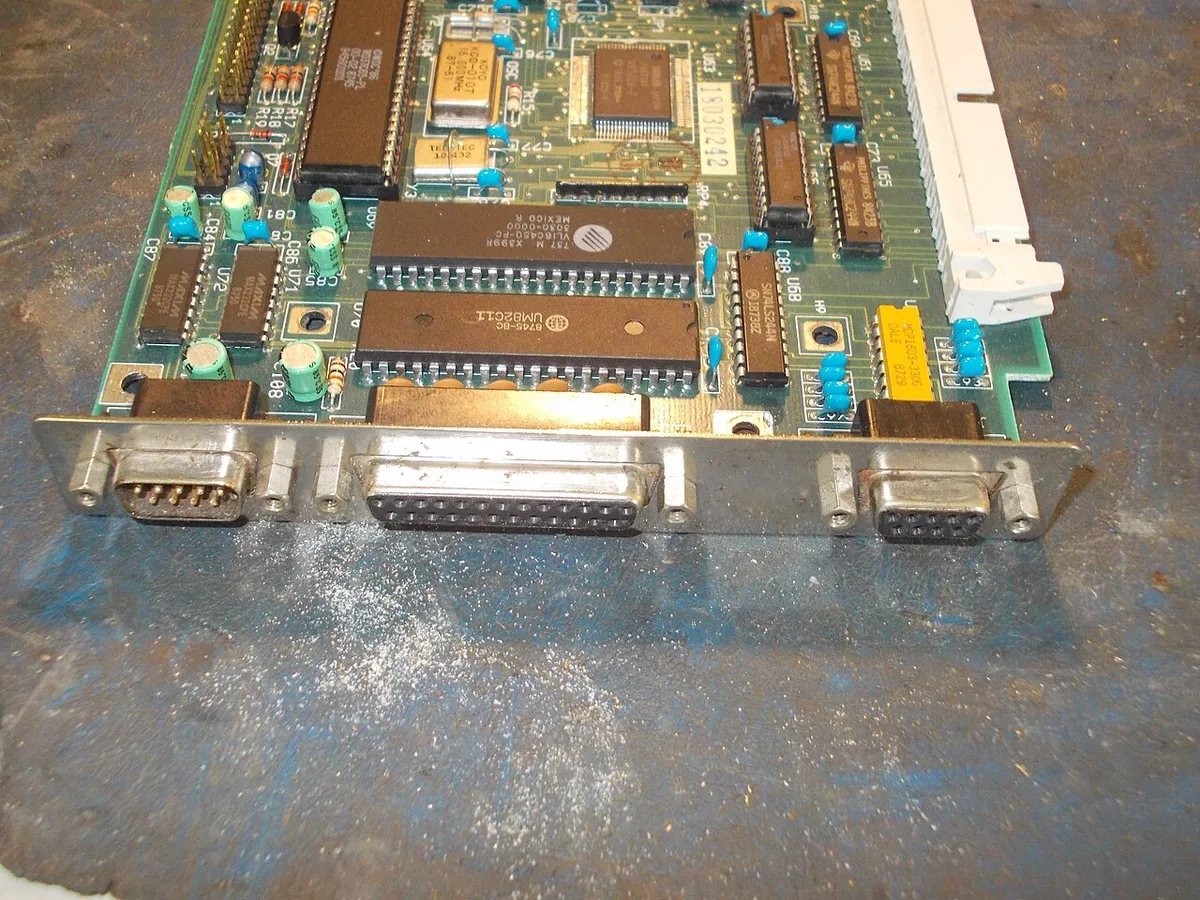
Image source: Wikimedia Commons / tony_duell (CC BY)
The Ports, Cables, and Adapters That Matter
The right part depends on the highest shared standard. HDMI is common and easy. DisplayPort is common on monitors and docks.
Mini DisplayPort appears on older laptops and docks. USB-C can carry video if it supports DisplayPort Alt Mode. Thunderbolt can carry video, data, and power.
A DisplayLink adapter can work when native video output is missing, but it uses CPU and compression. It is not ideal for competitive gaming. Certified cables matter because bandwidth is the real limit.
HDMI 2.1 supports 48 Gbps. DisplayPort 1.4 supports 32.4 Gbps. DisplayPort 2.1 supports up to 80 Gbps.
Thunderbolt 4 supports 40 Gbps. Thunderbolt 5 supports up to 80 Gbps. Check VESA and HDMI Forum specs for exact mode support.
USB-IF lists USB-C video requirements. If you buy an adapter, match the adapter to the source port and target mode. If you buy a dock, check its display bandwidth before buying.
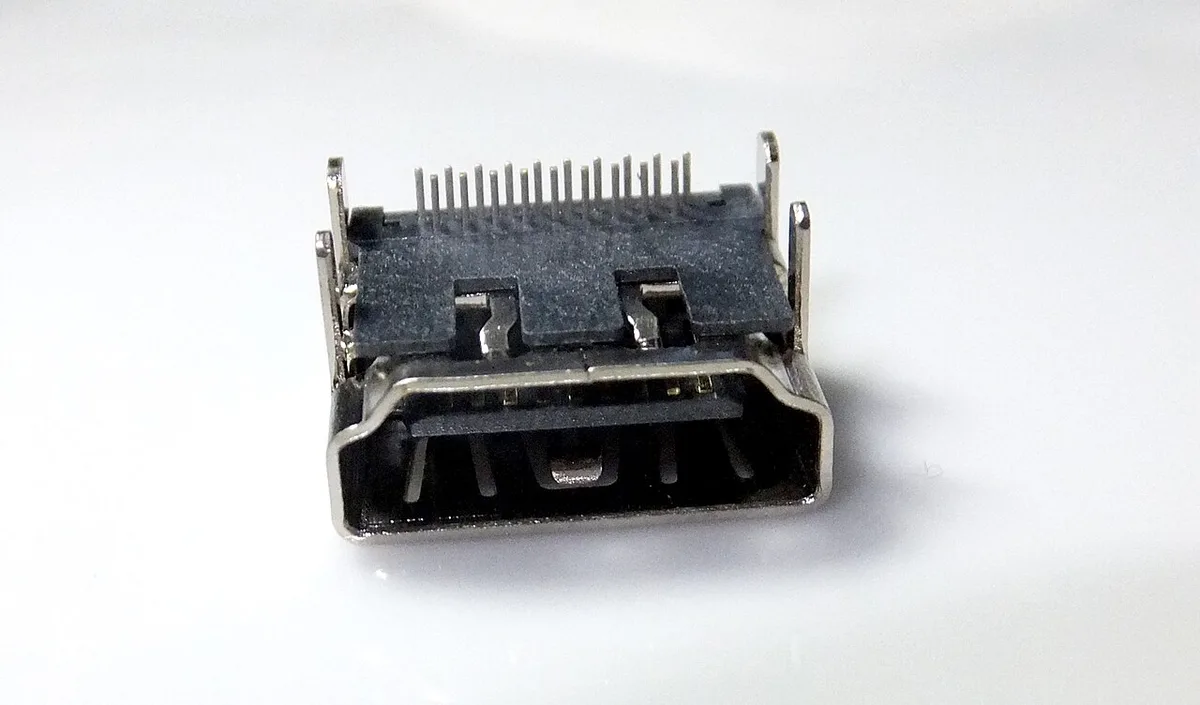
Image source: Wikimedia Commons / Jdbcomputing (CC BY-SA)
| Connection | Best For | Common Limit |
|---|---|---|
| HDMI | TVs and most monitors | Version limits refresh rate |
| DisplayPort | High refresh gaming monitors | Port availability varies |
| USB-C with DP Alt Mode | One-cable laptop setups | Not all USB-C ports support video |
| Thunderbolt dock | Desk and dual-screen setups | Dock bandwidth sharing |
| DisplayLink adapter | Office and productivity displays | Compression and CPU use |
Step-by-Step: Connect and Configure the External Monitor
- Check the laptop ports and monitor inputs.
- Choose the highest shared standard.
- Use a certified cable or adapter.
- Connect power to the laptop and monitor.
- Connect the video cable.
- Select the correct input on the monitor.
- Open Windows display settings.
- Set the monitor as primary if needed.
- Set resolution and refresh rate.
- Arrange the display layout.
- Update GPU drivers if anything fails.
- Test games, videos, and audio.
If there is no signal, reseat the cable. Then try another port. Then update drivers.
If the refresh rate is wrong, set it manually in display settings. If audio plays from the laptop, switch the output device. If color looks off, reset the monitor.
Then calibrate. If scaling looks wrong, set 100 percent first. Then adjust.
If you use a dock, connect power first. Then video. Then USB devices.
If you use a gaming laptop for video editing, test color before finalizing the setup. If you compare a gaming laptop to a workstation for 3D work, test port path and bandwidth. If you need repair support later, check brand warranty terms.
If you use a laptop for school and gaming, keep the setup simple and reversible. If the cable is long, use a certified active cable. If the port is loose, stop and inspect it.
Do not force the connector. If the monitor flickers, swap the cable first. If the issue remains, test another monitor.
If all else fails, contact the laptop or monitor maker.
Mistakes That Kill Resolution, Refresh Rate, or Signal
The biggest mistake is buying a cable by brand instead of checking bandwidth. A cable can look fine and still cap the display at 60 Hz. Another common error is assuming every USB-C port supports video.
Many laptops use USB-C for data and charging only. Check the manual before buying adapters. If the port lacks DisplayPort Alt Mode, no adapter will fix it.
Using the wrong input is another easy failure. Monitors often default to a different source. Press the input button and confirm the label matches the cable.
If the screen says no signal, the port may work but the monitor is listening elsewhere. Reseat the cable at both ends. Try a different port if available.
Driver issues can masquerade as hardware problems. Update the GPU driver before replacing parts. Restart after each update.
If the image flickers, swap the cable first. If the refresh rate looks wrong, set it manually in Windows. If audio plays from the laptop, switch the output device.
If color looks off, reset the monitor to factory settings. If scaling looks wrong, set 100 percent first. Then adjust.
Do not force connectors. A bent pin can damage the port. Avoid long passive cables unless certified.
Keep the dock powered and ventilated. If the laptop switches between integrated and discrete graphics, test both ports. One may route through the iGPU.
The other may route through the dGPU. That affects latency and sync support. If you use a workstation display path, test color and bandwidth before finalizing.
Costs, Specs, and What Different Setups Can Actually Deliver
Costs vary by port type, cable certification, and dock features. A basic HDMI cable is cheap. A certified high-bandwidth cable costs more.
Thunderbolt docks cost the most but reduce cable clutter. DisplayLink adapters cost less than docks but add CPU load. If you only need 60 Hz, spend less.
If you need 144 Hz or 240 Hz, buy certified parts. If you need 4K at 120 Hz, check every link in the chain.
| Setup Type | Typical Cost | Best For | Main Limit |
|---|---|---|---|
| Direct HDMI cable | Low | TVs and basic monitors | Version limits refresh rate |
| Certified DisplayPort cable | Low to medium | High refresh gaming monitors | Port availability varies |
| USB-C to monitor cable | Medium | One-cable laptop desks | Not all ports support video |
| Thunderbolt dock | High | Dual screens and accessories | Shared bandwidth |
| DisplayLink adapter | Medium | Office and productivity displays | Compression and CPU use |
Specs matter more than marketing. HDMI 2.1 offers 48 Gbps. DisplayPort 1.4 offers 32.4 Gbps.
DisplayPort 2.1 offers up to 80 Gbps. Thunderbolt 4 offers 40 Gbps. Thunderbolt 5 offers up to 80 Gbps.
These numbers define the maximum mode. Your laptop and monitor may support less. Always check the manual.
If you need a thermal limits under load check, monitor temperatures during long sessions.
Best Setups for Desk Gaming, Streaming, and Dual Screens
For desk gaming, use the highest bandwidth direct connection. If the laptop has DisplayPort or HDMI 2.1, use that. If it has USB-C with DisplayPort Alt Mode, one cable can handle video and power.
If you use a dock, test refresh rate before buying. For streaming, prioritize a stable signal and clean audio routing. Use one monitor for the game and one for chat.
A color-critical editing workflow benefits from the port that bypasses the iGPU.
For dual screens, plan bandwidth. Two 4K displays need more than one cable can carry. A Thunderbolt dock may work, but it shares bandwidth with USB devices.
If the dock drops refresh rate, switch to direct cables. If you travel, keep a compact certified cable in the bag. If you use a laptop for school and gaming, keep the setup simple and reversible.
If you compare portable options, check everyday portability before committing to a heavy dock.
Frequently Asked Questions
Why does my monitor say no signal?
The monitor may be on the wrong input. Select the source that matches the cable. Reseat the cable at both ends.
If it still fails, update the GPU driver and restart. Test another port if available.
Can every USB-C port output video?
No. Only ports with DisplayPort Alt Mode or Thunderbolt support video output. Check the laptop manual or port icons.
If the port lacks video support, an adapter cannot add it.
Is HDMI or DisplayPort better for gaming?
DisplayPort usually supports higher refresh rates on gaming monitors. HDMI 2.1 is strong for TVs and many monitors. Choose the highest shared standard between both devices.
Why is my refresh rate stuck at 60 Hz?
The cable, adapter, or port may lack bandwidth. Check the cable certification. Set the refresh rate manually in Windows.
Test a direct connection before blaming the GPU.
Does a dock reduce gaming performance?
A dock can reduce refresh rate or add latency if it shares bandwidth. For competitive gaming, direct cable is safer. Use a dock for productivity and test performance before finalizing.
Should I use the laptop screen or external monitor?
Use the external monitor for size and ergonomics. Use the laptop screen for travel or quick checks. If you need maximum frame rate, test both ports and choose the better path.
The Real Problem With Connecting a Gaming Laptop to an External Monitor
The real problem is not finding a cable. It is finding the one combination of port, cable, adapter, and monitor input that can carry the mode you want. A gaming laptop may have several video paths.
A monitor may have several inputs. The wrong pairing can look fine on paper and still fail in practice.
If your laptop has HDMI only, your ceiling depends on the HDMI version. If it has USB-C, you must confirm that the port supports video output. If it has Thunderbolt, a dock can work well, but dock bandwidth is shared.
If it has Mini DisplayPort, older adapters may still work, but high refresh rates may not.
If the monitor is a TV, HDMI is usually the cleanest path. If the monitor is a high refresh gaming display, DisplayPort is often better. If you want one cable for video and power, USB-C with DisplayPort Alt Mode is the goal.
If you want dual screens and accessories, a Thunderbolt dock may be worth the cost.
If the image is black, check the input source first. If the refresh rate is wrong, check the cable bandwidth second. If the color looks off, reset the monitor and test again.
If games stutter, test direct cable before replacing hardware. If your laptop switches between integrated and discrete graphics, test both ports. One path may have lower latency or better sync support.
If you are choosing between a gaming laptop and a desktop, port flexibility matters. A desktop often gives more display options. A laptop gives mobility but may limit outputs.
If you are comparing a gaming laptop to a creator laptop, check whether the creator model has more video ports. If you are checking repair support, note which port failures are covered. If you are checking warranty terms, confirm whether dock or adapter damage is excluded.
The safest approach is simple. Match the highest shared standard. Buy certified parts.
Test one monitor first. Then add complexity only if needed.
HDMI vs DisplayPort vs USB-C vs Thunderbolt: Which Connection to Use
HDMI is the most common port. Most monitors and TVs have it. HDMI 2.0 supports 4K at 60 Hz.
HDMI 2.1 supports 4K at 120 Hz and 8K at 60 Hz. If your laptop has HDMI 2.1, use it for high refresh gaming. If it has HDMI 2.0, 4K at 60 Hz is the ceiling.
Check the port label or manual before assuming.
DisplayPort is the gaming standard. It supports higher refresh rates at lower resolutions. DisplayPort 1.4 handles 1440p at 144 Hz and 4K at 60 Hz with DSC.
DisplayPort 2.1 handles 4K at 240 Hz. If your monitor has DisplayPort, use it for competitive gaming. It is often more flexible than HDMI for PC displays.
USB-C with DisplayPort Alt Mode is the one-cable solution. It carries video, data, and power. Not all USB-C ports support it.
Check the manual or port icons. If yours does, you can charge and display with one cable. That is ideal for travel and clean desks.
Thunderbolt is the premium option. Thunderbolt 4 supports 40 Gbps. Thunderbolt 5 supports 80 Gbps.
It handles dual 4K displays and fast storage. Use it for desk setups with docks. If you only need one monitor, direct cable is simpler and cheaper.
If you are unsure, start with DisplayPort for gaming. Use HDMI for TVs. Use USB-C for travel.
Use Thunderbolt for docks. Test refresh rate after each change. If the mode drops, the cable or adapter is the limit.
Mistakes That Kill Resolution, Refresh Rate, or Signal
The biggest mistake is buying a cable by brand instead of checking bandwidth. A cable can look fine and still cap the display at 60 Hz. Another common error is assuming every USB-C port supports video.
Many laptops use USB-C for data and charging only. Check the manual before buying adapters. If the port lacks DisplayPort Alt Mode, no adapter will fix it.
Using the wrong input is another easy failure. Monitors often default to a different source. Press the input button and confirm the label matches the cable.
If the screen says no signal, the port may work but the monitor is listening elsewhere. Reseat the cable at both ends. Try a different port if available.
Driver issues can masquerade as hardware problems. Update the GPU driver before replacing parts. Restart after each update.
If the image flickers, swap the cable first. If the refresh rate looks wrong, set it manually in Windows. If audio plays from the laptop, switch the output device.
If color looks off, reset the monitor to factory settings. If scaling looks wrong, set 100 percent first. Then adjust.
Do not force connectors. A bent pin can damage the port. Avoid long passive cables unless certified.
Keep the dock powered and ventilated. If the laptop switches between integrated and discrete graphics, test both ports. One may route through the iGPU.
The other may route through the dGPU. That affects latency and sync support. If you use a workstation display path, test color and bandwidth before finalizing.
Costs, Specs, and What Different Setups Can Actually Deliver
Costs vary by port type, cable certification, and dock features. A basic HDMI cable is cheap. A certified high-bandwidth cable costs more.
Thunderbolt docks cost the most but reduce cable clutter. DisplayLink adapters cost less than docks but add CPU load. If you only need 60 Hz, spend less.
If you need 144 Hz or 240 Hz, buy certified parts. If you need 4K at 120 Hz, check every link in the chain.
| Setup Type | Typical Cost | Best For | Main Limit |
|---|---|---|---|
| Direct HDMI cable | Low | TVs and basic monitors | Version limits refresh rate |
| Certified DisplayPort cable | Low to medium | High refresh gaming monitors | Port availability varies |
| USB-C to monitor cable | Medium | One-cable laptop desks | Not all ports support video |
| Thunderbolt dock | High | Dual screens and accessories | Shared bandwidth |
| DisplayLink adapter | Medium | Office and productivity displays | Compression and CPU use |
Specs matter more than marketing. HDMI 2.1 offers 48 Gbps. DisplayPort 1.4 offers 32.4 Gbps.
DisplayPort 2.1 offers up to 80 Gbps. Thunderbolt 4 offers 40 Gbps. Thunderbolt 5 offers up to 80 Gbps.
These numbers define the maximum mode. Your laptop and monitor may support less. Always check the manual.
If you need a thermal limits under load check, monitor temperatures during long sessions.
Best Setups for Desk Gaming, Streaming, and Dual Screens
For desk gaming, use the highest bandwidth direct connection. If the laptop has DisplayPort or HDMI 2.1, use that. If it has USB-C with DisplayPort Alt Mode, one cable can handle video and power.
If you use a dock, test refresh rate before buying. For streaming, prioritize a stable signal and clean audio routing. Use one monitor for the game and one for chat.
A color-critical editing workflow benefits from the port that bypasses the iGPU.
For dual screens, plan bandwidth. Two 4K displays need more than one cable can carry. A Thunderbolt dock may work, but it shares bandwidth with USB devices.
If the dock drops refresh rate, switch to direct cables. If you travel, keep a compact certified cable in the bag. If you use a laptop for school and gaming, keep the setup simple and reversible.
If you compare portable options, check everyday portability before committing to a heavy dock.
Frequently Asked Questions
Why does my monitor say no signal?
The monitor may be on the wrong input. Select the source that matches the cable. Reseat the cable at both ends.
If it still fails, update the GPU driver and restart. Test another port if available.
Can every USB-C port output video?
No. Only ports with DisplayPort Alt Mode or Thunderbolt support video output. Check the laptop manual or port icons.
If the port lacks video support, an adapter cannot add it.
Is HDMI or DisplayPort better for gaming?
DisplayPort usually supports higher refresh rates on gaming monitors. HDMI 2.1 is strong for TVs and many monitors. Choose the highest shared standard between both devices.
Why is my refresh rate stuck at 60 Hz?
The cable, adapter, or port may lack bandwidth. Check the cable certification. Set the refresh rate manually in Windows.
Test a direct connection before blaming the GPU.
Does a dock reduce gaming performance?
A dock can reduce refresh rate or add latency if it shares bandwidth. For competitive gaming, direct cable is safer. Use a dock for productivity and test performance before finalizing.
Should I use the laptop screen or external monitor?
Use the external monitor for size and ergonomics. Use the laptop screen for travel or quick checks. If you need maximum frame rate, test both ports and choose the better path.
2 thoughts on “How to Connect an External Monitor to Your Gaming Laptop”
Comments are closed.