You just installed a new NVMe drive and the BIOS shows empty slots. This guide on How to Fix Bios Does Not Detect SSD on a Gaming Laptop walks you through the exact diagnostic path used by repair technicians. Most detection failures trace to three root causes: a loose M.2 connection, the wrong storage mode in firmware, or a PCIe lane conflict with the GPU.
We'll help you isolate the issue in minutes not hours.
Manufacturer specifications indicate that PCIe 4.0 x4 lanes deliver up to 8 GB/s theoretical bandwidth while SATA III caps at 600 MB/s. JEDEC standards require M-key M.2 modules to negotiate link width during POST. If that handshake fails the drive stays invisible.
Let's start with the most common pain points.
Problem / Pain Point
You power on the laptop expecting to see the new drive. The BIOS storage list shows only the original drive or nothing at all. No error code appears.
No beep sounds. The screen just sits there. This silence frustrates because it offers no clue where to look first.
Gaming laptops from ASUS ROG Lenovo Legion and MSI often ship with RAID mode enabled by default. That setting hides NVMe drives from the OS installer. A loose screw on the M.2 standoff lifts the connector just enough to break contact.
Dust or thermal pad residue on the gold fingers adds resistance. Some models share PCIe lanes between the second M.2 slot and the Wi-Fi card. Populating both disables the SSD.
Firmware older than six months may lack the NVMe controller IDs for newer drives. Secure Boot set to strict mode can block unrecognized storage devices. Each of these causes leaves the same symptom: a blank drive list.
The fix depends entirely on which one applies to your hardware.
Quick Answer / Key Insight
How to Fix Bios Does Not Detect SSD on a Gaming Laptop
Reseat the M.2 drive with the correct standoff height. Enter BIOS and switch storage mode from RAID to AHCI or NVMe. Disable Secure Boot temporarily.
Update BIOS to the latest version from the vendor support page. Test the drive in a Linux live USB to confirm hardware health. If the drive appears in Linux but not BIOS the issue is a firmware setting not a dead drive.

Image source: Wikimedia Commons / Laziz940
Core Explanation / How BIOS Detects SSDs
The BIOS runs a Power On Self Test before loading any operating system. During POST the firmware scans each PCIe root port for connected endpoints. An NVMe SSD presents itself as a PCIe device with a specific class code.
The BIOS reads the controller ID and matches it against an internal whitelist. If the ID exists in the firmware table the drive appears in the boot priority list. If the ID is missing the drive stays hidden.
SATA SSDs use a different path. The AHCI controller enumerates devices on each SATA port. RAID mode abstracts physical drives into virtual volumes.
That abstraction layer hides individual NVMe devices from the OS installer. UEFI firmware also checks the Secure Boot policy. A drive with an unrecognized signing key may be blocked.
PCIe lane allocation happens at the chipset level. The CPU provides direct lanes for the primary M.2 slot. The chipset provides lanes for secondary slots.
Bandwidth sharing rules vary by platform. Intel 12th and 13th gen mobile chipsets allocate eight chipset lanes. A second M.2 slot often shares four lanes with the Wi-Fi module.
Populating both forces a negotiation that can disable the SSD. Understanding this hierarchy lets you predict which slot to use first.
Decision Tree: Condition Variables & Detection Branches
Start with the physical layer. Is the drive fully seated? Does the retention screw hold the module flat against the PCB?
If no reseat and retest. If yes check the BIOS storage mode. Is it set to RAID?
If yes switch to AHCI or NVMe mode save and reboot. If already in AHCI check Secure Boot. Is it enabled?
If yes disable temporarily and reboot. If still invisible check BIOS version. Is it older than six months?
If yes update from the manufacturer support site. If current test the drive in a Linux live USB. Does Linux see the drive?
If yes the hardware works the issue is firmware configuration. If no the drive or slot is defective. Try the drive in the other M.2 slot if available.
Does it appear there? If yes the primary slot has a lane conflict or damage. If no test the drive in another machine.
Works elsewhere? Your laptop slot or PCIe controller has failed. Does not work elsewhere?
The drive is dead. Each branch narrows the cause until only one possibility remains. This method prevents wasted BIOS flashes on a loose screw or wasted drive RMAs on a RAID mode setting.
Step-by-Step Workflow to Restore SSD Detection
Power off the laptop and unplug the AC adapter. Remove the bottom panel using a Phillips screwdriver. Locate the M.2 slot.
Remove the retention screw. Gently pull the drive out at a 30 degree angle. Inspect the gold fingers for dust or thermal pad residue.
Clean with isopropyl alcohol and a lint free cloth if needed. Reinsert the drive at the same angle. Press down flat.
Reinstall the retention screw. Do not overtighten. Reconnect the battery if disconnected.
Power on and tap the BIOS key repeatedly. Common keys are F2 Del or F12 depending on vendor. Enter the BIOS setup.
Navigate to the Advanced or Storage tab. Find the SATA Mode or Storage Configuration setting. Change RAID to AHCI or NVMe.
Save and exit. If the drive still does not appear re enter BIOS. Disable Secure Boot in the Security tab.
Save and reboot. If still missing check the vendor support site for a BIOS update. Download the latest version.
Follow the flash instructions exactly. Do not interrupt power during the flash. After update recheck the drive list.
If the drive appears you are done. If not create a Linux live USB using Rufus or Ventoy. Boot from the USB.
Open a terminal and run lsblk. If the drive shows there the hardware is good. The issue is a firmware quirk.
Contact vendor support with your findings.
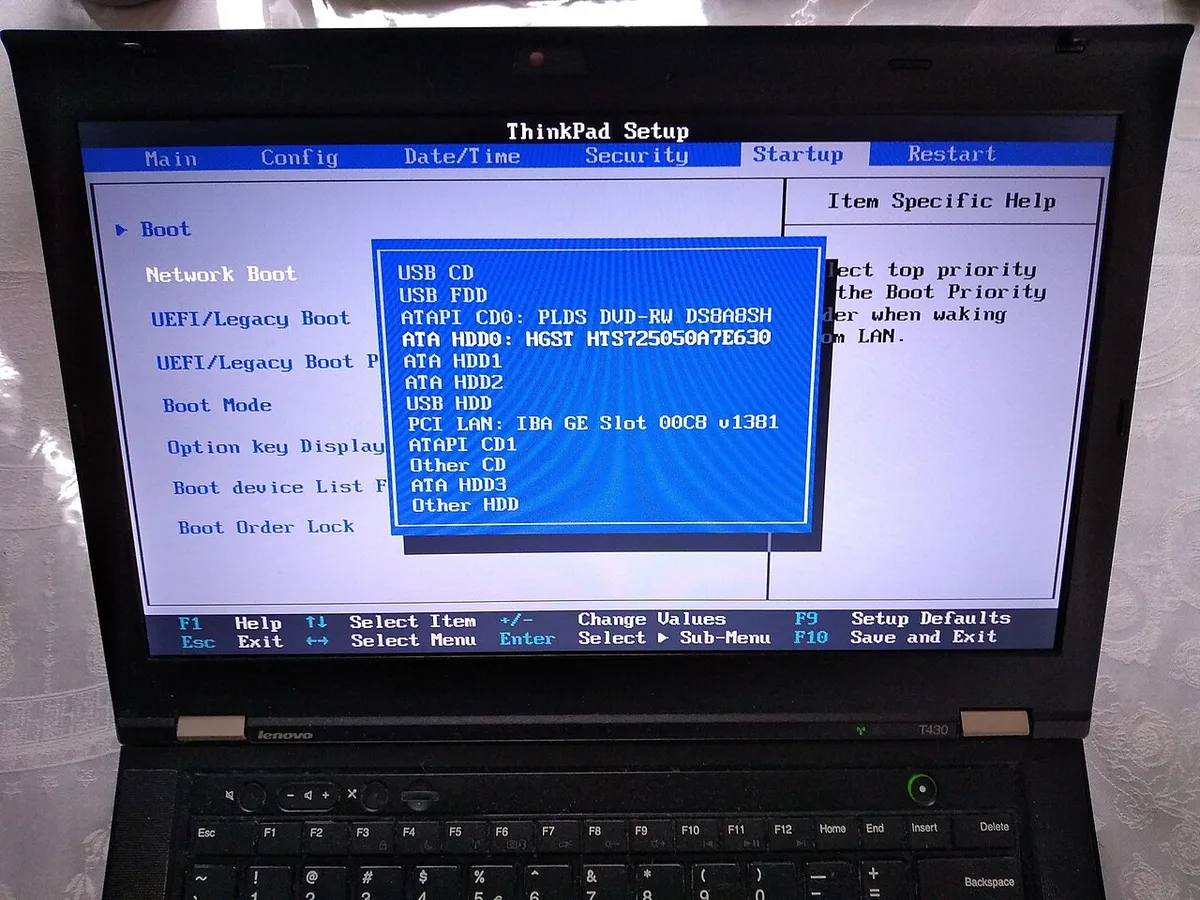
Image source: Wikimedia Commons / Cirosantilli2 (CC BY-SA)
Mistakes to Avoid & Common Risks
Forcing a drive into an M.2 slot that already contains a Wi‑Fi module bent the pins or cracked the connector. Many gamers yank the module without grounding themselves, causing electrostatic discharge that kills the SSD controller. Updating BIOS without a charged battery bricks the firmware; if power drops mid‑flash the laptop becomes a paperweight.
Ignoring the RAID/AHCI toggle leaves new NVMe drives invisible even when physically seated correctly. Some users disable Secure Boot but forget to re‑enable it, leaving the system vulnerable to unsigned bootloaders. Applying thermal paste over the M.2 shield increases temperatures and can throttle performance during long gaming sessions.
Pulling the drive out at a steep angle shears the gold fingers or damages the socket latch. Each of these errors wastes time and risks data loss or permanent hardware failure.
FAQs
How to Fix Bios Does Not Detect SSD on a Gaming Laptop after Windows Update?
Windows updates sometimes reset BIOS settings to default. Enter BIOS and verify the storage mode has not reverted to RAID. If it did, switch back to AHCI or NVMe and save changes.
Reboot and check the drive list again.
Can a loose SATA cable cause SSD detection failure in a gaming laptop?
Most gaming laptops use M.2 SSDs, not 2.5-inch SATA drives. If your model has a secondary SATA bay, a disconnected cable will prevent detection. Open the bottom panel and reseat the SATA cable if one is present.
Why does my SSD appear in Linux live USB but not BIOS?
This usually indicates a RAID or AHCI mode mismatch. The BIOS does not enumerate the drive in that configuration, but the operating system kernel does. Switch the BIOS storage mode and reboot to restore visibility.
How do I know if my M.2 slot supports NVMe?
Check the laptop’s service manual or motherboard specifications. Slots labeled “M.2 PCIe” or “M.2 NVMe” support the protocol. Slots marked “M.2 SATA” do not.
Some laptops have both types on different slots.
Can I use two M.2 SSDs in a gaming laptop?
Yes, but only if the chipset provides enough PCIe lanes. Populating both slots may reduce bandwidth for the GPU or Wi‑Fi. Consult the manufacturer’s specs before installing a second drive.