Your laptop booted fine last night. This morning it hangs on the logo, fans spinning loud, and nothing you press does anything. Learning how to fix gaming laptop problems after bios update on a gaming laptop starts with one idea: the flash didn't break your hardware, it changed something your machine now disagrees with.
Most post-flash failures come from three places. Loaded defaults wipe your memory profile and boot order. A half-finished flash leaves firmware unreadable.
An embedded controller that never reset keeps old power states alive. Manufacturer specifications indicate most modern gaming laptops keep a primary and a backup firmware region, so recovery is usually possible without opening the case.
How to Fix Gaming Laptop Problems After Bios Update on a Gaming Laptop
Reset your BIOS to optimized defaults first. Unplug the charger, then hold the power button for 30 seconds. Boot into BIOS and load setup defaults.
If the screen stays black, run the manufacturer's recovery flash. Reinstall chipset drivers once Windows loads.
Problem / Pain Point: Why Your Gaming Laptop Fails After a BIOS Update
A BIOS update is supposed to be boring. You download a file, run the flasher, reboot, and carry on. When it goes wrong, the laptop doesn't just feel different.
It stops behaving like the machine you paid for.
Here's the part that confuses people. The update rarely damages anything physical. What it does is rewrite the low-level instructions your motherboard hands to Windows, then clear the settings you'd tuned over months.
Common symptoms reported after a flash:
- Black screen on boot, with fans at full speed
- A boot loop that returns to the logo every few seconds
- Windows loads but the keyboard backlight and Fn keys are dead
- Memory stuck at a slower speed because the XMP profile was wiped
- Fans ramping hard at idle, or the CPU throttling in games
- USB ports that stop waking the machine, leaving peripherals that drop out mid-session
- The battery refusing to charge past a set percentage
Notice how these split into two families. Some are boot failures, where firmware can't hand off to the operating system. Others are post-boot failures, where Windows runs but hardware behaves oddly.
That split matters more than anything else here. Boot failures need recovery tools and often a second machine. Post-boot failures usually respond to a settings reset and fresh drivers.
Treating them the same wastes an afternoon.
If your machine still posts, you're in the easy group. If it doesn't, slow down before you touch another key.
How BIOS Updates Impact System Stability: Core Explanation
BIOS is old shorthand. Modern gaming laptops run UEFI firmware, a small operating system that initialises memory, storage, and the graphics adapter before Windows exists. Per the UEFI Forum, it's also the layer that handles Secure Boot and passes control to the bootloader.
Three components matter after a flash.
UEFI settings. Flash utilities often reset these to defaults. Your memory profile, boot order, virtualization flags, and fan curves all snap back to factory values.
The embedded controller (EC). This chip manages power delivery, charging, keyboard backlighting, and thermal policy. It runs its own firmware, separate from the main BIOS. An EC holding stale state after the main flash causes exactly the odd symptoms people blame on the BIOS.
CMOS state. This small battery-backed memory keeps the real-time clock and basic configuration alive. Clearing it forces a clean read on the next boot.
Then there's corruption. NIST's firmware security guidance treats boot firmware as a high-value attack surface, and that same privileged position means a half-written flash can leave the primary region unreadable.
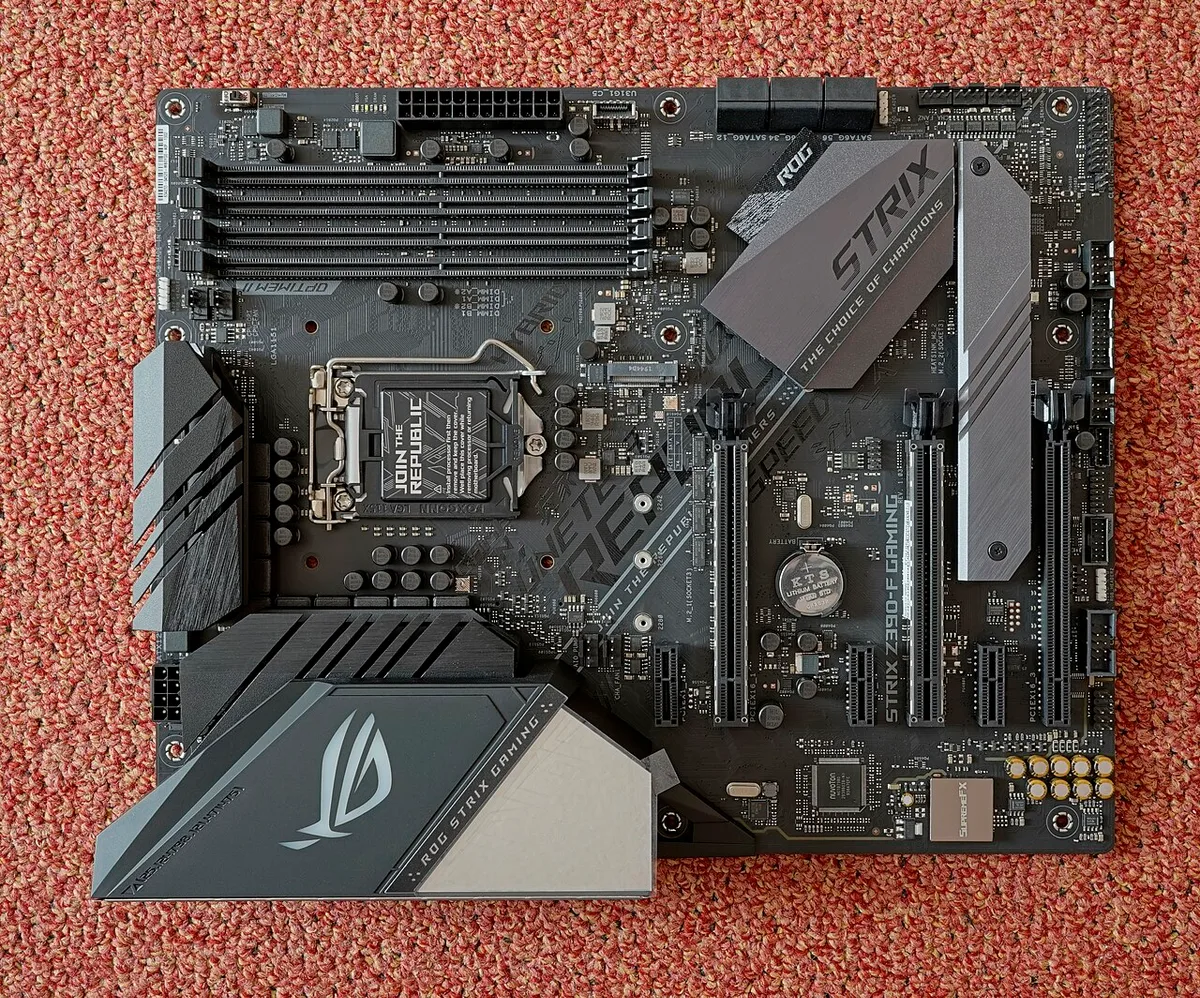
Image source: Wikimedia Commons / PantheraLeo1359531 (CC BY)
This is why vendors ship a dual-BIOS or recovery block. If the primary region fails a checksum, the machine can boot from the backup and reflash itself. It's also why a "dead" laptop often isn't dead at all.
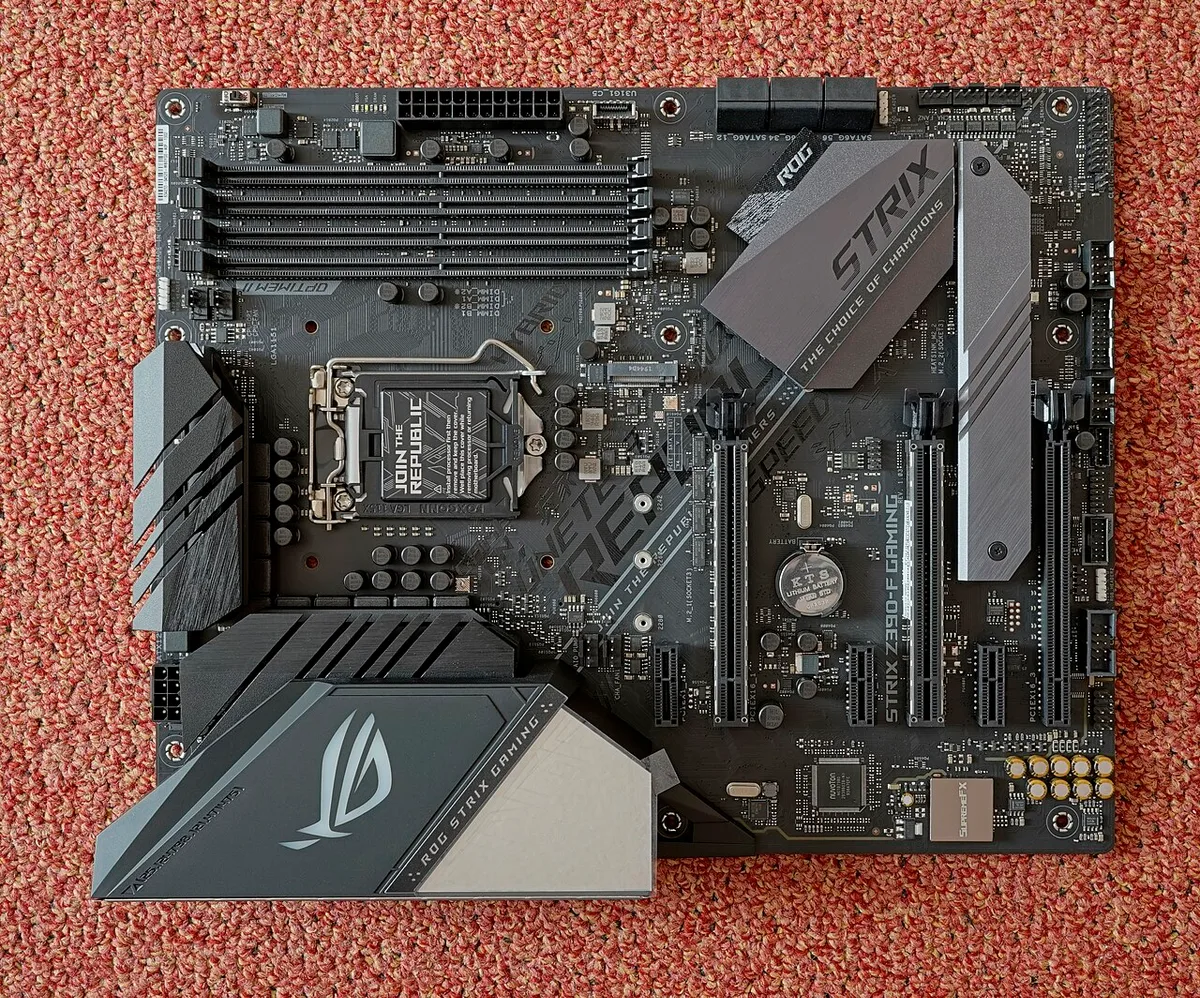
Image source: Wikimedia Commons / PantheraLeo1359531 (CC BY)
Step-by-Step Fix Workflow: Triage, Symptom Check, and Decision Branches
Work through these in order. Stop as soon as the laptop behaves normally.
- Power cycle properly. Unplug the charger, hold the power button for 30 seconds, plug back in, and boot.
- Reset the EC. Many models use a pinhole or a key combo such as Fn+Power held for 5 seconds. Check your manual.
- Enter BIOS setup. Tap the setup key (F2, Del, or F10) at power-on.
- Load optimized defaults, save, and exit.
- Clear CMOS if settings refuse to stick.
- Run the vendor recovery flash if there's still no display.
- Reinstall chipset drivers once Windows settles.
| What you see | Try this first | Then this |
|---|---|---|
| Logo, then a restart | EC reset, load defaults | Recovery flash |
| No display anywhere | External monitor test | USB BIOS recovery |
| Windows fine, fans loud | Load defaults, rebuild fan curve | Update EC firmware |
| Slower RAM, stutter | Re-enable XMP or DOCP | Manual timings |
| Dead ports, wake issues | Chipset driver reinstall | CMOS clear |
If an external monitor shows a picture, the panel or its cable is your problem, not firmware. If nothing shows on either, assume firmware and move to recovery.
Once it boots, some annoyances need separate attention. A monitor capped at 60Hz through a dock is a display link problem, not a flash failure. And sound lagging behind the picture usually traces back to driver ordering.
Budget 20 minutes for the basic path. A recovery flash adds 10 to 15 minutes plus download time.
Common Mistakes: What Not to Do When Resetting or Flashing BIOS
- Flashing the same file repeatedly. If it failed once, it'll fail again. Verify the file matches your exact model number first.
- Using firmware from a different SKU. Two laptops can share a chassis and still need different firmware.
- Pulling power mid-flash. That's how you go from annoying to bricked.
- Clearing CMOS without noting your RAID or Secure Boot state. You'll spend an hour re-enrolling TPM keys.
- Blaming Windows. Reinstalling the OS won't fix a firmware handoff failure.
- Skipping the EC reset. Do that before you blame the main BIOS.
- Flashing on battery alone. Use AC power with a charged pack.
One more worth saying plainly: don't flash over a USB hub or a cable you don't trust.
And when you get back into Windows, treat remaining quirks as separate issues. A webcam that quit working is usually a driver clashing with new firmware, not a failed flash.
Who This Fix Is For: Use Cases and Target Audience
This workflow suits anyone whose machine changed behaviour right after a firmware update. That's a wide group, but the branches differ by skill level.
- Casual owners. Stop after the EC reset and defaults load. That fixes the majority of cases.
- Competitive players chasing frame stability. Re-enable XMP, rebuild the fan curve, and check power limits.
- Repair techs and support agents. Use the recovery flash path and log firmware versions as you go.
- Second-hand buyers. A defaults reset plus a fresh flash clears inherited settings.
As of 2026, most gaming laptops from the major vendors ship a recovery block, so the odds are better than they used to be.
Who shouldn't do this? Anyone with an active warranty and no display at all. Call support first.
Vendor flash tools cost nothing, and opening the case can void coverage.
You'll also spot firmware fallout in smaller places. Touchpad quirks after firmware changes often clear with a driver reinstall, and a missing touchpad entry in Device Manager points at the same cause. Same story with peripherals that drop out once the machine sleeps.
Start with the cheapest fix. Most of you won't need anything past step five.
FAQs: Quick Answers to Common Issues
Will a BIOS update delete my files?
No. BIOS firmware lives on the motherboard, not your storage drive. Your documents, games, and Windows install stay untouched unless something else goes wrong.
How do I tell if a BIOS update failed?
Look for no POST, a boot loop, or a black screen with fans at full speed. Those point to firmware that did not hand off to Windows.
Can I roll back to an older BIOS version?
Often yes. Manufacturers list prior versions on their support page. Flash an older file the same way you flashed the new one, but only if the model matches exactly.
How long does BIOS recovery take?
Expect 10 to 20 minutes once you start the flash tool, plus download time. If the screen stays blank past 30 minutes, stop and check power.
Should I update BIOS right before a big gaming session?
No. Flash when you have time to fix issues. Do not touch firmware minutes before you need the machine.
Final Decision Guide: When to Repair, Reflash, or Seek Professional Help
Use this branch map.
If the laptop posts and Windows loads, reset defaults and update chipset drivers. Most post-flash glitches stop there.
If it posts but shows no display, test an external monitor. Picture on the monitor means panel or cable. Nothing on either means firmware recovery.
If it loops at the logo or shows a black screen with spinning fans, run the vendor recovery flash. Use AC power and the exact firmware file for your model.
If recovery fails twice, stop. Repeated flashing can corrupt the backup region too.
Peripheral glitches after a flash are usually separate from the boot problem. Ports that drop after sleep often respond to a driver reinstall, not another flash. Same with camera issues after an update: the fix usually sits in Windows, not firmware.
Open the chassis only if you are comfortable with static safety and warranty terms. Otherwise contact the manufacturer or a repair shop.
One warning: opening some gaming laptops voids the warranty seal. Check your paperwork first.