Staring at 60 fps on a laptop that should be pushing 90 is frustrating, and single-channel memory is often the reason. If you want to know how to fix gaming laptop running single channel RAM on a gaming laptop, the short version is this: you need a second module sitting in a second slot. Most gaming laptops ship with one SO-DIMM installed and an empty bay beside it, or with memory soldered to just one channel.
Either way, your memory bandwidth is cut in half.
The math is unforgiving. A single DDR5-4800 module moves roughly 38.4 GB/s, while a matched pair reaches about 76.8 GB/s, based on JEDEC's DDR5 bandwidth specifications. Games that lean hard on the CPU feel that gap in their 1% lows far more than in their average frame rate.
Let's confirm your situation first, then fix it properly.
How to Fix Gaming Laptop Running Single Channel RAM on a Gaming Laptop
Add a matching second SO-DIMM to the empty slot to restore dual-channel mode. Check Task Manager first to confirm only one slot is populated. Match capacity, speed, and rank so the pair runs symmetrically.
Reseat the module firmly and update your BIOS firmware. Verify dual-channel in HWiNFO64 after the first boot.
Why Your Gaming Laptop Is Running Single-Channel RAM
Memory channels are the roads between your processor and your RAM sticks. A dual-channel setup runs two 64-bit pathways at once, so the controller reads and writes in parallel. Single-channel mode leaves one road empty and funnels all traffic down the other.
That's the entire problem in one sentence.
How dual-channel memory actually works on a laptop
On a laptop board, the CPU's integrated memory controller exposes two channel interfaces. Channel A usually feeds a soldered bank or slot one. Channel B feeds the second slot.
Populate both and the controller interleaves data across them automatically, with no driver or setting required.
The bandwidth ceiling follows a simple rule. Theoretical bandwidth equals transfer rate times bus width, divided by eight. Doubling the bus width from 64-bit to 128-bit doubles that ceiling.
JEDEC's DDR5 standard, documented openly on the JEDEC standards site, defines those transfer rates and timings.
| Memory type | Single-channel bandwidth | Dual-channel bandwidth |
|---|---|---|
| DDR4-3200 | 25.6 GB/s | 51.2 GB/s |
| DDR5-4800 | 38.4 GB/s | 76.8 GB/s |
| DDR5-5600 | 44.8 GB/s | 89.6 GB/s |
Manufacturers build laptops this way to hit a price point. One 8 GB bank plus an open slot costs less than two populated slots. It also hands you an upgrade path without a full board redesign.
What single-channel mode really costs you in FPS and 1% lows
Average frame rate dips modestly in GPU-bound scenes. The real damage lands on your 1% lows, the frames that decide whether a fight feels smooth or stuttery. Aggregate benchmark data from CPU-heavy shooters such as CS2 and Warzone shows 15 to 35 percent gains in 1% lows after moving to dual-channel.
The gap widens in CPU-heavy open-world games, especially during asset streaming.
Laptops running on integrated graphics take the hardest hit. Integrated GPUs borrow system RAM as video memory, so they need every bit of bandwidth they can get. Expect 30 to 50 percent frame rate swings there.
Confirm It First: Is Your Laptop Truly in Single-Channel Mode?
Single-channel mode is easy to misdiagnose, and modules cost money. Check what Windows and your firmware report before you spend a cent. Three tools settle it in under five minutes.
The Task Manager and CPU-Z check
Open Task Manager with Ctrl+Shift+Esc and click the Performance tab. Select Memory and find the line that reads Slots used. If it shows 1 of 2, you've got an empty bay.
CPU-Z answers the channel question directly. Install it, open the Memory tab, and read the Channel # field. It reports Single or Dual.
The SPD tab then lists each populated slot on its own line.
Reading channel population with HWiNFO64 and BIOS
HWiNFO64 is the tool technicians reach for. Run it in Sensors-only mode and scroll to the memory section. It shows per-module size, rank, and configured speed.
If only one module appears and your board has two slots, you have your answer.
Your BIOS or UEFI setup screen confirms it at the hardware level. Look for a memory information page during POST. Some consumer laptops hide that page entirely, which is normal and not a fault.

Image source: Wikimedia Commons / Evan-Amos
Ruling out false alarms: flex mode, mismatched capacities, and downclocking
Flex mode is the big one. Intel and AMD both run mismatched capacity pairs in an asymmetric layout. The matched portion works dual-channel, and the leftover capacity runs single-channel.
So 8 GB soldered plus a 16 GB stick gives you 8 GB dual and 8 GB single.
Mixed speeds behave differently again. A DDR5-5600 stick paired with a DDR5-4800 stick drops to the slower JEDEC profile. Your channel count stays dual, but your bandwidth shrinks.
Check the configured speed field before assuming everything is fine.
Which Memory Layout Do You Have? Four Branches Before You Touch a Screwdriver
Your next move depends entirely on the board layout. Find your branch, then follow that path. Guessing here wastes money on a module you can't use.
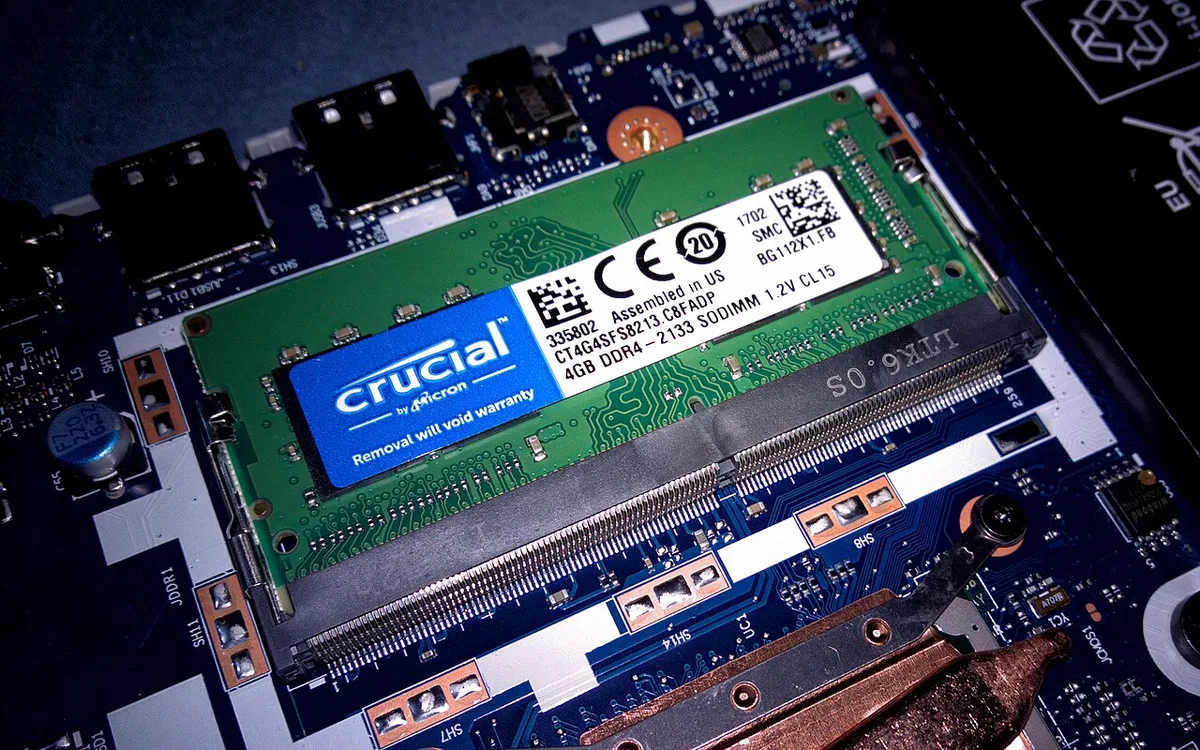
Image source: Wikimedia Commons / Diego Torres Silvestre (CC BY)
Branch 1: One SO-DIMM slot, one module installed
You can't create dual-channel with a single slot. The best upgrade is a larger dual-rank stick, which gives the controller more banks to interleave. A 2Rx8 module often beats a 1Rx16 part of the same capacity.
If nobody services this board, treat it as a spec limitation and move on.
Branch 2: Two slots, one populated
This is the easy win. Buy a module that matches the installed one on capacity, speed, voltage, and rank. Install it, boot, and you're dual-channel.
This is the most common gaming laptop scenario and the fastest fix in this whole guide.
Branch 3: Soldered RAM plus an empty upgrade slot
Match the soldered capacity exactly if you can. A soldered 16 GB bank plus a 16 GB stick gives you clean symmetric dual-channel. Adding a 32 GB stick instead triggers flex mode, which still helps but leaves part of the memory running slower.
Teardown access varies a lot here, and rugged models with easier service access usually make the job simpler.
Branch 4: Soldered-only, no upgrade path
Nothing you open or swap will change the channel count. Your realistic options are external graphics over Thunderbolt, dropping settings, or leaning on cloud streaming services for demanding titles. Check the service manual before you assume the RAM is soldered, though.
Some models hide a slot under the heat shield.
The Fix, Step by Step: Adding the Second Stick and Verifying Dual Channel
Here's the full sequence, from purchase to proof. Work through it in order and don't skip the verification.
Buying the right match: capacity, rank, speed, and DDR4 vs DDR5 rules
- Same generation only. DDR4 SO-DIMMs and DDR5 SO-DIMMs are keyed differently and won't fit.
- Same capacity per stick whenever possible.
- Same JEDEC speed, so neither module downclocks the other.
- Same rank where you have the choice, which keeps interleaving symmetrical.
Teardown and safe installation
- Shut down completely, unplug the charger, and hold the power button for 15 seconds to drain residual charge.
- Open the bottom cover or RAM door and disconnect the internal battery on any ultrabook-style chassis.
- Touch bare metal on the chassis, or wear an anti-static wrist strap, following ESD Association handling guidance.
- Slide the module in at roughly 30 degrees, then press down until both side clips click.
- Reconnect the battery and replace the cover before powering on.
Post-boot verification: BIOS check, MemTest86, and memory bandwidth tests
Boot into BIOS first and confirm the memory page shows both channels populated. Then run MemTest86 for at least four passes and expect zero errors. Once Windows loads, reopen HWiNFO64 and check the channel field.
For a quick sanity check, compare CPU-Z memory bandwidth against your new theoretical ceiling.
When it's still single-channel: swap, isolate, and reseat troubleshooting
If the count hasn't changed, test each stick alone in each slot. A dead slot will show up fast. Reseat the module and clean dust from the contacts with a dry cloth.
Update your BIOS and embedded controller firmware, since some vendors patch memory detection late. And rule out a controller issue separately if Bluetooth controller lag is your only other symptom, because that's usually not memory-related at all.
Mistakes That Keep Gamers Stuck in Single Channel
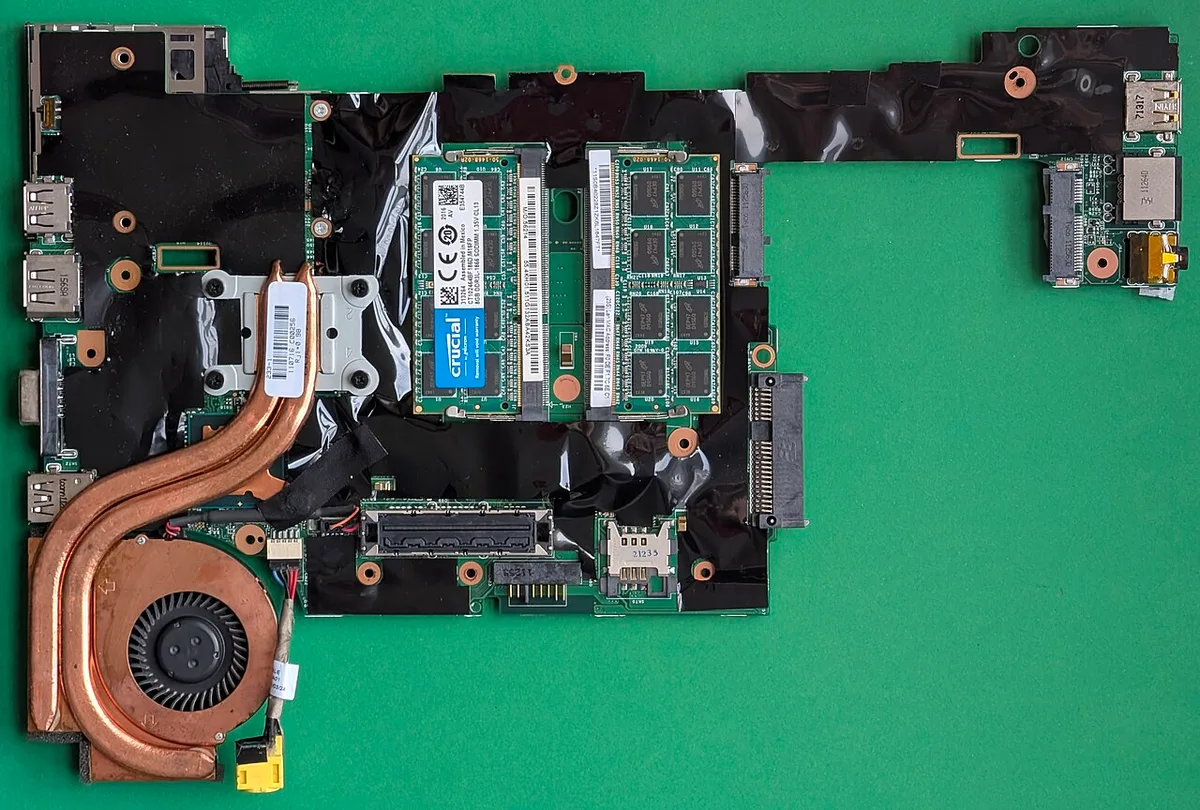
Image source: Wikimedia Commons / Siarhei Besarab (CC BY-SA)
- Buying two sticks when the board has one slot. Check the layout first.
- Mixing 8 GB and 32 GB. Flex mode helps, but it isn't the clean dual-channel result you wanted.
- Forgetting the battery disconnect. Live power during a reseat can kill a memory controller.
- Skipping MemTest86. A module that boots fine can still throw errors under load.
- Trusting grey-market listings. Counterfeit modules fail POST and often report fake SPD data.
- Chasing RAM for a stutter that only appears in online matches. That's usually ping spikes during online play, not bandwidth.
- Ignoring firmware updates. As of 2026, several vendors still ship BIOS revisions that misreport channel population.
The Fix Step by Step: Adding the Second Stick and Verifying Dual Channel
Buying the right match matters more than buying any stick. Match capacity exactly when possible, 8 GB with 8 GB, 16 GB with 16 GB. Match speed so neither module downclocks the other.
Match rank if you have the choice, keeping interleaving symmetrical. DDR4 SO-DIMMs and DDR5 SO-DIMMs are keyed differently and will not fit across generations. JEDEC's DDR5 standard, documented on the JEDEC standards site, defines those transfer rates and timings.
Buy a matched 2× kit when you can; it eliminates guesswork and ensures the controller sees symmetrical channels from day one.
Teardown and safe installation
Power down completely, unplug the charger, and hold the power button for 15 seconds to drain residual charge. Open the bottom cover or RAM door and disconnect the internal battery on any ultrabook-style chassis. Touch bare metal on the chassis, or wear an anti-static wrist strap, following ESD Association handling guidance.
Slide the module in at roughly 30 degrees, then press down until both side clips click. Reconnect the battery and replace the cover before powering on. Some laptops have a secondary retention screw; check the service manual before you force the panel.
Post-boot verification: BIOS check, MemTest86, and memory bandwidth tests
Boot into BIOS first and confirm the memory page shows both channels populated. Then run MemTest86 for at least four passes and expect zero errors. Once Windows loads, reopen HWiNFO64 and check the channel field.
For a quick sanity check, compare CPU-Z memory bandwidth against your new theoretical ceiling. If bandwidth roughly doubles from your previous single-channel number, dual-channel is active.
When it's still single-channel: swap, isolate, and reseat troubleshooting
If the count hasn't changed, test each stick alone in each slot. A dead slot will show up fast. Reseat the module and clean dust from the contacts with a dry cloth.
Update your BIOS and embedded controller firmware, since some vendors patch memory detection late. And rule out a controller issue separately if Bluetooth controller lag is your only other symptom, because that's usually not memory-related at all.
Costs, Bandwidth Numbers, and Real FPS Gains
Upgrading to dual-channel rarely breaks the bank. A 16 GB DDR4-3200 SO-DIMM costs $25, 35 in 2026; a 32 GB kit runs $55, 70. DDR5-4800 sticks sit at $35, 45 each, and a 2× kit lands $70, 90.
Even a 32 GB DDR5-5600 pair tops out around $110, 130. Those numbers undercut a full laptop replacement by a wide margin.
The bandwidth gain is concrete. DDR4-3200 single-channel moves 25.6 GB/s; dual-channel hits 51.2 GB/s. DDR5-4800 jumps from 38.4 GB/s to 76.8 GB/s.
Those figures come straight from JEDEC's published bandwidth formulas, not marketing blurb.
Do those numbers translate to playable FPS? Yes, but the scale depends on the game. CPU-heavy titles such as CS2 and Valorant show 15 to 35 percent gains in 1% lows after the upgrade.
Integrated-gpu laptops see even larger swings, 30 to 50 percent frame rate improvements in scenes where the iGPU draws heavily from system RAM. GPU-bound games like Cyberpunk 2077 deliver more modest gains, often single digits, because the graphics card its own memory pool becomes the bottleneck.
Cost-per-FPS is the practical metric most gamers weigh. Adding 16 GB of matched memory typically costs under $80 and yields measurable smoothness in the titles that matter most. Spending the same amount on a faster CPU or GPU often delivers smaller percentage gains for the same outlay.
That's why the memory upgrade lands near the top of any cost-effective laptop optimization list.
Use Cases and Who Benefits Most
Not every gamer needs dual-channel, but many do. If you play CPU-bound shooters, real-time strategy games, or open-world RPGs that stream assets from RAM, the upgrade pays off fastest. Competitive players chasing higher 1% lows benefit most; casual players in GPU-bound titles may notice less difference.
Content creators editing video in Premiere Pro or DaVinci Resolve also see tangible gains. RAM bandwidth directly affects how quickly the timeline renders and how smoothly effects play back. A matched pair reduces timeline stalls and speeds export times, especially on projects with many clips or high-resolution media.
Laptops with soldered RAM plus one empty slot see the biggest relative improvement, because the upgrade moves the platform from single to dual channel entirely. Machines that already ship with two populated slots gain less, though matching capacities and ranks can still tighten timings and squeeze out a few extra frames. If you're unsure which class your laptop falls into, check the service manual or run CPU-Z SPD to see how many banks the controller recognizes.