You opened the control panel expecting a toggle to flip, and the mode is still locked on Hybrid. Learning how to fix GPU mode stuck in hybrid on a gaming laptop starts with one hard fact. The switch you need might live in Windows, in the manufacturer app, or down in firmware.
Your frame rate says the discrete GPU is doing nothing, and the mode menu won't argue.
Manufacturer specifications indicate that a real MUX switch rewires the display path in hardware, not software. That means a proper mode change often needs a full power cycle before it sticks. So the order you try things in matters more than the number of things you try.
Here's how to work out which layer is holding the setting in place.
How to Fix GPU Mode Stuck In Hybrid on a Gaming Laptop
Your best fix for GPU mode stuck in hybrid is the manufacturer app. Open it and switch the mode there. If the toggle is greyed out, change it in BIOS.
Then reset the embedded controller and reinstall both drivers. Confirm the routing with an external monitor.
Why Your Laptop Gets Stuck in Hybrid Mode
Hybrid mode is the default on nearly every gaming laptop sold today. The integrated GPU drives the built-in screen while the discrete GPU renders frames in the background. Those frames get copied across a shared buffer before they reach the panel.
That copy costs latency and a slice of throughput, which is why Hybrid rarely matches discrete-only numbers.
The mode sticks for three reasons. Software is the first. A manufacturer utility owns the toggle, and when its background service dies, the setting locks in place.
Firmware is the second. UEFI stores a graphics configuration value that survives a Windows reinstall. Hardware state is the third.
The embedded controller runs the multiplexer switch, and a stale controller state can refuse the command outright.
If the dGPU shows up in Task Manager but sits near 0% during a game, you're in the software or firmware branch. If it's missing from Device Manager entirely, jump to the controller reset first. NVIDIA's own documentation on Optimus and Advanced Optimus explains how that routing decision is made at the driver level.
One quick test tells you a lot. Plug in an external monitor and check which GPU is driving it. Our research on display behavior shows the rear HDMI port often bypasses the internal panel completely.
That lines up with reports of external panels feeling quicker than the laptop's own screen.
Start Here: Does Your Laptop Even Have a MUX Switch?
A MUX switch is a hardware multiplexer that physically rewires which GPU feeds the display. Laptops with one can run in true discrete mode. Laptops without one always pass through the iGPU, no matter what the menu promises.
That's the single most important thing to confirm before you spend an hour on drivers.
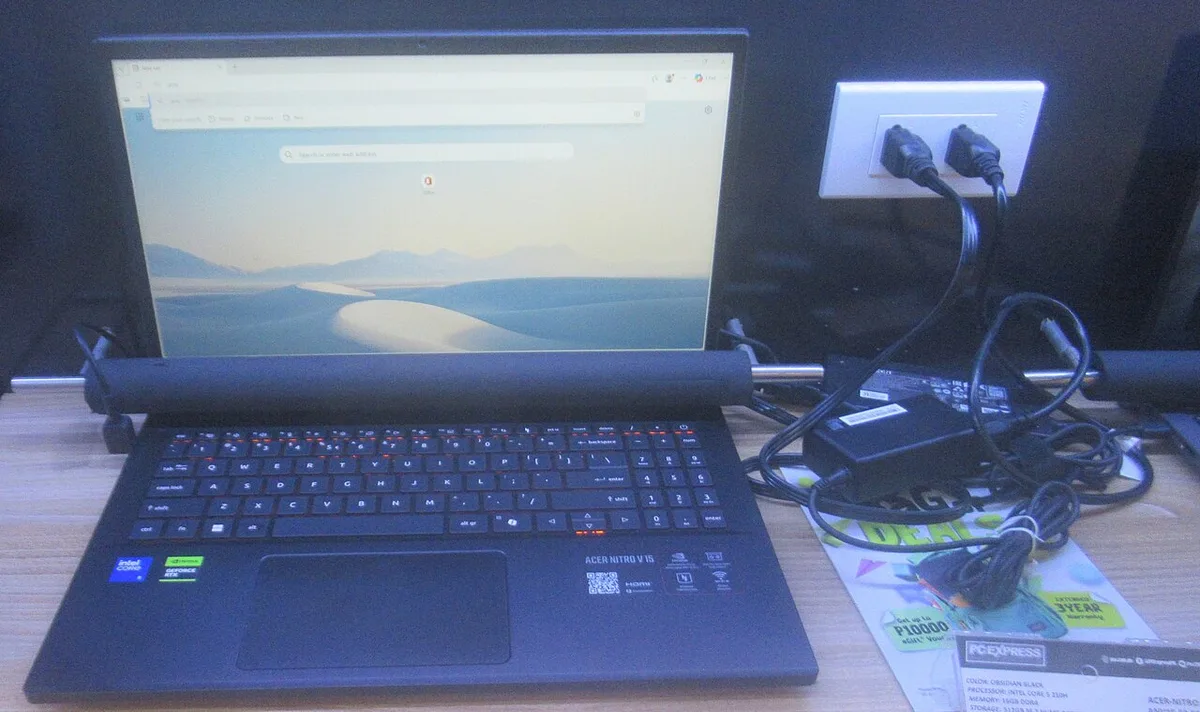
Image source: Wikimedia Commons / P1898 (CC BY)
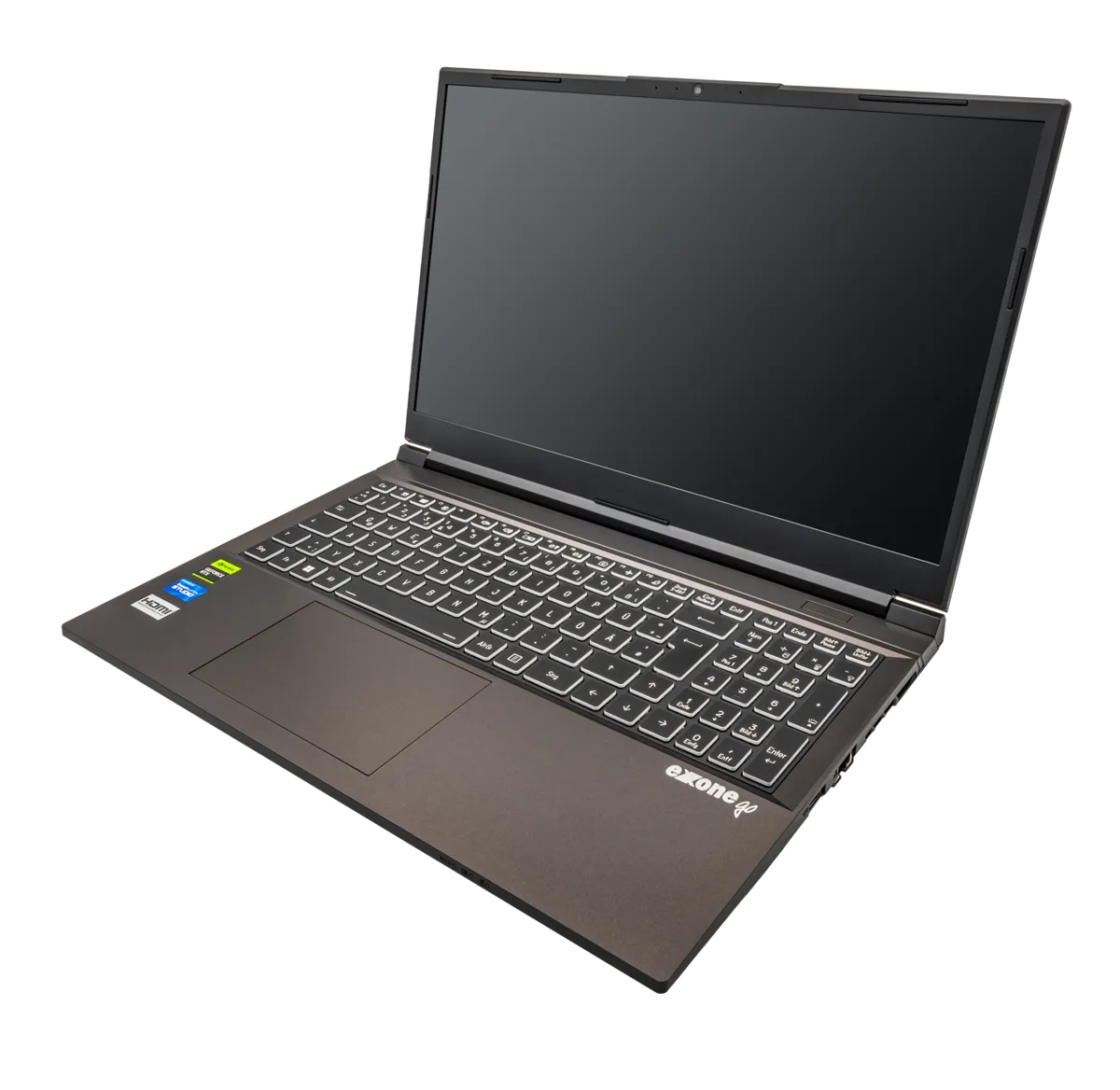
Image source: Wikimedia Commons / PantheraLeo1359531 (CC BY)
If your model genuinely lacks the hardware, the honest answer is that Hybrid is the ceiling. You can still force per-app GPU assignment in Windows, but the display path stays the same. As of 2026, most mid-range and premium gaming laptops ship with either a manual MUX or NVIDIA Advanced Optimus.
AMD's equivalent is called SmartAccess Graphics.
| Mode | What drives the screen | Best for |
|---|---|---|
| Hybrid | iGPU drives, dGPU renders | Battery life, browsing, light work |
| Discrete | dGPU direct to panel | Maximum FPS, external monitors |
| iGPU only | iGPU alone, dGPU powered down | Travel, quiet fans, cool chassis |
Three places confirm what your machine supports. Check the manufacturer app for a visible GPU mode tile. Check Task Manager or GPU-Z while a game runs to see which adapter is active.
Then check the spec sheet or support page for the words MUX, Advanced Optimus, or SmartAccess. Laptops advertised purely on refresh rate often skip the detail, the way these two 165Hz-class machines do in their marketing copy.
Branch 1: Flip It in Your Manufacturer's Software
This branch fixes most stuck-Hybrid cases, and it takes about five minutes. The toggle lives inside the same utility that handles fan curves and performance profiles. If that utility is broken, the mode is broken too.
Run through this checklist first:
- Plug in the AC adapter. Most laptops refuse a mode change on battery.
- Set the performance profile to Balanced or above.
- Open the OEM app as administrator.
- Update the app to the current version.
- Reboot, then try the toggle again.
The utilities you'll meet, by brand:
- ASUS ROG and TUF: Armoury Crate, under the GPU mode tile
- Lenovo Legion: Lenovo Vantage plus Legion Space
- MSI: MSI Center, under Features and General Settings
- HP OMEN: OMEN Gaming Hub, under Performance
- Alienware and Dell G: Alienware Command Center
- Razer Blade: Synapse, under System and GPU mode
A greyed-out tile usually means the app's background service isn't running. Reinstalling the utility from the manufacturer's support page fixes that in most cases. If the app itself misbehaves, our notes on control software that keeps crashing cover the service-level causes.
Lenovo owners hit a specific variant of this. The mode tile disappears entirely and Vantage stops responding to clicks, which we've covered in detail on the Vantage app refusing to switch. ASUS owners get the opposite symptom, where the profile won't budge at all, documented in our walkthrough on performance profiles that won't budge.
If none of that works, fall back to Windows. Open Settings, go to System, then Display, then Graphics. Add your game manually and set it to High performance.
That won't change the display wiring, but it does stop the iGPU from claiming the workload.
Branch 2: Change Graphics Configuration in BIOS/UEFI
If the software toggle is missing or refuses to take, go one layer down. UEFI holds the primary display setting, and it overrides whatever Windows thinks it wants. This is where a lot of stuck-Hybrid machines actually get fixed.
Here's the sequence:
- Shut down completely. Not sleep, not restart.
- Power on and tap the BIOS key repeatedly. That's usually F2, Del, or F10, and it varies by brand.
- Look for Graphics Configuration, Primary Display, Video Configuration, or Advanced Chipset Features.
- Set the value to Discrete, dGPU only, or PEG. Hybrid and Optimus are the ones you're leaving behind.
- Save and exit, then power off again.
- Unplug the charger, hold the power button 15 seconds, and boot normally.
The step people skip is step six. A mode change written to firmware often won't apply until the machine fully drains and restarts. If the setting looks correct in BIOS but Windows still reports Hybrid, that's your missing link.
The same full-drain trick solves settings that reset on reboot, since both live in the same firmware layer.
Two warnings before you start. Some OEMs hide the graphics menu behind a locked advanced mode, and no amount of key mashing will reveal it. Others disable the option entirely on Optimus-only models.
Also, never flash a BIOS update while running on battery.
Branch 3: Reset the Embedded Controller, Then Reinstall Drivers
When software and firmware both fail, the embedded controller is the next suspect. It's a small chip that manages power sequencing and the GPU multiplexer. It has its own state, and it can hang independently of Windows.
The reset takes about two minutes:
- Shut the laptop down and unplug the adapter.
- If the battery is removable, take it out. If not, skip that step.
- Hold the power button for 30 to 60 seconds.
- Plug the adapter back in and boot.
You can also try the pinhole reset on the underside if your model has one. Both do the same job.
Next, rebuild the driver stack in the right order. Download Display Driver Uninstaller, boot into Safe Mode, and remove both the iGPU and dGPU drivers. Install the integrated graphics driver first, reboot, and only then install the discrete driver.
Doing it in reverse leaves orphaned entries that can keep the routing table pinned. Sourcing both from the OEM support page beats generic vendor packages on most laptops, though NVIDIA and AMD reference drivers work fine on models without custom power tuning.
If the mode still won't move after all three branches, treat it as hardware. A dGPU that never appears in Device Manager, even in BIOS, points to a board-level fault. That's a warranty conversation, and it's worth knowing what it does to your warranty before you open the chassis yourself.
If It Still Won't Switch: Display Routing and Real Hardware Faults
If the mode won't budge after all three branches, check where your display signal actually goes. On many gaming laptops, the rear HDMI port is wired straight to the discrete GPU. The internal panel still runs through the iGPU in Hybrid mode.
That split explains a strange pattern: games look fine on an external monitor but stutter on the laptop screen.
USB-C with DisplayPort Alt Mode is the wildcard. Some models route it through the dGPU. Others send it through the iGPU, especially on thinner chassis.
If your external screen also performs poorly, the routing itself is the problem, not the mode toggle.
| Symptom | Likely cause | Next step |
|---|---|---|
| dGPU missing from Device Manager | Board-level fault or dead controller | Check BIOS, then contact support |
| dGPU present but stuck at 0% | Software or driver conflict | Rebuild drivers in Safe Mode |
| External monitor fast, internal slow | Display wired through iGPU | Accept Hybrid or use external |
| Error Code 43 in Device Manager | Driver or hardware failure | Clean install, then RMA if it returns |
A dGPU that never appears in BIOS is the clearest hardware signal. Error Code 43 that survives a clean driver install points the same way. At that stage you're past settings, and a warranty claim is the sensible move.
Opening the chassis first can complicate that process, which we've covered in our guide on what repasting does to your coverage.
Mistakes That Turn a Two-Minute Fix Into a Weekend
Most stuck-Hybrid disasters come from four avoidable moves. The first is grabbing drivers from a random mirror site. Use the OEM support page, or NVIDIA, AMD, and Intel directly.
A mismatched package can leave the routing table pinned for hours.
The second is flashing BIOS on battery power. A failed flash during a low-charge state can brick the board. Plug in, charge above 50%, and don't touch the lid until it finishes.
The third is disabling the iGPU in Device Manager to "force" the dGPU. That breaks display output on Optimus laptops and can leave you with a black screen. If you've already done it, boot into Safe Mode and re-enable the adapter.
The fourth is skipping the full shutdown. Sleep and restart don't always clear firmware state. A true power-off with the charger unplugged does.
If the mode looks correct in BIOS but Windows still reports Hybrid, that's almost always the missing step.
One more: don't assume a Windows reinstall will fix it. UEFI settings survive that process. Check the firmware layer before you wipe the drive.
Frequently Asked Questions
Why does Hybrid cost frames even when the game reports the dGPU?
Hybrid mode copies rendered frames from the discrete GPU to the integrated GPU before they reach the panel. That copy adds latency and caps throughput. Reports of 5% to 30% lower effective performance are common, depending on the title and resolution.
Can I run discrete mode on battery?
Usually yes, but expect much shorter runtime. Discrete mode keeps the dGPU powered and driving the panel directly. Most manufacturer apps warn you or block the switch on battery.
Plug in first if the toggle refuses to move.
Will changing GPU mode reset my settings?
No, your files and apps stay untouched. A BIOS graphics change may reset other firmware values like boot order or Secure Boot state. Note those down before you save and exit.
Does an external monitor fix a stuck Hybrid problem?
Sometimes. If the HDMI port is wired to the discrete GPU, an external screen bypasses the internal routing entirely. You'll get full dGPU output even while the laptop panel stays in Hybrid mode.
It's a workaround, not a repair.
What if the GPU mode toggle is missing entirely?
Missing tiles usually mean the OEM service isn't running or your model lacks a MUX switch. Reinstall the manufacturer utility first. If it still doesn't appear, check the spec sheet for MUX or Advanced Optimus support before assuming a fault.