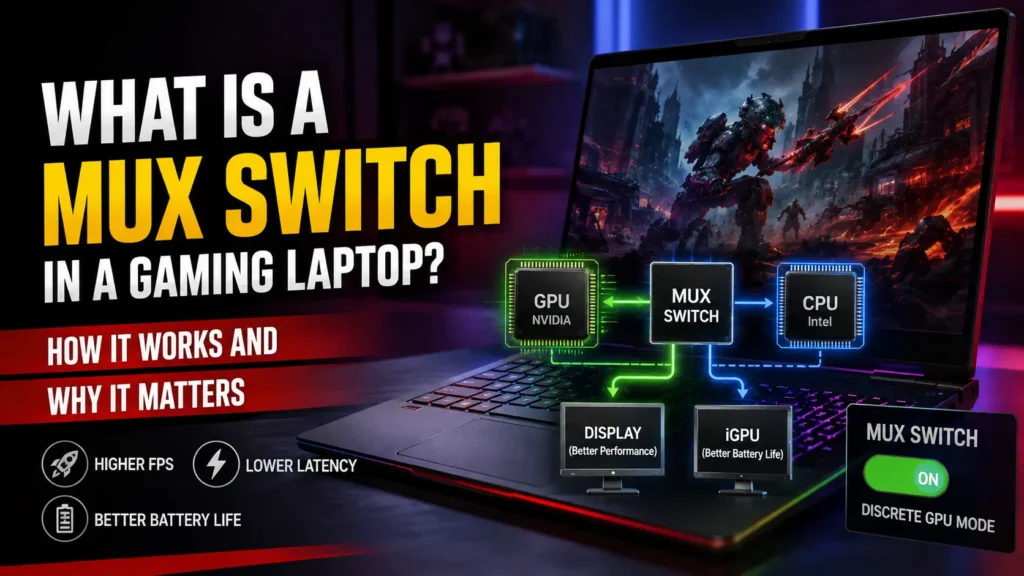
If you are shopping for a gaming laptop, you have probably seen terms such as MUX switch, Optimus, Advanced Optimus, Hybrid Mode, and dGPU Mode in product specifications. They sound technical, but the basic idea is simple.
A MUX switch, short for multiplexer switch, is a hardware component that changes which GPU is connected to your laptop’s display. It can allow the dedicated graphics card to send frames directly to the screen instead of routing them through the integrated GPU first. That direct path can improve gaming performance and reduce latency, although it may also use more battery power.
For gamers, the important question is not simply whether a laptop has a MUX switch. You need to know when it helps, when it does not, and whether it should influence your next laptop purchase.
What Does a MUX Switch Actually Do?
Most modern gaming laptops contain two graphics processors.
The first is the integrated GPU, or iGPU, which is built into the processor. It handles lighter graphics tasks while using relatively little power.
The second is the dedicated GPU, or dGPU, such as an NVIDIA GeForce RTX or AMD Radeon GPU. It is far more powerful and is designed for demanding jobs such as gaming, 3D rendering, and video editing.
The challenge is deciding which GPU should control the laptop display.
What Happens Without a MUX Switch?
On a traditional NVIDIA Optimus laptop, a game can be rendered by the dedicated GPU while the integrated GPU still controls the internal screen.
The path looks roughly like this:
Game → Dedicated GPU → Integrated GPU → Laptop Display
The dGPU does the hard rendering work, but the completed frames are passed through the integrated graphics processor before reaching the screen. NVIDIA explains that traditional Optimus uses the integrated GPU as the final display controller even while the dedicated GPU handles rendering.
This arrangement is useful because the laptop can turn off the power-hungry dedicated GPU when it is not needed, which helps preserve battery life.
The trade-off is that passing frames through the iGPU can add some overhead.
What Happens When the MUX Switch Uses the Dedicated GPU?
A MUX switch can change the display connection so the dedicated GPU communicates directly with the laptop screen.
The path becomes:
Game → Dedicated GPU → Laptop Display
The integrated GPU is no longer sitting in the middle of the display path.
ASUS describes this as a discrete GPU path where the laptop’s display connects directly to the dGPU.
That small architectural change can make a noticeable difference in situations where every frame and every millisecond matter.
Does a MUX Switch Increase FPS?
Yes, a MUX switch can increase FPS, but there is no single percentage that applies to every gaming laptop or every game.
By bypassing the integrated GPU, the dedicated GPU has a more direct route to the display. This can reduce graphics overhead and allow the system to deliver more of the performance the dGPU is already capable of producing.
ASUS has reported an average frame-rate improvement of around 9% in its own testing, while noting that some games showed much larger gains. NVIDIA has also published Advanced Optimus testing showing frame-rate improvements ranging from 11% to 27% and beyond in selected games and systems. Those figures should be treated as examples rather than guarantees because results depend heavily on the hardware and workload.
When Is the FPS Difference Most Noticeable?
MUX-related performance gains tend to matter most when a game is already running at a high frame rate.
That makes the feature particularly useful for competitive titles such as:
- Valorant
- Counter-Strike 2
- Fortnite
- Overwatch 2
- Rainbow Six Siege
- Apex Legends
If your laptop is trying to push 200, 300, or more frames per second to a high-refresh-rate screen, reducing overhead in the display path can be valuable.
The difference may be less dramatic in a demanding AAA game where the GPU itself is already the main performance limit.
Does a MUX Switch Improve Every Game?
No.
A MUX switch does not magically make the GPU more powerful. It simply changes how rendered frames reach the display.
The actual improvement can vary depending on:
- The game
- Resolution
- Graphics settings
- CPU performance
- GPU performance
- Laptop power limits
- Cooling
- Display refresh rate
- Whether the game is CPU-bound or GPU-bound
A competitive game running at 1080p and hundreds of FPS may benefit more than a graphically intensive game running at 4K and 60 FPS.
Does a MUX Switch Reduce Input Lag?
It can.
When the dedicated GPU sends frames through another graphics processor before they reach the display, extra work is added to the pipeline. A direct dGPU-to-display connection can remove some of that overhead.
NVIDIA says Advanced Optimus can reduce system latency by bypassing the integrated graphics path, and its published tests have shown latency reductions of up to 22% in selected esports titles. Again, the exact result varies by laptop and game.
For casual gaming, the difference may be difficult to notice.
For competitive players using a fast 144Hz, 165Hz, 240Hz, or higher-refresh display, even a small latency improvement can be more meaningful.
MUX Switch vs Optimus vs Advanced Optimus vs AMD SmartAccess Graphics
These terms are often mixed together, but they do not mean exactly the same thing.
| Technology | What It Does | Direct dGPU Display | Automatic Switching | Restart Usually Needed? |
|---|---|---|---|---|
| Traditional NVIDIA Optimus | dGPU can render while iGPU drives display | No | Yes | No |
| Manual MUX Switch | Lets you select the display GPU/path | Yes | Usually No | Often |
| NVIDIA Advanced Optimus | Dynamically switches the display between iGPU and dGPU | Yes | Yes | No |
| AMD SmartAccess Graphics | Dynamically chooses graphics path on supported AMD systems | Yes on supported designs | Yes | Typically automatic |
What Is NVIDIA Optimus?
NVIDIA Optimus was designed to balance graphics performance with battery life.
When a demanding application needs more graphics power, the NVIDIA GPU can handle the rendering. The integrated GPU still controls the display output.
When the dedicated GPU is not needed, it can be powered down to conserve energy.
That makes Optimus useful for portable laptops, but the indirect display path can introduce some performance overhead during gaming.
What Is NVIDIA Advanced Optimus?
Advanced Optimus solves much of that problem.
Instead of forcing the internal display to remain connected to the integrated GPU, it uses a hardware-based dynamic display switch.
The laptop can automatically let the NVIDIA GPU drive the display directly during demanding workloads, then return display control to the integrated graphics when extra performance is unnecessary.
NVIDIA states that Advanced Optimus can switch automatically without requiring a reboot while also enabling direct-GPU benefits such as lower latency and G-SYNC support on compatible systems.
For many users, this is more convenient than a traditional manual MUX switch.
What Is AMD SmartAccess Graphics?
AMD has a similar idea for supported all-AMD gaming systems.
AMD SmartAccess Graphics can automatically decide whether the discrete Radeon GPU or the processor’s integrated graphics should handle the workload. AMD describes it as an automatic, direct-to-display technology designed to provide full gaming performance when required while keeping everyday computing more efficient.
Some AMD Advantage laptops specifically advertise both a MUX Switch and AMD SmartAccess Graphics.
Support depends on the laptop and hardware configuration, so do not assume every Radeon gaming laptop includes it.
MUX Switch vs Hybrid Mode vs Discrete GPU Mode
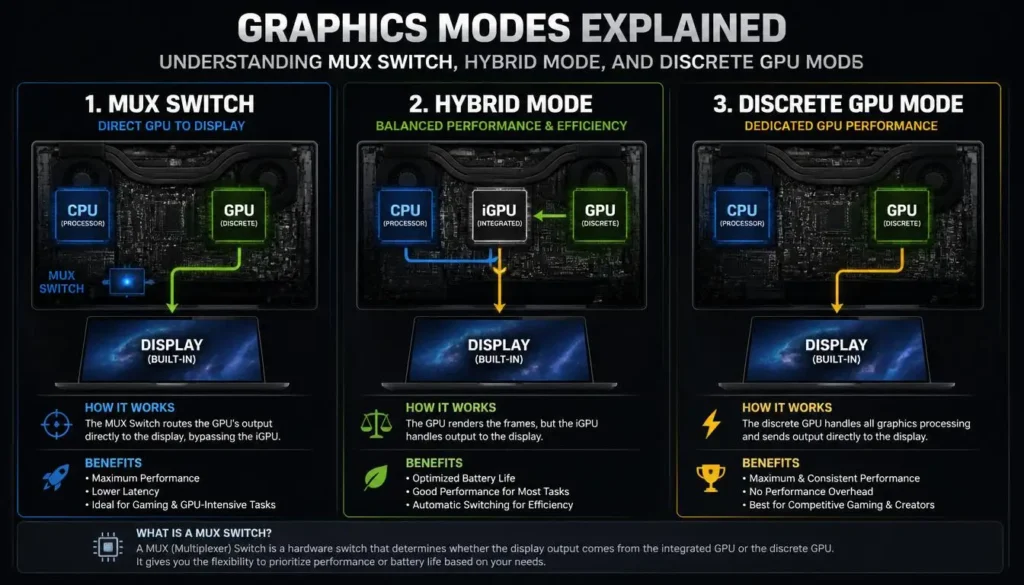
Laptop manufacturers do not always use the words “MUX switch” in their software.
You may instead see settings such as:
- Hybrid Mode
- MSHybrid
- Discrete Graphics
- Discrete GPU Mode
- dGPU Only
- Ultimate Mode
- GPU Switch
- Graphics Switch
- Automatic GPU Mode
The names vary, but the underlying choice is often similar.
Hybrid Mode generally prioritizes efficiency by allowing the integrated and dedicated GPUs to work together.
Discrete GPU Mode usually connects the display directly to the dedicated graphics processor for maximum gaming performance.
For example, ASUS uses GPU modes that can switch between hybrid behavior and a direct discrete-GPU display path on supported systems.
Should You Turn the MUX Switch On or Off?
There is no single correct setting for every situation.
The best mode depends on what you are doing with the laptop.
Use Discrete GPU Mode When Gaming
If you are plugged into a wall outlet and want the highest possible gaming performance, dGPU-only or Discrete GPU Mode is usually the better choice.
It makes the most sense when:
- Playing competitive games
- Trying to maximize FPS
- Using a high-refresh-rate internal display
- Reducing latency is important
- Battery life does not matter at that moment
Use Hybrid Mode When You Need Battery Life
If you are browsing, studying, watching videos, writing documents, or travelling away from a charger, Hybrid Mode usually makes more sense.
The integrated GPU consumes far less power than a high-performance dedicated graphics processor.
ASUS specifically positions its hybrid and Eco-style GPU modes as options for improving efficiency and battery life.
Should You Leave the MUX Switch On All the Time?
You can, but it may not be the best choice.
Leaving a laptop in dGPU-only mode may cause the dedicated GPU to remain active for more display tasks. That can increase power consumption and reduce battery runtime.
If your laptop supports Advanced Optimus or AMD SmartAccess Graphics, automatic switching can provide a more convenient balance because the system can choose the appropriate graphics path based on the workload.
Does a MUX Switch Reduce Battery Life?
The hardware switch itself is not the real battery problem.
The important factor is which GPU is driving the display.
A dedicated gaming GPU typically uses considerably more power than integrated graphics. If you force the laptop into dGPU-only mode, battery life can fall because the high-performance GPU remains involved in display duties.
Hybrid graphics allows the system to rely more heavily on the efficient integrated GPU when high graphics performance is unnecessary.
So the practical rule is simple:
Gaming while plugged in: use the direct dGPU mode if you want maximum performance.
Working or travelling on battery: use Hybrid, Optimus, Eco, or automatic switching.
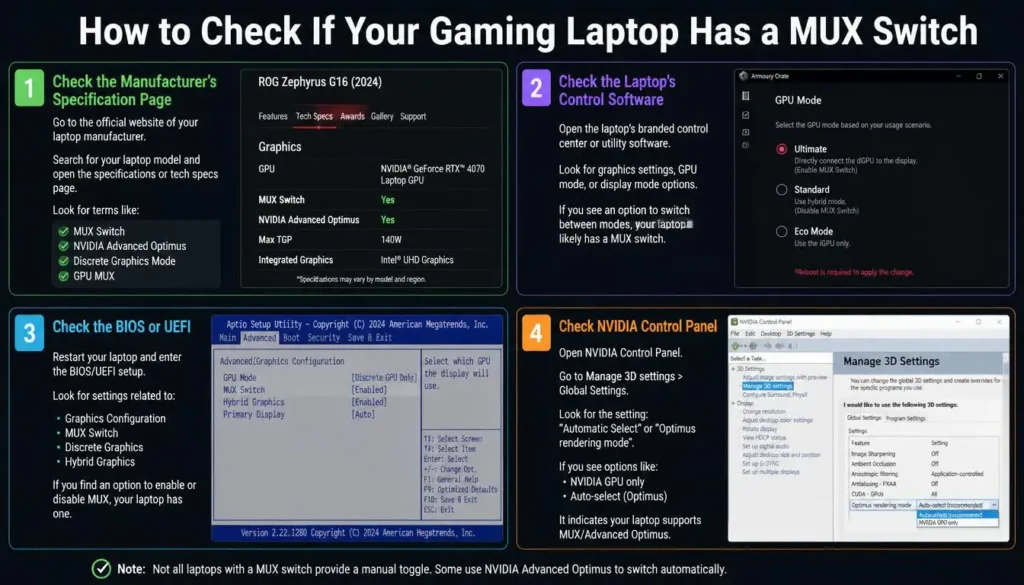
How to Check If Your Gaming Laptop Has a MUX Switch
Do not assume that every gaming laptop has one.
Even two laptops with similar GPU specifications may use different display configurations.
Check the Manufacturer’s Specification Page
Start with the official product page for your exact laptop model.
Search for terms such as:
- MUX Switch
- Advanced Optimus
- SmartAccess Graphics
- GPU Switch
- Hybrid Graphics
- dGPU Mode
- Discrete Graphics Mode
Be careful with model variations. A laptop family may have several CPU, GPU, and display configurations, and features can differ between them.
Check the Laptop’s Control Software
Many manufacturers expose graphics modes through their own utilities.
Examples include software from ASUS, Lenovo, MSI, Acer, Alienware, and other gaming brands.
Look for a section labelled GPU Mode, Graphics Mode, Hybrid Mode, or Display Mode.
Check the BIOS or UEFI
Some laptops place the option inside the BIOS instead of Windows software.
Possible labels include:
- Hybrid Graphics
- Switchable Graphics
- Discrete Graphics
- Dynamic Graphics
- Graphics Device
Do not change unfamiliar BIOS settings randomly. If you are unsure, check the support documentation for your exact laptop model.
Check NVIDIA Control Panel
Advanced Optimus laptops may provide display switching options through NVIDIA Control Panel.
If your system supports the feature, you may see options relating to automatic selection, Optimus, or NVIDIA GPU-only display modes.
Available settings depend on the laptop implementation.
How to Enable a MUX Switch
There is no universal button because every laptop manufacturer implements the feature differently.
A common process looks like this:
- Connect the gaming laptop to its charger.
- Open the manufacturer’s control software or BIOS.
- Find the GPU or graphics mode setting.
- Choose Discrete GPU, dGPU Only, Ultimate, or an equivalent performance mode.
- Apply the change.
- Restart the laptop if requested.
- Launch a game and verify that the dedicated GPU is driving the display.
Traditional manual MUX implementations often require a reboot because the hardware display path has to change. Advanced Optimus is specifically designed to perform dynamic switching without a reboot.
How Do You Know If the MUX Switch Is Working?
The easiest method is to check the graphics mode in your laptop manufacturer’s software.
If you selected dGPU Only, Discrete Mode, or Ultimate Mode, the software should normally show that mode as active.
On compatible NVIDIA laptops, NVIDIA Control Panel can also provide information about which GPU is connected to the internal display.
Another practical test is to compare gaming performance before and after switching modes.
Use the same:
- Game
- Resolution
- Graphics preset
- Power mode
- Laptop charger
- Test area or benchmark
If the laptop has a meaningful Optimus bottleneck, you may see better average FPS, improved 1% lows, or lower latency in direct-GPU mode.
Do not expect every game to show a dramatic difference.
What If Your Laptop Does Not Have a MUX Switch?
Do not panic.
A gaming laptop without a traditional MUX switch can still be a very good gaming machine.
Your RTX or Radeon GPU will still render demanding games. The main difference is that the internal display may rely on a hybrid graphics path.
Modern Windows and GPU technologies have also reduced some of the disadvantages that older hybrid laptops experienced.
Can You Add a MUX Switch Later?
Normally, no.
A MUX is a hardware-level part of the laptop’s graphics and display design. It is not a feature you can simply download with a driver or add through Windows settings.
If the laptop was not designed with the necessary display switching hardware, software cannot turn it into a true MUX-equipped system.
Can an External Monitor Bypass Optimus?
Sometimes.
On some gaming laptops, an HDMI, DisplayPort, or USB-C display output is wired directly to the dedicated GPU.
If you connect an external monitor through that port, the dGPU may be able to send frames directly to the external display even when the internal laptop screen uses the iGPU.
However, laptop port wiring varies by model. Do not assume that every HDMI or USB-C port connects directly to the dGPU.
Check the manufacturer’s documentation or GPU topology for your exact laptop.
Does a MUX Switch Affect G-SYNC or VRR?
It can.
Technologies such as G-SYNC and other forms of variable refresh rate work closely with the GPU-to-display connection.
NVIDIA says Advanced Optimus allows the GeForce GPU to directly control the display and supports G-SYNC variable refresh rate displays on compatible laptops.
AMD follows a similar performance-focused approach on supported SmartAccess Graphics systems, while AMD Advantage laptops may also include FreeSync-compatible displays.
The exact combination of VRR, MUX behavior, display panel, and GPU support is laptop-specific.
Is a MUX Switch Still Important in 2026?
Yes, but it is not as simple as saying, “No MUX means bad laptop.”
Windows has become better at handling hybrid GPU systems.
One example is Cross Adapter Scan-Out, or CASO, a Windows graphics technology designed to reduce the overhead involved when a game is rendered on one GPU while the display is connected through another. Microsoft says CASO can improve FPS and reduce frame latency on supported hybrid systems.
Technologies such as Advanced Optimus and AMD SmartAccess Graphics also make switching between performance and efficiency modes much more seamless than older manual systems.
That means a traditional manual MUX is no longer the only way to get a good gaming experience.
The better question in 2026 is:
How efficiently can this specific laptop switch between its integrated and dedicated graphics paths?
Should You Buy a Gaming Laptop Without a MUX Switch?
Yes, if the rest of the laptop is better.
Do not reject a strong gaming laptop simply because its specification page does not advertise a traditional MUX switch.
When comparing two laptops, look at the complete system:
- GPU model and performance
- GPU power limits
- Cooling system
- CPU performance
- Display quality and refresh rate
- RAM and storage configuration
- Advanced Optimus or similar automatic switching
- MUX support
- Battery life
- Price
Imagine you are choosing between:
Laptop A: RTX 5060 with a manual MUX switch
and
Laptop B: RTX 5070 without a traditional manual MUX but with a well-designed hybrid graphics system.
You should not automatically choose Laptop A simply because it has “MUX Switch” printed on the product page.
A MUX switch can improve how efficiently the GPU delivers frames to the display. It does not replace a faster GPU, better cooling, or a stronger overall laptop design.
Who Should Prioritize a MUX Switch?
A MUX switch or equivalent direct-GPU switching technology is especially valuable if you:
- Play competitive esports games
- Want the highest FPS possible
- Use a 144Hz, 165Hz, 240Hz, or faster screen
- Keep your laptop plugged in while gaming
- Care about reducing gaming latency
- Are comparing two otherwise similar laptops
It is less important if you:
- Mostly play casual games
- Spend most of your time browsing or working
- Prioritize battery life
- Frequently game through an external monitor connected directly to the dGPU
- Would have to sacrifice a much stronger GPU just to get a MUX-equipped model
MUX Switch FAQs on What Is a MUX Switch in a Gaming Laptop
Does a MUX switch increase FPS?
It can. A direct connection between the dedicated GPU and display removes the integrated GPU from the display path, which may improve gaming performance. The size of the improvement depends on the game, laptop, settings, CPU, GPU, and resolution.
How much FPS does a MUX switch add?
There is no fixed number. Manufacturer testing has shown anything from modest single-digit improvements to much larger gains in certain games. Treat advertised percentages as system-specific examples rather than guaranteed results.
Does a MUX switch reduce input lag?
A direct dGPU display path can reduce system latency because rendered frames no longer need to pass through the integrated GPU first. The effect is usually most valuable in high-FPS competitive games.
Is MUX the same as a dedicated GPU?
No. The dedicated GPU is the graphics processor. The MUX switch controls how the laptop’s graphics hardware connects to the display.
Does every gaming laptop have a MUX switch?
No. Support depends on the laptop’s motherboard, GPU, display design, and manufacturer.
Is Advanced Optimus the same as a MUX switch?
Not exactly. Advanced Optimus uses a hardware-based dynamic display switch to automatically move the internal display between integrated and dedicated graphics. A traditional MUX switch may require you to select the graphics mode manually.
Does a MUX switch work with AMD laptops?
Yes. MUX technology is not limited to NVIDIA. Some AMD gaming laptops include a MUX switch, while supported AMD systems may also use SmartAccess Graphics for automatic graphics switching.
Does a MUX switch make a laptop hotter?
Using dGPU-only mode can increase power use because the dedicated GPU stays more active. That may lead to more heat or fan activity depending on the laptop, but the MUX chip itself is not what creates the extra gaming heat.
Does a MUX switch damage the GPU?
No. Using a manufacturer-supported MUX or dGPU mode is a normal operating feature. As with any gaming workload, the laptop should have proper cooling and ventilation.
Does changing the MUX switch require a restart?
Some manual MUX systems require a restart. Advanced Optimus is designed to switch dynamically without rebooting.
Should I keep my MUX switch on while gaming?
If you are plugged in and want maximum performance, direct dGPU mode is usually the best choice. If you need longer battery life, switch back to Hybrid or automatic graphics mode.
Can software add a MUX switch to a laptop?
No. A true MUX switch requires hardware support. Software can manage existing graphics paths, but it cannot create a missing physical display connection.
Final Verdict: Is a MUX Switch Worth It?
A MUX switch is worth having, especially if you care about competitive gaming, high frame rates, and low latency.
Its job is simple: give the dedicated GPU a direct path to the laptop display when you need maximum performance.
That can result in higher FPS and lower latency, but the improvement varies from one game and laptop to another. Direct dGPU mode can also reduce battery life, which is why hybrid graphics still matter.
For most buyers in 2026, the best setup is not necessarily a laptop with an old-style manual MUX switch. A system with Advanced Optimus, AMD SmartAccess Graphics, or another well-designed automatic GPU switching solution can provide a better balance between gaming performance and battery efficiency.
So, should a MUX switch influence your buying decision?
Yes—but it should not decide the purchase by itself.
Choose the laptop with the best overall combination of GPU performance, cooling, display quality, CPU power, battery life, price, and graphics-switching technology. If two laptops are otherwise closely matched, the one with a good MUX or automatic direct-GPU switching system gets the advantage.