What should I do first with a new gaming laptop? Start by plugging it in, finishing Windows setup, and refusing every optional add-on. The first hour decides how clean, cool, and stable it stays.
Manufacturer specs and setup guides agree on one point. A full Windows update and clean driver install come before any game. As of 2026, most new gaming laptops ship with Windows 11, 16GB to 32GB RAM, and a 1TB NVMe SSD.
That means your first job is setup, not benchmarking.
What Actually Goes Wrong With a New Gaming Laptop on Day One
Day-one problems are usually small and avoidable. The laptop is not broken. The setup is.
If you install games before updates, expect stutter and crashes. If you leave trial apps running, startup slows. If you game on a bed or couch, heat builds fast.
Here are the common failure points:
- Preinstalled software eating RAM and storage
- Old GPU drivers causing shader stutter
- Display stuck at 60Hz instead of 120Hz or 144Hz
- Fan profiles set to quiet when the laptop is hot
- Battery drain because the charger is not connected
- Startup clutter from apps you did not choose
Fix these first. Then test games.
| Day-one issue | What it causes | First fix |
|---|---|---|
| Old GPU driver | Stutter and crashes | Install current driver |
| Bloatware | Slow boot | Remove unused apps |
| Wrong refresh rate | Choppy motion | Set panel to max Hz |
| Soft surface blocking vents | Heat and throttling | Use hard, flat surface |
Plug In, Power On, and Handle the Out-of-Box Setup
Do not start on battery. Plug in the included charger first. A new battery may be partially charged, and updates can drain it.
Then inspect the laptop. Check the screen, keyboard, ports, and charger. If something is wrong, the return window matters.
Compare warranty coverage before you install personal data.
Next, power on and complete Windows setup. Use a stable Wi-Fi connection. Create or sign in to your Microsoft account.
Skip optional services you do not need.
Follow this order:
- Plug in the charger.
- Complete Windows setup.
- Connect to Wi-Fi.
- Run Windows Update.
- Restart when prompted.
- Check Device Manager for missing drivers.
- Create a recovery drive if you want one.
If the battery is below 20 percent, charge first. If updates fail, restart and retry. Do not install games yet.
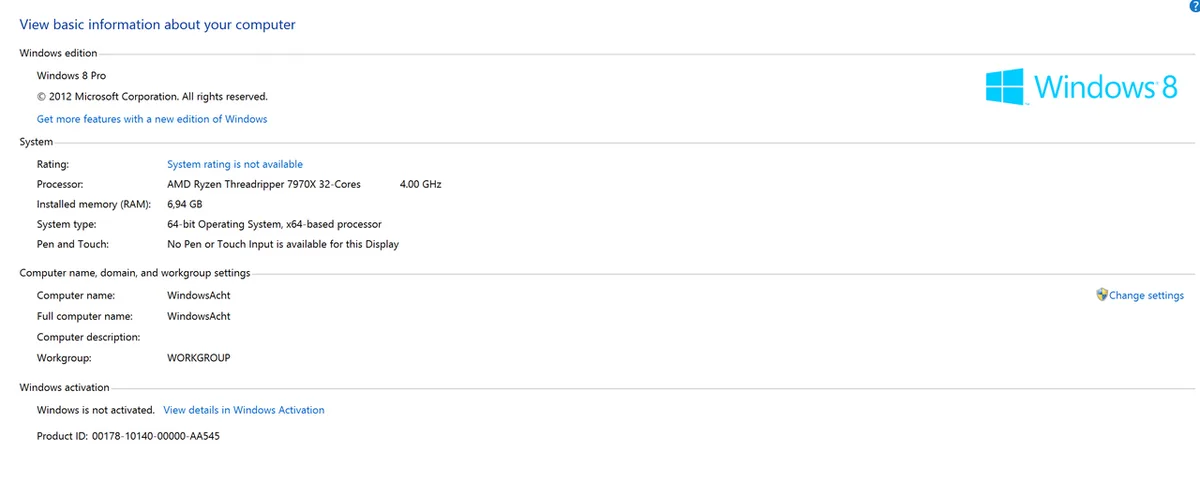
Image source: Wikimedia Commons / OS: Microsoft Corporation Screenshot: PantheraLeo1359531 😺 (talk)

Image source: Wikimedia Commons / See-ming Lee from Hong Kong SAR, China (CC BY-SA)
The Bloatware and Driver Cleanup Decision
Not all preinstalled software is bad. Some OEM tools control fans, keyboard lighting, and battery health. The problem is duplicate and trial software.
If an app has no clear job, remove it. If two apps do the same job, keep one. If a tool controls hardware features, keep it.
Use this simple rule:
- Keep OEM hardware utilities
- Remove trial antivirus and office promos
- Remove duplicate cloud storage apps
- Remove game launchers you will not use
- Keep Windows Defender unless you have a trusted alternative
Before removing anything, check what it does. Some OEM apps are tied to BIOS updates or fan control. If you are unsure, leave it and research later.
This is also where storage planning helps. A 1TB drive fills fast with modern games. Clean startup apps before installing your library.

Image source: Wikimedia Commons / Siyuwj, building designed by Wang Shu (CC BY-SA)
GPU Drivers and OEM Utilities: Which to Keep, Which to Ditch
Your graphics driver matters more than most apps. Install the current driver from the GPU maker. Do not rely only on Windows Update.
If you have an NVIDIA GeForce GPU, use NVIDIA's driver. If you have AMD Radeon, use AMD's driver. If you have Intel Arc, use Intel's driver.
Manufacturer specs and support pages are the safest source.
Keep one OEM utility if it handles hardware features. Armoury Crate, MSI Center, Lenovo Vantage, PredatorSense, Omen Gaming Hub, and similar tools can manage fan curves and updates. Running several at once causes conflicts.
If you update the GPU driver, restart. Then check the control panel. Look for the correct GPU, resolution, and refresh rate.
Use this decision guide:
- Keep one OEM utility for hardware control
- Remove duplicate performance boosters
- Install GPU driver from the GPU maker
- Avoid stacking two fan control apps
- Restart after major driver changes
Image source: Wikimedia Commons / NVIDIA Taiwan (CC BY)
Getting Your Display, Refresh Rate, and Power Plan Right
A gaming laptop can ship with the wrong display settings. Check Windows Display settings first. Set the native resolution.
Then set the highest refresh rate your panel supports.
If your laptop has a MUX switch or Advanced Optimus, learn how it works. Some modes need a restart. If you want the lowest input lag, use the discrete GPU mode when plugged in.
Next, set the power plan. Balanced is fine for school and browsing. High Performance is better for gaming.
If battery life matters, switch back after gaming.
Also check these settings:
- Turn on Game Mode if you want fewer background interruptions
- Set the correct color profile if the panel supports it
- Enable G-Sync or FreeSync if your panel supports it
- Set the keyboard backlight to a useful level
- Check that the touchpad works after driver updates
If you plan to use an external monitor, test it early. HDMI 2.1 and USB-C with DisplayPort matter for high refresh rates. If you are comparing a gaming laptop to a desktop, set expectations early.
A laptop trades some power for portability.
For brand-specific quirks, check official support pages. If you are unsure about repair support, research brands with solid repair support before opening the chassis. Warranty coverage can be affected by unauthorized repairs.
For normal daily use, know how gaming laptops differ from standard notebooks. Gaming models run hotter and louder. That is normal, but poor setup makes it worse.
If you bought a lesser-known brand, verify updates and support. Budget models can be fine, but support quality varies. Check drivers and firmware before judging performance.
Thermal Setup and Fan Control Before You Game
Place the laptop on a hard, flat surface before you launch anything. Keep the bottom vents clear. If temperatures climb past 90°C, raise the rear or add a cooling pad.
Use the OEM fan profile that matches the task. Silent mode is for browsing and schoolwork. Performance mode is for gaming.
If fans roar at idle, check for background apps first.
Do not open the chassis on day one. Repasting or undervolting can void warranty coverage. Learn the baseline first, then tune later.
| Situation | Best first move |
|---|---|
| Hot on a desk | Raise the rear edge |
| Hot on a bed | Move to a hard surface |
| Loud at idle | Disable startup apps |
| Above 90°C in games | Use performance mode and cooling |
If you are comparing a laptop to a desktop, set expectations early. A laptop trades some power for portability.
Battery Health Habits That Start on Day One
Game while plugged in. Battery gaming drains fast and adds heat. Use battery power for short sessions, not long play.
If the laptop stays plugged in most days, enable battery conservation mode at 80%. This reduces charge cycles. Check the OEM utility for the exact setting.
Avoid deep discharge. If you will store the laptop, charge it to about 50% and power it off. Heat damages batteries faster than charge level does.
If you travel, check regional voltage and plug type. Use the included charger only. An underpowered adapter can cause slow charging or unstable performance.
Mistakes That Ruin a New Gaming Laptop
Do not game on soft surfaces. Beds and couches block airflow. Heat leads to throttling and fan noise.
Do not install games before updates. Old drivers cause stutter and crashes. Update Windows and the GPU driver first.
Do not stack duplicate tools. One OEM utility is enough. Two fan control apps can fight each other.
Do not open the chassis without checking warranty terms. Unauthorized repairs can void coverage. Compare warranty coverage before you touch hardware.
Do not ignore the return window. Check the screen, ports, and charger early. Dead pixels and charging issues are easier to fix within the return period.
Do not expect desktop-level performance. Gaming laptops are powerful, but they are still mobile machines.
Budget models can be fine, but support quality varies. Verify firmware and driver updates before judging a lesser-known brand.
Your First-Week Checklist and Decision Guide
Day one: unbox, inspect, plug in, finish Windows setup, run updates, and remove obvious bloatware.
Day two: install the GPU driver, set the refresh rate, choose a power plan, and test one game.
Day three: install launchers, check storage, and enable battery conservation mode if needed.
Day seven: benchmark temperatures, create a recovery drive, and review warranty details.
Use this decision guide when something feels off:
- If games crash, update the GPU driver and Windows.
- If temperatures are high, move the laptop and adjust the fan profile.
- If battery drains fast, use conservation mode and lower brightness.
- If startup is slow, disable unnecessary startup apps.
- If performance seems low, check the power plan and charger wattage.
Keep the process simple. Fix the setup first. Then tune for games.
Frequently Asked Questions
Should I charge a new gaming laptop to 100% first?
Charge it before use if the battery is low. A full first charge is not required. Keep it plugged in during setup and updates.
Do I need a cooling pad on day one?
No, unless temperatures run hot. Start with a hard surface and good airflow. Add a cooling pad only if games exceed 90°C.
Should I remove all preinstalled software?
No. Remove trial apps and duplicates. Keep one OEM utility that controls fans, lighting, and battery health.
Can I game on battery power?
Yes, but expect lower performance and shorter runtime. Plug in for the best frame rates and thermals. Adjust Windows power settings for travel.
How often should I update GPU drivers?
Check monthly or before a major game release. Use the GPU maker's driver page, such as NVIDIA driver downloads. Restart after installing.
Should I use a local account or Microsoft account?
Either works. A Microsoft account helps with sync and recovery. A local account is simpler if you prefer less cloud integration.