You are in the middle of a game, everything seems normal, and then your laptop suddenly goes black and restarts. No warning. No time to save anything. Sometimes it happens after 20 minutes of gaming. Other times, it happens the moment the GPU comes under heavy load.
So, why does your gaming laptop restart while gaming?
The most common causes are overheating, unstable power delivery, a faulty or underpowered charger, graphics driver problems, unstable RAM, aggressive performance settings, BIOS issues, or failing hardware. If the laptop restarts only during demanding games, the problem is usually related to something that becomes unstable under heavy CPU or GPU load.
The good news is that you do not need to start replacing parts randomly. A few targeted checks can usually narrow the problem down quickly.
This guide walks you through the causes, tests, and fixes in the order I would recommend trying them.
Quick Answer: Why Does My Gaming Laptop Keep Restarting While Gaming?
A gaming laptop may restart during gaming when the CPU or GPU overheats, the charger cannot provide stable power, the graphics driver crashes, the RAM becomes unstable, or the system encounters a hardware or firmware problem.
If the restart happens without a blue screen, check temperatures and power delivery first. If you see a blue screen, start with the stop code, drivers, RAM, and Windows crash logs.
The most useful troubleshooting order is:
- Check temperatures.
- Check the charger and power connection.
- Return performance settings to default.
- Reinstall or update the graphics driver.
- Check Windows crash logs.
- Test the RAM.
- Update the BIOS and chipset drivers.
- Run hardware diagnostics.
First, Identify What Kind of Restart You Are Experiencing
Before changing settings, pay attention to exactly how the restart happens. The pattern can tell you a lot about the likely cause.
The Laptop Instantly Restarts With No Warning
If the screen suddenly goes black and the laptop immediately begins booting again, power delivery, overheating, firmware, or hardware instability should move higher on your list of suspects.
A serious Windows crash can also produce this behavior if automatic restart is enabled.
The Laptop Shows a Blue Screen and Then Restarts
A blue screen gives you more information to work with.
Write down or photograph the stop code before the laptop restarts. Codes related to memory, drivers, hardware, or the graphics subsystem can help narrow the problem considerably.
The Laptop Restarts After 10 to 30 Minutes of Gaming
A delayed restart often points toward heat or sustained power load.
The laptop may work perfectly on the desktop because the CPU and GPU are drawing relatively little power. Once you start gaming, temperatures rise and the charger, cooling system, memory, GPU, and motherboard power circuitry all come under greater stress.
The Laptop Restarts Only in Demanding Games
If lightweight games work but demanding AAA titles trigger a restart, investigate components affected by increased load.
That includes:
- GPU temperature
- CPU temperature
- GPU power draw
- Charger capacity
- RAM stability
- Performance or Turbo mode
- GPU driver stability
The Laptop Restarts Only When Plugged In
This is an important clue.
Gaming laptops normally deliver their highest performance while connected to AC power. Plugging in the charger may allow the CPU and GPU to boost much harder than they do on battery.
If the laptop becomes unstable only when plugged in, check the charger, charging port, performance profile, CPU/GPU boost behavior, and power delivery system.
The Laptop Restarts Only in One Game
If every other game works normally, do not immediately assume the laptop is failing.
The affected game could have:
- Corrupted files
- A problematic update
- Driver compatibility issues
- Unstable mods
- Anti-cheat conflicts
- Unusually high CPU or GPU load
Test at least two or three other demanding games before concluding that the problem is hardware-related.
Before You Change Anything, Capture What Happens During the Restart
Randomly changing drivers, BIOS settings, power modes, and Windows options can make troubleshooting harder.
Start by collecting a few clues.
Note When the Restart Happens
Write down whether it happens:
- Immediately after launching the game
- During loading screens
- After playing for a specific amount of time
- When FPS becomes very high
- During graphically demanding scenes
- When switching between battery and AC power
- Only in Turbo or Performance mode
Patterns matter.
Check Windows Event Viewer
Press Windows + X, open Event Viewer, and go to:
Windows Logs > System
Look around the exact time the laptop restarted.
You may see Kernel-Power Event ID 41.
Do not make the common mistake of assuming Event ID 41 tells you which component failed. It mainly indicates that Windows detected a previous shutdown or restart that did not complete normally.
Other events around the same time may provide better clues.
Look for Bugcheck Information
If Windows crashed with a stop error, you may find bugcheck information in Event Viewer.
A bugcheck is especially useful because it confirms that Windows experienced a software or hardware-level crash rather than simply losing power.
Check Windows Reliability Monitor
Search Windows for:
View reliability history
Reliability Monitor presents crashes and failures in an easier timeline than Event Viewer.
Look for critical events around the time the gaming restart occurred.
You may find:
- Windows failures
- Hardware errors
- Driver crashes
- Application crashes
- Failed updates
Look for WHEA Hardware Errors
Search Event Viewer for entries from WHEA-Logger.
WHEA stands for Windows Hardware Error Architecture. Repeated WHEA hardware errors near the time of a gaming restart deserve attention because they may indicate hardware-level instability.
They do not automatically prove that a specific part is dead, but they can help point troubleshooting toward the CPU, memory, PCIe devices, GPU, or motherboard.
Most Common Reasons a Gaming Laptop Restarts While Gaming
1. CPU or GPU Is Overheating
Gaming places a much heavier load on a laptop than browsing the web or watching videos.
Both the CPU and GPU generate considerable heat, and gaming laptops have to remove that heat through compact heat pipes, heatsinks, fans, and vents.
Problems begin when that cooling system cannot keep up.
Common causes include:
- Dust-clogged fans
- Blocked air intakes
- Blocked exhaust vents
- Weak or failing fans
- Dried or poorly applied thermal paste
- A laptop placed on a soft surface
- High room temperature
- An unusually aggressive performance profile
Before a modern processor reaches a dangerous temperature, it will normally reduce performance. In more serious thermal situations, the laptop may shut down or restart to protect itself.
Do not judge overheating from how hot the keyboard feels alone. Monitor actual CPU and GPU temperatures while gaming.
What CPU and GPU Temperatures Are Too High?
There is no single temperature that applies to every gaming laptop.
Different processors have different operating limits, and gaming laptops often run hotter than desktop PCs by design.
Instead of focusing on one magic number, watch for:
- Temperatures repeatedly reaching the processor’s maximum thermal limit
- Severe clock-speed drops
- FPS falling as temperature rises
- Fans running at maximum speed before a restart
- Restarting after roughly the same amount of gaming time
If temperatures climb rapidly and the restart disappears after improving cooling, heat was probably involved.
2. The Charger Is Not Supplying Stable Power
Your gaming laptop may consume substantially more power while gaming than during normal desktop use.
If the charger is damaged, underpowered, overheating, or not the correct model, the laptop may become unstable once the CPU and GPU begin drawing more power.
Check whether you are using:
- The original charger
- The correct wattage
- A compatible manufacturer-approved replacement
- A secure charging connection
Be especially cautious with generic replacement adapters.
A charger that can keep the battery charging during web browsing may still fail to provide enough stable power during demanding gaming.
Can a Bad Charger Make a Gaming Laptop Restart?
Yes, unstable power delivery can contribute to sudden gaming restarts.
Watch for clues such as:
- Charging repeatedly disconnects and reconnects
- The charging icon changes during gaming
- The connector feels loose
- The power brick becomes unusually hot
- The problem started after replacing the original charger
- Performance drops when the battery becomes low even though the charger is connected
If your laptop normally uses a high-wattage barrel charger, do not assume a lower-powered USB-C charger can deliver full gaming performance.
3. Battery or Internal Power Delivery Problems
The charger is only one part of the laptop’s power system.
A degraded battery, damaged charging connector, failing DC-in circuit, or motherboard power problem can also become noticeable under gaming load.
Pay attention if the laptop:
- Restarts when you move the charging plug
- Switches between charging and battery repeatedly
- Cannot maintain battery percentage while gaming
- Restarts when AC power is connected or disconnected
- Has a swollen or physically damaged battery
A swollen battery should not be treated as a normal troubleshooting problem. Stop using the laptop and arrange professional service.
4. The GPU Driver Is Crashing
A damaged or unstable graphics driver can cause crashes, freezes, blue screens, black screens, and sometimes restarts.
This is especially worth investigating if the problem began after:
- An NVIDIA driver update
- An AMD driver update
- An Intel graphics update
- A Windows update
- Switching GPU modes
- Installing graphics tuning software
Updating the driver may solve the problem, but if the issue started immediately after an update, rolling back to a known stable version may be more useful.
5. Your RAM Is Unstable
Bad memory can produce extremely inconsistent symptoms.
One game may run for hours while another causes a restart within minutes.
RAM problems become even more likely if the issue started after a memory upgrade.
Possible causes include:
- A defective RAM module
- Poorly seated memory
- Incompatible modules
- Mixed memory specifications
- Unstable memory settings
- Unsupported memory configurations
If you recently upgraded the RAM, that change should be one of the first things you investigate.
6. CPU or GPU Overclocking Is Unstable
An overclock can look stable during everyday use and fail the moment a game places sustained load on the system.
The same applies to an aggressive undervolt.
Check tools such as:
- MSI Afterburner
- Intel tuning software
- AMD tuning tools
- Manufacturer performance utilities
- Custom BIOS settings
Return everything to stock temporarily.
If the restarts disappear, add your tuning settings back gradually rather than restoring everything at once.
7. Performance or Turbo Mode Is Too Aggressive
Gaming laptops often include manufacturer software with modes such as:
- Silent
- Balanced
- Performance
- Turbo
- Extreme
These modes can change far more than fan speed. Depending on the laptop, they may affect CPU boost limits, GPU power, thermal targets, and fan behavior.
If the laptop restarts in Turbo mode but works normally in Balanced mode, you have found an important clue.
It does not necessarily mean the laptop is defective, but it suggests instability appears when the system is pushed to its highest power state.
8. BIOS or Chipset Problems
The BIOS plays an important role in power management, processor behavior, memory initialization, thermal control, and hardware communication.
Firmware bugs or incorrect settings can contribute to instability.
Chipset drivers can also affect communication between Windows and system hardware.
BIOS-related troubleshooting is especially relevant if the restart problem began after:
- A BIOS update
- A BIOS reset
- A hardware upgrade
- Changes to performance settings
Use BIOS files only from your laptop manufacturer’s official support page.
9. Windows or Background Software Is Causing Instability
Not every restart is caused by failing hardware.
Background utilities can interfere with drivers, gaming services, overlays, or performance management.
Possible troublemakers include:
- Multiple hardware monitoring programs
- RGB utilities
- Third-party fan-control software
- Overclocking software
- Overlay programs
- Conflicting OEM utilities
- Recently installed system tools
If the problem appeared after installing new software, remove or disable it temporarily.
10. Hardware May Be Failing
If software troubleshooting changes nothing, the problem may be physical.
Potential failures include:
- GPU
- VRAM
- RAM
- Motherboard
- Charging circuit
- Fan
- SSD
- Battery
- Power delivery components
Hardware faults often become more obvious under gaming load because gaming stresses several components simultaneously.
How to Fix a Gaming Laptop That Keeps Restarting While Gaming
Work through these steps in order. Test the same game after each meaningful change so you know what actually solved the problem.
Step 1: Use the Correct Original Charger
Check the charger’s wattage and model.
If you replaced the original adapter with a third-party unit, compare its output specifications with the manufacturer’s requirements.
Also:
- Plug the charger directly into a reliable wall outlet for testing.
- Temporarily bypass a questionable extension lead or power strip.
- Inspect the charging cable.
- Check whether the connector sits securely.
If possible, test with another known-good compatible charger.
Step 2: Monitor CPU and GPU Temperatures
Use a monitoring tool such as:
- HWiNFO
- HWMonitor
- MSI Afterburner
- Your laptop manufacturer’s control software
Start logging or watching temperatures, then play the game that normally triggers the restart.
Pay attention to what happens immediately before the system fails.
If temperature climbs steadily toward the hardware’s thermal limit, investigate the cooling system.
Step 3: Clean the Fans and Vents
Turn the laptop off and inspect its intake and exhaust areas.
Dust can restrict airflow surprisingly quickly, particularly if you:
- Have pets
- Smoke near the computer
- Use the laptop in a dusty room
- Frequently use it on fabric surfaces
External vent cleaning may help, but heavily clogged heatsinks sometimes require the bottom cover to be removed.
If doing so could affect your warranty or you are not comfortable working inside a laptop, use a repair technician instead.
Step 4: Improve Airflow
Place the laptop on a hard, flat surface.
Avoid gaming on:
- Beds
- Sofas
- Blankets
- Cushions
- Carpet
If the bottom intake is close to the desk, slightly raising the rear of the laptop can improve airflow.
A good cooling pad may also help, particularly on laptops with large bottom intake vents.
Step 5: Return Performance Settings to Default
Disable custom tuning temporarily.
Set:
- CPU tuning to default
- GPU overclock to default
- GPU undervolt to default
- Custom power limits to default
Then change your laptop from Turbo or Extreme mode to its normal Balanced or Performance profile.
Test again.
Step 6: Reinstall or Change the Graphics Driver
If the restart started after a graphics update, try a different driver version.
For NVIDIA, AMD, or Intel graphics:
- Download the appropriate driver for your hardware.
- Close games and unnecessary applications.
- Install the driver.
- Restart Windows.
- Test the same game again.
If ordinary updating does not help, a clean driver installation may be worth trying.
Step 7: Update Windows and Chipset Drivers
Install important Windows updates and check the laptop manufacturer’s support page for:
- Chipset drivers
- Graphics drivers
- Power-management components
- Firmware
- System control interfaces
For laptops, manufacturer-provided drivers can sometimes be preferable to blindly replacing every component driver with the newest generic version.
Step 8: Check Event Viewer and Reliability Monitor
After another restart, check the exact timestamp.
Look for:
- Kernel-Power events
- Bugcheck events
- WHEA errors
- Driver failures
- Disk errors
- Hardware errors
Remember that Kernel-Power Event ID 41 tells you the previous shutdown was unexpected. It should be treated as a clue, not a diagnosis.
Step 9: Test the RAM
Start with Windows Memory Diagnostic if you want a simple built-in check.
For deeper testing, tools such as MemTest86 can be useful.
If you installed new RAM recently:
- Recheck compatibility.
- Reseat the modules if appropriate.
- Return memory settings to stock.
- Test the original memory again if you still have it.
If the laptop has two removable modules, a technician or experienced user may also test each module individually.
Step 10: Verify the Game Files
If only one game causes the restart, verify its files before taking the laptop apart.
Steam, Epic Games Launcher, and other platforms include game repair or verification options.
Also temporarily remove:
- Mods
- ReShade-style injectors
- Unofficial patches
- Third-party overlays
Then test the game again.
Step 11: Lower the GPU Load and Cap FPS Temporarily
This is a diagnostic test, not necessarily a permanent solution.
Try:
- Lowering graphics settings
- Disabling ray tracing
- Setting an FPS limit
- Reducing resolution
- Using a lower performance profile
Suppose the laptop restarts at unrestricted 200 FPS but becomes completely stable at 60 or 90 FPS.
That suggests the problem is connected to high load. Power delivery, temperatures, GPU stability, and performance settings should move higher on your troubleshooting list.
Step 12: Check for Background Software Conflicts
Temporarily close nonessential utilities.
Pay particular attention to programs that control:
- RGB lighting
- Fans
- GPU clocks
- CPU performance
- Overlays
- Hardware monitoring
Running several programs that attempt to control the same hardware is not ideal.
A Windows clean boot can also help determine whether a background service is responsible.
Step 13: Update the BIOS Carefully
Check your laptop manufacturer’s support page using the exact model number.
Read the release notes before updating.
During a BIOS update:
- Use the proper charger.
- Keep the laptop connected to power.
- Do not force it to restart.
- Do not interrupt the update.
If the gaming restart problem began immediately after a BIOS update, contact the manufacturer or check whether a newer corrected firmware version is available.
Step 14: Perform a Manufacturer-Recommended EC or Power Reset
Some gaming laptops allow an Embedded Controller, or EC, reset.
The EC is involved in various hardware and power-management functions.
The exact reset procedure varies by brand and sometimes by model, so do not follow a random universal button-hold procedure from the internet.
Instead, search your manufacturer’s official support documentation for:
EC reset, power reset, or hard reset followed by your laptop model.
Step 15: Run Manufacturer Hardware Diagnostics
Many gaming laptop manufacturers provide built-in or downloadable diagnostic tools.
Run tests for:
- Memory
- Storage
- CPU
- Fans
- Battery
- Main system hardware
A passed diagnostic test is helpful, but it does not guarantee that every component is stable under sustained gaming load.
Gaming Laptop Restarts While Gaming but Is Not Overheating
What if your CPU and GPU temperatures look completely normal?
Do not stop troubleshooting.
Overheating is only one possible cause.
If temperatures are reasonable, check these next:
- Charger and power delivery
- Turbo or Performance mode
- GPU driver
- RAM
- CPU/GPU tuning
- WHEA hardware errors
- BIOS
- Battery and charging circuitry
- GPU or VRAM instability
- Motherboard hardware
One useful test is to lower your GPU load.
Cap the frame rate and switch from Turbo to Balanced mode.
If the laptop becomes stable without a major temperature difference, the issue may be related more to power or high-load stability than heat itself.
Why Does My Gaming Laptop Restart Without a Blue Screen?
A restart without a visible blue screen does not automatically mean the problem is electrical.
Windows may be configured to restart automatically after a serious system crash. The crash screen can disappear so quickly that you never see it.
Windows may also fail to save useful crash information if the system loses power or shuts down too quickly.
Check Event Viewer and Reliability Monitor after the restart.
If you want to catch a possible blue screen, you can disable automatic restart after a system failure temporarily:
- Search for Advanced system settings.
- Open Startup and Recovery Settings.
- Find System failure.
- Temporarily clear Automatically restart.
If Windows encounters a stop error again, you may now have time to record the error code.
Re-enable the setting later if you prefer automatic restart behavior.
Why Does My Laptop Restart Only When Playing Certain Games?
Different games stress computers differently.
One title may be heavily GPU-bound, while another pushes the CPU, RAM, or VRAM harder.
A restart in one specific game may therefore expose a weakness that other games never trigger.
Start by checking:
- Game file integrity
- Latest game patches
- GPU driver compatibility
- Mods
- Anti-cheat software
- Graphics settings
- Ray tracing
- FPS
- VRAM usage
Then test another game with a similar hardware load.
If several demanding games trigger the same restart, the laptop itself becomes a stronger suspect.
Did the Restart Problem Start After a Recent Change?
Think back to the last time gaming worked normally.
What changed?
After a GPU Driver Update
Try reinstalling the driver or returning to the previously stable version.
After a Windows Update
Check Reliability Monitor and update history. Install any subsequent fixes that are available.
After a BIOS Update
Load appropriate BIOS defaults if recommended by your manufacturer and verify that you installed firmware for the exact laptop model.
After Installing New RAM
Return the laptop to its previous memory configuration and test again.
If the restart disappears, investigate the new RAM before changing anything else.
After Overclocking or Undervolting
Return CPU and GPU settings to stock.
An undervolt that appears stable on the desktop can still crash under transient gaming loads.
After Cleaning or Replacing Thermal Paste
If the problem began immediately after internal maintenance, something may have changed during reassembly.
Possible issues include:
- Fan cable not fully connected
- Heatsink mounting pressure
- Thermal pad placement
- Poor thermal paste contact
If you are unsure, have the cooling assembly inspected.
How to Tell Whether CPU, GPU, or Power Load Is Triggering the Restart
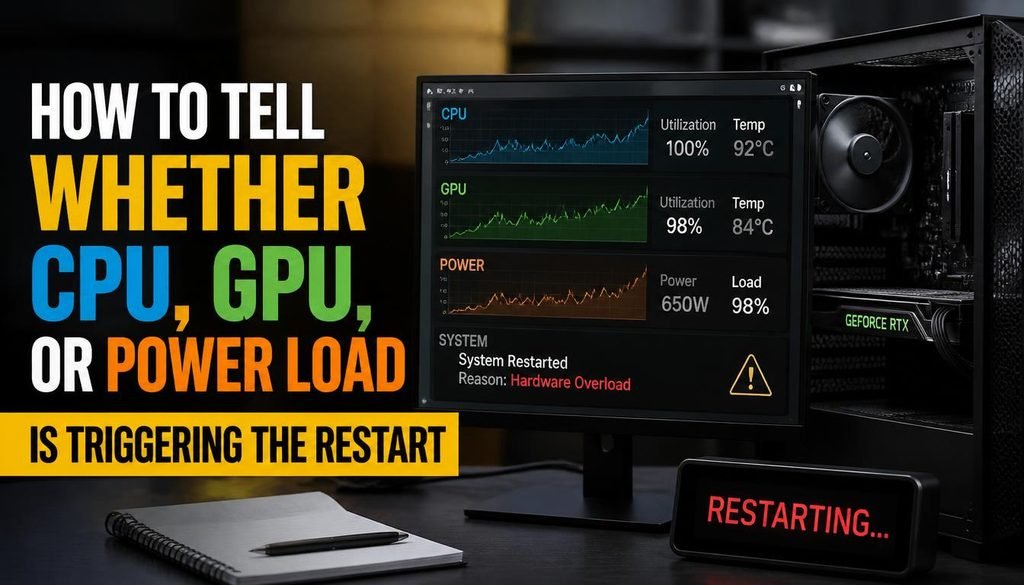
You can sometimes isolate the problem without specialized equipment.
Lower the Graphics Settings
If significantly reducing graphics settings stops the restart, GPU load, heat, or power delivery may be involved.
Cap the Frame Rate
High FPS can create heavy CPU and GPU load even when a game does not look graphically demanding.
Try a reasonable FPS cap and retest.
Change From Turbo to Balanced Mode
If Balanced mode works and Turbo repeatedly restarts, high-power operation is an important clue.
Compare Different Games
Test:
- One GPU-heavy game
- One CPU-heavy game
- One lightweight game
The pattern can help determine where to investigate next.
Avoid repeatedly forcing a laptop through extreme stress tests if it is already hard-shutting down, producing thermal warnings, or showing signs of electrical trouble.
Gaming Laptop Restart Troubleshooting Checklist
| Symptom | Possible Cause | Check First |
|---|---|---|
| Restarts after 15–30 minutes | Cooling or heat | CPU/GPU temperatures |
| Instantly restarts under heavy load | Power or hardware instability | Charger and power mode |
| Blue screen before restart | Driver, RAM, or hardware | Stop code and Event Viewer |
| Only one game causes it | Game or driver problem | Verify game files |
| Started after RAM upgrade | Memory instability | Test the RAM |
| Started after GPU update | Graphics driver | Reinstall or roll back driver |
| Only happens in Turbo mode | High-load instability | Balanced mode |
| Happens while temperatures are normal | Power, RAM, driver, or hardware | Charger and Event Viewer |
| Restart when charger moves | Charging connection | Adapter and DC jack |
| WHEA errors appear before restart | Hardware instability | Diagnostics and stock settings |
| Laptop becomes extremely hot first | Cooling problem | Fans, vents, heatsink |
| Happens in many demanding games | System-level issue | Power, thermals, RAM, GPU |
When Should You Stop Troubleshooting and Get the Laptop Repaired?
Some problems should not be handled through endless software tweaks.
Stop using the laptop and seek professional service if you notice:
- A swollen battery
- Burning smell
- Smoke
- Sparks
- Melted or damaged charging connector
- Charger or port becoming dangerously hot
- A fan that no longer spins
- Visible liquid damage
You should also consider professional diagnosis if:
- The laptop restarts outside Windows
- It restarts while sitting in the BIOS
- Manufacturer diagnostics report hardware failure
- WHEA hardware errors continue at stock settings
- A known-good charger makes no difference
- RAM tests repeatedly fail
- The laptop is still under warranty
If the machine is under warranty, avoid unnecessary disassembly before checking the manufacturer’s service terms.
How to Prevent Your Gaming Laptop From Restarting Again
Once the system is stable, a little maintenance can reduce the chances of the problem returning.
Keep the Air Vents Clear
Do not game with the intake vents pressed against fabric.
Clean Dust Periodically
How often depends on your environment. A laptop used around pets or heavy dust may need attention more frequently.
Use the Correct Charger
Gaming laptops are designed around specific power requirements. Use the correct adapter whenever possible.
Avoid Unnecessary Overclocking
A few extra frames are rarely worth random crashes.
Monitor Temperatures Occasionally
You do not need a temperature overlay running every day, but checking thermals occasionally can reveal cooling degradation before it becomes serious.
Keep Important Drivers and Firmware Updated
You do not have to install every update the moment it appears. However, chipset, graphics, firmware, and stability-related updates are worth paying attention to.
Watch for Changes in Fan Behavior
A fan that becomes unusually quiet during heavy gaming or suddenly develops grinding noises may need attention.
Frequently Asked Questions about Why Does My Gaming Laptop Restart While Gaming
Can Overheating Cause a Gaming Laptop to Restart?
Yes. If the cooling system cannot control temperature, the laptop may throttle performance, shut down, or restart.
Check CPU and GPU temperatures, fan operation, vents, airflow, and dust buildup.
Can a Bad Charger Cause a Laptop to Restart While Gaming?
Yes. Gaming creates much higher power demand than light everyday use.
A damaged, incorrect, or underpowered charger may become problematic only when the laptop is under heavy load.
Why Does My Gaming Laptop Restart Without Warning?
A sudden restart can be caused by overheating, unstable power, a Windows crash, RAM instability, drivers, firmware, or hardware failure.
Check Windows logs rather than assuming the charger or motherboard is automatically at fault.
Why Does My Laptop Restart When I Launch a Game?
Launching a game rapidly increases CPU, GPU, memory, and power demand.
If the laptop restarts almost immediately, check the GPU driver, performance mode, power adapter, overclocking settings, and hardware stability.
Can Faulty RAM Cause Random Restarts While Gaming?
Yes.
Memory errors may appear only when a game uses enough RAM to reach the faulty or unstable portion of memory.
RAM should be investigated especially closely if the restart problem began after a memory upgrade.
Can a GPU Driver Cause a Laptop to Restart?
A serious graphics driver or GPU-related crash can result in a freeze, blue screen, black screen, or restart.
If the problem began after a GPU driver update, reinstalling or changing the driver version is a reasonable troubleshooting step.
Why Does My Laptop Restart While Gaming Even Though Temperatures Are Normal?
Normal temperatures reduce the likelihood of thermal shutdown, but they do not rule out other problems.
Check the charger, power delivery, RAM, graphics driver, BIOS, performance profile, WHEA errors, and GPU stability.
Can a Bad Battery Cause a Gaming Laptop to Restart?
It can, particularly if the laptop has a battery or power-management fault.
However, the battery should not be blamed without checking the charger and other power-delivery components as well.
What Does Kernel-Power Event ID 41 Mean?
Kernel-Power Event ID 41 means Windows detected that the previous shutdown or restart was not completed normally.
It does not tell you the exact cause by itself.
Use its timestamp and surrounding Event Viewer entries to continue troubleshooting.
What Does WHEA-Logger Mean After a Gaming Restart?
WHEA-Logger indicates that Windows recorded a hardware error event.
One event does not necessarily tell you which component must be replaced. Repeated WHEA errors should be investigated alongside RAM tests, BIOS settings, CPU/GPU stability, and manufacturer diagnostics.
Why Does My Gaming Laptop Restart Only in Turbo Mode?
Turbo mode can push CPU and GPU performance and power limits higher.
If Balanced mode is stable but Turbo is not, return tuning settings to default, check temperatures and power delivery, and update relevant manufacturer drivers and firmware.
Why Did My Laptop Start Restarting After a RAM Upgrade?
The new RAM may be faulty, incompatible, improperly seated, or unstable in that configuration.
Reinstalling the original memory is one of the fastest ways to check whether the upgrade is related.
Should I Replace the Thermal Paste if My Gaming Laptop Keeps Restarting?
Not automatically.
Check temperatures first.
If the laptop is overheating despite clean fans and good airflow, deteriorated thermal paste or poor heatsink contact may be worth investigating.
Opening the cooling system should usually come later in the troubleshooting process, especially if the laptop is under warranty.
Final Thoughts
If your gaming laptop keeps restarting while gaming, resist the temptation to replace random hardware or reinstall Windows immediately.
Start with the clues.
Check what the laptop is doing immediately before the restart. Monitor temperatures. Confirm that you are using the correct charger. Return performance and overclocking settings to default. Then investigate drivers, Windows logs, RAM, BIOS, and hardware diagnostics.
A useful order to remember is:
Temperature → Power → Performance Settings → GPU Driver → RAM → Windows Logs → BIOS → Hardware
If the laptop works normally during everyday use but restarts only during games, that simply tells you the fault appears under heavier load. It does not automatically prove that the GPU is dying or that the laptop needs to be replaced.
Work through the tests one by one, changing only one major thing at a time. That makes it much easier to identify the actual cause—and much less likely that the same gaming restart problem will come back later.