If you are wondering, “Why does my gaming laptop get so hot?” you are not alone. Gaming laptops pack a powerful processor, dedicated graphics card, memory, storage, and cooling system into a relatively small chassis. When you launch a demanding game, the CPU and GPU begin consuming more power and producing more heat.
Some warmth, louder fan noise, and hot air coming from the exhaust vents are normal during gaming. However, repeated shutdowns, severe FPS drops, a burning smell, or extreme temperatures while the laptop is idle may indicate a cooling problem.
This guide explains why gaming laptops run hot, how to tell normal heat from overheating, and what you can do to reduce the temperature safely.
Why Does a Gaming Laptop Get So Hot?
A gaming laptop gets hot because its CPU and GPU generate significant heat while running demanding games. High graphics settings, uncapped frame rates, blocked vents, dust buildup, background applications, warm room temperatures, and an aging cooling system can make the problem worse.
The compact design of a laptop also gives heat less room to escape compared with a desktop gaming PC.
Is It Normal for a Gaming Laptop to Get Hot?
Yes, it is normal for a gaming laptop to become noticeably warm while gaming. Modern games can place a heavy and sustained load on both the processor and graphics card. The cooling fans respond by spinning faster and pushing hot air through the side or rear exhaust vents.
The important question is not simply whether the laptop feels hot. You need to consider:
- Whether performance remains stable
- Whether the temperature falls after closing the game
- Whether the fans are working correctly
- Whether the laptop throttles, freezes, restarts, or shuts down
- Whether there is a burning smell or battery swelling
A hot keyboard or warm bottom panel does not automatically mean the laptop is overheating. Heat often reaches the keyboard deck and bottom cover because the CPU, GPU, heat pipes, and cooling fans are located directly underneath them.
Normal Heat vs. Possible Overheating
| Normal Gaming Behavior | Possible Overheating |
|---|---|
| Fans become louder during demanding games | The laptop suddenly shuts down |
| Warm keyboard or bottom panel | Severe FPS drops after several minutes |
| Hot air comes from the exhaust vents | The laptop is extremely hot while idle |
| Temperature drops after closing the game | Fans make grinding or rattling sounds |
| Gaming performance remains stable | Games freeze, stutter, or crash repeatedly |
| Fans slow down after the workload ends | There is a burning smell or swollen battery |
Dell notes that demanding applications, blocked ventilation, dust buildup, and high resource usage can all increase laptop heat. It also recommends using a laptop on a hard, flat surface rather than a bed or couch that may block the vents.
How Hot Is Too Hot for a Gaming Laptop?
There is no single temperature that applies to every gaming laptop. Different processors and graphics cards have different power limits, cooling designs, and maximum operating temperatures.
Intel defines Tjunction Max, or Tjmax, as the temperature at which a processor begins using internal controls to reduce power and limit heat. Intel states that the maximum junction temperature varies by product and is commonly between 100°C and 110°C, or approximately 212°F to 230°F.
AMD also uses model-specific maximum operating temperatures. For example, the AMD Ryzen 9 7940HS has a listed Tjmax of 100°C or 212°F. That does not mean every AMD processor has the same limit. You should check the specification page for your exact CPU model.
Is 90°C Normal for a Gaming Laptop?
A brief CPU temperature around 90°C or 194°F is not automatically dangerous for every gaming laptop. Some modern mobile processors are designed to boost aggressively until they approach their thermal or power limits.
However, you should investigate further when:
- The CPU remains near its maximum temperature for long periods
- Performance begins dropping
- The laptop repeatedly shuts down
- The fans cannot lower the temperature
- Temperatures have suddenly become much higher than before
- The laptop reaches high temperatures during light use or idle
The exact CPU and GPU models matter more than a universal number. Check the manufacturer’s specifications and your laptop brand’s recommended thermal behavior.
Why Surface Temperature Can Feel Hot
The temperature reported by monitoring software measures sensors inside the CPU or GPU. The temperature you feel on the keyboard, bottom cover, or exhaust area is different.
A metal chassis can transfer internal heat to the surface quickly. The area above the keyboard may also feel hot because heat pipes or exhaust vents are located underneath it.
A warm surface can be normal. A surface that becomes painfully hot, develops a smell, or is accompanied by shutdowns should not be ignored.
Why Does My Gaming Laptop Get So Hot? 12 Common Causes
Several problems can make a gaming laptop hotter than expected. In many cases, more than one cause is involved.
1. The CPU and GPU Are Under Heavy Load
Gaming is one of the most demanding tasks a laptop can perform. The processor handles game logic, physics, artificial intelligence, and background tasks, while the graphics card renders frames, textures, lighting, and visual effects.
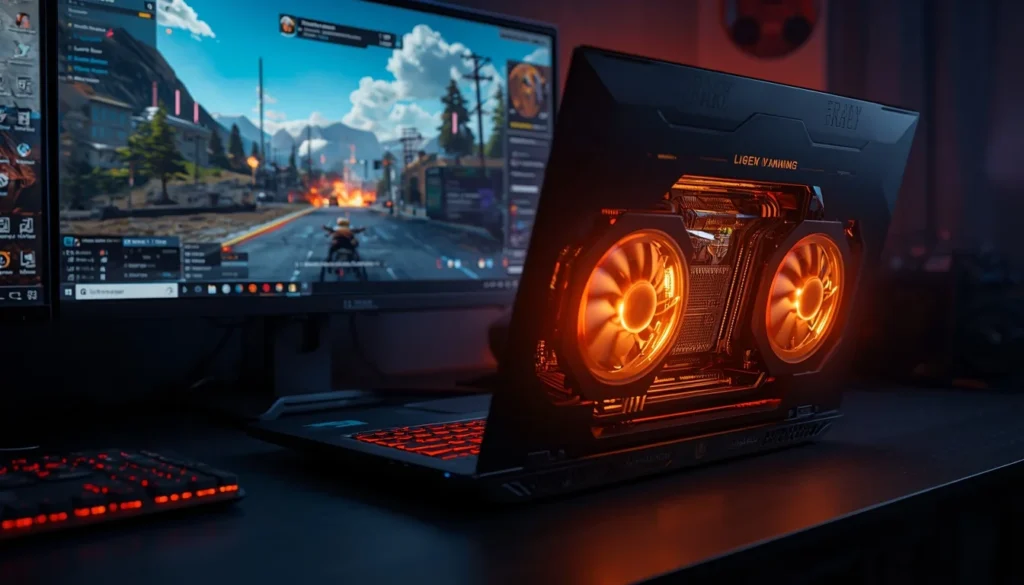
The laptop may become even hotter when you:
- Play at a high resolution
- Enable ray tracing
- Use ultra graphics settings
- Record or stream gameplay
- Run voice chat and browser tabs in the background
- Connect an external high-refresh-rate monitor
- Play while downloading updates
The harder the components work, the more power they consume and the more heat they produce.
2. The Air Vents Are Blocked
Gaming laptops usually pull cool air through vents on the bottom and push hot air through vents on the sides or rear.
Placing the laptop on a bed, blanket, sofa, carpet, or your lap can block the bottom intake vents. The fans then struggle to pull in enough cool air, causing internal temperatures to rise.
For the best airflow, place the laptop on a clean, hard, and flat surface.
3. Dust Has Built Up Inside the Cooling System
Dust can collect on the intake grille, fan blades, and heatsink fins. Over time, this creates a barrier that restricts airflow.
A dusty laptop may show several symptoms:
- Fans running faster than before
- Less air coming from the exhaust
- Higher temperatures in the same games
- FPS dropping after a few minutes
- The laptop becoming hot during basic tasks
External vent cleaning may help with light buildup. Thick internal dust may require professional cleaning, especially when opening the laptop could affect the warranty.
4. One or Both Fans Are Not Working Properly
Many gaming laptops use separate fans for the CPU and GPU, although the heat pipes may be shared.
A fan problem can develop because of:
- Dust around the fan bearing
- A damaged fan motor
- A loose fan cable
- Worn bearings
- A broken fan blade
- Incorrect fan-control software
- A BIOS or firmware issue
Listen for grinding, clicking, rattling, or an unusual difference between the two exhaust vents. One side producing almost no airflow may indicate a fan problem.
5. The Graphics Settings Are Too Demanding
Ultra settings are not always necessary, especially on a smaller laptop display. Shadows, reflections, ray tracing, anti-aliasing, view distance, and volumetric effects can significantly increase the graphics workload.
Reducing a few demanding settings can lower GPU usage without ruining the visual experience.
Start by reducing:
- Ray tracing
- Shadow quality
- Volumetric lighting
- Reflection quality
- View distance
- Anti-aliasing
- Render resolution
Texture quality mainly depends on available video memory, but excessive texture settings can still cause stuttering when the GPU runs out of VRAM.
6. The Frame Rate Is Uncapped
An uncapped frame rate allows the GPU to render as many frames as possible, even when you do not need them.
For example, a game may run at 220 FPS while your display refreshes at 144 Hz. The additional frames increase power consumption, fan noise, and heat without always providing a noticeable benefit.
Try limiting the frame rate to:
- Your display’s refresh rate
- A stable value your laptop can maintain
- 60, 90, 120, 144, or 165 FPS, depending on the game and screen
An FPS cap is one of the easiest ways to reduce gaming laptop temperature without making the game look significantly worse.
7. Background Applications Are Using System Resources
A game may not be the only program using the CPU or GPU.
Common background resource users include:
- Browser tabs
- Game launchers
- Windows updates
- Antivirus scans
- Cloud-storage syncing
- RGB control software
- Screen recorders
- Streaming software
- Video wallpaper applications
- Voice-chat overlays
Open Task Manager and sort the processes by CPU, GPU, and memory usage. Close applications you do not need, but avoid ending unfamiliar Windows system processes.
8. The Room Is Too Warm
A laptop cooling system uses the surrounding air to remove heat. If the room is already warm, the fans have less cool air available.
Room temperature can become a major factor during summer in the United States, Canada, the United Kingdom, and Australia, especially in rooms without air conditioning or good ventilation.
Avoid gaming:
- In direct sunlight
- Beside a heater
- Inside an enclosed desk compartment
- In a room with poor airflow
- With the laptop pressed against a wall
Even a technically healthy laptop will run warmer when the ambient temperature rises.
9. The Thermal Paste Has Degraded
Thermal paste fills microscopic gaps between the processor and the heatsink. If it dries out, shifts, or is applied poorly, heat may not transfer efficiently.
Thermal paste is more likely to be a concern when:
- The laptop is several years old
- Temperatures have gradually increased
- The fans and heatsinks are already clean
- One CPU core is much hotter than the others
- The laptop has previously been opened
- The heatsink was removed and reinstalled
Replacing thermal paste is not always a beginner-friendly task. Some laptops use liquid metal, thermal pads, or carefully measured compounds. Incorrect servicing can damage the motherboard or make temperatures worse.
10. Turbo or Performance Mode Is Enabled
Gaming laptops often include modes such as:
- Turbo
- Extreme Performance
- Overboost
- High Performance
- Performance Mode
These modes allow the CPU and GPU to use more power. They may improve frame rates, but they also increase temperature and fan noise.
Switching to Balanced or Standard mode may slightly reduce peak performance while producing a quieter and cooler gaming experience.
11. The Cooling Design Has Limited Capacity
Not every gaming laptop has the same cooling performance.
A thin laptop with powerful components may have:
- Smaller fans
- Narrower vents
- Shared heat pipes
- Less internal space
- Lower heatsink capacity
- More aggressive temperature targets
A thicker laptop may run cooler simply because it has more space for airflow and larger cooling hardware.
This does not necessarily mean a thin gaming laptop is defective. It may be designed to operate closer to its thermal limits.
12. A Driver, BIOS, or Software Issue Is Increasing the Load
Occasionally, a software problem causes abnormal heat.
Possible examples include:
- A graphics driver using excessive GPU power
- A Windows update running in the background
- A BIOS update changing the fan profile
- A game update causing poor optimization
- Manufacturer control software failing to adjust the fans
- Malware using CPU or GPU resources
Dell explains that constantly running fans can often be linked to heavy CPU usage from Windows updates or open applications. It also notes that compact laptop designs may cause fans to operate more frequently.
Why Is My Gaming Laptop So Hot and the Fan So Loud?
A hot gaming laptop and loud fans often mean the cooling system is doing its job. As CPU and GPU temperatures rise, the laptop increases fan speed to move more air through the heatsinks.
Loud fans are usually normal when:
- You are playing a demanding game
- Performance or Turbo mode is active
- The frame rate is uncapped
- The room is warm
- The laptop is charging while gaming
- The fans become quieter after closing the game
Fan noise may indicate a problem when:
- The fan grinds, rattles, or clicks
- One fan sounds different from the other
- The fan remains at full speed while the laptop is idle
- Very little air comes from the exhaust
- Temperatures keep rising despite maximum fan speed
- The laptop displays a fan error
- The fan does not spin at all
Dell recommends checking blocked vents, dust, high resource usage, and running hardware diagnostics when a laptop has fan noise or overheating problems.
Why Is My Gaming Laptop CPU Hot but the GPU Is Cool?
The CPU and GPU do not always run at the same temperature.
Your CPU may be hotter when:
- The game is CPU-bound
- The game uses many calculations, players, or physics systems
- Turbo Boost is active
- Background applications are using the processor
- The CPU has a smaller heatsink
- The laptop uses a shared cooling system
- The game is running at a low resolution with a very high frame rate
Your GPU may be hotter when:
- You play at a high resolution
- Ray tracing is enabled
- Graphics settings are near maximum
- The frame rate is uncapped
- The GPU is running close to its full power limit
- The game is graphically demanding but light on the CPU
A temperature difference is not automatically a fault. Compare usage percentage, clock speed, power consumption, and performance before deciding that one component is overheating.
Why Did My Gaming Laptop Suddenly Start Overheating?
A sudden temperature change deserves attention, especially when the laptop previously ran cooler in the same games.
Possible reasons include:
- A Windows or graphics-driver update
- A game update
- A newly installed background application
- A fan beginning to fail
- Dust moving deeper into the heatsink
- A changed performance profile
- A blocked vent
- A damaged charger
- A battery problem
- Thermal paste or liquid metal shifting
- A hardware upgrade that changed airflow
Start by asking what changed recently. Check the update history, startup applications, Task Manager, performance mode, fan behavior, and vent airflow.
You can also test several games. If only one title runs unusually hot, the problem may be related to that game. If every game and basic application now runs hotter, the cooling system or software configuration is more likely responsible.
Which Parts of a Gaming Laptop Normally Get Hot?
Heat does not spread evenly across a gaming laptop. The hottest area usually depends on the internal component layout.
Why Is the Keyboard or WASD Area Hot?
The keyboard may sit directly above the CPU, GPU, heat pipes, or vapor chamber. The center or upper part of the keyboard often feels warmer than the palm rest.
The WASD area may also become warm during long gaming sessions. Mild warmth is common, but it should not become painful to touch.
Why Is the Bottom of the Laptop So Hot?
The bottom cover is close to the motherboard, battery, cooling fans, and heatsinks. It may also contain intake vents.
Avoid placing a hot gaming laptop directly on your legs. Besides being uncomfortable, your clothing may block the vents.
Why Does Hot Air Blow From the Vents?
Hot exhaust air is generally a positive sign because it means the cooling system is moving heat out of the laptop.
A more concerning situation is when the laptop is extremely hot but very little air comes from the exhaust. That may indicate blocked heatsink fins, weak fans, or restricted intake airflow.
Should the Palm Rest or Touchpad Get Hot?
The palm rest and touchpad should normally remain cooler than the center and rear of the laptop.
Unusual heat around the touchpad may deserve attention because some laptops place the battery underneath that area. Stop using the laptop if the touchpad begins lifting, the chassis separates, or the battery appears swollen.
Why Does My Gaming Laptop Get Hot in Some Games but Not Others?
Different games use hardware in different ways.
A competitive game may use the CPU heavily while trying to produce hundreds of frames per second. A cinematic single-player game may push the GPU through high-resolution textures, ray tracing, shadows, and detailed environments.
A laptop may run hotter in a particular game because of:
- Poor game optimization
- A recent game update
- Uncapped FPS
- Shader compilation
- Ray tracing
- High-resolution rendering
- CPU-heavy multiplayer activity
- Background anti-cheat software
- A menu screen rendering unlimited frames
Check the FPS in the menu as well as during gameplay. Some games produce extremely high menu frame rates unless you enable V-Sync or a frame cap.
How to Find Out What Is Making Your Gaming Laptop Hot
Avoid changing ten settings at once. A simple diagnostic process will help you identify the real cause.
Step 1: Check CPU and GPU Temperatures
Use your laptop manufacturer’s control application or a reputable hardware-monitoring tool.
Watch:
- CPU temperature
- GPU temperature
- CPU usage
- GPU usage
- Clock speeds
- Fan speeds
- Power consumption
- Thermal-throttling indicators
Do not judge the laptop from a single temperature spike. Observe what happens over 15 to 30 minutes of normal gameplay.
Step 2: Check Task Manager
Press Ctrl + Shift + Esc to open Task Manager.
Look for applications using unusually high:
- CPU
- GPU
- Memory
- Disk
- Network resources
Check Task Manager both before opening the game and while the problem is happening.
Step 3: Check the Vents
Inspect the bottom, sides, and rear of the laptop.
Make sure:
- Nothing covers the intake vents
- The rear is not pressed against a wall
- Dust is not blocking the grille
- The laptop feet are not damaged
- The laptop is sitting on a hard surface
Step 4: Listen to the Fans
Listen for normal airflow and compare both sides of the laptop.
Grinding, scraping, clicking, or rattling may indicate a worn or damaged fan.
Step 5: Compare Idle and Gaming Temperatures
| What You Notice | What It May Mean |
|---|---|
| Hot only in demanding games | High workload or aggressive settings |
| Hot in every game | Airflow, cooling, or performance-mode issue |
| Hot while idle | Background process, update, malware, or fan problem |
| Suddenly hotter than before | Dust, fan, software, or thermal-contact issue |
| FPS drops after several minutes | Possible thermal throttling |
| Shutdown under load | Serious heat, power, or hardware problem |
Step 6: Test More Than One Game
Run two or three games with different graphics demands.
If one game causes the issue, check its updates, frame-rate settings, graphics options, and community-reported performance problems.
If every game causes overheating, focus on the laptop’s cooling system, power profile, and airflow.
How to Cool Down a Hot Gaming Laptop
Begin with the safest and easiest fixes before opening the laptop or changing advanced settings.
1. Use a Hard, Flat Surface
Place the laptop on a desk, table, or rigid laptop stand.
Do not game on:
- A bed
- A blanket
- A couch
- A pillow
- Thick carpet
- Your lap
These surfaces can block the bottom intake vents.
2. Raise the Back of the Laptop
Lifting the rear by a small amount can give the intake vents more room to pull in air.
Use a stable laptop stand or purpose-built riser. Do not balance the laptop on unstable objects that could slip or enter the fan vents.
3. Clean the External Vents
Shut down the laptop and disconnect the charger before cleaning.
Use a soft brush or follow the manufacturer’s recommended cleaning method. Avoid forcing dust deeper into the cooling system.
Do not allow the fan to spin uncontrollably from high-pressure air, and do not open the laptop unless you understand the warranty and repair risks.
4. Close Unnecessary Applications
Close browser tabs, launchers, cloud syncing, video software, and other applications that you do not need while gaming.
Disable unnecessary startup programs so they do not return after every restart.
5. Lower the Most Demanding Graphics Settings
You do not need to set everything to Low.
Start with:
- Ray tracing
- Shadows
- Volumetric effects
- Reflections
- View distance
- Render resolution
Test the game after each change. The goal is to reduce unnecessary workload while keeping the image quality you enjoy.
6. Limit the Frame Rate
Set a frame cap inside the game, graphics control panel, or laptop software.
A stable 90 FPS experience can feel better than an unstable 160 FPS experience that makes the laptop louder and hotter.
7. Switch to Balanced Mode
Open your laptop’s control software and change Turbo or Extreme Performance mode to Balanced, Standard, or Performance mode.
The laptop may lose a small amount of peak performance, but temperatures and fan noise can improve significantly.
8. Update Drivers and BIOS Carefully
Install graphics drivers from the GPU manufacturer or your laptop manufacturer.
For BIOS updates:
- Confirm the exact laptop model
- Connect the correct charger
- Keep the laptop powered
- Follow the manufacturer’s instructions
- Never interrupt the update
A BIOS update can sometimes improve fan control or power management, but it should not be installed casually when the laptop is unstable.
9. Adjust the Fan Profile
Some gaming laptops let you choose a fan profile or create a custom fan curve.
A more aggressive fan curve may lower temperatures but increase noise. A quiet profile may reduce fan noise by limiting performance.
Choose the balance that suits your needs.
10. Use a Laptop Stand or Cooling Pad
A stand can improve intake clearance without adding noise.
A cooling pad may provide additional airflow, but the result depends on:
- The position of the laptop’s intake vents
- The size and placement of the cooling-pad fans
- The laptop’s internal cooling design
- Whether dust is already blocking the heatsink
A cooling pad cannot repair a failed fan, dried thermal paste, or blocked internal heatsink.
11. Reduce CPU Boost or Undervolt Only When Appropriate
Disabling or limiting CPU boost may reduce heat, but it can also reduce gaming performance.
Undervolting may lower power consumption on supported hardware, but it is an advanced adjustment. Incorrect settings can cause crashes, freezes, or data loss.
Do not copy voltage settings from another laptop. Even two laptops with the same CPU may require different values.
12. Have the Laptop Professionally Serviced
Professional service may be appropriate when:
- The fans need replacement
- The heatsink is clogged internally
- Thermal paste needs replacement
- Liquid metal has shifted
- The battery is swollen
- The heatsink is damaged
- The laptop still overheats after basic troubleshooting
How to Cool a Gaming Laptop Without a Cooling Pad
You do not need to buy a cooling pad before trying these fixes:
- Place the laptop on a hard surface.
- Raise the rear slightly.
- Make sure every vent is clear.
- Cap the game’s frame rate.
- Switch from Turbo to Balanced mode.
- Close unnecessary background programs.
- Lower ray tracing, shadows, and render resolution.
- Improve ventilation in the room.
- Move the laptop away from direct sunlight.
- Clean the external vents safely.
These changes address the workload and airflow problems that cause most heat issues.
Why Does My Gaming Laptop Get Hot While Charging?
Gaming laptops usually deliver their best performance while connected to AC power. On battery power, the system often limits CPU and GPU performance to extend battery life.
When you plug the charger in, the laptop may:
- Increase CPU power
- Increase GPU power
- Enable a faster performance profile
- Raise clock speeds
- Charge the battery at the same time
That combination can make the laptop noticeably hotter.
Is It Safe to Game While the Laptop Is Plugged In?
Gaming laptops are generally intended to be used while connected to power during demanding games. The battery alone usually cannot provide full gaming performance for long.
For safer use:
- Use the original or manufacturer-approved charger
- Keep the charger on a hard, ventilated surface
- Do not cover the power brick
- Replace damaged cables
- Stop using a charger that sparks, smells burnt, or disconnects repeatedly
Why Does the Laptop Charger Get Hot While Gaming?
The charger converts wall power into the voltage the laptop requires. A high-powered gaming laptop may draw substantial power, making the charger brick warm or hot.
Some warmth is expected. Stop using the charger and seek support if it becomes excessively hot, develops a burning smell, makes unusual noises, or shows cable damage.
Why Is My Gaming Laptop Hot When I Am Not Gaming?
A gaming laptop should normally cool down after a demanding workload ends. If it remains hot while idle, check for hidden activity.
Common causes include:
- Windows updates
- Antivirus scans
- Browser processes
- Cloud synchronization
- Game-launcher updates
- Malware
- External-monitor usage
- High-performance power mode
- A stuck application
- A failed or blocked fan
Open Task Manager and check whether CPU or GPU usage stays high when no demanding application is open.
An external monitor can also keep the dedicated GPU active on some laptops, increasing idle power consumption and temperature.
Why Does My Gaming Laptop Get Hot and Lose FPS?
A laptop that begins with good performance but loses FPS after several minutes may be thermal throttling.
Thermal throttling occurs when the processor or graphics card reduces its clock speed or power to control temperature.
Intel describes throttling as a protective mechanism that reduces processor clock speed when temperature reaches the relevant thermal limit.
Common signs include:
- FPS gradually falling
- Increased stuttering
- Clock speeds dropping
- Fans reaching maximum speed
- Temperatures staying near the thermal limit
- Performance recovering after the laptop cools down
Thermal throttling protects the hardware, but frequent throttling means the laptop cannot maintain its intended performance under the current workload or cooling conditions.
Why Is My New Gaming Laptop Getting So Hot?
A new gaming laptop may run hot because it is completing updates, indexing files, installing software, or using aggressive default performance settings.
Other reasons include:
- Uncapped FPS
- Turbo mode enabled by default
- High factory graphics settings
- Windows setup tasks
- Game downloads and updates
- A thin high-performance design
- Warm room temperature
Test the new laptop on a hard surface with a frame cap and Balanced mode.
Contact the seller or manufacturer during the return or warranty period if the laptop:
- Shuts down repeatedly
- Displays a fan error
- Has a burning smell
- Shows no airflow from one exhaust
- Reaches extreme temperatures during light use
- Has a swollen or raised chassis
- Performs far below expected results
Can Overheating Damage a Gaming Laptop?
Modern processors include thermal-control systems designed to reduce power and performance before reaching unsafe conditions. Intel explains that its processors reduce frequency and power when approaching the product’s maximum junction temperature.
However, repeated overheating should not be treated as normal. Excessive heat can contribute to:
- Battery degradation
- Fan wear
- Reduced gaming performance
- Unexpected shutdowns
- System instability
- Damage to heat-sensitive components
- Shorter useful life of the laptop
A single brief temperature spike is different from daily shutdowns, constant throttling, or a cooling system that no longer works correctly.
When Should You Stop Gaming and Get the Laptop Checked?
Stop using the laptop and arrange professional inspection if you notice:
- A burning or chemical smell
- Smoke or sparks
- A swollen battery
- A raised touchpad or separating chassis
- Repeated thermal shutdowns
- A fan that does not spin
- Grinding or scraping fan noise
- Extremely high temperature during idle
- No hot air leaving the exhaust
- Damaged charging cables
- Liquid near the vents
- A sudden major temperature increase
- The laptop becoming too hot to touch safely
Do not continue stress testing a laptop that shows physical battery damage, smoke, or a burning smell.
How to Prevent Your Gaming Laptop From Overheating Again
A few regular habits can keep the cooling system working effectively.
During Every Gaming Session
- Use a hard surface
- Keep the vents uncovered
- Avoid direct sunlight
- Use a reasonable FPS cap
- Close unnecessary applications
- Select an appropriate performance mode
Every Few Weeks
- Inspect the intake and exhaust vents
- Remove dust from the desk
- Check for unusual fan noise
- Review startup applications
- Monitor temperatures in a familiar game
Over the Long Term
- Keep drivers and manufacturer software updated
- Replace a failing fan promptly
- Have internal dust cleaned when necessary
- Inspect an aging battery
- Service thermal paste based on symptoms and condition
- Avoid unnecessary overclocking
Do not replace thermal paste on an arbitrary schedule if the laptop is performing normally. Temperature trends, fan behavior, laptop age, and cooling-system condition provide better guidance.
Frequently Asked Questions
Why does my gaming laptop get hot so quickly?
Gaming laptops heat up quickly because the CPU and GPU can move from low-power idle states to heavy workloads within seconds. Turbo frequencies, high graphics settings, and an uncapped frame rate can create heat almost immediately.
Is 90°C bad for a gaming laptop?
It depends on the component and its model-specific limit. Some mobile CPUs are designed to operate at high temperatures under load, but constant operation near the thermal limit, throttling, shutdowns, or unusually high idle temperatures should be investigated.
Why is my gaming laptop keyboard hot?
The CPU, GPU, heat pipes, or vapor chamber may sit underneath the keyboard. Heat can transfer through the chassis, especially near the center, rear, or WASD area.
Is hot air coming from my laptop a good sign?
Hot air from the exhaust usually means the fans are removing heat. A very hot laptop with little or no exhaust airflow is more concerning.
Does lowering FPS reduce laptop temperature?
Usually, yes. A frame cap prevents the GPU and CPU from rendering unnecessary frames, which can reduce power consumption, fan noise, and heat.
Can a cooling pad stop overheating?
A cooling pad may improve airflow when its fans align with the laptop’s intake vents. It cannot fix failed fans, clogged heatsinks, battery damage, or poor thermal-paste contact.
Why is my laptop overheating even with a cooling pad?
The problem may be inside the laptop. Check for dust, blocked heatsink fins, failed fans, aggressive power settings, high background usage, or degraded thermal paste.
Should I replace the thermal paste?
Consider professional thermal-paste replacement when an older laptop continues overheating after its fans and heatsinks have been cleaned. Do not open a new or under-warranty laptop without checking the warranty terms.
Does more RAM make a gaming laptop cooler?
Adding RAM does not directly cool a laptop. More memory may reduce storage swapping in memory-limited situations, but CPU and GPU workload, airflow, and power consumption have a much larger effect on temperature.
Is it safe to play games on a bed?
No. A bed or blanket can block the bottom intake vents and restrict airflow. Use a hard, flat surface or a stable laptop stand.
Why does my gaming laptop stay hot after closing the game?
The cooling system may need several minutes to remove stored heat. Background applications, updates, high-performance mode, or a stuck game process can also keep the CPU or GPU active.
Can an external monitor make a gaming laptop hotter?
Yes. On some laptops, an external display activates the dedicated GPU. Higher resolution, refresh rate, and multi-monitor use can increase GPU power consumption and heat.
Can gaming with the laptop lid closed cause overheating?
It can on laptops that use the keyboard area for ventilation or passive heat release. Check the manufacturer’s guidance before using the laptop closed in a vertical dock.
Does room temperature affect gaming laptop temperature?
Yes. The cooling system relies on surrounding air. A warmer room gives the laptop less thermal headroom, so internal temperatures and fan speeds may increase.
Why is my gaming laptop fan always running?
The fan may be responding to background CPU usage, charging, an external monitor, high-performance mode, warm ambient air, or dust buildup. Check Task Manager and the laptop’s thermal profile.
Final Thoughts
A gaming laptop gets hot because powerful components are working inside a compact space. Heavy CPU and GPU usage, blocked vents, dust, uncapped frame rates, background applications, and aggressive performance modes can make the heat worse.
Start with simple fixes: use a hard surface, clear the vents, close unnecessary programs, cap the frame rate, and switch to Balanced mode. Then monitor CPU and GPU behavior while playing a familiar game.
Warm surfaces, loud fans, and hot exhaust air can be normal. Repeated shutdowns, severe throttling, failed fans, battery swelling, or a burning smell are not. When those warning signs appear, stop gaming and have the laptop inspected before the problem becomes more serious.
1 thought on “Why Does My Gaming Laptop Get So Hot?”
Comments are closed.