Your gaming laptop feels like it has a mind of its own. It happily charges to 100% when you let it sleep, but the moment you press the power button, charging either slows to a crawl or stops completely. This is one of the most specific and frustrating failures a high-performance laptop can develop.
Quick Answer
How to Fix Laptop Only Charges When Powered Off on a Gaming Laptop: Causes, Tests & Solutions begins with a simple hardware swap. Replace your charger cable with a known-good OEM unit. If the problem persists, perform a full embedded controller reset.
You must then test the DC-in jack for voltage drop under load. The root cause is almost always a failing power path component that cannot handle the current draw of an active CPU and GPU.
Laptop Only Charges When Powered Off: Why This Happens and What It Means
That strange behavior is not a software glitch. It is a very specific hardware failure signature that points directly to the power delivery path. When your laptop is off, the system draws roughly zero watts from the battery and places a minimal load on the AC adapter.
When you turn it on, a modern gaming rig demands 150 to 300 watts just to run the screen, fans, and base logic. Add a gaming session, and you are pushing the charging circuit to its absolute limit. If that circuit has a single weak link, it will fail under load while working perfectly under idle conditions.
The failure usually occurs at one of three points. First, the DC power jack itself can develop an internal crack or lose its spring tension. Second, the motherboard traces that route 19 volts to the charging IC can develop micro-fractures.
Third, the lithium-ion cell itself can have degraded internal resistance. Any of these issues will manifest as a charging problem that appears only when the system is active.
Understanding this distinction saves you hours of pointless driver updates and BIOS re-flashes. A charging issue that disappears under load is a hardware event. You should focus your diagnosis on physical components, not software settings.
The rest of this guide walks you through that hardware diagnostic process in order of risk and repair cost.
The Core Physics: Load-Dependent Contact vs. Power Management
To fix this problem, you need to understand exactly what changes between a powered-off state and a powered-on state. The difference comes down to electrical load and thermal output. A gaming laptop on a desktop surface with its lid closed draws perhaps five to ten watts from the AC adapter.
A gaming laptop running AAA titles at high settings can demand double that amount from the power supply while simultaneously trying to push current into the battery pack.
This creates two distinct failure modes. The first is a load-dependent contact failure. Physical connections rely on precise metal-to-metal pressure.
A worn DC jack, a frayed cable wire, or a cracked solder joint might maintain continuity at five amps. The same connection can lose contact at fifteen amps. The metal pins expand slightly under higher current and heat.
That tiny expansion can break an already marginal connection, causing the charging circuit to interpret the adapter as unplugged.
The second mode is power management conflict. Modern laptop PMICs (Power Management Integrated Circuits) dynamically balance power. They decide how much current goes to the system and how much goes to the battery.
If a component on the 19-volt rail is failing, the PMIC may detect a voltage dip. It will then throttle the charging current to protect the circuit. Some chips will shut off charging entirely to prevent damage.
This looks exactly like a broken battery, but the real culprit is a dying voltage regulator or a failing trace on the motherboard.
You can visualize this by comparing a garden hose to a high-pressure fire hose. A hose with a small kink will still deliver water if you barely open the tap. Open the tap fully, and the kink blocks everything.
Your laptop’s charging path is that kink. It works fine at low current but chokes the moment you ask for more power.
Safety First: Recognizing Swollen Batteries and Thermal Risks
Before you open your laptop or start probing connectors, you must assess the physical condition of the battery pack. Lithium-ion cells contain volatile chemicals and gases. If a cell fails internally, it can generate enough pressure to rupture the aluminum laminate pouch.
This is called swelling, and it is a serious safety hazard.
A swollen battery is never normal. It indicates that the electrolyte inside has broken down and released gas. This often happens because of overcharging, manufacturing defects, or repeated exposure to high heat.
Gaming laptops run hot by design. If you have been running intensive workloads for years, the battery has likely experienced significant thermal stress. Per IEEE standards for lithium-ion safety, a visibly swollen cell must be removed from service immediately. It should not be charged, and it should not be subjected to physical pressure.
Here is what a swollen battery looks like in practice. Your laptop’s palm rest may bulge upward. The trackpad might become stiff or unresponsive.
The chassis may no longer sit flat on your desk. In severe cases, you can see the battery lifting the bottom cover from the inside. If you notice any of these signs, stop the diagnostic process.
Do not try to fix a DC jack on a machine with a potentially unstable power source.
Swelling creates additional risks during repair. Puncturing the pouch can trigger a thermal runaway event. This is a self-sustaining chain reaction that generates intense heat and can start a fire.
You should never attempt to press a swollen battery back into shape. You should never drill into it. You should never use a multimeter to test voltage by pushing probes directly through the outer casing.
Instead, move the laptop to an open, non-flammable surface. Keep it away from anything combustible. If you have a fire extinguisher rated for electrical and chemical fires, place it nearby before proceeding.
Many professional repair shops use blast bags or sand buckets for exactly this reason. They contain a potential thermal event while they safely drain the cell.
Step-by-Step Diagnostic Workflow: From Simple Swaps to Multimeter Tests
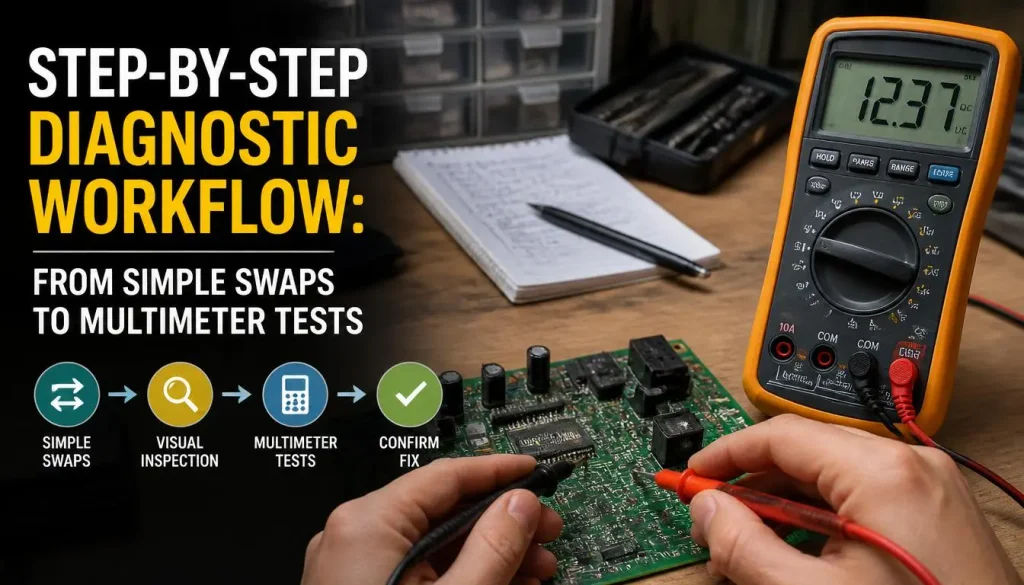
This section gives you a structured workflow to isolate the fault. We move from the cheapest, easiest checks to the most invasive hardware tests. Each step builds on the previous one.
Do not skip ahead. If you replace the DC jack before ruling out a bad charger, you have wasted money and time.
Step 1: Visual and Physical Inspection
Start with a thorough look at the charger brick, the cable, and the barrel connector. Look for cracks in the plastic housing. Check the cable where it exits the brick for any bends or flattening.
Inspect the metal tip of the barrel connector. Is it rounded, scored, or bent inward? A deformed center pin is a common cause of intermittent contact.
Run your finger along the DC jack on the laptop. Does it feel loose or wobbly? Does it click firmly when you insert the plug?
If the jack moves excessively, the solder joints on the motherboard are likely cracked.
Step 2: The Charger Swap Test
You need to determine if the AC adapter itself is failing under load. A multimeter might show 19.5 volts when the laptop is off. That reading means nothing if the transformer cannot sustain that voltage when the system draws current.
Borrow a known-good OEM charger of the exact same wattage and connector size. Plug it in. Turn the laptop on.
Watch the battery icon. If charging resumes normally, your original charger was the weak link. If the problem persists, the issue lies in the laptop’s internal power path.
Step 3: The Embedded Controller Reset
Gaming laptops contain a small chip called the Embedded Controller (EC). It manages thermal fans, keyboard input, and power sequencing. Like any computer chip, it can develop a firmware state bug.
A common bug causes the EC to misread the voltage from the AC adapter. Performing a hard reset clears this volatile memory.
Locate the primary battery inside the chassis. Disconnect its connector from the motherboard. Then locate the small coin-cell CMOS battery.
Remove it as well. Press and hold the power button for thirty seconds. This drains residual capacitance from the capacitors on the motherboard.
Reinstall the CMOS battery first. Then reconnect the main battery. Plug in the AC adapter.
Boot the machine. Check if the charging behavior has changed. This procedure is safe and reversible.
It costs nothing but time.
Step 4: Multimeter Voltage Testing
If the reset does not work, you need hard electrical data. You will need a digital multimeter capable of measuring DC voltage and current. Set the meter to the 20-volt DC range.
Probe the tip of your AC adapter while it is plugged into the wall. Measure the voltage between the outer sleeve and the inner pin. You should read between 18.5 and 20.5 volts.
Anything outside that range suggests a failing power supply.
Next, measure voltage at the DC jack pins on the motherboard. You may need to remove the bottom cover. Follow manufacturer service manuals for disassembly.
Use thin needle probes to touch the multimeter tips to the jack’s inner and outer contacts. Now turn the laptop on and open a demanding application. Watch the voltage reading.
If it drops below 16 volts, your power circuit cannot maintain regulation under load. This confirms a hardware fault.
Step 5: Thermal Imaging Check
This step requires access to an infrared thermal camera or a high-resolution thermal imaging app. Power the laptop on while charging. Let it run a lightweight task for ten minutes.
Then scan the area around the DC jack and the battery compartment. Look for hot spots. A normal charging circuit will be slightly warm.
A failing component, like a cracked solder joint or a shorted capacitor, will generate abnormal heat. A hot DC jack is a strong indicator of high resistance in the connection. High resistance wastes power as heat and causes voltage instability.
Hardware Fixes: DC Jack Repair, Cable Replacement, and Battery Service
Once your diagnostics point to a specific hardware failure, you have three main repair paths. Each path varies in difficulty, required tools, and risk. Your decision should depend on your comfort level with electronics repair and the specific part that failed.
Replacing the DC Power Jack
A damaged DC jack is the most common fix for this symptom. The jack is soldered directly to the motherboard. Repairing it requires a soldering iron, hot air rework station, solder wick, and fine gauge solder.
You must also be skilled at working on dense PCBs without damaging surrounding components.
The process involves heating the six or eight solder pins that hold the jack in place. Once the solder melts, you carefully lift the old jack out. You clean the holes with a desoldering pump.
You then align the new jack and tin the pins. You solder each pin individually, checking for bridges between adjacent contacts. After the solder cools, you inspect the joints under a magnifying lamp.
A good joint is shiny and smooth. A cold solder joint looks dull and lumpy.
If you lack soldering experience, this is not a job for a first attempt. Mistakes can destroy the motherboard. Consider having a professional perform this repair.
A typical shop charge ranges from sixty to one hundred fifty dollars, depending on the laptop model.
Swapping the Charging Cable
If your inspection revealed a frayed cable or a bent connector tip, the fix is trivial. You only need a replacement cable that matches the original’s diameter and polarity. Most gaming laptop chargers use a standard barrel connector.
Common sizes include 7.4mm outer diameter by 5.0mm inner diameter. Measure your original tip before buying a replacement. Some brands, like Dell and HP, use proprietary barrel shapes.
Others use USB-C Power Delivery. A universal USB-C charger can work if it supports the required wattage and has the correct PD profile negotiation.
Battery Replacement Procedures
If your multimeter tests show that the AC adapter is delivering stable voltage, but the laptop still refuses to charge under load, the battery itself may be the culprit. A degraded battery has high internal resistance. The voltage sags when the BMS tries to push current into it.
The system interprets this sag as a fault and cuts off charging.
Removing a swollen battery requires caution. Wear nitrile gloves and safety glasses. Do not puncture the pouch.
Use a plastic spudger to gently pry the battery adhesive away from the chassis. Work slowly from one edge to the other. Apply isopropyl alcohol to help dissolve stubborn adhesive if needed.
Once the battery is free, disconnect the connector from the motherboard. Clean the battery connector pins with contact cleaner. Install the new battery in reverse order.
Run a full charge cycle to calibrate the fuel gauge. This process resets the BMS and ensures accurate percentage reporting.
Each of these hardware fixes addresses a different potential failure point in the power delivery chain. By following the diagnostic workflow above, you can identify exactly which component is responsible before you ever touch a screwdriver.
Firmware and Reset Procedures: EC Reset, CMOS Clear, and BIOS Updates
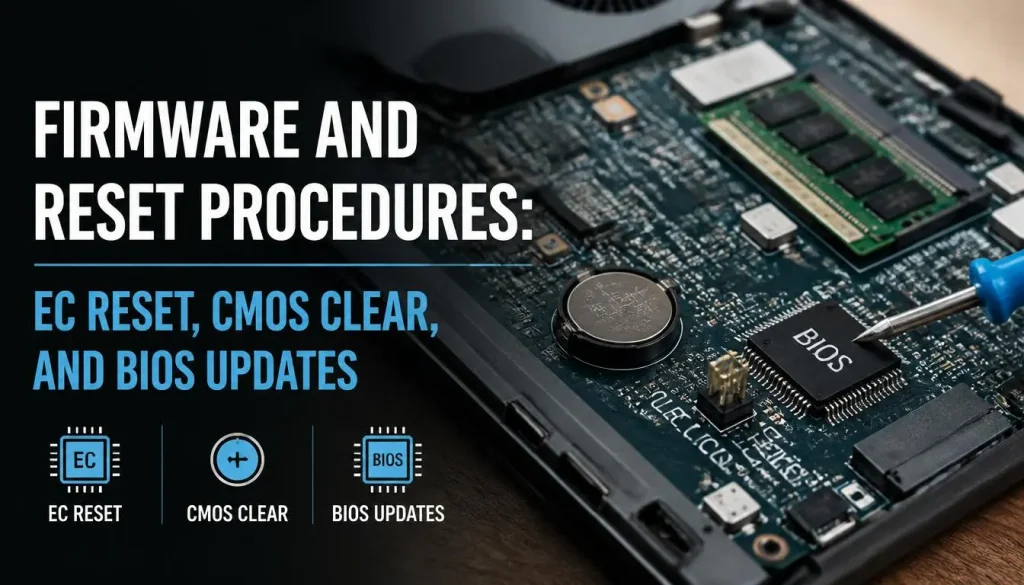
Software glitches can mimic hardware failures. Before you crack open the chassis, you should rule out firmware issues that confuse the power management system. The Embedded Controller is essentially a tiny computer inside your laptop.
It runs its own firmware independent of the main operating system. That firmware handles the handshake between your AC adapter and the charging circuit. When it bugs out, the laptop can misinterpret a perfectly good charger as faulty.
A hard reset forces the EC to reboot by clearing its volatile memory. We covered the basic procedure earlier, but let’s look at the nuanced variations across brands. Most manufacturers follow a similar pattern, but the exact key combinations differ.
Dell laptops often require holding the power button for thirty seconds while disconnected from all power. HP models may need you to press and hold both the power button and the volume down key simultaneously. Lenovo devices sometimes use a dedicated Nova button accessed through a pinhole on the bottom panel.
If the reset does not resolve the issue, you should check for BIOS updates. Manufacturer firmware updates frequently patch power management bugs. These updates can restore proper charging behavior that was lost to a software glitch.
Visit your laptop maker’s support site and search for BIOS or firmware releases. Look for release notes mentioning power delivery, charging, or embedded controller improvements. Download the update file and run it according to the provided instructions.
Keep the laptop plugged in throughout the entire process. A power interruption during a BIOS flash can permanently brick the motherboard.
Some brands implement proprietary charging threshold features that can cause confusion. ASUS includes Battery Health Charging, which lets you cap the maximum charge level at 60, 80, or 100 percent. If this feature is set incorrectly, the system may refuse to charge above the threshold even when the battery is below it.
MSI offers similar software called Battery Health Charging. Lenovo provides Conservation Mode on many of its gaming lines. These features are designed to extend battery lifespan by reducing stress on the cells.
They can appear as charging malfunctions if you are unaware they exist.
Check your manufacturer’s utility software first. Look for battery or power management settings in the pre-installed apps. Many gaming laptops include a companion program that controls these thresholds.
Adjust the settings back to full capacity mode if you suspect a software limit is causing the problem. This is a free and reversible change that eliminates a common source of confusion.
Software Traps: Charge Thresholds, Power Management, and Windows Indicators
Windows includes its own power management layer on top of the hardware firmware. It can display misleading indicators that point you in the wrong direction. When you see “Plugged in, not charging” in the taskbar, it is easy to assume the battery is dead.
In reality, the message often means the battery has reached its charge threshold or the system has decided to stop charging for thermal reasons.
Windows 11 uses a feature called Smart Charging in some configurations. It learns your daily usage patterns and delays charging past 80 percent until just before you typically unplug the laptop. If you rarely unplug your gaming laptop, this feature may appear to break charging entirely.
Check your battery settings in the Windows Settings app. Navigate to System, then Power and battery. Look for Battery settings and Battery health.
Disable any adaptive charging features temporarily to see if normal charging behavior returns.
Manufacturer software can also create false alarms. Tools like MyASUS, MSI Center, or Lenovo Vantage may report charging errors that do not actually exist. These apps sometimes cache old error states or fail to refresh their status correctly.
Close these applications completely from the system tray. Then restart your laptop. Check if the charging indicator in Windows changes.
If the problem resolves after closing the manufacturer software, you have found a software trap rather than a hardware fault.
Another software-related issue involves driver conflicts. The ACPI Compliant Control Method Battery driver interfaces between Windows and the battery hardware. If this driver becomes corrupted or outdated, Windows may lose communication with the battery.
Open Device Manager and expand the Batteries category. Right-click on ACPI Compliant Control Method Battery and select Update driver. Choose to search automatically for updated driver software.
If that does not help, uninstall the driver and restart the laptop. Windows will reinstall a fresh copy on boot. This simple procedure fixes a surprising number of charging reporting issues.
Keep a log of when the charging problem occurs. Note whether it happens at specific battery percentages, during certain tasks, or after particular software updates. This information helps you identify patterns.
If the problem started after a Windows update, you may need to roll back that update. If it correlates with opening certain applications, thermal throttling may be the cause. Documenting these details turns a vague frustration into a solvable diagnostic puzzle.
Real-World Case Studies: Gaming Laptops That Refuse to Charge Under Load
Concrete examples help you recognize patterns in your own situation. These documented cases show how different laptops exhibit the same symptom through different root causes. Understanding these scenarios helps you avoid wasting time on the wrong fix.
Case One: Frayed Charger Cable on a Desktop Setup
A user reported that their gaming laptop would not charge while gaming but charged fine when shut down. Initial diagnostics pointed to a motherboard issue. The multimeter showed stable voltage at the DC jack when idle.
However, when running a stress test, the voltage dropped to 14.2 volts. Tracing the problem backward revealed a frayed section of the charger cable near the brick. The internal wires had partially severed.
At low current draw, the remaining strands made contact. At high current demand, the resistance caused a severe voltage drop. Replacing the cable restored normal charging under load.
This case demonstrates why cable inspection should always come before motherboard diagnosis.
Case Two: Cracked DC Jack Solder Joint
Another scenario involved a laptop with a wobbly charging port. The connector moved noticeably when the plug was inserted. Voltage testing at the jack pins showed intermittent readings.
Gentle manipulation of the connector caused the charging status to flicker on and off. The problem was confirmed as cracked solder joints on the motherboard. A professional repair shop reflowed the existing joints and reinforced the jack with additional solder.
The repair cost was reasonable compared to a motherboard replacement. This case highlights the importance of checking connector stability during your initial inspection.
Case Three: BIOS Battery Threshold Misconfiguration
A user purchased a used gaming laptop that refused to charge past 60 percent. The battery appeared healthy during multimeter testing. The DC jack showed no physical damage.
The embedded controller reset produced no change. Investigation revealed the previous owner had enabled a battery preservation mode that capped charging at 60 percent. The new owner assumed this was a malfunction.
Changing the setting in the manufacturer utility software resolved the issue immediately. This case illustrates why you should always check software settings before assuming hardware failure.
Case Four: Thermal Shutdown of the PMIC
One of the most serious cases involved a laptop where charging would stop after ten minutes of gaming. The battery would charge initially, then the system would shut off charging mid-session. Thermal imaging revealed an extremely hot spot near the power management IC on the motherboard.
The component was overheating under load and triggering its own protection shutdown. This indicated a failing PMIC that could no longer handle the current. The only permanent fix was motherboard replacement.
This case shows how thermal issues can create intermittent charging problems that mimic simpler faults.
Each of these cases followed a different diagnostic path. The common thread is systematic elimination. Start with the simplest explanations.
Move to complex hardware repairs only after ruling out easier causes. This approach saves money and reduces frustration.
Common Mistakes That Can Kill Your Motherboard or Brick the Charging Circuit
DIY repair carries real risks. Gaming laptops pack components tightly together. A single mistake can turn a simple fix into a catastrophic failure.
Understanding what not to do is as important as knowing what to do. These are the most dangerous errors people make when troubleshooting charging problems.
Using the wrong charger is the fastest way to destroy a laptop. Some users grab any charger with the right barrel size. They ignore wattage ratings and polarity markings.
A higher voltage charger can instantly fry your motherboard. A lower wattage charger may work intermittently and cause long-term damage to the power circuit. Always match the original charger’s specifications exactly.
If you must use a replacement, verify the voltage, current rating, and connector polarity before connecting it to your laptop.
Improper battery removal techniques cause swelling and puncture risks. Some users try to pry out batteries without disconnecting them first. This puts mechanical stress on the connector and can damage the motherboard socket.
Others use metal tools near lithium batteries, creating short circuit risks. Always disconnect the battery connector from the motherboard before attempting any physical removal. Use plastic tools, not metal screwdrivers, when working near the battery pack.
Over-tightening screws during reassembly cracks the motherboard. Gaming laptops use multiple screw lengths. Using a long screw in a shallow hole can penetrate through the motherboard layers.
This creates a short circuit that may not manifest immediately. Follow the manufacturer’s screw diagram carefully. Note which screws go where.
If a screw feels like it requires excessive force, you are likely cross-threading or using the wrong length. Stop immediately and reassess.
Ignoring electrostatic discharge precautions can kill sensitive components. Static electricity from your body can damage the CPU, GPU, or charging IC on contact. Always ground yourself before touching internal components.
Use an antistatic wrist strap connected to a grounded surface. If you do not have one, touch an unpainted metal part of the chassis frequently to dissipate static buildup. Work on a non-carpeted surface whenever possible.
Skipping the CMOS battery disconnect during EC resets renders the procedure ineffective. Some users disconnect only the main battery and hold the power button. They forget the CMOS battery, which keeps the EC alive even when the main battery is removed.
Always disconnect both power sources to ensure a complete reset. This small step makes the difference between a successful reset and wasted effort.
These mistakes are common because they seem logical in the moment. Taking time to understand the risks before you begin protects both your laptop and your wallet.
Tools, Parts, and Costs: What You Need and What It Runs You
Armed with the right equipment, your diagnostic and repair work becomes faster and safer. You do not need a professional workshop, but certain tools make the difference between a clean repair and a costly mistake. Here is what you should have before you start.
A quality digital multimeter is essential. Basic models cost twenty to forty dollars and handle voltage, continuity, and resistance measurements. Look for one with auto-ranging capability and a durable probe set.
Cheap meters give inaccurate readings that can mislead your diagnosis. Spend the extra money for reliable measurements.
An antistatic workspace protects your components. An ESD mat costs fifteen to thirty dollars. An antistatic wrist strap adds another ten dollars.
These items prevent static discharge damage during internal repairs. They are inexpensive insurance against expensive mistakes.
If you plan to repair the DC jack yourself, you need soldering equipment. A temperature-controlled soldering iron costs fifty to one hundred dollars. A hot air rework station runs two hundred to four hundred dollars.
You will also need solder, flux, solder wick, and needle-nose tweezers. If you do not already own these tools, the investment may exceed the cost of professional repair.
Replacement parts vary widely in price. OEM charging cables typically cost thirty to eighty dollars. Aftermarket cables range from ten to twenty-five dollars but carry higher failure risk.
Replacement DC jacks run five to twenty dollars for the part alone. Labor at a repair shop adds sixty to one hundred fifty dollars. Battery replacements depend on capacity and brand.
Third-party batteries cost forty to one hundred twenty dollars. OEM batteries from manufacturers run one hundred fifty to three hundred dollars.
| Repair Type | Parts Cost | Labor Cost (If Professional) | Total Estimated Cost |
|---|---|---|---|
| Charger cable replacement | $10-$80 | $0 | $10-$80 |
| DC jack replacement (DIY) | $5-$20 | N/A | $5-$20 |
| DC jack replacement (pro) | $5-$20 | $60-$150 | $65-$170 |
| Battery replacement (third-party) | $40-$120 | $0 | $40-$120 |
| Battery replacement (OEM) | $150-$300 | $0 | $150-$300 |
| Motherboard PMIC repair | N/A | $150-$400 | $150-$400 |
| Full motherboard replacement | N/A | $300-$600 | $300-$600 |
These figures are estimates based on typical market rates as of 2026. Actual costs vary by region, laptop model, and repair shop. Budget-conscious users often find that DIY repairs on accessible components like chargers and batteries save significant money.
Complex motherboard repairs usually justify professional service unless you have advanced soldering experience.
Deciding between DIY and professional repair depends on your skill level and the diagnosed problem. Simple cable and battery swaps are well within reach of most users who follow instructions carefully. DC jack and motherboard repairs require specialized tools and steady hands.
If you are uncertain about any step, seek professional help rather than risking further damage.
When to Stop DIY and Seek Professional Repair
Knowing when to hand your laptop to a professional is just as important as knowing how to fix it yourself. Pushing through a complex motherboard repair without proper training can turn a $100 problem into a $600 paperweight. Several clear warning signs indicate that professional help is the smarter choice.
Stop immediately if you detect burning plastic smells or see smoke coming from the charging port. These are signs of an active electrical fault that can escalate quickly. Do not continue plugging and unplugging the charger.
Unplug the device and let it cool completely before touching it again. Contact a repair service right away.
Seek professional repair if your multimeter shows zero voltage at the DC jack pins even with a known-good charger connected. This suggests a complete open circuit on the motherboard, likely involving the power delivery traces or the main power input circuit. Repairing these traces requires micro-soldering skills and schematic diagrams that most hobbyists do not have.
Attempting this without experience risks permanent damage.
Professional help is also warranted when the laptop exhibits intermittent charging only after applying pressure to specific areas of the chassis. This symptom indicates broken internal traces or cracked solder joints under major components like the CPU or GPU. Fixing these issues requires board-level micro-soldering and thermal camera diagnostics.
Only specialized repair shops have the equipment and expertise for this work.
If your battery is swollen, do not attempt further diagnostics yourself. Swollen lithium-ion cells are unstable and can ignite if punctured, compressed, or exposed to heat. Remove the battery if you can do so safely without bending the pouch.
Place it in a fire-safe container away from flammable materials. Take the entire laptop to a professional repair service that handles battery replacements regularly.
Compare the cost of professional repair against the value of your laptop before deciding. If the repair quote exceeds 50 percent of the laptop’s current market value, replacement may be more economical. A gaming laptop motherboard repair typically costs $200 to $400.
If your laptop is three or more years old and already shows other signs of wear, investing in a motherboard repair may not provide good long-term value.
When you do seek professional help, choose a reputable shop carefully. Look for technicians certified in laptop board-level repair. Read recent customer reviews focusing on charging and power supply repairs specifically.
Ask whether they provide a warranty on their work, ideally 90 days or longer. A shop confident in its repairs will stand behind it.
Avoid repair shops that quote prices over the phone without inspecting your device first. Responsible technicians examine the hardware before giving estimates. They should also explain exactly what component failed and why.
Vague diagnoses like “motherboard issue” without specifics should raise red flags. Request a written estimate before authorizing any work.
Frequently Asked Questions About Gaming Laptop Only Charges When Off
Can I still use my gaming laptop if it only charges when powered off?
Yes, you can use the laptop plugged in while it is running. The issue affects charging, not power delivery. However, you should not rely on this behavior long-term.
Operating with an unstable charging connection can damage the battery over time. Plan to repair the fault as soon as practical to protect your investment.
Why does my laptop charge fine overnight but not while I’m gaming?
This pattern points to a load-dependent failure in the charging circuit. When the laptop sleeps or shuts down, power demand drops significantly. The weakened component can handle the low current required for maintenance charging.
Gaming pushes the CPU and GPU to high power states, demanding much more current from the adapter and charging circuit simultaneously. The failing component cannot sustain that load and cuts off charging.
Is it safe to charge a gaming laptop with a lower-wattage charger?
Using a lower-wattage charger is generally safe but causes performance problems. The laptop will throttle the CPU and GPU to stay within the reduced power budget. Gaming performance will suffer noticeably.
The battery may charge very slowly or not at all while running demanding applications. Always use the wattage rating specified by the manufacturer for optimal performance and charging speed.
How long does an embedded controller reset take to work?
An EC reset typically takes effect immediately after you reconnect power and boot the laptop. The procedure clears temporary firmware states that cause charging glitches. If the reset does not resolve the issue within five minutes of rebooting, the problem is hardware-related rather than firmware-related.
Do not repeat the reset multiple times, as this will not change the outcome.
What is the typical cost to replace a DC power jack on a gaming laptop?
Professional DC jack replacement usually costs between eighty and one hundred fifty dollars including parts and labor. The jack itself costs five to twenty dollars. Labor dominates the price due to the disassembly required to access the motherboard.
Some repair shops charge a minimum service fee that makes this repair less economical on older laptops. Compare the repair cost against your laptop’s current value before proceeding.
Can a software update permanently fix a charging hardware problem?
Software updates cannot fix physical hardware failures like cracked solder joints or worn connectors. However, firmware updates can resolve charging issues caused by bugs in the embedded controller or power management software. If your charging problem started after a recent BIOS or firmware update, rolling back to the previous version may restore normal function.
Hardware failures always require hardware solutions.