If you're seeing frame rate drops or hearing fans scream, you likely want to know why gaming laptop overheating while gaming happens. It’s rarely one single fault. Usually, it’s a combination of restricted airflow, aged thermal paste, and aggressive power settings pushing components beyond their safe limits.
Most modern CPUs and GPUs throttle automatically at 95°C to prevent damage. As of 2026, manufacturers like Intel and AMD specify junction temperatures that allow brief spikes but demand sustained cooling for peak performance. Ignoring these signs can shorten your device's lifespan significantly.
Let’s break down the exact causes and fixes step by step.
Why Gaming Laptop Overheating While Gaming
Gaming laptops overheat because compact chassis trap heat generated by high-performance CPUs and GPUs. Dust blocks vents, dried thermal paste fails to transfer heat, and background processes spike CPU usage. These factors combine to push temperatures past safety thresholds, causing throttling or shutdowns.
Diagnose the Symptom Before You Touch Hardware
Before opening your laptop, identify if the issue is software or hardware. Wrong diagnoses lead to unnecessary repairs. Follow this decision tree to pinpoint the root cause.
Check Ambient Temperature and Placement
Is your room hotter than 25°C (77°F)? High ambient temps reduce cooling efficiency. Also, check where you place the laptop.
Using it on beds, couches, or carpets blocks bottom intake vents. This restricts airflow immediately. Move it to a hard, flat surface.
If temps drop, placement was the culprit.
Monitor Real-Time Temperatures
Download HWiNFO64 or Core Temp. Run a demanding game for 15 minutes. Watch CPU and GPU package temperatures.
| Component | Normal Load Temp | Warning Zone | Critical Throttle Point |
|---|---|---|---|
| CPU Package | 70–85°C | 85–90°C | 95–100°C |
| GPU Hot Spot | 75–85°C | 85–90°C | 90–95°C |
| VRAM Memory | 80–90°C | 90–95°C | 100–105°C |
If temps stay below 85°C but performance drops, the issue might be power limits, not heat. If they hit 95°C+, you have a cooling failure. Note when the spike occurs.
Is it immediate? Or after 10 minutes? Immediate spikes suggest bad contact between heatsink and chip.
Delayed spikes point to dust buildup or saturated heatsinks.
Rule Out Background Processes
Open Task Manager (Ctrl+Shift+Esc). Sort by CPU usage. Are antivirus scans, Windows Updates, or RGB control software eating cycles?
Close them. Restart the game. If stability improves, software conflict was the trigger.
Many users overlook routine upkeep analogies here: just as a clogged air filter chokes an engine, background apps choke CPU resources, generating excess heat without improving gameplay.
Eliminate Software Bottlenecks and Power Plan Conflicts
Software misconfiguration often mimics hardware failure. Adjusting power plans and fan curves can solve overheating without physical intervention.
Adjust Windows Power Settings
Windows defaults may prioritize battery life or balanced performance, causing erratic clock speeds. Switch to "High Performance" mode. Go to Control Panel > Hardware and Sound > Power Options.
Select High Performance. Click "Change plan settings" > "Change advanced power settings." Expand "Processor power management." Set "Maximum processor state" to 99%. This disables Turbo Boost slightly, reducing heat output by 10, 15% with minimal FPS loss.
Test this first. It’s the safest non-invasive fix.
Configure Manufacturer Control Centers
Brands like ASUS, Lenovo, and MSI provide dedicated software (Armoury Crate, Vantage, Dragon Center). These tools manage fan curves and TDP limits. Default profiles are often conservative.
Switch to "Turbo" or "Performance" mode only if necessary. Better yet, create a custom profile. Raise fan RPM earlier in the temperature curve.
Don’t wait for 90°C to spin fans up. Start increasing speed at 70°C. This prevents thermal soak.
If your specific model lacks granular control, consider upgrading to a unit with better firmware support, such as those reviewed in our guide on power for serious gamers.
Update Drivers and BIOS
Outdated GPU drivers can cause inefficient rendering loops, spiking usage unnecessarily. Visit NVIDIA or AMD official sites for clean installs. Also, check your manufacturer’s support page for BIOS updates.
Manufacturers frequently release patches that optimize fan behavior and voltage regulation. An old BIOS might run fans too slowly. Updating ensures you have the latest thermal algorithms.
For broader context on maintaining peak performance across various devices, see our insights on top-rated brewers which parallels how regular maintenance extends hardware longevity.
Clear Physical Blockages and Optimize Airflow
Dust is the enemy of thermals. Even small amounts insulate heatsinks and block fins. Regular cleaning restores factory-level cooling potential.
Inspect Intake and Exhaust Vents
Turn off the laptop. Unplug it. Look at the bottom intakes and rear/side exhausts.
Use a flashlight. Do you see gray fuzz or hair? That’s dust.
It acts as insulation. If visible, proceed to cleaning. If hidden, you’ll need to open the back panel.
Most gaming laptops use Phillips-head screws. Keep track of them. Some models have rubber feet hiding screws.
Check your manual before prying.
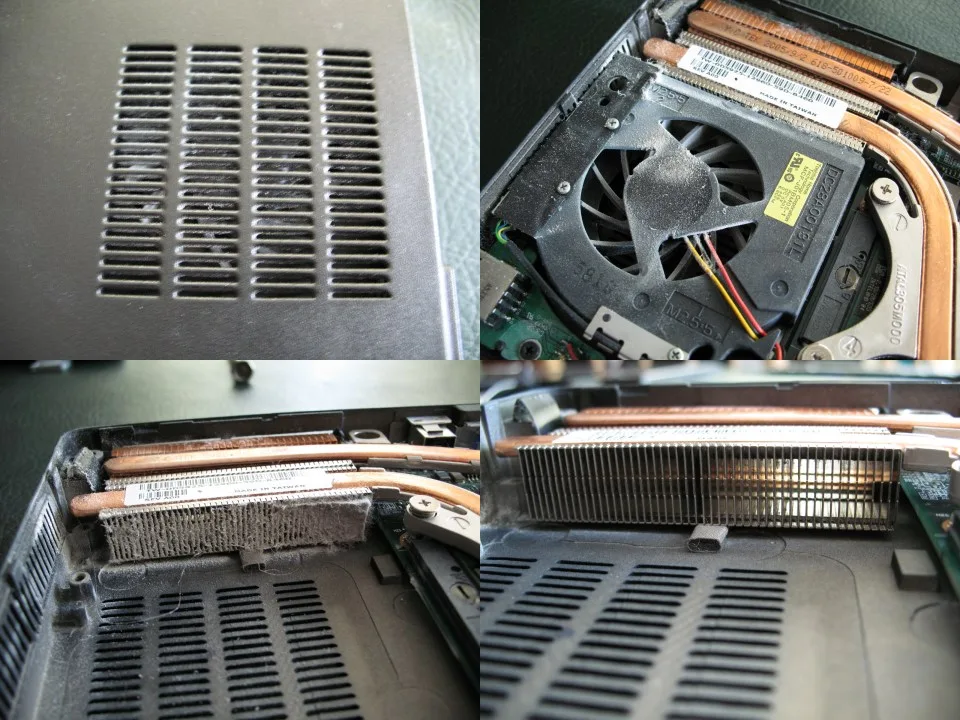
Image credit: Wikimedia Commons / DMahalko
Clean With Compressed Air Safely
Do not shake the can. Hold it upright. Use short bursts.
Aim directly into the exhaust vents from the outside. Push dust out through the intakes. Never blow into intakes from the outside; this pushes dust deeper onto the motherboard.
Cover the keyboard to prevent debris entry. Rotate the laptop to dislodge settled particles. Repeat until no more dust flies out.
This takes 5, 10 minutes. Do this every 3, 6 months depending on environment. Pet owners should do it monthly.
Elevate the Chassis
Airflow needs space. Flat surfaces suffocate bottom intakes. Use a stand or cooling pad.
A simple book under the rear hinges works for testing. Lift the back 2, 3 inches. This creates a chimney effect, drawing cool air in and hot air out.
Dedicated pads add active fans, but elevation alone often drops temps by 5, 10°C. If you’re looking for accessories that balance portability and cooling, review options like power meets portability to find lightweight stands that don’t compromise desk space.
Evaluate Thermal Interface Materials (Paste vs. Liquid Metal)
Stock thermal paste degrades over time. After 2, 3 years, it dries out, losing conductivity. Replacing it can restore original temperatures.
However, material choice matters.
Identify Your Current TIM Type
Check your laptop model online. Does it use standard silicone paste or liquid metal? Brands like Lenovo Legion and some ASUS ROG models ship with liquid metal on the die.
This offers superior cooling but conducts electricity. If you spill it on capacitors, you kill the board. Standard paste is safer for DIY beginners.
If unsure, assume standard paste unless confirmed otherwise by teardown videos or forums.
Choose the Right Replacement Paste
For standard paste, avoid cheap generic tubes. Use high-viscosity compounds designed for laptops. Honeywell PTM7950 is a phase-change material favored by enthusiasts.
It doesn’t pump out like traditional paste. Thermal Grizzly Kryonaut is another top-tier option. Apply a pea-sized amount to the center of the CPU/GPU die.
Spread evenly with a plastic spatula. Too much paste insulates; too little leaves gaps. Precision matters.
Consider Professional Repasting
Liquid metal application requires skill. Insulate surrounding components with nail polish or Kapton tape. One mistake shorts the circuit.
If your laptop uses liquid metal, we strongly recommend professional service. Warranty voiding risks are high. Compare costs: DIY paste kit ($20) vs. pro service ($50, $100).
If your device is under warranty, always go through authorized channels to preserve coverage. For those weighing cost versus benefit, our analysis of cost efficient gaming laptop strategies highlights how maintenance impacts long-term value.
Advanced Tuning: Undervolting and Custom Fan Curves
If cleaning and software tweaks haven’t dropped temps enough, you can adjust voltage delivery. Undervolting reduces the electrical pressure required to maintain clock speeds. This cuts heat generation without sacrificing performance.
It’s a powerful tool for enthusiasts willing to tweak BIOS settings.
How Undervolting Works
Processors don’t need maximum rated voltage to run at high frequencies. They often have headroom. By lowering this voltage slightly, you reduce power consumption.
Less power means less waste heat. You might drop CPU temps by 5, 10°C instantly. Aggregate user reviews show significant stability gains when done correctly.
Start with small steps. Reduce voltage by 25mV increments. Test stability after each change.
If the system crashes, increase voltage back up. Patience is key here. Rushing leads to instability.
Creating Aggressive Fan Profiles
Default fan curves are designed for silence, not cooling. They keep fans quiet until temperatures hit critical levels. Change this behavior in your manufacturer’s control center.
Set fans to ramp up earlier. For example, start increasing RPM at 60°C instead of 80°C. This prevents thermal soak before it begins.
You’ll hear more noise, but your hardware will stay cooler. Balance is subjective. Some users prefer louder fans for better FPS stability.
Others accept throttling for quieter sessions. Decide what matters most to you. If you’re unsure about balancing noise and performance, consider how different controllers affect immersion versus utility.
Often, external peripherals distract from internal tuning needs.
Risks of Over-Tuning
Undervolting too aggressively causes blue screens or random reboots. Always save a default profile in BIOS. If things go wrong, reset easily.
Never undervolt below stable limits just to chase numbers. Stability trumps peak benchmarks every time. Also, ensure your battery health supports these changes.
High drain rates stress aging cells. Check our guide on battery percentage drops if you notice rapid discharge during tuned sessions. Poor battery health exacerbates thermal issues because charging generates additional heat.
Keep an eye on both metrics simultaneously.
When to Stop DIY Fixes and Seek Professional Repair
Sometimes, the problem isn’t dust or software. Internal component failure requires expert attention. Knowing when to stop saves money and prevents further damage.
Recognize the red flags early.
Signs of Hardware Failure
Persistent shutdowns despite cooling efforts indicate deeper issues. If your laptop turns off abruptly at 90°C, the thermal sensor might be faulty. Or, the heatsink mounting brackets could be loose.
These require disassembly beyond basic cleaning. Look for physical damage too. Burnt smells or visible scorch marks near vents mean immediate cessation of use.
Do not attempt repairs yourself. Electrical shorts pose fire risks. Professional technicians have tools to diagnose motherboard-level faults accurately.
Warranty Implications
Opening your chassis usually voids warranties. Manufacturers like Dell and HP specify tamper-evident seals. Breaking these seals cancels coverage.
If your device is new (under 2 years), contact support first. Explain symptoms clearly. Mention overheating under normal loads.
They may authorize a repair depot visit. This preserves your warranty rights. Attempting liquid metal application on a warrantied unit is particularly risky.
One slip destroys the board permanently. Weigh repair costs against replacement value. Sometimes, sending it in is cheaper than buying parts.
For insights on preserving resale value through proper care, review factors influencing cost effective gaming laptop ownership long-term. Maintenance history impacts future trade-in prices significantly.
Choosing a Reputable Service Center
Avoid unauthorized third-party shops unless they specialize in electronics. Look for certified partners listed on manufacturer websites. Ask about their experience with specific brands.
ASUS ROG and Lenovo Legion have unique layouts. Generalists might struggle with proprietary clips. Read recent customer feedback regarding turnaround times and success rates.
A good shop provides transparent diagnostics. They should explain exactly what failed and why. Don’t settle for vague answers like "it overheated." Demand specifics: "The thermal pad on VRM3 degraded," etc.
Clarity builds trust. Ensure they test the device post-repair. Verify temps return to baseline ranges before leaving the store.
Cost-Benefit Analysis: Cooling Pads, Repasting, or Upgrading?
Fixing overheating has varying price tags. You must decide if investment outweighs benefits. Compare options based on severity and budget constraints.
Not all solutions suit every scenario equally well.
Passive vs. Active Cooling Solutions
Cooling pads range from $20 to $100+. Basic stands offer elevation only. They improve airflow passively.
Expect 3, 5°C drops. Active pads add USB-powered fans. These force air into intakes.
Results vary wildly. Some models channel air effectively. Others just blow noise around.
Verified buyer feedback reports mixed experiences with active pads. Many find them bulky and noisy. However, for older units with worn fans, they provide relief.
Consider portability needs. Travel gamers dislike extra gear. Desk-bound users tolerate bulk easier.
Match solution to lifestyle. If you travel frequently, prioritize lightweight setups akin to those discussed in portability-focused machines. Heavy accessories defeat the purpose of mobile gaming rigs.
Repasting Costs and Returns
DIY repasting costs under $30 for materials. Labor-free if skilled. Potential gain: 10, 15°C reduction.
This extends usable life by years. Pro service costs $50, $150. Gain remains similar.
Risk involves potential damage if amateurish. For devices over 3 years old, DIY makes sense. Warranties are expired anyway.
The ROI is high. Newer devices should stick to official channels. Paying premium for minor gains rarely justifies risk.
Calculate break-even points carefully. If a pro fix costs half the laptop’s value, upgrade instead.
Upgrade Versus Repair Decisions
When does repair become illogical? If parts cost exceeds 40% of new equivalent, replace. Modern laptops integrate components tightly.
Motherboard swaps are expensive. GPU failures often necessitate full unit replacement. Compare current market prices.
Entry-level RTX 4060 laptops sell for $800, $1000. Spending $400 on repairs leaves little margin. Factor in obsolescence.
Older CPUs lack efficiency gains. Newer architectures handle heat better per watt. Investing in newer tech yields dual benefits: performance and thermal headroom.
Consult specs on core processors to understand generational leaps in efficiency. Jumping generations solves root causes rather than treating symptoms.
Common Mistakes That Void Warranties or Damage Components
Enthusiasm drives errors. Well-meaning fixes often cause irreversible harm. Avoid these frequent pitfalls.
Knowledge protects your investment. Learn from others’ mistakes before acting impulsively.
Using Household Cleaners
Never use water, alcohol, or household sprays inside vents. Liquids seep onto circuits. Corrosion follows quickly.
Even isopropyl alcohol residues attract dust later. Stick to dry compressed air. If grease buildup exists, use specialized electronic cleaners sparingly.
Apply to cloths, never spray directly. Moisture kills motherboards faster than heat does. Dryness ensures safety.
Wait hours after any accidental spill before powering on. Humidity sensors detect moisture. False triggers occur if residue remains.
Cleanliness equals longevity. Ignore shortcuts that promise quick shine but hide hidden dangers within delicate assemblies.
Ignoring Static Electricity Precautions
Disassembling without ESD protection fries chips silently. Ground yourself properly. Wear anti-static wrist straps connected to grounded metal.
Touch unpainted computer case regularly if no strap available. Carpet socks generate thousands of volts invisibly. Discharge happens upon contact with sensitive pins.
Prevention takes seconds. Negligence costs hundreds. Always work on hard surfaces, not rugs.
Remove jewelry that conducts charge unexpectedly. Treat internals like fragile glassware. Respect electrostatic principles rigorously throughout entire maintenance procedures consistently.
Overlooking Battery Health During Repairs
Swollen batteries press against chassis walls. This distorts airflow paths internally. Forced expansion cracks cases.
Replace swollen packs immediately. Do not puncture them. Lithium fires burn intensely hot.
Dispose via certified recycling centers only. Check capacity fade alongside thermal stats. Degraded batteries charge hotter.
This adds ambient load to already stressed systems. Addressing one ignores the other. Holistic diagnosis catches interlinked failures early.
Monitor voltage fluctuations closely during intensive tasks involving heavy computational loads regularly.
Frequently Asked Questions
Is it safe to game while plugged in?
Yes, modern laptops manage power intelligently. Plugging in allows full performance modes. Batteries bypass once charged fully.
Heat comes from compute load, not charging itself. However, constant 100% charge stresses lithium ions slightly. Use conservation modes if storing long-term.
Gaming plugged in maximizes frame rates safely. Just ensure ventilation isn’t blocked by cables nearby.
How often should I clean my laptop vents?
Every 3 to 6 months depends on environment. Pet owners or smokers need monthly checks. Dust accumulates rapidly in hairy homes.
Visual inspection guides frequency. If gray fuzz appears, clean immediately. Waiting until overheating occurs damages components prematurely.
Preventative maintenance beats reactive repair always. Schedule reminders quarterly for consistency.
Does a cooling pad actually lower temperatures?
Elevation helps more than fans typically do. Lifting the rear opens intake paths significantly. Active fans assist marginally unless aligned perfectly with vents.
Most pads sit misaligned. Quality stands outperform cheap flashy ones. Focus on airflow geometry over RGB lights.
Simple risers often yield better results than complex electronic gadgets unnecessarily.
Can I use thermal paste meant for desktops?
Technically yes, but viscosity differs. Desktop pastes spread thinner. Laptop dies are smaller.
Thick layers insulate. Thin layers transfer poorly. Use laptop-specific formulations like PTM7950.
They handle pump-out effects better. Standard silicone degrades faster under cyclic heating. Specialized compounds last longer reliably.
Match material properties to form factor constraints precisely.
Why does my laptop throttle even at low temps?
Power limits override temperature safeguards sometimes. PL1/PL2 caps restrict watts regardless of heat. Check Windows Power Plan settings.
Reset to Balanced if customized incorrectly. Firmware bugs also cause premature limiting. Update BIOS to latest version.
Manufacturer patches fix erroneous throttling logic occasionally. Software configs trump hardware capability often unexpectedly.